Sharing your live location from your phone can make plans smoother and safety easier to manage. Whether you’re using an iPhone or an Android device, this guide focuses on quick, reliable ways you can share your location in real time. If you’re using a smartphone, you’ll find both options straightforward and practical.
From there, this guide walks you through the fastest methods for everyday use. It covers the steps you’ll actually take in the moment, not just the theory, so you can share your position with family, friends, or teammates in a snap. You’ll learn how to control who sees your location and for how long, so privacy stays intact.
By the end, you’ll know the quickest routes to share live location on both major platforms and how to protect your privacy online. This small skill saves time and reduces worry during busy days, travel, or meetups. If you’re planning something with a group, you’ll appreciate how simple it is to keep everyone in the loop using your smartphone.
Fast ways to share your live location from your phone
Sharing your live location quickly can save time, reduce confusion, and boost safety when meeting up or staying connected. This section covers practical, real world methods for iPhone and Android users. Each method includes concise steps, what the recipient will see, and quick privacy reminders. Use the method that fits your context, whether you’re in a chat, using a map app, or passing your location through a messaging platform.
Share live location via Messages and iMessage
Sharing your live location through Messages or iMessage is often the fastest option when you’re already in a chat. Here’s how to do it in a few simple taps:
- Open the conversation with the person you want to share with.
- Tap the contact’s name or the profile icon at the top, then look for “Share My Location” or “Share Live Location.”
- Choose the duration for which you want to share (for example, 1 hour, until end of day, or indefinitely if you want ongoing sharing).
- Confirm to send. The recipient will see a live map within the Messages thread that updates in real time as you move.
- The receiver can tap the live location to open a larger map view with your current position and movement history.
Notes on time limits and viewing:
- You can set a time limit when you start sharing. After the selected period ends, updates stop automatically unless you extend it.
- The recipient’s device shows your live location on a map that updates as you move. They can see your direction, speed, and exact coordinates as you travel.
Image to illustrate the flow:

Photo by Tima Miroshnichenko
If you want to keep things simple, you can also share a one time location in Messages. That shows where you are at this moment without ongoing updates. It’s ideal for quick meetups like “I’m here now, heading to the cafe.”
Why this method works well:
- It’s built into the default messaging experience, so there’s no extra app to install.
- The live updates are automatic and easy for anyone in the chat to access.
- It’s flexible for different privacy needs since you control the duration.
Tip: If you’re coordinating with a group, you can start a group chat and share your live location there. The same steps apply, and everyone in the group can see where you are in real time.
Use Find My on iPhone for live location sharing
Find My is a powerful choice when you want to share your location beyond a simple chat. It works across apps and can deliver a direct live view or a shareable link. Here’s how to use it effectively:
- Open the Find My app and select the person you want to share with. You can pick a specific contact or select “Share My Location.”
- To share live location, choose the duration you’re comfortable with. You can set it for a set time or until you turn it off.
- You can also generate a direct link to your live location that others can open in their browser, even if they don’t have your contact saved.
- To stop sharing, return to Find My or Messages and toggle off Live Location sharing. You can also adjust the expiration if you want to shorten or extend the sharing period.
What the recipient sees:
- A live map showing your current location, updated as you move.
- Basic details like your name and profile photo, depending on how you’ve configured sharing.
- Your approximate arrival time if you or others add notifications.
Privacy considerations when sharing with groups:
- Be deliberate about who is included in group shares. It’s easy to forget that many people have access in a group thread.
- Review the expiration settings periodically to avoid long term sharing beyond your needs.
- Use the “Stop Sharing” option if plans change or if you no longer want others to track your movements.
Quick note on privacy:
- You control precisely who can see your location and for how long. If a contact leaves the group or you revoke permission, access ends immediately.
Image to illustrate the Find My sharing flow:
Photo by Tima Miroshnichenko
Further reading on Find My location sharing:
- Apple provides step by step guidance on sharing location in Find My and Messages. Learn more at Apple Support’s Find My location sharing section.
Share with Google Maps on Android and iPhone
Google Maps makes location sharing straightforward across platforms. It’s especially handy if you’re coordinating with people who may not be using the same messaging apps. Here’s how to get real time location sharing working quickly:
- Open Google Maps and tap your profile picture or initial, then choose “Location sharing.”
- Set how long you want to share your location (for a specific duration or until you turn it off).
- Pick people to share with by sending a link or selecting contacts. You can also copy the link and paste it into any chat or email.
- The recipients will see your location on a live map. They can view your path and estimated arrival time if you have notifications enabled.
Key points about duration and visibility:
- You decide exactly who can see your location and for how long.
- People you share with will see your device’s name and profile photo, along with your live position and battery status in some cases.
- If you want to stop sharing early, return to Location sharing in Google Maps and turn it off.
Battery and data considerations:
- Real time sharing uses more battery than standard map use. If you’re on a long trip, consider shorter sharing windows or turning off location sharing when it’s not needed.
Cross platform tip:
- On iPhone, you can share from Google Maps in the same way as on Android. The interface is tuned to keep steps simple on both platforms.
Image to illustrate Google Maps live sharing:
Photo by Tima Miroshnichenko
Helpful links:
- Share your real-time location with others in Google Maps (Android guide)
- Share your real-time location with others in Google Maps (iPhone and iPad guide)
Share through apps like WhatsApp or Telegram using the share sheet
The share sheet makes it easy to pass live location to a broad set of apps, including WhatsApp and Telegram. This method works well when you’re already in a chat or when you want to switch to a different app for messaging. Here’s how to do it:
- In the app where your live location is visible (Maps or Messages, for example), tap the share icon or the three-dot menu to open the share sheet.
- Choose the messaging app you want to use (WhatsApp, Telegram, etc.).
- The recipient will receive a live location link or an embedded map, depending on the platform and settings.
- The recipient can open the link to view your live updates and, if supported, request updates or message you back.
Cross platform notes and privacy tips:
- WhatsApp and Telegram both support live location sharing, but the experience may vary slightly by platform. People on Android and iOS will receive updates in real time if both sides permit location sharing.
- If you’re sharing with a broad audience, consider setting a time limit or periodically stopping sharing to protect your privacy.
- When sharing with strangers or in public channels, avoid exposing precise routes or sensitive destinations.
Practical example:
- You’re meeting friends at a crowded festival. You open Google Maps, start live sharing for 2 hours, and paste the link into WhatsApp. Friends can watch your approach in real time, then you stop sharing once you’re in the venue.
Image suggestion (if needed later):
Photo by Tima Miroshnichenko
External resources for apps:
- How to use live location in WhatsApp
- How to share location on Telegram
Images credits and usage notes:
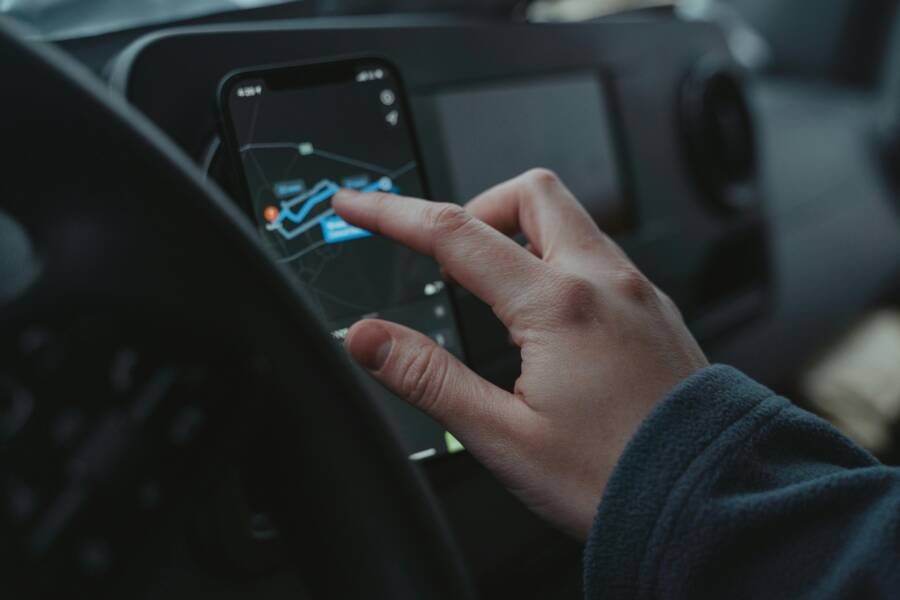
- Use images that match the motion of sharing live location, such as a person using a phone or a map on screen. The provided photo of a hand on a GPS navigation screen fits well for transitions between methods. Credit as shown above.
If you’d like, I can tailor this section to align even more tightly with your current article structure or language style, and add or remove any subtopics to fit your target word count.
Platform specifics: iPhone vs Android
When you share your live location, the experience can vary a bit depending on the device and the apps you use. Below you’ll find practical, step by step guidance for iPhone and Android users, plus strategies to keep everyone in the loop across platforms. The goal is to make real time sharing quick, reliable, and privacy-conscious, no matter which device you and your friends carry. For each platform, you’ll see how to set up sharing, what the recipient sees, and best practices to end sharing when you’re done.
iPhone tips: Find My and Messages
iPhone users have two reliable channels for live location sharing: Find My and the Messages app. Both are built into iOS, so you won’t need extra downloads. Here are the exact steps, plus settings that help you stay in control.
- Decide which app to use. If you’re already in a chat, Messages often feels fastest. If you want more control and cross app sharing, Find My is ideal.
- In Messages, open the conversation. Tap the contact’s name or profile icon at the top, then select “Share My Location” or “Share Live Location.”
- Choose a duration. Options typically include 1 hour, until end of day, or indefinitely. For short meetups, a limited window is safest.
- Confirm. The recipient will see a live map inside the Messages thread that updates as you move.
- In Find My, open the app and pick the person you want to share with. You can choose a specific contact or select “Share My Location.”
- Set the duration. You can share for a fixed time or until you turn it off. You can also generate a direct link to your live location for others to view in a browser.
- Stop sharing when you’re done. Return to Find My or Messages and toggle off Live Location sharing. You can shorten or extend the sharing period if needed.
What the recipient sees:
- A live map showing your current location, updating in real time.
- Your name and profile photo, depending on how you’ve set up sharing.
- Optional arrival time estimates if notifications are enabled.
Privacy considerations for groups:
- Be selective about who is in group shares. It’s easy to lose track of who can see your location in a large chat.
- Regularly review expiration settings to avoid long term sharing beyond your needs.
- Use the Stop Sharing option when plans change or you no longer want updates.
Tip for quick setup:
- If you’re coordinating a group, start a group chat and share live location there. Everyone can see your position in real time, and you can stop sharing with a single action when the meetup ends.
Helpful resource: Apple’s guidance on sharing location in Messages and Find My is comprehensive and keeps your options clear. Learn more at Apple Support.
Android tips: Google Maps real time sharing
Android users benefit from Google Maps location sharing, which also works well when you’re coordinating with iPhone users. It’s straightforward, and the controls are consistent across devices. Here’s how to get it running quickly.
- Open Google Maps and access Location Sharing. Tap your profile picture or initial, then choose “Location sharing.”
- Set the duration. You can share for a specific period or until you switch it off.
- Choose recipients. You can send a share link or select contacts directly. Recipients will see your location on a live map.
- What the recipients see. They’ll view your name and photo, your live position, and in some cases your battery status. If you enable arrival or departure notifications, they’ll get timing cues as well.
- How to stop sharing. Return to Location Sharing in Google Maps and turn it off.
Important considerations:
- Duration and visibility are under your control. You decide who can see your location and for how long.
- Battery impact. Real time sharing uses more power than standard navigation. Shorter sharing windows or turning off sharing when not needed helps conserve battery.
- Cross device flow. On an iPhone, you can start sharing from Google Maps with the same simple steps, making cross platform coordination smoother.
Visual guide: a live sharing screen in Google Maps helps simplify the process on Android devices. Learn more in Google Maps’ official support article on real time location sharing.
Cross platform tip:
- You can share from Google Maps on iPhone as well. The interface keeps things straightforward on both platforms.
Helpful resources:
- Google’s official guide on sharing your real-time location in Maps
- Manage your Location Sharing settings on Android
Cross platform sharing: keeping friends and family in the loop
Sharing live location across iPhone and Android can be seamless when you use the right mix of apps. The key is to set expectations and use privacy controls that fit your group’s needs. Here are practical approaches that work well in practice.
- Use Google Maps for universal access. It’s a reliable cross platform option that lets you send a link or share directly with contacts, and it shows on any device with the Maps app.
- Try WhatsApp or Telegram for quick cross platform sharing. The share sheet allows you to push live updates into a chat or group, with the recipient able to view updates in real time.
- Consider the privacy balance. If you’re sharing in a large group, set a clear end time or remind participants to stop sharing when plans change.
Practical flow you can follow:
- Start live sharing in Google Maps on your iPhone or Android.
- Send the link or share directly in WhatsApp or Telegram to your friends.
- If you’re coordinating a tight meetup, prefer shorter duration and disable sharing as soon as you reach the destination.
Privacy controls you’ll want to apply:
- Only share with people you trust. Limit access to a few contacts or a specific group.
- Use expiration times. Short windows reduce exposure and ease concerns.
- Stop sharing when the plan ends. It’s the simplest way to keep your location private.
Real world example:
- You’re at a festival with friends who use different platforms. Start live sharing in Maps for a set two hours. Paste the link into a WhatsApp group so everyone can follow your progress, and then stop sharing once you’re settled into the venue.
Cross platform resources:
- How to share location between iPhone and Android using common apps
- Shared best practices for cross platform live location sharing
External links and further reading:
- Apple Support: Share your location with iPhone
- Google Maps: Share your real-time location with others in Google Maps
Key takeaway:
- The best approach is to use a familiar app (Messages or Find My on iPhone, Google Maps on both platforms) and supplement with a widely used cross platform messenger when needed. Always set a clear sharing duration and stop sharing when you no longer need updates. This keeps you in control while making group meetups simpler.
If you want, I can tailor this section further to match your exact word count target or align with any specific stylistic preferences you have for iPro+ 知識酷.
Safety and privacy when sharing your live location
Sharing your live location is a powerful tool for coordination and safety, but it carries real privacy considerations. In this section you’ll learn practical ways to control who sees your position, set reasonable time limits, and stop sharing quickly across the most common apps. The goal is to stay connected without exposing more than you intend. Always pair fast sharing with deliberate privacy choices.
Control who can see your location
You should always decide who has access before you start sharing. Different apps give you different controls, but the principle is the same: narrow the audience to trusted individuals and groups.
- Messages and iMessage: When you share in a chat, you’re implicitly granting access to everyone in that thread. Set a duration to limit exposure and remind yourself to end sharing when plans change. If you’re coordinating with a small group, a direct chat helps keep visibility tight. For broader circles, consider a temporary share link or switching to a different method after meeting up.
- Find My on iPhone: This app is built for trusted contacts. Pick specific people and choose a set duration. You can also generate a direct link to your live location, which you can share via another channel if needed. If a contact is no longer in your trusted list, revoke access immediately.
- Google Maps location sharing: You decide exactly which contacts can see you and for how long. You can share with a few people or distribute a link to a broader audience. If any recipient is no longer appropriate, drop them from the list.
- WhatsApp and Telegram: The share sheet lets you send a live location to individual chats or groups. In groups, be mindful of members who don’t need ongoing updates. If the group grows or the plan changes, reduce access or stop sharing.
Best practices to keep in mind:
- Share only with people you trust. Avoid broad broadcasts in public channels.
- Prefer short sharing windows. A 30 to 60 minute window is often enough for meetups.
- Periodically review who can see you. Remove anyone who no longer needs access.
- If plans change, stop sharing immediately. Access ends as soon as you revoke it.
Helpful resource ideas:
- Apple Support’s guidance on sharing location with iPhone covers Messages, Find My, and Maps, helping you see which apps support live sharing and how to control visibility. Apple Support: Share your location with iPhone
Why it matters in real life:
- A clear audience prevents accidental exposure. If you’re moving through crowded events or unfamiliar areas, keeping your location visible only to a handful of trusted people reduces risk while still offering the benefit of real time updates.
Set expiration and temporary sharing
Time-bound sharing is the simplest safeguard for privacy. It lets you stay visible when you need it and disappear when you don’t.
- Choose duration wisely: If you’re meeting someone, a fixed window (like 1 hour) is usually enough. For ongoing check-ins, you can extend carefully, but always reassess at the end of each window.
- Auto stop features: Many apps offer automatic stopping when the time runs out. This is a strong default that minimizes the chance you forget to turn off sharing.
- Short-term first, longer later only if needed: Start with a brief window. If you still need updates, extend in real time rather than leaving it open indefinitely.
Platform specifics:
- iPhone: In Messages or Find My, you’ll see a duration option when you start sharing. Use it to set a clock that fits your meetup.
- Google Maps: Location sharing lets you set a momentary window or keep it on until you turn it off. When the window ends, updates stop automatically unless you extend.
Practical tips:
- For events or meetups, pair a live location share with a reminder to review the sharing period before you leave the venue.
- If you’re sharing with a group, set a common end time and stick to it. It’s easy for someone to forget they’re still sharing.
Industry insight:
- Quick, predictable sharing windows reduce the chance of location drift into the long term. It also makes it easier to manage trust within a group.
External reference for cross-platform guidance:
- Google’s Location Sharing settings for Android help you control durations and recipients, which is essential when coordinating with iPhone users as well. Manage your Location Sharing settings – Android
How to stop sharing quickly
Stopping live location sharing should be as fast as starting it. Here are the simplest exit paths for the major apps, expressed in direct action steps so you can act in the moment.
- Messages and iMessage: Tap the contact name at the top, choose “Stop Sharing My Location” or toggle off Live Location. Confirm if prompted.
- Find My on iPhone: Open Find My, select the person, and toggle off “Share My Location” or choose to stop sharing from the same menu you used to start it.
- Google Maps: Open Location Sharing, find your active share, and turn it off. The map will no longer update for recipients.
- WhatsApp and Telegram: In the chat where you shared, open the conversation, tap the live location card, and select “Stop sharing.” Confirm if required.
Safety reminder:
- Always verify that sharing has ended. A quick check in the app confirms the status. If you shared a link, consider revoking or letting the link expire.
Concrete example:
- You’ve shared a live location for a two-hour meetup via Google Maps and WhatsApp. Ten minutes before you reach the venue, you decide to end sharing. You open Maps, stop sharing, and then drop the chat card in WhatsApp so no one keeps following updates.
In practice, ending sharing is a one-tap action in most apps. Keep it top of mind so you don’t overexpose your movements after plans change.
Helpful cross-platform reference:
- WhatsApp’s official guidance confirms you can stop sharing your live location at any time and that stopping ends the real-time updates for all recipients. WhatsApp: About sharing your device’s location
Final safety takeaway:
- Treat live location sharing like a temporary permit. Give yourself a clear end time, choose a trusted audience, and stop sharing the moment your need ends. This approach protects your privacy while preserving the benefits of real-time visibility for your plans.
External resources for broader context:
- Apple Support: Share your location with iPhone, detailing how to manage who sees your location and for how long. Apple Support: Share your location with iPhone
- Google Maps: Share your real-time location with others in Google Maps, covering cross-platform use and duration controls. Google Maps: Share your real-time location with others in Google Maps
If you’d like, I can tailor this section further to match your exact word count target or align with any specific stylistic preferences you have for iPro+ 知識酷.
Speed up sharing with shortcuts and automation
Sharing your live location can be even faster when you set up simple automations. This section covers straightforward methods to cut steps and press time, whether you’re an iPhone user who loves Shortcuts or an Android user who relies on Quick Settings and automation tools. The goal is to get you sharing safely in just a couple of taps, without sacrificing privacy.
Using iPhone Shortcuts to share with one tap
A well-crafted Shortcut can open a chosen app and start live location sharing in seconds. Here’s a practical, easy-to-implement approach you can build on today.
- Create a Shortcut that launches your preferred sharing app (for example, Messages, Find My, or Google Maps) and automatically starts live location sharing with your chosen duration.
- Build the steps: open app -> initiate location sharing -> set a default duration (15 minutes, 1 hour, or until you stop) -> show a notification confirming the share is active.
- Add to the Home Screen: In the Shortcuts app, tap the three dots on your new shortcut, choose “Add to Home Screen,” and follow the prompts to place an icon where you’ll see it at a glance.
- Limitations to note: some apps require you to confirm the share within the app even after shortcuts start. If you disable location services or revoke permissions, the shortcut won’t function until you re-enable them. If you share with a lot of people, the duration should be set conservatively to protect privacy.
Practical example:
- A simple shortcut opens Google Maps, selects Location Sharing, and sets a 1 hour window. When you tap the home screen icon, the map shows your live position and updates automatically for recipients.
Image to illustrate the concept:

Photo by Brett Jordan
Useful resources:
- Learn how to automate location sharing with Shortcuts in practical tutorials.
Link: https://www.youtube.com/watch?v=UtK5ztjvGx8
Tips for reliability:
- Test your Shortcut in a controlled setting to confirm it starts sharing correctly.
- Keep a short default duration to protect privacy if you forget to turn it off.
Android automation and quick settings
Android offers flexible routes to start live location sharing quickly. You can use Quick Settings tiles, a Tasker flow, or Automate to trigger sharing with minimal taps. Here’s a reliable starting point that works well in everyday scenarios.
- Quick Settings approach: create a custom tile that launches your preferred location sharing app and begins live sharing. You’ll typically set the duration in the app after the tile opens.
- Task automation path: use Tasker or Automate to compose a flow that enables location sharing, selects a contact or generates a share link, and auto-dims power use where possible.
- Permissions you must confirm: location access at all times or while using the app, camera and notifications if you’re sharing via a link, and background activity if you want the share to survive app restarts.
- Battery considerations: real-time sharing drains more power. Prefer shorter sharing windows and disable sharing when you don’t need updates.
Simple workflow to try:
- Create a Quick Settings tile called “Share Location.” When tapped, it opens your map app’s Location Sharing screen.
- Optional: add a short default duration, then confirm sharing and return to home.
Image suggestion (if needed later):
Photo by Tima Miroshnichenko
Cross-platform note:
- If you use Google Maps on both platforms, you’ll see a similar flow and can switch between devices with little friction.
External resources:
- Android automation communities offer ready-made flows for location sharing, including Tasker and Automate templates.
Link: https://llamalab.com/automate/community/flows/1789
Tips for smoother use:
- Keep location permissions on for the duration of the share, but turn them off after you’re done.
- Battery saver modes can interfere with background location updates; disable them briefly if needed.
Create a one tap share link or canned message
One tap should be enough to relay your location or send a ready-to-send message. This approach centers on generating a share link or a prewritten message you can send with a single tap.
- Generate a share link that points to your live location in a map app. This link can be shared via the most convenient channel, such as a chat, email, or a post in a group.
- Use canned messages for quick status updates. Save a few templates like “I’m at [place], starting live share for 30 minutes” or “I’m on my way, live updates will end when I reach the cafe.”
- Update link expiration and privacy reminders: set a short window for the link to stay active and remind recipients to stop sharing when plans change.
Practical setup:
- Create a short, descriptive template in your preferred messaging app. Add a link that points to your live location with a known expiration window.
- Place a widget or shortcut on your home screen that sends the prewritten message with a single tap.
Illustrative example:
- You’re meeting friends at a concert. You generate a Google Maps live share link for 1 hour, copy it, and paste it into a WhatsApp message with a brief note. When the group receives it, they can open the map and track you in real time.
Image to illustrate one-tap sharing:
Photo by Tima Miroshnichenko
Practical links for quick sharing:
- How to share your real-time location in Google Maps (Android and iPhone guides)
Link: https://support.google.com/maps/answer/10371454?hl=en
Real-world tip:
- If you’re coordinating a group in a busy venue, a single link shared via a familiar chat app keeps everyone updated without requiring multiple app switches.
Images and resources:
- A share link is most effective when recipients don’t need a full app; a browser view can work anywhere.
External references:
- WhatsApp location sharing overview
Link: https://faq.whatsapp.com/6780014865351544
In practice, one-tap sharing should feel like a lightweight tool. It’s about speed and clarity, not complexity.
Images credits and usage notes:
- Use images that reflect quick sharing moments, such as a map on screen or a chat thread. If you’ve already used a photo above, you don’t need to repeat the same image.
If you’d like, I can tailor this section further to match your exact word count target or align with any specific stylistic preferences you have for iPro+ 知識酷.
Conclusion
Sharing your live location is faster when you pick the right method for the moment, whether through Messages, Find My, Google Maps, or the share sheet across apps. Each option gives a real time view, with clear privacy controls like duration and stop sharing at any time. A well chosen shortcut or automation can cut steps and let your smartphone handle updates with a single tap. Bookmark this guide and try a one tap share or a short duration share today.