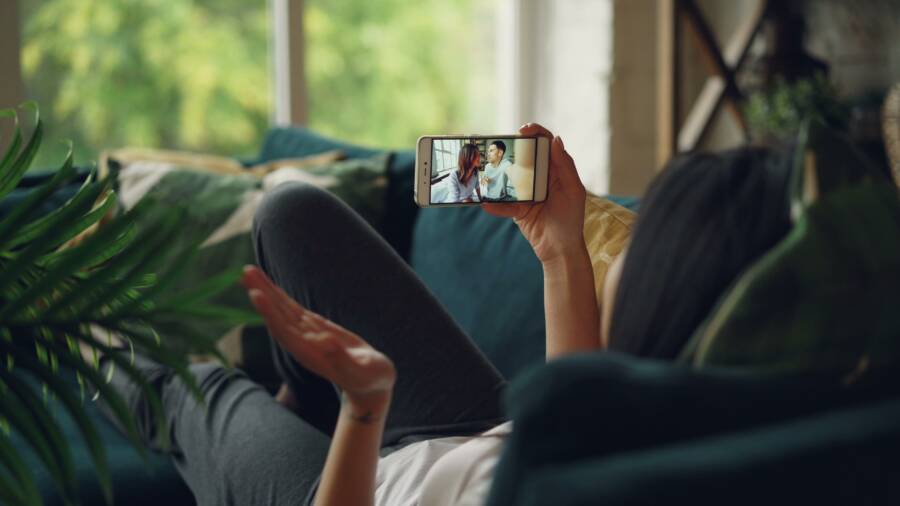
You can protect your personal data while still letting visitors interact with your smart home technology. A guest mode limits access to specific devices, keeping your private settings and accounts secure from unauthorized changes.
This setup prevents visitors from accidentally altering your automations or viewing sensitive information. Your smartphone serves as the primary tool to configure these restrictions before your guests arrive.
Why Privacy Matters for Your Home
Guest mode is a security layer that keeps your smart devices functional but isolated. When friends or family visit, they often want to control lights or adjust the temperature. You benefit when you grant this access without exposing your private network or personal preferences.
Your smartphone acts as the central control hub for these permissions. By adjusting settings through your device, you create a dedicated profile for visitors. This approach ensures your primary accounts remain locked while guests enjoy the convenience of a modern home.
Practical Steps to Restrict Access
You should first identify which devices guests actually need to operate. Lights and climate control are common choices, while security cameras and smart locks typically stay under your control.
Next, use your smartphone to create a guest account within your smart home application. Many platforms allow you to share limited permissions via a temporary invitation link or a restricted user profile. You can remove these permissions easily after your guests leave.
Managing Permissions Through Your Phone
Table data shows that limiting camera and lock access is best for home security. You maintain full control over your digital environment by vetting these permissions on your device.
Addressing Common Setup Concerns
Many users worry that a guest mode will break their existing automations. Most modern systems allow guest access to run alongside your routine settings without conflict. You still control the master schedule from your device.
Others ask if they need to create a new email for each visitor. You can often generate guest codes or links that do not require account creation at all. This keeps the process simple and private for everyone involved.
Protecting Your Smart Home Environment
Setting up a dedicated guest mode adds convenience and prevents privacy leaks. You keep your personal settings safe by defining boundaries before you host others. Your smartphone makes this process quick and effective for any occasion. Always review your permissions after guests depart to keep your digital space clean and secure.
Why You Need a Privacy-Focused Guest Mode
A privacy-focused guest mode protects your personal data when visitors access your smart home technology. You maintain control over your environment by segmenting guest permissions from your primary administrative account. Using your smartphone as a gateway allows you to toggle these restricted profiles before anyone walks through your front door. This strategy provides a clean separation between your private digital life and the needs of your guests.
The Risks of Open Smart Home Access
Granting full access to your smart home creates significant security gaps. If you provide total network control to visitors, they may accidentally trigger sensitive automations or access private hardware. A common risk involves guests inadvertently viewing live feeds from your smart cameras. This can occur when a user taps the wrong icon in your home management app on their device.
Smart locks also pose a high risk when permissions remain unchecked. A guest might lock you out of your own home or accidentally disable your security alarms. They could also change your climate settings to extremes or disconnect smart speakers that hold your personal search data. When you rely on a single, shared admin account, you expose your entire history and hardware configuration to anyone you host.
Benefits of Separating Guest and Owner Privileges
Separating guest privileges from your own creates clear boundaries that keep your data safe. You gain peace of mind knowing that your primary settings remain tucked away from casual reach. Most modern smart home platforms allow you to create a temporary profile through your smartphone that only shows essential devices. This keeps your home functional for guests while ensuring your master account remains untouched.
This isolation offers several key advantages for your household:
- Your personal automations continue to run without interruption or accidental modification.
- Guests view only the specific lights or devices you select for their use.
- You maintain the ability to revoke all permissions remotely via your smartphone after guests leave.
- Sensitive security devices like cameras or entry sensors stay hidden from the guest interface.
Managing these privileges prevents the stress of monitoring every action a guest takes while they move through your home. You delegate only what is necessary for their comfort. This approach keeps your sensitive data isolated while offering visitors a convenient and modern experience in your space.
How to Create a Guest Smart Home Mode Step-by-Step
Creating a guest mode is the most effective way to share your home control without sacrificing your personal data. You can manage this process using your smartphone to ensure that visitors interact only with the devices you authorize. This technical setup typically involves creating a separate, restricted account or generating a temporary access link within your primary smart home application.
Setting Up Separate User Accounts
Most modern smart home platforms offer a specific invitation feature that handles user accounts for you. You do not need to share your own credentials to give guests control. Instead, you send a digital invite that creates a limited profile for the visitor on their own phone or allows them to use a wall-mounted tablet you provide.
- Open your primary smart home app on your smartphone.
- Locate the settings menu, which is often found under a profile icon or a house management tab.
- Select the option labeled “Manage Users,” “Add Person,” or “Home Members.”
- Choose the invitation method, such as email or text message, to send a unique link to your guest.
- Define the role for this new user, selecting “Guest” or “Restricted” rather than “Admin” or “Full Access.”
- Complete the setup by sending the invite, which allows your guest to log in without seeing your private automations.
Once the guest accepts the invitation, their device functions as a key to the specific rooms or gadgets you chose. You can monitor or remove this user profile from your smartphone at any time. This keeps your main administrative settings invisible to anyone visiting your home.
Configuring Device Permissions and Limitations
After establishing a guest profile, you must define which devices are visible. You do not want guests accidentally triggering security alerts or viewing private camera feeds. Your goal is to show only the hardware they actually need to interact with, such as living room lights, a thermostat, or a media player.
Navigate to the permissions section within your smart home app to toggle visibility for each connected device. You should set these preferences to “Hidden” for any sensitive hardware, including:
- Security cameras: Keep these off the guest dashboard to maintain privacy.
- Smart locks: Grant temporary access only if necessary, or opt to manage entry yourself.
- Private automation settings: Disable the ability for guests to edit your schedules or routine triggers.
Your smartphone provides a clean interface to check which devices remain active for guests. If you see a device you did not intend to share, simply flip the toggle to restrict it. This manual review takes only a few minutes. By isolating these controls, you provide a helpful experience for your friends while keeping your own smart home configuration secure and untouched.
Using Physical Controls for Better Privacy
Physical interaction with your smart home provides an extra layer of security. By bypassing touchscreens and voice commands, you reduce the risk of accidental settings changes. You can keep your private data hidden while still giving guests control over their immediate environment. Using physical hardware on your smartphone allows you to manage these devices without exposing your entire network.
Smart Buttons and Voice Assistants
Smart buttons are small, battery-powered switches you can place anywhere in your home. These devices perform single actions, like turning on a specific light or adjusting the heat in a guest room. Because these buttons have no screen, they do not show your private smart home dashboard. A guest simply presses the button to activate a pre-set scene, leaving your master account and configuration untouched.
Voice assistants also offer a simple way to manage rooms without app access. You can set up limited voice zones that only respond to commands within a specific area. If you place a small smart speaker in a guest room, you can restrict its permissions through your smartphone.
- Program buttons to control only the devices guests need, such as lamps or bedroom fans.
- Limit voice assistant microphones to respond only to basic commands while excluding sensitive triggers.
- Keep your primary hub and main admin devices in private areas where guests do not visit.
These tools offer a straightforward interface for visitors. They avoid the complexity of sharing account credentials or granting broad network access. Guests feel comfortable using familiar physical toggles, and you maintain complete control over your home privacy.
Temporary Guest Access Codes
Smart locks provide a common point of concern for homeowners. You want guests to enter and exit freely, but you also need to keep your home secure. The best approach involves generating temporary, time-sensitive access codes for your digital locks. Most smart lock platforms allow you to create these codes directly through an app on your smartphone.
You set an expiration date and time when you create the code. Once that period ends, the lock automatically ignores the entry sequence. This method removes the need to share your permanent master key or personal security PIN with anyone.
These codes provide peace of mind by following a clear lifecycle:
- Open your lock management app on your smartphone and select the guest access section.
- Assign a unique code to your visitor and set a specific expiration window.
- Share the code via text or verbally once the guest arrives.
- Verify that the code stops working after the guest departs.
This strategy prevents the risk of unauthorized entry after your visit concludes. Because each code is unique to that specific person, you also keep a clear log of who entered your home and when. You manage this entire process from your device, ensuring that your security remains tight and your privacy stays intact throughout the guest experience.
Maintaining Security After the Guests Leave
Removing guest access is the final step in protecting your home network. You should verify that all temporary permissions are gone once visitors depart. Leaving these accounts open creates unnecessary risks, such as accidental setting changes or unauthorized control of your devices. Your smartphone provides a direct way to clean up your digital access logs in seconds.
Revoking Temporary Access Rights
You must act quickly to remove guest permissions after your friends leave. Most smart home apps allow you to delete specific users or disable shared access with a few taps on your smartphone. Checking these settings ensures that no lingering links remain active on devices you do not control.
- Open your primary smart home app and navigate to the user management section.
- Review the list of active members or guests currently linked to your home.
- Select each guest account and choose the option to remove them.
- Verify that the system confirms the removal of all access rights.
Once you delete these profiles, the guests lose the ability to control your lights, locks, or other connected hardware. This immediate action effectively closes the door on potential security gaps.
Cleaning Up Temporary Entry Codes
Smart locks require specific attention during your post-guest routine. If you generated temporary PINs for your visitors, you must delete those codes manually or check if they have already expired. You should never leave active codes in your system if they are no longer needed.
Keeping a record of expired codes helps you manage your security over the long term. You can view your access logs through your smartphone to confirm that no unauthorized entries occurred after your guests left. This practice gives you a clear history of how your smart home was accessed during the visit.
Reviewing Automation and Scene Settings
Guests sometimes trigger automations that you did not intend to run. You should scan your home dashboard to make sure your schedules are still set to your personal preferences. Sometimes a guest might manually change a light setting or override a thermostat program.
Check your smartphone application to confirm that your primary routines remain active. If you find any changes, reset them to your preferred configuration immediately. This final check ensures that your smart home operates exactly how you want it to after your visitors depart. Taking these small steps keeps your personal data secure while maintaining the convenience of your automated environment.
Common Questions About Guest Modes
Many homeowners wonder how guest access affects their long-term privacy. You might worry that temporary profiles expose hidden data or complicate your primary setup. These frequent concerns address how you can maintain control while using your smartphone to manage home visitors.
Does guest access require my Wi-Fi password?
Most modern smart home systems do not require your primary Wi-Fi credentials for guest access. You send an invitation through an app, and the system handles the permissions on its own. Your guest uses their own account or a provided link, which keeps your network traffic isolated. This method prevents visitors from gaining access to your personal devices like laptops or private servers connected to the same network.
Can guests delete my existing smart home automations?
Guest profiles typically restrict administrative privileges, which prevents visitors from editing your schedules or routines. You choose the specific devices they can control when you configure their access. They cannot access your backend settings unless you explicitly grant them owner or admin rights. Your smartphone gives you the final say over what they can see and modify within the interface.
Do I need to create a new account for every visitor?
You often do not need to create unique email accounts for short-term guests. Many platforms support temporary guest codes or link-based access that expires automatically. You can generate these access points in seconds using your smartphone. Once the visitor leaves, you simply disable the link or delete the code to close the connection permanently.
What happens if a guest accidentally changes a setting?
You can reset any modified settings immediately through your smartphone app. Most devices display status updates in real time, so you see when a light or thermostat changes. If you notice an incorrect setting, you can revert it to your preferred state with one tap. This ability to monitor your home remotely keeps your environment consistent regardless of guest activity.
Is it safe to provide guest access via a smartphone app?
Providing access through an official app is safer than sharing your personal login credentials. These apps use encrypted tokens to verify identities, which protects your main account from unauthorized entry. You control the duration of this access, and you can revoke it at any time. This approach allows you to share home convenience without risking your private data.
Conclusion
Establishing a dedicated guest mode keeps your personal data private while maintaining the comfort of your home for visitors. You retain control by segmenting permissions rather than providing full administrative access. Your smartphone serves as the primary tool to define these boundaries quickly.
Setting up this environment requires only a small time investment. Once the restrictions are in place, you avoid the stress of managing guest activity or worrying about accidental setting changes. Use the features available in your smart home app to protect your routines and hardware. By separating your master account from temporary guest profiles, you maintain your privacy without sacrificing modern convenience.