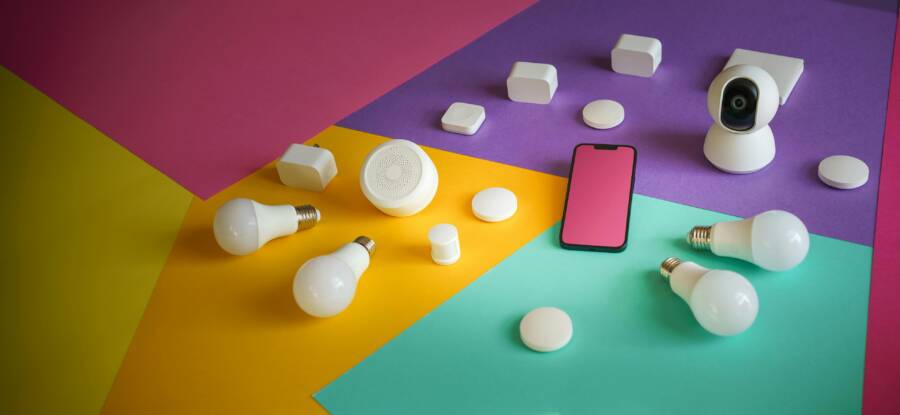
NFC tags act as physical bridges between a simple sticker and the complex automation menus on your smartphone. By tapping your device against these small, inexpensive discs, you trigger custom routines without opening a single app.
This technology works because your phone detects the tiny radio signal within the tag upon contact. You can program these tags to toggle lights, adjust thermostat settings, or launch specific apps instantly. Both Android and iPhone users can use these tools to make their daily home habits faster and more efficient.
You will find that setting up these triggers helps you gain control over your smart home hardware with just a touch. Continue reading to discover how to configure your tags for everyday convenience.
Understanding How NFC Tags Function on Your Smartphone
Near Field Communication, or NFC, relies on inductive coupling to share data between your smartphone and a passive tag. When your device comes within a few centimeters of a tag, the magnetic field from the phone powers the chip inside the sticker. This tiny surge of energy allows the tag to transmit its stored information, such as a web link or a specific command, to your handset. Your phone then interprets this signal and triggers the task you assigned to that specific tag. This process is instant and requires no external power source for the tag itself, making these stickers a durable and reliable tool for your smart home setup.
Why NFC Tags Are Better Than Voice Commands
Voice assistants often struggle with accuracy, especially when you are in a noisy kitchen or a crowded room. You might repeat a command several times, yet the device still fails to understand your request. NFC tags remove this frustration by providing a direct, physical trigger that works regardless of background noise or your tone of voice.
Privacy is another area where physical tags hold a clear advantage. Voice assistants must always listen for a wake word, which creates valid concerns about how much private audio reaches remote servers. NFC tags do not listen to anything because they possess no microphones or active monitoring systems. They operate only when you intentionally tap your phone against them. This physical requirement ensures that your home automation routines start only when you want them to, rather than responding to background conversations or television broadcasts.
What You Need to Get Started
You likely own most of the hardware required to begin building your automated environment. Setting up these triggers is an accessible project for any user who wants to gain better control over their smart home devices.
- Smartphone with NFC: Most modern devices, including almost all iPhones from the XS model onward and the vast majority of Android handsets, include built-in NFC hardware.
- NTAG215 stickers: You should purchase NTAG215 labels because they are compatible with both Apple and Android operating systems and provide sufficient storage capacity for standard automation tasks.
- Automation software: If you use an iPhone, the built-in Shortcuts app is the primary tool for creating triggers. Android users have access to more granular control through apps like Tasker or MacroDroid, which allow for complex logic and conditional statements.
Before you buy a large pack of stickers, verify that your smartphone has the NFC feature enabled in your settings menu. Most phones keep this radio turned on by default, but it is worth a quick check to avoid troubleshooting frustration during your first setup attempt. Once you have these basics, you are ready to start programming your home environment for touch-based control.
Step by Step Setup for Android Users
Setting up your smartphone to read NFC tags is a straightforward process that grants you control over your home environment. You need the right software to bridge the gap between a physical tag and your connected devices. Once you install an automation app, you can map specific tasks to individual tags and begin customizing your space.
The Best Automation Apps for Writing Tags
Choosing the right software depends on how much control you want over your device. While many options exist, two stand out for their reliability and ease of use.
NFC Tools is a popular choice for those who need a simple interface. It excels at reading tag information and writing basic tasks like opening a website or toggling phone settings such as Bluetooth or Wi-Fi. The interface is clean and prevents you from feeling overwhelmed during your first attempt at programming.
MacroDroid is the superior option for users who want deeper system control. Unlike basic writers, it treats your phone like a computer. You can create complex chains of events where one tap triggers multiple actions across your smart home hardware.
Consider why MacroDroid fits a more robust setup:
- Conditional logic: You can set rules so a tag behaves differently based on the time of day or your current location.
- System integration: It interacts directly with deep settings on your smartphone that simpler apps cannot touch.
- User support: The community provides pre-made templates that help you jumpstart your automation projects without writing code.
If you are new to this technology, start with NFC Tools to learn the basics of tag interaction. Upgrade to MacroDroid once you feel confident and want to automate more complex routines.
Troubleshooting Common Android NFC Issues
Most users experience a smooth setup, but occasional interference can stop a tag from working. If your smartphone fails to recognize a tag, check these common points to resolve the connection gap.
Ensure that the NFC feature is actually toggled on within your system settings. Some battery-saver modes automatically disable this radio to preserve power, so check your quick-settings panel if you encounter unexpected silence from a tag.
Physical placement is the next factor to consider. Your phone has an internal NFC antenna, usually located near the camera housing or the center of the back panel. Move the tag slowly across the back of your phone to find the exact “sweet spot” where your device registers the signal.
Phone cases often block the transmission if they are too thick or contain metal components. If you use a heavy-duty rugged case or one with a built-in metal plate for car mounts, the signal might struggle to pass through the material. Remove the case temporarily to test if the tag responds; if it works, you may need a thinner case to maintain functionality.
Finally, keep your tag away from large metal surfaces. Metal disrupts the magnetic field required for the tag to communicate with your smartphone. Use non-metallic surfaces for your mounting points to ensure the connection remains stable every time you tap.
How iPhone Users Can Use Shortcuts with NFC
iPhone users possess a powerful automation engine built directly into the operating system. By combining the Shortcuts app with physical NFC tags, you turn your smartphone into a central controller for your environment. This setup allows you to trigger complex sequences of actions with a single touch, removing the need to navigate through settings or menus while at home.
Designing Automation Workflows in Shortcuts
To start, open the Shortcuts app on your iPhone and tap the Automation tab at the bottom of the screen. Select the option to create a personal automation and scroll down until you see the NFC trigger. Tapping this option prompts you to scan your tag by holding the top edge of your smartphone near the sticker. Once the device recognizes the tag, you can name it and begin assigning tasks.
You can chain multiple actions together to build a functional routine. For instance, you might set a trigger that turns on your desk lamp, sets your phone to Do Not Disturb mode, and starts a focus playlist simultaneously. Simply press the Add Action button to stack these tasks in the sequence you prefer. The iPhone processes these instructions from top to bottom, so arrange them carefully to ensure the expected results occur each time you tap the tag.
Limitations and Tips for iOS NFC
While the process is reliable, Apple includes specific security protocols that influence how these automations function. Some actions require you to confirm the trigger before they execute, particularly those involving sensitive device controls or communication. You can often disable the Ask Before Running toggle inside the individual automation settings to make the process fully automatic. However, keep in mind that Apple maintains these restrictions to protect your privacy and security.
Most NFC automations require your smartphone to be unlocked before they activate. If you tap a tag while your screen is dark and locked, the device may ignore the command until you authenticate with Face ID or your passcode. Place your tags in areas where you naturally hold or unlock your phone, such as near your entryway or on a bedside table, to minimize friction. If you find an automation fails, verify that the NFC radio is active and that no metal objects are interfering with the signal between the tag and your device.
Creative Ways to Use NFC Tags Around Your House
You can turn ordinary surfaces into control panels by placing NFC tags in high-traffic areas. These stickers respond to your smartphone the moment you bring it near, which eliminates the need to dig through menus or search for apps. Place them where you perform daily tasks to save seconds every time you move through your home.
Kitchen and Dining Automation
Kitchens often become a hub for chaos during meal preparation. You can stick a tag near your spice rack or coffee maker to launch essential apps instantly. Program one tag to start a specific timer for your oven or to open your favorite digital recipe collection. Another tag placed near your coffee station might trigger a morning routine on your smartphone, such as reading the daily weather report or playing a news podcast while the machine warms up. You avoid touching your screen with messy hands, which keeps your device clean while you cook.
Bedside and Relaxation Routine Triggers
Your nightstand is the ideal spot for a tag that manages your sleep environment. A quick tap before bed can trigger a sequence that dims your smart lights, locks the front door, and sets your alarm for the next morning. This transition to rest happens without you fumbling with phone settings in the dark. If you enjoy music, add a command to the same tag that starts your favorite white noise playlist or a meditation app to help you wind down.
Entryway and Transition Shortcuts
The area by your front door serves as the best location for tags that manage your arrivals and departures. Place a tag on the wall next to the door to handle multiple chores at once. When you leave for work, a tap can disable all interior lights, turn off the thermostat, and start your security camera system. When you return home later, a similar tag can reverse these actions or play a welcome-home audio sequence through your connected speakers.
Strategic Placement Tips
Placement matters as much as the programming itself. Stick your tags on flat, non-metallic surfaces like plastic, wood, or glass to ensure the signal remains strong. Avoid mounting them on refrigerators or heavy metal cabinets, as the metal interferes with the radio signal. You can also hide tags under tables or behind furniture if you prefer a clean aesthetic while keeping the trigger point accessible. Consistent placement helps you build muscle memory, so you eventually tap your smartphone against the trigger point without even looking.
Final Thoughts on Streamlining Your Life with NFC
Integrating NFC tags into your home environment changes how you interact with your smartphone. You move from manual input to automated triggers that respond to a simple physical gesture. This shift reduces the time you spend navigating menus and makes your devices work harder for your daily needs.
Why Physical Triggers Are Worth Your Time
Using NFC tags provides a distinct advantage over software-only solutions. You get a tactile point of contact that functions consistently, regardless of your screen state or app visibility. When you walk into a room, tapping a specific location on your desk or wall is faster than unlocking your phone and searching for a control panel.
The main benefit is the reduction in cognitive load. You no longer need to remember specific routines or keep your smartphone unlocked to manage simple tasks. Instead, you create an environment where your surroundings respond to your presence. This setup turns your home into an extension of your digital interface.
Maintaining Your Automated Setup
Hardware occasionally requires minor adjustments to maintain reliability. Because tags are passive devices, they rarely fail, but their placement and the way your smartphone detects them can change if you move furniture or change your phone case.
Periodically check your routines to ensure they still meet your needs. You might find that a timer or light sequence you configured six months ago no longer fits your routine. Update these triggers within your automation app to keep your home responsive. If a tag becomes unresponsive, try wiping the surface or re-adhering it to a flat area without metallic interference.
Expanding Beyond Basic Routines
Once you master simple toggles, you can connect more complex sequences to your tags. Think about combining multiple device states into a single tap. You could trigger a work mode that silences your notifications, opens your calendar, and starts a focused work playlist at the same time.
Start small and build your network of tags as you identify new pain points in your day. Every repetitive task you perform on your smartphone is a candidate for an NFC trigger. Over time, you will build a web of physical shortcuts that make your home feel more intuitive and responsive to your habits.
Conclusion
NFC tags provide a simple way to make your home feel smarter without complex hardware installations. These small stickers turn your smartphone into an instant controller for your living space by linking physical taps to digital routines.
Once you set up these tags, your device becomes a much more effective tool for managing your physical environment. You no longer need to navigate menus or search for apps when you can simply tap a designated spot to trigger your preferred settings.