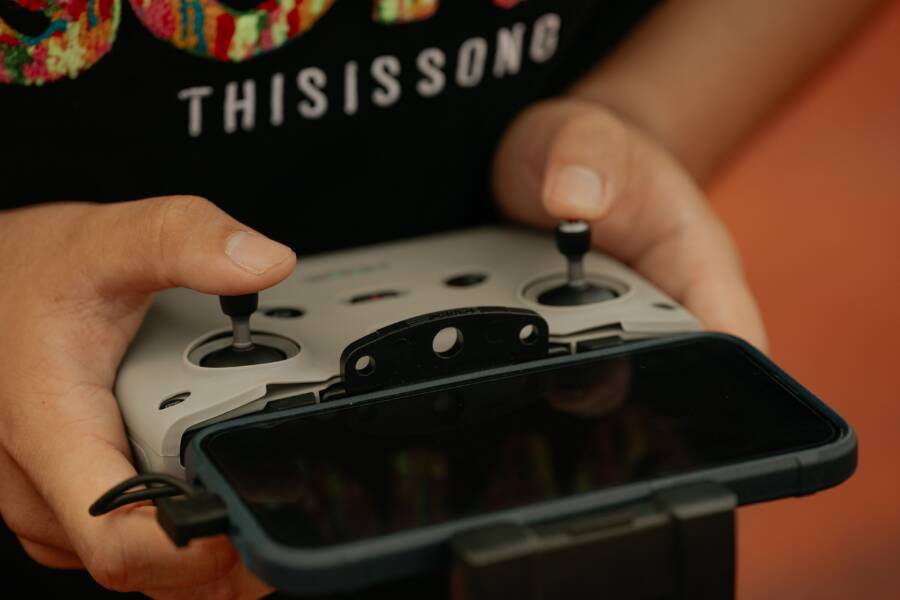
Using your smartphone to control a TV streaming device is often faster and more convenient than relying on a standard remote. Most modern streaming hardware supports official apps that simplify navigation, text entry, and content searching.
This setup works for common systems like Roku, Fire TV, Apple TV, and Chromecast. By turning your smartphone into a functional remote, you gain a tactile interface that makes managing your entertainment setup much easier.
The following steps explain how to configure these mobile controllers on your devices.
Why Using Your Phone to Control TV Streaming Devices is Better
Using your smartphone as a remote offers significant advantages over traditional plastic controllers. Most people keep their mobile devices nearby, which eliminates the frustration of hunting for misplaced remotes between couch cushions. Beyond mere convenience, your phone provides a superior interface for tasks that standard hardware handles poorly.
Faster Text Input and Searching
Searching for a movie title or entering a long password with a traditional remote feels slow. You have to click through an on-screen keyboard letter by letter, which is prone to errors. When you use your smartphone, a familiar QWERTY keyboard pops up instantly. This allows you to type searches at full speed, saving you minutes of tedious navigation during every viewing session.
Enhanced Navigation and Control
Standard remotes rely on basic directional pads that often feel sluggish or unresponsive. Many official apps from streaming providers offer touch-based gesture controls that allow for quick scrolling and precise selection. You can swipe through long menus, jump to specific content categories, or pause playback with a simple tap. These mobile interfaces feel familiar because they mimic the touch mechanics you already use in your daily apps.
Improved Battery and Reliability
Traditional remotes often run on disposable batteries that die at inconvenient moments. Because your smartphone has a dedicated charging schedule, it is rarely out of commission when you want to watch TV. Furthermore, you do not need to worry about infrared line-of-sight issues with many modern setups. Many apps connect over Wi-Fi, allowing you to control your television from another room or even when the device is tucked away inside a cabinet.
Comparison of Control Methods
The following table highlights the functional differences between standard remotes and mobile apps.
The primary takeaway is that mobile apps remove the technical friction of home entertainment. You gain a faster, more responsive, and more reliable way to manage your media library. Choosing your device over a dedicated remote turns a clunky process into a quick, intuitive task.
How to Get Your Smartphone Ready for TV Control
You need to prepare your mobile device to communicate effectively with your home entertainment system. This process involves installing manufacturer software and setting up a stable link between the two devices. When your smartphone acts as the primary controller, you avoid the common pitfalls of standard plastic remotes. Follow these steps to sync your hardware and gain full control of your viewing experience.
Downloading the Right Remote App
Every major streaming platform provides a dedicated application designed to bridge the gap between your phone and your television. You should start by visiting the official app store on your smartphone. Android users should open the Google Play Store, while iPhone users should head to the Apple App Store.
Search for the specific remote app corresponding to your hardware brand. Using official software ensures your connection remains secure and offers the best feature set. Here are the most common official apps for major streaming devices:
- Roku: Download the official Roku app to manage your player or Roku TV.
- Amazon Fire TV: Install the Amazon Fire TV app to navigate your stick or cube.
- Google Home: Use the Google Home app to manage devices connected to your Chromecast or Android TV.
- Apple TV: iOS users have the Apple TV Remote feature built directly into the Control Center, though a standalone app exists for specific management tasks.
Once the installation finishes, you should open the app and grant the necessary permissions. Most apps require access to your local network to discover devices nearby. Allowing these permissions is necessary for the app to function properly.
Pairing Your Phone With Your Streaming Device
After installing the software, you must link your phone to the streaming hardware. Ensure your smartphone and your streaming device connect to the same Wi-Fi network before you start the pairing process. Most apps initiate a scan for compatible local devices the moment you open them. If your television remains powered on and connected to the network, the app should identify it within a few seconds.
Select your specific device from the list provided by the app interface. Your television screen might display a numeric code at this stage. You must enter this exact code into your phone to confirm the authorization. This extra step prevents unauthorized users from connecting to your television. Once you enter the code, the app will finalize the handshake and display the remote interface. Your screen will now show buttons for navigation, volume control, and content search. If the app fails to find your device, confirm both units share the exact same network name, as some routers separate 2.4GHz and 5GHz signals. Resetting the app or toggling your phone Wi-Fi often resolves connectivity glitches during the initial setup.
Mastering Advanced Features for Better Navigation
Your smartphone does more than replicate a plastic remote. Advanced settings within your controller app provide faster ways to browse libraries and switch between multiple TVs in your home. By mastering these functions, you turn your mobile device into a high-powered command center for all your streaming hardware.
Using Voice Commands Through Your Device
Voice control is the fastest way to find shows, movies, or specific genres without navigating deep menu tiers. Most official remote apps include a microphone icon prominently displayed on the interface. Once you tap this icon, you simply speak the name of a title or category into your smartphone. The streaming device processes your request and pulls up the relevant content immediately.
This method replaces multiple button presses with a single voice command. If you want to jump between genres like “action movies” or “documentaries,” voice search handles the task in seconds. You avoid scrolling through long rows of thumbnails on your TV screen. If you find yourself lost in a complex menu, just trigger the voice search to jump back to your preferred content category.
Managing Multiple Devices From One App
Many households own more than one streaming device, such as a player in the living room and a stick in the bedroom. You can manage every unit from a single smartphone app without needing to re-pair controllers constantly. Most apps feature a device switcher located in the settings menu or at the top of the remote screen.
You can toggle between your devices by selecting the active hardware from a provided list. This setup is useful when you want to control the TV in another room or adjust volume without getting up from your chair. If you have several devices, rename them within the app settings to keep things organized. Using clear labels like “Living Room” or “Bedroom TV” prevents you from accidentally controlling the wrong screen. This central management simplifies your setup and makes your smartphone the primary hub for every screen in the house.
Troubleshooting Common Connection Issues
Connectivity problems occasionally disrupt your experience when using a smartphone as a remote. Most issues stem from network mismatches or minor software glitches that are simple to resolve. You can restore control quickly by checking a few specific settings on your hardware.
Checking Your Network Connection
The most frequent cause for a broken connection is that your smartphone and streaming device sit on different Wi-Fi networks. Modern routers often broadcast two distinct signals, typically 2.4GHz and 5GHz. Even if these signals come from the same router, they sometimes act like separate networks.
Verify that your phone displays the exact same network name as your streaming player. If you use a mesh network, ensure your devices aren’t isolated on different access points. You should also disable any VPN software on your phone, as these services often block the local communication required for remote apps to function.
Restarting Your Devices
A temporary software hiccup often stops the app from finding your television. Restarting both your smartphone and the streaming device refreshes their network identification. Power cycling your streaming player by unplugging it for ten seconds is usually the most effective fix.
After the device reboots, close the remote app on your phone completely and reopen it. This forces the application to perform a fresh scan of the local network. Most connectivity errors disappear once the two devices re-establish their handshake.
Resolving Pairing Errors
If the app sees your device but refuses to pair, the authentication token might be corrupted. Delete the device from the app list and start the pairing process again. You should also check for pending software updates for your streaming box or your smartphone operating system.
Outdated apps often lose compatibility with the latest system firmware. Keep your remote software updated through the app store to maintain stable performance. If your TV shows a pairing code but your phone doesn’t prompt you to enter it, toggle the Wi-Fi on your phone off and back on to reset the local search parameters.
Addressing Firewall and Router Settings
Some routers have security features that isolate devices from communicating with one another. This setting, often called AP Isolation or Client Isolation, prevents your smartphone from sending commands to your streaming device. Access your router settings through a web browser to verify that this feature is turned off.
You should also confirm that the router allows communication between wireless and wired devices. If your streaming player uses an Ethernet cable while your phone uses Wi-Fi, the router must permit data flow between these two connection types. Checking these settings usually solves persistent issues where the app detects the device but fails to send commands.
Conclusion
Switching to a smartphone remote turns your basic TV setup into an efficient media station. You gain fast text entry and gesture controls that simply outperform traditional plastic controllers.
Open your app store and sync your devices today to see the difference. Modern hardware makes it easy to take full control of your entertainment with the tech you already carry in your pocket.