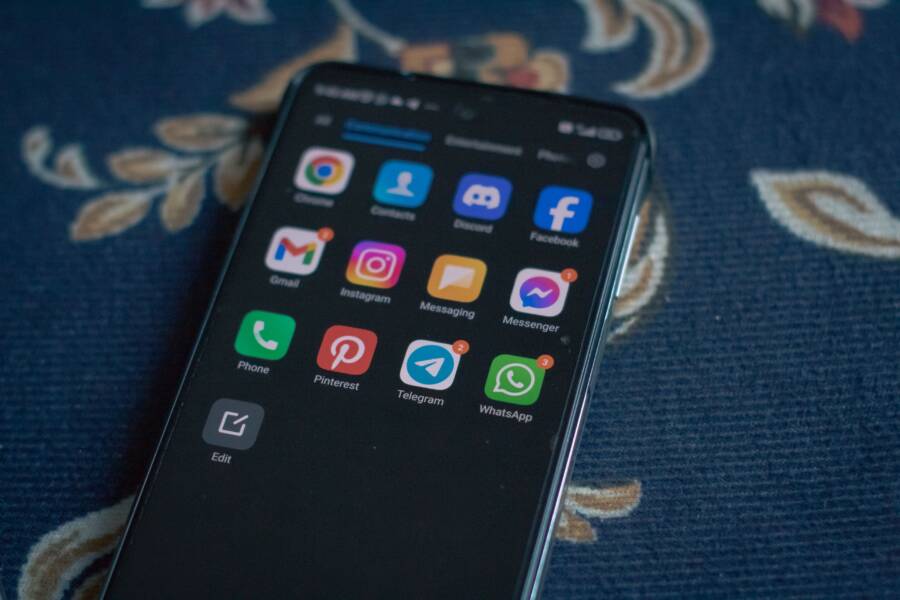
You can change your default apps by visiting the settings menu on your smartphone. This simple adjustment ensures your device uses the browser, email client, or music player you actually prefer.
Default apps are the programs your device opens automatically when you tap a link or a file. By selecting your own choices, you avoid unwanted software and keep your workflow efficient. You gain control over your user experience in just a few taps.
Follow this guide to identify where these settings live on your specific device.
How to Customize Default Apps on Android Devices
Changing default apps on a smartphone gives you full command over your daily tasks. When you tap a link or open a file, your device uses a pre-selected program to handle that request. You can override these factory choices to match your personal preferences and installed tools.
Navigating the Default Apps Menu in Settings
The location for managing these settings varies slightly depending on your manufacturer, but most modern devices follow a standard path. Start by opening the main Settings menu on your smartphone. From there, locate the section labeled Apps or Applications.
Once you open the Apps list, look for an option titled Default apps. On some models, you might need to tap a sub-menu or a three-dot icon in the corner to reveal the Default apps selection. Once inside this dashboard, you see a list of categories such as Browser, Home app, Phone, and SMS.
Follow these steps to find your menu:
- Open the Settings app.
- Tap on Apps or Application Manager.
- Select Default apps or Choose default apps.
- Browse the available categories to view your current assignments.
If your specific model hides this menu, use the search bar at the top of your settings page. Simply type “Default” into the search field, and the system typically displays a direct link to the correct area.
Choosing Your Preferred Web Browser and Digital Assistant
You might want to switch your primary web browser if you prefer the syncing capabilities of Chrome or the privacy-focused features of other options like Firefox or DuckDuckGo. Changing this setting ensures that every web link you tap in an email or message opens in your chosen software rather than a generic system viewer.
To update your browser, navigate to the Default apps menu and tap on Browser app. The system provides a list of all installed browsers. Select your favorite from the list, and your smartphone updates its behavior immediately.
You can also assign a new digital assistant to handle voice commands or system inquiries. Many users replace the default manufacturer assistant with Google Assistant or other third-party tools to improve voice recognition or task integration.
Follow these steps to update your assistant:
- Locate Digital assistant app within the Default apps menu.
- Tap on Default digital assistant app.
- Select your preferred tool from the list of installed applications.
Switching these services is helpful when your pre-installed apps do not meet your specific requirements for speed or data management. By customizing these choices, you remove friction from your digital workflow and ensure your device works exactly how you need it to.
Managing Defaults on iPhone and iOS
Apple maintains strict control over the software environment on your smartphone. While you have more freedom today than in the past, the system still limits your choices to specific categories. Knowing these boundaries helps you manage your expectations before you try to change your settings.
Which Apps Can You Change on Your iPhone
iOS allows you to replace several core system applications with third-party alternatives. This capability lets you prioritize apps that sync with your other devices or offer features you prefer. You currently have the power to swap out the following default categories:
- Web Browser: You can set browsers like Chrome, Firefox, or Brave as the primary tool for opening web links.
- Email Client: You can choose apps like Outlook, Gmail, or Spark to handle your incoming mail.
- Contact App: iOS allows you to set third-party contact managers as the default for managing your address book.
- Phone and SMS: You can designate alternative apps for placing calls or sending text messages.
- Music and Podcasts: Your device permits you to set your preferred media players to handle playback requests from Siri.
Apple does not allow you to change other system defaults, such as the Camera app, the App Store, or the Clock application. These remain locked to the native versions provided by the manufacturer. If you tap a link or open a file that does not fit these categories, the system will continue to use the built-in iOS software. Understanding these constraints prevents frustration when you find that some system behaviors cannot be modified.
Simple Steps to Update Your Apple App Defaults
Updating your preferences on an iPhone is a direct process that takes only a few moments. Follow these steps to customize how your smartphone handles tasks like browsing the web or checking email.
- Open the Settings app on your device.
- Scroll down through the menu until you locate the specific app you want to set as the default, such as Chrome or Outlook.
- Tap on the app name to open its individual settings page.
- Select the option labeled Default Browser App or Default Email App.
- Tap on your preferred app from the list to select it.
The system saves your choice immediately. Every time you tap a website link or an email address, your smartphone now automatically redirects to your chosen application. If you ever want to revert to the original settings, simply return to this menu and select the Apple-provided app again. This flexibility keeps your device aligned with your personal preferences while keeping the core system stable and secure.
Troubleshooting Common Issues When Links Do Not Open Correctly
Sometimes a smartphone fails to open a link in your preferred application. You tap a URL, but the device displays an error, loads the wrong app, or does nothing at all. These problems often stem from corrupted app caches, conflicting browser settings, or outdated system software. You can resolve most of these glitches by clearing temporary data or reassigning your defaults.
Clearing App Cache and Data
Over time, applications collect temporary files that might prevent them from processing links properly. If your browser or email client stops responding to link taps, start by clearing the cache. This removes junk data without deleting your personal information like bookmarks or saved passwords.
- Open your device settings and find the list of all installed apps.
- Select the browser or app that is currently failing to open your links.
- Tap on Storage or Storage and Cache.
- Choose Clear Cache to wipe temporary data.
- Restart the application and try tapping a link again.
If the problem persists, you may need to clear the storage or data for that specific app. Be aware that this action often resets the app to its original state, so you might need to sign in again. Only take this step after you have tried clearing the cache, as it is more invasive.
Resolving Conflicting Default Preferences
Your smartphone sometimes forgets which app should handle a specific type of link. This occurs after a system update or when you install a new app that asks to be your default. If your phone keeps asking you which app to use even after you set a preference, the link association is likely stuck.
Go back to your Default apps menu and check if the assignment is still active. If it shows the correct app, toggle the selection to something else, then switch it back to your preferred choice. This simple refresh forces the operating system to re-establish the connection. If you have two apps that perform the same function, such as two different web browsers, uninstall the one you do not use. This eliminates confusion for the system and ensures your taps always open the correct software.
Updating System Software
Manufacturers frequently release patches that fix bugs affecting how apps communicate with each other. If you still encounter trouble with links after adjusting your settings, check for an available system update.
Navigate to the About Phone or Software Update section in your settings menu to see if an update is pending. Installing the latest firmware often clears up persistent software errors that prevent link navigation. If your device is current, ensure that the apps themselves are up to date through the Google Play Store or the App Store. Developers regularly push updates that specifically address compatibility issues with web links and file associations. Keeping both your system and your apps current is a reliable way to maintain a smooth experience on your smartphone.
Why You Should Take Control of Your App Preferences
Taking control of your app preferences puts you in charge of how your smartphone functions daily. You stop relying on factory settings that may not suit your needs or habits. When you manually select your tools, your phone becomes a more efficient extension of your workflow.
Reduce Digital Friction and Save Time
Default settings often force you into software you rarely use. If you prefer a specific browser for its speed or an email client for its organization, you save seconds every time you open a link. These seconds add up throughout the day. By overriding system defaults, you eliminate the annoyance of your smartphone constantly opening the wrong application.
You also keep your information consistent across your devices. For example, if you use a specific app to manage notes or tasks, setting it as your default prevents the system from dumping data into unused built-in apps. Your information stays where you need it, and you avoid the chore of moving files between platforms.
Improve Privacy and Data Security
Your choice of default apps influences how much data you share with software providers. Many pre-installed apps track user activity for marketing purposes. You might prefer a privacy-focused browser that blocks trackers or an encrypted email client to protect your personal messages.
When you configure your own defaults, you ensure that your smartphone handles sensitive links and documents using the tools you trust most. This step helps you maintain a tighter grip on your personal data. You limit the number of companies that have access to your browsing history or communication patterns by choosing reliable, independent software.
Create a Consistent User Experience
Your smartphone should feel familiar and predictable. When you customize your app preferences, you create a standard behavior for your device. Every time you tap a calendar invite, a map location, or a web link, you know exactly which app will handle it.
This predictability removes guesswork from your interactions. You spend less time navigating menus and more time focusing on your actual tasks. Over time, this consistency makes your smartphone much easier to manage. You build a setup that reflects your priorities rather than the preferences of the manufacturer.
Summary of Benefits
Taking active control of your device offers tangible improvements to your daily interaction with technology.
You decide which apps represent your digital identity. By following the steps in this guide, you ensure that every interaction on your smartphone aligns with your personal standards for performance and privacy.
Conclusion
Default apps are not locked, and you possess the power to change them at any time. Your smartphone settings contain everything you need to shift away from factory defaults that do not serve your needs.
Take a moment to explore these menus on your device. You can choose tools that improve your efficiency and match your personal habits. Customizing these assignments ensures your phone works exactly how you want it to.