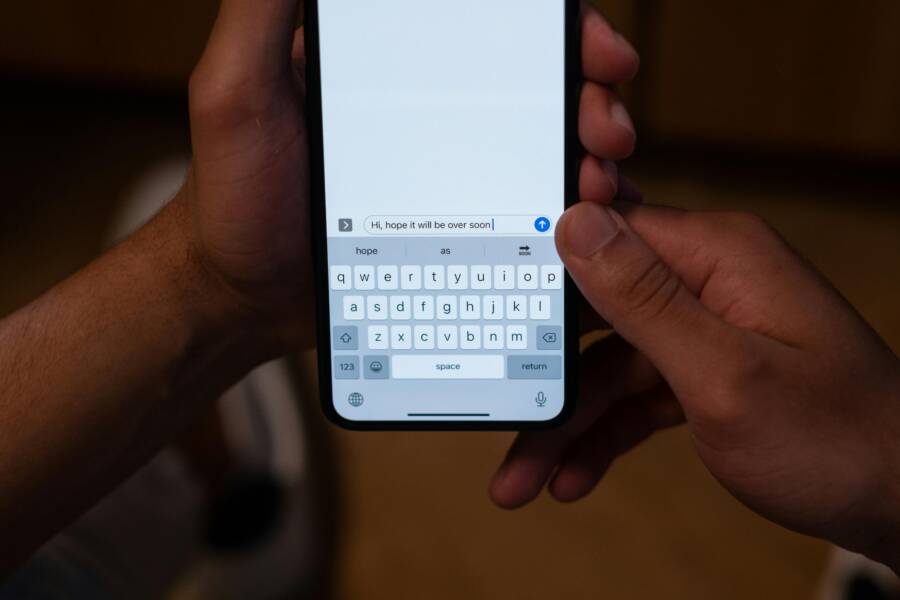
Customizing your keyboard settings is the fastest way to improve your typing speed on any smartphone. You don’t need to be a fast typist if your device works with you rather than against you.
Adjusting your layout, utilizing predictive text, and enabling swipe features are the keys to efficiency. Small tweaks to your input settings turn a frustrating process into a quick, natural habit.
Follow these steps to configure your keyboard for better performance and speed.
Why Your Default Keyboard Settings Are Likely Slowing You Down
Default keyboard settings on your smartphone often favor a generic user profile rather than your specific typing habits. Most manufacturers configure keyboards to accommodate the widest range of users, which means they prioritize stability and standard layouts over efficiency. These settings frequently include delayed feedback, conservative auto-correction, and fixed button sizes that don’t match your thumb reach. When your device remains in its factory state, you may find yourself constantly tapping backspace to fix errors. By taking control of these configurations, you align the interface with your physical dexterity.
How Layout Adjustments Can Improve Your Accuracy
Most modern keyboards allow you to resize the height and width of the input area. If your smartphone has a large screen, the keys might feel spread out, which increases the distance your thumbs travel. Reducing the keyboard height brings every letter closer to your resting thumb position. This change minimizes the movement required for every word, helping you maintain a faster, steadier rhythm.
Conversely, if you have a smaller device, your fingers might overlap multiple keys at once, causing frequent typos. Expanding the keyboard size increases the target area for each tap, allowing for more precise input. You can test these adjustments in the settings menu of your keyboard app to see which height works best for your hand size.
- Test your reach: Place your thumbs in their natural typing position and notice which keys feel difficult to hit.
- Adjust height incrementally: Change the vertical size by small amounts until your thumbs land centered on the keys.
- Monitor your error rate: Track how often you trigger a wrong key during a standard message to confirm the new layout helps.
When you adjust the layout, the device becomes a physical extension of your hands. This personalization reduces muscle strain and makes the act of typing feel more intuitive. You will notice fewer accidental presses, which directly speeds up your total word entry time.
The Science Behind Predictive Text and Auto-Correction
Modern smartphone keyboards use machine learning models that analyze your unique vocabulary patterns. Every time you type, the system learns which words you use together and how you structure your sentences. If you disable these features, you lose the predictive engine designed to save you keystrokes. Instead of viewing auto-correction as a source of frustration, consider it a tool that predicts your intent before you finish a word.
These systems operate on probability models that calculate the likelihood of a word based on the letters you have already typed. When the software corrects a typo, it often fixes a common slip of the finger that occurred because you were typing rapidly. By accepting the suggestions provided in the bar above your keyboard, you bypass the need to type full words.
You can improve the intelligence of your keyboard by using it consistently. The software gathers data from your messages to build a personalized dictionary. If you frequently type technical terms or specific slang, the keyboard will quickly add those to its predictive database. You essentially train your device to speak your language. Embracing these background processes turns your keyboard into a teammate that works to reduce your workload with every message you send.
Essential Keyboard Customization Steps for iPhone Users
You can reduce the number of taps required for daily communication by using text replacement shortcuts on your smartphone. These custom entries allow you to type a short code that the device automatically expands into a full sentence, an email address, or a physical street address. This feature effectively eliminates the need to type repetitive information.
Creating Custom Text Shortcuts for Faster Phrases
Setting up these shortcuts takes only a few minutes, but the time saved accumulates quickly over hundreds of messages. You access this function through your device settings under the keyboard menu. From there, you add a new entry by selecting the plus icon.
- Open the Settings app on your smartphone and select General.
- Tap on Keyboard, then choose Text Replacement.
- Tap the plus sign in the top right corner.
- Enter the full phrase or email address into the Phrase field.
- Create a unique, short abbreviation in the Shortcut field.
- Save the entry to activate it for future use.
For instance, you might set the shortcut “eml” to expand into your primary email address. If you frequently type professional responses, create a shortcut like “thx” to turn into a full sentence such as “Thank you for the update, I will look into this.” When you type the abbreviation, the full phrase appears in the suggestion bar above the keyboard. You simply tap the suggestion or hit the space bar to insert the complete text.
These shortcuts function across every application on your smartphone, including mail, messages, and social media platforms. Use them for any information you find yourself typing more than once a day. Common examples include:
- Your personal or work email address.
- Frequently shared website URLs for your projects.
- Standard greetings or sign-offs for business emails.
- Your current mailing address for quick shipping forms.
Keep your shortcuts memorable but distinct enough that you don’t trigger them accidentally while typing normal words. Using a special character or a specific prefix can prevent unexpected text expansion. If you find that a shortcut triggers too often, simply return to the Text Replacement menu to edit or delete the specific entry. Consistent use of these shortcuts transforms how you interact with your device, as you stop focusing on individual characters and start relying on efficient, automated input.
Essential Keyboard Customization Steps for Android Users
Optimizing your input method on an Android smartphone creates a more responsive experience. You can adjust your device to match your unique hand movements and pacing. These small software changes significantly reduce input errors and increase your daily typing speed.
Optimizing Glide Typing for Maximum Speed
Glide typing, or gesture typing, allows you to slide your finger across the letters instead of tapping each one individually. When configured correctly, this method is faster than traditional typing. If your smartphone misses words, you likely need to adjust the sensitivity or the speed settings within your keyboard application.
Most keyboard apps include a dedicated section for glide typing settings. You should first check the gesture sensitivity slider. If the setting is too high, the keyboard might register tiny finger jitters as intentional motions. Lower the sensitivity if you find that random words appear in your text box. Conversely, increase the sensitivity if the software fails to track your swiped path across the screen.
In addition to sensitivity, you can modify the following behaviors to keep your input accurate:
- Enable gesture trail visibility to see the path your finger takes while you swipe.
- Turn off auto-correction during gestures if you prefer manual control over word selection.
- Activate the feature that allows your keyboard to automatically insert spaces between swiped words.
- Ensure the dictionary is updated so the software recognizes your specific vocabulary during swipes.
You can also try a physical adjustment to your grip. Hold your smartphone securely with one hand while using your thumb for the gestures. If your palm touches the edge of the display, the software might misinterpret your swipe as a multi-touch command. Keep your non-typing fingers clear of the active display area to ensure the sensor captures only your intended movement.
If the keyboard still struggles to interpret your gestures, clear the learned words from your personal dictionary. Sometimes, the software stores incorrect patterns that confuse the predictive model. Resetting this memory forces the smartphone to learn your current typing style from scratch. You will notice a difference in recognition accuracy after just a few days of regular use.
Advanced Strategies to Boost Your Typing Speed
Speed on a smartphone is not just about moving your thumbs quickly across the glass. It is about reducing the physical distance your fingers travel and minimizing the number of interactions required to finish a thought. You can achieve higher input rates by combining layout optimizations with smarter input modes. When you treat your keyboard as a tool rather than a static grid, you discover shortcuts that allow your device to do the heavy lifting for you.
The Impact of Voice Dictation Integration
Voice dictation is faster than manual typing for long-form content, such as drafting emails or writing notes. When you need to capture a complex thought or a long paragraph, your speech consistently outpaces your manual input speed. Manual typing on a smartphone keyboard typically reaches a plateau because of screen size and the physical limitations of thumb movement. Dictation avoids these bottlenecks by converting your spoken words directly into text at a much higher throughput.
You should reserve voice-to-text for situations where you have a clear thought ready to state. It is less effective for short responses like “Okay” or “See you later,” where tapping or sliding remains faster. Use voice input when your hands are occupied or when the length of the text makes typing tedious. Most users find the best results by speaking clearly and pausing briefly at the end of sentences to allow the software to process punctuation accurately.
Switching between input methods requires practice to maintain your momentum. You can transition quickly by following these habits:
- Keep your voice icon visible in the bottom corner of your keyboard for immediate access.
- Tap the microphone icon once to activate, then speak your sentence immediately.
- Use a single tap to deactivate the microphone as soon as you finish your thought.
- Immediately resume manual typing if you need to correct a specific word or adjust formatting.
Many modern smartphones allow you to keep the keyboard visible while dictating. This setup lets you correct errors on the fly using manual touch while the microphone remains active. If you frequently use voice input, verify that your device language settings match your primary dialect. A mismatch here often leads to high error rates that negate the speed gains you want to achieve. Practice toggling the microphone with your non-dominant hand while keeping your primary thumb positioned over the text field for fast corrections.
Conclusion
Improving your typing speed starts with matching your keyboard to your unique input style. You can gain time by resizing your layout, activating predictive text, and setting up custom shortcuts for your most frequent phrases. Every smartphone user benefits from these small, deliberate adjustments to the default interface.
Consistency remains your best tool for long-term improvement. Your keyboard software continues to analyze your vocabulary and patterns, so it gets more accurate the more you use it. Over time, these minor refinements save you significant minutes of manual input every day.