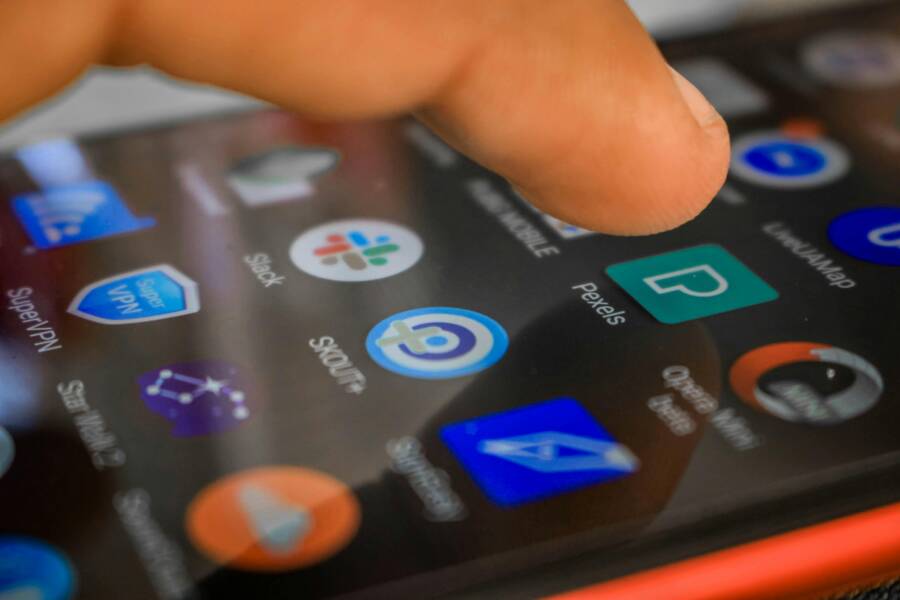
The share sheet is your smartphone’s primary gateway for moving content between apps. You use it every time you send a photo, link, or document to someone else.
Most people rely on the default order, but you can move your most frequent apps to the top. Customizing this menu saves time and reduces the clutter on your screen.
This guide helps you turn your messy share menu into an efficient productivity tool. Follow these steps to take full control of how you share files and links.
Why Customizing Your Share Sheet Matters
Your smartphone keeps your most used apps buried under a pile of suggestions you never choose. The share sheet is the bridge between your apps and the rest of your digital life. When you tap share, the phone displays a menu of contacts and applications to receive your content. Without customization, this list often shows random apps or people you rarely message.
Taking a few minutes to organize this menu turns a cluttered interface into a fast, productive workspace. You spend less time searching for the right icon and more time sending your files or links. A personalized share sheet keeps your preferred tools at your fingertips.
Speeding up your workflow
Every second you spend scanning a long list of apps adds up over the course of a day. Most people have two or three apps they use constantly for sharing, such as Slack, WhatsApp, or a cloud storage drive. By pinning these to the front of your share sheet, you remove the friction of scrolling through a long list of options.
This modification is a simple way to make your smartphone behave exactly how you expect. When your favorite apps appear in the same spot every time, you develop muscle memory for the movement. You no longer need to look at the screen carefully to find your destination.
Removing unnecessary clutter
Phones often populate the share menu with apps you installed once and forgot. These unwanted suggestions occupy valuable screen real estate and make finding relevant apps harder. Removing these choices makes the menu cleaner and more intuitive for everyday use.
You can hide apps that collect dust or apps you only use for specific work tasks. Limiting the menu to your daily drivers ensures the interface stays relevant to your current needs. A focused share sheet displays only what you actually use.
Improving accuracy when sharing
A crowded share sheet increases the chance of tapping the wrong icon by mistake. It is easy to accidentally send a photo to the wrong contact or upload a file to the wrong service when your screen is full of icons. Customization reduces the likelihood of these errors by keeping your most important destinations clear and easy to tap.
Organizing your list keeps the most important sharing targets prominent. You gain confidence knowing your content hits the right mark every time. A well-ordered menu makes your smartphone interaction more reliable and efficient.
How to Customize the iOS Share Sheet
The share sheet on your iPhone is a flexible hub that adapts to your habits. Apple designs this interface to suggest people and apps based on your past activity, but these automated guesses aren’t always accurate. You have the power to override these suggestions. By manually adjusting the menu, you ensure your most important destinations remain visible. This control turns a generic tool into a personal shortcut system for your smartphone.
Pinning Contacts for Faster Access
Your share sheet often displays contacts you messaged months ago while pushing your closest friends or colleagues out of sight. You can stop this by pinning your favorite recipients directly to the top of the share menu. This action anchors them in a permanent spot, so you never have to search for them again.
To pin a contact, follow these steps:
- Open any app and tap the share icon.
- Long-press on the contact icon you want to keep at the top.
- Select “Pin” from the menu that appears.
- Your contact now stays at the top of your share list until you decide to remove it.
Pinning is effective because it removes the guesswork from your sharing routine. When you share a photo or link, you know exactly where the target icon sits. You can pin several contacts if you regularly share information with a small group of people. This setup is perfect for families, project teams, or close friends.
Rearranging Apps to Suit Your Workflow
The app list on your share sheet is also fully customizable. Apple allows you to prioritize the services you use for work or communication, such as Mail, Messages, Slack, or note-taking apps. You can even remove apps you never use to stop them from cluttering your view.
Follow this guide to organize your apps:
- Open the share sheet within any app.
- Scroll to the end of the app list and tap the “More” button.
- Tap “Edit” in the top right corner of the screen.
- Use the green plus icon to add apps to your favorites list.
- Tap the red minus icon to remove apps you don’t need.
- Drag the three horizontal lines next to any app to change its position in your list.
- Tap “Done” to save your new layout.
Your smartphone applies these changes globally across the entire system. Once you define your favorites, the same apps appear at the top of the share sheet in every application. This consistency helps you build muscle memory, letting you tap your preferred destination without even looking at the screen. You spend less time navigating the menu and more time completing your tasks.
Optimizing Android Share Menu Options
Managing your share menu on a smartphone helps you send content faster. Android uses smart logic to present options, but you can override these choices to gain more control. By adjusting how apps and contacts appear, you make the menu work for your specific daily needs.
Understanding the Direct Share Feature
Android monitors your activity to suggest people and apps you frequently contact. The operating system tracks which apps you use to send photos, documents, or links to specific individuals. These suggestions appear in a dedicated row at the top of the share sheet.
If you often text a specific friend through a messaging app, your smartphone eventually promotes that friend to the top of your list. This feature aims to save you time by keeping your primary contacts ready for immediate selection.
However, these suggestions can change as your habits shift. If you start sharing more content with coworkers, the system may displace your family members from the top row. You can work with these suggestions by ignoring the ones you rarely use. The system eventually learns your preferences, though it takes time to adjust. If the menu shows someone you no longer contact, you can often remove them by long-pressing their icon and selecting the option to hide or remove them from suggestions.
Locking Apps to the Top of Your List
You can stop your smartphone from guessing which apps you need by pinning your favorites. This forces your most used applications to stay at the front of the list, regardless of how often you use other software.
Follow these steps to lock an app in place:
- Open any piece of content you want to share.
- Tap the share icon to open the system menu.
- Find the app you want to pin in the list.
- Press and hold the icon for the app.
- Select “Pin” from the pop-up menu.
Your pinned app now stays at the front of the share sheet permanently. If you want to change your list later, you can repeat the process to unpin the app or choose a different one to take its place. This keeps your interface organized and predictable. You no longer have to scan a long list of icons to find your favorite communication tools. By pinning only the essentials, you maintain a clean menu that responds to your touch with speed and accuracy.
Advanced Sharing Tips for Better Productivity
True efficiency on your smartphone requires moving beyond standard menu options. While pinning apps helps, you can reach a higher level of control by separating how you move files between apps from how you send them to people nearby. Understanding this distinction prevents common errors and saves you time during your daily tasks.
Using Native File Transfer Tools
The share menu performs two distinct functions. First, it acts as a gateway to send content into another app, such as saving an image to a note-taking tool or posting a link to a project management board. Second, it facilitates direct file transfers between your smartphone and a nearby device, like a computer or another phone.
Confusing these two methods often leads to frustration. Sharing to an app creates a copy or a link within that specific software. In contrast, using a native file transfer tool like AirDrop on an iPhone or Quick Share on Android moves the actual file data directly to another piece of hardware.
Consider these differences when choosing your method:
- Use app sharing when you need to organize, edit, or store content within a specific service.
- Use direct transfer tools when you need to move raw files to another device for backup or external work.
- Native transfer tools often bypass the app layer, which results in faster speeds for large videos or high-resolution photos.
Direct transfer tools rely on local wireless signals. They do not require an active internet connection or cloud syncing. Because of this, they are the most reliable option for moving heavy files between devices in the same room. You save data and avoid the wait times associated with uploading files to a cloud server before downloading them again on a different device.
If you frequently move photos from your camera roll to a laptop, rely on these native tools instead of sending them via email or messaging apps. You will avoid file compression and keep the original quality of your media intact. Mastering this simple distinction allows you to choose the right path for every file without hesitation.
Common Questions About Share Menus
Users often have concerns when they first start tweaking their smartphone share interface. Most people wonder if changes will break their current system or if they can easily undo their work later. These questions cover the most frequent points of confusion for both iOS and Android users.
Can I revert my changes if I dislike the new layout?
Yes, you can reset your share menu at any time. If you move apps around or pin contacts and later decide you prefer the original order, the system allows you to adjust it again. On most devices, you simply return to the edit screen in the share sheet and drag the items back to their default positions. You won’t damage any files or lose data by reorganizing the way your smartphone displays these icons.
Does pinning a contact affect my messages?
Pinning a contact to your share sheet only changes where that person appears in the menu. It does not send any notifications to the contact or change how you interact with them in your messaging apps. The pin exists solely as a visual shortcut to help you reach that person faster when you need to send a photo or a document. Your actual chat history remains untouched and private.
Why do some apps refuse to show up in the share menu?
Not every app supports the native share system on a smartphone. Developers must add specific code to their software to make it compatible with the share sheet. If an app you use is missing from the list, it means the developer has not enabled that feature yet. You might need to open that specific app first and then use its internal import function to pull in your files.
Will my settings stay the same after a software update?
System updates occasionally reset your share menu preferences to default settings. While this is frustrating, it happens because the operating system refreshes the interface to accommodate new features or design changes. Most modern devices keep your pinned items, but you should check your list after a major update to verify that your favorite apps still sit at the top.
Are there limits to how many apps I can pin?
Each platform places a soft limit on the number of icons you can display in the primary row. If you try to pin too many apps, the menu will overflow and start pushing other icons into the scrollable area below. It is best to pin only your three or four most essential tools to keep the interface clean. This helps you avoid excessive scrolling and keeps your workflow fast.
Can I share to devices that are not near me?
The share menu is primarily for sending content to apps on your own device or to people in your immediate vicinity. If you want to send a file to someone in another city, you must use an app-based method like email or cloud storage. Native tools for nearby sharing only work when the receiving device is within range of your Bluetooth or Wi-Fi signal. Always select a messaging or email app from the list if you need to share content across long distances.
Conclusion
Taking five minutes to organize your share menu transforms how you interact with your device. You save time every time you send a file by removing irrelevant options and pinning your most frequent contacts to the top. This simple, intentional cleanup makes your daily workflow much faster.
Your smartphone becomes a more efficient tool when it mirrors your actual habits. You no longer need to hunt through cluttered lists to find the right application. By setting up a personalized interface, you gain total control over how you move information between your apps.