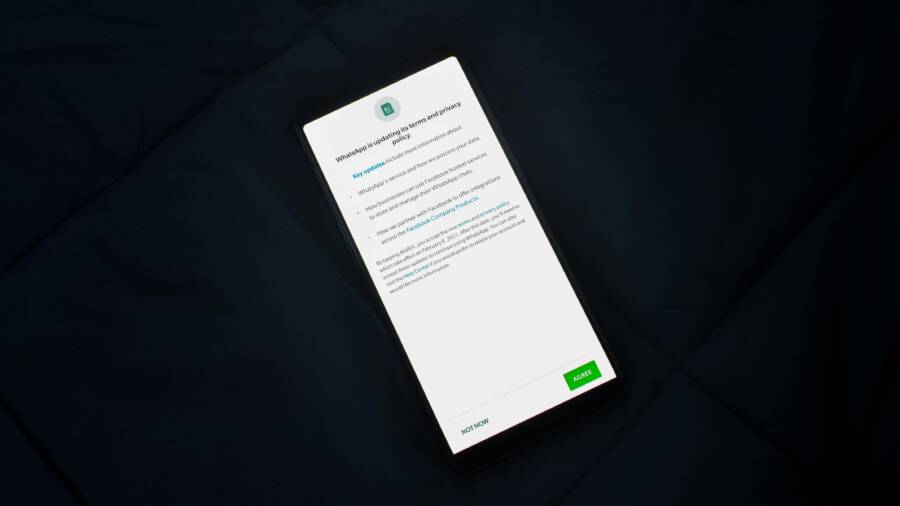
If you’ve ever wondered which apps can peek at your location, camera, or contacts, you’re not alone. A quick reset of all app permissions can clear out old access and give your phone a fresh start.
This guide covers both Android and iPhone, explains why resetting permissions boosts privacy and performance, and shows you simple, step by step paths. You’ll learn what to expect, caveats to watch for, and a quick post reset checklist to finish with confidence.
By the end, you’ll know how to safely reset app permissions on your smartphone, reclaim control over your data, and keep your device running smoothly. You’ll also see how to regrant only the permissions you truly need, so your apps behave without overstepping.
Why Reset App Permissions Safely
Revoking permissions is not about shrinking functionality; it’s about giving you back control. When you reset app permissions, you force apps to ask for access again, only when they truly need it. This helps reduce data sharing with apps that no longer need certain access and minimizes the chance of background activity you didn’t authorize. Below you’ll find practical reasons to reset, what to expect, and when a reset makes sense for you.
 Photo by Rahul Shah
Privacy and Security Benefits
Reversing permissions reduces the data that apps can share about you. When you revoke access, you cut off unnecessary data flows from apps you no longer use or trust. Here are the main risk areas to consider:
- Location: Fewer apps tracking where you go means less profiling and fewer targeted ads.
- Camera and Microphone: Apps lose the ability to capture video or audio in the background without your knowledge.
- Contacts: Your address book stays private, reducing the chance of contact harvesting for marketing or scams.
- Storage: Apps can’t access files unless you grant permission, lowering the risk of data leakage or misuse.
Concrete example: If a game or a utility app once asked for location for a feature that you rarely use, revoking that permission stops it from continually pinging your whereabouts. Another example is a social app that previously requested access to your camera for selfies; if you rarely post photos, removing that access reduces exposure if the app’s security is ever breached. For many users, these small revocations add up to meaningful protection over time.
To reinforce safe habits, check your permission settings after a big OS update. OS updates often reset some defaults, and that can surprise you with new prompts or changed behaviors. You don’t have to guess which permissions to keep. Start with the essentials and remove anything that isn’t critical to the app’s core function. For deeper background on why these permissions matter, see resources like Android and iPhone privacy guides from reputable security sources. Learn more about how permissions can affect privacy here: Understanding App Permissions and How App Permissions Impact Your Privacy.
Performance and Battery Impact
Fewer permissions often mean less background activity. When an app can’t access certain data, it can’t continuously wake up in the background to check for updates, sync data, or run location checks. That translates to:
- Reduced battery drain from constant sensor use.
- Fewer background network requests that chew through data and processing power.
- Less chance of apps reconfiguring themselves to re-activate a previously denied permission.
Be aware that some apps will prompt for permissions again after a reset. This re-prompting can momentarily slow things as the app reconfigures access and adjusts its behavior. In practice, you’ll typically see a short pause the first time you open the app after the reset, followed by normal performance once permissions are granted again or denied.
If you want to tune for battery life beyond permissions, consider pairing resets with these practices:
- Limit background activity for apps that don’t need it.
- Use OS battery saver modes during long days.
- Keep essential apps updated to the latest security standards.
For further context on how permission changes relate to device performance, check out guides like Android Battery Saving Settings and IPhone power management tips.
What a Reset Does Not Do
A reset is not a factory wipe. It does not delete apps or erase personal data. It simply resets the permission prompts and defaults that apps see when they run. After a reset, apps may ask for permissions the next time they need them, and you can grant or deny at that moment.
Key takeaways:
- No data is erased.
- Settings return to a baseline where prompts appear again.
- You regain control over which apps can access sensitive information.
If you want a quick visual on how this works, a simple reset flow is described in many guides by OS developers and security sites. For example, some platforms describe how permissions can be reset or reauthorized without removing apps. See discussions about auto-reset and permission management on Android and iOS for deeper understanding:
- Learn about restricted settings on Android Help: Learn about restricted settings – Android Help
- How to reset all app permissions on iOS: How to reset all app permissions on iOS
When a Reset Makes Sense
If you recently shared your device with someone, or you suspect a security issue, a reset provides a clean starting point. It’s also useful before handing your phone to a new user, ensuring they don’t inherit old app permissions. You might consider a reset after a security scare, or if you’ve noticed odd app behavior or unexpected data usage.
Other scenarios where a reset is prudent:
- You’ve installed several apps from unfamiliar developers and want to start fresh.
- Your device has become slow or erratic after a series of app updates.
- You’re preparing to sell or lend the device and want to remove lingering access.
On some devices, permissions may reset automatically over time as a safety measure. If you see that happening, you’ll still benefit from a deliberate, user-driven reset to reaffirm your privacy boundaries.
In the world of personal tech, a thoughtful reset helps you stay in control without sacrificing essential features. If you want a practical checklist to guide the process, you can refer to step-by-step guides for your specific OS. For Android users, you may explore how permission prompts appear and how to manage them, and for iPhone users, you’ll find clear instructions on reauthorizing access as needed. For a broader view on when and why these resets happen, view expert explanations here: Making permissions auto-reset available to billions more and Apps I use every day marked “unused”, and permissions reset.
Android: Resetting All App Permissions the Easy Way
If you want a clean slate for app access on your Android device, resetting all app permissions is a quick and safe move. This section walks you through the fastest path, what gets reset, and brand variations you might encounter. It’s all about regaining control without losing your data.
Step by Step: Reset App Preferences on Android
The fastest, safest route is a straight path through the Settings app. Here’s the quick flow:
- Go to Settings.
- Tap System (or Apps & notifications on some devices).
- Choose Reset options.
- Select Reset app preferences.
- Confirm your choice.
What you’re doing is restoring permission prompts and default apps without wiping any data. After the reset, apps will prompt for permissions again the next time they need them, letting you decide on a case by case basis. If you’re unsure, a simple check right after the reset helps set expectations. For more on how these resets work across Android versions, see Android Help resources.
External reference: Understanding how Android handles permission resets can help you plan. See: Learn about restricted settings – Android Help
What Gets Reset (and What Stays)
A reset touches several Android settings but leaves your personal data untouched. Here’s the breakdown:
- Disabled apps and any default app associations regain their initial state.
- Notification restrictions are cleared, so apps can notify again as needed.
- Background data restrictions may be removed, allowing apps to fetch data in the background as before.
- Battery optimization rules for apps revert to system defaults.
- Permission restrictions reset to prompts, meaning apps will ask for access anew.
Your actual content and user data stay intact. Think of the reset as returning to a fresh permission prompt baseline, not a factory wipe. After the reset, you’ll decide which apps get access going forward.
If you want more context on how these changes impact daily use, Digital Trends offers practical guidance on resetting default apps and permissions on Android: How to reset default apps on an Android phone or tablet
Tips for Brand Variations and Quick Checks
Android devices vary by manufacturer, so the exact labels and paths can differ. Here’s how to approach it on most phones:
- Look under Settings > System or Settings > Apps for the Reset option.
- If you don’t see “Reset app preferences,” try the same idea under a differently labeled section like Reset or Reset options.
- After the reset, run a quick check on your most used apps to verify essential permissions are restored. Open a few apps, trigger a feature that usually asks for a permission, and confirm a normal prompt flow.
If you want a deeper dive with step-by-step visuals, you can explore guides that show how this looks on different brands, such as Samsung Galaxy and Google Pixel devices. For additional context on general reset behavior, see these resources:
- Samsung and Pixel guidance videos walking through the process
- Comprehensive overviews of resetting app preferences on Android devices
For further reading on why these resets matter and how they interplay with system updates, see Android news and guides here: How to Reset App Preferences on Android (Fix Defaults & Notifications) and How to reset default apps on an Android phone or tablet
iPhone: Resetting Location and Privacy Safely
Resetting your iPhone’s location and privacy settings is a quick, privacy-first move. It clears out saved permissions and nudges apps to request access again. This can reduce lingering data access and gives you a clean slate to manage what your apps can see. Think of it as refreshing the door to your digital life, one permission at a time. If you’re a reader who uses a smartphone daily to stay organized, this step can have immediate, practical benefits.
Step by Step: Reset Location and Privacy
To reset Location and Privacy on an iPhone, follow these precise steps. You’ll need to enter your passcode or use Face ID/Touch ID to confirm, and your device may restart briefly as the changes take effect. After the reset, apps will prompt you for access the next time they need it, letting you decide on a case-by-case basis.
- Open the Settings app.
- Tap General.
- Select Transfer or Reset iPhone.
- Choose Reset.
- Tap Reset Location & Privacy.
- Enter your passcode or use biometric verification to confirm.
Once completed, you’ll see a baseline where permission prompts reappear as needed. This is normal and part of returning control to you. For further context, you can review Apple’s guidance on privacy and Location Services to understand what prompts you may see and how to manage them: About privacy and Location Services in iOS, iPadOS, and watchOS. A quick glance at Apple’s official steps can help ensure you’re following the current menu names on your device.
What Changes After the Reset
A reset clears existing permissions across all apps. That means every app will request access again when it tries to use sensitive data such as your location, camera, microphone, contacts, or photos. No data is erased, and your apps will not lose any functionality; they simply cannot access restricted data until you grant permission again.
- Location services will prompt again the moment an app tries to determine your position.
- Camera and microphone access will be requested the first time an app needs to capture video, photos, or audio.
- Access to contacts and photos will require you to approve before the app can read or write them.
- System-level permissions tied to features like notifications or background app refresh will reset to prompts, so you curate ongoing access going forward.
A practical note for readers who manage multiple devices: after the reset, expect a short flurry of permission prompts as apps reinitialize their access. This is normal, and you can approve or deny each prompt based on current needs. If you want to learn more about what happens after a reset, Apple’s privacy overview is a solid resource: About privacy and Location Services.
Tips for Re Granting Permissions Safely
Grant permissions with intention. Only give access when the app truly needs it to function. Here are practical guidelines to keep permissions meaningful and safer:
- Location: Prefer “While Using the App” when possible. This minimizes continuous tracking in the background.
- Camera and Microphone: Only allow when you’re actively using features like taking photos, scanning codes, or recording a video.
- Contacts, Photos, and Messages: Grant access on a need-to-know basis. If an app doesn’t need them for core features, deny.
- Background Activity: If an app must run in the background, review whether this is essential and adjust settings if you notice battery or data usage concerns.
After reinstalling major apps or completing a system update, revisit Privacy settings to confirm you’re still comfortable with current permissions. Apple’s guidance on Location Services and privacy helps you tailor controls precisely to your needs: About privacy and Location Services in iOS, iPadOS, and watchOS. For broader perspectives on how permission choices shape your privacy, you can also explore trusted resources on iPhone privacy practices. If you want a quick overview of why revisiting permissions matters, see the official guidelines on resetting privacy settings when needed: Reset privacy and security settings in an emergency.
Additional practical steps you can take now:
- Run a post-reset audit of your most-used apps. Open a few apps and trigger access-heavy features to confirm prompts appear as expected.
- Keep essential apps updated. Updates often include privacy improvements and clearer permission requests.
- Use a centralized privacy view to monitor what apps currently have access. On iPhone, you can review these in Settings > Privacy & Security.
If you want a quick, official reference on how iOS handles privacy and Location Services, start with Apple’s privacy overview and then expand to specific app prompts as needed: About privacy and Location Services in iOS, iPadOS, and watchOS.
Would you like a short, device-specific checklist for iPhone models you frequently support? I can tailor it to common iOS versions and provide a printable reference for your readers.
Manual Control: Revoke Permissions for Complete Privacy
Resetting all app permissions is only the first step. Manual control lets you tailor access by category, so your phone stays private without sacrificing essential features. Below, you’ll see practical paths to deny or limit permissions for Location, Camera, Microphone, Contacts, and Notifications. We’ll cover both Android and iOS so you can act quickly on any device’s smartphone user experience.
Revoke by Permission Type
Instead of a global reset, you can tighten up each category one by one. This approach helps you understand what each permission does and why an app requests it.
- Location
- Android: Open Settings > Privacy > Permission Manager > Location. Select an app and choose “While using the app” or “Deny.” This reduces background tracking while preserving functionality when you need it.
- iPhone: Settings > Privacy & Security > Location Services. Tap an app and set to Never, While Using the App, or Ask Next Time. If you rarely use location features, choose the lowest effective setting.
- Quick tip: Prefer “While Using” on both platforms to limit background location tracking.
- Camera
- Android: Settings > Apps & notifications > See all apps > [App] > Permissions > Camera. Deny if the feature isn’t essential.
- iPhone: Settings > Privacy & Security > Camera. Toggle off for apps you don’t need to access the camera.
- Quick tip: If you only take photos occasionally, grant camera access only when you’re actively using a photography feature.
- Microphone
- Android: Settings > Privacy > Permission Manager > Microphone. Pick apps that truly need audio input and remove access from others.
- iPhone: Settings > Privacy & Security > Microphone. Turn off for apps not requiring mic input.
- Quick tip: Pair microphone permissions with use cases like voice calls or video recording, not general app background use.
- Contacts
- Android: Settings > Privacy > Permission Manager > Contacts. Revoke for apps that don’t need your address book to function.
- iPhone: Settings > Privacy & Security > Contacts. Disable for apps that don’t need your contact list to operate.
- Quick tip: Be cautious with social or messaging apps that occasionally request contacts to find friends.
- Notifications
- Android: Settings > Apps & notifications > See all apps > [App] > Notifications. Turn off prompts from apps that aren’t critical.
- iPhone: Settings > Notifications. Disable alerts for nonessential apps or silence notifications during focus times.
- Quick tip: Keep notifications for essential apps like banking or security tools, and mute everything else.
If you’re unsure, check each app’s core functions first. Apps that rely on location, camera, or mic will prompt again when needed, so you’ll have a clean opportunity to approve or deny.
Review Categories Regularly
A quarterly audit keeps your permissions aligned with how you actually use your smartphone. Regular reviews help you catch permission creep before it becomes a habit of access in the background.
- Android privacy dashboard review
- Open Settings > Privacy > Permission Manager to review granted vs denied by category.
- Look for any apps with broad access you don’t recognize or need. Revoke or restrict as needed.
- Use the “Recently used permissions” view to spot unusual access patterns.
- iOS privacy settings audit
- Settings > Privacy & Security lets you see each category at a glance.
- Check Apps that have asked for permissions recently and adjust settings to fit current usage.
- Consider turning off access to Photos or Contacts for apps that don’t truly require them.
- Quick checks you can perform
- Run a couple of your most-used apps and verify prompts reappear when access is needed.
- Confirm essential apps still function as expected after any revocation.
- Keep a simple log of changes so you can revert quickly if necessary.
Using built-in tools makes this process straightforward. On Android, the Privacy Dashboard helps visualize which apps are using data and when. On iPhone, privacy settings provide a clear map of what’s allowed and what isn’t. For a broader view of why these audits matter, see reliable guides on Android and iOS privacy management.
- Learn more about managing device permissions on Android and iOS: How to Manage Device Permissions on Android and iOS
- Explore how to reset app permissions on iPhone: How to manage app permissions on iPhone
- Practical privacy perspective for app permissions: How to Manage App Permissions to Protect Your Privacy
Best Practices for Ongoing Privacy
Ongoing privacy comes from consistent habits, not one-off actions. Keep essential permissions only, and be ready to adjust as apps evolve.
- Keep essential permissions only
- Regularly prune permissions that aren’t required for core features.
- If an app gains a new permission after an update, reassess its necessity.
- Disable device admin if not needed
- Some apps request device administrator rights for security or device management. If you don’t need these, turn them off to minimize control a single app has over your device.
- Keep OS and apps updated
- Updates fix security gaps and tighten permission prompts. Enable automatic updates where possible.
- Use a central privacy view
- Periodically review all apps in one place to see which ones have access to sensitive data.
- Android and iPhone both offer centralized privacy views that simplify monitoring.
- Pause before granting
- When a new permission prompt appears, pause and consider the feature you’re enabling.
- If an app asks for more access than it needs for a feature you use, deny and test the app later.
For deeper context on typical permission flows and storage safety, check articles like these:
- Manage permissions from the privacy dashboard: https://support.google.com/android/answer/13530434?hl=en
- Reset privacy and security settings quickly in emergencies: https://support.apple.com/guide/iphone/iph72e6a13f7/16.0/ios/16.0
Would you like a ready-to-publish, device-specific checklist for common smartphone models your readers frequently support? I can tailor it to current OS versions and provide a printable reference.
What to Expect After Reset and How to Fix Issues Quickly
Resetting app permissions on your smartphone can feel jarring at first. The goal is to reclaim control, wire permissions back to prompts, and keep essential features intact. In this section, you’ll learn what happens after a reset on both Android and iPhone, common hiccups you might encounter, and practical fixes to get things running smoothly again. Think of it as a pit stop for your digital life, not a full rebuild. This approach helps you stay secure without sacrificing the apps you rely on.
Post Reset Setup Quick Checklist
After you reset permissions, follow this concise checklist to get back on track quickly:
- Update apps: Open your app store and install the latest versions. Updated apps often tighten privacy prompts and fix permission-related glitches.
- Review critical permissions: Prioritize location, camera, mic, contacts, and notifications for the apps you use most. Deny or fine-tune others.
- Enable essential notifications: Make sure essential apps can alert you. Silence nonessential noise to preserve battery and focus.
- Set up a quarterly review schedule: Block a short window every three months to audit permissions. This keeps creep at bay and maintains privacy.
This quick routine helps you stay in control without slowing you down. A consistent post reset rhythm protects both privacy and performance over time.
Common Post Reset Issues on Android
Android users often run into a few predictable issues after a permission reset. Here are the typical problems and how to fix them quickly:
- Missing features after deny: If a feature stops working because a needed permission was denied, re-enable that permission for the specific app. Go to Settings > Apps & notifications > [App] > Permissions and switch back as needed.
- Notifications not appearing: Some apps might not show notifications until you grant the required permission. Check Settings > Apps & notifications > See all apps > [App] > Notifications. Ensure notifications are allowed and not silenced by a Do Not Disturb rule.
- Defaults changing after reset: Your default apps or behaviors may revert to system defaults. If an app relies on a specific default, reassign it under Settings > Apps > Default apps (or similar on your device) to restore expected behavior.
- Background data and battery optimizations reenabled: If an app needs to refresh in the background, you might need to re-enable background data or adjust battery optimization settings. Look under Settings > Battery > Battery optimization to manage which apps are allowed to run in the background.
- Re-prompt pacing: After a reset, some apps ask for permissions again and again. You can speed up the re-authorization by granting access the first time the prompt appears, but only for features you truly need.
If you want a deeper dive with brand-specific steps, Android help resources and reputable guides cover variations across Samsung, Google Pixel, and other manufacturers. For a practical overview, read about resetting app preferences and related defaults: How to Reset App Preferences on Android (Fix Defaults & Notifications).
Common Post Reset Issues on iPhone
iPhone users may notice a different set of quirks after a reset. Here are common issues and straightforward fixes:
- Apps asking for permissions again: It’s normal after a reset for apps to request access anew. When prompted, grant only what you truly need for the feature you’re using.
- Privacy prompts reappearing: Privacy prompts can recur as apps reinitialize. If a prompt seems persistent, revisit Settings > Privacy & Security to confirm current permissions per app.
- Tracking settings and analytics prompts: You may see prompts for tracking or analytics. Review the options and choose levels that respect your privacy while keeping essential app functionality.
- Location services not behaving as expected: If location prompts seem off, verify Settings > Privacy & Security > Location Services. Ensure the app has the appropriate setting (Never, While Using the App, or Ask Next Time) based on how you use the feature.
- App privacy awareness: The App Privacy Report can help you gauge what data apps access. Use it to decide which permissions to grant going forward.
For practical guidance on location and privacy specifically on iPhone, Apple’s privacy resources are a solid starting point: About privacy and Location Services in iOS, iPadOS, and watchOS. If you want alternate perspectives, third-party guides also offer actionable steps, such as how to reset location and privacy settings on iPhone: Reset Location and Privacy Settings on iPhone.
A quick post-reset best practice is to run through the most-used apps and verify that essential features still work. If an app misbehaves, regrant the necessary permissions and test. For ongoing awareness, consider a brief audit of your privacy settings every few months.
When to Seek Tech Help
Most post reset issues resolve quickly with the fixes above. However, certain signals indicate it’s time to escalate:
- Persistent app malfunctions after re granting permissions: If a core app continues to crash or behave erratically after you reauthorize, there may be a deeper compatibility issue.
- Device-level issues beyond app settings: If you notice random reboots, unusual battery drain that isn’t tied to a specific app, or system-wide lags after a reset, you may need a hardware or OS check.
- Recurrent prompts despite correct settings: If prompts reappear across many apps despite proper configuration, there could be a misalignment with the OS or a bug in the device’s firmware.
If you face these symptoms, contact the device maker’s support or visit a certified service center. You can also browse official troubleshooting guides for your device, which often include steps to repair permission prompts and restore stable behavior.
External resources can help you decide when to seek help. For Android privacy and permission management guidance, you can explore this general overview: How to Manage Device Permissions on Android and iOS. For iPhone specific permission management and privacy considerations, see: How to manage app permissions on iPhone. If you want broader context on how permissions affect privacy, these pieces offer practical insights: How to Manage App Permissions to Protect Your Privacy.
Would you like a ready-to-publish, device-specific checklist for common smartphone models your readers frequently support? I can tailor it to current OS versions and provide a printable reference for your readers.
Conclusion
Resetting all app permissions is a privacy and security step, not a data loss risk, and it should be done regularly with careful re granting of only needed permissions. A quick post reset scan on your smartphone helps you reclaim control and reduce background access that isn’t essential. After the reset, apps will prompt you again, so you can tailor access to each feature without sacrificing core functionality. Download the quick post reset checklist and schedule a quarterly permissions review to keep your privacy plan on track.