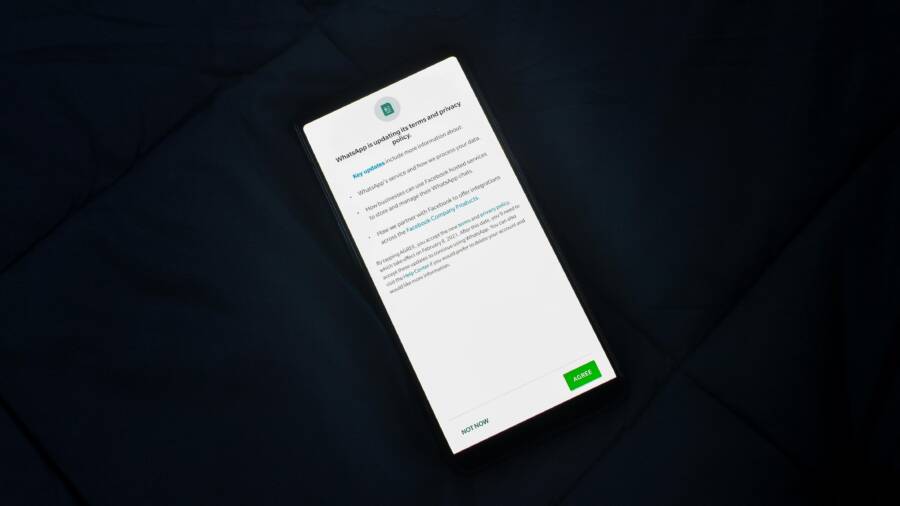
Are you tired of apps on your phone constantly asking for permissions you don’t want to grant? This guide shows a simple, practical plan to reduce those prompts on both iPhone and Android while keeping your data safe.
You’ll learn why apps prompt you in the first place, how to spot when a request is unnecessary, and quick steps to regain control without slowing down your device. By the end, you’ll have a straightforward setup that minimizes interruptions and protects your privacy.
From adjusting individual app settings to using built in privacy controls, this approach keeps you in charge. Expect clearer prompts, faster phones, and peace of mind knowing you decide what gets access to your location, camera, mic, and more.
Why Apps Ask for Permissions (and When It’s Normal)
Permissions are the gatekeepers of your data. When a well-built app asks for access, it’s usually for a reason that serves your experience or safety. This section explains what to expect from permission prompts on iPhone and Android, why they happen, and how to tell when a request is reasonable versus when it’s overbearing. Think of it as a quick compass for navigating the sometimes murky world of app access.
What permissions exist on iPhone and Android
Permissions are the tools that let apps use features or access data on your device. They’re designed to be visible and controllable, so you know exactly what an app can do. Here’s a plain-language map of the common permission types and how they affect behavior:
- Location: This determines when and where you’ll see maps or location-based alerts. You might grant access only while using the app, all the time, or never. In practice, location is often used for maps, local tips, or location-tagged photos. If you choose “Always,” you allow background location access, which helps things like geofenced reminders but can drain battery and raise privacy concerns.
- Camera: Needed to take photos or scan codes. The app will present a camera prompt the first time it needs it. You can allow only while using the app or deny entirely. A camera approval lets you capture moments directly inside the app, not outside it.
- Microphone: Used for voice messages, video recording, or voice commands. The prompt appears before use, and you can revoke access later in Settings. Without microphone permission, voice features simply won’t work.
- Contacts: Lets the app read or manage your contacts for features like finding friends, sharing content, or inviting people. You control whether the app can access that list, and you can turn it off if you don’t want the feature.
- Notifications: This is how an app can alert you with status updates, reminders, or messages. It’s requested separately from other data access and can be managed anytime in Settings. Without this permission, you may miss important alerts from the app.
- Photos and Files: This covers access to your photo library or device storage. Some apps ask for broad access to all photos, while others request selective access. The choice affects what you can attach, edit, or save within the app.
A key difference between iPhone and Android is how these prompts are presented and refined over time. iPhone uses granular controls inside the app and the Settings menu, with options like “Allow Once” or “Always.” Android differentiates between Normal and Dangerous permissions and often includes one-time grants for certain categories. In either case, you retain the power to revoke access later.
- Persistent vs. on-use (one-time) permissions: Some prompts invite ongoing access (persistent or “Always” grants), while others offer temporary or on-use options. Most apps should default to the least permission needed and request more only if the feature truly requires it.
- Granular access matters: When possible, choose the most limited option. For example, select “selected photos” instead of “all photos” if you only need a single image or a few pictures.
To help you picture this in action, imagine a workout app that wants location data to map your run, a camera to capture progress photos, and notifications to提醒 you about daily goals. If you accept only while the app is open and use case-specific photo access, you keep your data scoped and your device lightweight.
If you want a quick reference, these resources explain permission models on both platforms in simple terms:
- Android permission explanations and best practices
- iPhone and iPad permissions and how they work
- General guidance on minimizing permission prompts
For deeper reading, see what developers and platforms say about avoiding overreach while keeping core features intact. These sources provide practical guidance on prompt timing and user trust. Android permissions explained and how to use them · What Are iPhone and iPad Permissions, and How Do They Work? · Minimize your permission requests
When prompts are necessary and expected
Permissions exist to protect your privacy while enabling meaningful features. When prompts are used correctly, they align with user expectations and device context. Here are the scenarios where prompts are appropriate and beneficial:
- GPS for maps and navigation: A map or ride-sharing app needs your location to calculate routes or show nearby options. A clear prompt creates trust by explaining why location is essential for the feature you’re about to use.
- Camera for photo capture: A photo or social app uses the camera to take pictures or scan codes. The prompt should accompany a compelling in-app action, like “Take a photo to filter and share.” This ensures you know what you’re enabling.
- Microphone for voice features: Voice messaging, voice search, or voice commands require mic access. When the app explains what it will do with your voice, you can decide whether to proceed.
- Contacts for sharing or invites: A messaging or social app may need access to your contacts to suggest friends or share content. The request makes sense if the feature centers on social interaction within the app.
- Notifications for timely updates: If an app sends reminders, alerts, or status updates, notification access is necessary. The system prompt helps you decide whether you want those alerts or prefer quiet mode.
- File access for saving, exporting, or editing: Photo editors, document apps, and cloud tools require file access to open or save documents. The permission is tied to the files you actually use in the app.
- Health data or home devices in special ecosystems: Apps that integrate with HealthKit, HomeKit, or other sensitive data APIs need explicit consent for each data type. These prompts are part of a structured privacy model.
The right prompts act as a privacy shield while preserving functionality. When a prompt clearly states the value of the permission and ties it to a specific feature, it earnestly supports your decision-making. It’s not just about getting access; it’s about giving you control over how your device behaves and what it shares.
If you want practical guidance for teams building apps, consider these quick practices:
- Present a short in-app reason before the system prompt to set expectations.
- Offer a minimal path with one-time or “while using” access whenever possible.
- Provide a visible, easy path to Settings so users can adjust permissions after the fact.
- Follow platform guidelines for sensitive data to maintain trust and meet review standards.
For further context on appropriate prompts and best practices, explore how developers approach permission explanations and consent flows. See how Android and iOS approach explaining access and keeping users informed:
- Explain access to more sensitive information
- Permissions updates in Android 11
- Android privacy dashboards for permission visibility
Why prompts can feel repetitive or pushy
If prompts feel relentless, you’re not imagining it. There are legitimate reasons apps may prompt repeatedly, but that doesn’t mean it’s a good user experience. Here’s what can drive the repetition and how to interpret it:
- Changes in app versions: When an app updates, new features may need fresh permissions. A quick reiteration helps ensure you understand the new data access required for the updated features.
- Background tasks and new capabilities: Some apps add background tasks that require continued access. If a feature evolves or expands, prompts can reappear to confirm your current preferences.
- Tracking and personalized ads: If an app wants to share data across apps or services for advertising, you’ll see an ATT or similar prompt on iOS. This one can feel intrusive because it affects your entire device’s advertising experience.
- First-run prompts vs recurring prompts: A first-run prompt appears the moment you install or open the app for the first time. Recurring prompts appear when the app still needs access or when you’ve denied access previously and changed your mind.
While repeated prompts can seem pushy, they don’t automatically signal a privacy risk. They may reflect the app trying to function as advertised or to update its use of permissions after a change. The key is to balance prompt frequency with transparency and a smooth path to adjust permissions later.
If you’re dealing with a steady drumbeat of prompts, here are practical steps to regain control without sacrificing safety:
- Review your consent history: Periodically check which apps have access to what. Both iOS and Android provide dashboards that show recent permission usage.
- Use one-time or in-use grants where possible: Prefer prompts that limit access to the moment you’re actively using the feature.
- Disable or revoke permissions that aren’t essential: If you don’t use a feature, turning off its permission reduces prompts elsewhere.
- Keep apps updated and read prompts carefully: Updated apps are more likely to request only what they truly need, but always confirm the intention behind a request.
Common sense and consistent reviews are your best defense against permission fatigue. By staying aware and using the built-in privacy controls on your smartphone, you can keep a friction-free experience while protecting what matters most.
If you want more guidance on curbing repetitive prompts, these resources offer practical steps and user-focused advice:
- Stop apps from repeatedly asking for denied permissions
- Do my apps truly need to have so much access to work?
- Explain access to more sensitive information
Additional reading on how the system handles repeated prompts and what you can do about it can be found in the developer and user guidance sections for both platforms:
- Minimize your permission requests
- Explain access to more sensitive information
- Permissions updates in Android 11
Plain-language takeaway: prompts are normal when they enable features and protect privacy. Repetition is a sign to pause, review, and tighten up access. Your phone should feel like a tool that serves you, not a faucet you endlessly turn off and on.
External links
- Android permissions explained and how to use them: https://www.androidauthority.com/app-permissions-886758/
- What Are iPhone and iPad Permissions, and How Do They Work?: https://www.makeuseof.com/iphone-ipad-permissions-how-do-they-work/
- Minimize your permission requests: https://developer.android.com/privacy-and-security/minimize-permission-requests
- Explain access to more sensitive information: https://developer.android.com/training/permissions/explaining-access
- Permissions updates in Android 11: https://developer.android.com/about/versions/11/privacy/permissions
Remember, you control which prompts you answer to and when. If a feature depends on permission, you can usually find a clear, in-app explanation that helps you decide. Keep an eye on your Settings menu too. It’s where you’ll find a straightforward path to adjust permissions without digging through each app’s screens.
Audit and Understand Your Current Permissions
Before you start pruning prompts, take a quick inventory of what’s currently granted across your devices. A clear picture helps you decide which permissions are essential and which ones feel more like convenience than necessity. Think of it as auditing a smartphone’s access ledger. You’ll identify patterns, spot overreach, and set a baseline for ongoing privacy hygiene. The goal is to reduce interruptions without compromising the features you actually use.
Check iPhone permissions quickly
On iPhone, you can audit permissions by looking at each category in Settings and Privacy. Start with Location Services, then move to Camera, Microphone, Photos, and Contacts. For each item you’ll see which apps have access and whether the permission is set to Never, While Using, or Always. You’ll also see options like “Ask Next Time Or When I Share” depending on iOS version and feature. If an app requests access while you’re not using it, you can switch to “While Using the App” or “Never,” then revisit if you actively need that feature.
- Location Services: Settings > Privacy > Location Services. Tap an app to view its exact setting. Prefer “While Using” or “Never” for most apps.
- Camera and Microphone: Settings > Privacy > Camera or Microphone. Review each app and limit access to when it’s truly needed.
- Photos and Contacts: Settings > Privacy > Photos or Contacts. Choose “Selected Photos” or deny entirely if the feature isn’t essential.
- Notifications: Settings > Notifications. Manage per app to avoid alerts from apps you don’t rely on.
- Always vs. When In Use: When prompted, prefer the minimal option that covers the feature you’re using. Apple’s prompts are designed to be explicit about why access is required.
If you want a deeper reference, Apple’s guide shows how to control hardware access and adjust prompts across iPhone models. Control access to hardware features on iPhone
To stay vigilant, periodically review your consent history in Settings. A quick check can catch creeping permissions you forgot you granted.
Check Android permissions quickly
Android makes it easy to see permissions you’ve granted and to tighten them. Start with Settings > Apps > [App] > Permissions to deny or limit access. If you want a broader view, the Permission Manager groups permissions by category (Camera, Location, Microphone, etc.). This helps you see patterns across many apps at once.
- Deny or limit access per app: Open the app, go to Permissions, and switch to the most restricted option that still supports the feature.
- Use the Permission Manager: Review by category to identify overreach across multiple apps.
- Understand the grant states: Deny blocks access; Allow only while using the app restricts background usage; Allow all the time enables ongoing access.
- One-time or on-use grants: Some permissions can be granted just once, then revoked after the action completes.
If you’re unsure how to navigate on your device, Google’s help center walks you through changing app permissions and using the Permission Manager. Change app permissions on your Android phone
For a quick overview, you can also explore popular Android tools that summarize app permissions in one place. They help you see at a glance which apps hold sensitive rights.
What to look for beyond standard rights
Many apps request background access or data that isn’t essential for core functions. When auditing, pay attention to:
- Background access and location in the background: Some apps track you even when you’re not actively using them. If you don’t need location in the background, turn it off or set to “Only while using the app.”
- Sensor access: Proximity, motion, or other sensors can reveal a lot about your habits. Question whether the feature truly requires sensor data in real time.
- Data sharing and cross-application usage: Apps may request data to customize experiences or for analytics. Review whether sharing is necessary for the feature you’re using.
- File and photo access: Some editors or social apps request broad access to your gallery. If you only need to select a single photo, opt for “Selected Photos” rather than “All Photos.”
If an app’s permission set feels broader than its purpose, tighten it. For instance, a simple photo editor should not need access to your contacts. When in doubt, disable a permission and test whether essential features still work.
To deepen your understanding, explore developer guidance on explaining access and minimizing permission requests. These sources provide practical context on matching permissions to feature needs:
- Android permissions explained and how to use them
- Explain access to more sensitive information
If you’re curious about best practices for reducing permission prompts while keeping features intact, this Android Developer guidance is helpful: Minimize your permission requests
Why auditing prompts matters
Revisiting permissions isn’t just about cutting prompts. It’s about preserving trust and ensuring your data stays in your control. When you audit, you:
- Confirm each permission aligns with a real feature you use
- Remove outdated or unused access that could drain battery or share data unnecessarily
- Create a predictable pattern for future app updates so you’re not surprised by new requests
A straightforward approach is to audit every few months or after major app updates. In practice, you’ll notice how certain categories, like location or mic, appear more often in add-on features. That familiarity makes it easier to respond quickly and keep your device performing smoothly.
If you want a practical reference on when prompts are appropriate and when they cross a line, you can review guidelines from Android and iOS teams. They emphasize clear in-app explanations and minimal necessary access. For more depth, check:
- Explain access to more sensitive information
- Permissions updates in Android 11
Remember, you have the final say over what a smartphone can do. A quick audit now saves you from constant prompts later and helps your device run leaner and faster.
External resources you might find useful as you audit:
- Android permissions explained and how to use them
- What Are iPhone and iPad Permissions, and How Do They Work?
- Minimize your permission requests
Links for quick reference:
- https://www.androidauthority.com/app-permissions-886758/
- https://www.makeuseof.com/iphone-ipad-permissions-how-do-they-work/
- https://developer.android.com/privacy-and-security/minimize-permission-requests
- https://developer.android.com/training/permissions/explaining-access
- https://developer.android.com/about/versions/11/privacy/permissions
Smartphone privacy is increasingly a DIY task. A steady hand and simple checks keep your daily use calm and predictable. Keep a regular audit rhythm, and you’ll stay in control without slowing down how you work or play.
Practical Steps to Stop Repeated Prompts
Repeated permission prompts waste time and fray trust. By tightening controls now, you keep your smartphone responsive and your data safer. Use minimal access as the default, then expand only when you genuinely need a feature. The goal is a calm permission experience where alerts happen only when they matter.
Grant minimal permissions and use the right setting
Choose the least access needed for each feature. This simple rule prevents a flood of prompts later. When possible, select temporary or limited access, and prefer usage-based options like “Only while using the app” or “Allow once.” These choices keep your data scoped to the moment you need a function.
- Location: Use “While Using the App” for maps, and avoid “Always” unless truly required for background tasks.
- Camera and Microphone: Grant access only while you’re actively engaging with a feature. Deny when it isn’t essential.
- Photos and Files: Opt for “Selected Photos” or allow access only to the specific file you’re working with.
- Notifications: Enable only for apps that truly need timely updates, and tailor per-app so nonessential alerts stay quiet.
By sticking to minimal permissions, you reduce the likelihood of future prompts and keep the app’s behavior aligned with your expectations. For deeper guidance on minimizing requests, see Android’s guidance on minimizing permission prompts and iPhone/Android permission basics.
External references for quick reading:
- Minimize your permission requests
- Explain access to more sensitive information
Disable ad tracking and personalization
Ad tracking and cross-app personalization are major sources of prompts and data sharing. Turning off tracking reduces cross-app prompts and keeps your advertising profile from following you around.
- On iPhone: disable personalized ads and control app tracking prompts in Settings > Privacy > Tracking. If an app asks to track, you can decline or choose to allow only for certain apps. Apple’s guidance explains how to manage app tracking permissions.
- On Android: limit ad personalization and reset your ad ID. Android Help offers steps to manage ad privacy settings and reduce cross-app tracking prompts.
If you want to stop trackers from building a profile across apps, start with the device-wide controls and then review individual apps. This two-step approach minimizes repeat prompts and protects your privacy.
Useful resources:
- If an app asks to track your activity
- Manage your ad privacy settings on Android
Tighten hardware access and behavior
Hardware prompts tend to reappear when apps request more access than they need. Tightening camera, microphone, location, and contacts access keeps prompts focused and predictable.
- Camera: Allow only when you’re actively taking a photo or scanning a code. Deny otherwise.
- Microphone: Grant for voice features only when you’re using them. You can revoke access after the task ends.
- Location: Use “While Using” for most apps. Avoid “Always” unless background location is essential.
- Contacts: Share contacts only if it directly supports a current feature, like inviting a friend or sharing a link.
If an app doesn’t need one data type for its core function, disable that permission. Over time you’ll notice fewer prompts and faster app responses. For more on how permissions work on Android and iPhone, explore the Android permissions overview and iPhone privacy controls.
Helpful reads:
- Permissions on Android | Privacy – Android Developers
- Control app tracking permissions on iPhone
Use Focus modes and notification controls
Focus modes and Do Not Disturb can quiet permission prompts during work or study. They let you keep essential alerts while silencing nonessential ones.
- Set a work Focus: Allow important apps to break through while suppressing lower-priority prompts.
- Schedule quiet times: Automatic Do Not Disturb windows help you stay in the zone during tasks that require concentration.
- Customize exceptions: Keep alerts from critical apps active, but pause prompts from others.
During focus periods, apps may still prompt, but you’ll see fewer interruptions because the system filters noncritical alerts. This approach balances productivity with the need to respond to important updates.
Guidance and options from official sources show how Focus or Do Not Disturb can be used to manage notifications and permission prompts effectively.
Recommended readings:
- How to use Focus modes and Do Not Disturb on your device
- Tips for silencing nonessential alerts while staying informed
Turn off auto re prompts or re-prompt settings
Many prompts reappear after you deny them or after an app updates. You can reduce repeat prompts with targeted settings that give you control over future prompts.
- Android: Some permissions support one-time access or on-use grants. Use the Permission Manager to review and revoke permissions you don’t need.
- iOS: Re-prompt behavior can be controlled by choosing minimal access when first asked and returning to Settings later if you need to adjust. If an app pushes a re-prompt, revisit the permission in Settings and adjust to a narrower option.
A clear path to apply these settings involves three steps:
- Audit each major category (Location, Camera, Microphone, Contacts, Notifications).
- Reset or revoke permissions you rarely use.
- Regrant only when you’re actively using a feature, keeping prompts down the line.
For practical steps, see Android’s guidance on minimizing permission requests and iPhone’s control over app tracking permissions. These resources outline concrete paths to reduce prompts while preserving functionality.
Helpful links:
- Minimize your permission requests
- Explain access to more sensitive information
- Manage your ad privacy settings on Android
External links for quick reference:
- https://www.androidauthority.com/app-permissions-886758/
- https://www.makeuseof.com/iphone-ipad-permissions-how-do-they-work/
- https://developer.android.com/privacy-and-security/minimize-permission-requests
- https://developer.android.com/training/permissions/explaining-access
- https://developer.android.com/about/versions/11/privacy/permissions
By applying these practical steps, you regain control of when and why apps ask for access. Your smartphone should feel like a reliable tool, not a constant negotiation with permissions.
Manage Apps and Long-Term Privacy Health
Taking control of app permissions isn’t a one-time chore. It’s a habit that pays off over years of device use. In this section, you’ll find practical criteria to identify pushy apps, how to use built-in privacy tools to automate safeguards, and a simple quarterly review plan. Think of it as building a quiet, private backbone for your smartphone that keeps up with updates and new features without overwhelming prompts.
 Photo by Rahul Shah
Uninstall or replace pushy apps
Identify apps that demand more access than their function warrants. Look for patterns like location access when a feature clearly doesn’t need it, or camera and mic prompts for tasks that could work with limited permissions. If a habit feels intrusive, it’s time to consider alternatives.
- Criteria to flag a pushy app:
- Location access is granted “Always” for a feature that could work with “While Using” or “Ask Next Time.”
- In-app actions require access to your contacts, photos, or microphone for tasks that don’t rely on those data types.
- Permissions are requested again after you deny them, or new prompts appear after every update.
- Practical steps to prune:
- Open the app’s entry in Settings, review each permission, and revoke any that aren’t essential to the core function.
- Look for privacy-friendly alternatives with lean permission models. For example, choose messaging apps that minimize data sharing or photo editors that request only the photos you select.
- When you uninstall, replace the app with a privacy-focused option that clearly documents data use. If you still need the feature, try a lighter app first and expand later if necessary.
To help you compare options quickly, consider these sources for privacy-friendly alternatives and guidance on permission practices:
- 7 Free Privacy-Friendly Alternatives to Popular Android Apps
- Android – Privacy Guides
- The Privacy Guides overview for mobile apps
If you’d like a hand, share the apps you’re unsure about and your primary features. I’ll suggest better-fitting, lower-permission options and walk you through the swap process.
Use auto revoke permissions and privacy tools
Auto revoke, or automatic permission resets, shield you from long-term exposure to unused app access. Android has a built-in auto-revoke system for permissions that haven’t been used in a while, while iOS handles unused permissions through manual review and context-aware prompts. Enabling these features as a routine keeps your privacy health steady without extra work.
- How Android auto revoke helps:
- If an app hasn’t been opened for a set period, its sensitive permissions (camera, location, mic) are reset to Deny.
- You can review which apps had permissions auto-removed and adjust per-app settings in the Permission Manager.
- iOS behavior:
- iPhone doesn’t auto-reset all unused permissions by default. You’ll manage access via per-app prompts and Settings, deciding when to revoke or re-grant.
- How to make this a routine:
- Turn on auto-revoke where available and schedule a quarterly check to review any apps that were auto-reset.
- When a prompt appears after a rebuild or update, re-check whether the permission is truly needed for the updated feature.
- Use per-app settings to re-request access only when you actively use the feature.
Recommended actions and quick reads:
- Android’s guidance on minimizing permission prompts
- Control access to information in apps on iPhone
- Make sense of per-app permission behavior during updates
External links for context and clarity:
- Android permissions explained and how to use them
- What Are iPhone and iPad Permissions, and How Do They Work?
- Minimize your permission requests
Regular reviews after updates
Updates can change how an app uses data, even if you don’t notice. A simple quarterly review after major OS or app updates helps you catch new permission requests early and keep your privacy plan intact.
- What to check after an update:
- Revisit location, camera, microphone, and photos permissions to confirm they’re still aligned with how you use the app.
- Look for newly added data access requested in changelogs or in-app prompts.
- Verify notification settings, especially if an app gained new features that rely on alerts.
- Quick routine:
- Open Settings and navigate to each permission category (Location, Camera, Microphone, Photos, Contacts).
- Review all apps listed under each category and adjust to “While Using,” “Selected Photos,” or “Deny” as appropriate.
- Re-test the core features of the app to ensure they still work after tightening permissions.
- Why this matters:
- Permissions can drift with updates, and a once-stable setup may suddenly expose more data than you expect.
- A predictable permission pattern reduces future prompts and keeps device performance snappy.
For additional guidance, check resources that explain permissions changes after Android updates and iOS permission controls:
- Change app permissions on your Android phone
- Control access to information in apps on iPhone
A practical takeaway is to keep a simple ledger of who has what access. If a major app update adds a feature you don’t plan to use, you don’t have to grant new permissions to keep it working. You can always re-evaluate when the feature becomes relevant again.
Images and visuals can reinforce this practice. A screenshot of the Permission Manager UI can be a helpful addition to your post.
If you want, tell me your device model and OS version. I’ll give you exact in-app paths for a quick, step-by-step audit.
Conclusion
A small, steady privacy routine goes a long way. Start by granting the bare minimum permissions and tighten them after every app update or feature change. Use one time or while-using access whenever you can, and review permissions in your Settings every few weeks to keep prompts at bay.
Think of this as a simple plan for your smartphone: audit, prune, and regrant only when a feature truly needs it. This approach reduces interruptions, protects your data, and keeps your device fast and reliable. If you have tips or a workaround that helped you cut prompts, share them so others can benefit.