Are you seeing unexpected lock screen ads on your phone and wondering what’s going on? This guide shows why lock screen ads appear on both Android and iPhone, and gives practical, step by step fixes to remove them. From identifying adware and suspicious apps to adjusting settings and configuration profiles, you’ll learn how to reclaim a clean, ad free lock screen.
Why lock screen ads appear
Lock screen ads sneak onto your Android or iPhone for specific reasons. You might notice full-screen promotions or rotating images that block access until you swipe them away. These intrusions often stem from apps you installed, built-in phone features, or quiet changes from updates. Spotting the source helps you fix it fast. Common triggers include free utility apps, manufacturer content feeds, and hidden ad tools.
Third party apps that show ads
Free apps promise quick fixes but deliver ads instead. Think flashlight tools, battery savers, custom launchers, or theme packs. They request broad permissions during install, then overlay promotions right on your lock screen. A flashlight app, for example, might push deals for premium versions every time you wake your smartphone.
Spot these culprits in your settings. Open Settings > Apps (or Apps & notifications on Android). Sort by recent installs or check permissions like Display over other apps or Lock screen display. High battery use or data from an obscure app is another red flag.
Here’s how to confirm if an app causes trouble:
- Ads appear right after using the app.
- The app shows up in notifications or running services.
- Uninstalling it clears the lock screen.
Samsung confirms third-party apps drive most lock screen ads, not their system (Samsung support). Uninstall suspects one by one to test.
Built in lock screen services from manufacturers
Phone makers add content to your lock screen by default. Services like Glance (on Samsung, Motorola, or Xiaomi) or Lock Screen Feed deliver news, weather, and deals. They activate during setup for “personalized” info, but ads slip in among the content. Your smartphone stays locked until you dismiss them.
Disable these with simple steps. Paths vary by brand, but start here:
- Go to Settings > Lock screen (or Wallpaper and style on Samsung).
- Tap Wallpaper services, Always On Display, or Glance.
- Select None or toggle off the service.
- Restart your phone to apply changes.
For Glance specifically, check Settings > Wallpaper services > Glance and switch to standard options. Detailed steps for Samsung appear here. Once off, your lock screen returns to plain wallpapers or clocks.
Recent updates and ad networks behind the scenes
App updates or fresh installs often flip on ad features. Developers embed ad SDKs (software kits from networks) that gain lock screen access through permissions. A battery app update, say, might add promo feeds without warning. New downloads from side sources or Play Store freebies do the same.
These networks push content for revenue. You see it as rotating ads or stories. The fix stays straightforward: remove the app or revoke permissions.
- Open Settings > Apps > [Suspect app] > Permissions.
- Deny Lock screen or Overlay access.
- Force stop and clear cache if needed.
Uninstalling stops it cold. Updates rarely re-enable without your okay, so check app details before approving. Keep your smartphone ad-free by reviewing changes after any install.
Diagnose and quick fixes for any phone
If you’re seeing intrusive ads on your lock screen, you’re not alone. This section helps you quickly diagnose what’s pushing those ads and gives you steps you can take in minutes. You’ll learn how to spot recurring culprits, use Safe Mode to isolate apps on Android, and verify configuration profiles on iPhone. Think of this as a fast triage guide you can skim, then apply.
 Photo by Tima Miroshnichenko
Spot likely culprits and quick checks
Most lock screen ads come from apps you recently installed or from system features that push content. In less than five minutes, you can run through a streamlined checklist and identify common triggers.
- Check recently used or installed apps: Open the app drawer or home screen and review what you launched most recently. Look for apps that promise free helpers like flashlights, battery savers, or customization tools.
- Inspect permissions and overlays: Go to Settings > Apps (or Apps & notifications). Look for apps with permissions like Display over other apps or Lock screen display. If you see a suspicious app with these permissions, note it for removal.
- Review launcher and wallpaper services: Some launchers or built-in wallpaper feeds inject content. If your device uses a feature like Glance or a wallpaper service, disable or switch it off.
- Check notifications and background activity: If an app shows up in notifications or keeps a background service running after you close it, it could be the culprit.
- Quick action: uninstall suspects one by one and test the lock screen after each removal. If the ads stop after a specific uninstall, you’ve found the source.
If you want to dive deeper, Samsung’s guidance on lock screen ads helps explain why third-party apps drive most of these issues. It’s worth a read to understand the underlying cause and how to eliminate it. Samsung support provides context and practical steps. For Samsung users specifically, you can also follow how-to guides that walk you through disabling Glance or similar services. Some helpful content from a well-known guide covers turning off Glance on Samsung devices: how to turn off gl ance on samsung phones.
- Quick takeaway: start with the most recently installed apps and any that requested overlay permissions. If the ad behavior disappears after removing an app, you’ve pinpointed the culprit.
Use Safe Mode on Android to isolate apps
Safe Mode starts your Android device with only the essential apps and services, disabling third-party apps temporarily. This makes it a powerful way to confirm whether adware lives in a third-party app or is part of the system.
- What Safe Mode does: It runs with default system apps only, so any ad behavior tied to third-party software should stop. If ads vanish in Safe Mode, a culprit app is likely installed on your device.
- How to enter Safe Mode (generic steps):
- Hold the power button until the power menu appears.
- Tap and hold “Power off” or “Restart” until you see the option to reboot in Safe Mode.
- Confirm and wait for the phone to restart in Safe Mode.
- How to exit Safe Mode: Simply restart your phone normally. Safe Mode is temporary and reverts back after a regular reboot.
- After Safe Mode: Test apps one by one. Open a few apps you suspect and use the lock screen. If ads reappear after reopening a specific app, that app is the likely source. Remove it and test again.
If you’re unfamiliar with Safe Mode or want a step-by-step for a specific device, you can consult a few reputable guides. Android Authority offers a comprehensive how-to for entering Safe Mode, while Lifehacker and Lifewire provide straightforward turn-off and verification steps. For brand-specific instructions, Samsung’s official page on Safe Mode for Galaxy devices is a dependable resource. And if you’re curious about what happens during Safe Mode, Avast and JustAnswer also cover practical nuances. These sources help you tailor the approach to your model and version.
- Quick takeaway: Safe Mode is your fastest way to confirm if a third-party app is causing lock screen ads. If ads vanish in Safe Mode, you’re almost there.
Identify configuration profiles on iPhone
On iPhone, configuration profiles can push content or ads if a profile is installed from an untrusted source. These profiles can adjust network settings, install apps, or apply restrictions. The quickest way to rule them out is to inspect and remove unknown profiles.
- How to check for profiles:
- Open Settings.
- Go to General.
- Tap VPN & Device Management.
- What to look for: Unknown or suspicious profiles with names you don’t recognize or that you didn’t install yourself.
- How to remove safely:
- Tap the profile you suspect.
- Choose Remove Profile.
- Confirm and restart your iPhone.
- Why profiles can push content: Profiles can configure network routes, install apps in the background, or update system settings. If an unknown profile exists, remove it and reset network settings if needed.
- After removal: Test the lock screen again. If ads stop, the profile was the source. If you still see ads, proceed with general security checks or consider a full device restore.
If you’re unsure about a profile, you can search for the profile name online or visit Apple Support for guidance on safe removal. Keeping a clean device profile list reduces the risk of unwanted content on the lock screen.
- Quick takeaway: Regularly review your device profiles. Removing unknown ones eliminates a common route for ad delivery without needing to wipe your device.
If you’d like more reading on iPhone configuration profiles and security best practices, you can explore official Apple documentation and trusted security guides. These resources help you stay ahead of any profile-based issues and ensure your device stays ad-free.
Remove lock screen ads on Android
If you’re seeing unwanted ads on your Android lock screen, you’re not alone. Adware and certain built-in content services can push promotions right where you wake your device. In this section, you’ll find practical, step by step actions to identify the source, disable the offending features, and restore a clean lock screen. The goal is simple: a calm, ad-free experience every time you pick up your smartphone.
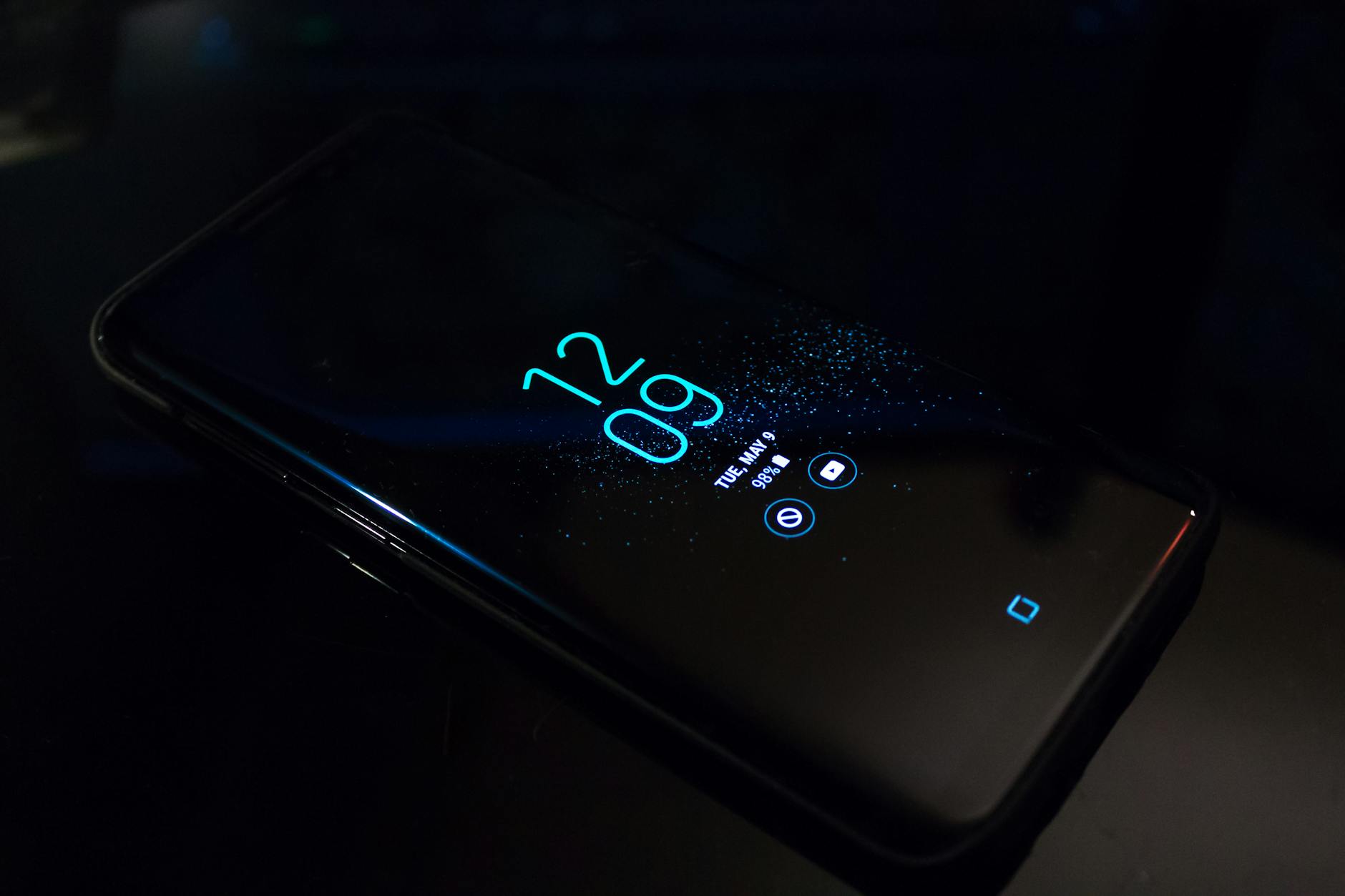 Photo by Noah Erickson
Uninstall suspicious apps
Guide to Settings → Apps, identify likely offenders such as flashlight, battery saver, launcher, or theme apps, and uninstall or disable them. These apps often request broad permissions during install and can overlay promotions on the lock screen. Reboot afterward to confirm the ads are gone.
- Start by reviewing recently installed or updated apps. Look for utilities that promise quick fixes or free perks.
- Check permissions that matter for lock screen ads, especially Display over other apps and Lock screen display.
- If you suspect an app, uninstall it one by one. After each removal, lock and unlock your phone to test for ongoing ads.
For context, Samsung and other OEMs note that third party apps are the usual culprits behind lock screen ads. If you want a quick reference, see Samsung’s guidance on stopping lock screen ads. It explains that removing the offending app is the most reliable fix. Samsung support
If you’re dealing specifically with Samsung devices, a popular guide covers turning off Glance and similar services that feed lock screen content. Learn more about disabling Glance on Samsung devices. Beebom guide
- Quick takeaway: start with recently installed apps that request overlay permissions. If removing one stops the ads, you’ve found the culprit.
Disable lock screen content services from OEM
Phone makers add content to the lock screen by default through features like Glance or Lock Screen content. The aim is personalization, but the result is ads in many cases. Turning these off is usually quick, though steps vary by brand.
- Go to Settings > Lock screen (or Wallpaper and style on Samsung).
- Find options like Wallpaper services, Always On Display, or Glance.
- Set to None or toggle the service off.
- Restart your device to apply changes.
Glance is a common offender on several brands. If you’re unsure about the exact path, general guidance is to disable the lock screen content service and test the lock screen again. For Samsung users, there are brand specific steps and videos that show the process clearly. If you’d like a visual walkthrough, a Beebom article explains how to turn off Glance on Samsung phones.
For more background on Glance and how OEMs implement lock screen content, you can check Samsung’s official article. It provides a straightforward explanation and steps to disable. Samsung support
- Quick takeaway: disabling lock screen content services is often enough to stop persistent ads without removing apps.
Revoke notifications and check launcher settings
If you cannot uninstall the offender, revoke its lock screen notification permissions and disable promo content in the launcher settings. Then, restart to test if the ads still appear.
- Open Settings > Apps > [Suspect app] > Notifications. Turn off lock screen notifications or block all notifications from that app.
- Check the launcher settings for promo feeds or overlays. Some launchers push promotional content on wake.
- If the launcher offers a “Promotions” or “Ads” toggle, disable it.
- Restart the device and observe whether the lock screen remains clean.
If you still see ads, a simple cross-check is to restart after disabling the feature. Then test by locking and waking the phone with a fresh screen to see if promos reappear.
Helpful reference on revoking lock screen permissions and launcher settings can be found in related guides. For example, Dr.Fone offers a comprehensive approach to removing lock screen ads and managing app permissions. Dr.Fone – Android Unlock & Clean
- Quick takeaway: revoking permissions and trimming launcher promos can stop ads without a full reset.
Factory reset as last resort
If all else fails, a factory reset removes apps and settings that cause persistent ads. It’s a last resort because it clears your data and returns the device to default state.
- Back up important data first. Save photos, contacts, and documents to the cloud or a computer.
- Remove any accounts, then proceed with a factory reset from Settings > System > Reset > Factory data reset.
- After the reset, set up your phone as new and reinstall only necessary apps, avoiding freebies from unknown sources.
A factory reset is straightforward but should be used only after you’ve exhausted other options. If you’re unsure about the backup steps, there are straightforward guides that walk you through backing up Android data before resetting. Techlicious guide
- Quick takeaway: use a factory reset only when ads persist after thorough cleaning and testing.
Additional care to keep ads at bay in the future
- Stick to reputable app sources and read app permissions before installation.
- Regularly review installed apps and overlays, especially after large updates.
- Keep your device and apps updated to minimize adware risk.
For ongoing protection, consider trusted security guides and official support pages to stay informed about changes in Android policies and ad networks. You can explore resources on removing adware and securing your device from credible providers and security tools. Aura – How To Remove Adware From Android
If you want more tips on identifying lock screen ad sources, the Samsung and Beebom resources above are a good starting point. You can also watch quick tutorials on disabling Glance or other lock screen feeds to understand what to expect on your specific model. Beebom – How to Turn Off Glance on Samsung Phones
By following these steps, you can reclaim a clean, distraction-free lock screen and enjoy a smartphone experience that feels like it should be. If you want to share your results or ask for device-specific tweaks, drop a comment below and we’ll tailor the guidance to your model.
Sources and further reading:
- Samsung support on removing lock screen ads
- Beebom guides for turning off Glance on Samsung
- Dr.Fone guidance on removing lock screen ads
- Techlicious guide on resetting Android without losing data
Note: If you’d like more tailored steps for a specific Android brand or model, I can map out the exact menu path for your device.
Remove lock screen ads on iPhone
Lock screen ads on iPhone usually come from configuration profiles or promotional content pushed by built-in services. The fix is to identify the source, remove it safely, and adjust how notifications and previews appear. The steps below focus on practical checks you can perform quickly on your smartphone to reclaim a clean lock screen.
Check for profiles and permission prompts
Configuration profiles can route traffic, install apps, or push content that appears as ads on the lock screen. The safe path is to inspect and remove any unknown profiles.
- Open Settings, then General, and tap VPN & Device Management. Look for profiles you don’t recognize or didn’t install yourself.
- If you find a suspicious profile, tap it and choose Remove Profile. Restart your iPhone afterward to apply changes.
- Why this helps: profiles can alter network routes or push content without your explicit consent. Removing unknown profiles eliminates a common ad delivery channel.
If you want more official guidance, Apple’s documentation explains how to install or remove configuration profiles and how to review those profiles for safety. Install or remove configuration profiles on iPhone and Review and delete configuration profiles provide step by step instructions and context. Another Apple resource covers how to install or remove configuration profiles on iPod touch as well, in case you’re juggling multiple devices. Install or remove configuration profiles on iPod touch
Quick takeaway: Regularly scan for unfamiliar profiles, especially after apps or device updates. Removing them stops the ad content that rides on those configurations.
Disable lock screen previews and promo notifications
Promos on the lock screen often come through notifications that reveal previews or show banners. You can reduce or block these to regain a clean wake.
- Change Show Previews: Go to Settings > Notifications, then find each app and set Show Previews to When Unlocked or Never, depending on your preference.
- Limit lock screen alerts: For apps that push promos, disable lock screen notifications entirely or switch off banners. This prevents promos from appearing when the screen is off or locked.
- Test by locking your iPhone and waking it again. If previews still show, revisit the affected apps and tighten their notification settings.
For more granular control, Apple provides a guide on changing notification settings on iPhone. Change notification settings on iPhone covers how to tailor alerts, banners, and previews across apps. You can also explore how to access features from the iPhone Lock Screen for quick actions and to manage what appears there. Access features from the iPhone Lock Screen
Quick takeaway: tightening previews and lock screen notifications for individual apps is usually enough to stop most promo prompts without sacrificing essential alerts.
Reset browser data and clear web push
If ads originate from web push or a hijacked browser, clearing data and tightening site permissions can clear the noise.
- Clear Safari data: Open Settings > Safari > Clear History and Website Data. This removes stored data that could feed ads on your lock screen.
- Review site notifications: Settings > Safari > Notifications, then review and disable any sites you don’t recognize.
- Block pop ups and site permissions: In Safari, turn on Block Pop-ups and adjust Website Settings to limit permissions for sites you visit.
- Revisit after a restart: Lock your screen again and test if the ads reappear.
If you’d like a broader guide on Safari data and site permissions, Apple’s guide on notifications and browsing safety is useful. Use notifications on your iPhone or iPad and related content discuss how to manage alerts and web interactions on your device.
Quick takeaway: a clean sweep of browser data and strict site permissions often resolves ad clutter coming from web push.
Backup and restore if needed
If ad behavior persists after cleaning the software and settings, a backup and restore can reset stubborn issues while preserving your data. Plan carefully to keep your information safe.
- Back up first: Use iCloud or Finder to back up photos, messages, and app data.
- Restore process: On iPhone, erase all content and settings, then restore from your backup during setup.
- Post-restore check: Reinstall only trusted apps and monitor for any recurring ads before adding more.
Apple-supported steps for safe restore and backup can guide you through the process, ensuring your data stays protected. For general guidance on safe backups and restores, you can reference Apple and trusted tech resources. Use iPhone backups and restore — Apple Support
Quick takeaway: a well-timed restore to a clean state can eliminate persistent, hard to identify adware, especially when paired with careful app reinstallation.
Additional care to keep ads at bay in the future
- Stick to reputable app sources and review permissions before installing.
- Regularly review installed profiles and device management entries after system updates.
- Keep iOS updated to reduce the chances of ad networks slipping in through new features.
If you want more tailored steps for a specific iPhone model, I can map out exact menu paths for your device. For deeper insights into iPhone configuration profiles and security best practices, Apple’s official documentation is a reliable starting point. Install or remove configuration profiles on iPhone
If you’d like extra reading, you can explore related guides on safe profile management and notification control. These resources help you stay ahead of profile based issues and keep your device ad free. Review and delete configuration profiles
By applying these steps, you can reclaim a clean, distraction free lock screen and enjoy a smoother smartphone experience. If you want to share your results or need device specific tweaks, drop a comment and I’ll tailor guidance to your model.
Prevent future lock screen ads and keep your phone safe
Lock screen ads can pop up again if underlying risk factors aren’t addressed. This section focuses on practical, repeatable steps you can take to prevent future adware exposures and keep your smartphone protected. You’ll learn how to vet apps, tighten OS security, and apply solid privacy practices so your lock screen stays clean and your data stays safe.
 Photo by Antoni Shkraba Studio
Install trusted apps and review permissions
A quick, disciplined approach before you install any app reduces the chance of future lock screen ads. Use this 5 point checklist to filter out risky options and stay in control of your device.
- Source first: Only download from reputable app stores. Avoid sideloading apps from unknown websites.
- Read permissions before tapping Install: Look for requests that don’t fit the app’s purpose, especially Display over other apps, Screen overlay, or Lock screen access.
- Avoid apps with a barrage of prompts: If an app bombards you with ads or permissions during setup, it’s a red flag.
- Check reviews and install history: Prefer apps with steady, recent updates and a solid user base. New or sketchy apps often hide shady behavior behind glossy promises.
- Test in a controlled way: Install one app at a time and monitor the lock screen. If ads appear, remove that app and test again.
Why this matters: trusted apps limit exposure to ad networks. For a broader view on permissions and how they affect privacy, see guidance from major security providers and official app stores. When you do encounter trouble, a targeted uninstall of suspect apps often resolves the issue quickly. For background on how manufacturers view ad behavior, Samsung’s guidance on stopping lock screen ads is a useful reference. Samsung support
Keep OS and apps updated
Regular updates patch security holes that ad networks often exploit. Keeping both the operating system and apps current reduces the chances of suspicious ad behavior slipping through.
- Enable automatic updates whenever possible. This ensures you receive security patches as soon as they’re released.
- Don’t ignore update prompts. Treat them as essential maintenance, not interruptions.
- Prioritize critical security patches over new features if you must choose.
- After updates, re-scan permissions for apps that may request overlay access again.
- Schedule a quick check-in after major updates to confirm the lock screen is clean.
Why this matters: updates fix known vulnerabilities that adware can abuse. Android’s general guidance and vendor notes emphasize the security benefits of timely patches, while iPhone users see similar protections with Apple’s ongoing iOS updates. For background on update importance, see Android and security-focused resources, as well as guidance from official security agencies Android updates matter and Keep Your Device’s OS Up to Date.
Use strong privacy controls and security practices
A robust privacy and security routine makes it much harder for ad networks to find a foothold. A few disciplined habits go a long way.
- Avoid sideloading. Stick to trusted stores and well-known apps.
- Enable security features. Use screen pinning, strong passcodes, and biometric locks where available.
- Regular backups. Protect data with cloud backups or local copies so you can recover quickly if you need to reset.
- Revoke unnecessary permissions. Periodically review app permissions and remove those that aren’t essential.
- Stay alert to profiles and device management. On iPhone, review VPN and device management entries; on Android, monitor device administrators and overlay permissions.
Why this matters: a well guarded device reduces the risk of lock screen ad intrusion and keeps data safe. If you want deeper reading on permissions, see the guidance from reputable security sources like McAfee and official store documentation. For example, understanding app permissions can help, and Apple’s and Google’s official resources provide actionable steps to tighten controls. Understanding App Permissions
Additional reading on keeping devices secure and up to date can help you stay ahead of evolving threats. For device security best practices and ongoing protection, explore manufacturer and security vendor guidance. Why Android Updates Matter | Keep Your Device’s Operating System and Applications Up to Date
This section helps you create a proactive routine so future ads don’t disturb your day. It’s about building resilience into how you install, review, and update software on your device.
Summary of key actions to prevent future lock screen ads
- Vet apps before installation using a strict permissions lens.
- Keep OS and apps updated with automatic updates enabled.
- Use strong privacy controls and back up data regularly to guard against adware cascading risks.
- Avoid sideloading and rely on reputable app stores.
- Regularly review configuration profiles on iPhone and launcher settings on Android.
For ongoing protection, reference trusted safety guides and official support pages. When in doubt, start with one solid change, test, and expand your safeguards. If you want more tailored steps for a specific device or brand, I can map out exact menu paths for your model. For deeper reading on configuration profiles and security practices, Apple and Android official docs offer clear, practical guidance. Install or remove configuration profiles on iPhone | How to turn off Glance on Samsung phones
If you have a case study or a device you want to discuss, share the details in the comments and I’ll tailor the steps to fit.
Conclusion
Most lock screen ads come from apps or device settings, not from the phone itself. By auditing recently installed apps, tightening overlay permissions, and disabling built in content feeds, you can reclaim a calm, ad free wake every time you raise your smartphone. A quick Safe Mode test on Android or checking configuration profiles on iPhone often reveals the culprit fast. If you still see promos, share your device model and I’ll map out exact steps for you.