
If you’re suddenly seeing ads on your phone, you’re not imagining it. Adware can hide in sneaky apps, browser prompts, or even device settings, turning your everyday smartphone use into a tease of interruptions. This post will give you a clear, step by step way to find the culprit on both Android and iPhone so you can block ads and remove adware for good.
You’ll learn how to spot signs that point to the responsible app, from checking battery drain and data usage to reviewing app permissions. By the end, you’ll have a simple checklist you can trust to identify adware fast, without rushing through tests or losing your calm. This guide is written for real life use, so you can protect your privacy and reclaim a smooth smartphone experience.
Why ads appear on phones and how to approach finding the culprit
Ads popping up on your phone can feel invasive, but with a clear approach you can pinpoint the source and stop them. This section breaks down where ads usually come from and how to investigate them without turning your smartphone into a science project. You’ll learn to differentiate ad sources, recognize common tricks, and use practical checks that work on both Android and iPhone.
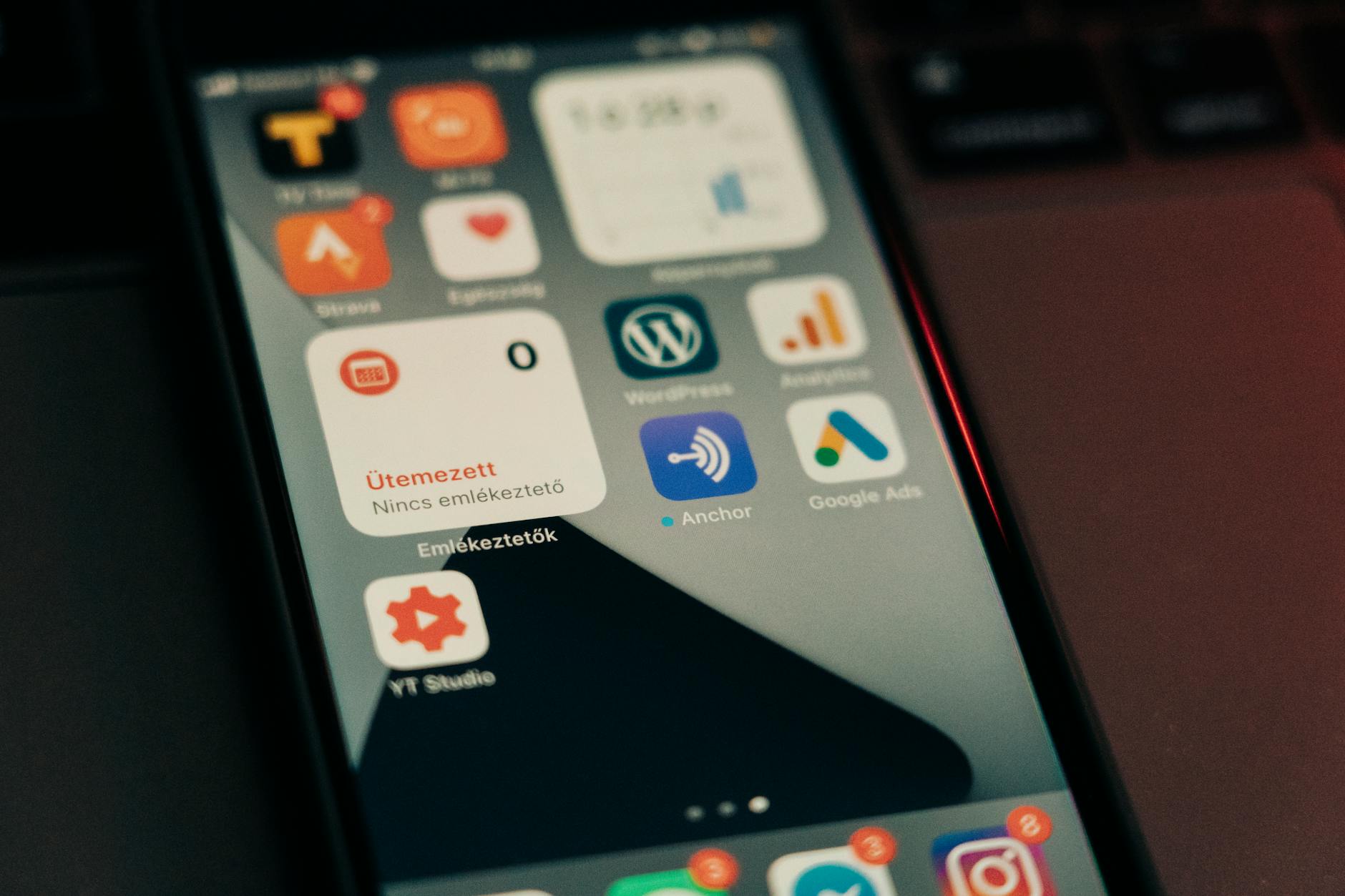 Photo by Szabó Viktor
Common sources of ads
Ads on a phone can originate from several places, and understanding the usual suspects makes the hunt easier. First, adware apps or games that are willing to intrude for revenue. Some free apps rely on ads to stay free, and a few cross the line by advertising inside system-like menus or while you’re away from the app’s active screen. Second, browser side ads are common. You may see banners, pop-ups, or redirections while you browse, often due to shady extensions, malicious scripts, or compromised search results. Third, push notification spam can deliver ads or promo messages even when you aren’t actively using an app. Lastly, misused permissions can turn legitimate features into ad channels. For instance, an app that asks for accessibility or notification access and uses that access to surface ads or overlays.
To keep things practical, here are tangible examples you may recognize:
- A free game that aggressively pushes rewarded videos or overlays during gameplay.
- A shopping or utility app that suddenly shows full-screen prompts or new tabs with promos.
- A browser that suddenly injects ads or changes the default search experience.
- A benign-looking “cleaning” or “battery saver” tool that ends up showing ads or triggering promotional alerts.
For quick protection, start with the basics: review recently installed apps, check for unusual data use or battery drain, and consider whether a recent update changed the ad behavior. If you want a deeper dive into practical prevention steps, you can read about stopping pop-up ads and safeguarding against adware from reputable security sources. For more on practical prevention tips, see this guide from Norton and related resources from Trend Micro. How to stop pop-up ads on Android phones and iPhones and How to Stop Unwanted Pop-up ads on Android. You’ll also find expert explanations on overlays and how they’re used to trick users, which helps you recognize sneaky patterns. Explained: Android overlays and how they are used to trick people.
If you want a quick primer on the ad formats you’re likely to encounter, look at guides that describe how in-app ads work and the differences between banner, interstitial, and video formats. This can help you tell when an ad is something you should expect from a trusted app versus a red flag. For example, you might see a banner while you’re inside a game, an interstitial during a natural pause, or a short video rewarded for a task. For deeper context, check resources on ad types and patterns from industry guides. Different Types of In-App Advertising and How to Use Them and Types of Mobile Advertising.
How adware hides in apps
Adware designers try to blend in so you barely notice. They may request permissions that seem harmless but are powerful in the hands of an advertiser. Common tactics include:
- Drawing over other apps. This lets ads appear on top of anything you’re viewing, which can feel like the app itself is misbehaving. The key is to watch for overlays that appear without you actively tapping into a new feature.
- Requesting notification access. Ads can surface as push notifications, even when you’re not using the app. If you’ve granted broad notification permissions, you may see promos pop up unexpectedly.
- Disguising as ordinary tools. A calculator, flashlight, or utility app might hide adware behind familiar names. It looks like a legitimate utility, but it pushes ads or redirects your activity.
- Bundling with other popular free apps. Adware can piggyback on well-known apps by bundling extra software, prompting users to install something they didn’t intend to.
These tactics make it hard to spot the culprit right away. A few practical steps help counter them:
- Run a Safe Mode or a clean boot to limit nonessential apps and observe whether ads disappear.
- Scan the device with reputable mobile security software to identify suspicious overlays or permissions.
- Review recently installed apps and those updated just before the ad surge. Uninstall any that look suspicious or unrelated to your needs.
- Check browser extensions or add-ons. A single rogue extension can inject ads into your browsing experience.
If you want a deeper technical view, you can explore resources on how adware hides and how overlays are used. For an in-depth look at overlays and related risks, these readings are helpful: Android adware: What is it, and how do I get it off my device? and Draw Over Other Apps Privileges Explained. For a broader security perspective, see Explained: Android overlays and how they are used to trick people.
Identifying ad types and patterns
Different ads behave in distinct ways, and recognizing patterns helps you separate normal app behavior from adware. Here are the main ad types you’ll encounter and what they typically indicate:
- Full screen interstitial ads. These appear during transitions or at natural breaks. If they start to interrupt routine actions (like typing or scrolling), it could be a sign of adware or an ill-placed monetization feature.
- Video ads. Short videos that play in exchange for rewards are common in legitimate apps, but if video prompts feel forced or recur too often outside expected contexts, reassess the app.
- Banners. Small, fixed ads at the top or bottom of the screen are common in free apps. They’re generally acceptable when unobtrusive, but excessive banners or banners that hide app controls are red flags.
- Push notifications. Alerts that arrive even when the app isn’t in use can be legitimate for some apps, but if you start seeing random promos or scams, check app permissions and notification settings.
In many cases, coin-like pop ups or overlay ads are a signal that adware is at play, especially if they appear outside of typical app moments. Normal in-app ads from trusted apps usually stay within the app’s interface and align with the app’s purpose. Quick checks you can do without panicking:
- Pause and notice whether ads follow your typical app usage pattern or appear at odd times.
- Compare ads across multiple apps. If you see the same aggressive ad format repeated across different apps, you may be dealing with a broader issue or a family of adware components.
- Look for unfamiliar banners, tabs, or prompts that push you to install other apps or sign in to services you don’t recognize.
If you want more background on ad types and best practices for monetization, you can explore these resources. They explain how different formats work and how to assess them in the context of your smartphone experience: Types of In-App Mobile Ads You Should Use and Types of Mobile Advertising. For practical guidance on identifying and handling overlays, consider reading Android overlays and how they are used to trick people.
Quick takeaways
- Ads come from adware apps, browser prompts, push notifications, or misused permissions.
- Free apps often monetize with ads; some seemingly legitimate tools hide intrusive ads.
- Learn the ad formats, watch for suspicious patterns, and use a structured scan to verify culprits.
- When in doubt, start with a clean boot or Safe Mode, then audit apps and permissions.
To keep your phone clean and your data private, combine these checks with reliable security tools and smart browsing practices. For ongoing updates on how to stay safe, refer to trusted security resources and our step-by-step guides on adware removal and prevention.
Photos: Szabó Viktor, Close-up view of smartphone screen featuring various app icons and notifications. Photo by Szabó Viktor.
Android: How to identify which app is showing ads
Ads can crop up in surprising places on your Android device. The trick is to follow a simple, repeatable process that isolates the culprit without turning your phone into a mystery. This section walks you through practical steps to identify the app behind the ads, step by step.
Step 1: Notice the ad and capture details
The first move is to observe when the ad appears and what it looks like. Note the timing, the screen area it occupies, and any app names shown near the frame. A quick screenshot or a short note about what happened can save you hours later when you’re trying to identify the culprit. Look for patterns—do the ads show up after you open a specific app, or at startup, or while you’re browsing in a particular browser? Jot down the app name, the ad format (full screen, banner, video), and whether it overlays your current screen.
If you want a quick reference on common ad formats and how they behave, these resources offer solid guidance. For example, guides about stopping pop-up ads and safeguarding against adware can help you understand what you’re seeing and why it matters. Learn more from trusted security sources that explain how overlays and intruding ads work, and what to do when you encounter them.
- “Remove unwanted ads, pop-ups & malware – Android” from Google Support
- Article on Android adware and how to remove it from We Live Security
- How to find pop-up ads on Android with practical steps from Guiding Tech
Step 2: Check Recent Apps when the ad pops up
Use the Recent Apps button to identify which app was in use when the ad appeared. On many devices, the ad will be tied to the app that was active just before the frame showed up. When the ad is visible, long-press the app icon in the ad frame or within the recent apps overview to reveal the culprit name. This quick probe often points you to a recently installed or updated app that’s misbehaving.
If the culprit isn’t obvious from the recent apps list, perform a quick cross-check: reproduce a few normal tasks on your phone and watch for ads to reappear. The pattern should help you zero in on the offending app. For further reading on how to identify the source and block aggressive ads, see guides from reputable sources that focus on Android adware and safe mode testing.
- How to find the app causing pop-up ads on Android from Guiding Tech
- Find problem apps by rebooting to safe mode on Android from Google Support
Step 3: Boot into Safe Mode to isolate third party apps
Safe Mode disables third-party apps, letting you determine whether system components or preinstalled apps are responsible for the ads. To enter Safe Mode, follow your device manufacturer’s instructions (steps vary by model). In Safe Mode, use your phone normally and monitor whether the ads stop. If they disappear, a third-party app is likely the culprit. Start by uninstalling recently installed or updated apps one by one, then restart to confirm the fix.
If the ads persist in Safe Mode, the problem may lie with a system app or a more stubborn malware component. In that case, you’ll want to continue with deeper checks, such as inspecting running services and device admin permissions, then removing suspicious items before returning to normal mode.
- Find problem apps by rebooting to safe mode on Android from Google Support
- Additional guidance on safe mode and troubleshooting steps from Google and major security outlets
Step 4: Inspect running services and device admin apps
Open Settings and look for the list of running services or apps with elevated permissions. Scan for unfamiliar names or apps you don’t recall installing. Some adware uses device administrator rights to stay active even after you try to uninstall it, so you’ll need to revoke those rights before removal. If you find a suspicious service, revoke its permissions, then uninstall the app as you would with any other app.
After revoking admin rights, recheck the device to ensure the ad behavior stops. If it does, you’ve likely isolated the offender and can remove it safely. If you’re unsure about a service, search the exact name online for confirmation before taking action.
- Review running services and device admin permissions on Android via Settings
- Guidance on safely removing device admin apps from support resources
Step 5: Uninstall suspects and tighten defenses
With the culprits identified, uninstall the suspect apps. After removal, run Google Play Protect or another trusted security scanner to verify that no harmful remnants remain. This is a good moment to tighten defenses: consider enabling an ad blocker for browsers, reviewing app permissions, and restricting notification access. Regularly update apps and the OS, and stay cautious about installing apps from unknown sources.
As a practical safeguard, look for reputable security apps that can monitor for suspicious overlays and prompt you if new permissions are requested. Regular maintenance, such as a clean boot or Safe Mode check, helps keep future ad intrusions at bay.
- Uninstall suspect apps and re-scan with Google Play Protect
- Strengthen defenses with prudent permissions management and a trusted ad blocker
外部参考与进一步阅读
- Remove unwanted ads, pop-ups & malware – Android. Google Support: https://support.google.com/chrome/answer/2765944?hl=en&co=GENIE.Platform%3DAndroid
- Android adware: What is it, and how do I get it off my device? WeLiveSecurity: https://www.welivesecurity.com/en/mobile-security/android-adware-what-is-it-how-get-it-off-my-device/
- How to Find out Which App Is Causing Pop-up Ads on Android. Guiding Tech: https://www.guidingtech.com/find-pop-up-ads-app-android/
- Find problem apps by rebooting to safe mode on Android. Google Support: https://support.google.com/android/answer/7665064?hl=en
- Manage pop-up ads on your Galaxy phone. Samsung Support: https://www.samsung.com/us/support/answer/ANS10003384/
重要提示
- 定期查看应用权限,尤其通知、显示在其他应用上方和无障碍访问权限。对存在异常行为的应用及时处理。
- 将设备保持在最新的安全更新状态,开启自动更新能显著降低广告和隐匿行为的风险。
- 对于不熟悉的应用,谨慎下载,优先来自 Google Play 或设备制造商官方商店。
Tips for readers
- Keep a small journal on your smartphone about when ads appear. The notes become a reliable map to the culprit.
- If you prefer, use a trusted security app to run scans and flag suspicious overlays or permissions.
- After removal, monitor data usage and battery life for a week to ensure the ad problem does not return.
iPhone: How to identify which app is showing ads
Ads popping up on an iPhone can be disruptive and confusing. The goal of this section is to give you a clear, repeatable process to pinpoint the culprit without turning your device into a puzzle. Follow these steps to methodically test apps, permissions, and browser data. Think of it like detective work for your smartphone, with practical checks you can perform in minutes.
Step 1: Check App Switcher and background activity
Swipe up from the bottom (or double-click the Home button on older models) to open the App Switcher. Look for anything unfamiliar or apps you don’t typically use. Apps running in the background can push ads or deliver notifications even when you aren’t actively using them. If you spot an unfamiliar name, press and hold to view more details or switch away to observe if the ads stop.
In practice, keep an eye on:
- Recently used apps you don’t recall opening.
- Apps that seemed normal at first but started surfacing persistent prompts.
- Any background tasks that align with when you see ads.
If you want to learn more about common ad sources and how overlays work on iOS, reputable guides explain why these prompts appear and how to respond. For example, reading about how updated apps and overlays behave can help you distinguish legitimate ads from adware. See trusted resources from security providers and Apple community discussions for context and next steps:
- Learn more about identifying adware on iPhone and iPad from security experts. https://challix.com/blogs/apple-tips-tricks/how-to-detect-and-remove-adware-on-your-iphone-or-ipad
- Discussing how to stop pop-up ads on mobile devices from Norton. https://us.norton.com/blog/mobile/how-do-i-get-rid-of-pop-up-ads-on-my-phone
Step 2: Review notifications and storage usage
Open Notification Center to see which apps are sending alerts and what triggers them. If alerts appear to come from a suspicious source, try turning off alerts from that suspect app to test whether the ads stop. Go to Settings > Notifications, locate each suspect app, and disable its banners or alerts temporarily. If the ads diminish, you’ve found a strong clue.
Next, check iPhone Storage to spot recently used or unusually large apps that might be ad heavy. Go to Settings > General > iPhone Storage. Look for apps that you recently installed or updated just before the ad surge. Large, unfamiliar apps or those updated right before the problem often point to the culprit. If you see an app you don’t recognize or don’t need, consider removing it and testing again.
For additional guidance on how to handle adware and prevent intrusive prompts, see expert recommendations from security teams. Norton’s guide on stopping pop-up ads and related resources from malware researchers provide practical steps you can apply right away. https://us.norton.com/blog/mobile/how-do-i-get-rid-of-pop-up-ads-on-my-phone
Step 3: Remove profiles and test browser data
Some adware rides in on profiles or configurations that survive a normal app uninstall. On your iPhone, go to Settings > General > VPN & Device Management and remove any profiles you don’t recognize or that look suspicious. Profiles can control network traffic or push ads in ways that aren’t tied to a single app, so removing unknown profiles is a smart precaution.
In Safari, clear history and website data to test whether ads persist after a clean browser slate. Go to Settings > Safari > Clear History and Website Data. This step helps determine if the ads were browser-based or tied to a rogue app. If the ads stop after clearing data, you’ve narrowed the source to your browser or a remaining extension.
For deeper context on adware behavior on iPhone, reputable sources explain how overlays and profile-based hijacking work and what to do about them:
- How to remove malware from your iPhone and protect your device. https://www.mcafee.com/blogs/tips-tricks/a-guide-to-remove-malware-from-your-iphone
- Android and iOS adware behavior and removal tips, with broader security perspectives. https://www.malwarebytes.com/blog/news/2024/06/explained-android-overlays-and-how-they-are-used-to-trick-people
Step 4: Test by uninstalling recent apps and testing again
Uninstall recently installed or updated apps one by one and test again to see if the ads disappear. Start with the most recently added apps. After each removal, use Safari or your preferred apps for a short period to see whether the ad behavior returns. If the ads stop after removing a specific app, you’ve identified the culprit.
If ads persist after removing recent apps, you should consider more thorough steps such as resetting settings or performing a device reset, always with a prior backup. Use a trusted backup method so you can restore your data without losing important information. After a reset, test again to confirm the issue is resolved.
If you want to go deeper, reputable security resources offer guidance on safe resets and verifying clean states. For a broader security perspective, consider the following:
- How to detect and remove adware on your iPhone or iPad. Challix. https://challix.com/blogs/apple-tips-tricks/how-to-detect-and-remove-adware-on-your-iphone-or-ipad
- A guide to removing malware from your iPhone and safeguarding data. https://www.mcafee.com/blogs/tips-tricks/a-guide-to-remove-malware-from-your-iphone
Tips for readers
- Keep a small journal on your smartphone about when ads appear. The notes become a reliable map to the culprit.
- If you prefer, use a trusted security app to run scans and flag suspicious overlays or permissions.
- After removal, monitor data usage and battery life for a week to ensure the ad problem does not return.
External references and further reading
- How to stop pop-up ads on Android phones and iPhones. Norton: https://us.norton.com/blog/mobile/how-do-i-get-rid-of-pop-up-ads-on-my-phone
- Android adware: What is it, and how do I get it off my device. WeLiveSecurity: https://www.welivesecurity.com/en/mobile-security/android-adware-what-is-it-how-get-it-off-my-device/
- How to Find out Which App Is Causing Pop-up Ads on Android. Guiding Tech: https://www.guidingtech.com/find-pop-up-ads-app-android/
Photos: Szabó Viktor
By following these steps, you can identify the app behind the ads on your iPhone with confidence. If you’re still unsure after testing, a reset and a fresh install of essential apps may be the quickest route to a clean device. Remember, regular reviews of app permissions and browser data help keep your smartphone safe over the long term.
Preventing ads and keeping your phone clean
Ads on a phone can feel invasive, but you can block many of them at the source and keep your device clean with a few focused steps. This section covers practical strategies you can implement right away to reduce ad exposure, protect your data, and maintain a smoother smartphone experience. A clean device starts with smart defenses and consistent maintenance.
 Photo by Jakub Zerdzicki
Block ads at source with DNS and ad blockers
Blocking ads at the source stops many annoyances before they reach your screen. Start with trusted DNS services or reputable ad blocking apps that work across apps and browsers without requiring risky APKs.
- Use a DNS service that blocks trackers and ads on all network requests. Popular options include AdGuard DNS and NextDNS, which provide easy setup and broad protection across apps and browsers. These services act like a shield, filtering out known ad domains before they load.
- Install reputable ad blockers designed for mobile. Look for apps with positive reviews and transparent privacy policies. These tools reduce in-app advertising and browser prompts without needing to root or sideload unknown software.
- Keep in mind that DNS-based blocking works at the network level, so it protects you across apps and browsers. It’s a safer alternative to third-party APKs that may bring security risks.
Useful resources:
- AdGuard DNS for mobile and related guidance
- NextDNS for modern device protection
- Ad blocker guidance for mobile environments
In practice, set up a DNS profile on your device and enable a trusted ad blocker in your browser. This approach gives you a broad, low-friction defense and reduces the chance of accidental ad injection during routine tasks.
Manage app permissions and display over other apps
Mischief often hides in plain sight through permissions that seem harmless. Review and prune unnecessary rights, especially the “Display over other apps” and notification access. A quick test after adjusting permissions can reveal whether ad activity drops.
- Display over other apps (also known as “Appear on top”) lets an app draw on top of everything you’re viewing. If you notice unexpected overlays, revoke this permission from suspicious apps. You can typically find this in Settings > Apps > Special app access > Display over other apps.
- Notification access controls affect how aggressively an app can surface alerts and banners. Disable notification access for apps that don’t need it, then test whether ads lessen. Go to Settings > Notifications and adjust per app.
- After revoking these permissions, perform a brief usage test: open a few apps you suspect and see if overlays or promos appear. If ads fade, you’ve likely found a culprit.
Quick test to confirm improves:
- Revisit a normal task in a commonly affected app. 2) Compare with the same action after revoking the suspect permissions. 3) If you notice fewer unexpected prompts, keep the changes and monitor for any relapse.
Helpful references:
- Guidance on managing the “Display over other apps” permission on Android
- Android support resources for changing app permissions
Keep OS and apps updated and run security scans
Regular updates shield you from known exploits and ad-related abuses. Staying current with your OS and apps is a simple yet powerful defense.
- Enable automatic updates where possible for the OS and individual apps. Patches often close security gaps that adware exploits.
- Use built-in safety features like Play Protect on Android. It scans apps for malware and verifies apps from trusted sources.
- On iPhone, rely on iOS updates and reputable security apps to add extra protection layer. App reviews and security advisories help you stay ahead of potential threats.
Beyond updates, run trusted security scans periodically. A quick health check can catch hidden adware components that lightweight scans might miss. Consider reputable security apps or services to monitor overlays and permission requests, and read independent reviews for the best fit for your device.
Useful resources:
- Android safety and Google Play Protect guidance
- iPhone security guidance and reputable third-party apps
Be careful with downloads and avoid pirated apps
One of the surest paths to adware is downloading apps from unknown sources or using cracked copies. These packages often carry hidden ads, trackers, or malware.
- Stick to official stores like Google Play and Apple App Store. These platforms enforce screening and provide safety signals that reduce risk.
- Be wary of apps offering sensational features or heavy discounts outside official stores. If something feels off, it probably is.
- Before installing any app, check the developer’s name, read reviews, and verify requested permissions align with the app’s purpose.
If you suspect an app is questionable, uninstall it and run a security check on your device. A trustworthy security tool can help you spot suspicious behavior, such as unusual permission requests or unexpected overlays.
External guidance you can consult:
- How to stop pop-up ads on Android and iPhone
- Android adware identification and removal guidance
- Safe downloading habits and app verification tips
In addition, always keep a backup of your data before making major changes. A quick reset to a known good state can be a practical last resort if ad behavior persists.
Images and practical steps to keep in check:
- Use a well-known app store, review developer details, and read user feedback before installing new apps.
By implementing these strategies, you create practical barriers against adware and make it easier to spot trouble quickly. Regular maintenance, mindful downloading, and a few smart protections can dramatically reduce disruptions and safeguard your privacy.
External links for quick reference:
- How to block in-app ads on Android and iPhone (AdBlock Tester)
- AdGuard DNS for mobile
- NextDNS, a firewall for the modern Internet
- AdGuard DNS official site
Note: Always verify trusted sources and ensure any tool you install comes from a reputable vendor with clear privacy policies.
Section ends here.
When to seek professional help or reset
Sometimes the best way to reclaim control over adware is to reset the device, but you don’t want to rush into a reset without weighing the options. This section helps you decide when to call in official support or a trusted professional, and how to prepare so you don’t lose valuable data in the process. Think of it as your practical playbook for a clean start, with clear steps and realistic expectations for both Android and iPhone.
 Photo by riza yildirim
Backup and prepare for a reset
Before you reset, set up a simple, reliable backup plan that covers photos, contacts, and app data. Use cloud backups for automatic protection and local transfers for hands-on control.
- For photos and videos, enable automatic cloud backups (Google Photos on Android, iCloud Photos on iPhone) and consider exporting key albums to a computer as an extra layer.
- For contacts and calendar data, ensure your Google or iCloud account is syncing in real time, then verify by checking a couple of records on another device.
- For app data, rely on platform backups when possible. Android users can back up app data to Google Drive, while iPhone users can back up app data through iCloud or iTunes/Finder on a computer. If you store important messages or settings, consider exporting them where available.
When possible, perform a local transfer of essential files to a computer or external drive. This gives you a fresh start while keeping your memories safe. If you’re unsure which items to back up, start with the basics: photos, contacts, and any documents or notes you’d hate to lose.
If you want a quick reference on backing up Android and iPhone data before a reset, these resources offer practical guidance:
- How to back up your data and restore your Android smartphone to factory settings
- How to back up your iPhone or iPad with iCloud
- How to back up and restore your Android device (PCMag)
Factory reset guidance and what to expect
A factory reset wipes the device clear and returns it to its original state. It’s a strong step against stubborn adware, but it also means reinstalling essential apps and reconfiguring settings. Here’s what to expect and how to handle it gracefully.
- What a reset does: all user data, apps, and custom settings are erased. The device returns to the state it was in when first purchased.
- What you’ll lose: locally stored files not backed up to the cloud or computer, offline app data, and customized configurations.
- After the reset: reinstall apps only from official stores, re-enable essential backups, and restore data selectively. Avoid restoring a full backup if you suspect a hidden adware component may ride along; instead, restore needed data gradually and test as you go.
If you’re weighing a reset, consider alternatives first. Sometimes a thorough cleanup of apps, permissions, and browser data can fix the issue without a full wipe. If you decide to proceed, use official reset procedures from the device maker and follow prompts carefully.
Helpful resources on what happens during a factory reset and how to prepare:
- Start Fresh: How to Factory Reset an iPhone or Android device
- How to Reset Your Phone to Factory Settings – Android
- Reset your Android device to factory settings – Google Support
- How to back up your iPhone or iPad with iCloud – Apple Support
Getting help from experts and official support
If the ad problem persists after a careful self-cleanup, or if you’re unsure about a suspicious app or profile, it’s wise to reach out to official support or a trusted service provider. Here’s how to decide who to contact and how to approach the conversation so you get fast, accurate help.
- When to contact device maker support: if you notice persistent overlays, device administration prompts, or behavior that seems tied to the system rather than a single app.
- When to consider a trusted service provider: if you’re not comfortable removing device admin rights, if malware is suspected, or if a professional might clean the system more safely.
Before you contact support, gather clear evidence:
- A concise description of the symptoms and when they occur.
- A short timeline of recent app installs or updates.
- Screenshots or screen recordings of the ad behavior, if possible.
- A current list of installed apps and any profiles or VPN configurations.
Tips to streamline the process:
- Take a quick log of events when the ads appear, including the app active at the time.
- Note any unusual battery drain or data spikes that accompany the ads.
- Clarify whether you want a full reset or a targeted cleanup of apps and permissions.
Official support resources you can use for guidance:
- Android reset and recovery details from Google Support
- Apple support articles for iPhone and iPad troubleshooting
- Manufacturer-specific help pages (Samsung, etc.)
If you’re considering a professional cleanup, here are practical steps to prepare for a smooth service:
- Back up critical data, as outlined earlier, before handing the device to a technician.
- Document the issue with dates and events to help the technician reproduce the problem.
- Ask for a clear plan on how your data will be preserved and what will be wiped.
External links for practical help:
- How to reset your Android device to factory settings – Google Support
- How to back up your iPhone or iPad with iCloud – Apple Support
- What happens when you factory reset a device – Prey Project blog
In any case, choose reputable support options and avoid remote help offers that push unknown software or actions. A calm, methodical approach keeps you in control and reduces the risk of data loss.
Takeaways:
- A reset is a powerful tool, but it should be used thoughtfully after backups.
- Official support can confirm the nature of the problem and steer you toward the safest path.
- Collecting clear evidence before you reach out speeds up the resolution.
Photos: Szabó Viktor
- If you’re unsure after testing and backups, a reset followed by a careful reinstall of essential apps can restore a clean state. Regular checks of app permissions and browser data will help keep adware at bay over time.
Conclusion
Most ad problems on your smartphone boil down to one or two suspect apps, plus a browser or notification quirk. Start with quick checks like recent installs, unusual data use, and browser data to pinpoint the culprit, then move to targeted removals if needed. A simple, repeatable process helps you reclaim control without overhauling your entire device.
Stay vigilant after you fix the issue. Regularly review app permissions, disable overlays, and keep the OS and apps updated. If you’ve had a similar experience, share what helped you most in the comments, and feel free to ask questions. Subscribe for more practical guides that keep your smartphone running smoothly.