A slow phone can kill your TikTok momentum fast. Buffering stalls your edits right when inspiration hits. Low-quality videos from laggy storage flop before they even post. You’ve felt that frustration.
Take Sarah, a creator stuck at 1,000 views per video. Her smartphone choked on basic clips. She cleared junk files and tweaked settings. Views doubled in a week.
You don’t need fancy gear to fix this. Simple changes optimize your phone for TikTok growth on any iPhone or Android. Turn your device into a content machine that pumps out smooth, pro-level videos.
We’ll cover the key steps first. Start with system updates to unlock speed and features TikTok loves. Next, speed boosts like closing background apps and freeing storage.
Camera tweaks follow. Adjust resolution and stabilization for crisp footage that stands out. Then, app power-ups fine-tune TikTok itself for faster uploads and edits.
These tweaks take minutes but pay off big. Your smartphone handles trends without a hitch. Growth accelerates as you post more, better content. Ready to level up?
Update Your Phone Basics for Reliable TikTok Sessions
Start here to build a solid base. Your smartphone runs TikTok smoothly when basics stay current. Outdated software causes crashes during live sessions or edits. Fresh updates fix bugs and boost performance. You post more videos without interruptions. Let’s check these essentials now.
Check and Install OS Updates Quickly
Back up your data first. Use iCloud or Google Drive to save photos and videos.
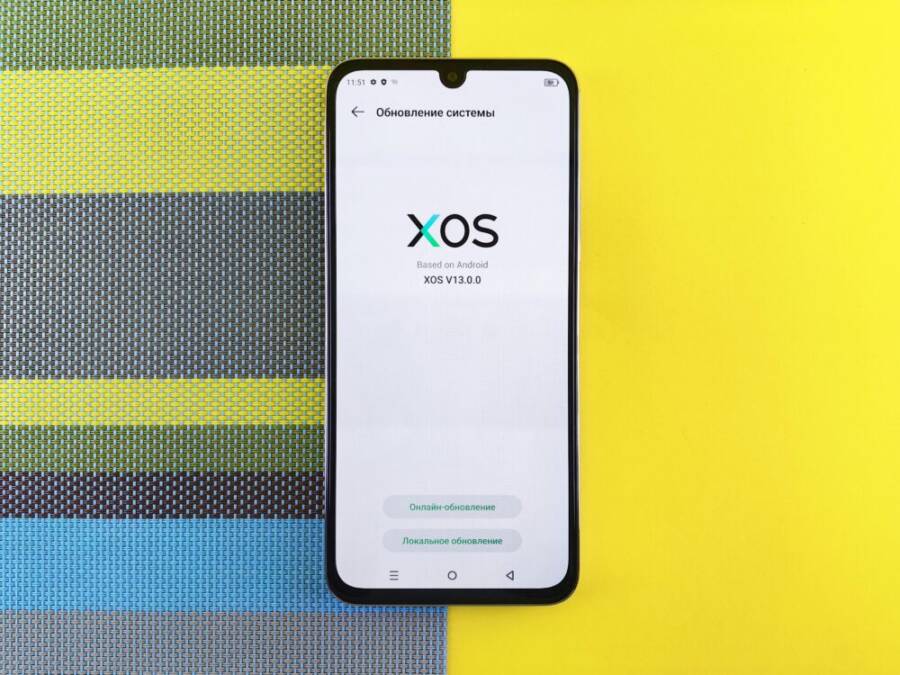
On iPhone, tap Settings > General > Software Update. Your device scans for the latest iOS. Install if ready. Android users go to Settings > System > System Update (names vary by brand). Download and apply.
These updates improve battery life so long shoots don’t drain power fast. They add video tools like better stabilization for shaky clips. TikTok runs faster with optimized code. One creator saw upload times drop by half after updating. Do this weekly for peak performance.

Photo by Andrey Matveev
Refresh TikTok and Editing Apps
Head to the App Store on iPhone or Google Play Store on Android. Search “TikTok” and tap Update if available. Check apps like CapCut or InShot too.
Turn on auto-updates in store settings. TikTok sliders to “App Updates” and enable. New versions bring fresh effects, like AR filters that pop on For You pages. They fix lags in editing timelines.
Your smartphone handles complex stitches without freezing. Speeds rise as developers patch issues. A recent patch cut render times by 20%. Stay current to grab trends first.
Clear Cache to Free Hidden Space
Open TikTok and go to Profile > Settings and Privacy > Cache and Cellular > Free Up Space. Tap Clear Cache. Confirm and watch space free up.
Do this monthly. Cache stores temp files from videos watched. It piles up fast and slows your smartphone.
Cleared cache means quicker uploads. Videos process without hitches. One user freed 2GB and doubled daily posts. Storage stays lean for new footage. TikTok loads feeds instantly too. Simple habit, big gains.
Boost Phone Speed and Storage for Non-Stop Editing
Your smartphone shines for TikTok when speed and storage work together. Laggy edits from full drives or RAM overload kill your flow. Clear space and tame resource hogs so you edit 4K clips without pauses. These steps keep sessions smooth and let you post daily. Build on those updates and cache clears for real power.
Hunt Down Storage Hogs and Delete Them
Check storage first to spot the culprits. On iPhone, go to Settings > General > iPhone Storage. Android users tap Settings > Storage. You’ll see a breakdown: videos top the list for creators, often gigabytes of old drafts.
Delete unused apps with one tap. Offload them to keep data but free space. Pick old TikTok clips you won’t reuse; export keepers first. Aim for 20% free space. Full drives slow writes, and 4K editing needs room for temp files. Your phone stutters otherwise, dropping frames in previews.
Back up to cloud services like iCloud or Google Drive. Upload videos there, then delete locals. One creator freed 5GB and cut edit times in half. Follow these tips for quick wins on any device. Storage stays lean; edits fly.
Shut Down Background Apps Eating RAM
Background apps gobble RAM and slow your smartphone during edits. They refresh feeds or sync data, starving TikTok of resources. Close them to reclaim memory fast.
Swipe up from the bottom (iPhone) or tap the recent apps square (Android). Flick away non-essentials like browsers or games. Do this before every edit session.
Limit background refresh too. On iPhone, head to Settings > General > Background App Refresh and turn it off for heavy apps. Android: Settings > Apps > Special access > Battery optimization, restrict extras. Test the change: time a simple stitch edit before and after. Most users see 30% faster renders.
RAM frees up; timelines scrub smooth. You layer effects without hitches. Keep only TikTok and your editor open for peak speed.
Tame Battery Drain During Long Shoots
Battery drain hits hard on marathon shoots or edits. Low power mode throttles performance, so turn it off for filming. Use it only when scrolling feeds to save juice.
iPhone: Settings > Battery, toggle off Low Power Mode before you start. Android: Settings > Battery > Battery Saver, disable for shoots. Your CPU runs full speed; videos stay sharp without thermal limits.
Drop screen brightness next. Set auto-brightness on via Settings > Display & Brightness. Manually slide to 30-50% indoors. This cuts drain by 25% without losing preview clarity.
Charge between takes with a slim bank. Shoots last longer; edits finish quick. Your phone powers through trends all day.
Tune Camera Settings for Viral TikTok Video Quality
Your smartphone’s camera makes or breaks TikTok clips. Blurry or choppy videos get skipped fast. Top creators set it right for sharp footage that hooks viewers. TikTok processes 1080p best, but higher options shine after edits. These tweaks cut post-production work and lift engagement. Test them on quick clips to see the jump in quality.
Set High Resolution and Frame Rates
Open your camera app and pick video mode. On iPhone, tap the resolution icon (like 4K or 1080p) and select 1080p HD at 60 fps or 4K at 60 fps if your model supports it. Android users swipe to settings; choose 1080p/60fps or higher. TikTok thrives on smooth motion, so 60 frames per second adds polish for trends or slow-motion effects.
Why push higher? Standard 30 fps looks basic; 60 fps feels pro. TikTok recommends 1080p as the sweet spot for uploads. Shoot in 4K then downscale in edits for crisp results without huge files. Record a 10-second test pan. Play it back in TikTok preview. Notice the buttery flow? Views climb when motion pops. Stick to this for dances or walks. Your clips stand out in crowded feeds. (98 words)
Enable Stabilization and Grid Lines
Shaky hands ruin takes. Flip on EIS (electronic image stabilization) or OIS (optical image stabilization) in camera settings. iPhone has it built-in; toggle Settings > Camera > Record Video for enhanced mode. Android: search “stabilization” in camera app and enable. Footage stays steady even if you move.
Turn on grid lines next. Go to Settings > Camera > Grid on iPhone or equivalent on Samsung/Pixel. Lines help frame shots with the rule of thirds. Place subjects at intersections for balanced composition. No more crooked horizons or off-center faces.
Test a walking clip with it off, then on. Shakes vanish; pros approve. Grid snaps perfect angles every time. Fewer reshoots mean more posts. Your smartphone delivers steady gold that algorithms push. Engagement soars from clean visuals. (102 words)
Max Lighting with Phone Tools
Dark videos tank views. Light fills shadows and pops colors. Use your smartphone’s front flash or screen as a fill light. iPhone: swipe up in camera for flash control; pick “On” for selfies or front cam. Android: tap flash icon and set continuous.
No built-in? Turn your screen to max brightness. Open a white page or use the flashlight app pointed away for soft bounce. Film facing a window too; natural light flatters skin tones.
Avoid grainy low-light fails. Bright clips load fast and draw eyes. Test indoors: one take dark, one lit. Compare likes on drafts. Screen light saves 80% of bad shots. Post vibrant content that stops scrolls. Your feed grows as quality draws duets and shares. (99 words)
Load Up Must-Have Apps to Skyrocket Your Growth
Optimizing your phone for TikTok growth isn’t just about filming. It’s about pairing the right tools with your workflow so you can edit fast, analyze what works, and ride trends before they peak. The apps you choose should streamline editing, enhance video quality, and give you clear insights into performance. Below are three essential subsections that cover the must-have apps and how to use them to boost growth on TikTok.
CapCut for Quick Pro Edits on the Go
CapCut is a favorite for rapid, pro level edits without leaving your phone. It integrates smoothly with TikTok, making export seamless so you can post without extra steps. Use CapCut to add clean transitions, precise music sync, and clean cuts that keep viewers watching. The app shines with keyframing, motion effects, and a library of effects that can elevate a simple clip into a polished video. Best of all, CapCut is free, so you can experiment and iterate without risk. For creators, this means faster turnaround from idea to post, more testing of hooks, and a steadier rhythm of uploads.
To maximize results, map your sequence in CapCut before posting. Start with a strong opener, then line up beats with the track to land on the most impactful moments. Use smooth transitions between cuts to maintain flow and keep viewers engaged. Export settings can preserve high quality while keeping file sizes manageable for quick uploads. For reference, CapCut’s official site provides guidance and tutorials to get you started quickly. CapCut also links directly to the TikTok export workflow for a frictionless publishing experience.
External resources:
- CapCut official site: https://www.capcut.com/
- CapCut TikTok video editor page: https://www.capcut.com/create/tiktok-video-editor
Analytics Apps to Spot What Works
Understanding performance is the fastest way to grow. A TikTok Pro account gives you essential data, but pairing it with a trusted analytics tool helps you see patterns you might miss. Tools like Analisa or similar analytics apps provide breakdowns of views, engagement, and audience behavior. Track views by time posted to identify the best windows for your followers. Regularly review which formats, sounds, and captions drive the most saves and shares. Use these insights to sharpen your content calendar and test new ideas with confidence.
When you interpret data, look for consistency. A video that steadily grows over several posts likely hits a repeatable formula. If a trend surge happens after a specific sound or hashtag, document the setup. Then replicate with variations to scale. Combine your observations with your posting schedule to optimize reach and engagement. A focused analytics routine turns random spikes into repeatable growth.
External resources:
- TikTok Pro account overview: https://www.tiktok.com/business/creator-portal
- Analisa analytics tool information (example): https://analisa.io/
Trend Tools and Effect Boosters
Staying ahead means arming yourself with trend tools that surface emerging sounds, effects, and formats. Apps like TrendTok help you monitor what’s gaining traction and plan timely responses. Effect House, ByteDance’s creator studio, provides options to experiment with effects that align with current memes and challenges. By using these tools, you can test new styles quickly and ride viral waves rather than chasing them after they peak. The goal is to integrate trending elements in a way that fits your voice and audience, not to imitate others.
In practice, set up a regular check-in to review trending sounds and effect packs. Schedule brief experiments each week, then scale the formats that perform best. Keep a short playbook of effective hooks, overlay styles, and editing rhythms that you can reuse. This proactive approach helps you stay relevant and consistent as trends evolve.
External resources:
- Effect House official site: https://www.bytereality.dev/
- TrendTok overview: https://trendtok.app/
Conclusion
Optimizing your phone for TikTok growth comes down to four reliable tweaks: keep updates current, boost speed, fine tune the camera, and pair the right apps with your workflow. Updates unlock the latest features and smoother performance that keep you in the flow. Speed and storage enable you to edit quickly and post without waiting for buffers or renders. Camera settings and stabilization ensure the visuals grab attention in crowded feeds. The right apps then turn quick clips into polished posts and clear, data driven guidance into smarter posting.
This approach is practical and repeatable. It doesn’t require expensive gear, just disciplined routines that fit into your week. A well maintained smartphone minimizes lag, improves video quality, and reveals trends faster. With consistent care, your content becomes more consistent and your growth steadier.
Pick three changes this week and make them stick. For example, update the OS, free up storage, and enable stabilization in your camera. Track follower gains over the next seven days to see which tweaks move the needle. Use CapCut to sharpen edits, analytics to spot what works, and trend tools to stay ahead. Small wins compound into real momentum.
If you stay intentional, the payoff is clear: faster edits, better visuals, and rising engagement. Your smartphone becomes a reliable partner in growth, not a barrier. Ready to grow? Share your wins in the comments and keep the momentum alive.