
Picture this: you pop your true wireless earbuds back into their charging case after a quick break. You open the lid, slip them into your ears, and wait for that familiar chime or pop-up. Nothing happens. Your phone stays silent, no audio flows, and frustration builds fast. This issue hits users of popular models like AirPods, Galaxy Buds, or Sony WF series across Android and iOS devices.
Bluetooth hiccups or simple oversights often cause it. The good news? You can fix most cases in minutes with straightforward steps. This guide walks you through common causes and proven solutions that work on any smartphone. Start with quick checks, move to OS-specific tweaks, and save resets for last. You’ll get sound back without buying new gear. Let’s jump in and sort this out.
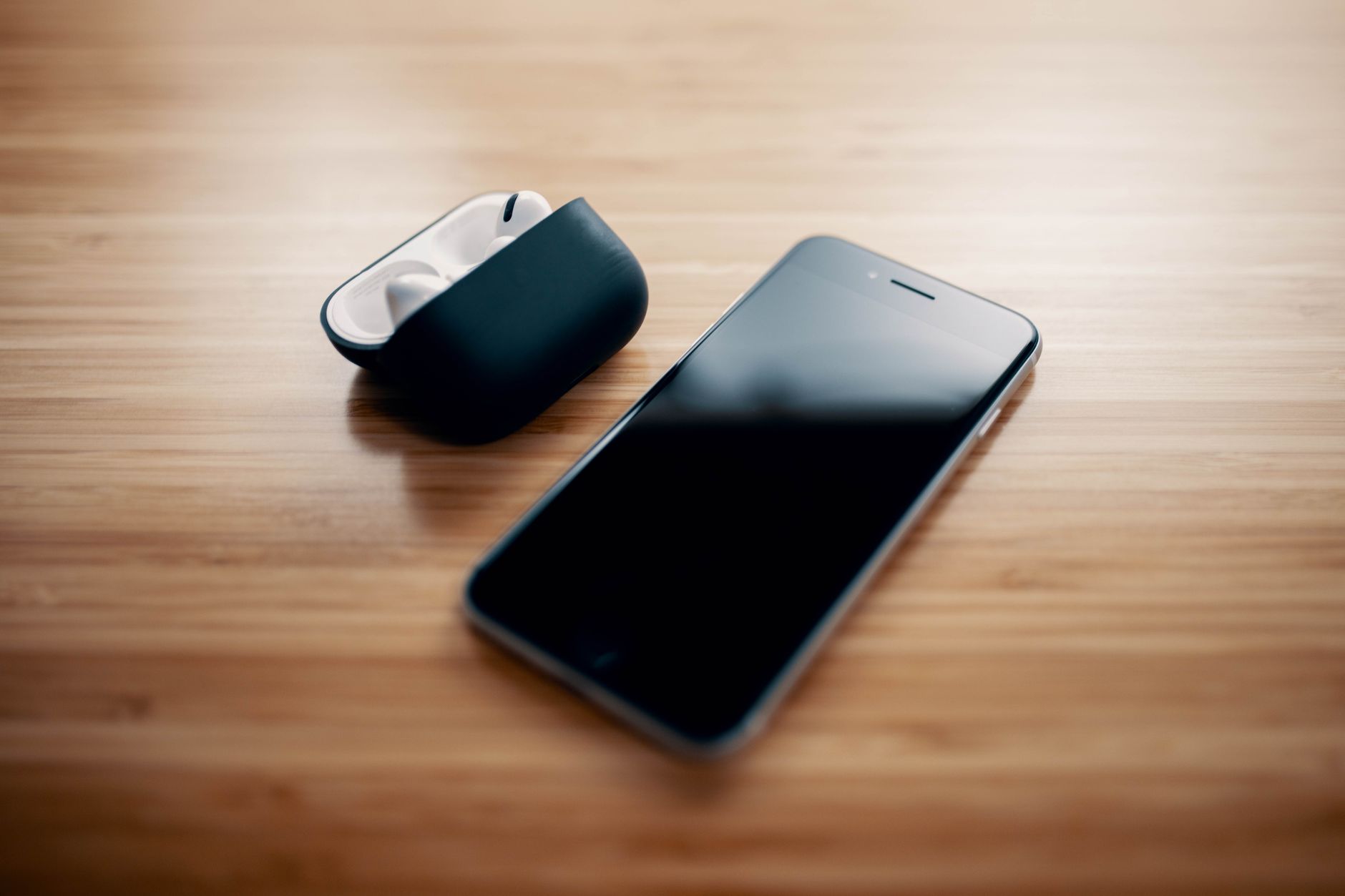
Photo by Josh Sorenson
Common Reasons Your Earbuds Fail to Reconnect
True wireless earbuds rely on a smooth handshake with your phone when you open the case. That signal fails for a few key reasons. Spotting the culprit speeds up your fix.
Here are the top causes:
- Low battery in earbuds or case: Earbuds need enough charge to wake up and send a pairing signal. A case under 20% often skips this step.
- Bluetooth interference: Crowded signals from Wi-Fi or other devices block the link.
- Auto-pause or power-saving features: Some earbuds pause music and enter sleep mode too aggressively.
- Outdated software: Old firmware on earbuds or your phone’s OS causes mismatches.
- Full pairing memory: Your phone holds too many old Bluetooth devices, filling slots.
Users report this after gym sessions or long days. One person noted their Galaxy Buds worked fine at home but failed in a cafe full of Wi-Fi networks. Another found AirPods ignored their iPhone until they charged the case overnight. These examples show everyday triggers.
Bluetooth Glitches and Interference
Bluetooth operates on the 2.4GHz band. Nearby Wi-Fi routers, microwaves, or even baby monitors jam it. Thick walls or metal objects worsen the problem. Your phone’s settings might also disable auto-reconnect to save battery. Check for 20+ paired devices; they clutter the list and slow scans.
Earbuds or Case Battery Problems
The case acts as a hub. It pings the earbuds to life when opened. Low power means no ping. Dirty charging pins add resistance, so connections weaken over time. A quick charge test rules this out fast.
Basic Steps to Fix the Connection on Any Phone
Try these universal fixes first. They solve about 70% of reconnection issues without tech deep dives. No tools needed, just your phone’s settings.
- Clean the contacts: Wipe earbud pins and case with a dry microfiber cloth. Avoid liquids. Built-up lint blocks power flow.
- Restart Bluetooth: Swipe down to quick settings. Toggle Bluetooth off for 10 seconds, then on. Open the case near your phone.
- Use Airplane mode trick: Turn on Airplane mode for 15 seconds. Turn it off. This refreshes all wireless radios.
- Restart your phone: Hold the power button, select restart. Put earbuds in and out of the case after boot-up.
- Charge everything: Plug the case in for 30 minutes. Ensure earbuds sit flush.
Test after each step. Place phone and case side by side, within 1 foot. These work on Samsung, Pixel, iPhone, or any Bluetooth device.
Forget Device and Pair Again
Old pairings glitch out. A fresh start clears junk data.
- Go to Settings > Bluetooth (or Connections on Android).
- Find your earbuds in the list.
- Tap the info icon or gear next to them.
- Select “Forget” or “Unpair.”
- Put earbuds in the case, close lid for 10 seconds.
- Open lid, take them out. Your phone prompts to pair.
- Confirm and test audio.
This resets the bond. Most users reconnect in under a minute.
Android and iPhone Specific Fixes
If basics fail, dive into your OS. Android offers cache clears; iOS needs network resets. These target deeper glitches.
Quick Android Troubleshooting
Android’s flexibility shines here. Steps vary by brand like Samsung or Google Pixel.
- Clear Bluetooth cache: Settings > Apps > See all apps > Bluetooth (or System UI). Tap Storage > Clear cache. Restart phone.
- Check for updates: Open Google Play Store. Search your earbud model (e.g., “Galaxy Buds app”). Update firmware.
- Enable developer options: Tap Build number in About phone (7 times). Back to Settings > Developer options > Enable Bluetooth HCI snoop log (turn off after test).
- Reset network settings: Settings > System > Reset options > Reset Wi-Fi, mobile & Bluetooth. Note: This clears saved networks.
On a Samsung Galaxy, use the Galaxy Wearable app for earbud diagnostics. Pixels benefit from fast factory images via settings. These fix laggy reconnects tied to Android’s multi-device handling.
iPhone Fixes That Work Fast
iOS locks down Bluetooth tighter. Focus on resets and modes.
- Update iOS: Settings > General > Software Update. Install if available.
- Reset network settings: Settings > General > Transfer or Reset iPhone > Reset > Reset Network Settings. Wi-Fi passwords erase, so note them.
- Check Focus modes: Settings > Focus. Turn off any active mode; they block notifications like pairing pops.
- Review Bluetooth details: Settings > Bluetooth > Tap “i” next to earbuds > Forget This Device. Then re-pair as above.
For AirPods, open case near iPhone locked screen; it auto-pairs if signed in. These steps resolve iCloud sync issues common on iPhone 14 or 15 models. Always back up first.
Reset Earbuds and Case Properly
Resets wipe custom settings but fix stubborn firmware bugs. Do this last, after other steps.
For AirPods: Put in case, close lid 30 seconds. Open lid, press back button 15 times fast (white light flashes). Or Settings > Bluetooth > Forget, then hold setup button 15 seconds.
Galaxy Buds: Open Galaxy Wearable app > Earbuds settings > Reset. Or hold touchpads 7-10 seconds each.
Sony or others: Check manual, but hold case button or touchpads 10-20 seconds till lights pulse.
For the case: Charge fully, then hold its button 10 seconds. Safety first: Do near your smartphone to pair right after. Brands like Jabra or Bose follow similar button combos. This restores factory state without voiding warranty.
Conclusion
Reconnection woes stem from batteries, interference, or software snags, but basics like cleaning, restarting Bluetooth, and forgetting the device fix most. Android users clear caches; iPhone owners reset networks. Save full resets for the end.
Try steps in order today. Keep your smartphone, case, and earbuds updated to prevent repeats. Charge regularly and avoid signal-heavy spots.
Got it working? Share your fix in the comments below. What earbuds trip you up most? Your story helps others.
(Word count: 1492)