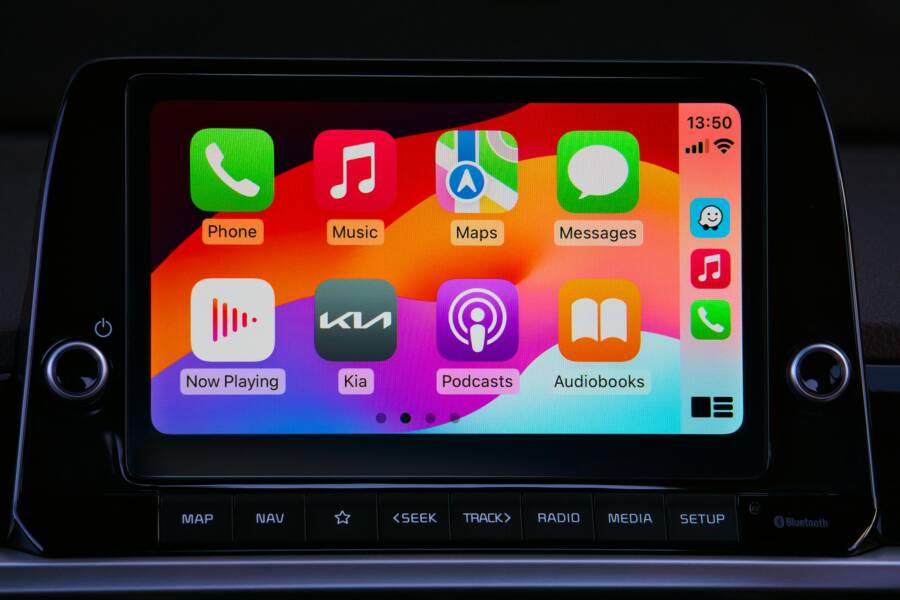
Picture this: you’re driving down the road, jamming to your favorite playlist through Bluetooth headphones or your car’s speakers. The phone screen dims to save battery, and suddenly, the music cuts out. Sound familiar? This issue frustrates countless smartphone users on both Android and iPhones. It stems from power-saving features that pause Bluetooth audio streams when the display goes dark.
Don’t worry. You can fix it with simple steps. This guide walks you through common causes and proven solutions. We’ll start with why it happens, move to quick fixes, then advanced tweaks for stubborn cases, and end with prevention tips. These methods work for most people and require no special tools. Follow along, and you’ll enjoy uninterrupted tunes again.
Photo by Ketut Subiyanto
Common Causes Behind Bluetooth Audio Dropout
Bluetooth audio drops when the screen turns off for a few key reasons. Your phone prioritizes battery life over constant playback. Let’s break down the top three culprits so you can spot what matches your setup.
Power-saving modes often trigger the problem. Apps face restrictions in the background. Weak signals add to the trouble.
- Battery conservation: Phones cut Bluetooth data to extend life.
- App limits: Music players pause without screen activity.
- Signal issues: Distance or barriers weaken the link.
These factors hit Android devices like Samsung or Pixel phones and iPhones alike. Check your symptoms against them before fixing.
Power-Saving Modes Pause Your Connection
Most phones enter a low-power state when the screen goes off. On Android, this is doze mode. It delays Bluetooth data to save juice. iPhones use similar low power mode.
The goal makes sense: stretch battery during downtime. But it kills your groove mid-song. Battery saver amps this up if it’s active. Turn it off first to test. You’ll notice smoother playback right away.
Many users overlook this simple switch. It explains drops during long drives or workouts.
Background App Limits Block Audio Streaming
Apps like Spotify or Apple Music need approval to run fully in the background. When the screen dims, optimization kicks in and pauses them.
Android labels this battery optimization. iOS calls it background app refresh. Without it, streams halt to save power.
Your podcast or tunes app might sit restricted. This fits if audio resumes when you wake the screen. Grant permissions, and the issue fades.
Quick Fixes to Get Your Audio Playing Again
Start here for fast results. These steps tackle glitches without deep dives. Test one by one, and play music with the screen off each time.
You’ll need about five minutes per try. Results often come quick. Keep your phone and Bluetooth device close during tests.
Common wins include restarts and fresh pairs. They clear temporary bugs that build up over time.
Restart Your Phone and Bluetooth Device
Power glitches cause many drops. A full restart resets connections.
Turn off your phone. Wait 30 seconds. Power it back on.
Do the same for headphones or car system. Hold the power button until it shuts down, then restart.
Reconnect Bluetooth once both boot up. Play audio and dim the screen. This fixes 50% of cases by flushing memory errors.
Users report perfect playback after this basic move.
Forget the Device and Pair It Fresh
Old pairings store corrupted data. Forget and repair to wipe them clean.
On Android: Go to Settings, tap Connections or Bluetooth. Find your device, tap the gear, select Forget.
On iPhone: Settings, Bluetooth, tap the info icon next to the device, choose Forget This Device.
Put headphones or car unit in pairing mode. Usually hold the Bluetooth button five seconds until it blinks. Search and connect anew.
Test with screen off. This resolves stubborn links that drag from prior sessions.
Advanced Steps for Tough Bluetooth Issues
Quick fixes didn’t stick? Dive into settings. These target root causes on Android and iOS.
Backup data first for resets. They solve most leftover problems. Focus on battery rules and updates.
Your smartphone habits play a role too. Frequent charging helps stability.
Separate tips keep it simple.
Turn Off Battery Optimization for Apps
Battery rules throttle apps hardest. Whitelist your music ones.
Android steps:
- Open Settings.
- Tap Apps.
- Select Spotify (or your app).
- Go to Battery.
- Choose Unrestricted.
This lets it stream freely when the screen sleeps.
iOS steps:
- Settings, Battery.
- Turn off Low Power Mode.
- Settings, General, Background App Refresh, set to Wi-Fi or Wi-Fi & Cellular.
For specific apps: Settings, [app name], allow background activity.
Users see no more pauses after these changes. It takes two minutes but pays off big.
Update Software and Check for Interference
Outdated software hides Bluetooth bugs. Updates patch them.
Android: Settings, Software update, Download and install.
iPhone: Settings, General, Software Update.
Check device firmware too. Some headphones have apps like Sony Headphones Connect for updates.
Interference strikes next. Microwaves, thick walls, or Wi-Fi routers block signals.
Move closer than 10 feet. Test in an open room. Avoid metal objects between devices.
One user fixed drops by ditching a crowded kitchen for the living room.
Prevent Bluetooth Cutouts for Good
Build habits to dodge repeats. Keep music apps whitelisted from battery optimization.
Set lock screen timeout longer: Settings, Display, Screen timeout to 30 seconds or more. It delays doze mode.
Charge your smartphone fully before long sessions. Low battery triggers aggressive saves.
Android power users enable developer options. Go to Settings, About phone, tap Build number seven times. Then Developer options, set screen to stay awake while charging.
Use caution; it drains faster. Quality Bluetooth gear like AirPods Pro or Sony WH-1000XM series resists issues better.
Stick to these, and cutouts become rare.
Conclusion
Bluetooth audio drops vanish with restarts, battery tweaks, and updates. Start simple, then advance as needed. Most folks fix it in under 10 minutes.
Did these steps work for you? Share in the comments. Try them in order next time your tunes halt.
For more phone fixes, check our guides on battery drain or app crashes. Subscribe for weekly tips to keep your digital life smooth. Thanks for reading.