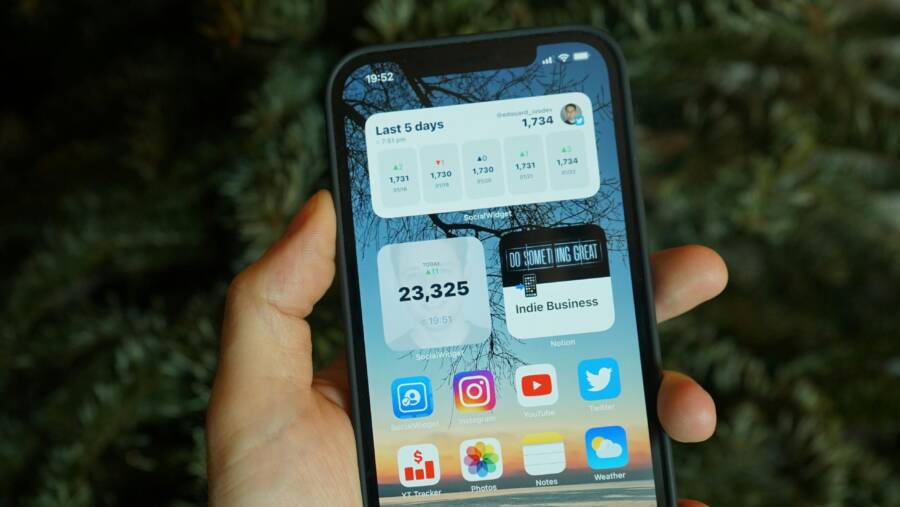
Ever peeked at a weather widget and found yesterday’s forecast staring back at you, making plans feel off by hours? Widgets are tiny boxes on your home screen that show live info like weather, news, or calendar events. When they freeze or refuse to refresh, it can slow you down and leave you guessing what’s really going on with your phone.
This post will walk you through practical fixes for widgets not updating on your phone, and we’ll start with quick wins you can apply right away. You’ll learn why the problem happens on both Android and iOS devices and what to check first before diving into deeper settings. The goal is simple: get fresh updates back without a headache.
In many cases, the culprit is something routine like battery saver modes, background data restrictions, or a stray software glitch. By following these steps, you’ll restore live information to your widgets and reclaim your confidence in your home screen. You’ll also pick up a few habits that prevent this issue from returning, so you can stay focused on what matters.
By the end, you’ll have a clear action plan that fits your setup, whether you use an iPhone, an Android phone, or a shared family device. Expect fast, practical steps, from checking app permissions to refreshing the widget cache and updating apps. If you’re short on time, you can start with the simplest fix and move to the more involved solutions as needed. This guide aims to save you time and frustration, so you can rely on your widgets again.
Common Reasons Widgets Stop Updating on Your Phone
Widgets should feel like tiny, on-demand helpers. When they stop updating, it throws off your day and leaves you guessing what’s really going on with your phone. In this section, we’ll cover the two most common culprits that cause widgets to stall: battery settings that limit background work and internet or app glitches that break the refresh cycle. You’ll learn how to spot the signs and what quick checks to run first.
 Photo by Nikita Khandelwal
Battery Settings That Block Widget Refreshes
Power saving features and background activity limits are the most common reason a widget stops pulling fresh data. When a device wants to conserve energy, it slows down or pauses background updates, and widgets rely on those background tasks to fetch new information.
Signs to spot this issue:
- You notice widgets stay the same for hours, especially after you lock and unlock your screen.
- You see a small battery saver icon in the status bar when using the widget.
- Updates occur only after you manually wake the device or open the widget.
- After charging, updates resume briefly and then slow again.
What to check and how to fix it:
- On Android, look for Battery Saver or Adaptive Battery settings. If a widget’s app is restricted from background activity, flip the switch to allow background updates. Some devices also offer per-app battery optimization controls; ensure the widget app isn’t hidden by those rules.
- On iOS, confirm that Background App Refresh is enabled for the widget’s app and that Low Power Mode is off when you need live data. Apple limits how often widgets refresh to save energy; you can influence this by adjusting overall device energy settings, but expect some cadence in updates even with these tweaks. For context, see how iPhone widgets refresh rules work and how battery efficiency can affect updates. You can also review common fixes for iPhone widgets not updating to get a quick sense of the typical steps.
If you want deeper guidance on how Apple and other platforms handle background refresh, check this overview on update cadence and energy management.
- Widgets or Complications Not Updating: https://athlyticapp.helpscoutdocs.com/article/18-widgets-complications-not-updating
- 3 Ways to Fix iPhone Widgets Not Updating: https://www.guidingtech.com/top-ways-to-fix-widgets-not-working-or-updating-on-iphone/
Tip: If you suspect battery settings are to blame, test by temporarily disabling battery saver modes and performing a quick widget refresh. If the widget updates normally, you’ve isolated the cause to power management. For Android users, a quick restart after changing background restrictions can help the changes take effect.
App and Data Connection Problems
Internet access and app behavior play a big role in whether a widget can fetch new data. A widget might display stale information if the device has a flaky connection or if the widget’s underlying app is glitchy. This section helps you separate connection issues from deeper settings fixes, so you’re not chasing the same problem twice.
How to diagnose and fix common issues:
- Verify a stable internet connection. If you’re on cellular data, try switching to Wi-Fi for a moment to see if updates resume. Some carriers block background activity on certain plans; disabling data saver features can improve this.
- Check the widget’s app data. If the app is failing to fetch data, open the app itself and confirm it can access the internet and pull fresh content. A forced update from within the app can clear a stale data cache.
- Review app-specific permissions. Widgets rely on app permissions for data access, location (when relevant), and network usage. Ensure these permissions are granted. If you recently updated the OS, re-allow these permissions to avoid friction.
- Look for known app glitches. Some widget apps have intermittent issues that cause delayed updates. If a specific widget consistently lags, check the app’s support page or community forums for a known workaround.
In many cases, a simple action like opening the widget’s app and letting it fetch new data or removing and re-adding the widget can resolve the problem. If you see that a general app update or OS patch fixed similar issues for others, apply those updates and then test the widget again. For a broader view on this topic, you can explore discussions about widgets not updating after system changes and troubleshooting threads that walk you through the same checks in a structured way.
- Widgets are empty after updating to iOS 18: https://discussions.apple.com/thread/256030114
- How to Solve Widgets Problems on Android – WidgetClub: https://widget-club.com/article/android-widgets-notshowing
- 18 solutions to fix widgets not working on iPhone and iPad: https://www.idownloadblog.com/2022/05/05/how-to-fix-widgets-not-working-iphone-ipad/
- Task Widget on Homescreen lost connection: https://discussion.evernote.com/forums/topic/152057-task-widget-on-homescreen-lost-connection/
Pro tip: If the problem seems isolated to one widget, try removing and re-adding that widget first. It often resets the connection to the data source and clears minor glitches without impacting other widgets.
In both Android and iOS ecosystems, the path to reliable widget updates is practical and direct. Start with the simplest checks—permissions, data connections, and basic app re-launches—and only move to deeper settings if needed. This approach keeps you focused and minimizes changes that might affect other features on your phone. For more structured guidance on common widget issues across platforms, you can explore additional fixes and user experiences in the linked resources.
If you’d like, I can tailor these subsections to match a specific widget you rely on, like weather, calendar, or news, and add step-by-step screenshots to accompany the instructions.
Easy First Steps to Fix Widgets on Any Phone
Widgets should be quick to refresh and easy to read. When they stall, your home screen loses its usefulness in an instant. In this section, you’ll learn two practical, low-risk steps to get back to live updates. These fixes work on both Android and iOS, and they’re designed to be performed in minutes. Think of them as the warm-up before deeper troubleshooting.
 Photo by Czapp Árpád
Restart and Reconnect Your Phone Quickly
Sometimes a simple reboot is all you need. A soft restart refreshes system processes without altering data, while a hard reset is a last resort that clears more but should be used with caution.
- Soft restart (safe and quick)
- iOS: Hold the power button, slide to power off, wait a moment, then turn the device back on.
- Android: Hold the power button, select Restart. If your device doesn’t show a restart option, power off, wait 10 seconds, and power back on.
- After the device boots, open the widget and give it a moment to refresh.
- Hard reset you should only consider if issues persist
- iOS: If a soft restart doesn’t help, you can perform a more thorough reset by going to Settings > General > Reset > Reset All Settings. This won’t erase your data but will reset system preferences.
- Android: If problems continue, a factory reset is a last resort. Back up all data first, then go to Settings > System > Reset > Factory data reset. This returns the phone to out-of-the-box status.
- Important: A reset can affect app settings and saved preferences. Reinstall apps and re-enable widget permissions after the reset.
Tips to maximize the impact:
- Before restarting, ensure the widget app is closed and not running in the background. This helps the refresh hit the ground running after reboot.
- After reboot, reopen the widget to prompt a fresh fetch of data.
If you want a broader look at how to approach restarts and firmware updates, this guide offers plain language steps that pair well with widget troubleshooting.
- How to Solve Widgets Problems on Android – WidgetClub: https://widget-club.com/article/android-widgets-notshowing
- 18 solutions to fix widgets not working on iPhone and iPad – iDownloadBlog: https://www.idownloadblog.com/2022/05/05/how-to-fix-widgets-not-working-iphone-ipad/
Pro tip: If the issue sticks around after a restart, try a quick disconnect reconnect cycle by turning on Airplane Mode for 30 seconds, then turning it off. This can reset network sockets that might be blocking updates.
Quick Checks After a Restart
- Confirm the widget’s app is allowed to run in the background
- Android: Settings > Apps > [Your Widget App] > Battery > Allow background activity.
- iOS: Settings > General > Background App Refresh, ensure the widget’s app is enabled.
- Re-add the widget if it still looks stale
- Remove the widget, then add it back to your home screen. This re-establishes the data link with the source.
If you’re curious about deeper guidance on keeping widgets responsive after restarts, these resources offer practical perspectives from users and experts.
- How to Solve Widgets Problems on Android – WidgetClub: https://widget-club.com/article/android-widgets-notshowing
- 18 solutions to fix widgets not working on iPhone and iPad – iDownloadBlog: https://www.idownloadblog.com/2022/05/05/how-to-fix-widgets-not-working-iphone-ipad/
What to Watch For During Reconnection
- The widget updates right after you unlock the screen or when you open the widget. If updates lag, it might point to a data source issue rather than the widget itself.
- If you notice the widget only updates when you’re on a strong Wi-Fi connection, there could be a background data restriction at the network level.
For a broader look at common reboot related fixes across platforms, you can explore these discussions and tutorials.
- Widgets or Complications Not Updating: https://athlyticapp.helpscoutdocs.com/article/18-widgets-complications-not-updating
- 10 Quick Fixes for When Widgets Aren’t Working on iPhone or iPad: https://uk.moyens.net/mobile/quick-fixes-for-when-widgets-arent-working-your
When to Move to the Next Step
If a restart and reconnection don’t restore live updates, shift to app updates. A small software patch can resolve a lot of glitches, and keeping apps current is a simple, high-impact fix.
Update Apps to Stop Glitches
Keeping apps up to date is one of the easiest, most effective ways to ensure widgets fetch fresh data reliably. This section covers how to check for updates both in the app stores and in bulk, so you can cover all bases quickly.
- Why updates matter: Developers fix bugs that block background data, improve performance, and tighten permissions that widgets rely on.
- When updates matter most: After a system update, app updates can restore compatibility and prevent unnecessary refresh delays.
Start with a quick store check, then handle multiple updates in one go to save time.
- Check for updates in the App Store (iOS)
- Open the App Store, tap your profile picture, and review available updates.
- Pull down to refresh the update list if nothing shows up initially.
- Enable automatic updates if you want to keep widgets consistently fresh, but review data usage and battery preferences to avoid surprises.
- Check for updates in Google Play (Android)
- Open the Play Store, tap the profile icon, and choose Manage apps & devices.
- Update all pending items, or select specific apps that power your widgets.
- Consider enabling auto updates over Wi-Fi to keep background services current.
- Optional bulk update tips
- Schedule a routine weekly check to catch updates you might miss.
- For devices with many apps, use a single update pass to avoid juggling multiple prompts.
- After updating, restart the device to ensure all changes take effect.
- If a widget still misbehaves after updates
- Open the widget’s app and force a data refresh from within the app, if available.
- Re-add the widget after updating the app to re-establish its data connection.
For broader context on updating apps and widget reliability, these resources provide practical steps and real-world tips.
- 4 Ways to Fix Widgets Not Updating on Android – GuidingTech: https://www.guidingtech.com/top-ways-to-fix-widgets-not-updating-on-android/
- 18 solutions to fix widgets not working on iPhone and iPad – iDownloadBlog: https://www.idownloadblog.com/2022/05/05/how-to-fix-widgets-not-working-iphone-ipad/
Pro tip: If you suspect a stubborn bug, updating the OS version can sometimes resolve compatibility issues that hinder widget refresh. After an OS update, a quick app refresh often clears the last remaining glitches.
How to Perform a Bulk Update Efficiently
- Access settings quickly: Use a single screen to view all updates.
- Prioritize widget-supporting apps: Start with weather, calendar, and news apps if those are the widgets you rely on most.
- Disable auto-update if you need control: You can turn it back on after your updates complete.
In practice, many readers find that a simple batch of updates followed by a device restart resolves most widget refresh problems. If you’d like, I can tailor these steps to the exact widgets you use, like weather or calendar, and add screen-by-screen instructions to match your device model.
External resources you can consult for more in-depth guidance include the following.
- How to Solve Widgets Problems on Android – WidgetClub: https://widget-club.com/article/android-widgets-notshowing
- 10 Quick Fixes for When Widgets Aren’t Working on iPhone or iPad – Moyens.net: https://uk.moyens.net/mobile/quick-fixes-for-when-widgets-arent-working-your
If you want to share which widgets you rely on most, I can adjust these steps to your setup and suggest a 5-minute daily routine to keep them updating reliably.
Android Fixes for Widgets That Won’t Refresh
Widgets should be quick to update, offering you the latest weather, news, or calendar events at a glance. When they stall, it disrupts your workflow and adds friction to daily planning. This section focuses on practical Android-specific fixes that get widgets refreshed again, without turning your phone into a maze of settings. Start with simple checks, then move to targeted solutions. The goal is to restore reliable, live information right on your home screen.
Whitelist Apps from Battery Optimization
Exact path: Settings > Battery > App optimization > select app > Don’t optimize.
Battery optimization is a common culprit behind stalled widgets. When the system tries to save power, it may throttle background tasks that widgets rely on to fetch fresh data. Whitelisting the widget’s app ensures it can run in the background and pull updates consistently.
What to do in practice:
- Open Settings and locate Battery or Battery usage.
- Tap App optimization or Optimize battery usage.
- Find the widget’s app in the list and choose Don’t optimize or Unrestricted, depending on your device.
- If your device supports per‑app battery rules, ensure the specific widget app isn’t blocked.
Why this helps: a widget’s data feed often runs in the background. If the OS blocks that activity, you see stale information on the home screen. After whitelisting, give the widget a quick refresh by reopening it or returning to the home screen.
Further reading and context: for additional steps and platform nuances, you can explore similar guidance from trusted Android troubleshooting resources.
- https://www.digitbin.com/widgets-not-updating-on-android-fix/
Clear Cache and Grant Permissions
Storage clear steps, data usage allow background.
Over time, cached data or stale permissions can prevent a widget from loading new information. Clearing the widget’s cache can force a fresh fetch, while ensuring the app has the necessary permissions keeps data flowing. This approach is gentle and often resolves stubborn refresh issues without removing your settings.
What to do:
- Go to Settings > Apps & notifications > See all apps.
- Select the widget’s app and choose Storage & cache or Storage.
- Clear cache, then tap Clear storage if you’re comfortable re-logging in or reconfiguring the widget.
- Return to Settings and verify the app has permission to run in the background and access data (Location, Storage, Network as relevant).
Why this helps: clearing cache removes corrupted data that may block updates. Re-checking permissions prevents the app from being silently blocked by Android’s privacy controls.
Tip: after clearing cache, open the widget’s app and perform a manual refresh if available. This helps re-seed the data source and confirms the widget can fetch new information. If you’re looking for more ideas, see guides that outline additional Android widget troubleshooting steps.
- https://www.guidingtech.com/top-ways-to-fix-widgets-not-updating-on-android/
Refresh Widgets via Home Screen Edits
Long press home screen, remove and re-add.
If a widget keeps showing the same information, a quick rebind often resets the data link. Removing and re-adding the widget prompts the system to reconnect to the data source and can clear minor glitches in the widget framework.
How to perform the reset:
- Long-press the widget on your home screen.
- Drag it to Remove or Uninstall, depending on your launcher.
- Revisit the Widgets panel, locate the same widget, and add it back to your home screen.
- If prompted, grant any permissions the widget requests and allow background activity again.
What you’ll notice: most folks see a fresh pull of data once the widget reappears. It’s a small action with a noticeable payoff for busy smartphone users.
If the problem persists, you can pair this step with a quick app restart or a device reboot to ensure all background services restart cleanly. For additional context on re-adding widgets as a standard troubleshooting move, see popular Android guides that cover this method.
- https://widget-club.com/article/android-widgets-notshowing
Additional tips:
- After re-adding, give the widget a few moments to populate. Some feeds require a short delay to fetch live data.
What to watch for during the process:
- If the widget still doesn’t update after re-adding, examine the widget’s data source inside its own app settings. Some services require a sign-in or permission tweak to resume live updates.
- If you see other widgets updating normally, the issue may be isolated to one particular widget or data source.
End-to-end approach: start with the least invasive fixes — battery optimization and permissions — then move to re-binding the widget. This keeps changes narrow and reduces the risk of impacting other features on your device.
External guidance and related perspectives you may find useful:
- 4 Ways to Fix Widgets Not Updating on Android — GuidingTech: practical steps you can follow to cover most common Android widget problems.
- How to Solve Widgets Problems on Android — WidgetClub: a concise guide to investigating widget issues, including refresh anomalies.
If you want, share which widget you rely on most, and I can tailor the steps to your exact model and launcher for a smoother fix.
iPhone Solutions for Stuck Widgets
Widgets are meant to be quick anchors to the latest info. When they stall, you lose a chunk of your day to scrolling and tapping just to get fresh data. This section focuses on practical iPhone fixes that address the most common culprits behind widgets not updating. You’ll find clear steps, quick wins, and proven practices that restore live information to your home screen without drama.
Turn Off Low Power Mode
Low Power Mode is a handy ally for battery life, but it can quietly restrict background processes that widgets rely on for fresh data. Turning it off for a moment lets your widgets fetch new information in real time, then you can turn it back on if you need to.
What to do:
- Go to Settings > Battery and toggle Low Power Mode off.
- After changing the setting, open the widget and give it a few moments to refresh.
- If you rely on extended battery savings, you can re-enable Low Power Mode after confirming the widget updates.
A quick check helps you confirm whether battery constraints were the culprit. If the widget updates reliably with Low Power Mode disabled, you’ve pinpointed the cause. For additional context on how energy settings influence widget cadence, see community discussions about widget refresh behavior and battery management.
Tip: If the issue was tied to power mode, try keeping Low Power Mode off briefly while you test, then monitor how often you need it. A typical pattern is to leave it off during active usage and re-enable when you’re away from a charger for extended periods.
Enable Background App Refresh
Background app refresh is the lifeblood of widgets that pull live data. If this feature is off for the widget’s app, you’ll see stale information until you manually open the app. Enabling it ensures a steady stream of updates while you’re using your iPhone.
What to do:
- Open Settings > General > Background App Refresh.
- Ensure Background App Refresh is on.
- Confirm the specific widget’s app is allowed to refresh in the background. If you see any restrictions, enable them.
- For best results, keep Background App Refresh set to either Wi-Fi & Cellular Data or Wi-Fi only, depending on your data plan and needs.
If you’ve recently updated iOS or installed a new widget, rechecking this setting can fix update gaps caused by policy or permission changes. For more practical guidance on how background refresh works on iOS, you can explore discussions that break down refresh cadence and energy impact.
Pro tip: After making changes, force a quick refresh by opening the widget or returning to the home screen. A short nudge often kickstarts the data fetch.
Reset Widget Layout on iPhone
Sometimes the problem isn’t the data feed but the link between the widget and its data source. A light layout reset can re-establish that connection without messing with your apps or data. Think of it as re-pairing a device with a new data channel.
Simple reset steps:
- Remove the widget from your home screen.
- Re-add the same widget in its original position.
- If you use the Today View, consider removing the widget from there as well, then re-add it.
What you’ll notice:
- The widget rebinds to its data source and fetches fresh content on the next update.
- Other widgets remain unaffected, making this a targeted fix.
If the issue persists after re-adding, pair this with a quick app refresh or a device restart to ensure all background services reset cleanly. In many cases, a simple layout rebind is enough to restore reliability without touching app data or settings.
Additional notes and context:
- After you re-add a widget, give it a moment to populate. Some feeds need a short delay to start streaming fresh data.
- If a single widget is still lagging, inspect that widget’s own settings inside its app. Some services require sign-in or permission tweaks to resume live updates.
External guidance you may find helpful:
- Apple Support discussions often surface this approach as a first line of defense for stubborn widgets. If you want to see how others have reworked their widgets after a layout reset, you can refer to the Apple community thread on home screen widgets not updating.
By following these focused iPhone fixes, you can quickly restore reliable widget updates. The path is practical: start with the simplest checks, then move to toggling background refresh and finally re-binding the widget layout if needed. If you’d like, I can tailor these steps to a specific widget you rely on, like weather, calendar, or news, and add screen-by-screen notes to match your iPhone model.
Advanced Troubleshooting and Prevention Tips
Even after the quick fixes, some widgets resist update patterns more stubbornly. This section lays out deeper checks you can perform quickly and practical habits to prevent future refresh issues. Think of it as a confident playbook you reach for when the basics don’t fix the problem. You’ll gain better control over how your widgets behave on both Android and iPhone, so your home screen stays accurate and useful.
Deeper Troubleshooting That Pays Off
If simple reboots and app updates haven’t solved the issue, try these targeted steps. They are designed to pinpoint whether the problem lies with the data source, the widget app itself, or the device’s background processing.
- Verify the data source reliability? Open the widget’s source app and confirm it can fetch fresh data directly. If the app stalls, the widget will too.
- Test with a second widget from the same app. If only one widget misbehaves, focus on that app’s settings and permissions rather than the entire widget suite.
- Check for OS-level quirks after updates. Sometimes a system patch changes how background tasks run. In such cases, a fresh app refresh or a minor OS setting tweak resolves the cadence.
- Consider a temporary data reset. Clear the widget’s cache within the app (if available) and perform a manual refresh. This is less disruptive than a full reinstall and often restores a clean data feed.
- Use a clean data path. If the widget uses location data or other sensors, ensure those permissions are enabled and not blocked by privacy controls.
For extra context on platform behavior, you can review how background refresh cadence works and how energy management can shape widget updates. Helpful guides discuss update cadence across iOS and Android, and point out common bottlenecks that recur in real-world usage. See examples like guides on iPhone widget refresh and Android widget reliability for practical reference.
- https://www.guidingtech.com/top-ways-to-fix-widgets-not-updating-on-android/
- https://www.idownloadblog.com/2022/05/05/how-to-fix-widgets-not-working-iphone-ipad/
Prevention Habits That Keep Widgets Fresh
Prevention beats fixing. Adopt a few simple habits to keep widgets updating reliably, day after day.
- Keep essential apps out of battery optimization. Regularly review which apps you allow to run in the background and remove any that aren’t necessary. This reduces conflicts that cause stale data.
- Schedule occasional maintenance windows. Set a weekly routine to review app updates and widget data sources. A quick pass ensures you’re not chasing issues later.
- Limit data-saver interference. Some carriers or system settings block background activity to save data. If you rely on widgets for time-sensitive info, keep data saver features off or restricted to non-critical apps.
- Re-add troublesome widgets periodically. If a widget lag returns, remove and re-add it. This rebinds the data link and clears hidden glitches without a full reset.
- Align widget cadence with your routine. If you notice updates cluster when you’re near Wi-Fi, consider adjusting how you use mobile data for smoother refreshes.
For more practical guidance on maintaining widget reliability, see hands-on discussions and tutorials that focus on long-term stability. These resources offer real-world tips that fit typical daily usage.
- https://www.guidingtech.com/top-9-ways-to-fix-widgets-not-working-or-updating-on-iphone
- https://www.digitbin.com/widgets-not-updating-on-android/
When to Expect and How to Nudge Updates
Widgets should feel like a reliable snapshot of the moment. If you’re still waiting for a refresh, a few timing tweaks can help you manage expectations and prompt updates more predictably.
- Expect inherent cadence. Both Android and iOS limit how often widgets refresh to save battery. A minor lag is normal, especially after energy-saving changes.
- Prompt a data fetch after changes. Opening the widget or returning to the home screen often triggers a fresh pull from the source.
- Use a quick reset if you notice a persistent stall. A clean rebind or a short device restart can remove stubborn glitches that block updates.
If you’d like, I can tailor these tips to a few specific widgets you depend on, such as weather, calendar, or news, and add quick screen-by-screen notes that match your device model.
A Quick Debrief on Common Pitfalls
To finish this section, here are the most frequent missteps that derail widget updates. Avoid them with a small, purposeful check.
- Ignoring background refresh permissions. Without permission, widgets won’t fetch new data in the background.
- Relying on a single data source. If that source has an outage or rate limits, every widget that uses it will stall.
- Overlooked app updates. An updated widget often needs a matching app update to stay in sync with data sources.
- Mixed device states. If you use multiple devices, updates on one don’t guarantee updates on another. Check each device’s settings individually.
For further reading on how developers address widget reliability and user experiences across platforms, these resources provide practical perspectives and troubleshooting checklists.
- https://www.guidingtech.com/top-ways-to-fix-widgets-not-updating-on-android/
- https://uk.moyens.net/mobile/quick-fixes-for-when-widgets-arent-working-your
Images to accompany this section:
- A clean desk with a smartphone displaying a few widgets, underscoring calm, reliable updates.
- Photo by Kelvin Valerio
- Photo URL: https://images.pexels.com/photos/544900/pexels-photo-544900.jpeg?auto=compress&cs=tinysrgb&dpr=2&h=650&w=940
Note: If you want, I can add precise, step-by-step visuals for the exact widget types you rely on, like weather or calendar, to accompany these tips. This helps readers follow along quickly and reduces confusion.
Conclusion
Widget issues on a smartphone can feel annoying, but most fixes are quick and reliable. This conclusion recap gives you a clear path and a simple checklist you can reuse anytime.
Checklist of key fixes
- Start with basics: restart, re-add the widget, and check background refresh or battery settings.
- Verify data and permissions: ensure the widget app can run in the background and has the needed permissions.
- Update and refresh: install pending app or OS updates, then force a data refresh.
- Rebind when needed: re-add the widget or reset layout to reestablish the data link.
When you run through these steps, most problems clear up fast. If one widget is stubborn, test a second widget from the same app to confirm whether the issue is local or systemic. A small reset or a quick data cache clear often resolves it without disrupting your other settings.
A quick smartphone nod to finish: keeping a light maintenance routine helps widgets stay accurate. A short weekly check keeps your home screen dependable, so you spend less time tinkering and more time getting things done.
If you found a fix that works for you, share it in the comments or pass this guide to someone who could use the help. Your experiences can save others time.