
Ever had an incoming call ring through, but your phone shows just a number instead of a familiar name? That moment can be annoying, especially when you’re in a hurry or in a crowded place. If you’re on iPhone or Android, missing caller names is usually a simple fix rooted in syncing, permissions, or number formats.
This post walks you through a clear, step by step guide to restore accurate caller ID on both platforms. You’ll learn why contacts sync matters, what permissions to grant, and how to handle tricky number formats so every incoming call shows the right name. We’ll cover device specific tips for iPhone and Android, plus a universal checklist you can reuse anytime.
By the end, you’ll have a reliable routine to keep your contacts in sync, prevent future name glitches, and keep your phone experience smooth. The goal is practical, not perfect; small tweaks can make a big difference in everyday use. Expect straightforward steps you can follow without tech jargon.
If you’re short on time, start with the universal checklist and then tackle your device’s settings. With the right permissions, accurate number formatting, and properly synced contacts, you’ll reclaim full, informative caller IDs on every call. This guide sticks to common causes and dependable fixes, so you can trust the results.
Understanding why contact names disappear on incoming calls
When a call comes in and you only see a number, it can throw you off balance in a busy moment. This section explains the common reasons this happens across devices and what you can quickly check to spot the root cause. You’ll get a practical, actions-first approach so you can get back to seeing familiar names on incoming calls.
Common causes across devices
A handful of routine issues can hide contact names from incoming calls. Incomplete contact syncing is one frequent culprit — your phone may not be pulling the latest names from your cloud or local storage. Missing app permissions can block access to your contacts, so even saved numbers don’t translate into names. Inaccurate number formats or extra spaces can prevent the system from recognizing a match. Duplicates are another common problem: a contact saved twice with slight differences can confuse the lookup, showing numbers instead of names.
To troubleshoot quickly, run this short checklist:
- Ensure your contacts are syncing correctly with your account (iCloud on iPhone, Google on Android).
- Confirm the Phone app has permission to access your contacts.
- Check each saved contact for correct country code and no stray spaces.
- Look for duplicates and merge or delete as needed.
- Update the Phone app to the latest version.
If you want a guided set of fixes, this guide provides practical steps you can follow: https://www.guidingtech.com/fix-iphone-not-showing-contact-names-for-incoming-calls/
How device settings affect caller ID
Device settings shape what you see when a call arrives. Features like Show My Caller ID determine whether your name or number is transmitted to the recipient, but on the caller’s side, the display depends on how their carrier and device handle ID information. Notification settings can influence whether a name accompanies an alert or just a number, especially if a contact is recently edited or newly added.
What to check and do right now:
- On iPhone, confirm that Call Blocking & Identification and iCloud Contacts sync are configured to share contact details. On Android, ensure the Phone app has not been restricted from accessing contacts and that contact syncing is enabled.
- Verify your device region and language settings; mismatches can affect how numbers and names format.
- For stubborn cases, restart the device after applying changes to ensure new permissions or sync states take effect.
If you’re curious about how these settings play out in the real world, see this practical breakdown: https://support.google.com/pixelphone/thread/185329203/contact-names-not-showing-on-incoming-calls?hl=en
The role of number formats and duplicates
Even when a contact exists, the system might fail to match it if numbers are not in a consistent format. International formats, spaces, or missing area codes can all hide names behind a string of digits. Duplicates compound the problem by creating multiple versions of a single contact. When the lookup finds a mismatch, it falls back to showing the raw number.
Keep it simple with these checks:
- Standardize numbers to include the country code, especially for international contacts.
- Remove extra spaces or non-numeric characters that aren’t part of the country code.
- Merge duplicates into one canonical contact entry.
- If you recently edited a contact, re-save it to force a clean sync.
A quick reader-friendly guide with examples is available here: https://krispcall.com/blog/why-are-my-contacts-showing-up-as-numbers/
Quick symptoms to identify before fixes
Before you dive into steps, a few telltale signs help you decide where to start:
- Some calls display the contact name, others show only numbers from the same contact list.
- A specific contact consistently shows a number instead of a name, even after edits.
- New contacts pop up as numbers for a while until the system re-syncs.
If you notice these patterns, prioritize checking permissions and syncing first, then move to number formatting. Android users especially benefit from confirming the Phone app has access to contacts and that there are no lingering cache issues. For a compact Android-focused checklist, see this guide: https://www.guidingtech.com/fix-android-contact-names-not-showing-incoming-calls/
iPhone fixes to restore contact names on incoming calls
If you rely on seeing names when calls arrive, a few practical checks can restore accurate caller IDs. This section gathers concise, proven steps you can apply today. Each subsection targets a specific angle, so you can quickly identify the fix that fits your situation. Whether you’re using an iPhone or coordinating with Android devices, these tips help keep your contact names in sync and easy to recognize on every incoming call.
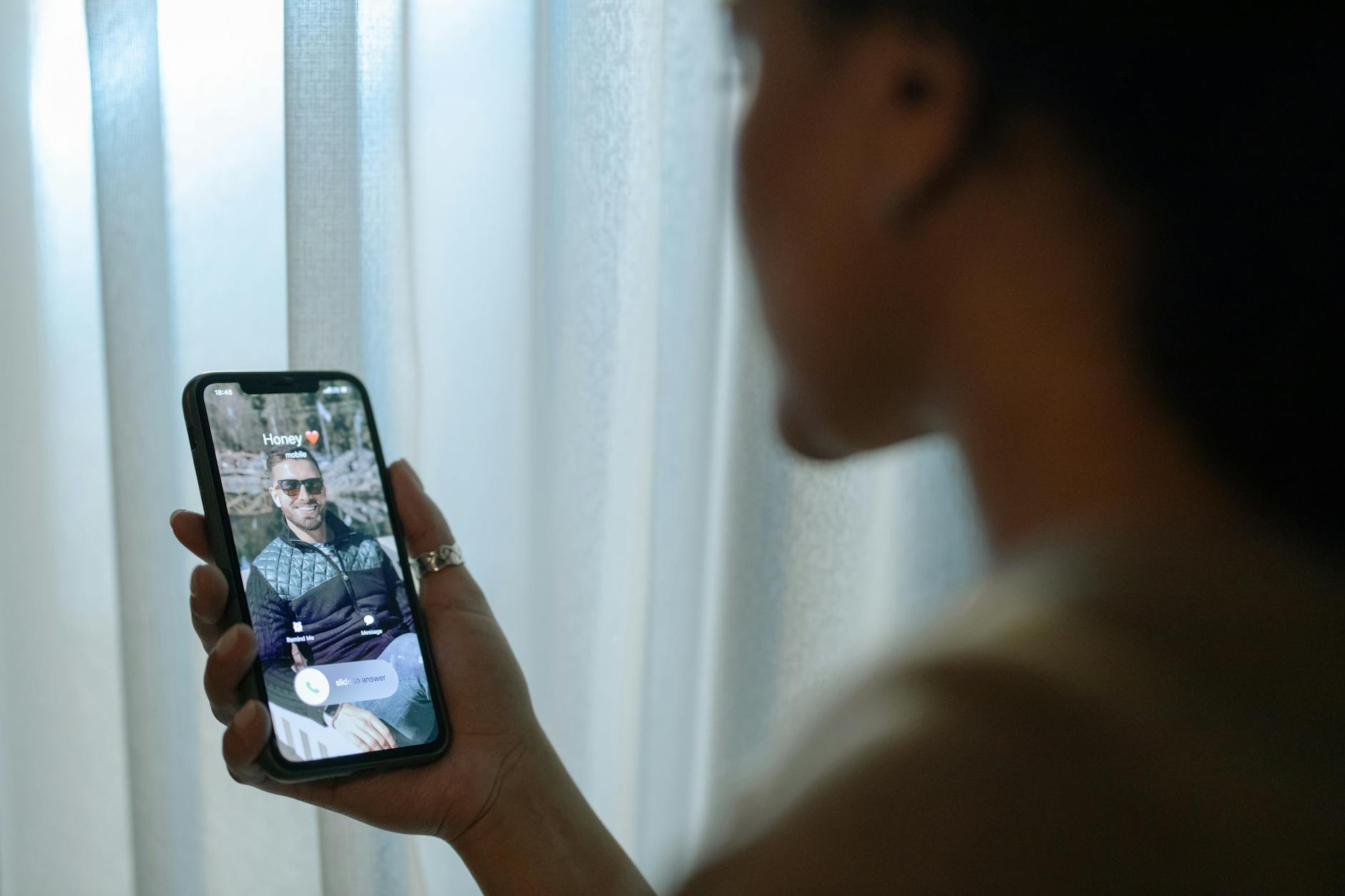 Photo by cottonbro studio
Check iCloud Contacts sync
Your iPhone pulls contact names from iCloud, so a quick verify-and-refresh can solve many display issues. Start by confirming you’re signed into the correct iCloud account and that Contacts syncing is enabled. Go to Settings > [Your Name] > iCloud and toggle Contacts off, then back on. This forces a re-sync and often restores missing names. If you don’t see expected changes right away, wait a few minutes; cloud syncing can take a moment to propagate, especially after adding many new contacts.
If you manage multiple devices, ensure each one uses the same iCloud account for Contacts. After re-enabling sync, open the Contacts app and pull down to refresh. If delays persist, signing out of iCloud and signing back in can clear stuck sync states. For most users, these steps bring back accurate names within a short window.
Verify caller ID and display settings on iPhone
Correct settings make a big difference in how caller info travels to others and how it’s shown on your own device. First, ensure Show My Caller ID is enabled if you want your name to appear when you call others. This is found in Settings > Phone > Show My Caller ID. If it’s off, turning it on will help when you’re calling with name display on the recipient’s side.
Next, review how incoming calls display on your device. Go to Settings > Phone > Calls Backlit (or similar display options depending on iOS version) and ensure there are no settings blocking caller name visibility. If you’ve recently edited a contact, a quick restart can push the updated name into the call screen. In most cases, confirming these two areas and rebooting resolves name display issues.
Region and language settings that affect caller ID
Region and language choices influence how numbers and names format on iPhones. If a contact’s entry uses a different country code or locale, a match may fail. Check and align these settings in Settings > General > Language & Region. Ensure the region matches your current location and that the preferred language supports your contacts format.
After adjusting, restart your iPhone to apply changes. It’s a simple step with a meaningful payoff: proper formatting makes the system recognize and display names correctly, especially for international contacts or shared family lists. If you’ve recently traveled or changed SIMs, rechecking Region and Language is a quick, effective fix.
Refresh accounts by signing out and back into iCloud
When sync seems stuck, signing out of iCloud and signing back in can reset the connection without losing data. Start from Settings > [Your Name] > Sign Out. Choose whether to keep a copy of contacts on the device, then sign back in with your Apple ID. After re signing in, give the system a few minutes to re-sync contacts in the background.
What re-syncs? Your iCloud Contacts, recent changes to names, and any updates from linked devices should propagate. Watch for names reappearing on incoming calls as the sync settles. If you still see only numbers after sign-in, a full device restart can help finalize the refresh and stabilize future updates.
Android fixes to restore contact names on incoming calls
When you get a call on an Android phone, seeing a name instead of a number makes life easier. If contact names aren’t showing, a few quick checks can fix the issue without a full reset. Below are targeted steps you can follow to restore accurate caller IDs. Think of these as a practical battery of tweaks you can run in a few minutes, often with results the same day.
Clear cache for the Phone and Contacts apps
Cache files can get stale or corrupted, causing apps to display outdated data. Clearing the cache for the Phone and Contacts apps forces these apps to rebuild their temporary files from fresh data. This simple step can resolve intermittent name display issues without affecting your actual contacts.
- Go to Settings > Apps & notifications and select the Phone app.
- Tap Storage & cache, then choose Clear cache.
- Repeat for the Contacts app.
- Restart the device if the changes don’t take effect immediately.
Why this helps: cached data can linger after updates or sync changes, leading to mismatches between your stored contacts and what the system shows during an incoming call. A quick cache refresh often brings names back into view. If you’d like a quick reference, you can review a practical Android cache fix guide here: https://www.guidingtech.com/fix-android-contact-names-not-showing-incoming-calls/
Check contact permissions and account sync
Permissions and sync settings are the gatekeepers for showing contact names. If the Phone app can’t access your contacts, or if your account isn’t syncing properly, names may revert to numbers.
- Ensure the Phone app has permission to access Contacts. Go to Settings > Apps > Phone > Permissions and enable Contacts.
- Confirm Google or device account sync is active. For Google accounts, open Settings > Accounts > Google > [your account] > Account sync and toggle on Contacts. For device accounts, check Settings > Accounts > [Your device] > Account sync and make sure Contacts is enabled.
- If you use multiple accounts, verify the primary contact source is the one you expect (Google Contacts vs. device storage).
Tip: Perform a quick re-sync by turning the toggle off, waiting a moment, then turning it back on. For further reference, see guides from Google or Android support channels on syncing contacts across accounts: https://support.google.com/pixelphone/thread/185329203/contact-names-not-showing-on-incoming-calls?hl=en
Disable blocking or identify apps that hide names
Some apps intercept calls or replace caller ID with their own branding. This can hide names or show only numbers, even when your contacts are correct.
- Review any call blocking or caller ID apps you’ve installed. Disable them temporarily to test whether names reappear.
- In Android settings, check for any apps with special privileges that could override caller information and adjust their permissions or disable them.
- If you have carrier or OEM apps that handle spam blocking, ensure they aren’t filtering or masking caller data.
If you suspect an app is the culprit, try a clean boot or a safe mode test to confirm. For additional context on how to manage Android caller ID apps, this guide offers a concise overview: https://www.guidingtech.com/fix-android-contact-names-not-showing-incoming-calls/
Check number formats and re add problematic contacts
Mismatched number formats can break the link between a saved contact and an incoming call. Regions, country codes, spaces, and extensions all affect matching.
- Standardize numbers in your contacts. Include the country code for international contacts (for example, +1 212 555 0123).
- Remove stray spaces or non-numeric characters that aren’t part of the country code.
- If a contact still shows as a number, delete the entry and re-add it from scratch to ensure a clean sync.
- After re-adding, force a sync by opening the Contacts app and pulling down to refresh.
A practical example: save a US number as +1 555 123 4567 with no extra spaces or dots. This simple adjustment often fixes stubborn mismatches. For a readable step-by-step, you can consult a developer-friendly approach here: https://www.digitbin.com/fix-android-not-showing-contact-names-for-incoming-calls/
If you want even more reassurance, you can review the broader Android tips for ensuring names appear on incoming calls. Real-world steps like confirming region settings, checking carrier support, and validating recent app updates all contribute to reliable caller ID. For a quick overview of common pitfalls and fixes, this resource is a solid companion: https://www.guidingtech.com/fix-android-contact-names-not-showing-incoming-calls/
A universal troubleshooting checklist and best practices
When you want to reliably fix missing contact names on incoming calls, a universal checklist keeps you focused and efficient. This section offers practical, repeatable steps you can apply on both iPhone and Android devices. Use it as a lightweight roadmap before diving into device-specific tips. A consistent approach saves time, reduces frustration, and helps you maintain clean, trustworthy caller IDs across all your contacts.
Create a backup of contacts
Before making changes, back up your contacts to the cloud or a computer. Backups act as an essential safety net in case you need to revert edits or recover lost data. On iPhone, back up via iCloud by enabling Contacts in Settings > [Your Name] > iCloud, then perform a manual backup. On Android, use Google Contacts or your device’s cloud service to sync and store a copy. It’s wise to export a local copy as a VCF file so you can reimport if something goes wrong. In addition to safeguarding data, backups let you experiment with formatting and deduping without fear of losing important information. For a quick transfer guide if you switch devices, see this helpful resource: https://blog.founders.illinois.edu/transfer-contacts-from-iphone-to-android-without-icloud/
 Photo by Kelvin Valerio
- Keep a recent backup before editing
- Verify the backup completed on both cloud and local options
- Store a backup in a separate location if you manage many contacts
Format consistency and clean contacts
Consistency beats ad hoc fixes. Standardize the number formats, remove duplicates, and merge contacts to prevent mismatches that hide names. Start by normalizing country codes and removing stray spaces or non-numeric characters that aren’t part of the number. Merge duplicates so every entry points to a single canonical record. After cleaning, re-sync your contacts and check again on a sample of recent calls. A clean, uniform contact list reduces the chance of false negatives during lookups. If you want a quick reference, these strategies align with common guidance from reliable sources: https://contactconverter.app/tools/formatter
- Use international format for all numbers, e.g., +1 212 555 0123
- Remove spaces, dots, or parentheses that aren’t part of the country code
- Merge duplicates into one entry
- Re-save edited contacts to force a fresh sync
Test changes with multiple calls
After applying changes, test the fix across different scenarios. Use several numbers from your contact list, as well as numbers not in your contacts, to ensure the system correctly matches names and displays numbers when no match exists. Run tests at different times of day, with the phone in pocket, on a desk, and in a moving scenario if possible. Document results to spot patterns and refine your approach. This helps confirm the fix without guessing. For quick reference, a practical testing guide can help you verify results: https://maketecheasier.com/fix-contact-names-showing-numbers-ios
- Test with a contact that includes a country code
- Test with a number lacking country code
- Test after a fresh app update or OS update
- Test on both Wi-Fi and cellular networks
When to contact carrier or device support
- Confirm carrier support for caller ID services in your region
- Check for known outages or maintenance affecting caller ID
- Collect a short report of the steps you’ve taken and test results
- If needed, request a device check or software repair from the maker
By following this universal checklist, you create a solid foundation for diagnosing and fixing missing contact names. The combination of backups, format hygiene, deliberate testing, and knowing when to escalate ensures you can reclaim reliable caller IDs with confidence. If you want deeper device-specific steps, you can refer to the detailed guides linked in this section for iPhone and Android users alike: https://www.guidingtech.com/fix-android-contact-names-not-showing-incoming-calls/
Prevent future issues and long term tips
Maintaining reliable caller ID is an ongoing task. The more you standardize how you manage contacts and permissions, the fewer surprises you’ll encounter from missed names. Use these long-term practices as a light but steady routine. Think of it as a health check for your contacts, kept simple so you won’t skip it during busy weeks. A little consistency now saves you time later when the phone rings.
Regularly sync contacts across services
Keeping contacts in sync across iCloud, Google, or your primary service prevents gaps from creeping in. When you add or edit a name on one device, it should appear everywhere soon after. Regular checks ensure your latest changes propagate to all linked accounts. For iPhone users, confirm iCloud Contacts are enabled and refresh periodically; for Android, verify Google Contacts syncing is active and pushed to the phone. If you work across platforms, set a monthly reminder to review key accounts and run a quick sync. This reduces the chance of a mismatch when calls come in. Helpful resources: Apple’s guide to syncing contacts across devices and Google’s instructions for Google Contacts syncing.
- Apple: Sync contacts across devices on iPhone
- Google: Sync Google Contacts with your mobile device or computer
Use a single primary contacts source
Having one main source reduces duplicates and conflicts. If you rely on more than one service, you’ll likely end up with overlapping entries that confuse the lookup process. Pick one primary source for all new contacts and use it as the master reference. If you already maintain multiple accounts, consider consolidating duplicates first and then set the chosen source as the default. This approach minimizes mismatches and speeds up future lookups when calls arrive. If you need guidance on handling duplicates, Apple’s guide on merging or hiding duplicates can be a helpful reference.
- Keep your primary source consistent to avoid conflicts
- Merge duplicates so every entry points to a single canonical record
- Revisit your choice if you notice persistent mismatches
Monitor permissions and app updates
Permissions and updates matter more than you may think. Periodically review which apps have access to your contacts and confirm they remain enabled after updates. Turn off and back on permissions if you notice a dip in accuracy after a new version. Keeping the Phone app and any caller ID components current helps prevent regressions. On iPhone, ensure iCloud Contacts and Call Blocking settings stay aligned. On Android, verify that the Phone app retains contact permissions after system updates. A quick health check now can stop small issues from becoming persistent problems.
- Review app permissions and re-authorize as needed
- Stay current with OS and app updates
- Reboot after major changes to ensure fresh permissions take effect
Keep OS up to date and review regional settings
Staying on the latest OS version matters for how caller ID and number formatting work. System updates patch bugs and refine how contacts are matched to incoming calls. After installing updates, review regional and language settings. Mismatches in locale or country codes can affect how numbers format and how names display. If you travel or switch regions, recheck these settings to maintain accurate formatting. A simple check after updates can prevent recurring issues when you get a call from an international number. If you’re curious, Apple and Google provide clear steps for keeping devices updated and adjusting region settings.
- Regular OS updates improve compatibility for caller ID features
- After updates, confirm Language & Region align with your current location
- Restart devices to apply changes cleanly
Links for deeper dives and official guidance are embedded in the sections above for a quick reference as you implement these practices.
Conclusion
Fixing missing contact names on incoming calls comes down to a few practical checks. The core fixes you’ll want to try first are ensuring contacts are syncing correctly, granting the Phone app the right permissions, and standardizing number formats across all saved entries. These tweaks apply to both iPhone and Android and usually restore accurate caller ID quickly.
Run through the device specific steps and the universal checklist you’ve learned here. A quick reset of sync settings, a cache refresh, and a clean contact list often makes the difference. Keep a single primary source for contacts to minimize duplicates, and recheck region and language settings for proper formatting. Your smartphone will feel reliably smart again when names appear consistently.
If you test changes across several calls and see improvements, share what worked for you in the comments. Your experience helps others troubleshoot faster and saves time. And if you’re about to switch devices or apps, back up your contacts first and keep them tidy.
Take a moment now to check your settings and tidy your contact data. A small diligence habit keeps caller IDs accurate and your workflow smooth.