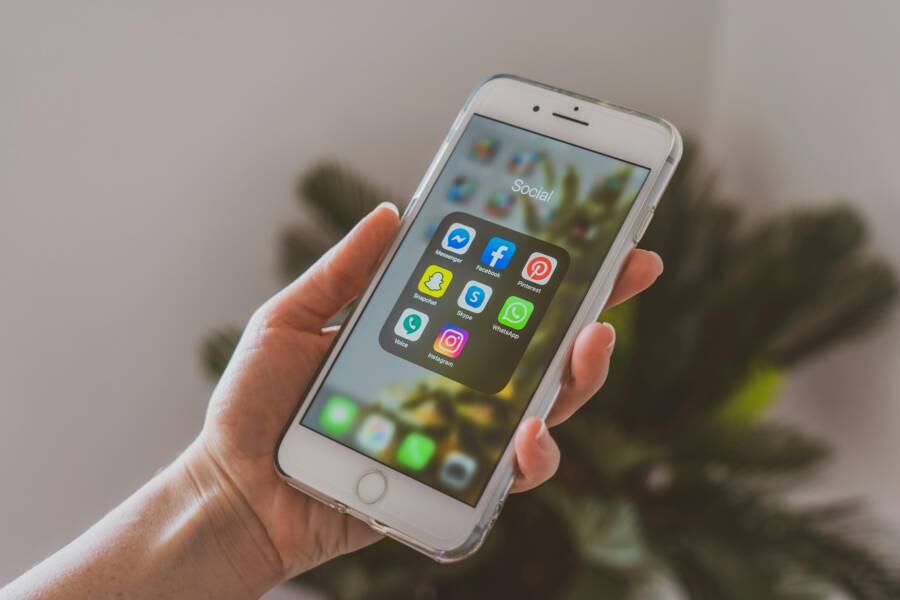
Missing an important message is frustrating, especially when you only notice it after you open WhatsApp. If you’ve ever seen a backlog of chats pile up until you tap the app, you’re not alone. This guide cuts through the confusion and shows you exactly what to check so you get alerts as they arrive.
In simple terms, messages may arrive but not trigger a notification due to settings, permissions, or background activity being blocked. Lights may be constrained by battery saver modes, data restrictions, or an OS tweak that keeps apps from running in the background. The fix is usually straightforward, and most people only need to adjust a few key options to restore timely alerts.
This post walks you through practical steps for both Android and iPhone users. You’ll learn how to verify notification permissions, inspect battery and data saver settings, and ensure WhatsApp can run in the background. We’ll cover common culprits like app updates, memory optimization, and background data restrictions, plus how to test after each change. By the end, you’ll have a clear checklist you can reference anytime your alerts misbehave.
Whether you rely on WhatsApp for work or updates from family and friends, getting reliable notifications matters. This guide aims to be practical and easy to follow, so you can fix the issue quickly and get back to real time messaging. If you’re ready, start with the simplest check and work your way through the steps until your messages come through on arrival.
Pinpoint the Top Causes of Delayed WhatsApp Notifications
If your WhatsApp messages arrive only after you open the app, you’re not imagining things. Delays usually come from how the phone manages power, how notifications are granted, or the network you’re on. Sorting through these causes is often quicker than you think. Below are the top culprits and practical fixes you can implement today. Each subsection highlights what to look for, how to spot the sign, and what to toggle off or adjust to restore timely alerts.
Battery Saver Blocking Background App Refresh
Android devices use Doze and other power optimizations to extend battery life, and iPhones use Low Power Mode for the same reason. When these modes kick in, WhatsApp may stop checking for new messages in the background, causing you to see alerts only after opening the app. Signs include delayed notifications, sudden silence after a push, or notifications that appear hours later. If you notice any of these, turn off the power saver for WhatsApp right away. On Android, go to Settings > Battery > Battery optimization and exclude WhatsApp; on iPhone, disable Low Power Mode from Settings > Battery. For a quick reference on power management issues, see user discussions about battery restrictions affecting WhatsApp on Android Battery Restriction guidance.
What to do now:
- Temporarily disable battery saver when testing alerts.
- Ensure WhatsApp is not restricted by any background activity limits.
- Re-test by sending a message and waiting a minute for the notification to appear.
If delays persist, a broader review of device optimization settings may be needed. For a related deep dive, see articles that explain why notifications can lag and how to fix them on Android devices Android notification delays: simple fixes that work.
Notification Permissions Not Set Up Right
Even when WhatsApp is allowed to push alerts, the system itself must permit them. Both Android and iPhone have separate switches for app notifications, and Do Not Disturb can mute everything except priority exceptions. A common sign is that you receive messages only when you open WhatsApp, or you see a red badge but no banner or sound. Quick checks:
- Android: Settings > Apps > WhatsApp > Notifications. Ensure messages, calls, and groups are enabled, and that Do Not Disturb isn’t blocking them.
- iPhone: Settings > WhatsApp > Notifications. Ensure Allow Notifications, Alerts, Badges, and Sounds are on. Also check that Do Not Disturb isn’t silencing them.
- Do Not Disturb mode: If active, consider a temporary override for WhatsApp or schedule.
If you want a hands-on walkthrough, WhatsApp’s own help center lays out how to manage notifications across platforms How to manage your notifications. This quick check helps you rule out permission issues before digging deeper.
Network Glitches or Weak Signals
Notifications depend on a solid network. A stable Wi‑Fi or mobile data connection makes a huge difference. If the signal is weak or fluctuates, WhatsApp may queue messages until a connection is available. VPNs or corporate networks can also interfere with push servers, causing delays or missed alerts. Signs include sporadic delivery, messages arriving only after opening the app, or a noticeable lag when the device switches networks.
Start by testing both Wi‑Fi and mobile data. If one path is flaky, switch to the other and monitor timing. If you use a VPN, try disconnecting it temporarily to see if that improves delivery. For further context on how network conditions affect notifications, see resources that discuss Wi‑Fi versus mobile data reliability and related fixes WhatsApp Not Working on Wi-Fi But Works on Mobile Data? Here’s How to Fix It and practical troubleshooting guides on Wi‑Fi related issues WhatsApp Not Working on Wi-Fi? [SOLVED].
What to test:
- Try a direct message while on Wi‑Fi and then on mobile data.
- Disable VPN and re-test a few times.
- Reboot the router or switch to a different network if possible.
If connectivity remains unreliable, you may need to adjust router settings or contact your carrier to verify there are no network blocks affecting push deliveries. For an overview of common network-based fixes, review guides on delaying messages and restoring prompt delivery Troubleshooting WhatsApp: Essential Fixes for Common Issues.
External links are provided to help you confirm the exact steps in your device environment. Always test after each change to confirm improvements. If you’d like more context on how notification delays occur and how to address them across platforms, consult reputable guides that cover both Android and iPhone scenarios.
Set Up WhatsApp Notifications the Right Way
Getting timely messages starts with solid notification settings. This section helps you confirm that alerts arrive as soon as messages land. We’ll walk through practical steps for both Android and iPhone users and show how small tweaks can make a big difference in real life. Think of your phone as a smart assistant that needs the right permissions and paths open to flag new messages promptly. By following these steps, you’ll reduce the risk of missing chats when the app isn’t open. If you rely on your smartphone for work or family updates, every second counts.
Turn On In-App Alerts and Sounds
If you’re not hearing or seeing WhatsApp alerts, start by turning on in-app alerts and sounds. Open WhatsApp, go to Settings, then Notifications. Look for high priority or emphasis options and enable them so WhatsApp messages rise to the top of your notification shade. After you make the change, test with a quick message to confirm it triggers a banner, sound, and vibration. The goal is immediate visibility, not delayed nudges. If you own a smartphone with layered notification channels, you may also want to ensure WhatsApp is allowed to override Do Not Disturb in priority mode for essential messages. For a quick guide on high priority notifications, see this explainer: https://candid.technology/use-high-priority-notification/.
What to do now:
- Enable high priority notifications and test right away.
- Verify that banners, sounds, and vibrations are active for both personal chats and groups.
- Keep testing with real messages to confirm consistency across scenarios.
If you still see delays, recheck the app’s notification channels and consider a quick reboot. This small reset can clear stale settings that block new prompts. If you’re unsure which options apply to your device, a quick reference on managing WhatsApp alerts for Android can help you verify the right paths: https://www.androidcentral.com/how-manage-notification-settings-whatsapp-android.
Tip: relate this to everyday use on your smartphone. The more you rely on real-time alerts, the more important it is to keep these settings clean and simple. After these tweaks, your messaging flow should feel immediate rather than delayed.
Grant Full Notification Access on Your Phone
Full notification access matters because even the best in-app settings won’t help if the system blocks alerts at the OS level. Confirm both Android and iPhone permissions are correctly set so WhatsApp is allowed to push banners and play sounds whenever a message arrives. On Android, check Settings > Apps > WhatsApp > Notifications to ensure messages, calls, and groups are enabled, and that Do Not Disturb isn’t suppressing them. On iPhone, go to Settings > WhatsApp > Notifications and ensure Allow Notifications, Alerts, Badges, and Sounds are all on. If Do Not Disturb is active, consider a temporary override for WhatsApp or set a schedule.
For a quick, reader-friendly overview of notification management across platforms, you can reference WhatsApp’s official guidance: https://faq.whatsapp.com/797069521522888/?cms_platform=android&helpref=platform_switcher&locale=en_US. This resource covers the essential steps to verify permissions and adjust settings so alerts aren’t muted by accident.
If you’re troubleshooting on a busy day, treat this as a simple checklist:
- Verify Android and iOS permissions for WhatsApp notifications.
- Ensure Do Not Disturb won’t silence WhatsApp during important moments.
- Conduct a test message after each change to confirm results.
In practice, these adjustments often resolve the issue quickly. A well-tuned notification setup ensures you’re alerted the moment someone messages you, no matter which app you’re using or what background activity is happening on your device. Keep this section handy as a quick reference whenever alerts act up again. For broader guidance on common notification pitfalls across devices, you can consult general Android and iPhone notification resources to stay ahead.
Links cited above are provided to help you verify exact steps in your device environment. Use them as needed during setup and testing to confirm improvements. If you’d like more context on how notification delays occur and how to address them across platforms, explore reputable guides that detail Android and iPhone scenarios.
Ease Battery Limits for Constant WhatsApp Checks
If you find that WhatsApp only delivers messages after you open the app, battery and background activity settings are likely at fault. This section zeroes in on two practical fixes you can apply quickly. Think of these steps as loosening the reins on how your phone manages app activity so WhatsApp can check for new messages more reliably in the background. You’ll want to test after each change to confirm the improvement. A well-tuned phone helps you stay on top of chats, no matter how busy your day gets. If you rely on your smartphone for work or staying in touch with family, these tweaks can save you from missed messages and delayed alerts.
Android Battery Optimization Fix
On many Android devices, power saving features can block background tasks for apps like WhatsApp. The result is messages that arrive only when you open the app. To fix this, exclude WhatsApp from battery optimization and mark it as a high priority background task. Start by going to Settings > Battery > Battery optimization. Find WhatsApp and set it to “Don’t optimize” or “Unrestricted.” This ensures WhatsApp can refresh in the background. After making the change, ignore battery usage warnings and test by sending a message. If you still notice delays, add WhatsApp to your list of unmonitored apps and re-test. This approach aligns with official guidance on battery restrictions and notifications. For quick reference, review the Google support discussion on how battery restrictions affect WhatsApp notifications: https://support.google.com/android/thread/122678920/whatsapp-and-other-apps-won-t-receive-notifications-battery-restriction?hl=en. Also consider reading about how adaptive battery management can influence app behavior on newer Android versions: https://support.google.com/pixelphone/answer/7015477?hl=en-AU. If you want a practical how-to, this Android-focused guide covers turning off battery optimization for specific apps: https://droidinsights.dev/articles/turn-off-battery-optimization-android. After changes, test with a simple message and confirm the alert arrives promptly on your device.
- Quick test after each adjustment helps confirm the fix.
- Ensure WhatsApp has no background data restrictions.
- Revisit after a reboot if needed.
A broader review of device optimization can help if delays persist. For context on why notifications lag, explore Android-focused guidance on common issues and fixes: https://www.findarticles.com/android-notification-delays-simple-fixes-that-work/. Keeping these settings clean reduces the chance of missed alerts and makes your smartphone feel more responsive.
iPhone Background App Refresh Solution
Background App Refresh lets WhatsApp check for messages even when the app isn’t open. If it’s off or limited to Wi-Fi only, you may miss notifications when cellular data is in use or when you’re not connected to a trusted network. Start by ensuring Background App Refresh is enabled for WhatsApp. On iPhone, go to Settings > General > Background App Refresh and select “Wi-Fi” or “Wi-Fi & Cellular.” This keeps WhatsApp updating in the background across network types.
Next, verify the Low Power Mode setting. If it’s on, background activity can be restricted. Toggle Low Power Mode off to test whether alerts arrive more reliably, then test again with a quick message. If you’re troubleshooting, note that some iPhone users report that enabling Background App Refresh improves delivery, while others find it dependent on iOS version and app updates. For practical context, see discussions about Background App Refresh constraints on WhatsApp and how users resolve them: https://www.macobserver.com/iphone/background-app-refresh-grayed-out-whatsapp/ and Apple Community threads on Background App Refresh behavior: https://discussions.apple.com/thread/255070972.
- Steps to test: send a message while on Wi‑Fi, then switch to cellular data to confirm consistency.
- If alerts still lag, check that WhatsApp has permission to use cellular data in the background.
- Consider keeping your iPhone on a stable network to ensure steady delivery.
These checks ensure WhatsApp can run in the background without being throttled by system settings. A well-configured device streamlines notification delivery, letting you respond promptly to messages as they arrive. For broader guidance on background activity and notifications on iPhone, consult official Apple support resources and WhatsApp’s own guidance on managing notifications: https://faq.whatsapp.com/797069521522888/?cms_platform=android&helpref=platform_switcher&locale=en_US. As you apply these steps, monitor real-time delivery with a few tests to confirm the improvements.
Clear Network Blocks and App Clutter
When messages aren’t delivered until you open WhatsApp, the bottleneck is often how your smartphone handles background work. You’re not alone in this. A few quick checks can clear both network issues and app clutter, so alerts arrive the moment a message lands. Think of it as giving WhatsApp a clear path to work in the background, no matter where you are or what else your device is doing. In this section, we tackle practical steps to keep your connection steady and your app lean, so you stay in the loop without manual intervention.
Switch Networks and Reset Connections
Flaky connections can hide new messages until you open the app. A simple sequence often fixes the delay: toggle airplane mode, turn Wi‑Fi off and back on, and restart your router if you have home coverage. Also check data saver settings within WhatsApp; a strict data saver can block background data, so messages queue up. After each change, test by sending a message and waiting a minute to confirm the alert arrives promptly. If problems persist, switch between Wi‑Fi and cellular data to identify whether one path consistently underperforms. For deeper guidance on network and notification reliability, see WhatsApp’s official help and Android network tips How to manage your notifications and Android notification settings overview Android notification management.
- Quick checks: enable and test both network types, disable VPN briefly to rule out interference, and reboot devices when needed.
- If you’re on a corporate or VPN network, consider testing without VPN to see if push servers return to normal.
- Keep a short test log: note times you test and whether alerts arrive on first attempt.
Links to precise steps help you replicate the process on your device. Use them as needed during testing to confirm improvements. See additional context on network related fixes in resources that discuss Wi‑Fi versus mobile data reliability and practical troubleshooting WhatsApp Not Working on Wi‑Fi But Works on Mobile Data? Here’s How to Fix It and general network delay explanations Troubleshooting WhatsApp: Essential Fixes for Common Issues.
Clear WhatsApp Cache and Free Storage
Accumulated cache and full storage slow down WhatsApp and can block new messages from triggering timely notifications. On Android, clearing the cache is quick: go to App info > Storage > Clear cache. On iPhone, you can offload the app to reclaim space without deleting your data, or delete old chats and media to free up storage. Signs of storage pressure include sluggish performance, failed message sends, or media not loading. After clearing cache or freeing space, reopen WhatsApp and test a new message to see if alerts fire immediately. If you still run into issues, consider broader storage cleanup or archiving chats you rarely access.
- Android steps are often enough to restore snappy behavior: clear cache first, then review local media files for large items.
- iPhone users can offload then reinstall if needed, but backing up first is prudent.
- Regular maintenance helps prevent nagging delays during busy days.
For quick reference on clearing WhatsApp cache and freeing space, see guides that organize the steps for Android and iPhone: Android cache clearing overview Refresh Your Messaging App | How to Clear WhatsApp Cache and iPhone storage management tips Clear WhatsApp Cache on Android and iPhone. If you’re dealing with a slow device, clearing cache can be a quick win that buys you time to address deeper issues.
- After clearing cache or offloading, restart WhatsApp and run a test message.
- Monitor for improved delivery across both personal chats and groups.
- If problems return, consider a full app reinstall after backing up your chats.
If you want a broader view, credible guides discuss how cache buildup affects performance and offer step by step cleanup approaches. Use them as a reference to keep WhatsApp lean and responsive, especially on smartphones with limited storage.
Advanced Steps When Basic Fixes Fail
When the obvious fixes don’t restore timely WhatsApp messages, it’s time to widen the lens. These advanced steps dig deeper into how your phone manages background activity, network behavior, and app integrity. They’re practical, actionable, and designed to restore real-time delivery without overhauling your entire setup. Think of this as the next level in your smartphone troubleshooting toolkit. After each step, test with a message to confirm whether alerts arrive promptly.
Update WhatsApp and Your Phone OS
Keeping both WhatsApp and your phone’s operating system current is foundational. Updates fix bugs, close security gaps, and improve background processing. Start by checking for updates in the Play Store or App Store, then apply any available patches. After updating, restart your device to ensure changes take effect. This simple sequence often resolves lingering notification delays that basic checks miss. If you want a quick recap of why updates matter for notifications, see WhatsApp’s guidance and community tips for consistency across devices. Update guidance and tips
What to verify after updating:
- WhatsApp is on the latest version and runs without errors.
- Your OS shows the newest security and stability patches.
- A short test confirms alerts trigger immediately on arrival.
If delays persist, consider testing another device or environment to rule out account-specific issues. For broader context on notification timing and updates, explore Android and iPhone best practices in related resources. Android notification improvements and update effects
Reinstall WhatsApp Safely
A clean reinstall can reset stubborn misconfigurations behind delayed alerts. Begin with a complete chat backup to avoid data loss, then uninstall WhatsApp and reinstall the latest version. After reinstalling, restore your chats from the backup and run a test message to confirm delivery occurs as soon as it lands. This approach solves issues caused by corrupted data or hidden settings that a standard update cannot fix. It’s a solid next step when basic checks fail to move the needle. For more on safe reinstallation practices, read user experiences and official guidance. Notable reinstall guidance and precautions
What to do and watch for:
- Ensure the backup completes successfully before uninstalling.
- After reinstall, verify notifications again with a direct message.
- If outcomes are still inconsistent, consider testing with a fresh app profile.
If you still see delays, there may be deeper issues with the device or account. In that case, exploring specific platform forums or official help threads can illuminate unusual edge cases. For additional context on reinstall strategies, check expert analyses on app reset effects. Android and iOS reinstall insights
Reset Network Settings as Final Step
A network reset is a powerful, final move when the problem traces to connectivity quirks. Resetting network settings clears saved Wi-Fi networks, VPNs, and Bluetooth preferences, returning them to a default state. This can fix stubborn delays caused by misconfigured routes or blocked push servers. On Android and iPhone, you’ll regain a clean slate after the reset, but you’ll need to rejoin networks and reconfigure essential connections. Expect a short period of re-pairing devices and reconnecting to networks. If you’re unsure, start with a backup of current network details. For a reliable guide, see comprehensive instructions from trusted sources. How to reset network settings on Android or iOS
What you gain from a network reset:
- Cleared VPN and proxy configurations that interfere with push alerts.
- Repaired Wi-Fi and cellular handoffs that previously lagged.
- A straightforward path to re-test WhatsApp delivery after reconfiguring networks.
After the reset, re-test with multiple message scenarios: on Wi-Fi, on cellular data, and while switching networks. If issues pop up again, you may need to contact your carrier or router manufacturer for further diagnostics. For a broader view of network fixes related to messaging apps, review trusted guides on Android and iOS network stability. Network stability tips for mobile devices
Conclusion
If WhatsApp shows messages only after you open the app, start with the three most effective fixes in order. First, verify and tighten notification settings so alerts appear immediately. Enable in app alerts and high priority notifications, and confirm banners, sounds, and vibrations are active. This often removes the need to open the app to see new messages.
Second, remove background limits that slow delivery. On Android, exclude WhatsApp from battery optimization and allow background activity. On iPhone, enable Background App Refresh and disable or suspend Low Power Mode when testing. A quick reboot after these changes can help confirm results.
Third, rule out network and clutter issues. Test on both Wi Fi and cellular data, disable VPN briefly, and clear space if storage is tight. If the network path is unstable, the push messages may queue until a fresh connection is available. A network reset can be a last resort when other steps fail.
Prevention matters just as much as fixes. Keep WhatsApp and your OS updated, regularly review notification permissions, and free up storage so the app can run smoothly in the background. Simple checks after each change help maintain reliability, especially for a busy smartphone life.
If you found these steps useful, share your experience in the comments. Your feedback helps others and keeps the conversation going. A reliable setup makes real time messaging feel effortless on your smartphone.