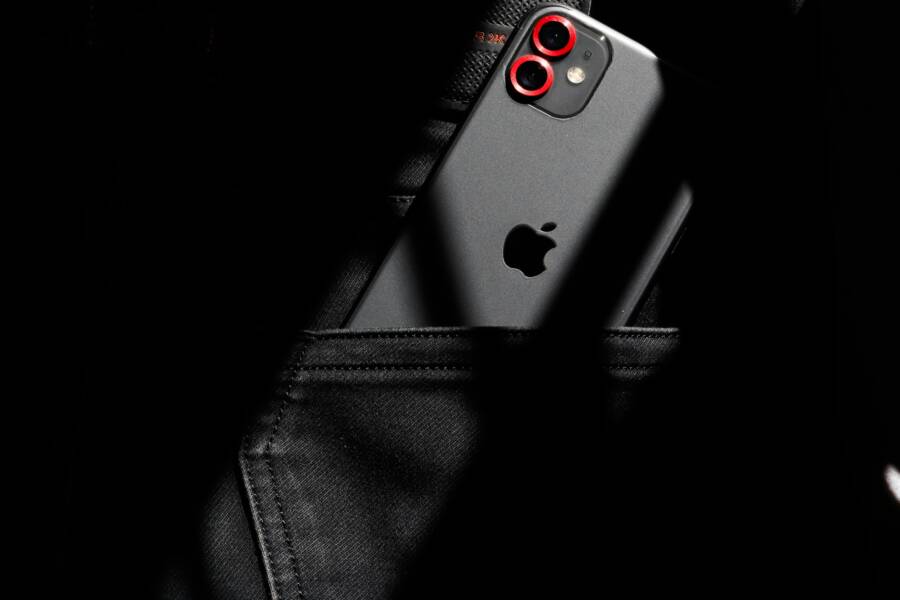
Have you ever glanced at your pocket and found a call you didn’t intend to make already in progress? It happens during meetings, on commutes, or right after you pull your device from your pocket. The screen lights up, and suddenly your quiet moment turns into an embarrassing moment or a drained battery.
This post helps you stop your phone from waking up in your pocket. You’ll learn why it happens on both Android and iPhone, often tied to sensitive touches or misconfigured settings. We’ll separate practical fixes by platform and finish with general tips that apply to any device.
First, the problem is not your imagination. Short, accidental taps can trigger the screen to wake, unlock, or even answer a call. The effect is immediate: a bright display, popped notifications, and wasted power. The goal here is simple: reduce unnecessary wakeups without sacrificing convenience.
On Android devices, you can adjust screen sensitivity, disable pocket detection, and tweak gesture controls. On iPhone, you may review attention awareness, tap to wake settings, and automatic lock timing. Each platform has small toggles that add up to big savings over a day.
Beyond platform tweaks, there are universal habits that help. Use a protective case with a tight pocket fit, enable a quick lock after a short inactivity, and keep software up to date. With these steps, your smartphone stays quiet when it should be, and your battery lasts longer.
Why Does Your Phone Wake Up in Your Pocket
When your phone lights up inside a pocket, it can feel like a minor mystery with real consequences. Battery drain, unintended calls, and privacy concerns can all creep in when the screen wakes at inopportune moments. The good news is most wakeups come from simple, fixable causes that you can tackle in a few minutes. Below you’ll find three common culprits and practical steps to quiet the device without losing convenience. Each subsection outlines how the issue starts, how to spot it, and which settings or habits can reduce pocket wakeups.
Accidental Touches Light the Screen
Fabric rubbing against the screen or body pressure can trigger the touchscreen, especially on slim phones or devices without a robust case. A light brush in a pocket may register as a tap, waking the display or even unlocking the phone. You may notice a pattern if you check call logs or recent activity after a pocketing moment. To spot this issue, look for unexpected screen wakes, recent notifications, or accidental taps when you retrieve the device. Consider a snug case and a screen protector that reduces sensitivity to light touches. If you suspect this is happening, test the screen with gentle movement and observe whether wakes correlate with specific fabrics or clothing. For many users, simply switching to a well-fitted case reduces pocket touches significantly, letting you keep a slim profile without sacrificing reliability. External reference on similar pocket wakeups: https://www.samsung.com/us/support/troubleshoot/TSG10003506/
Notifications Break the Sleep
Alerts from apps or messages can light the display even when the phone is locked. A new message, a calendar reminder, or a social notification can trigger a quick wake that you notice only after you pull the device out. LED flashes, vibrations, and pre- wake interactions can all lead to touches that feel like a pocket dial. To verify this, review your notification history or enable a temporary log to see which alerts last woke the screen. If you find certain apps are overly active in the background, adjust their notification settings or quiet hours. Managing what can wake the screen helps you regain control over pocket behavior. For reference, see how manufacturers describe wake methods and settings: https://xdaforums.com/t/screen-turning-on-in-my-pocket.3602663/
Sensors Fail in Pockets
Proximity sensors and accelerometers sometimes misread pocket conditions as use. Dirt, lint, or fabric can throw off the sensor readings, especially when the phone sits in a tight pocket or bag. When the sensor misfires, the device may think you intend to interact with it and wake the screen. Regular cleaning of the screen and the sensor area helps reduce false wakes. If you notice frequent wakes after pocket carriage, inspect the sensor window for dust, smudges, or coating. Cleaning with a soft microfiber cloth can restore accurate readings. In some cases, a software update or device calibration is needed to fix persistent glitches. Learn from other users who faced similar sensor issues here: https://forums.androidcentral.com/threads/screen-repeatedly-turning-on-in-pocket.680340/
Android Fixes to End Pocket Wakes
If your phone keeps lighting up in your pocket, you’re not alone. Small, quick taps and sensor quirks can wake the screen when you least expect it. Here are practical, Android specific fixes that you can apply today. These tweaks are simple, but they add up to longer battery life and fewer pocket surprise moments. We’ll walk you through each fix with clear steps and quick testing tips so you know what works for your device.
 Photo by Ravi Roshan
Disable Raise to Wake and Double Tap
Raise to wake and double tap to wake are designed for convenience, but they are common culprits behind pocket wakeups. If your phone lights up when tucked away, these features could be doing more harm than good. Here’s how to turn them off on two popular Android experiences.
- Stock Android: Open Settings > Display > Advanced. Find Lift to wake or Raise to wake and switch it off. Then locate Double tap to wake and disable it as well.
- Samsung One UI: Go to Settings > Display > Advanced features or Lock screen settings. Disable both Lift to wake and Double tap to wake if present.
Why this helps: a gentle press or brush against fabric can register as a wake command. Turning off these gestures reduces accidental wakes without altering your ability to wake the screen with a deliberate button press or power gesture. After making changes, test by placing the phone in your typical pocket and lightly moving the fabric. If it stays dark, you’ve likely solved the issue. For background context, Samsung’s guidance on pocket wake behavior provides a solid reference point: https://www.samsung.com/us/support/troubleshoot/TSG10003506/. If you want to explore broader Android guidance, you can also review related discussions here: https://support.google.com/android/thread/212884354/i-want-to-disable-the-function-to-double-tap-the-screen-to-turn-the-screen-on?hl=en.
Tip: if you still want some quick wake capability, consider using a single, very deliberate action like pressing the power button to wake instead of a screen touch.
Enable Pocket Detection or Lock Mode
Modern phones include pocket-specific protections that aim to keep the display off when you’re not actively using the device. Enabling pocket detection or a dedicated lock mode helps prevent accidental wakeups while preserving quick access when you truly need the screen.
- Samsung devices: Look for On-body detection or Pocket mode within the Lock screen or Biometrics section. This feature keeps the phone unlocked only when it’s in your hand and auto-locks when it moves out of reach. If needed, adjust sensitivity to balance security and convenience. Samsung’s official setup guide covers pocket dialing prevention and related on-body behavior: https://www.samsung.com/sg/support/mobile-devices/how-to-prevent-pocket-dialing-on-samsung-mobile-device/.
- Xiaomi and some other brands: Pocket detection is often labeled as Pocket mode or On-body detection in the Lock screen settings. Activate it to minimize wakeups when the device sits in a pocket or bag. You’ll typically find this under Lock screen or Security in the settings.
For other brands, you may need to explore developer options with care. Enabling pocket detection can reduce wakeups, but it can also complicate unlocking when you actually want access. If you’re comfortable tweaking, test the behavior after enabling to ensure you’re not trading one annoyance for another. If you run into inconsistent results, consult device-specific forums for model-based guidance, and consider sticking to the stock pocket protections before diving into developers-only changes. A related deep dive on one UI pocket mode is here: https://www.samsung.com/us/support/troubleshoot/TSG10003506/ and a practical overview on Xiaomi pocket mode is here: https://www.mi.com/global/support/article/KA-36392/.
Image suggestion: a close-up shot of a phone resting in a pocket, illustrating the pocket detection concept.
Shorten Screen Timeout and Touch Sensitivity
Reducing the time the screen stays on after interaction helps curb pocket wakes. Shorter timeouts make it less likely the display accidentally stays illuminated long enough to drain power or reveal private content.
- Path to change: Settings > Display > Screen timeout or Sleep. Set a short duration such as 15 seconds.
- If available, tune touch sensitivity in Developer Options. Turning down touch sensitivity can help minimize false taps when the device is in a pocket.
Why it helps: a quick timeout means even if a light touch happens, the screen won’t linger long enough to feel intrusive. It also saves battery by keeping the display off most of the time. For a quick reference, several guides discuss screen timeout customization and related developer options: https://emteria.com/blog/android-screen-timeout and https://www.ninjaone.com/blog/how-to-disable-screen-timeout-on-android/.
Pro tip: after adjusting, give the phone a beat test. Place it in the pocket and wait for the timeout to trigger. If you still notice wakeups, recheck the timeout and, if needed, tighten any sensitive settings in Developer Options.
Block Wake from Notifications
Notifications can wake the screen even when the phone is locked. Blocking nonessential wake events helps prevent pocket wakeups while keeping important alerts visible when you actually look at the device.
- Settings path: Settings > Notifications > App settings. Turn off screen wake for apps that don’t require immediate attention.
- Prioritize key apps: keep wake on for messaging and alarm apps, but mute or restrict others. You can often configure per-app settings to reduce background wakes while still receiving notifications.
Why it helps: many apps ping the screen briefly, especially if they have high notification cadence. Limiting which apps can wake the display reduces the chance of a pocket wake while still letting you stay informed about important events. If you’re curious about how notification controls align with pocket wake behavior, you can explore more here: https://support.google.com/android/answer/9079661?hl=en and for further reading on general notification management in practice, see https://forums.androidcentral.com/threads/how-can-i-prevent-my-screen-from-waking-when-receiving-notifications.1058748/.
Final testing tip: after you apply these settings, run a short test by placing the phone in your pocket and gently moving. Verify that it remains dark when inactive, and that you still receive essential notifications without unwanted wake events. This approach keeps your smartphone ready when you need it and quiet when you don’t.
iPhone Settings to Stop Pocket Wakes
Waking up in your pocket is more than an annoyance. It drains battery, exposes notifications, and can lead to unintended actions. The practical fixes below focus on iPhone behavior, with quick tests you can run to confirm results. You’ll find small toggles that dramatically reduce pocket wakes without making your device harder to use. If you want extra reading, I’ve included reputable resources that explain the settings in more depth.
Turn Off Raise to Wake
Raise to Wake can be convenient, but it’s a frequent trigger when the phone sits in a pocket. Turning it off reduces the chance of a light touch waking the screen accidentally. To disable:
- Go to Settings > Display & Brightness and toggle off Raise to Wake.
- If your model supports it, disable related gestures like Tap to Wake as well for added protection.
Disable Tap to Wake and Attention Features
Tap to Wake, when enabled, makes pocket wake more likely. Paired with Attention features, it can softly react to how you look at the device. Turning these off tightens control over when your screen lights up.
- Open Settings > Display & Brightness and switch off Tap to Wake.
- If you have Face ID with Attention features, go to Settings > Face ID & Passcode and disable Attention Aware Features.
Why this matters: in dim pockets, a quick tap or a glance can cause a wake prompt. Disabling these features reduces false wakes while keeping essential access intact when you want it. After applying the changes, test by moving the phone in and out of a pocket to confirm the display stays off until you press the side button. For further reading on Attention Aware and related controls, you can review Apple’s official guidance: https://support.apple.com/en-us/HT204915
Set Faster Auto-Lock and Limit Haptics
A faster auto-lock keeps the screen from staying lit after you move away. Coupled with toned-down haptics, this approach cuts down on wake and wake-related noise in your pocket.
- Go to Settings > Display & Brightness > Auto-Lock and set a shorter interval, such as 30 seconds.
- In Settings > Sounds & Haptics, reduce or customize haptic feedback to minimize vibrations during pocket movements.
- Review notification settings to minimize unnecessary wake events.
Why this helps: a brief inactivity window means the screen shuts off quickly, even if it’s brushed or jostled. Reducing haptics lowers the chance you’ll feel or notice a wake caused by pocket movement. After you adjust, test by placing the phone in a pocket and moving it lightly. If the screen remains dark when idle, you’ve likely reduced pocket wakes. For deeper context on keeping the screen off in pocket scenarios, see discussions from Apple users about auto-lock and pocket behavior: https://discussions.apple.com/thread/254224873
External resources you may find helpful
- Turn Attention Aware features on or off on your iPhone or iPad Pro: https://support.apple.com/en-us/HT204915
Extra Tips for Any Phone to Stay Asleep
When your pocket is the stage for your device, every wake matters. Small tweaks add up to big gains in battery life and privacy. This section collects practical, ready-to-implement tips you can use on any phone. You’ll find simple fixes that reduce false wakes, plus quick checks to keep your device reliable over time. Below, three targeted approaches help you keep the screen dark when you don’t need it and ready when you do.
Get a Case That Blocks the Screen
A case that fits snugly and shields the screen from fabric and accidental touches can dramatically cut pocket wakes. Wallet or flap styles are especially effective because they envelope the screen area and reduce friction with your clothing. Brands like OtterBox offer sturdy options that balance protection with everyday usability. The key benefit is simple: a well-fitted case minimizes the tiny brushes and pressure that often trigger a wake. You’ll notice fewer false taps when you reach for your keys or pull the phone from a tight pocket.
Pros:
- Reduces accidental touches and pocket calls.
- Provides extra protection against drops and scuffs.
- Often compatible with screen protectors for added durability.
Cons:
- Can add bulk, making some pockets and purses feel crowded.
- Some designs hinder quick access or wireless charging.
- Higher upfront cost depending on the model.
If you’re shopping, start with wallet-style OtterBox options that place cards and cash behind a protective shell. They’re widely available at retailers like Best Buy and Walmart. For quick reference, explore these listings: Wallet Cell Phone Cases at Best Buy, OtterBox Wallet Series at Walmart, and OtterBox wallet variants on eBay. These can help you compare fit, price, and material choices to find a good balance of protection and slim profile. Links: https://www.bestbuy.com/site/pcmcat1706306014461.c?qp=brand_facet%3DBrand~OtterBox, https://www.walmart.com/c/kp/otterbox-wallet-series, https://www.ebay.com/b/OtterBox-Wallet-Cell-Phone-Case/20349/bn_349177
If you prefer a lighter touch, consider a slim case with a raised lip around the screen. The goal is to reduce contact surface without sacrificing grip. A well-chosen case acts like a buffer, so your phone stays quiet when you slide it into a pocket or bag. For hands-on guidance, check user reviews and side-by-side photos from retailers and forums. A practical aside: a quick in-pocket test after you fit the case can save you from chasing wakeups later.
Try Pocket Lock Apps
Pocket lock apps block the screen from waking due to accidental touches while your device is in a pocket or bag. On Android, several options exist, with Pocket Lock ranking among the most popular. These apps monitor touch events and lock the screen unless you perform a deliberate action, like pressing the power button.
On Android, good choices include Pocket Lock itself. It has strong user ratings, active development, and clear install steps. Alternatives like Touch Lock provide a similar function by disabling screen touches when video or apps are in use. On iPhone, options are more limited, so you’ll rely more on built-in settings to minimize wakeups, but a few apps are still worth exploring if you’re curious about extra control.
How to get started:
- For Android, install from the Google Play store or reputable APK sources. Pocket Lock typically requires permission to monitor touches and enable a lock state when needed. After installation, run a quick in-pocket test to confirm it blocks wakeups during daily use.
- If you’re testing alternatives, look for apps with solid ratings and recent updates. Pocket Lock on Google Play shows user feedback and download metrics that help gauge reliability. You can also see other options like Touch Lock for comparison.
External references to help you choose and install:
- Pocket Lock on Google Play: https://play.google.com/store/apps/details?id=com.paep3nguin.pocketLock
- Pocket Lock APK from a third-party source: https://pocket-lock.apk.gold/
- Pocket Lock variant listings and user feedback: https://pocket-lock.en.uptodown.com/android
In addition to Android tools, keep an eye on how well these apps respect your privacy and battery life. After installing, perform a controlled pocket test and adjust settings if you notice any delayed unlocks or missed wakes. If you want more options, consider dedicated screen lock utilities like Touch Lock, which can help during video playback or other activities when you want the screen locked but the device not fully inaccessible. External reference: https://play.google.com/store/apps/details?id=com.brink.livelock&hl=en_US
Update Software and Clean Regularly
Software updates often fix bugs that contribute to pocket wakeups. Staying current with your OS ensures you benefit from stability improvements and enhanced power management. In addition, a quick routine to keep the screen and ports clean helps prevent misreads from dirt and lint that can trigger wake events.
What to do:
- Check for OS updates regularly and install them when available. Updates can address sensor quirks that cause unintended wakes.
- Wipe the screen and sensor area gently with a microfiber cloth to remove dust and smudges that may confuse proximity sensors.
- Monitor battery stats in settings to spot apps or processes that wake the screen too frequently. If you notice abnormal activity, adjust app permissions or background refresh settings.
- Build long-term habits: pair software maintenance with a monthly device check. Keep charging ports clean, watch for unusual heat, and reinstall if you notice persistent wake patterns after an update.
Useful resources and references for deeper context:
- Apple community discussion about pocket mode after an OS update: https://discussions.apple.com/thread/256142411
- General guidance on keeping Galaxy devices from pocket wakeups and the Accidental touch protection feature: https://www.samsung.com/us/support/troubleshoot/TSG10003506/
- Additional articles on cleaning and sensor alignment for smartphones: https://www.samsung.com/us/support/answer/ANS10003301/
Final quick check: after applying updates and giving the phone a light wipe, place it in your typical pocket and perform a few light movements. If the screen stays dark during idle moments, you’ve closed a common wake loop. Regular maintenance helps your device stay quiet and ready, without sacrificing the convenience you rely on.
Conclusion
If you want fewer pocket wakeups, you can fix most of them with a few focused tweaks. On Android, the top three fixes are: disable raise to wake and double tap to wake, enable pocket detection or on-body protection, and shorten the screen timeout while tuning touch sensitivity. These changes cut false wakes while keeping access through deliberate actions.
On iPhone, the best three moves are: turn off raise to wake, disable tap to wake and attention aware features, and set a faster auto lock. Pair these with a calmer notification strategy to reduce wake events without missing important alerts.
Test each change over a full day. Observe how often the screen lights up, and watch battery life for signs of improvement. A noticeable reduction in wakes brings peace of mind and steadier battery performance. The tweaks also help protect privacy by keeping notifications from flashing at inopportune moments.
Across both platforms, simple habits reinforce the gains. Use a snug case to reduce fabric-induced touches, keep software up to date, and review what apps can wake the screen. These steps compound the effect of the settings you adjust.
If you want to go further, you can try pocket lock tools or slim case options to minimize accidental touches while preserving quick, intentional access. Remember to run a quick in pocket test after each change.
Share your fix in the comments or try it now. Which tip worked for you?