You tap send on a crucial message and it stays stuck, leaving you wondering what to do next. Frustration builds when the text never leaves the thread and you worry about missing a deadline or sounding unsure. You want a quick fix that actually works on your smartphone.
This post lays out clear, step by step fixes for both Android and iPhone users. You’ll get practical tips you can try right away, without wading through tech jargon. By the end you’ll know exactly which moves solve the problem and why they work.
Most people run into WhatsApp not sending messages for everyday reasons. A weak signal, an app glitch, or a setting you barely notice can stop messages in their tracks. We’ll cover the common culprits and show you how to test each fix quickly, so you can get back to chats you care about.
You’ll learn how to check your network, review permissions, and manage storage, plus how to reset or reinstall if needed. Along the way, we’ll share quick checks you can repeat any time. Have you tried this yet for your smartphone before moving on to the next fix?
By the end, you’ll have a reliable checklist that keeps your messages moving. No fluff, just proven steps you can trust.
WhatsApp works again, and your chats resume without a hitch.
Check Your Internet Connection Right Away
When WhatsApp isn’t sending messages, the root cause often comes down to the quality of your internet connection. A quick check can save you time and frustration. Think of your connection like a pipeline: if the flow is slow or blocked, messages stall. Below are two focused subsections to help you verify and optimize your network quickly, so you can get back to conversations fast.
Test Wi-Fi and Restart Your Router
A stable Wi-Fi connection is the first line of defense against failed messages. Start with a simple speed check to set a baseline. Open a browser and run a quick speed test to see your download and upload speeds, plus ping. If speeds look sluggish, try reconnecting to your network. Forget the network on your device, then reconnect with the correct password. After you reconnect, recheck WhatsApp by sending a test message.
If the issue persists, restart your router. Unplug it for about 30 seconds, plug it back in, and give it a minute to reboot. Once it’s back online, perform a new speed test and send another WhatsApp message to confirm the fix.
If you want a quick reference on troubleshooting connection issues in WhatsApp, you can explore the official guidance and trusted tips here: https://faq.whatsapp.com/852892549070029
Switch to Mobile Data or Toggle Airplane Mode
If Wi-Fi still isn’t cutting it, switch to mobile data to see if your messages go through. Disable Wi-Fi, then confirm you have an active data plan and that no data caps are in effect. You can also toggle Airplane mode on for about 10 seconds, then turn it off to refresh your device’s network settings. After these steps, test WhatsApp again with a new message.
If you’re curious about data usage controls, a quick strategy is to temporarily disable data saver and allow WhatsApp to use data freely. On Android, you can check this in Settings > Network > Mobile data, and on iPhone in Settings > Cellular. For additional context on managing data for WhatsApp on iPhone, see this step-by-step guide: https://www.wikihow.com/Turn-Off-Cellular-Data-for-WhatsApp-on-an-IPhone#wH5
Restart WhatsApp and Your Phone for a Fresh Start
If WhatsApp still isn’t sending messages after trying the quick fixes, a restart can clear stubborn glitches. A fresh start helps reset stuck processes and gives the app a clean slate to work with. This approach is simple, safe, and often overlooked. Think of it like rebooting a stalled computer: you remove temporary hiccups and restore smooth performance. Below are two practical steps you can take right away to bring order back to your conversations.
Force Close WhatsApp App
Sometimes WhatsApp stays in a limbo state, and a force close is all it takes to wake it up. On Android, swipe up to view recent apps, then clear WhatsApp from the list of running tasks. On iPhone, double-click the Home button (or swipe up and pause on newer models) to view open apps, then flick WhatsApp away. Reopen the app and test by sending a message.
Why this works: force closing stops any stuck background processes that may block new messages from being sent. It also resets the app’s temporary state without affecting your chats or data. If you hit the same issue again, try force closing other apps that run in the background to free up memory. For quick reference on closing apps, see support guides from Android and Apple: Android guidance and Apple guidance. You can also review WhatsApp’s own help center for troubleshooting steps: https://faq.whatsapp.com/5155925751185676
Reboot Your Phone Completely
A full reboot clears the system cache and reinitializes hardware components your phone relies on. Hold the power button and choose restart. Wait about a minute for your device to boot up fully, then open WhatsApp and attempt to send a test message.
This method is safe for all models and often resolves issues beyond app faults, like minor network handshakes or memory pressure. If your phone feels slow after the reboot, consider closing unused apps and freeing up storage. After the restart, perform a quick WhatsApp test to confirm the fix. For more on how a restart helps with app glitches on different devices, you can explore guidance from WhatsApp and mobile OS support resources, including an Apple support article on closing apps: https://support.apple.com/en-us/109359
External resources to help you troubleshoot more basics:
- Can’t send or receive messages until I restart my phone: https://support.google.com/messages/thread/250550761/can-t-send-or-receive-messages-until-i-restart-my-phone?hl=en
- Can’t use WhatsApp due to app or device crashes: https://faq.whatsapp.com/860746416100488
Update the WhatsApp App
Keeping WhatsApp up to date is the fastest way to fix sending issues. Updates bring bug fixes, security patches, and new features that smooth out compatibility with your phone’s core software. If you’re seeing messages stuck in transit, start here. It’s a simple, high-impact step you can complete in minutes from home.
- On Android, open the Google Play Store, search WhatsApp, and tap Update if the option is available. On iPhone, go to the App Store, tap your profile, and select Update All or just Update WhatsApp if that appears. After updating, restart WhatsApp and test by sending a message again.
- If you want a quick visual guide, a step-by-step video shows the exact taps to perform on both platforms. These updates ensure you’re running the latest, most stable version of WhatsApp. For reference, you can review WhatsApp’s official troubleshooting guide and reliable how-to resources here: https://www.tomsguide.com/us/how-to-update-whatsapp-android-iphone,https://www.livemint.com/technology/how-to-install-the-latest-whatsapp-step-by-step-guide-for-android-and-iphone-users-11734695020186.html
In practice, updates often fix underlying glitches that can block messages from leaving your device. After updating, give WhatsApp a quick test by sending a message to a trusted contact. If the problem persists, move to the next steps.
For more context on updating WhatsApp across devices, you can also check a concise guide here: https://faq.whatsapp.com/5155925751185676
Install Latest Phone OS Updates
Your phone’s operating system is the backbone of app performance. When the OS misses important updates, apps like WhatsApp can misbehave. Regular OS updates keep your device secure and compatible with the latest app features. This section covers how to verify and install the newest OS version on both Android and iPhone, including notes about battery and timing.
- Android users should go to Settings > System > Updates to check for available versions. If an update is ready, download and install it. On iPhone, visit Settings > General > Software Update to see what’s new and start the install. For many devices, it’s best to begin this process when you have a reliable charger or are near a power source, since updates can take a while and drain battery. If you rely on data connections, keep Wi-Fi on to avoid extra costs.
- After updating, reboot your phone to ensure changes take effect. If you have a large update or multiple apps, you might see a temporary slowdown as the system reindexes files. In that case, give your device a few minutes before retesting WhatsApp.
If you want to explore official guidance on Android OS updates, see these resources: https://support.google.com/android/answer/7680439?hl=en,https://www.android.com/intl/en_in/articles/update-android-phone/,https://www.samsung.com/uk/support/mobile-devices/how-do-i-check-for-operating-system-updates-on-my-samsung-galaxy-device/?srsltid=AfmBOoq_MxjNsMOsST95dTZJ-eX_cgNch6JQNr8caeaf-JpFoR46iZYA
For iPhone users, follow Apple’s steps to update iOS or iPadOS and back up first. You can start here: https://support.apple.com/en-us/118575,https://support.apple.com/guide/iphone/update-ios-iph3e504502/ios
As a practical tip, consider doing OS updates over a stable Wi-Fi connection and during a period when you won’t need your phone immediately. A smartphone that’s up to date is less prone to compatibility issues that block outgoing messages.
Clear WhatsApp Cache and Free Up Storage
A cluttered cache and dwindling storage can slow WhatsApp down and prevent messages from sending. Clearing the cache and reclaiming space helps the app run more smoothly and reduces the chance of future hiccups. Here are concise, practical steps you can follow on both Android and iPhone, plus quick tests to confirm the fix.
Clear Cache on Android and iPhone
Clearing the cache removes temporary files that may have grown corrupt or bloated over time. It’s a safe, low-risk step that often resolves sending delays without touching your messages.
- Android: Go to Settings > Apps > WhatsApp > Storage > Clear Cache. After the action, reopen WhatsApp and send a test message.
- iPhone: You can offload the app or delete and reinstall WhatsApp to clear cache and temp data. Offloading keeps your data intact, while a full reinstall ensures all ephemeral files are rebuilt afresh.
Why it helps: cache files are like quick-access shortcuts that the app uses behind the scenes. If those shortcuts become outdated or corrupted, the app might stall when trying to send. A fresh cache gives WhatsApp room to operate normally again.
Testing the fix: open a chat and send a new message to confirm it leaves the outbox. If the message still doesn’t go, move to the next step.
For a quick reference on related steps, see the official troubleshooting guide from WhatsApp: https://faq.whatsapp.com/5155925751185676
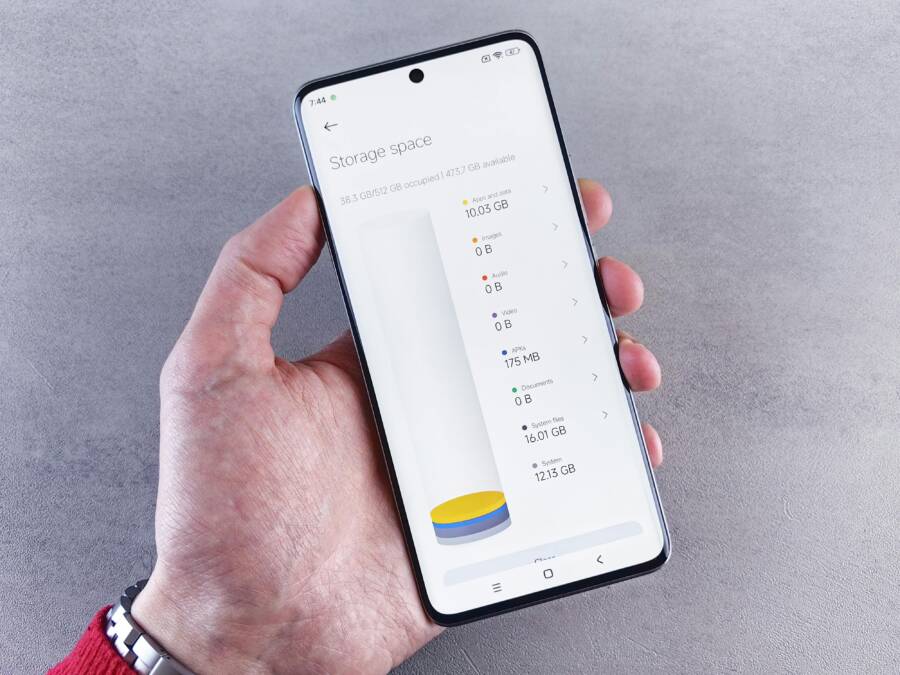
Check and Clear Phone Storage Space
Low storage can prevent WhatsApp from creating the necessary temporary files or saving outgoing media. Clearing space often resolves sending issues and improves overall performance.
- Settings > Storage: Review what’s taking up space and delete junk files, large videos you don’t need, or apps you rarely use.
- Target: keep at least 1GB free for smooth operation and for WhatsApp to store temporary data during sends.
Tips to reclaim space without losing precious memories:
- Move photos and videos to cloud storage or a computer.
- Regularly review WhatsApp media using WhatsApp’s Storage and Data settings to remove items you don’t need.
- Clear old chats with large attachments if you no longer need them.
After freeing space, test WhatsApp by sending another message. If storage was the bottleneck, you should see a noticeable improvement in sending reliability.
External guidance to explore more about clearing WhatsApp cache and reclaiming space:
- https://appleworld.today/2024/10/how-to-clear-whatsapp-cache-androidiphone
- https://www.webnots.com/how-to-clean-up-your-whatsapp-app-to-free-storage/
Image suggestion to illustrate storage management:

Photo by Andrey Matveev
Fix Permissions, Battery Settings, and Reinstall WhatsApp
When WhatsApp won’t send messages, a quick audit of permissions, power settings, and a fresh install can clear stubborn glitches. This section walks you through the exact steps to grant necessary access, prevent background limits from blocking sends, and use reinstallation as a last resort. Think of it as giving WhatsApp a clean, well-lit workspace where messages can travel without friction. If you’re juggling both Android and iPhone, these steps read like a practical checklist you can apply to your smartphone right away.
Grant WhatsApp Full Permissions and Disable Battery Optimization
Permissions and background activity often determine whether WhatsApp can send messages reliably. On Android, start by granting storage and contacts access, then ensure the app won’t be killed by battery optimization. Go to Settings > Apps > WhatsApp > Permissions and allow Storage and Contacts. Then navigate to Battery and set it to unrestricted or allow WhatsApp to run in the background. This prevents the system from blocking the app during sends. On iPhone, check WhatsApp permissions under Settings > WhatsApp and confirm that required permissions (photos, contacts, microphone, etc.) are enabled. After updating permissions, perform a test message to confirm the fix. For deeper Android background optimization guidance, see this practical guide: https://www.youtube.com/watch?v=M5i6lD9zAXE and the WhatsApp troubleshooting resource: https://faq.whatsapp.com/5155925751185676
Reinstall WhatsApp as Last Quick Fix
If permission tweaks and battery settings don’t resolve the issue, a clean reinstall can remove obscure corruption that a simple update cannot fix. Start by backing up your chats to avoid data loss: Settings > Chats > Backup. Then uninstall WhatsApp, reinstall from the Google Play Store or Apple App Store, and restore your backup during setup. This approach often resolves stubborn sending problems that resist other fixes. After reinstalling, test by sending a message to a trusted contact. If the problem persists, you may need to review additional steps like restoring from a cloud backup or contacting support. Helpful references to restore chat history and backups include: https://faq.whatsapp.com/618575946635920 and https://faq.whatsapp.com/1144861179456352
Conclusion
Starting with the basics is the fastest path to a fix. First check your internet connection and test both Wi Fi and mobile data to see if messages begin to move. If the network is solid, move on to the next steps in order, keeping a simple checklist in mind for your smartphone.
If messages still won’t send, switch from Wi Fi to mobile data or refresh network settings by toggling Airplane mode. Then restart WhatsApp and, if needed, reboot the phone to clear stubborn glitches. These quick moves often reset stuck processes without touching your chats.
Keep WhatsApp and your phone up to date. Update the app, then install the latest phone OS to avoid compatibility hiccups. Clear the app cache and reclaim storage space; a cluttered device can block outgoing messages. Review app permissions and disable any battery optimization that might block background activity. If none of this helps, reinstall WhatsApp after backing up chats to start fresh.
If the problem persists, contact WhatsApp support or your carrier for help. Share your fix in the comments so others can benefit. With a clean slate and the right steps, you’re back to chatting in no time.