Missing calls or texts because vibration feels faint is a daily nuisance for many users. It interrupts moments, notifications, and overall peace of mind. If your phone’s buzz is barely noticeable, you’re not alone.
This guide breaks down the common causes in simple terms and shows quick fixes that work for most people. Settings slips, software glitches, worn vibration motors, or dust a build up can all dull the buzz. I’ll walk you through easy steps for both iPhone and Android so you can get back to feeling alerts clearly.
First, check the basics. Ensure vibration is enabled in the key settings, try a quick restart, and update your software. If the problem persists, you’ll find targeted tips for iPhone users and for Android devices that cover hardware and app related issues. By the end, you’ll have a clear path to stronger feedback from your smartphone without digging into complex repairs.
Spot the Top Causes of Weak Phone Vibration
Weak vibration can sneaks up on you, especially when you’re juggling notifications, calls, and subtle alerts. In this section, we’ll highlight the primary, easily fixable culprits that mute or dull the buzz. You’ll learn to spot software quirks and a few hardware hints that tell you where to focus your efforts first. This guide keeps things practical, so you can fix issues quickly and get back that reliable tactile feedback your phone should deliver.
Software Problems That Mute Your Vibration
Software issues are the most common reason a smartphone loses its punch. Start with the simplest fixes first, then move to more involved checks if needed.
- Wrong settings or muted haptics: Double-check that vibration is enabled for calls, notifications, and alerts. On iPhone, go to Settings > Sounds & Haptics and review the haptic strength for alert types. On Android, open the Sound & Vibration menu and confirm vibrate options for calls and notifications are turned on.
- Do Not Disturb or focus modes: DND can silence vibration without you noticing. Temporarily disable DND and see if the buzz returns. If it helps, customize exceptions so you still get tactile alerts for important apps and people.
- Low power mode reduces haptics: When battery saver kicks in, some devices scale back vibrations to save energy. Toggle off power saving or adjust the haptic strength if your device offers that setting.
- Buggy apps or recent updates: A faulty app can override system vibration or steal resources. Check recently installed or updated apps and test vibration in safe mode to rule out a rogue program.
- System updates and patches: Updates can reset or tweak vibration settings. Review the update history and recheck haptics after each major release.
- Quick testing tips: Send yourself test alerts, switch between Silent and Ring modes, and compare vibration strength in real time. If vibration is absent in all contexts, you’re likely facing a broader issue than a single app.
For quick reference, see related guidance from reputable troubleshooting resources:
- Apple discussions on vibration controls and recent updates
- Android support articles detailing how to manage vibration modes and power settings
If you want more in-depth guidance, explore practical steps in these resources:
- https://owlrepairs.com/phone-vibration-not-working-repair/
- https://repairmate.com.au/blog/posts/why-Isnt-My-Phone-Vibrating
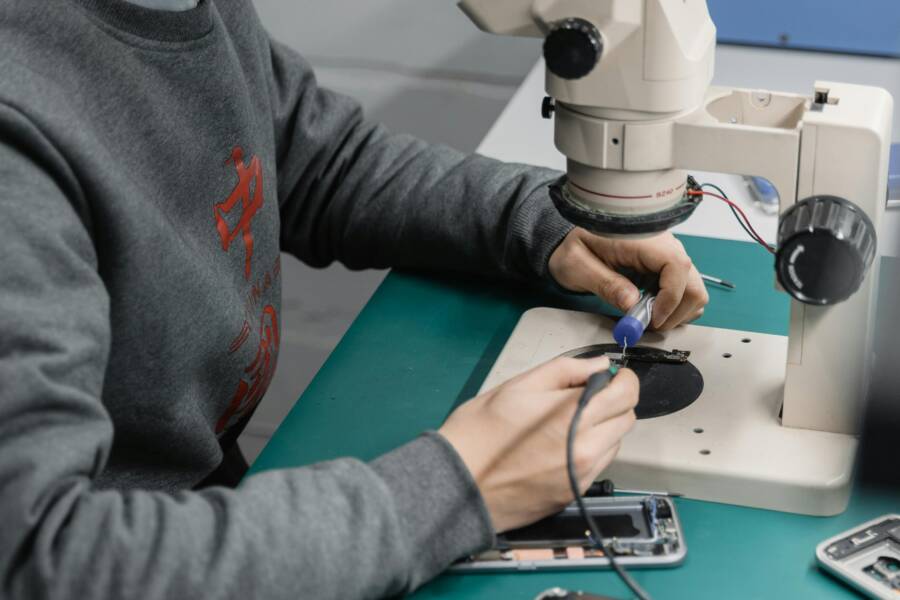
Images can help readers visualize the settings paths. A helpful image shows a phone screen with Settings highlighted, illustrating where to find Vibrations or Haptics.

Photo by Tima Miroshnichenko
Hardware Issues Behind Fading Vibration Strength
If software checks don’t restore the buzz, the problem is more likely hardware related. A worn or damaged vibration motor is the usual suspect, but other components can play a role too. Here’s what to consider and how to approach it.
- Failing vibration motor: Over time, the motor can lose strength or fail outright. If you notice only certain alerts vibrate or the buzz sounds faint, the motor could be at fault.
- Loose or damaged connections: A loose cable or connector can weaken the signal reaching the motor. Drops or rough handling can loosen internal components.
- Dust, dirt, and moisture: Debris can clog the tiny motor or impede its movement. Water exposure can corrode contacts and reduce performance.
- Impact from drops or rough handling: A hard impact can misalign the motor or cracks in the housing can dampen vibration.
- Battery or power delivery issues: Sudden voltage drops can affect motor performance. If the phone struggles with power, the motor might not get enough current to vibrate strongly.
- Why most cases are software in disguise: In many situations the motor is fine; the system or app level settings mislead users into thinking the hardware is the problem. A quick hardware check by a technician can confirm.
If you suspect hardware, avoid heavy DIY fixes for internal components. Most cases improve with professional inspection or, when possible, official repair services. For older devices, vibration motor wear becomes more common, especially after years of daily use.
Additional reading that can help you understand common hardware symptoms:
- Guidance on vibration issues in repair centers
- Articles outlining what to expect from a professional vibration motor check
This section blends practical signs to watch for with clear next steps. If the hardware is indeed the culprit, you’ll usually see a consistent fade across all notification types, or a motor that simply stops entirely.
Remember, most vibration concerns are software at first glance. A structured approach—check settings, test across modes, and rule out apps—saves time and often avoids unnecessary repairs. If you’re unsure, a quick consult with a technician can save you from chasing phantom issues and get you back to that reliable tactile feedback you rely on.
Quick Fixes to Restore Phone Vibration Strength
If your phone’s buzz feels faint, you’re not imagining it. Quick fixes can restore that essential tactile feedback without diving into hardware repairs. This section focuses on practical, actionable steps you can take right away on both iPhone and Android. Start with a simple restart, then verify key settings, and test the vibration after each change. You’ll often regain a strong, reliable buzz by addressing software quirks first.
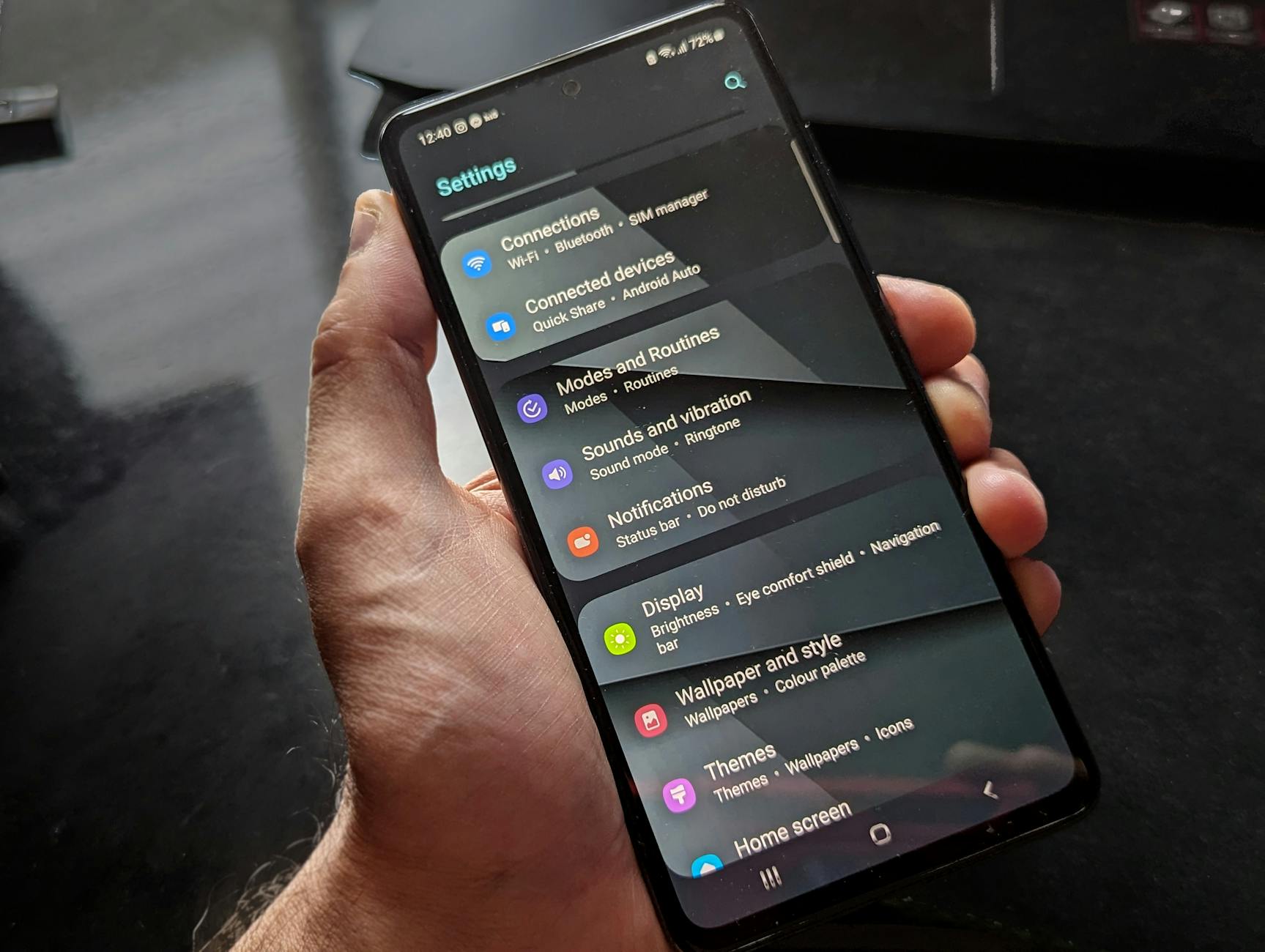 Photo by Watford London Media
Restart Your Phone and Adjust Key Settings
A quick restart can reset minor glitches that mute haptics. Here’s how to do it and what to check right after reboot.
- iPhone: Press and hold the Side button and either Volume button until the slider appears. Drag to power off, then press the Side button again to turn the phone back on. After boot, go to Settings > Sounds & Haptics. Check that Vibrate on Ring and Vibrate on Silent are enabled, then test each alert type using a sample notification and a call ringtone. If the buzz is still weak, repeat the steps with a full device restart.
- Android: Press and hold the Power button, then tap Restart. Once it comes back, open Settings > Sound & Vibration. Confirm Vibrate for Calls and Vibrations for Notifications are on. Some devices offer a separate Haptic Strength or Vibration Level setting; try increasing the level and test with a message and a calendar alert.
Test after each adjustment. If the vibration remains faint in all contexts, try a second restart and revisit the haptic intensity options. For deeper guidance on common iPhone vibration tweaks, you can review discussions and tips from Apple’s support channels. And if you suspect a broader issue, a professional check can quickly confirm the motor is fine. For a broader overview, see resources from Apple discussions and repair-focused guidance.
- Apple discussions on vibration controls and recent updates
- Phone Vibration Not Working? Causes & Fixes
For more in-depth steps, see practical guidance here:
- https://owlrepairs.com/phone-vibration-not-working-repair/
Images can help you visualize the settings paths. A helpful image shows a phone screen with Settings highlighted, illustrating where to find Vibrations or Haptics.
Hardware Issues Behind Fading Vibration Strength
If software checks don’t restore the buzz, hardware could be the culprit. A worn or damaged motor is the most common cause, but other components can play a role too. Consider these factors and how to address them.
- Failing vibration motor: Over time, the motor loses strength or stops. If only some alerts vibrate or the buzz is faint, the motor may be the issue.
- Loose connections: A loose cable or connector can weaken the signal to the motor. Drops or rough handling can loosen internal parts.
- Debris or moisture: Dust inside the motor can dampen movement. Water exposure can corrode contacts and reduce performance.
- Power delivery issues: Sudden voltage drops can affect motor strength. If the device has a weak charge, the motor may struggle to vibrate firmly.
- When software disguises hardware: Often the motor is fine; the system or app settings fool you into thinking the hardware is faulty. A technician can confirm.
If you suspect hardware, avoid DIY fixes for internal components. Most issues improve with professional inspection or official repair services. For older devices, wear on the motor becomes more likely after years of use.
- Guidance on vibration issues in repair centers
- What to expect from a professional vibration motor check
This approach blends practical signs with clear next steps. If the hardware is the cause, you’ll usually notice a consistent fade across all alert types or a motor that stops vibrating altogether.
Remember, many vibration concerns start software-related. A structured plan—check settings, test across modes, and rule out apps—saves time and avoids unnecessary repairs. If you’re unsure, a quick consult with a technician can save you from chasing phantom issues and restore that reliable tactile feedback you rely on. For more perspectives, explore related insights at TechPoint Africa.
Advanced Steps for Stubborn Weak Vibration
If you’ve tried the basics and the buzz still isn’t strong, it’s time to dive into more focused, practical adjustments. This section covers two advanced angles that often unlock a stubborn vibration: software health and how you manage haptics in the background. You’ll learn how to pinpoint whether the issue is a rogue app, a setting that’s quietly muted, or a deeper hardware question. The goal is a reliable, satisfying tactile alert that you can count on in daily use.
Update Software and Boot into Safe Mode
Software glitches are a common source of weak vibration. Start with a clean slate by updating everything and then test in a controlled environment to rule out rogue apps. First, perform a standard software update on both devices. On iPhone, go to Settings > General > Software Update and install any available updates. On Android, open Settings > System > System update and apply pending patches. After updating, verify the vibration settings again: on iPhone, Settings > Sounds & Haptics; on Android, Settings > Sound & Vibration.
Next, boot into Safe Mode to see if a third-party app is the culprit. On Android, press and hold the power button, then tap and hold Power off until Safe Mode appears. Reboot to leave Safe Mode and observe whether the vibration remains strong. If it does, a recently installed app is likely the offender and you should uninstall or disable it one by one. On iPhone, Safe Mode isn’t a formal option, but you can simulate a similar check by temporarily uninstalling recently updated apps or performing a soft reset to clear transient issues.
After you complete these steps, test by sending yourself a test alert and a calendar reminder. If the buzz is back, the culprit was a software conflict. If not, the issue may be hardware related and you’ll want to consider a professional check. For further guidance on vibration troubleshooting, see Apple discussions on vibration controls and updates, and Android troubleshooting resources.
- Apple discussions on vibration controls and recent updates
- How to fix vibration issues after updates
Images:
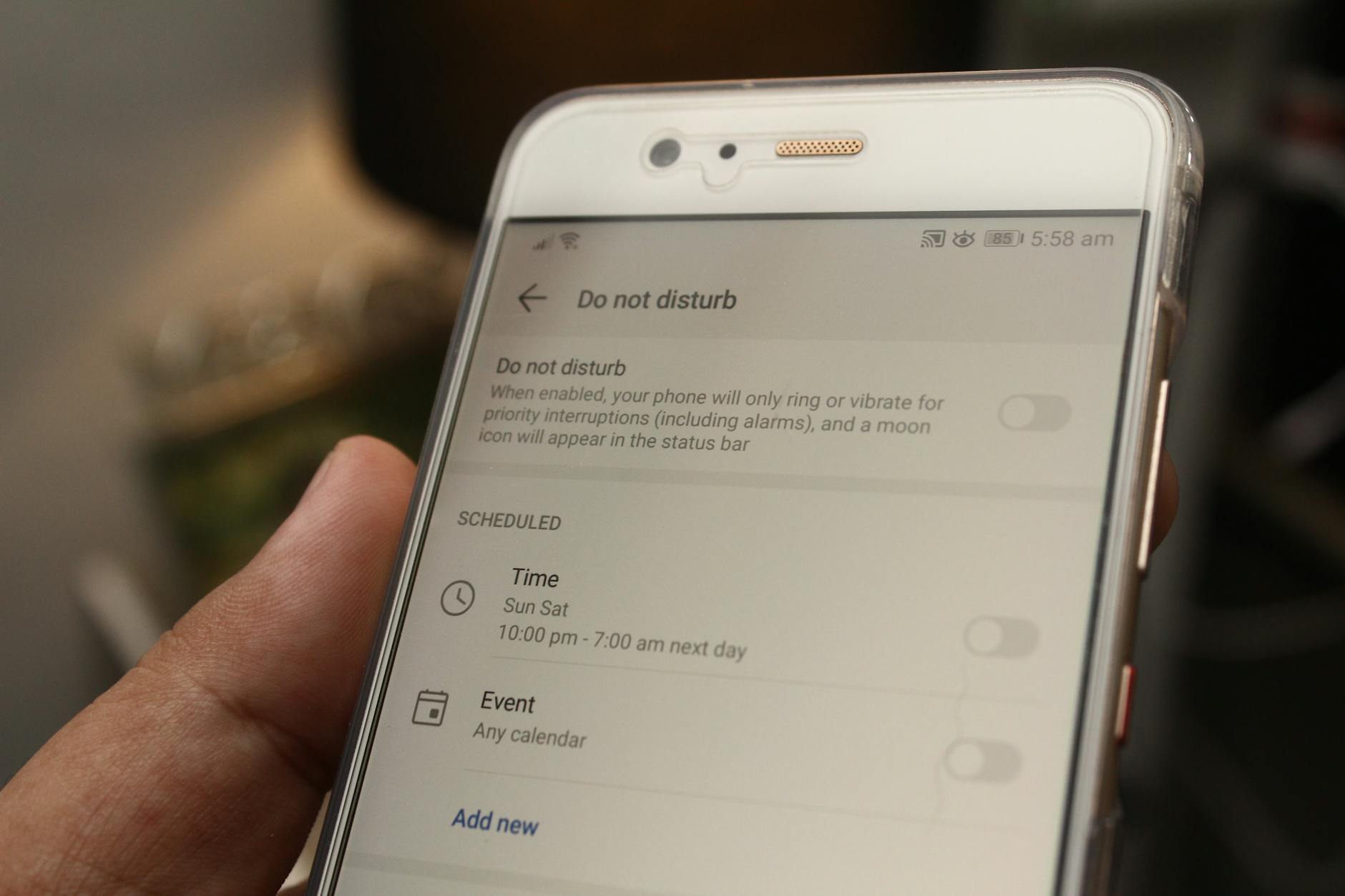 Photo by Daniel Moises Magulado
Tweak Haptics and Manage Background Apps
Tuning haptics and trimming background activity can give your vibration a noticeable boost without hardware work. Start by turning off system haptics if you don’t rely on them for every action; this frees resources for more impactful alerts. On iPhone, head to Settings > Sounds & Haptics and toggle System Haptics off, then test a few different alert types to gauge the difference. On Android, look for a similar toggle in Settings > Sound & Vibration and adjust as needed.
Next, review notifications by app. Some apps push frequent vibrations when you don’t expect them. In iPhone, go to Settings > Notifications and inspect each app’s alert style and vibration setting. In Android, open Settings > Apps & notifications, select individual apps, and disable or customize their vibration patterns or interruptive alerts. If you find any rogues, remove or limit their vibration triggers.
For Samsung users, Advanced features can sometimes interfere with haptics. If you’re not using these features, turn them off to reclaim stronger feedback. Also, consider limiting background activity for nonessential apps to prevent them from waking up the vibration motor unnecessarily. A quick restart after these changes helps ensure the new settings take effect.
Testing is essential. After each change, trigger a few different alerts: a call, a text, and a calendar reminder. If the vibration improves, you’ve likely found the right combination. If not, you may be dealing with a more persistent issue that calls for hardware checks. For deeper guidance, check how-to guides from Samsung and Android support pages, which offer step-by-step paths for adjusting vibration intensity and background activity.
- How to fix vibration issues on your Galaxy phone for calls and notifications
- Weak vibration – Google Pixel Community
Images:
Photo by Watford London Media
Note: Where relevant, you’ll find practical, user-tested steps that blend software checks with a few hardware signals. If the buzz remains weak after these adjustments, consider a professional inspection to confirm the motor and connectors are performing as they should without signs of wear or damage. For additional context, you can explore a few reputable guides on hardware checks and repair expectations.
Handle Hardware Problems and Know When to Get Help
If your vibration is fading despite trying quick software tweaks, you’re likely at the point where hardware deserves attention. This section helps you recognize when the motor itself might be failing and how to approach professional help without overthinking the process. You’ll learn practical signs, the right time to seek expert diagnostics, and what to expect from reputable repair services. Think of it as a reality check for tactile alerts: you want reliable buzzes for calls, messages, and critical alerts. When in doubt, a professional assessment can confirm whether the issue is a simple fix or a sign of deeper hardware wear.
Key Signs Your Vibration Motor Needs Repair
Weak or absent buzz can show up in several telltale ways. A motor that used to push out a strong vibration now barely wiggles, or it only hums faintly for certain alerts. You might notice inconsistent strength where some notifications vibrate clearly while others barely register. Water exposure or a rough drop history increases the likelihood of internal damage or loose connections. If you hear a rattling noise or see the vibration stop entirely during a test, the motor or its mounting is suspect. In such cases, software fixes alone won’t restore full feedback. For many users, the next step is a professional check to confirm whether a motor replacement is needed. When in doubt, start with trusted repair services like Apple Stores for iPhone or authorized Android shops, which can perform a careful motor assessment. See more about repair expectations with reputable providers: iPhone repairs at the Apple Store, uBreakiFix by Asurion for iPhone.
A practical signal is a consistent fade across all notification types, not limited to one app. If the buzz simply vanishes in one scenario but remains in others, you may be facing a software quirk rather than a motor issue. In contrast, a complete loss of haptic feedback across the board usually points to hardware or a broad system fault. If you’ve recently dropped your device or exposed it to moisture, treat the possibility of motor misalignment or damaged contacts as high priority. Hardware checks by a technician will verify motor health, connector seating, and the integrity of the Taptic engine mounting. For a deeper read on common repair expectations, explore resources like Phone Vibration Not Working? Causes & Fixes and model-specific guides such as IPhone Vibration Testing: A Step-by-Step Guide.
Images can help you visualize what to expect when diagnosing hardware. This illustration highlights how a vibration motor connects inside the chassis and where to look for loose components.
Photo by Tima Miroshnichenko
Pro Repair Options for Your Phone
When hardware is the root cause, professional help is the safest route. Start with authorized services that preserve warranty integrity and use genuine parts. For iPhone owners, visiting an Apple Store or an authorized service provider minimizes the risk of improper repairs and ensures any adhesives or seals are properly treated. For Android devices, reputable shops like uBreakiFix by Asurion or carrier-approved service centers offer diagnostics, motor replacements, and tested parts. Expect a formal diagnostic, a clear repair quote, and a warranty on the fix. If your device is under warranty or protected by a service plan, these routes are typically the most reliable and fastest path back to solid haptic feedback. See options and store locators here: iPhone Repairs | uBreakiFix by Asurion and Independent Repair Provider for Apple Devices.
Before you commit, ask what the repair covers. Good shops provide a damage assessment, confirm the motor is the culprit, and explain whether the fix is a motor replacement or a simpler component reseat. They should show you the expected turnaround time and warranty terms. If your device is still under AppleCare or a similar plan, use the official service path to avoid voiding coverage. For those seeking guidance on what to expect from repairs, check relevant troubleshooting resources and professional guides. Helpful references include general repair information and model-specific steps, such as Smartphone Repairs | uBreakiFix by Asurion and Apple Store repair guidance. If you want deeper context on the repair journey, consider model-specific tutorials and reputable repair guides as well.
Images can accompany this section to show real-world repair scenarios. A store environment image can help readers gauge what to expect at an authorized service location.
Photo by Watford London Media
If you’re unsure whether to pursue a DIY path or a pro route, a quick consultation with a technician can save time and money. They can confirm motor health, test connections, and advise on the next best steps. For readers who want quick, practical directions, reputable resources and service options are your best compass. For additional guidance, you can explore repair expectations from industry sources and model-specific tutorials.
Conclusion
A stronger buzz is usually within reach with a deliberate, step by step approach. Start by confirming basic settings, testing after each change, and keeping software up to date. If the vibration remains faint, work through the next steps one by one until you identify whether the issue is software, hardware, or a mix of both.
Key takeaways to finish strong:
- Verify vibrate settings for calls and notifications, then test with a few sample alerts.
- Disable Do Not Disturb and review any power saving options that limit haptics.
- Update the system and, if needed, reset only the settings to clear hidden quirks.
- If tests point to hardware, seek professional repair rather than trying risky internal fixes.
- Prevent future fades by avoiding drops, cleaning ports, and keeping the phone firmware current.
Prevention matters, too. Regular updates keep haptic feedback consistent, a quick dust removal at the speaker or charging port helps, and using good chargers preserves overall performance. Treat the vibration motor like any delicate component—soft handling, clean connections, and timely service when needed.
If you’ve found a tweak that worked for you, share the outcome in the comments. Your experience can help others save time and regain reliable alerts quickly. And if you’re comfortable, tell us which phone you have and what fixed it for you.