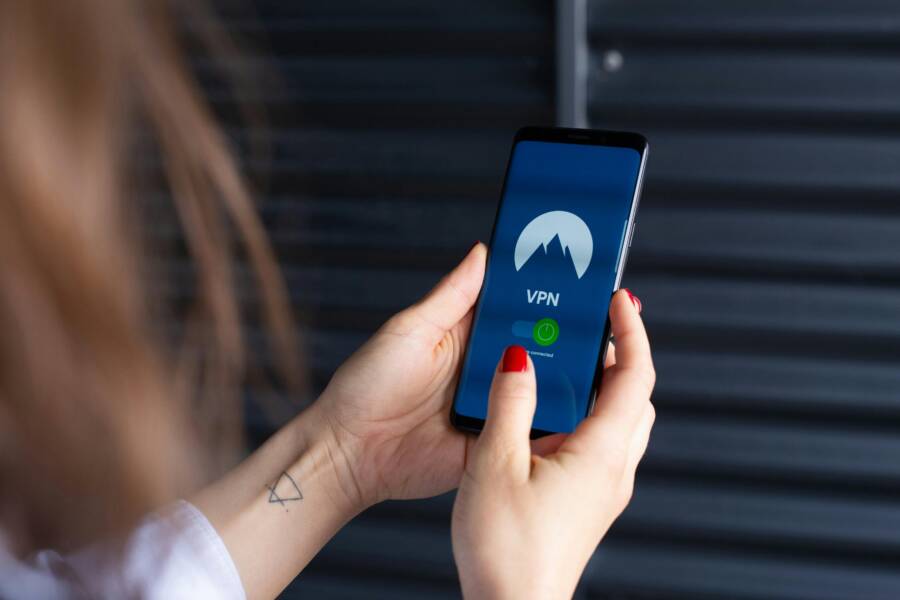
VPN blocking internet on your phone can feel like you’ve hit a wall just when you need connectivity most. If you see the VPN icon but pages won’t load, you’re not alone, and there are practical fixes you can try now.
This guide explains the common causes behind VPN not working on Android or iPhone, then walks you through quick wins you can apply in minutes. You’ll also find deeper fixes for stubborn problems and a clear signal of when it’s time to seek help.
You’ll learn how to diagnose issues on a smartphone without endless tinkering. We’ll cover steps that don’t require technical jargon, so you can fix VPN connectivity issues with confidence and speed. The goal is to get you back online safely and reliably, no matter which network you’re on.
By the end, you’ll know when to reset settings, switch servers, or adjust power and privacy options. This approach keeps your phone productive and secure, with a set of repeatable checks you can reuse if VPN problems pop up again. If you’re ever unsure, you’ll have a clear sense of the right next move to take.
Why a VPN Might Block Internet on Your Phone
When a VPN is active but web pages won’t load, it can feel like the connection dropped without warning. In many cases, the issue isn’t the VPN itself but the surrounding network or settings. Below are practical explanations and quick checks you can perform on your Android or iPhone to identify the culprit and get back online faster.
Poor internet connection or service disruption
A weak Wi‑Fi signal or shaky cellular service can make a VPN seem to block internet traffic. Before digging deeper, try these quick checks: load a webpage with the VPN turned off to confirm basic connectivity. Test both mobile data and Wi‑Fi to see which network is more stable. If pages load on one network but not the other, the issue is the network, not the VPN. A simple tip: switch to a different network or hotspot to determine whether the problem follows the network or the VPN.
App or device bugs and outdated software
VPNs rely on smooth interaction between the app and your device’s operating system. Bugs can stop traffic from passing or cause sudden disconnects. Start with the basics: update the VPN app, then update your phone’s OS. If problems persist, a reinstall can clear corrupted settings or caches. A recent app or OS update often fixes compatibility problems with the VPN and improves stability overall.
Network blocks and restrictions
Some networks actively block VPN protocols. Schools, workplaces, or certain mobile carriers may enforce such blocks, which can prevent VPN traffic from passing. If you’re in this situation, try switching servers or changing the protocol within the VPN app. Many providers offer obfuscated or stealth modes designed to bypass strict network blocks. If one server or protocol is blocked, another may work. For a broader view on this topic, Apple’s support guidance notes how third‑party security software can affect connectivity on devices, which can help explain intermittent VPN behavior on some networks. You can read more about network connectivity issues and related software at Apple Support.
Battery saver and data limits
Power saving and data saver features can throttle or pause VPN background activity, making it look like the connection is blocked. To fix this, whitelist the VPN app in battery optimization settings and allow it to run in the background. If your data saver is active, temporarily disable it for the VPN or add the VPN to the exceptions list. These steps ensure the VPN can maintain its connection without being cut off by power or data rules.
Links referenced in this section provide additional context and practical steps:
- Understanding DNS and connectivity when a VPN is connected but not browsing: https://www.ivpn.net/knowledgebase/troubleshooting/my-vpn-is-connected-but-i-cannot-browse-the-internet-why/
Quick Wins to Get Your VPN Working Again
When your VPN blocks internet on Android or iPhone, you want fast, effective fixes that don’t require a tech degree. These quick wins address the most common culprits—network issues, app glitches, and misconfigured settings—so you can get back online with minimal friction. Each step below is practical and easy to execute, often taking just a few minutes. If you’re following along on your smartphone, you’ll see how small adjustments add up to a smoother connection.
Test your connection without the VPN first
Before you dive into VPN tweaks, confirm that your base internet is working. Open a web page or a familiar app without the VPN enabled. If it loads normally, the problem likely lies with the VPN setup. If it doesn’t load, fix the base connection first by checking your Wi‑Fi signal or mobile data settings. This keeps you focused on the VPN only after you know you have stable internet on your smartphone. For a helpful walkthrough on related networking issues, see this guide. https://www.oscal.hk/blog/network/vpn/vpn-not-working-on-phone
Restart and update
Close the VPN app completely, then restart your phone. After it reboots, update the VPN app and your device’s OS. Updates fix many issues by patching bugs and improving compatibility with the latest networks. If problems persist after the restart and updates, a quick reinstall often resolves stubborn glitches. Keeping both the app and the OS current is one of the fastest ways to restore reliable connectivity.
Reinstall and clear data
If the VPN still won’t cooperate, clear the app data or caches and reinstall. On Android, you can clear cache and storage for the VPN app, then reinstall from the Play Store. On iPhone, delete the app and reinstall from the App Store. This step removes bad data and resets settings that could be blocking traffic. A fresh install can restore normal operation without touching your other apps or data.
Switch server and protocol
If a particular server or protocol is blocked or unstable, switch to a different option within the VPN app. Try a nearby server first; latency will usually improve. If you’re on a network that aggressively blocks traffic, switch to an obfuscated or stealth mode if your provider offers it. This approach often unlocks access on tougher networks and keeps your browsing smooth. For further guidance on VPN troubleshooting and server selection, you can explore additional resources. https://www.purevpn.com/blog/iphone-vpn/vpn-not-working-on-iphone/
Reset network settings
If nothing else works, reset network configurations on your device. On Android, this wipes saved Wi‑Fi networks and other network settings, but you won’t lose personal data. On iPhone, you’ll reset Wi‑Fi, Bluetooth, and cellular settings, which can clear misconfigured VPN profiles that keep traffic from flowing. After the reset, reconnect to your networks and set up the VPN again. This step often resolves stubborn, misconfigured network issues. For a quick reference on how to approach this, see practical guidance here. https://thebestvpn.com/troubleshoot-vpn-connection/
Fixes That Change How the VPN Behaves
When a VPN misbehaves on a smartphone, small tweaks can drastically improve reliability. This section covers practical, actionable fixes that alter how the VPN routes traffic, improves resilience on restrictive networks, and keeps your connection stable. You’ll learn quick ways to fine tune behavior without getting lost in jargon.
Enable split tunneling and DNS tweaks
Split tunneling lets you decide which apps use the VPN and which don’t. This can reduce congestion and improve reliability for apps that don’t need VPN protection, while keeping sensitive traffic secure. In practice, turn on split tunneling in your VPN app and choose the apps that should ride through the VPN.
DNS tweaks also matter. Using reliable DNS resolvers like 1.1.1.1 or 8.8.8.8 can improve connection stability and speed, especially on networks that throttle or block VPN traffic. In your VPN or device settings, set the DNS to one of these options or enable the app’s built‑in DNS override feature if available. If you’re on a smartphone and see intermittent timeouts, these tweaks are a quick win to restore dependable access. For a deeper read on DNS behavior with VPNs, check out practical guidance from a trusted source.
- Quick tip: after enabling split tunneling and updating DNS, test a few pages with and without the VPN to confirm the improvement.
External resources:
- How split tunneling helps VPN reliability on Android and iPhone
Photo:  Photo by Stefan Coders
Use obfuscation or stealth mode
Obfuscated or stealth VPN modes disguise VPN traffic so networks that try to detect and block VPNs don’t recognize it as VPN traffic. This is especially useful on restricted Wi-Fi, school or corporate networks, or carriers that throttle VPN protocols. Enable stealth or obfuscated mode in your VPN app’s settings; you may need to switch to a different protocol or server when this mode is active.
Practical steps:
- Open the VPN app and navigate to the connection or advanced settings.
- Enable Stealth/Obfuscated mode if offered.
- If the option is not visible, try a different server or protocol and see if the mode becomes available.
- Test with a web browse or a streaming app to ensure traffic flows normally.
If you run into issues, switch to stealth mode on a nearby server first. This approach often restores access on networks that block VPN traffic. It’s a good tool for a busy smartphone user who needs reliable connectivity on public networks.
External resources:
- Stealth VPN features and how they work on popular services
Photo:
Photo by Stefan Coders
Manual VPN setup as a backup
If in-app fixes still fail, a built in VPN profile can serve as a dependable backup. Android and iPhone both support manual VPN configurations using standard protocols like IKEv2 and OpenVPN. With provider credentials, you can add a profile directly in Settings and toggle it as needed.
Steps to try:
- On Android, go to Settings > Network & internet > VPN and add a new profile using IKEv2 or OpenVPN, then enter your provider’s server, your username, and password or certificate.
- On iPhone, go to Settings > General > VPN > Add VPN Configuration, choose IKEv2 or IKEv2 via certificate, and input the server, remote ID, and user credentials.
- Test the manual connection to confirm traffic routes correctly.
This backup option is particularly handy when the VPN app itself is unstable or unavailable. It also helps you compare performance between the app and a native profile to pick the best path for a given network.
External resources:
- IKEv2 VPN manual setup on iOS devices
- IKEv2 VPN manual setup on Android devices
- iOS IKEv2 Setup
Photo:
Photo by Stefan Coders
Note: If you’re exploring these options on a public or shared device, keep security in mind. Use strong credentials, verify server authenticity, and avoid saving passwords on devices you don’t control. For further reading on manual VPN configurations and their use cases, you can consult trusted VPN guides.
Advanced Steps and When to Seek Help
If quick fixes and tweaks don’t restore your VPN on Android or iPhone, dig deeper into network blocks or app issues. These steps help you spot root causes on your smartphone. When they fail, gather evidence and contact experts for targeted support. You’ll save time and get reliable results.
Check for carrier or network blocks
Carriers or networks block VPN ports like UDP 1194 or 500 to limit traffic. Signs include VPN connection success but no internet access, while it works fine on other networks. Test by switching to a hotspot or different Wi-Fi; if issues persist only on your carrier, that’s the clue.
Collect evidence before contacting them: screenshots of VPN status (connected, no data), speed tests with and without VPN, error messages, and your IP before/after connecting. Note your plan and location too. Share this via support chat or ticket. For more on network blocks, see Apple’s guide on VPN connectivity issues.
Prepare logs and report to your VPN provider
Strong support needs solid details. Gather these on your smartphone for fast resolution:
- Connection logs: Export from the VPN app’s diagnostics or settings menu.
- Screenshots: Show connection screen, error pop-ups, speed tests, and network details.
- Device info: OS version, app version, model, and carrier.
Open a support ticket in the app or on their site, attach files, and describe steps tried. This cuts response time. Providers like NordVPN have clear log collection guides for Android. Expect fixes like custom configs within hours.
Safety, Privacy, and Best Practices
When your VPN acts up on a smartphone, safety and privacy should be at the top of your checklist. This section lays out practical, unapologetic guidance to keep you protected while you troubleshoot. You’ll learn how to guard your data, avoid common pitfalls, and implement best practices that stand up across both Android and iPhone.
Prioritize secure connections over convenience
Your first instinct should be to confirm you’re on a secure network before anything else. If you’re using public Wi‑Fi, a VPN is essential, but it also becomes a potential risk if you fall back to weak credentials or misconfigured settings. Always verify you’re connected to a trustworthy network when you’re troubleshooting. If the base connection isn’t reliable, your VPN work becomes a moving target. In practice, test with both Wi‑Fi and mobile data to understand where the issue truly lies.
- Use a trusted network for testing whenever possible.
- Avoid saving passwords on shared devices or public systems.
- Keep a backup plan in place, such as a manual VPN profile, so you’re never fully stuck.
For more on how network choices affect VPN behavior, see Apple’s guidance on connectivity and third‑party software. Keeping this in mind helps prevent accidental data exposure on networks you don’t control.
Protect your privacy while you troubleshoot
VPNs are about privacy, but the troubleshooting process can expose data if you’re not careful. Here’s how to stay private during fixes:
- Review app permissions. If a VPN app asks for unnecessary access, question why. Revoke nonessential permissions and re‑evaluate the app’s trustworthiness.
- Avoid exporting sensitive data unless you’re sure you need it for support. If you must collect logs or screenshots, redact personal identifiers where possible.
- Use official support channels. When you reach out for help, share only the information needed to diagnose the issue.
Understanding the privacy tradeoffs between platforms helps you choose the right approach. For a deep comparison of iPhone and Android privacy practices, a trusted analysis can provide real context for your decisions. When in doubt, default to the stricter privacy posture and test carefully.
If you want to dive deeper into mobile privacy nuances, a comprehensive privacy guide for iOS vs Android presents useful contrasts. It can help you tailor your settings to your comfort level while staying productive on the go.
Best practices you should implement now
Adopting a few disciplined habits reduces the chance of VPN problems recurring. Treat these as core habits rather than one-off steps.
- Keep software up to date. Regular OS and VPN app updates fix bugs and improve compatibility with recent networks.
- Use strong, unique credentials for your VPN account. Enable two‑factor authentication when available.
- Configure DNS carefully. Using reputable DNS resolvers can improve reliability and privacy. If your VPN offers a DNS override, consider enabling it.
- Enable split tunneling where it makes sense. This lets non‑critical apps bypass the VPN to reduce overhead while protecting the rest of your traffic.
- Test after each change. After enabling a feature like split tunneling, verify that both VPNed and non‑VPN traffic behaves as expected.
- Create a simple reset routine. When things go wrong, a clean reinstall of the app or a quick network reset often resolves the issue without risk to your data.
For readers who want a concise playbook, a practical guide to safe VPN use covers the core steps you’ll apply during a typical mobile troubleshooting session. It’s a handy reference to keep on your phone.
Be mindful of device‑level security settings
Your device can undermine VPN protection if security settings are too lax. Pay attention to these areas:
- Battery optimization. If the VPN is whitelisted for background activity, it won’t be throttled by power savings.
- Background data access. Ensure the VPN app is allowed to run in the background so it can maintain a stable tunnel.
- Time synchronization. Some VPN protocols rely on accurate time. Make sure your device clock is correct.
- Device encryption. If your phone isn’t encrypted, consider enabling full disk encryption (when available) to add a layer of protection should the device fall into the wrong hands.
A well‑secured device complements a well‑configured VPN, creating a robust shield for your online activity.
When to trust a backup plan more than a single app
If the primary VPN app continues to misbehave, a manual VPN configuration can offer a reliable fallback. Both Android and iPhone support built‑in profiles using standard protocols. This is not a shortcut to bypass security; it’s a controlled alternative that lets you keep traffic encrypted while you seek a fix for the app itself.
- On Android, you can add a VPN profile in Settings and test IKEv2 or OpenVPN using your provider’s credentials.
- On iPhone, you can configure VPN in Settings and choose IKEv2 or IKEv2 with a certificate.
A backup profile isn’t a cure, but it preserves your privacy and access while you troubleshoot or contact support.
Quick references to trusted guidance
- When you need to understand why VPNs sometimes connect but don’t browse, consult practical explanations and steps from reputable sources. For example, you can read about DNS behavior and network issues in VPN contexts from trusted industry guides.
- If you’re dealing with mobile privacy specifically, you may want to review privacy‑focused comparisons of iOS and Android to better appreciate platform differences that impact VPN use.
- For network‑level blocks on mobile networks, official support channels from device ecosystems often provide concrete steps to identify and work around blocks without compromising security.
External resources are included for context and deeper reading, with care to keep you focused on practical, actionable steps rather than theory.
- How to Use VPN Safely | VPN Best Practices Checklist
- Best Mobile VPN of 2025: Privacy Protection on the Go
- Understanding Mobile Applications VPN Configurations: Best Practices
- Android VPN setup and testing tips
Practical example: privacy‑first troubleshooting flow
- Verify base connectivity with and without VPN using a known page.
- Update the VPN app and the device OS.
- Check permissions and data usage.
- Switch servers or enable stealth mode if available.
- If the issue persists, clear app data and reinstall.
- As a final safety check, try a manual VPN profile and compare results.
- Reach out to support with logs, screenshots, and device details.
This approach keeps your privacy intact while you diagnose. It also helps you decide whether the problem is network‑level, device‑level, or app‑level.
Quick wins for safety and privacy
- Turn on two‑factor authentication for your VPN account.
- Use trusted DNS resolvers and avoid custom DNS that you don’t trust.
- Keep backup access options, like a manual VPN profile, ready in case the main app fails.
- Clean up sensitive data from screenshots or logs before sharing with support.
By following these safety and privacy practices, you protect yourself while you troubleshoot. You stay in control of your data and your connection, no matter which network you’re on. This disciplined approach makes it easier to recover your online life quickly and safely.
Conclusion
Fixing VPN blocking internet on your smartphone comes down to quick, targeted checks. Start by confirming base connectivity without the VPN to rule out a weak network. Update the VPN app and your device, then try a clean reinstall if issues persist. If the problem sticks, switch servers or protocols, and consider enabling stealth mode on networks that try to block VPN traffic.
Keep DNS simple by using reliable resolvers and test after each change. If nothing works, reset network settings as a last resort, then reconfigure the VPN from scratch. A manual VPN profile can serve as a dependable backup while you troubleshoot the app itself. Throughout this process, monitor for app permissions and background activity so the tunnel stays stable on your smartphone.
This approach protects your privacy while you diagnose the cause, and it gives you a clear path back online. If you’ve found a fix that works for you, share which step made the difference. What network conditions or apps tend to block your VPN on your smartphone, and how did you handle it?