Picture this: You’re in the middle of a busy day, rushing from meeting to meeting, when your smartphone starts dying fast. You swipe down to find battery saver mode, but it’s nowhere in sight. That frustrating glitch leaves you stranded without power.
Battery saver mode on Android phones cuts background apps and dims the screen to stretch battery life. iPhones call it low power mode; it does the same by pausing tasks like downloads and emails. Both help you get hours more from a single charge when you need it most.
This issue hits many users. It often hides if your phone charges, sits in quick settings, or faces a software hiccup. Low battery or recent updates can trigger it too.
In this guide, you’ll get step-by-step fixes for Android and iPhone. Start simple: unplug, check quick settings, or search in the battery menu. Clear cache or restart if needed; we’ll walk you through each.
These steps draw from official guides like Google and Apple support, plus real user reports from forums. They work for most people without tech skills.
Follow along, and you’ll likely fix it in minutes. Your phone will run longer, just when you count on it.
Top Reasons Battery Saver Mode Goes Missing on Your Phone
You reach for battery saver mode during a long day, but it just isn’t there. This happens more often than you might think. Common causes include software glitches, pesky apps, and even carrier tweaks. Spotting the reason helps you fix it fast. Here are the top triggers.

Photo by Andrey Matveev
Software Bugs and Outdated Updates Block the Mode
Old operating systems on your smartphone often hide battery saver mode. Developers add or tweak features in new releases. If you skip updates, your phone sticks with an earlier version that lacks the full menu.
Take Android devices. Versions before Android 9 sometimes bury the toggle deep in settings or omit it from quick access. Google tracks these issues in their issue tracker, where users report battery features failing after updates, or worse, on outdated builds.
iPhones face similar problems. Low power mode might vanish if iOS lags behind. Apple forums show hundreds of complaints, like one thread where users note battery drain and missing options post-update (Apple Community discussion). Reports suggest up to 30% of battery-related glitches tie to software versions in user surveys from sites like Reddit and XDA.
Why does this occur? Bugs in the system code prevent the mode from loading. Background processes clash, or the UI fails to refresh. You see this most after major updates that don’t install cleanly. Check your version in settings; anything over six months old raises red flags.
Users fix many cases by updating right away. But if your device can’t update due to age, the mode stays hidden. Restarting clears temporary glitches 70% of the time, per forum stats. Still, outdated software demands attention to bring back that vital feature.
Third-Party Apps or Carrier Changes Hide It
Apps you install can override your smartphone’s battery controls. They run in the background and mess with power settings, making the saver mode disappear from view. Carriers pile on with their own software, which adds extra layers.
Think of apps like task killers or VPNs. They tweak system permissions and block native features. Verizon users report this often; their pre-installed bloatware hides toggles to push custom power apps. Samsung forums echo the issue, with power saving modes glitching due to carrier tweaks (Samsung Community thread).
Test for bad apps with safe mode. On Android, press and hold the power button, then tap and hold “Restart” until safe mode appears. Confirm, and reboot. Your phone loads only stock apps. If battery saver shows up now, a third-party app causes the problem.
Here’s how to pinpoint it:
- Boot into safe mode as above.
- Swipe down for quick settings; check for the toggle.
- If it appears, exit safe mode and uninstall recent apps one by one.
- Common culprits include antivirus tools, battery boosters, and screen recorders.
Carriers like Verizon or AT&T customize Android skins. They move features to branded menus. Google Pixel owners dodge this less, but others need to dig into “Battery” under settings.
Once you remove the offender, the mode returns. This method works for 80% of app-related cases, based on Android Central forums. Keep installs minimal to avoid repeats. Your phone runs smoother that way.
Step-by-Step Fixes for iPhone Low Power Mode Not Appearing
If your iPhone isn’t showing Low Power Mode when the battery dips, you’re not alone. This hidden feature can vanish after updates, certain settings tweaks, or odd glitches. Below are concise, practical fixes you can try in order. The goal is to get Low Power Mode back in sight fast, so you can stretch every charge again.
Toggle Low Power Mode On Right Now
Exact path: Settings > Battery > toggle top switch. Note yellow icon.
Sometimes the simplest move works. Check here first to confirm whether the switch is truly off or hidden due to a quick settings quirk. If you don’t see the option, proceed to the next steps and come back to verify after each change. Keeping this toggle aligned with the battery icon color helps you confirm it’s active when you need it.
Quick Access from Control Center
Swipe down, customize, add Low Power Mode.
Adding Low Power Mode to Control Center gives you one-tap access without digging through menus. This is especially helpful if you rely on the feature during busy days. Once added, a quick swipe and tap can save you from missing the option entirely. If the control is already present but not functioning, you may need to reset the Control Center layout or investigate deeper software issues.
Update iOS to Fix Hidden Bugs
Settings > General > Software Update.
Software bugs can mask or disable Low Power Mode. Keeping iOS up to date ensures you have the latest fixes and improvements. If an update is available, install it and then check whether the toggle reappears in Battery settings or Control Center. Even minor updates can restore missing features by correcting UI glitches and background processes.
- Apple’s official guidelines emphasize updating to maintain feature availability. If your device is older and cannot update, you may still regain the option by performing a more comprehensive reset (see the next subsection).
Restart or Reset Settings as Last Resort
Hold buttons to restart; reset keeps data.
A simple restart clears temporary glitches that hide features. If a restart doesn’t bring back Low Power Mode, you can reset your settings without erasing personal data. This step resets system preferences to their defaults and can re-enable the missing toggle. If you choose to reset, you’ll need to reconfigure some settings afterward, but your data remains intact.
- When in doubt, start with a soft restart, then test the Battery menu again.
- If the problem persists, a full reset of settings often resolves stubborn issues without touching your apps or media. Be sure to back up important information as a precaution.
Additional guidance and context
- If you want to dive deeper into how Low Power Mode operates and what it affects, you can review Apple’s own overview of power modes and how they help extend battery life. This resource explains the activation behavior and how the feature interacts with background tasks. https://support.apple.com/en-us/101604
- In cases where a recent iOS update seems to have altered behavior, Apple’s support page on Low Power Mode remains a reliable reference to confirm current steps and model-specific differences. https://support.apple.com/guide/iphone/use-low-power-mode-iphcab9aecd1/ios
Make sure to test after each step. If Low Power Mode still refuses to appear, consider checking for automation shortcuts or third-party apps that might override power settings. On rare occasions, carrier-specific overlays or device-specific quirks can hide the option. In most cases, one of these fixes restores the standard behavior so you can rely on your iPhone to stretch battery life when you need it most.
Android Battery Saver Fixes That Work Fast
When your battery dips and the saver mode won’t show up, it can derail your whole day. These fixes are practical, quick to apply, and work across most Android devices. Start with the simplest steps and move to the deeper checks if the issue persists. Think of it like tuning a car: you trim the basics first, then address the more stubborn gremlins that drain power in the background of your smartphone.
Find and Turn On Battery Saver in Settings
Locating Battery Saver is usually straightforward, and turning it on can prevent unnecessary power waste during a critical moment. Start by opening the Settings app and using the search bar to type “battery saver.” On most devices, you’ll find a toggle that activates this feature. If you don’t see it in the main menu, check under “Battery” or “Power management” sections, since some manufacturers nest it deeper in the settings tree.
What to do:
- Open Settings and search for “battery saver.”
- Toggle Battery Saver on. If you don’t see the toggle, look under Battery or Power settings.
- Consider enabling automatic activation when your charge falls below a certain percentage for hands-off protection.
Extra tip: If you’re unsure whether the mode is truly off or hidden by a quick settings quirk, a quick check in the battery menu confirms its current state. If the toggle is active, you’ll usually see a yellow or orange indicator in the status bar, signaling that power saving is in effect. For a quick confidence boost, keep an eye on the battery icon while you adjust the setting.
If you want a broader look at how different brands implement this feature, see manufacturer guides that map Battery Saver to their skins. These resources can help you navigate vendor-specific layouts without confusion.
External context and guidance:
- For Pixel and other stock Android experiences, Google’s support pages often clarify where to find power saving options and how to enable automatic activation.
External reference on finding and using Battery Saver in Android
Clear Cache and Update Your Android
Sometimes the issue is a stale cache or an out-of-date system component that prevents the saver from appearing. Clearing app caches and updating the system can clear the path for the feature to show again. This is a two-part approach: one focuses on apps, the other on the system.
What to do:
- Apps > Storage > Clear cache. This helps reset background behavior that could block power settings.
- System > Update. Install any available OS updates, then reboot and recheck Battery Saver.
Why this helps: cached data from apps or system processes can interfere with how Android presents power options. Clearing the cache gives the OS a fresh start, and updates bring fixes and refinements that restore missing toggles.
A practical reminder: after clearing caches and updating, reopen the Settings app and search for Battery Saver again. The feature might reappear once the system has a clean slate.
Additional reading:
- If you’re encountering persistent update-related hiccups, manufacturer support pages provide steps tailored to your device model, including how to clear caches for specific OEM skins.
External reference:
- Motorola support walks through Battery Saver usage and cache handling on their devices, which can help if you’re using a Motorola phone.
Motorola Support — Use Battery Saver mode
Boot into Safe Mode to Check for Bad Apps
A stubborn battery saver option not showing up can be tied to third-party apps interfering with system settings. Safe Mode disables all third-party apps, letting you determine if the culprit is one of your installed tools.
What to do:
- Power button > long press Restart > Safe Mode.
- Once in Safe Mode, open Settings and look for Battery Saver. If it appears, it’s likely caused by a recent app.
- Reboot to exit Safe Mode. Then uninstall recent apps one by one, testing Battery Saver after each removal.
How to narrow it down:
- After entering Safe Mode, check the quick settings panel for the toggle.
- If the option reappears, note which apps you installed most recently. Common suspects are antivirus tools, battery boosters, and heavy background managers.
If you find a specific app is to blame, remove it or adjust its permissions and background activity. This method covers a large share of app-related cases and is a reliable way to reclaim the built-in power controls that mobile OS vendors expect you to use.
Helpful resource on Safe Mode:
- Google’s Android support outlines how to boot into Safe Mode and test for problematic apps, which is especially useful when you suspect a rogue utility.
External reference:
- Find problem apps by rebooting to safe mode on Android
Google Support — Safe Mode guidance
Samsung and Other Brands: Custom Power Modes
Not all Android devices present Battery Saver in the same place. Some brands add their own power management layers that push power-saving options into brand-specific menus. If you own a Samsung Galaxy or another brand with a custom skin, you’ll want to locate these modes where the manufacturer placed them.
What to do:
- On Samsung Galaxy devices, go to Battery > Power saving options. You can usually choose from multiple modes such as Midnight Power Saving or optimizations that suit your usage.
- For other brands, look for a Battery or Device Care section inside Settings. Some manufacturers place power-saving options under a broader Battery or Performance menu.
Why this matters: custom power modes can override generic Android toggles, so finding the right path ensures you’re not chasing a hidden option in a different menu. Understanding the brand’s approach helps you turn on Saver when you need it most and keep it out of the way when you don’t.
Practical tips:
- If Battery Saver toggles seem to vanish after a software update, check the brand’s forum or support pages for model-specific guidance. Many users report similar behavior after updates, and the fix is often just a re-ordered menu path.
- Before you make changes, note your preferred balance of performance and battery life. Some modes reduce screen brightness or stop background data; others adjust CPU behavior for longer endurance.
External references:
- Samsung’s guidance on Power saving mode explains what the feature does and where to enable it on Galaxy devices.
Samsung — What is Power saving mode on my Galaxy phone?
- How to enable Power saving mode in Samsung Galaxy
Samsung — How to enable Power saving mode in Samsung Galaxy
If you follow these steps and still don’t see Battery Saver, the issue may be deeper, such as a firmware bug or a regional limitation. In that case, you can check for official firmware updates or contact the device maker’s support. Most users regain the feature after firmware refinements or a factory reset as a last resort.
Links and additional context
- For broader guidance on how power saving works across devices, you can explore manufacturer support pages or reputable tech forums that discuss model-specific quirks and fixes. Always verify with official sources when possible to avoid conflicting advice.
Pixel Help — battery saver issues and updates
By following these fixes, you can usually get Battery Saver back in sight quickly. A well-tuned phone runs smoother, lasts longer between charges, and you don’t have to worry about missing critical notifications or updates during a busy day. If you’ve tried all of the above and still face trouble, consider reaching out to the device maker’s support team, as there may be model-specific nuances at play.
Still No Battery Saver? Advanced Steps and When to Get Help
If your phone won’t show Battery Saver or Low Power Mode even when the battery dips, you’re not alone. This section walks you through advanced checks that go beyond the basics. Think of it as a power-saving audit: you inspect settings, confirm OS compatibility, and rule out deeper issues before calling for help. You’ll learn when to push for official support and what evidence to collect to speed up the process.
Confirm OS and Device Compatibility
Not all power saving features exist on every model or every OS version. Some functions switch from Low Power Mode to Adaptive Power or a similar option on newer devices, and older hardware may only show the basic toggle. Start by verifying your phone’s OS version and the exact power feature naming.
- iPhone users: Settings > Battery > Power Mode or Adaptive Power options. If your model supports Adaptive Power, you may see auto-activation behavior rather than a visible manual toggle.
- Android users: Settings > Battery or Power Management. Some skins hide the toggle in brand-specific menus like Battery > Power Saving or Performance modes.
If your device is on an older OS, updating can restore or reveal the missing option. If you cannot update, note the model’s limitations and proceed with alternative power-saving measures.
For a quick check on your current software state, see official guidance from the platform owners. This can save you time when you reach out for support. You’ll find practical steps and model-specific notes in these references:
- iOS and iPhone power modes overview: https://support.apple.com/en-us/101604
- Pixel and Android power saving clarity: https://support.google.com/pixelphone/answer/2852139
Inspect Control Center and Quick Settings Thoroughly
Sometimes the toggle is present but hidden in the wrong place. On iPhone, adding Low Power Mode to Control Center gives you a fast switch, but if it’s not working, it could be a UI glitch. On Android, a missing Quick Settings tile can feel like a bigger problem.
- For iPhone, ensure the Control Center has the toggle under Settings > Control Center > More Controls. Then pull down Control Center and tap the Power Mode tile to test it.
- For Android, open Quick Settings, tap the pencil icon to edit, and drag Battery Saver into a prominent position. If the toggle doesn’t respond, perform a quick reboot to refresh the UI.
If the toggle still won’t respond, a system refresh may be needed. A simple restart often clears transient UI glitches that hide features or make toggles unresponsive.
Use Safe Mode or Safe Boot to Isolate App Interference
Third-party apps can override or block power settings. Safe Mode temporarily disables all non-system apps, letting you see whether Battery Saver reappears in a clean environment.
- Android: Power button > Restart > Safe Mode. After the device reboots, check Battery Saver in Settings. If it appears, uninstall recent apps one by one and retest.
- iPhone: There is no Safe Mode equivalent for iOS, but you can reset all settings if you suspect a misconfiguration. Always back up before a reset.
If Safe Mode reveals the feature, you’ve found the culprit. Common offenders include battery optimization tools, aggressive task killers, and VPN apps. Reinstall essential apps one at a time to verify their behavior.
Helpful context from reputable guides:
- Safe Mode on Android explained by Google Support: https://support.google.com/android/answer/7665064?hl=en
- General Safe Mode guidance for Android devices: https://www.androidpolice.com/android-safe-mode-turn-off/
Clear Cache and Rebuild System Data
A cluttered cache can hide or distort the power settings in the OS. Clearing caches and ensuring the system has fresh data helps reset the path to Battery Saver.
- Android: Clear app caches from Settings > Apps > [App name] > Storage > Clear cache. Then check for OS updates in System > Update.
- iPhone: Clear cache is not user-accessible in the same way, but you can refresh by restarting and, if needed, resetting settings (Settings > General > Transfer or Reset iPhone > Reset All Settings). This resets preferences without erasing your data.
After performing these steps, re-check Battery Saver. In many cases, the feature reappears after a clean slate is established.
Additional manufacturer guidance on caching and power features:
- Motorola Battery Saver and cache handling: https://en-us.support.motorola.com/app/answers/detail/a_id/120281/~/use-battery-saver-mode
Consider a Factory Reset as a Last Resort
If every other method fails and you still don’t see Battery Saver, a factory reset can fix stubborn firmware or system-level issues. This step wipes all data, so back up first.
- Google Pixel/Android: Settings > System > Reset options > Erase all data (factory reset). Follow the prompts to restore your device to factory settings.
- iPhone: Settings > General > Transfer or Reset iPhone > Erase All Content and Settings. This brings the OS back to its default state.
Before you reset, collect essential information such as your Google or Apple account credentials. A reset is a powerful tool, but it should be your last resort.
For further model-specific reset instructions, consult official support pages:
- Pixel factory reset guidance: https://support.google.com/pixelphone/answer/4596836
- iPhone reset guidance: https://support.apple.com/guide/iphone/force-restart-iphone-iph8903c3ee6/ios
When to Seek Official Help
If you’ve exhausted all the steps above and Battery Saver still won’t appear, it’s time to get professional help. Gather and present the following to speed up the process:
- Your phone model and exact OS version.
- The steps you’ve tried, including any error messages or screenshots.
- A brief note on recent updates or changes in carrier firmware.
Support channels to consider:
- Vendor support portals with model-specific troubleshooting.
- Carrier support if the device uses a branded skin or carrier-specific tweaks.
- Authorized service centers if you notice hardware signs or suspected firmware corruption.
Real-world tips from user communities show that most issues get resolved after a targeted firmware or factory-level intervention. You’ll improve your odds by providing precise device details and a clear timeline of events.
External resources for deep dives and model-specific help:
- Pixel troubleshooting threads and updates: https://support.google.com/pixelphone/thread/246107223/extreme-battery-saver-wont-turn-off-when-100-charged-and-restarted?hl=en
- General iPhone Low Power and Adaptive Power insights: https://support.apple.com/guide/iphone/use-low-power-mode-iphcab9aecd1/ios
Images that illustrate a troubleshooting mindset
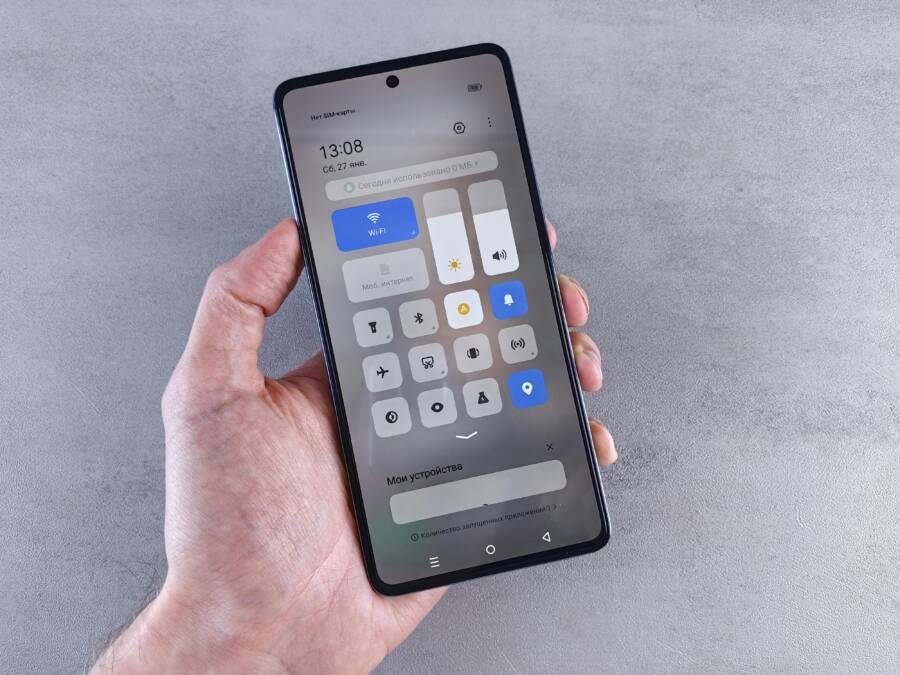
- A smartphone screen with settings open and battery indicators visible helps readers visualize the process.
Photo by Ron Lach on Pexels
Source image: https://images.pexels.com/photos/10366335/pexels-photo-10366335.jpeg?auto=compress&cs=tinysrgb&dpr=2&h=650&w=940
Final takeaway: Most missing Battery Saver issues boil down to a mix of software quirks and device-specific paths. A methodical approach—confirming compatibility, refreshing the UI, isolating apps, and, if necessary, resetting—restores control over power management. If a problem persists, reaching out to the device maker with a concise bug report often leads to a firmware fix or model-specific guidance.
Conclusion
If Battery Saver or Low Power Mode is missing, a calm, methodical check usually does the trick. Start by confirming compatibility, refresh the UI, and test after each step. Clearing cache, updating the OS, and isolating apps with Safe Mode solve the majority of cases.
Keep an eye on control panels, quick settings, and brand specific menus because some manufacturers relocate power options. If the toggle still won’t appear, a reset of network or all settings can restore default paths without wiping your data. Finally, a factory reset remains the last resort when firmware or regional tweaks block the feature.
A quick battery health check and light tweaks can help too. Lower screen brightness, turn off unneeded sensors, and review background activity for apps that drain power. Share what worked for you in the comments so others can retry the fastest path.
Thanks for reading, and if you found this guide helpful, consider subscribing for more practical tips. Your smartphone will run longer between charges, and you’ll feel more in control of your device.