How to Fix Alarm Not Going Off on Your Phone (Android & iPhone)
Waking up late to a missed alarm feels like starting the day on the wrong foot. The stress can spike when you realize your alarm didn’t go off at all, especially on busy mornings. You want to trust your device, not chase it.
The truth is simple: alarms fail for small reasons. A wrong setting, a minor software glitch, or an app issue can keep your alarm quiet or misbehaving. These problems show up on both Android and iPhone, so you’re not alone.
This guide walks you through quick, practical fixes that work for most phones. You’ll learn to check the basics first, then tackle the common culprits that trip people up. The goal is to get your alarm back to dependable mode without a lot of fuss.
We’ll start with fast, do-it-now checks that restore reliability in minutes. If those don’t fix it, you’ll move to targeted tweaks that address the real culprits behind missed wakeups. By the end, you’ll feel confident your smartphone’s alarm clock will ring when you need it.
If you’re ever unsure, think of this as a stress free routine you can repeat. Simple steps, clear results, and a stronger habit of double checking settings. These tips are practical, tested, and designed to save you time and avoid late starts. Your mornings will run smoother, and you’ll regain control of how you wake up.
Start with Basic Alarm Settings Checks
A reliable alarm starts with the basics. Before you dig into deeper troubleshooting, confirm the core settings on both devices. Quick checks can reveal simple misconfigurations that keep your alarm quiet or misfiring. This section covers practical, step by step actions to verify volumes, modes, and timing. If your alarm still doesn’t ring after these checks, you’ll move on to targeted fixes that address the common culprits behind missed wakeups.
Check Alarm Volume and Sound Settings
Alarm volume is not always tied to media volume, especially on Android. Raise the alarm volume slider in Settings to a level you can hear, then test with a quick alarm. On Android, remember there can be a separate alarm or ringtone volume that isn’t affected by media volume, so adjust both if available. iPhone users should also verify the Ringer and Alerts setting; this governs alert sounds including alarms. If you have Battery Saver modes on, they can silence alarms in some cases, so review those options as well. A simple test alarm after adjusting can confirm you’re in the clear. For extra guidance, see how Android handles distinct alarm volumes and ringtones, and how iPhone volume settings separate ringer from alarm sounds.
- Android volume specifics: separate alarm volume control alongside ringer and media volumes.
- iPhone note: Ringer and Alerts control alarms; ensure it’s turned up.
Further reading: Android users can learn more about volume behavior here: https://support.google.com/pixelphone/thread/347811828/alarm-and-ringtone-volume-problem?hl=en. On iPhone, you can explore how ringtones, alarms, and media volumes interact here: https://www.tapsmart.com/tips-and-tricks/volume-explained/ and a quick visual guide here: https://www.wikihow.com/Adjust-Alarm-Volume-on-an-iPhone.
Turn Off Do Not Disturb or Focus Modes
DND or Focus modes silence alerts, including alarms, unless exceptions are set. On Android, quickly toggle Do Not Disturb off from the Quick Settings tile to test. On iPhone, open Control Center and turn off Focus or the currently active Focus mode. If you rely on scheduled DND, disable the schedule temporarily to confirm alarms will ring. After disabling, set a trial alarm to verify the change. If alarms still fail, recheck any allowed interruptions in the Focus settings.
- Android quick tip: swipe down, tap Do Not Disturb to toggle off.
- iPhone tip: Control Center > Focus > turn off the active Focus.
Helpful references: Android’s official guidance for DND modes: https://support.google.com/android/answer/9069335?hl=en. For Focus management on iPhone, see Apple’s guide here: https://support.apple.com/guide/iphone/turn-a-focus-on-or-off-iph5c3f5b77b/ios.
Verify Alarm Time, Repeat, and Snooze Options
Open the Clock app and review each alarm’s time, repeat days, and snooze setting. Ensure the alarm is enabled and set to the correct days (or disabled if you only need a one-off wakeup). If an alarm seems glitchy, delete it and recreate a fresh entry. This approach works on both Android and iPhone. When editing, confirm a clear label so you know which alarm is sounding, especially if you use multiple alarms. A clean setup often fixes stubborn misfires and ensures snooze behaves as expected.
- Confirm time and days: double-check AM/PM and weekday/weekend patterns.
- Snooze: verify the duration and number of snoozes allowed.
For additional context, Android users can see how to manage alarms with customizable volumes per alarm, which can prevent overlaps with other alerts: https://www.sammobile.com/news/set-different-volume-for-each-alarm-one-ui-7/. iPhone users may find practical steps on adjusting alarm volume here: https://www.wikihow.com/Adjust-Alarm-Volume-on-an-iPhone and a concise quick guide here: https://www.youtube.com/watch?v=2lGGzQsF3os.
Restart Your Phone and Update Software
Simple restarts and fresh software can fix many alarm issues. If your alarm isn’t ringing, start with a quick restart to clear minor glitches. Then verify that your device and its Clock app are up to date. Updated software often contains fixes for alarm timing, notification interruptions, and audio handling. This section covers practical restart methods and why they work, followed by how to keep your system current so alarms stay reliable.
Perform a Simple or Force Restart
If your device responds, a soft restart is enough. For Android, press and hold the Power button until the power menu appears, then tap Restart. For iPhone, press and hold the Volume Up (or Volume Down) and Side button until the power-off slider shows, then slide to power off. After the device powers down, turn it back on and run a quick test alarm. If the phone is frozen, perform a force restart. On many Galaxies, press and hold Power and Volume Down for more than seven seconds to reboot. After reboot, set a test alarm to confirm it rings normally. Restarting clears minor memory glitches and resets audio routing, which can restore proper alarm behavior. If you’re curious about device-specific force restarts, check Samsung’s guidance on soft resets and hard reboots and Apple’s force restart instructions for iPhone.
- Samsung: Samsung phone frozen or unresponsive, force reboot by holding Power + Volume Down for 7 seconds.
- iPhone: Force restart steps vary by model; you’ll often use a combination of volume and side button.
Helpful references: Samsung guidance on restarting Galaxy devices, and Apple’s article on force restarting iPhone. https://www.samsung.com/uk/support/mobile-devices/my-galaxy-smartphone-has-frozen-how-do-i-restart-it/ https://support.apple.com/guide/iphone/force-restart-iphone-iph8903c3ee6/ios
Install Latest OS and App Updates
Keeping your OS and Clock app current is essential. On Android, go to Settings > System > Software Update to check for the latest Android version. Then open Google Play or your device’s Clock app page to install Clock app updates if available. On iPhone, go to Settings > General > Software Update to install iOS updates. Also verify the Clock app (if it has its own update path) in the App Store. Outdated software can cause alarms to misbehave or fail to sound. After updating, restart again and run a test alarm to confirm reliability. Regular updates fix bugs that affect audio paths, notifications, and alarm scheduling.
- Android note: some devices separate OS and Clock app updates; check both paths.
- iPhone note: Apple frequently bundles Clock fixes into iOS updates.
External references: Android OS updates and Clock app updates guidance, and iPhone update procedures from Apple. https://support.google.com/android/answer/7680439?hl=en https://support.google.com/clock/answer/6274329?hl=en https://support.apple.com/en-us/118259
Verify Alarm Time, Repeat, and Snooze Options
After updating, open the Clock app and review every alarm’s time, repeat days, and snooze settings. Make sure alarms are enabled and set for the correct days. If an alarm seems erratic, delete it and recreate a fresh entry. Give each alarm a clear label so you know what it sounds for. This clean setup helps prevent missed wakeups and keeps snooze behavior predictable. If you use multiple alarms, consider setting different tones to avoid overlap. A quick audit like this often resolves stubborn issues and prevents future confusion.
- Time zones and AM/PM: double-check they’re correct for your schedule.
- Snooze behavior: confirm duration and maximum snooze count.
For extra context, you can learn about per-alarm volume controls on Android and general alarm volume management on iPhone. Android: different alarm volumes per alarm. iPhone: separate alarm and ringer volumes. https://www.sammobile.com/news/set-different-volume-for-each-alarm-one-ui-7/ https://www.wikihow.com/Adjust-Alarm-Volume-on-an-iPhone
Additional reading: If your device uses Clock as a system app, ensure it remains enabled and not hidden by settings or a launcher. https://support.google.com/clock/answer/6274329?hl=en
Troubleshoot the Alarm Clock App
When alarms fail, it’s often a small, fixable quirk rather than a big tech problem. This section walks you through practical steps to diagnose and solve the most common alarm issues. You’ll learn quick checks that restore reliability, plus targeted tweaks to address the usual culprits. The goal is to get your alarm back to dependable performance without a lot of fuss.
 Photo by cottonbro studio
Clear Cache and Data for the Alarm App
Android users can often resolve quirky alarm behavior by clearing the app’s cache and data. This can reset lingering app state that interferes with timing or sound routing. Start by going to Settings > Apps > Clock > Storage and select Clear cache, then Clear data. On iPhone, offload or delete the Clock app and then reinstall. After reinstalling, reset your alarms and reconfigure them. It’s wise to back up any custom alarm labels or tones first so you don’t lose preferred settings. This simple step fixes many ghost alarms and missed wakeups caused by corrupted local data. For reference, see guidance on clearing Android cache and related maintenance tasks.
- Android: Clear cache first, then clear data if needed.
- iPhone: Offload or delete the app, then reinstall.
External reading: Android cache maintenance basics and best practices for keeping apps responsive. https://www.android.com/articles/clear-cache-and-cookies/
Additional context on clearing cache on Android devices: https://www.hexnode.com/blogs/what-why-when-and-how-to-clear-cache-on-android-devices/
Android users can also learn about clearing a phone cache to improve app performance here: https://www.cashify.in/how-to-clear-app-data-and-cache-on-android
Check App Permissions and Battery Settings
Alarm reliability can hinge on permissions and battery rules. Ensure the alarm app is not restricted by battery optimization on Android; disable optimization for Clock if available. On iPhone, confirm Low Power Mode is off and Background App Refresh is on so alarms can sound and wake the device even when the screen is asleep. Review any app-specific permissions like notifications and microphone access, which can affect alert playback. After adjusting, run a test alarm to confirm it rings on schedule. Keeping these settings friendly to the alarm app prevents silent mornings and missed alarms.
- Android: Battery optimization off for Clock; check notification permission.
- iPhone: Low Power Mode off; Background App Refresh enabled for Clock.
Helpful references: Android’s battery optimization guide and Focus/Notifications management help for iPhone. https://support.google.com/android/answer/9069335?hl=en https://support.apple.com/guide/iphone/turn-a-focus-on-or-off-iph5c3f5b77b/ios
Verify Alarm Time, Repeat, and Snooze Options
Open the Clock app and audit every alarm’s time, repeat days, and snooze settings. Make sure alarms are enabled and set for the correct days. If an alarm behaves oddly, delete it and recreate a fresh entry. Give each alarm a clear label so you know what wakes you. This clean setup reduces misfires and keeps snooze predictable. If you rely on multiple alarms, consider using different tones to avoid overlap. After adjustments, test the alarms in a real morning scenario to confirm consistent ringing.
- Time and days: confirm AM/PM and weekday patterns.
- Snooze: verify duration and max snooze count.
Further reading: Android per-alarm volume controls and general alarm volume management on iPhone help fine tune tones. https://www.sammobile.com/news/set-different-volume-for-each-alarm-one-ui-7/ https://www.wikihow.com/Adjust-Alarm-Volume-on-an-iPhone
Image Caption and Credit
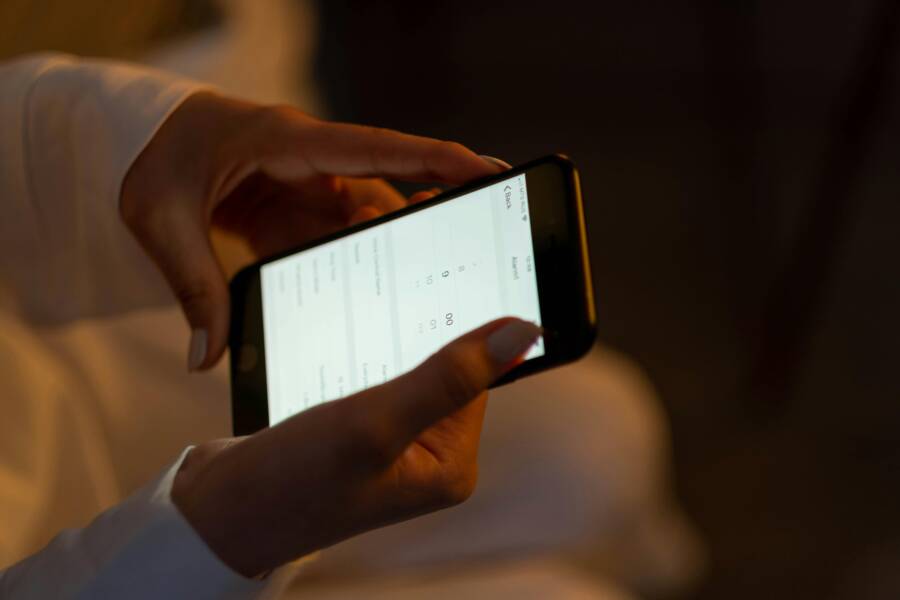
If you want a quick visual cue for this section, use a photo showing someone adjusting an alarm on their device in a dark room. This ties the troubleshooting steps to real-world morning routines.
Photo by cottonbro studio
Advanced Fixes and Prevention Tips
When alarms still act up after the basics, it’s time to tighten controls and build habits that keep your alarm reliable. These advanced tips help you catch stubborn issues and reduce the chance of a missed wakeup in the future. A small, consistent routine can make a big difference over time. Keep a few trusted strategies in your toolbox and apply them as needed.
Run Diagnostics or Factory Reset as Last Step
If standard checks fail, run a quick diagnostic to spot hidden glitches. On Android, use the Samsung Members Diagnostics feature to test hardware and software paths that affect alerts. On iPhone, Apple Diagnostics can help isolate whether the issue sits with the device or its software. If the problem persists, consider a factory reset only after backing up all data. Steps vary by platform, but the core idea is to wipe clean to rule out software corruption. After backing up, perform the reset and restore your data. If you’re unsure, consult official guides for the proper sequence and caveats for your model. In many cases, a reset fixes stubborn non-ringing alarms and returns the clock to normal behavior. For reference, see Samsung Diagnostics and Apple’s factory reset instructions for iPhone.
- Samsung Diagnostics: Use the Phone Diagnostics feature to run a full check.
- iPhone factory reset: Back up first, then erase all content and settings.
Useful references: How to use diagnostics in Samsung Members app, and how to factory reset your iPhone or Android device. https://www.samsung.com/sg/support/mobile-devices/how-to-use-samsung-members-diagnostics/ https://support.apple.com/en-us/108931
Tips to Prevent Alarm Failures in the Future
Make reliability a habit rather than a one-off fix. Use multiple alarms for backup, choose reliable clock apps, and keep your device charging overnight so the alarm has power. Avoid beta software on primary devices, as early builds can introduce timing or notification bugs. Create a quick morning checklist to verify alarms at least once a week. If you rely on a smartphone for waking up, a dedicated backup alarm can be a lifesaver. A lightweight routine reduces the risk of missed wakeups and gives you extra confidence each morning. Consider labeling alarms clearly and using distinct tones to prevent overlap or confusion. For added resilience, place your phone on a charger before bed so the device stays ready to ring when your alarm goes off. smartphone users can particularly benefit from these steps by keeping wakeups simple and predictable.
- Use several alarms spaced apart during the night for redundancy.
- Pick a dependable app and test it with a real alarm weekly.
- Charge the phone overnight and keep it near you.
- Avoid beta software on the primary device to minimize timing issues.
External resources: guidance on alarm reliability and tips for preventing missed alarms. https://www.zdnet.com/article/is-your-iphone-alarm-not-going-off-6-potential-fixes-that-worked-for-me/ https://support.apple.com/guide/iphone/turn-a-focus-on-or-off-iph5c3f5b77b/ios
Conclusion
Most alarm issues on a smartphone are quick to fix. Start with the basics and confirm volume, Do Not Distress or Focus settings, and the exact alarm time. A quick test after each adjustment helps you gauge what works. These small steps restore reliability without complex troubleshooting.
If the problem sticks, use the targeted checks in this guide. Clearing the alarm app’s cache, reviewing permissions, and ensuring battery rules won’t mute alerts are simple yet effective. A clean re-create of each alarm also avoids misfires and keeps snooze predictable. In many cases, these adjustments fix the issue in minutes and you can trust your smartphone again.
A reminder to back up before you go deeper. If needed, update the device OS and the Clock app, then restart. These updates fix timing and sound paths that can disrupt alarms. Keep a backup alarm or two on a different app as a precaution for busy mornings.
If the alarm still won’t ring after these steps, check the hardware. A speaker issue or a faulty mic can mute or distort alerts. In that case, test the speaker with other sounds and consider a service check if needed. Most problems are solvable with the steps above, and you can regain calm mornings quickly.
Share your experiences in the comments or on social. Tell us which fix worked best for you and what you’ll do differently next time. Your tips can help others avoid late starts and keep their mornings smooth.