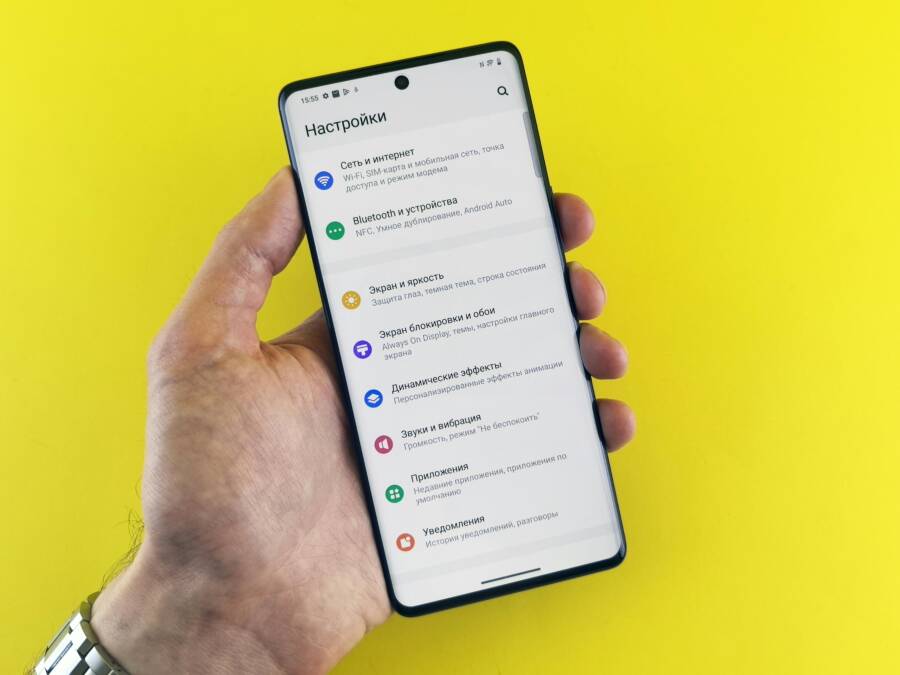
Missing important texts or app alerts when your phone’s sounds stop working is incredibly frustrating. This guide covers steps for both Android and iPhone, starting with quick wins you can try right away before moving to deeper fixes. By the end you’ll know how to diagnose the issue, adjust essential settings, and restore reliable notification sounds on your smartphone.
Check These Basic Settings First
When your phone’s notification sounds vanish, the quickest fix is often right in the settings. This section covers the essential checks you should perform before diving into deeper troubleshooting. Think of these as the first-aid steps that restore your phone’s ability to alert you when things happen. We’ll cover volume controls, quiet modes, and how Bluetooth connections can interfere with sound output.
 Photo by Andrey Matveev | https://www.pexels.com/@zeleboba
Adjust Volume and Sound Modes
Your phone has separate sliders for media, ringtones, and notifications. If one of these is muted or set too low, you won’t hear alerts even when the phone is not on silent.
- Check the media volume in the quick settings panel. Ensure it’s not cranked to zero.
- Inspect the ring and notification volumes. Some devices use a single volume control for both, while others separate them. Make sure both sliders are up.
- Quick settings touchpoints: swipe down from the top (Android) or swipe up or down, depending on your model, to access sound controls quickly.
- If the device is on silent or vibrate, switch it off or set to a level where you can hear alerts. On many phones, silent mode mutes all sounds while Do Not Disturb remains elsewhere.
- If you’re using a headset or speaker, unplug or disconnect to verify the sound path defaults back to the phone’s speaker.
Unexpected culprits can hide in plain sight. For Android users, a misconfigured mode can mute notifications even when the phone seems normal. See how to manage interruptions with Do Not Disturb and related modes in Android’s help guide. This resource explains how to silence interruptions or allow exceptions when needed. Limit interruptions with Modes & Do Not Disturb on Android
Turn Off Do Not Disturb or Focus Modes
Do Not Disturb on Android and Focus on iPhone are designed to silence alerts during certain times or situations. If these modes are active, you may not hear notification sounds even though the phone seems ready to alert.
- Android DND: Swipe down from the top, tap Do Not Disturb, and switch it off. If you’ve scheduled quiet times, review the schedule to ensure it isn’t reclaiming sound outside the designated window. Also check exceptions for calls or messages from favorites or specific apps.
- iPhone Focus: Open Settings > Focus and select the active focus. Review allowed notifications for essential apps and people, and turn off Focus to test if sounds return. If you rely on Focus, keep it but adjust exceptions so key apps can alert you.
- If you want a quick test, temporarily disable Do Not Disturb or Focus, then trigger a notification from a familiar app to verify sound returns. You can re-enable the mode after confirming outcomes.
Android-focused guidance and real-world usage show how many users accidentally leave DND on after a meeting or a flight. For Android, a comprehensive setup guide helps you tailor DND to your day. How to set up Do Not Disturb modes on your Android phone | Use Do not disturb mode on your Galaxy phone
For iPhone users, Focus can be a culprit when notifications seem silent in certain apps. If Focus isn’t silencing as expected, inspect the app-specific settings and ensure you haven’t allowed all noise to be silenced. If you’re exploring this topic, you might find discussions about Focus behavior helpful. Allow or silence notifications for a Focus on iPhone
Disconnect Bluetooth Devices
Bluetooth devices can route all audio away from the phone, which means you may not hear notification sounds through the device itself. This is especially common when a headset or car system is connected.
- Check your current Bluetooth connections. If a speaker or car system is connected, sound may be routed there by default.
- Temporarily disconnect or forget the device to test. On Android, go to Settings > Bluetooth, find the paired device, and choose Forget or Disconnect. On iPhone, open Settings > Bluetooth, tap the device, and choose Forget This Device or disconnect.
- After disconnecting, trigger a notification to confirm the sound plays from the phone speaker. If it does, you can re-pair the device later and adjust audio routing if needed.
- If you frequently use Bluetooth peripherals, consider setting a temporary auto-disconnect rule or disable auto-play of notifications through Bluetooth in the companion app if available.
Bluetooth behavior can vary by device and OS version. A common thread across platforms is that a paired device can hijack the audio path, causing missed sounds on the phone itself. If you want a deeper dive, you can review discussions and tips about Bluetooth routing and notification sounds. Notification Sounds and Bluetooth | No notification sound on phone when connected to Bluetooth
Fix App-Specific Notification Problems
When general notification sounds start working but a few apps still stay quiet, the issue is usually tied to app-specific settings or how the OS handles background tasks for that app. This section covers how to ensure each app has permission to play sounds and how to bypass common bottlenecks. Think of it as dialing in the exact app that should wake you up when it sends a message or alert. You’ll learn practical checks you can perform without wiping your phone or reinstalling apps.
Enable Notifications in App Settings
To hear alerts from a particular app, you must grant it permission to play sounds in its own settings, in addition to the system defaults. Here’s how to ensure the app is wired to deliver audible notifications.
- Open the app’s info page and navigate to the notifications section. Confirm that Sounds or Alert tones are enabled. If the option is off, turn it on and test with a quick notification.
- Some apps offer granular controls, such as silent periods or vibration only. Make sure these aren’t enabled during your normal use, which could mute the audible cue you expect.
- If your device supports it, verify the app’s notification channels (Android) or per-app notification settings (iOS). Each channel or category can have its own sound selection; ensure the one you care about uses a audible tone.
- For apps with in-app notification controls, also check any built-in mute or do not disturb timers. These can override system settings even if the OS looks permissive.
If you want a quick cross-check with official guidance, see Apple’s instructions on managing per-app notifications and sounds on iPhone. It demonstrates how to tailor sound options for each app so alerts match your needs. Turn notifications on or off for a specific app on your iPhone
In practice, many users discover the root cause is simply a misconfigured app channel or a forgotten toggle within the app’s own settings. After enabling sounds at the app level, trigger a test notification from that app to confirm the change took effect. If you’re comparing notes, you can also review general iPhone notification guidelines to keep your setup aligned with best practices. Change notification settings on iPhone
If you’re on an Android device, remember that some apps use notification channels. A channel can be muted independently from the app as a whole. Open the app’s info page, then go to Notifications and confirm the channel is set to audible and not blocked by DND rules. For a deeper dive, Apple’s and Google’s official help pages provide step-by-step visuals for app-level sound controls. How to turn off battery optimization for specific apps on Android (Android 12–15)
Tip: when testing, try a simple alert from that app—chat message, reminder, or event notification. If the sound still doesn’t play, temporarily disable any focus or DND overlays to isolate the issue. You can re-enable them after you confirm the app sounds.
Clear Battery Restrictions
Battery optimization can silently mute or delay app notifications to save power. If sounds vanish only for certain apps, check the battery optimization settings and adjust as needed. This step helps ensure important alerts aren’t killed in the background.
- Android: Settings > Battery > App optimization. From there, locate the app and choose Don’t optimize or Unrestricted. This prevents the system from aggressively limiting the app’s background activity, which can include notification delivery.
- iPhone: Low Power Mode can affect background tasks differently across apps. If you’re in a low power state, some background notification tasks may run less frequently, which can delay or mute sounds. Consider leaving Low Power Mode off while you test notifications.
- After applying these changes, run a test notification from the app to confirm sounds are delivered promptly.
In Android communities, users report fewer missed alerts after whitelisting essential apps from battery optimization. The goal is to strike a balance between preserving battery life and maintaining reliable notifications. If you want a practical overview, see guides that walk through turning off battery optimization for specific apps on Android and the effect of Low Power Mode on iPhone. Turn off battery optimization for an app | How to Turn Off Battery Optimization for Specific Apps on Android (Android 12–15)
If you rely on a smartphone for time-sensitive alerts, consider testing with a variety of apps after adjusting these settings. The more you test, the better you understand how each app behaves under different power modes. For iPhone users, battery considerations are often tied to background activity and app refresh permissions, so keep an eye on those as you iterate. Apple’s support pages also cover how to manage app-specific notifications and ensure sounds cue you as expected. Turn notifications on or off for a specific app on your iPhone
Be mindful that some devices and OS versions differ in how aggressively they manage background tasks. If you still face issues after applying these tweaks, the next steps involve deeper troubleshooting or reaching out to the app developer for a compatibility check.
Update Software and Restart Your Phone
When notification sounds disappear, a quick and effective refresh of your device can do wonders. This section explains why keeping the OS and apps up to date matters and how a simple restart can clear glitches that block audible alerts. You’ll learn practical, no-nonsense steps that apply to both Android and iPhone, with easy tests to confirm the fix.
Install Latest OS and App Updates
Keeping your phone current is one of the most reliable ways to restore reliable notification sounds. Updates fix bugs, close security holes, and improve how apps deliver alerts in the background. Start with the operating system and then move to your most-used apps.
- Check for OS updates: on Android, go to Settings > System > Updates and install any available version. On iPhone, open Settings > General > Software Update to install the latest iOS.
- Update essential apps: open the app store and install available updates. App updates often include fixes for notification channels, sound settings, and background activity.
- Don’t skip beta or developer versions if you’re comfortable with them. They can contain early fixes for notification issues, though they may introduce new bugs.
- After updating, test a familiar notification. If you still don’t hear sounds, proceed to the restart and cache step to clear any lingering hiccups.
If you want a practical walkthrough, this guide covers common Android notification delivery issues and how updates can resolve them. It highlights how updates can fix silent alerts and other quirks that appear after software changes. What to do when Android notifications are not working
It’s common for manufacturers to tweak Do Not Disturb behavior with updates. If your device acted up after a recent firmware or skin update, rechecking app and system permissions after updating can prevent silent alerts. For insights on how to manage interruptions after updates on Android, see guides that explain modes and DND behavior. How to set up Do Not Disturb modes on your Android phone | Use Do not disturb mode on your Galaxy phone
If you’re an iPhone user, updating iOS and apps can resolve Focus and notification quirks tied to updates. For a quick reference on per-app notification handling after updates, Apple’s support pages are a solid resource. Turn notifications on or off for a specific app on your iPhone
Tips for testing after updates:
- Trigger a notification from several apps you rely on.
- Listen for both banner sounds and alert tones, since some devices separate these cues.
- If a particular channel or category still stays silent, revisit app-specific settings next.
Restart and Clear Cache
A simple restart can clear volatile memory and reset temporary glitches that block notification sounds. Clearing cached data helps apps load fresh resources, which can fix missing or delayed alerts. Think of it as rebooting a tired computer by giving it a clean slate.
- Restart your device: power it off for about 10 seconds, then turn it back on. This flushes running processes that might mute sounds.
- Clear app caches selectively: on Android, clear cache for apps that frequently send notifications. This forces apps to rebuild their notification pipelines. On iPhone, you can’t clear caches in the same way, but offloading unused apps and reinstalling problem ones can have a similar effect.
- Run a quick test after reboot: send yourself a test notification, then verify that sounds play through the phone speakers rather than Bluetooth or a connected accessory.
- If you suspect a rogue app, boot into Safe Mode (Android) to see if sounds return. Safe Mode disables third-party apps, helping identify if a downloaded app is causing the issue.
Safe mode and related tests have helped many users isolate problematic apps and restore normal notification behavior. If you want to explore how Safe Mode can reveal noisy culprits, this resource discusses safe mode and notification sounds on Android. Safe Mode on Android and notification sounds
For a broader look at clearing cache and related steps, a short tutorial demonstrates clearing cache and booting into Safe Mode. It’s a practical way to confirm whether the issue is tied to system cache or a misbehaving app. Clearing Cache, boot to Safe Mode on Android
If you still hear nothing after a restart and cache clear, consider testing in Safe Mode. This reveals if a third-party app is blocking sounds, allowing you to uninstall or disable recently added apps with confidence. For more on Safe Mode pathways and how to use them for troubleshooting, you can review Android Central discussions about safe mode and notification sounds. Safe mode and notification sounds
Final checks after a restart:
- Confirm the device isn’t in silent mode or DND beyond current expectations.
- Ensure Bluetooth devices aren’t actively routing all sounds away from the phone.
- Re-enable any necessary Focus or DND rules with careful exceptions for key apps, then test again. If the problem recurs, there may be a deeper OS or app-level conflict that requires a targeted fix.
Advanced Fixes for Stubborn Sound Issues
When notification sounds refuse to cooperate, a few advanced moves can break the deadlock. This section focuses on deeper, targeted actions that most users can perform without losing data. Think of it as fine tuning your device’s hearing aids so every ping and alert cuts through clearly. We’ll cover Safe Mode testing to isolate apps and a careful path from non-destructive resets to full factory resets. Along the way, you’ll see practical tips and quick tests to confirm each step works.
Boot into Safe Mode
Safe Mode lets you verify whether a third party app is muting your notifications. If sounds come back in Safe Mode, a recently installed app is likely the culprit. If sounds stay silent, the issue probably lies with the system or a core service.
- How to enter Safe Mode on Android:
- Press and hold the power button until the power menu appears.
- Tap and hold “Power off” until the Safe Mode prompt shows up, then confirm.
- Your device restarts in Safe Mode. Try triggering notifications from a few apps you trust.
- If sounds return, restart normally and start disabling recently installed apps one by one to identify the offender.
- How to enter Safe Mode on iPhone:
- iPhones don’t have a traditional Safe Mode, but you can mimic a similar testing method by temporarily disabling all third-party apps using Screen Time or by performing a clean boot through iOS settings when available.
- After disabling or removing suspect apps, test notifications to see if the sound returns.
- Quick test idea: pick a familiar notification from a core app (messages, calendar, or email) and confirm you hear the alert without interference from other apps.
In practice, Safe Mode has helped many users isolate misbehaving software. If you want more context, you can review discussions about Safe Mode and notification sounds on Android. Safe Mode on Android and notification sounds
Image to illustrate Safe Mode testing
 Photo by Kelvin Valerio | https://www.pexels.com/@kelvin809
If Safe Mode restores sounds, you’ve pinpointed the issue to a third-party app. From there, review each suspect app’s notification settings, update or uninstall as needed, and test after each change. For a practical reference, you can explore how Safe Mode helps identify notification culprits. Safe Mode on Android and notification sounds
For iPhone users, a similar approach is to test with Focus off and to review per-app notification controls after disabling third-party apps. If you need guidance, Apple’s discussions about per-app settings offer concrete steps. Third-party app settings
Reset All Settings or Factory Reset
If the issue stubbornly persists after Safe Mode testing, the next step is a reset path. Start with a non-destructive reset to preserve data, then move to a full factory reset only if necessary. This approach minimizes risk while giving you a fresh start.
- Non-destructive reset (preserves data):
- Android: Settings > System > Reset > Reset settings. This restores system preferences (like sound, display, and notification preferences) while keeping your apps and data intact.
- iPhone: Settings > General > Transfer or Reset iPhone > Reset All Settings. This resets system settings without erasing your content.
- After the reset, reconfigure essential preferences and run a test notification to confirm whether sounds return.
- Full factory reset (erases all data):
- Android: Settings > System > Reset > Factory data reset. Confirm and wait for the device to reboot. Restore your data from a backup afterward.
- iPhone: Settings > General > Transfer or Reset iPhone > Erase All Content and Settings. Set up as new or restore from a backup.
- Important: Back up photos, messages, and apps before proceeding. A factory reset is irreversible for personal data.
- After any reset, test with several apps to verify that both banner and alert sounds are functioning. If the problem recurs, you may be facing a hardware issue or an OS-level conflict that requires deeper attention.
If you’re reviewing guidance from others, you’ll find that reset recommendations often come with caveats. For example, discussions about Android updates show how a reset can resolve post-update sound quirks. After Android 12 Upgrade No Notification Sounds
If you’re curious about a broader reset strategy, a well-known tutorial covers the steps and considerations for both platforms. How to Fix Phone Sound Issues on an iPhone or Android
Tips for a smooth reset:
- Make sure you’re connected to a stable power source or have a charged battery.
- Keep essential apps reinstalled in a deliberate order to identify any late-appearing conflicts.
- After a reset, re-enable Bluetooth and Focus or DND with caution to avoid reintroducing the issue.
Images can help readers visualize the reset paths. If you use a relevant image, place it near the subsection and provide a proper credit.
Photo by Kelvin Valerio
External resources for reset guidance and best practices:
- Android reset guidance: If I set phone to factory reset will it fix the sound issue?
- iPhone per-app settings and resets: Turn notifications on or off for a specific app on your iPhone
What comes next depends on your results. If a non-destructive reset fixed the problem, you’re finished. If not, a full factory reset might be the only sure-fire way to restore reliable notification sounds. In either case, keep a careful log of what you changed and test each step.
Sources and further reading
- For Android, a thread addressing post-update sound issues can be instructive. After Android 12 Upgrade No Notification Sounds
- For iPhone users seeking per-app sound controls after resets, Apple’s official support pages offer precise instructions. Turn notifications on or off for a specific app on your iPhone
End of this section. If you want to explore more, the next sections will cover deeper OS-level tweaks, app permissions, and practical testing routines to verify every avenue is explored before you declare victory over missing notification sounds.
Conclusion
Getting notification sounds back on your smartphone is often a matter of starting with simple checks and moving methodically to deeper fixes. Begin with the basics—volume, Do Not Disturb, and Bluetooth routing—and confirm you hear alerts from a familiar app. These quick wins fix most silent scenarios without data loss or resets.
If sounds still refuse to cooperate, test with Safe Mode or a non-destructive reset. These steps help confirm whether a stray app or a corrupted setting is to blame. Only move to a factory reset if nothing else works. A careful, step by step approach saves time and keeps your data safe.
Checklist to finalize your fix
- Verify media, ring, and notification volumes are up
- Disable Do Not Disturb or Focus and test
- Disconnect Bluetooth devices and test again
- Check per app notification settings and channels
- Review battery optimization and background activity
- Update OS and key apps, then restart
- If needed, run a non-destructive reset before a full reset
If you still hear nothing, log the steps you tried and share the results in the comments. Your notes can help others follow a clear path. For readers exploring more, I will cover practical testing routines and OS level tweaks in upcoming sections to ensure every avenue is checked.
Thanks for reading and taking action. With these steps, many users regain reliable alerts quickly, and you will too. Your smartphone should keep you in the loop, not miss the signal.