What If the Only Thing Between You and the Life You Deserve Is a Hidden Wealth Code Waiting to Be Activated
>>> Open the Door <<<

Picture this: you grab your phone to glance at a notification. You lift it, give it a quick tap, but the screen stays black. Frustrating, right? This common glitch hits phone not waking up when lifted or tapped on both iPhones and Android devices. Features like Raise to Wake on iPhone or Lift to Wake on Android rely on sensors to detect motion and light. They turn the screen on without pressing a button.
Dirt on sensors, wrong settings, or software bugs often cause the problem. Battery saver modes can disable these features too. Don’t worry. Most fixes take under five minutes. You’ll check settings first, then try restarts and updates. If needed, clean sensors or reset options come next.
This guide walks you through steps for iPhone and Android. Start simple and work up. By the end, your phone will respond every time you pick it up. Let’s get your screen lighting up again.

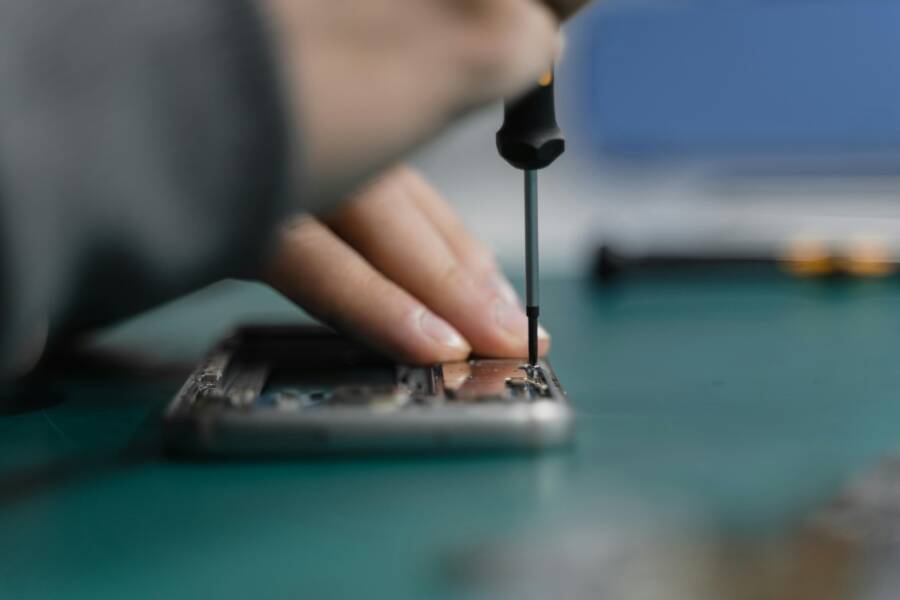
Photo by MART PRODUCTION
What If the Only Thing Between You and the Life You Deserve Is a Hidden Wealth Code Waiting to Be Activated
>>> Open the Door <<<
Check Your Phone Settings First
Settings glitches top the list for wake issues. Many users overlook toggles that control these features. Turn them on, and test right away. Battery modes sneakily turn them off too.
Enable Raise to Wake on iPhone
Open Settings. Tap Display & Brightness. Find Raise to Wake and toggle it on.
If you have Face ID, check Attention Aware Features under the same menu. Toggle it if off. Set Auto-Lock to at least 30 seconds. Short times lock the screen too fast.
Test now. Lay the phone face down. Lift it. The screen should brighten. Updates sometimes reset this toggle. Double-check after iOS installs.
Common slip: forgetting Face ID models need extra steps. It works on iPhone X and later.
Turn On Tap to Wake or Lift to Wake on Android
Steps vary by brand. On Samsung, go to Settings. Tap Advanced features, then Motions and gestures. Toggle on Lift to wake and Double tap to wake.
Google Pixel users: Settings, Display, then Advanced. Enable Lift to wake.
OnePlus or others? Use the search bar. Type “wake gestures” or “lift to wake.” Toggle options there. Check Always On Display settings too. It ties into wake behavior.
Test by placing screen down and lifting. Or double-tap the lock screen. Most phones show the option clearly.
She Pressed Play on a Strange Audio Track and Within Days Her Financial Reality Started Shifting in Ways She Could Not Explain
>>> See How It Works <<<

Disable Battery Saver or Power Saving Modes
Power modes kill wake features to stretch battery life. On iPhone, go to Settings, Battery. Turn off Low Power Mode.
Android: Settings, Battery, then Power saving. Switch it off. Some phones have adaptive battery; check that too.
Low battery triggers these automatically. Charge up and test. You’ll notice the screen responds better.
Try These Quick Software Fixes
Software hiccups fix raise to wake not working in most cases. Restarts clear temporary bugs. Updates patch sensor flaws. No data loss here. These steps often work wonders.
Restart Your Phone Properly
A restart refreshes everything. For iPhone without Home button: Quickly press volume up, then volume down. Hold side button until Apple logo appears.
With Home button: Hold top and Home until logo.
Android: Hold power and volume down. Select Restart. Or hold power, tap Restart.
Soft restart: Just power off and on. Why it helps? It clears memory glitches in sensors. Lift the phone after. Screen should wake.
Force restarts fix frozen states best.
Update Your Phone’s Software
Bugs in old software break wake functions. iPhone: Settings, General, Software Update. Download if available.
Android: Settings, System, System update. Or search “update” in settings.
Install, then restart. New versions fix accelerometer and proximity sensor issues. Test lift or tap right after.
Updates roll out bugs first. Patience pays off.
Clear Cache on Android or Offload Apps
Cached data clogs apps. Android: Settings, Apps. Pick one, Storage, Clear cache. Do this for system apps if listed.
iPhone lacks cache clear. Offload apps instead: Settings, General, iPhone Storage. Swipe left on unused apps, Offload App.
What If the Only Thing Between You and the Life You Deserve Is a Hidden Wealth Code Waiting to Be Activated
>>> Open the Door <<<
Screen time limits block some too. Check Settings, Screen Time. Ease restrictions.
Restart after. Faulty apps stop at this step.
Fix Sensor and Hardware Issues
Sensors detect lift or tap. Dirt or misalignment fools them. Clean carefully. Test in simple ways. Skip liquids always.
Clean the Sensors and Screen
Proximity and ambient light sensors sit at the top edge, near front camera. Use a soft microfiber cloth. Wipe gently.
Remove case. Thick ones block light. Check ports for lint.
Test in a dark room. Cover sensor with finger; screen should dim if working. Lift in light; it should wake.
Daily dust builds up fast. Clean weekly.
Test and Calibrate Sensors
Samsung users dial #0# in phone app. Tap sensors. Lights and motion tests run.
iPhone: Dial 3001#12345# for field test. Check signal and sensors indirectly.
Download Sensor Test app from store. Run accelerometer and gyro tests. Shake phone; values should change.
Calibrate by moving in figure eights. Or leave flat overnight. Faulty readings point to hardware.
Boot in Safe Mode to Check Apps
Apps interfere sometimes. Android safe mode: Hold power button. Long-press Restart or Power off. Tap Safe Mode.
iPhone has no true safe mode. Delete recent apps one by one.
In safe mode, test wake. If it works, uninstall suspects. Common culprits: launchers or gesture apps.
Exit safe mode by restart.
Advanced Steps and When to Get Help
Tried basics? Go deeper. Backup data first. These erase settings, not files.
Reset All Settings
iPhone: Settings, General, Transfer or Reset iPhone, Reset, Reset All Settings. Enter passcode.
Android: Settings, System, Reset options, Reset app preferences or Reset settings.
No data loss. It fixes corrupted configs. Test wake after reboot.
Quick and safe last try.
Factory Reset or Visit Repair Shop
Factory reset wipes everything. Backup to iCloud or Google. Then Settings, General, Reset, Erase All Content.
If sensors fail tests, hardware issue. Drop, water damage hurts accelerometers.
Take to Apple Store, carrier, or authorized shop. They diagnose free often.
Conclusion
Start with settings checks and restarts. Clean sensors next. Reset if stubborn. Most phones revive fast.
Keep software updated. Wipe sensors weekly. Ditch thick cases. Avoid low power mode daily.
Your phone will wake up ready to go. Which fix worked for you? Share in comments. Subscribe for more troubleshooting tips.
(Word count: 1487)
Thousands of People Were Struggling With Money Until They Discovered This One Ancient Secret Hidden in Sound
>>> Unlock It Now <<<
