When your smartphone stops controlling smart bulbs or plugs, it can disrupt a whole evening routine. This issue is usually fixable with a few clear steps and a quick diagnosis.
Common culprits include WiFi problems, hubs, apps, and device firmware. This guide walks you through fast checks, safe fixes, and brand specific tips for popular systems like Hue, Kasa, Wyze, Govee, and LIFX, so you can restore reliable control without a headache.
You’ll learn how to spot the root cause in minutes, optimize your home network for smart lighting, and apply practical fixes you can do right away on your smartphone. By the end, you’ll know exactly what to do when devices misbehave, plus how to prevent future glitches.
Identify the core issues that stop phone control
When your phone stops controlling smart bulbs or plugs, the fault usually sits in the network, the hub or bridge, the app, or the devices themselves. Understanding which layer is failing helps you fix it quickly and prevent repeats. Below are the primary culprits and practical steps to diagnose and resolve them. For each area, you’ll find quick checks and proven fixes you can apply right away.
 Photo by Jakub Zerdzicki
WiFi network and band issues
Most smart bulbs and plugs rely on a 2.4 GHz WiFi connection. The 5 GHz band is faster for streaming and downloads but often not compatible with many smart devices. If your phone is connected to the 5 GHz network, or if your router is set to steer devices automatically between bands, your bulbs may not see the network reliably.
- How many devices need 2.4 GHz: Nearly all lights and plugs use 2.4 GHz. Some newer devices can work on 5 GHz, but manufacturers frequently specify 2.4 GHz for setup and stable operation.
- Why 5 GHz can cause problems: Many smart devices lack 5 GHz radios. If a phone or bulb is on 5 GHz, the bulb may fail to announce itself on the network or may drop during operation.
- Check if the phone and device share the same network or SSID: Open your phone’s WiFi settings and confirm you’re on the same named network as your smart device. Some routers broadcast separate SSIDs for 2.4 GHz and 5 GHz, while others use a single SSID with band steering.
Key steps to verify and fix:
- Ensure 2.4 GHz is active: Log in to your router’s admin page and confirm the 2.4 GHz band is enabled and not split into multiple SSIDs beyond your control. If you see two networks, make sure the smart device connects to the 2.4 GHz one.
- Temporarily disable band steering if needed: If your router automatically moves devices between bands, turn off band steering temporarily to keep bulbs on the 2.4 GHz network during setup.
- Verify SSID consistency: If your network name changes when devices join, rename or create a dedicated 2.4 GHz network for smart devices.
- Improve signal quality: Move closer to the router, reduce walls, or use a mesh WiFi system to extend coverage. A stable, strong signal makes control more reliable.
Helpful resources:
- Checklists and connectivity tips from major brands can clarify requirements and common misconfigurations. For example, a typical guidance set for bulbs emphasizes using 2.4 GHz, avoiding blocked ports, and returning phones to the correct home network after setup. See the LIFX and Wyze troubleshooting guides for concrete steps. LIFX Connectivity Guide Wyze Connectivity Troubleshooting
- A comprehensive home WiFi troubleshooting guide covers how to identify and address interference, channel selection, and device placement. Smart Home WiFi Issues: Complete Troubleshooting Guide
If you’re dealing with persistent network issues, a simple test can help. Move a single bulb to a direct, short distance from the router and attempt a handful of control actions. If the bulb responds reliably, you know the issue is coverage or interference rather than a device fault.
Hub, bridge, and compatibility problems
Some bulbs rely on a dedicated hub or bridge to function. If the hub goes offline or is on a different network, control can fail even when the bulbs themselves are technically powered and connected.
- Offline hubs: A hub that isn’t on the same network or has no internet access can prevent your phone from sending commands to bulbs or plugs.
- Reboot and check status: Power cycle the hub and confirm it’s connected to the same home network as your phone and devices.
- Compatibility gaps: Mixing brands or ecosystems may create gaps where one device can’t talk to another. Always check compatibility for scenes, routines, and cloud vs local control.
- Updates matter: Hub firmware updates often fix connectivity issues and expand compatibility with newer bulbs.
Practical steps:
- Confirm the hub is online and on the correct network. If there’s any doubt, unplug the hub, wait 10 seconds, plug back in, and allow it to boot completely.
- Verify the hub and the phone share the same SSID and network name. If you use a guest network or a separate network for IoT devices, consider moving bulbs to the main network during troubleshooting.
- Check for updates: Access the hub’s app or web interface and install any pending firmware updates. After updates, reboot the hub to apply changes.
- Brand-specific caveats: Hue users should verify the Hue Bridge is reachable on the same router network as the phone. SmartThings users should confirm the hub is online and on the same LAN segment.
Media and reference notes:
- For Hue users, offline hub troubleshooting often mentions the bridge losing connection and needing a simple reboot. Community threads emphasize ensuring devices stay on the same network to maintain control. Hue Bridge Not Connecting Guide SmartThings Hue Offline Discussions
App login, permissions, and account issues
Sometimes the blocker sits in the app rather than the hardware. A wrong home setup, signed out accounts, or missing permissions can block control.
- Home and room selection: Make sure the correct home and room are selected in the app. A misconfigured habitat can hide devices from view.
- Sign-in state: If you’ve recently changed passwords or enabled two-factor authentication, you may need to sign out and sign back in to refresh tokens.
- Location and local network permissions: For many smart home apps, granting location access and local network permissions is essential for discovery and control.
- Cloud vs local control: Some apps use cloud control, others perform device control locally. Outages on the cloud can disrupt control even if the devices are healthy on the network.
- Outages and status: Check the service status page for your app or device ecosystem to confirm there are no ongoing outages affecting access.
Concrete steps:
- Sign out, then sign back in. Re-authenticate quickly to restore access tokens.
- Recheck home/room assignments and reassign devices if needed.
- Review app permissions in your phone’s settings. Enable location, local network access, and any microphone or Bluetooth permissions if required by the app.
- If your system relies on cloud control, visit the status page of the service to see any reported outages. In many cases, the problem is temporary and resolves after maintenance windows.
Helpful resources:
- Brand-specific login and permission guidance can help you quickly identify missing steps. When in doubt, consult the official support pages for your app. For example, LIFX and Wyze both emphasize network permissions and correct home setup in their troubleshooting sections. LIFX Connectivity Guide Wyze Connectivity Troubleshooting
Firmware and device health
Outdated firmware or firmware mismatches between bulbs, plugs, hubs, and even routers can break control. A simple update can fix many issues.
- Outdated firmware: Check every device in the chain for available updates. This includes bulbs, plugs, hubs, and even your router if it has smart features.
- Safe updates: Update firmware during a quiet window, preferably with the device plugged in and not performing critical tasks. After updating, a power cycle often helps the device re-establish a clean connection.
- Post-update health: Some devices require a short stabilization period after updates. If you still have issues after the update, perform a soft reset or reboot as recommended by the manufacturer.
- Firmware mismatches: If a device was updated without the companion app updating, compatibility gaps can appear. Re-check compatibility after any firmware update.
Practical tips:
- Schedule updates during low-usage times and ensure devices are not powering on and off during the update process.
- When updating, avoid changing the network setup at the same time. Keep the phone near the router during the process to monitor progress.
- After updates, test a few control commands to confirm everything responds as expected.
External references and support:
- For bulbs and hubs, many manufacturers publish step-by-step update instructions. If you hit a snag, consult the official support pages for your exact device model and ecosystem. For example, Feit Electric provides guidance on connecting smart bulbs and verifying network compatibility during firmware updates. Feit How-to: Troubleshoot Connecting Your Smart Bulb
Images and visuals:
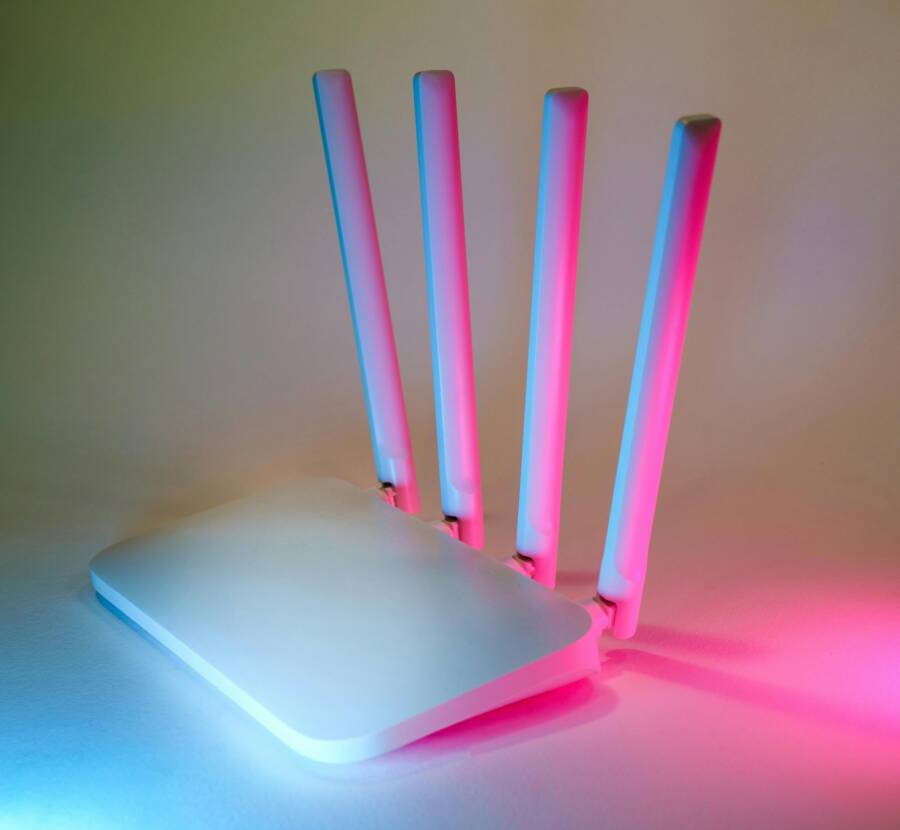
- A well-placed image of a router helps readers visualize the network section and reinforces the link between signal quality and device control.
By following these targeted checks, you can pinpoint whether the issue lies with your network, a hub, an app, or the devices themselves. The most effective fixes often involve a quick reboot of the hub, ensuring a shared network, and keeping firmware up to date. If you identify a specific area, you can dive deeper with brand-specific guides and the official support pages linked above.
Quick fixes you can try before diving deep
When things feel off with smart bulbs or plugs, you don’t have to scramble for a long fix. These quick, practical checks often clear the issue in minutes. Use them as a first pass before moving to deeper troubleshooting. Think of it as a lightweight tune-up for your home network and devices. If you find a step that resolves the problem, you can stay right there or proceed to the next item to make sure the fix lasts.
Reboot sequence for devices
A precise reboot sequence can clear temporary network glitches and reset device handshakes. Try this order exactly as written, then test control again after a short wait.
- Power off the bulbs or plugs.
- Power down the router for 30 seconds.
- Power the router back on.
- Reboot any hub if you use one.
- Restart your phone.
After these steps, wait 1–2 minutes before testing again. This pause lets devices rejoin the network cleanly and reestablish secure handshakes. If you want a quick reference, you’ll find similar reboot strategies in general router and hub guides, such as how to restart a router to fix network issues. For brand-specific nuances, check brand support articles like the LIFX connectivity guide and Wyze troubleshooting pages for practical reboot tips. LIFX Connectivity Guide Wyze Connectivity Troubleshooting
If you’re using a mesh system or a dedicated smart home hub, the same sequence applies. The goal is to reseed the network and reestablish the link between the phone, hub, and bulbs. A quick test after the reboot should show improved responsiveness and fewer drops in the command path.
Check bandwidth and network band setup
Most smart bulbs and plugs rely on a 2.4 GHz WiFi signal. Confirm your phone is on the correct network when setup and control depend on that band. If your router uses band steering, you may need to step in and simplify things for a moment.
- Verify 2.4 GHz is active on your router and that the device isn’t on a separate 2.4 GHz network that the bulbs can’t see. If you see two 2.4 GHz networks, pick the one that the bulbs are connected to.
- If band steering is enabled, temporarily turn it off during setup or troubleshooting so devices stay on the 2.4 GHz band.
- Ensure the phone and device share the same SSID name if possible. Some routers separate networks by band; keeping a single network for smart devices can reduce confusion.
- Improve coverage: move closer to the router, reduce walls, or add a mesh system to reduce dead zones.
If you want to dig deeper into 2.4 GHz specifics and common collisions, Feit Electric’s troubleshooting guide offers actionable steps for connecting smart bulbs on the right band. Feit How-to: Troubleshoot Connecting Your Smart Bulb
If your network feels overloaded, a quick bandwidth check can save time. A single device with aggressive downloads can cause a ripple effect that makes bulbs slow to respond. A simple test is moving one bulb closer to the router and running a few commands. If it responds smoothly, you know interference or coverage is the culprit rather than a device fault.
Update apps and firmware
Outdated software is a common cause of control issues. A small update can fix a lot of quirks.
- Check for app updates in the phone’s store. Install any available updates for the control app.
- Open each device’s app to look for firmware updates for bulbs, plugs, and hubs. Update when available.
- Enable automatic updates if you can. This keeps devices secure and compatible with ongoing app changes.
- Schedule updates for quiet times to avoid interruptions during setup or routine control.
Brand-specific guidance often highlights the importance of keeping both apps and devices current. For example, you can consult brand support pages for step-by-step update instructions or browse for device-specific firmware notes. A Feit Electric guide provides practical advice on firmware updates for smart bulbs. Feit How-to: Troubleshoot Connecting Your Smart Bulb
After updating, perform a quick run of controls from the app. If a device responds reliably, the update likely resolved the issue. If not, a soft reset or reboot of the device after updating can help cement the new firmware in place.
Permissions and access on your phone
Permissions matter because they determine whether the control app can discover and command devices locally or through the cloud. On both iOS and Android, you may need to grant location services and local network access for discovery and control to work smoothly.
- Ensure location services are enabled for the control app on iOS and Android. Some apps require this for device discovery even if you don’t plan to use location data directly.
- Confirm local network access is allowed. This permits the app to talk to devices on your home network without cloud involvement.
- If you’ve recently changed passwords or enabled two-factor authentication, reauthorize by signing back into the app.
- Recheck app permissions after any major OS update, as new privacy controls can reset permissions.
In iOS, Apple’s guidance explains how apps request local network access and why it matters for device control. On Android, Google’s account and location permissions pages outline where to grant access. If an app would like to connect to devices on your local network Manage location permissions for apps
If permissions are misconfigured, you’ll often see discovery problems first, followed by failed commands or timeouts. Reauthorize permissions and test again. It’s a simple fix that pays off with steadier control.
Test control modes and reset if needed
A quick round of tests across control methods helps isolate the issue. Try commanding the device from the app, a voice assistant, and, when possible, directly from the device.
- Use the control app to turn lights on and off, adjust brightness, and set scenes.
- If you use a voice assistant, issue a few commands to verify that voice control is in sync with app control.
- If the device supports a direct button or touch control, test that path too.
If inconsistency remains, a factory reset and re-adding the device is the next step. Model-specific steps differ, so follow the manufacturer’s instructions and beware common pitfalls such as losing scenes or pairing conflicts. For generic reset guidance, you can reference common methods like unplugging and replugging a device, or holding a reset button until the light blinks. When in doubt, consult the device’s official support articles.
For a practical reset walkthrough, check out YouTube tutorials that show how the reset process works for many Wi-Fi smart plugs and bulbs. This can be a quick visual aid if you’re a hands-on learner. How to Reset WiZ Smart Lights How to Factory Reset a Wi-Fi Smart Plug
When to reset and re-add devices
If control remains unreliable after the quick checks, a broader reset might be necessary. Reset steps are usually brand-agnostic and involve restoring devices to factory settings, then re-adding them in the app.
- Back up scenes and routines when possible. If your ecosystem supports exports, save your configurations before resetting.
- Document current settings before resetting. Notes on room assignments, naming, and automations make re-creation faster.
- Re-add devices in the app following the manufacturer’s steps. Pairing is typically done from the app’s add device section.
Using a reset strategically can resolve stubborn issues caused by mismatched settings or corrupted pairing data. After re-adding, test a few quick commands to confirm stability.
External references and practical tips:
- For step-by-step brand reset guidance, you can reference general consumer electronics support sites and brand forums. For instance, quick reset demonstrations for smart plugs and bulbs are available in video tutorials and forum discussions, which can help you spot model-specific quirks. How to Reset WiZ Smart Lights
This quick-fix section is designed to get you back to reliable control with minimal downtime. If these steps solve the issue, you save time and reduce frustration. If not, you now have a clear path for deeper troubleshooting and brand-specific guides. For readers who want to dive even deeper, the next sections cover deeper network tuning, app permissions, and targeted reset flows. Consider bookmarking the brand support pages linked here as you move forward.
Brand by brand fixes for common 2025 models
When your phone stops controlling smart bulbs or plugs, the culprit can vary by brand. This section walks you through brand specific resets, reconnect flows, and common gotchas you’ll run into in 2025. Each subsection keeps the steps tight and practical so you can get back to a seamless smart home fast.
Philips Hue quick reset and reconnect
Hue uses a bridge and often supports Bluetooth for setup and initial pairing. A quick reset and rejoin flow keeps your lighting scenes intact and your automation running smoothly.
- How Hue Bridge and Bluetooth modes work: The Hue Bridge is the central coordinator. After a reset, you can re-pair bulbs either via the Hue app over the bridge or directly with Bluetooth during initial setup. The bridge remains the primary path for most automations, while Bluetooth can speed up light addition on a local network.
- Reboot the bridge: Unplug the Hue Bridge, wait 10 seconds, plug back in. Let it boot completely, then verify the status lights indicate normal operation.
- Check for firmware updates: In the Hue app, go to Settings > Software Update. Apply any available updates to the bridge and bulbs. A quick update cycle can resolve control delays.
- Re-add bulbs: In the Hue app, choose Add light and follow on-screen prompts. If a bulb isn’t discovered, reset it by turning it on and off in quick succession (repeat until the light blinks), then retry pairing.
- Typical reset sequences for Hue bulbs: power on, off, on cycles or specific button sequences depending on the bulb model. After reset, the Hue app will guide you through discovering and placing bulbs into rooms and zones.
- In-app flow to rejoin a light to the network: Open the Hue app > Settings > Light setup > Add light. The app scans for bulbs, then you confirm placement and room. If you use scenes, you may need to reselect them post rejoin.
Tip: If you’re migrating from a different ecosystem, ensure the Hue Bridge is reachable on the same network as your phone during rejoin. If you hit a stubborn bulb, a quick factory reset of the bulb and a fresh add usually resolves the issue.
TP-Link Kasa common issues and steps
Kasa devices require a stable 2.4 GHz connection and a Kasa cloud account to function reliably. If you run into trouble, follow these exact steps to reset and re-add.
- 2.4 GHz requirement: Ensure the router’s 2.4 GHz band is active and not split into incompatible networks. Some routers create separate SSIDs for 2.4 GHz and 5 GHz; keep the 2.4 GHz network active during setup.
- Cloud account checks: Sign in to the Kasa app with the same account used on other devices. If you’ve recently changed passwords, re-authenticate in the app.
- Reset a Kasa device:
- For most TP-Link Kasa plugs and bulbs, press and hold the reset button for about 5 seconds until the LED blinks amber and green (or blue on some models). Release and wait for the device to reboot.
- If your model uses a small recessed button, use a paperclip to press and hold until the LED pattern indicates a reset.
- Re-add in the Kasa app after reset: Open the app, choose “Add device” and follow the prompts. The app will scan for the device, then walk you through connecting it to your WiFi and naming it.
- Model-specific notes: Some newer Kasa devices return to a default WiFi state after reset. Make sure your phone is on the same 2.4 GHz network as the device when re-adding.
Additional pointers: If you previously had the device on a guest network, move it to the main home network during troubleshooting for a smoother rejoin. After a successful re-add, test several commands to confirm stable control.
Wyze device troubleshooting flow
Wyze devices are popular for straightforward setup, but issues can creep in with app, router, or firmware mismatches. A focused flow helps you reestablish reliable control.
- Wyze app updates: Ensure you’re on the latest Wyze app version. Check updates in the iOS App Store or Google Play, then test control after updating.
- Router settings: Verify that UDP and TCP traffic to Wyze services is not blocked. Some routers use strict security rules that can block device discovery or cloud communication.
- Standard reset:
- For Wyze bulbs, press and hold the reset button until the LED blinks. For Wyze Plugs, hold the reset button for a longer period until the device resets. Release, then re-enter the device in the Wyze app.
- Re-linking with voice assistants: If you use Alexa or Google Assistant, re-link the Wyze skill or action after the reset to restore voice control.
- Important notes on traffic: Allowing UDP/TCP traffic and keeping the Wyze app updated helps prevent intermittent disconnects and re-pair issues.
Brand-specific guidance: Wyze support pages provide exact steps for each device, including how to perform firmware upgrades and where to find the latest app notes. A typical flow is to reset, re-add in the Wyze app, then reconfigure routines and scenes.
Govee devices troubleshooting flow
Govee devices offer a mix of Bluetooth and WiFi operation, plus evolving support for Matter. The troubleshooting path covers both link modes and the app.
- Bluetooth vs WiFi modes: Some Govee devices switch between Bluetooth for local control and WiFi for cloud control. If one path fails, try the alternate mode if supported.
- Add a device in the Govee app: In the app, select Add Device, choose your product, and follow the pairing prompts. Ensure the phone is on the same network during setup.
- Firmware updates: Open the Govee app and check for updates. Update any available firmware to improve stability and compatibility.
- Matter compatibility: If your device supports Matter, confirm it’s enabled in the app and that your hub or bridge supports Matter on your network.
- Re-pair after a reset: After a reset, re-enter the device in the Govee app, confirm the device shows online, and run a few control actions to verify responsiveness.
Notes: If you use Matter across multiple ecosystems, maintain consistency by updating all related hubs and apps to minimize compatibility gaps.
LIFX direct WiFi devices troubleshooting
LIFX devices that connect directly to WiFi require careful network setup and firmware upkeep.
- Direct WiFi setup: Ensure the bulb connects to the same 2.4 GHz network as your phone. If your router has isolation features, disable them for the setup period.
- Keep both on the same 2.4 GHz network: Some routers separate 2.4 and 5 GHz networks; ensure the bulb attaches to the 2.4 GHz network used by your phone during setup.
- Update firmware: In the LIFX app, check for firmware updates and apply them. Firmware updates bring bug fixes and new features that improve reliability.
- Reset pattern to re-add: Turn the light off, then on, or use the standard reset button sequence until the bulb blinks. Re-add the bulb in the LIFX app after the reset.
- Guest network tips: Avoid network isolation that blocks device discovery and cloud communication. If guests must use a guest network, connect one device at a time during setup for clarity.
Final tips for all brands
- Keep the phone on the same network as your devices during setup and rejoin flows.
- After any reset or firmware update, re-test basic on/off, brightness, and a simple scene to confirm stability.
- If a device is stubborn, perform a full factory reset and re-add from scratch. Document any naming and room assignments to speed up reconfiguration.
- Use brand support pages as reference points. They provide device-specific steps that can prevent missteps during resets and re-pairing.
External resources you may find helpful
- Philips Hue common setup and connectivity notes provide in-depth guidance on bridge and bulb interactions, plus steps for rejoining lights after resets.
- TP-Link Kasa reset and re-add workflows, with model-specific button press durations, help you pace the process without guessing.
- Wyze support articles cover bulb and plug connectivity, plus steps to re-link voice assistants after a reset.
- Govee community posts and official app guidance outline how to handle Matter and Bluetooth versus WiFi modes.
- LIFX firmware and setup guides explain the 2.4 GHz requirement, port considerations, and the standard reset sequence to rejoin.
With these brand by brand flows, you can tackle most 2025 smart bulb and plug control hiccups quickly. If a specific device still misbehaves, revisit the brand’s official troubleshooting pages for any model-tuned steps.
Advanced network and ecosystem fixes
A solid smart home starts with a rock‑solid network and a clean ecosystem. This section outlines practical, straightforward fixes you can apply to improve reliability when your phone struggles to control bulbs or plugs. You’ll learn how to tighten your WiFi coverage, segment IoT devices for security, and navigate cross‑brand compatibility as ecosystems shift.
Improve home network for IoT devices
Most IoT devices, including smart bulbs and plugs, rely on a stable 2.4 GHz WiFi connection. Prioritize this band and keep the signal strong across every room. A modern router or mesh system can make a noticeable difference, especially in larger homes or spaces with thick walls.
- Prioritize 2.4 GHz coverage: Ensure the router or mesh system has a solid 2.4 GHz footprint where most IoT devices live. Some systems offer explicit 2.4 GHz optimization or a dedicated IoT network, which helps avoid congestion from phones and streaming devices.
- Use QoS thoughtfully: Quality of Service can direct bandwidth to smart devices when they need it. If your router supports device‑level QoS, set the IoT devices to a higher priority. This can reduce lag when you issue a command from your smartphone.
- Place mesh nodes strategically: Start by placing a node where signals tend to fade, near the center of the home or along the main corridors. A quick heat map check with your router app can reveal weak spots. If you notice dead zones, add another node or reposition existing units.
- Simplify bands during setup: If devices occasionally land on the 5 GHz band, temporarily disable band steering to lock IoT devices to 2.4 GHz during troubleshooting. After setup, you can reenable steering if your ecosystem handles it cleanly.
- Consider a dedicated IoT network: A separate network reduces interference and helps devices stay reachable even when your main network is busy. For example, UniFi and other advanced systems support guest or IoT VLANs so devices stay visible without exposing your main devices to risk. See guidance on secure IoT networks for UniFi and other brands below.
Practical tip: When testing, move a single bulb close to the router to see if it responds reliably. If it does, the root cause is coverage or interference rather than a faulty device.
Helpful resources:
- Adaptive QoS and mesh networking guidance from major brands help you tune settings for IoT reliability. For example, exploring how to optimize a Whole Home Mesh WiFi System can yield practical improvements. https://www.asus.com/us/networking-iot-servers/whole-home-mesh-wifi-system/all-series/filter?Spec=805
- General mesh WiFi analyses and best‑practice recommendations, including reviews of top systems, can be a quick starting point. https://www.wired.com/story/best-mesh-wifi-routers/
- A reliable mesh option with strong 2.4 GHz support is Deco X50‑PoE from TP‑Link, which is designed for homes with many smart devices. https://www.tp-link.com/us/deco-mesh-wifi/product-family/deco-x50-poe/
If you want a deeper dive into securing IoT traffic while keeping performance high, explore articles on guest networks and VLANs for IoT devices. A comprehensive setup article covers VLANs and firewall rules to isolate IoT traffic from personal devices, which can reduce disruptions and improve security. https://www.michaelsleen.com/vlan/
Isolate IoT devices from personal devices
Separating your IoT devices from your personal devices adds a resilience layer. It minimizes the impact of a compromised phone or laptop on smart bulbs and plugs and keeps your main network cleaner and faster to manage.
- Set up a dedicated IoT network: Create a separate SSID specifically for IoT devices, or place IoT devices on a separate VLAN. This ensures your smartphones keep full bandwidth for daily tasks while bulbs stay responsive.
- Use a 2.4 GHz IoT network: If your router supports a dedicated IoT network, restrict it to 2.4 GHz. This keeps slower IoT traffic isolated from more demanding activities on your main network.
- Manage access for phones: Your personal devices should still reach IoT devices when needed. Some setups allow phones on the main network to reach IoT devices via bridge or routed access, while other configurations require devices be on the IoT network but reachable through controlled bridging.
- Keep devices reachable, not exposed: Isolating IoT traffic reduces cross‑talk and helps routines run on time. You still want discovery and control to work, so ensure the IoT network permits local control and necessary cloud connections.
Implementation steps:
- Create an IoT SSID or VLAN and assign only IoT devices to it.
- Leave a controlled bridge path so phones can still issue commands to IoT devices if needed, but block unnecessary cross‑traffic from personal devices.
- Use firewall rules to prevent IoT devices from reaching sensitive resources, while allowing access to the control apps and cloud services they need.
Extra context:
- UniFi users can implement Network Isolation on a dedicated VLAN for IoT devices while binding the VLAN to a separate Wi‑Fi network. This setup is a practical way to protect your main network and still maintain reliable control of smart bulbs. See a practical guide for UniFi environments. https://ai-smarthomehub.com/articles/iot-ssid-guest-network-setup-2025/
Helpful resources:
- A solid primer on secure guest and IoT networks for UniFi APs offers a step‑by‑step VLAN and firewall guide. https://itman.ae/2025/07/07/set-up-secure-guest-iot-network-on-unifi-aps/
- For VLAN and firewall basics, a detailed walkthrough shows how to segment networks for smart devices and keep them interoperable. https://www.michaelsleen.com/vlan/
Brand notes:
- If you’re using a guest network, be mindful of device isolation features. Some brands require local network access to work properly, even when isolated. When in doubt, test device discovery and control after applying network segmentation.
Matter and cross ecosystem considerations
Matter is a unifying standard designed to improve interoperability across brands. It can simplify control when devices from different ecosystems need to work together, but compatibility evolves year to year. In 2025, Matter support is more common, yet you still want to verify compatibility before buying or committing to a setup.
- What Matter does: Matter aims to provide a common language for smart home devices, so lights, plugs, and sensors talk to hubs and assistants across brands. It can reduce the need for multiple hubs and simplify routine creation.
- Check compatibility in 2025: Look for devices that explicitly state Matter support and confirm your hub or bridge supports Matter. If you already own devices, check the latest firmware to enable Matter compatibility.
- Practical verification steps:
- Confirm the device shows Matter in its spec or app settings.
- Ensure your hub firmware is up to date and supports Matter on your chosen network.
- Verify that scenes or automations work across brands in the Matter ecosystem.
- Bridging devices when needed: If some devices don’t support Matter, you can bridge them through compatible hubs that bridge to Matter. This allows older devices to participate in unified routines without replacing everything.
- Practical setup approach: Start with a small Matter‑enabled core and add devices gradually. This helps you confirm interoperability before scaling up.
Why this matters for your phone control: When your phone runs a routine that includes bulbs from different brands, Matter can reduce the friction of cross‑brand commands. It also helps when devices drop offline or lose bridge connections since Matter aims to maintain local control paths more reliably.
External references and practical steps:
- A modern overview of guest networks and IoT SSIDs can help you plan a future‑proof setup with Matter. https://ai-smarthomehub.com/articles/iot-ssid-guest-network-setup-2025/
- VLANs and firewall guidance offer security learnings that pair well with Matter adoption, ensuring devices stay reachable without leaking into your main network. https://www.michaelsleen.com/vlan/
- For readers curious about UniFi implementations, a step‑by‑step VLAN and firewall guide covers isolating IoT with firewall rules and VLAN bonding. https://itman.ae/2025/07/07/set-up-secure-guest-iot-network-on-unifi-aps/
Final notes on cross‑ecosystem fixes:
- Keep firmware up to date across all Matter devices and hubs. Updates close gaps that cause control delays.
- Maintain a simple core automation set first. Expand to multi‑brand scenes once you’re confident the core devices stay responsive.
- When integrating new devices, test control from your primary smartphone first, then add voice assistants or other controllers. This helps isolate where control issues originate.
With these advanced network and ecosystem fixes, you can restore reliable control of your smart bulbs and plugs and reduce the risk of future hiccups. If a problem persists, recheck each layer—network, hub, account, and device health—and gradually reintroduce devices while monitoring performance.
Conclusion
Most issues come from the network, the hub, the app, or the devices themselves, and every one of them is fixable with calm, methodical steps. Start with quick checks like confirming a solid 2.4 GHz connection, rebooting the hub and router, and updating firmware and apps. Then verify the app permissions and test control modes across the app, voice assistant, and physical controls. If problems persist, reset and re-add devices, or segment IoT traffic to reduce interference. Finally, consider cross‑brand compatibility and Matter supported setups to keep future fixes simple and reliable.
Try the guide in order and watch for steady improvements in response and reliability. If you have tips that helped you or questions about a stubborn device, share them below so others can benefit.