
How to Fix Phantom Notifications on Your Phone (Android & iPhone)
You’ve felt it before. That buzz in your pocket during a quiet meeting. You pull out your phone, but nothing’s there.
Phantom notifications trick your brain into sensing alerts that don’t exist. They blend real body twitches or fabric rubs with your expectation of pings from constant use. Up to 89% of smartphone users face this at least sometimes.
Stress amps it up. Heavy phone checks wire your mind to anticipate vibes. It hits often on Android and iPhone alike.
The good news? You can fix it fast. Simple tweaks cut the fakes right away. New habits bring lasting calm.
We’ll walk through easy steps for both platforms. Turn off vibrate modes. Set Do Not Disturb. Mute key apps.
Plus, build breaks from your device. These changes ease the buzz and free your focus. Stick around to end those ghosts today.
What Causes Phantom Notifications on Your Phone
Phantom notifications happen when you feel a buzz or hear a ping that isn’t there. Your brain and body team up to create these false alerts. Constant smartphone use plays a big role. Daily habits make your mind expect vibrations at all hours. Normal sensations get mistaken for phone alerts. Let’s break down the main triggers.
Your Brain’s Expectation Habit
Your brain learns patterns fast. Think of it like Pavlov’s dogs salivating at a bell. You get dozens of real notifications each day. Over time, your mind predicts them even when silent.
Neurons in your brain’s sensory areas fire off signals. These create a vibration feeling without input. Studies show this expectation builds from repeated pings. One report found up to 89% of heavy users experience it (Prevalence of phantom vibration syndrome).
You check your phone often. Your brain stays on high alert. It fills in gaps with phantom vibes. This habit strengthens with every glance. Break the cycle, and the false signals fade.
Body Sensations That Fool You
Your body sends mixed signals too. Muscle twitches in your leg mimic a phone buzz. Tight pants or a wallet presses against your thigh. These feel just like vibrations.
Your pulse throbs in quiet moments. It pulses against your phone case. Fabric shifts as you walk. All these trick your nerves into alert mode.
Key mimics include:
- Muscle spasms: Quick leg twitches from sitting too long.
- Clothing rubs: Seams or pockets brushing skin.
- Blood flow: Heartbeat felt through thin materials.
These sensations blend with phone memory. Your skin nerves report back to the brain. It interprets them as alerts. No app triggered them, but you reach anyway.
Stress and Phone Overuse
Stress makes it worse. Anxiety keeps you glued to your smartphone. You scroll for reassurance. This amps up expectation and sensitivity.
High screen time links to more episodes. Depression or worry heightens body awareness. Every twitch feels urgent. Research ties it to mental load from constant checks (Phantom Phone Signals Show How Smartphones Shape Our Perception).
Overuse fatigues your nerves. Long hours mean less rest. Your brain misfires more. Cut back, and symptoms drop. Simple breaks reset the pattern.
Rule Out Real Phone Glitches First
Before you dive into complex fixes, rule out obvious, real issues with your device. Sometimes phantom vibes come from a simple software glitch, a stuck notification, or a rogue app behaving badly. This section walks you through quick, practical checks on both Android and iPhone. Think of it as the crash cart for your phone — clear, fast, and focused on getting you back to a calm, notification-free day.
 Photo by Ron Lach
Update Your Phone Software
Software updates patch bugs that can cause odd notification behavior. Keeping Android and iPhone OS up to date resolves many phantom alerts by fixing underlying issues that your device encounters in daily use.
- Android
- Open Settings > System > System update (path may vary by device). Check for update and install if available.
- If an update is available, follow the on-screen steps to install. After updating, restart the phone and monitor notifications for a while to confirm the issue is resolved.
- For detailed steps and official guidance, visit the Android Help page: https://support.google.com/android/answer/7680439?hl=en
- You can also review how to update Android versions on a range of devices here: https://www.android.com/intl/en_in/articles/update-android-phone/
- iPhone
- Go to Settings > General > Software Update. If an update is available, download and install it.
- If you can’t see the update on the device, you can connect it to a computer and update via Finder (Mac) or iTunes (PC).
- For official instructions, see Apple Support: https://support.apple.com/guide/iphone/update-ios-iph3e504502/ios
- Additional guidance for iPhone users is available here: https://support.apple.com/en-us/118575
Why this matters: a minor bug in the current build can trigger unexpected vibrations or alerts. Updates address these bugs, often with a single reboot that clears the misbehavior.
Restart and Test in Safe Mode
A clean restart helps you see whether the issue stems from a third party app. Both platforms offer a way to test without the usual apps running, so you can isolate the culprit.
- Android
- Regular restart: Power off, then power back on. Check if phantom vibrations linger.
- Safe Mode (tests only on-device functions, disables third-party apps): Press and hold the power button, then tap and hold “Power off” until the Safe Mode prompt appears. Confirm to reboot into Safe Mode. In Safe Mode, use the device normally for a while. If the phantom notifications stop, a third-party app is likely the source.
- Official guidance on Safe Mode and testing is available from Android sources and major security sites, such as Android Authority’s walkthrough: https://www.androidauthority.com/how-to-enter-safe-mode-android-801476/ and Samsung’s guidance for Galaxy devices: https://www.samsung.com/us/support/answer/ANS10003495/
- iPhone
- iPhones do not have a true Safe Mode like Android. However, you can perform a force restart to refresh the system and then test notifications.
- Steps vary by model:
- iPhone 8 and later: Quick press Volume Up, quick press Volume Down, then hold the Side button until the Apple logo appears.
- iPhone 7 and 7 Plus: Hold the Side button and Volume Down until the Apple logo appears.
- iPhone 6s and earlier: Hold the Home and Power buttons until the Apple logo appears.
- After a force restart, test notifications. If the issue persists, you’ll want to check individual apps and notification settings.
- For broader testing guidance, see discussions and help articles about phantom notifications on iOS and related troubleshooting: https://discussions.apple.com/post/question?communityId=2044020 and a practical fix walkthrough video: https://www.youtube.com/watch?v=vuJb5bMhP1E
What to watch for during testing:
- If the phantom buzzes disappear in Safe Mode, a rogue app is the likely cause.
- If the issue persists in Safe Mode or after a force restart, the problem may be deeper in the OS or hardware and may require further steps.
Tips to speed up the process:
- Keep a brief log: note the time of each phantom event, what you were doing, and whether the vibration or ping coincides with a real notification. This helps identify patterns.
- After testing, reintroduce apps one at a time. This helps pinpoint the specific app if Safe Mode suggested a third party is to blame.
Remember, the goal is to confirm whether the issue is a real glitch in the device firmware or a misbehaving app. This step saves you time and protects your data while guiding you toward the right fix path. If you keep seeing phantom alerts after updating and testing, the next steps focus more on app management and notification settings. For more on managing notifications effectively, you can explore Apple’s and Google’s official guidance on notification permissions and behavior.
Fix Phantom Notifications on Android
Phantom notifications can sneak into your day and steal your focus. On Android devices, they’re often a mix of real signals and subtle body cues that your brain misreads. The good news is you can nip them in the bud with a few targeted adjustments. This section drills down on practical, step by step fixes you can apply today, so you can reclaim calm and keep your attention where it belongs.
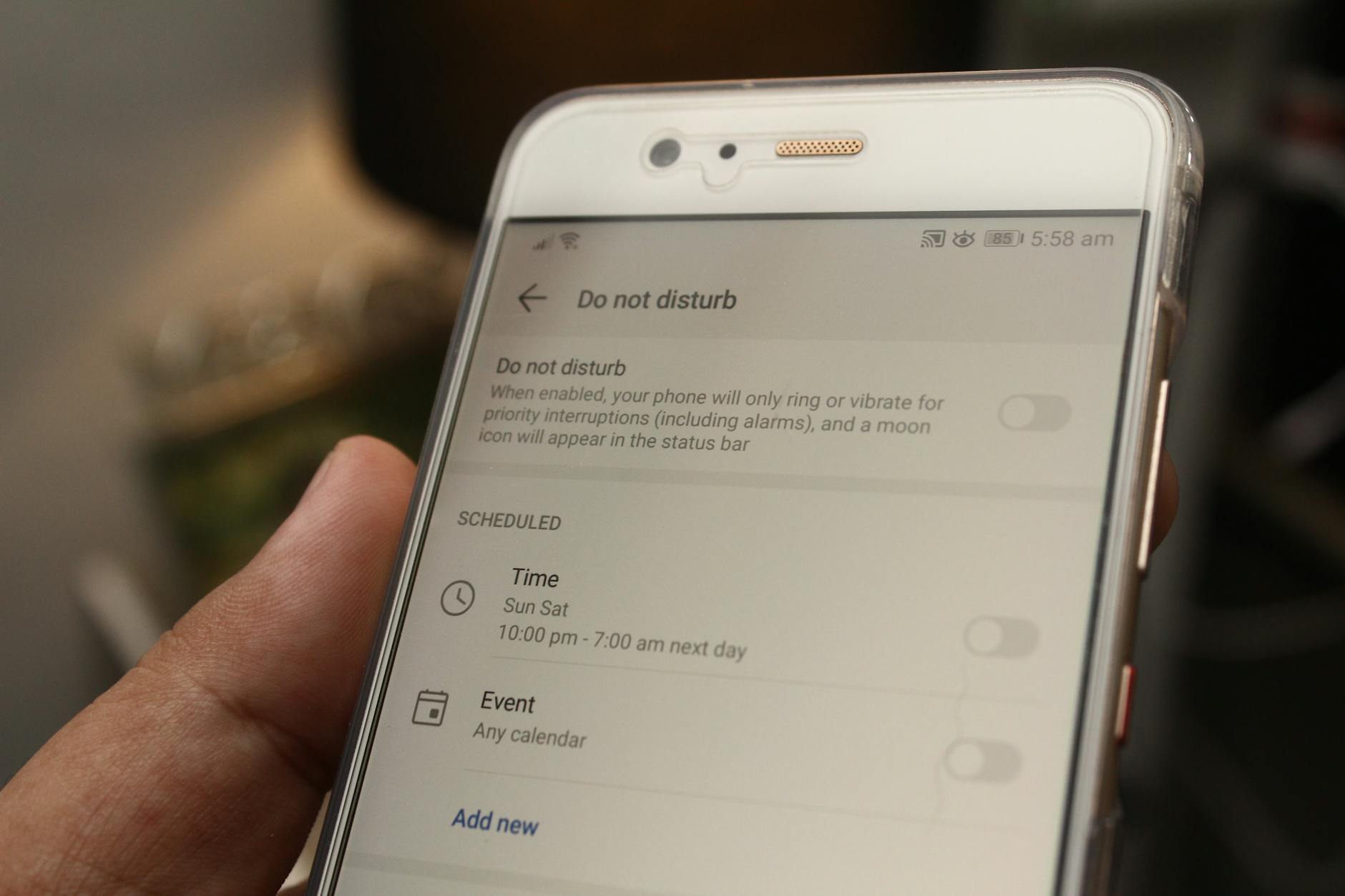 Photo by Daniel Moises Magulado
Turn Off Vibrations and Haptics
Android lets you switch off vibrations and haptic feedback to reduce the chance of phantom cues registering as alerts.
- Settings path: open Settings > Sound & vibration (or Sound depending on your device) > Vibration & haptics.
- Turn off Use vibration and haptics to disable most vibration feedback.
- If you still want some alerts to vibrate, adjust Vibrate for calls and keep only what you truly need.
- Do Not Disturb tips:
- Enable Do Not Disturb during focused periods. Pick a schedule or manual activation.
- In Quick Settings, tap Do Not Disturb to silence all but essential notifications.
- Consider allowing alarms or important contacts through, so you never miss critical alerts.
Why this helps: most phantom cues come from subtle vibrations. By silencing haptics, you remove a major trigger and give your brain a break from false signals.
External resources for deeper settings:
- Control notifications on Android: https://support.google.com/android/answer/9079661?hl=en
- Limit interruptions with Modes & Do Not Disturb on Android: https://support.google.com/android/answer/9069335
Manage App Notifications and Cache
Not every notification is a phantom signal, but some apps misbehave and push nonessential cues. Tidy up by prioritizing essentials, muting extras, and clearing stale data.
- Mute extras:
- Go to Settings > Apps & notifications > select specific apps. Turn off notification types you don’t need (sounds, vibration, popups).
- Use a simple rule: only alerts from essential apps (messages, phone, email) should break through.
- Clear storage and cache:
- For apps that misbehave, clear cache first. If problems persist, consider clearing data but back up important info first.
- Path example: Settings > Apps > choose an app > Storage & cache > Clear cache (and Clear storage/data only if necessary).
Why it helps: lots of phantom vibes come from apps fighting for attention, or from stale data that makes a notification feel like a new alert. Cleaning that slate reduces noise and lowers false triggers.
Supportive tips:
- When testing, reboot after you’ve made changes to confirm they stick.
- Reintroduce apps one by one to spot the offender quickly.
Use Focus Tools Like Grayscale Mode
A focused phone experience reduces mental friction and helps you notice real alerts when they matter.
- Grayscale mode can reduce visual lure and impulse checking. It minimizes the lure of bright notifications and banners.
- Digital Wellbeing provides timed controls to protect your attention:
- Screen time dashboards show which apps pull the most attention.
- App timers limit how long you can use certain apps in a day.
- Focus mode suspends nonessential apps during chosen periods.
Practical setup:
- Enable grayscale if you want a lower visual draw during work blocks.
- Set Focus mode to silence or hide distracting apps during important tasks.
- Use screen-time reminders to prompt breaks and reset the habit loop.
Recommended resources:
- Digital Wellbeing on Android: https://www.android.com/digital-wellbeing/
- Manage how you spend time on your Android phone: https://support.google.com/android/answer/9346420?hl=en
Putting it all together, these steps create a calmer smartphone experience. You’ll feel less of that phantom buzz and more control over when and how you’re alerted. As you implement each fix, keep a short log of what changes helped and which apps still cause noise. A few deliberate adjustments now can pay off with clearer focus in the days ahead.
Fix Phantom Notifications on iPhone
Phantom notifications can feel like a ghost in your pocket. Even when nothing pings, you might sense a buzz or see a banner that isn’t tied to any app activity. The good news is you can reclaim calm with focused tweaks on your iPhone. This section covers practical steps designed to reduce or eliminate those eerie alerts, while keeping you in control of which notifications truly matter.
Disable Vibration and Sounds
Vibration is a common trigger for phantom alerts on iPhone. When you mute or reduce haptic feedback, you remove a major cue that your brain tends to misread as a notification.
- Quick path to silence: go to Settings > Sounds & Haptics and toggle off Vibrate on Silent and any vibrations you don’t need. If you still want some alerts to vibrate, keep a minimal setting for essential calls and messages.
- Notification batches: within Settings > Notifications, review each app’s alert style. Turn off sounds for nonessential apps, or set banners to deliver without sound.
- When to test: after you adjust, send yourself a couple of real notifications to confirm you hear or feel a cue only when you want it.
For deeper guidance, see Apple’s guidance on turning off vibration on iPhone: https://support.apple.com/guide/iphone/turn-off-vibration-iphd722c9100/ios
Why this matters: most phantom cues come from subtle vibrations that your brain misinterprets as real alerts. By dialing back haptics and sounds, you reduce the noise and give your mind space to reset.
Set Up Focus and App Limits
Focus modes give your device a structured rhythm, helping you cut through the noise and notice real alerts when they matter. With Focus, you can limit interruptions during work, sleep, or personal time.
- Create a Work Focus: tailor which apps can notify you during work hours. Allow only essential apps like messages and email; mute social media and gaming apps.
- Sleep and Downtime: schedule a Downtime window when most alerts are paused. You can still receive calls or alarms, but nonessential apps stay silent.
- Grayscale and notifications: pairing Focus with a grayscale screen reduces visual lure, making you less prone to impulse checks.
- Review and adjust: start with a 1- or 2-week Focus plan and tweak based on real-world use. Notice if phantom alerts drop when Focus is active.
If you want in-depth steps and official tips, see guidance on managing notifications on iPhone and using Focus mode: Stop, mute, and change message notifications on iPhone. https://support.apple.com/en-lb/guide/iphone/iph62faab6a4/ios
Why this matters: Focus helps you break the reflex loop that feeds phantom sensations. When your attention is shielded from nonessential alerts, real messages stand out more clearly.
Reset Settings Without Losing Data
If phantom notifications persist after you’ve tried the basics, a settings reset can clear stubborn misconfigurations without touching your data. This approach fixes systemic issues while keeping your apps and files intact.
- General reset steps: open Settings > General > Transfer or Reset iPhone > Reset > choose Reset All Settings. This restores system defaults for notifications, sounds, and layouts without erasing apps or data.
- What you keep: your photos, messages, and apps stay intact. Your preferences and wallpaper may reset, so you’ll want to reconfigure them afterward.
- When to consider it: if every other fix yields little change, a settings reset is a safe next step before more drastic actions.
For additional context on iPhone notification management, you can explore Apple’s notification settings articles and user guides, which provide structured paths to control how and when alerts appear: https://support.apple.com/guide/iphone/turn-off-vibration-iphd722c9100/ios
Why this matters: a global reset clears hidden toggles or corrupted preferences that accumulate over time. It’s a quick way to return to a clean slate without risking data loss.
Tips to make the reset smoother:
- Make a quick note of your preferred app notification settings so you can restore them fast after the reset.
- After resetting, test a few apps to confirm the phantom cues are gone. If anything returns, reconfigure that app’s alerts specifically.
Putting the fixes together, you’ll find a calmer iPhone experience that lets you decide when to engage with notifications. Keep a simple log of what you altered and what you observed during testing. With a little iteration, phantom alerts become a rare visitor rather than a daily nuisance. If you still notice odd signals after trying these steps, Apple’s official support resources offer deeper troubleshooting paths and community insights to guide you forward.
Long-Term Habits to Prevent Fake Alerts
Phantom alerts aren’t just a quick nuisance; they’re a habit pattern your brain forms over time. The good news is you can rewire those patterns with steady, repeatable practices. Think of these long-term habits as a daily routine that keeps your attention sharp and reduces the stray buzzes from your pocket. By combining simple tweaks with mindful usage, you’ll notice fewer phantom vibrations and more calm focus across your smartphone activity.
Build a daily notification hygiene routine
Consistency matters more than intensity. A small daily routine reduces noise and makes real alerts stand out.
- Audit first, then prune: every week, review the notifications that actually matter. Keep messages, calls, and calendar alerts, but mute what rarely requires your immediate attention.
- Centralize alerts: use a single channel for high-priority alerts when possible. For many people, that means keeping essential apps like messaging, email, and calendar on or near the top tier, while social and game apps stay quieter.
- Schedule check-ins: set specific times to glance at your phone rather than a constant stream of checks. This helps your brain stop expecting perpetual pings and reduces the chance of mistaking body cues for alerts.
- Track your results: keep a simple log for a few weeks. Note which apps still trigger phantom cues and which settings reduced noise. That record helps you tune the system you rely on daily.
Why it sticks: regular pruning trains your brain to expect fewer signals at random moments, so it stops overreacting to minor sensations. A cleaner notification environment makes real alerts easier to spot.
Create focused blocks with Do Not Disturb and Focus
Long-term focus requires deliberate boundaries. Focus modes are built for that, providing structured quiet times when you need to work, rest, or simply disconnect.
- Establish predictable windows: set daily blocks for work, family time, and wind-down periods. During these windows, only essential alerts break through.
- Tailor exceptions: allow alarms, calls from important contacts, or messages from key apps. This ensures you won’t miss critical moments.
- Pair with grayscale or minimal visuals: turning on grayscale during focus reduces visual lure and impulse checks, reinforcing the habit of staying in the moment.
- Review and adjust periodically: a two-week trial helps you calibrate which apps deserve access during focus blocks. If phantom alerts drop, you’ve found a good balance.
What to expect: over time, these blocks train your attention to notice genuine signals while ignoring noise. The result is less mental fatigue and more productive periods.
Maintain a stable app landscape and background activity
The apps on your phone can quietly generate noise. A lean, well-managed app ecosystem supports long-term calm.
- Limit background activity: disable background refresh for nonessential apps. This reduces the chance of a phantom notification sneaking in from idle processes.
- Revisit permissions: periodically review app permissions, especially notifications. Restrict access to the minimum necessary to function.
- Clear cache and storage strategically: a clean slate helps, but avoid data loss. Clear cache for apps that misbehave first, then consider a broader data reset only if needed.
- Regularly update apps and system software: updates often fix glitches that contribute to phantom alerts. Pair these updates with a brief reboot to ensure changes take effect.
Why this matters: a cluttered app environment creates more opportunities for misfiring signals. A lean, well-tuned setup reduces false cues and keeps important alerts prominent.
Nail down physical comfort and daily rhythms
The body and device truthfully influence each other. Small physical habits can cut down on phantom vibes.
- Wear and carry smartly: loose clothing or a tight pocket can press against you in a way that mimics a vibration. Adjust how you carry your phone or change where you keep it to reduce those cues.
- Manage stress and sleep: high stress levels and poor sleep increase sensitivity to sensations. Regular exercise, brief relaxation practices, and consistent sleep schedules help reset your alert system.
- Mindful phone use: when you pick up your phone, do a quick check-in. Ask, “Do I need to act now, or can this wait?” This simple ritual weakens the reflex to respond to phantom cues immediately.
- Create a bedside boundary: keep the phone away from the bed or use a dedicated alarm clock. Fewer late-night checks reduce the brain’s expectation of new alerts.
The benefit is clearer, steadier responses. You’ll notice a calmer pocket, with real notifications cutting through when they truly matter.
Integrate education and community resources
Understanding phantom alerts helps you stay confident about your steps and decisions.
- Learn the basics: familiarize yourself with how notifications work on both Android and iPhone. Official guides offer precise controls that align with your daily routine.
- Use credible sources: when you need a refresher, turn to reputable help articles and forums for real-world tips. Articles and discussions can provide new angles on common setups.
- Share a practical plan: write down your personalized routine and invite a friend or family member to keep you accountable. A shared goal boosts consistency.
If you want trusted background reading, consider exploring resources that explain how to manage notifications and update behavior on both platforms. These materials provide practical steps that fit into a long-term habit you can maintain.
External resources for deeper setup:
- Android notification management overview
- iPhone notification and Focus mode guidance
Implement a quarterly health-check for phantom alerts
Set a low-friction review cadence to keep the system fresh without becoming a guilt trip.
- Every 90 days, re-evaluate core settings: Do Not Disturb schedules still fit your life? Are your top apps still essential?
- Run a quick media detox test: a week with fewer alerts or a shorter check-in window can reveal how much phantom signals have faded.
- Refresh your focus plan: adjust Focus or Grayscale settings based on what you learned. Small tweaks can yield big improvements.
The goal is not perfection but consistency. A quarterly tune-up keeps your device in line with your actual needs and reduces the chance of phantom alerts creeping back.
External links referenced in this section provide practical, platform-specific guidance and tips for ongoing maintenance. Use them to deepen your routine as needed:
- How to manage notifications on Android
- Stop, mute, and change notifications on iPhone
By embracing these long-term habits, you create a robust framework that minimizes phantom alerts. The result is a calmer smartphone experience, sharper focus, and more control over when you engage with your device. Remember to log changes and observe how your attention responds over time. Small, steady improvements add up to a more intentional digital life.
Conclusion
Phantom notifications are less a mystery than a pattern you can disrupt. Start by checking your phone for real glitches, then tweak key settings and habits to restore calm. The simplest first move is turning off vibrations, which removes a major cue your brain misreads as an alert. From there, use Do Not Disturb or Focus modes to shield focused time and reduce noise. Clean up app notifications and clear cache when apps misbehave, then test each change to see what sticks.
Long term, small daily routines matter more than big overhauls. Build a quick notification hygiene ritual, set focused blocks, and keep a lean app landscape. Manage your physical environment as well—adjust how you carry your device and favor longer breaks over constant checks. If stress or anxiety feels overwhelming, consider talking with a clinician. The mind and body aren’t separate, and help is available.
Finally, aim for a steady rhythm rather than perfection. You’ll notice real alerts more clearly, and the pocket buzz will fade into the background. Try one fix today and see how your smartphone interactions feel with less noise and more focus. Freedom from buzzes awaits, delivering sharper attention and a calmer day.