When Google Docs won’t open on your Android or iPhone, the problem is usually fixable with a few quick steps. This guide covers simple fixes, from checking your internet connection to clearing the app cache, that get you back to editing fast.
From checking your internet connection to clearing the app cache, these steps address the most common causes. If needed, a quick reinstall can rescue a stubborn issue without losing your work. By the end, you’ll know exactly what to do to get back to editing on your smartphone.
Check the Basics First to Rule Out Easy Issues
When Google Docs won’t open on your smartphone, the first steps are often the simplest. Start by ruling out connection problems, outdated apps, and a stuck device. These quick checks can save you time and keep you productive on the go. If you find the issue isn’t here, you’ll know exactly what to tackle next.
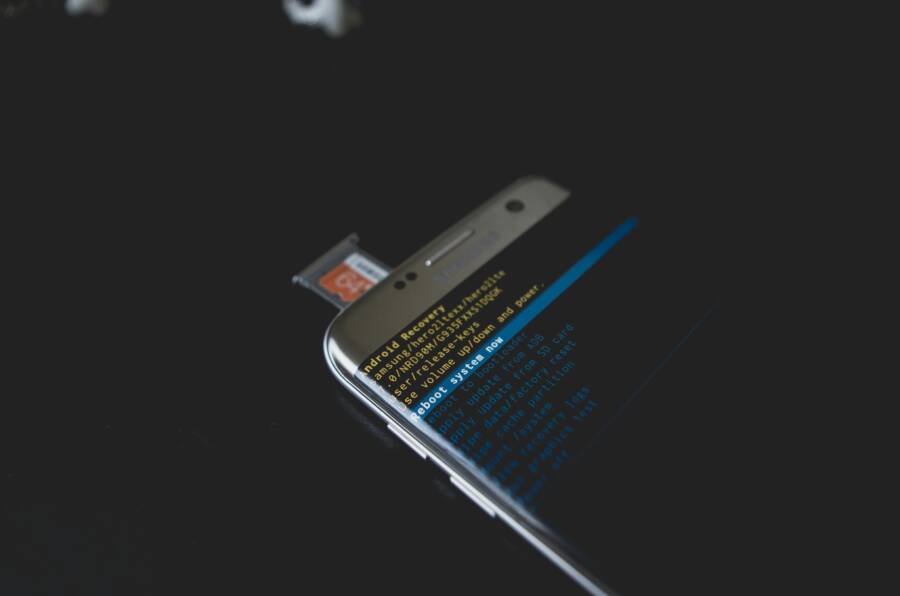
 Photo by Kelvin Valerio
Confirm Your Internet Connection Works
Your Docs experience hinges on a solid connection. Start by testing both Wi-Fi and mobile data to see if either is the bottleneck. On Android and iPhone, you can quickly switch between networks to compare results. If a page or file opens slowly, try turning airplane mode on for about 10 seconds, then switch it off to reset network connections. Remember, Google Docs has limited offline functionality; when you’re offline, you can view recently opened files and edit only in offline mode if you’ve prepped for it. If you rely on offline edits, be mindful of synchronization when you go back online. For ongoing issues, visit Google’s guidance on common Drive problems and troubleshooting steps to confirm whether a broader outage is at play.
- Test step you can try now: connect to a different network (a friend’s hotspot or a café wifi) and attempt to open a document again.
- If you see a message like “Temporary Error,” wait a few minutes and retry. You can check the Google Workspace Status Dashboard for any known outages.
- Screenshots idea: a split-screen view showing a phone connected to Wi-Fi vs. mobile data, a toggle of airplane mode, and a captured error banner if it appears. See also official fixes at Google support: Fix common issues in Google Drive.
Update the Google Docs App and Your Phone
Outdated software can crash or fail to launch apps. Start by updating Google Docs to the latest version in Google Play or the App Store. If updates aren’t available, check for an OS update on your device; sometimes newer app versions require a more recent system component. After updating, restart the Docs app and reopen your document. If problems persist, verify that other apps behave normally on the same device to determine if the issue is app-specific or device-wide. For persistent errors, refer to Google’s troubleshooting guides for Docs and related apps.
- Update steps: open the Play Store or App Store, search for Google Docs, tap Update if available.
- OS updates: go to Settings > System > Software Update (Android) or Settings > General > Software Update (iOS).
- Screenshots idea: store listing showing the update button, device software update screen, and a success confirmation. For guidance, see troubleshooting pages:
- Troubleshoot errors while you edit Google Docs, Sheets, & Slides
Restart Your Phone for a Fresh Start
A quick reboot clears stuck processes and resets apps to a clean state. On Android, hold the power button, choose Restart, and wait for the device to boot back up. On iOS, press and release the volume up button, then the volume down button, hold the side button until the Apple logo appears. This simple step helps resolve minor glitches that can stop Google Docs from opening. After the restart, launch Google Docs again and try to open your file.
- Why it helps: clears temporary caches and stops stuck background tasks that may block app launch.
- Screenshots idea: the restart option on Android, the Apple logo during iOS reboot, and a before/after indicator showing the app opening successfully.
References and further reading
- Troubleshooting guidance from Google Docs: https://support.google.com/docs/answer/7505592
- General Drive issue fixes: https://support.google.com/drive/answer/2456903
Images
- Photo by Kelvin Valerio on Pexels
Additional tips
- If you frequently switch between internet sources, keep a short checklist handy: test connection, update app, update OS, and reboot. These steps form a reliable baseline and often fix the issue without deeper troubleshooting.
Clear Cache and Data to Refresh the App
Sometimes Google Docs just won’t open because the app is trying to read outdated data. Clearing the cache and, if needed, the data can give the app a fresh start without removing your documents. Think of cache as a short term memory the app uses to load faster; clearing it forces Docs to fetch new, up-to-date information. This approach is quick, non-destructive, and often resolves first-run loading problems on both Android and iPhone.
Clear Cache on Android Phones
On Android, you can clear the Google Docs cache without losing documents. Start by locating the app settings, then move through to the Docs entry and clear the cache. If the problem persists, you can also clear all data for the Google Docs app, which resets the app to its original state when you first installed it. After clearing, reopen Docs and sign back in if prompted. This method reduces clutter that may be causing a slow or failed launch.
- What to do: Settings > Apps & notifications > Google Docs > Storage & cache > Clear cache. If needed, choose Clear storage or Clear data.
- Why it helps: the cache can become corrupted or stale after updates, and a clean slate lets the app fetch fresh info.
- Extra tips: if you clear data, you’ll need to sign back in and re-download offline files you rely on. For more details, see official guidance on clearing caches and cookies on Android and how it relates to Google Drive apps.
Key references:
- Android cache and cookies guidance: Clear cache & cookies – Android – Google Account Help
- How to clear the cache for Google Drive and Docs: How To Clear The Cache In Google Drive And Docs
Clear Cache on iPhones
iPhone users can offload or delete Google Docs data to refresh the app without wiping the entire phone. Offloading removes the app but keeps its documents and data in case you reinstall later. Deleting the app removes its data completely; you’ll need to sign back in and re-download needed files. On iOS, offloading is a quick middle path that frees space and resets app behavior without a full reset.
- Steps to offload: Settings > General > iPhone Storage > Google Docs > Offload App. Then reinstall from the App Store if you want to continue using it.
- When to delete: choose Delete App to remove all app data and then reinstall to start fresh.
- Why this matters: iOS manages app caches differently from Android, so offloading can clear hidden caches that affect launch times.
Additional context:
- For more on clearing app caches on iPhone without deleting, see guides on clearing cache for iPhone apps. If you’re looking to understand how this affects other Google apps, check nearby documentation as well.
- Related tips: Google Docs troubleshooting for iPhone can be found in official support and community threads.
- Helpful reference: Troubleshooting errors while you edit Google Docs, Sheets, Slides, & Vids
External resources you may find useful:
- Docs app won’t open – Google Docs Editors Community
- Troubleshoot errors while you edit Google Docs, Sheets, Slides, & Vids
Reinstall Google Docs for a Clean Setup
If Google Docs still won’t open after the basics, a clean reinstall often clears the stubborn cache and corrupted files that block launch. This step is simple and effective, whether you’re using Android or iPhone. It resets the app to its default state while keeping your documents safe in the cloud. Here’s how to approach it without losing work.
Why reinstalling helps
Reinstalling removes stray data that normal clears miss. A fresh install ensures you’re starting with a lean, unbroken app. It can fix issues caused by failed updates, corrupted cache, or conflicting settings. Think of it as giving Docs a brand-new shell while your documents remain accessible from Google Drive.
Prepare before you reinstall
- Verify your Google account access. Make sure you can sign in on another device or in a browser. If sign in fails, you’ll need to address account issues first.
- Check your offline files. If you rely on offline editing, confirm you have a recent backup of any changes you made while offline.
- Note your add-ons and preferences. Some settings will reset after reinstall, so you may want to capture a quick screenshot of critical configurations.
How to reinstall Google Docs on Android
- Uninstall Google Docs: long-press the Doc icon, drag it to Uninstall, or go to Settings > Apps > Google Docs > Uninstall.
- Restart your device. A quick reboot helps ensure no background process holds on to old data.
- Reinstall: open the Google Play Store, search for Google Docs, and tap Install.
- Sign back in. Use your Google account and re-sync to access all documents from Drive.
- Open Google Docs and try to open a document. If needed, re-download any offline files you rely on.
- Pro tip: while you’re in Google Play, consider updating other Google apps at the same time to prevent future compatibility issues.
How to reinstall Google Docs on iPhone
- Delete the app: touch and hold the Google Docs icon, choose Remove App, then Delete App to remove all data.
- Reboot your iPhone lightly to clear transient issues.
- Reinstall: open the App Store, search for Google Docs, and install.
- Sign in and sync. Your documents live in Google Drive, so you should see them once you’re signed in.
- Launch Docs and test opening a file. If you use offline editing, re-enable offline access for critical documents.
Aftercare to ensure a smooth restart
- Open a variety of files to confirm normal behavior. If one file still misbehaves, it might be an issue with that specific document rather than the app.
- Monitor app performance for a few days. If problems return, consider checking device storage space and permissions.
- Revisit offline settings. If you rely on offline edits, verify that the offline switch is enabled for the necessary files.
When to skip reinstall and seek alternatives
A reinstall is usually decisive, but if issues persist after a fresh install, there may be a broader device problem or an account-related block. In that case, try:
- Checking storage permissions for Google Docs and Drive.
- Testing within a different user profile or guest mode on your device.
- Reaching out to Google support if you notice ongoing outages or account-specific errors.
For further guidance, you can explore Google’s official help resources on Google Docs and Drive troubleshooting as an additional step if needed.
Handle Permissions and Storage Problems
When Google Docs won’t open, the issue often hides in permissions or available space. Getting these right ensures the app can access what it needs and run smoothly. This section covers the practical steps to grant the essential permissions and reclaim storage on both Android and iOS devices. Follow these checks before more advanced troubleshooting.
Grant Key Permissions to Google Docs
Permissions let Google Docs read files, access the network, and use your device’s storage as needed. Start by confirming the app has the right access on your Android or iPhone.
- Android: Make sure Docs has storage, files and media, and location permissions if prompted. You can verify and adjust in Settings > Apps & notifications > Google Docs > Permissions. If you’re trying to open a shared file, ensure you’re signed into a Google Account that has access and that the correct app is installed to handle the file type. For more details, see Get permission to open a file or folder on Android.
- iOS: Check that Google Docs can access Files and Photos if you plan to store or attach documents locally. Go to Settings > Google Docs > Photos and Files, then toggle permissions on. If you still can’t open a file, verify you’re signed into the right Google Account and that the proper app is installed to handle the document type. For iOS-specific guidance, refer to Get permission to open a file or folder on iPhone & iPad.
If you encounter a problem where a file won’t open, it could be a permissions issue rather than a fault in the app itself. In Android, you might need to download the necessary app to open the file; on iOS, installing the supporting app can also help. For broader permission guidance, see the official Android and iOS support pages linked in the references.
Photo by Andrey Matveev on Pexels
Free Up Space on Your Phone
Running out of storage can stop Google Docs from launching new documents or saving edits. Start by a quick, targeted clean rather than deleting precious photos. Focus on cache, downloads, and large attachments that creep up over time.
- Check storage stats: review what’s taking up space. On Android, use Settings > Storage to see large categories. On iPhone, go to Settings > General > iPhone Storage to identify candidate files and apps that consume space.
- Remove junk files: clear app caches, delete old downloads, and remove duplicate or unused files. Some apps let you purge cached data without touching your documents.
- Manage offline files: if you use offline editing, ensure you really need those offline copies. Delete or move out any files you no longer edit offline.
- Reclaim media aggressively: old videos, large speaker recordings, or archived downloads can be moved to the cloud or a computer. If you need a quick read on fast storage recovery, see the guide How to Free Up Storage on Android and iPhone.
- Smartphone note: after freeing space, restart Google Docs and try opening a file again.
If space remains tight, consider moving large attachments or media to Google Drive or another cloud service. Keeping a lean app cache also helps apps launch faster and run more reliably.
Photo by Andrey Matveev on Pexels
External resources you can consult for deeper storage cleanup:
- How to Free Up Storage on Android and iPhone
Images
- Hand holding smartphone displaying storage space usage with a clean interface.
Photo by Andrey Matveev
References and further reading
- Get permission to open a file or folder for Android
- Get permission to open a file or folder for iPhone & iPad
- Docs app won’t open – Google Docs Editors Community
- How to Free Up Storage on Android and iPhone
Note: All external links are included to support the guidance above and were selected to be relevant to the specific steps described.
How to Fix Google Docs Not Opening on Your Phone (Smartphone Troubleshooting Guide) – Advanced Fixes If Basics Fail
If the basics didn’t resolve the problem, it’s time to try deeper, targeted fixes. These advanced steps address common culprits like account sync quirks, VPN interference, and out-of-date system software. Think of your smartphone as a small work hub; sometimes a quick recalibration is all it needs. Below you’ll find concise, actionable actions that often restore smooth access to Google Docs on both Android and iPhone.
Sign Out and Sign Back Into Your Account
Your Google account can fall out of sync between the phone and the cloud. Signing out and back in helps re-establish a clean connection, which often clears hidden sync hiccups that prevent docs from opening. After you sign back in, give Google Docs a fresh moment to re-sync your files and preferences. If you use offline edits, re-enable offline access for the most recently used documents.
- Why this helps: it resets the connection to Google’s servers and forces a fresh sync cycle, which can fix hidden conflicts that block launch.
- How to do it: in Google Docs or the Google account settings on your phone, sign out, wait a few moments, then sign back in.
- Quick tip: if you see a sync message, give it a few minutes to complete before testing again. For more guidance, see Google’s guidance on syncing issues across devices.
Related resources: Google Docs syncing across devices, Android account sync fixes, and general Google Drive troubleshooting.
Turn Off VPN or Proxy Settings
A VPN or proxy can block or route traffic in ways that disrupt Google services. If you’re using a VPN on your smartphone, it can prevent Google Docs from connecting to the servers, causing launch failures or partial loading problems. Turning the VPN off lets your device connect directly to Google’s services and can instantly restore normal behavior.
- How to toggle off: swipe to your quick settings, disable the VPN, or open the VPN app and disconnect. On iPhone, go to Settings > VPN and toggle off.
- Why it matters: VPNs can slow down traffic or block specific endpoints needed for docs to load.
- Aftercare: reopen Google Docs and test opening a file. If you still see issues, try a different network or verify the VPN is not auto-starting on reboot.
For further context, see guides on turning off VPNs on Android and iPhone and how VPNs can affect app performance.
Update Your Phone Software Fully
Outdated OS components can cause apps to misbehave or fail to launch. A new OS version often includes fixes for bugs that affect app interactions, including Google Docs. Even if your device still works, a software update can provide essential compatibility improvements for the latest app features.
- Check for updates: Android users should go to Settings > System > Software Update, then install any available updates. iPhone users should go to Settings > General > Software Update.
- Why it helps: OS patches fix underlying issues that apps rely on, reduce crashes, and improve overall stability.
- What to watch for: after updating, restart the device, then reopen Google Docs to test access.
- Additional guidance: consult Google’s Android OS and iOS guidance on updating versions to ensure you don’t miss critical security or stability fixes.
External references you can consult for deeper steps:
- Update your device – Android Help
- How to Update or Upgrade Your Phone’s OS Version | Android
These resources provide step-by-step instructions tailored to your device. If your device is already fully updated and Google Docs still won’t open, consider the next steps or seek official support for account-related issues.
Conclusion
If Google Docs won’t open on your phone, a few targeted steps can restore normal use quickly. Start with the basics, then move to cache clearing, reinstalling the app, and checking permissions. Most of the time, the issue comes from a simple misstep or a minor software glitch that these steps fix.
Quick checklist
- Check your internet connection on both Wi Fi and mobile data.
- Update Google Docs and your device software, then restart the phone.
- Clear the app cache, and clear data if needed on Android; offload or reinstall on iPhone.
- Reinstall Google Docs if the problem persists.
- Verify app permissions and storage space; free up space if needed.
- Try using Google Docs in a browser as a fallback until the app behaves again.
Prevention helps a lot. Keep Google Docs and your phone updated to minimize clashes. Regularly review permissions and clear unused offline files to avoid future slowdowns. Manage storage so new edits can save without delays. If you rely on offline work, ensure those files are ready before you travel or switch networks. A quick reboot after updates also reduces surprises.
If you still encounter trouble, the web version offers a reliable alternative when the mobile app misbehaves. Temporarily switching to the browser keeps you productive while you troubleshoot. Share your results after you try these steps, and tell me which fix worked best for your device. Your experience helps others facing the same issue on their smartphone.