There Is a Frequency That the Wealthiest Families Have Used for Generations and Most People Will Never Know It Exists
>>> Open the Door <<<

Getting a quick shot goes from satisfying to frustrating in seconds when a phone keeps saying not enough memory to open camera. This error pops up from simple things like low storage, full cache, or a glitch in the software, and it can feel hard to fix without prior tech know-how.
In this guide you’ll see clear, step by step fixes for both Android and iPhone. We’ll cover the easiest moves first, like freeing up storage and clearing cache, then move to more targeted steps if the problem persists.
By the end you’ll know exactly what to try next and how to keep your smartphone ready for photos. This approach helps you resolve most memory related camera issues quickly, so you can snap, share, and move on.
Free Up Storage Space on Your Phone First
Before you dive into deeper fixes, free storage space on your device. When the camera app can’t open due to memory constraints, clearing room often resolves the issue quickly. Start with the most obvious culprits—large media files, downloads, and app data that pile up over time. A few focused cleanups can restore smooth camera performance and prevent future roadblocks.
There Is a Frequency That the Wealthiest Families Have Used for Generations and Most People Will Never Know It Exists
>>> Open the Door <<<
Find and Delete Large Files Quickly
Big videos and downloaded files are the usual suspects when storage runs dry. Here’s a fast, effective approach to locate them and reclaim space.
- Scan the Gallery or Photos app for oversized media. Most phones show file sizes in the details view; prioritize gigs and multi-gig video recordings first.
- Check the Files app or Files by Google to identify large downloads, app data, and cached content. Delete what you no longer need, especially old videos, weblink packages, and installers.
- Tidy up apps with big data footprints. Some apps keep cache or offline content that you can purge without losing essential data. Look for an option like Clear Cache or Clear Data in the App Info screen.
Safe backup tip: before you delete anything, back up your important files. Use cloud storage or connect to a computer to save photos, videos, and documents. This ensures you won’t lose cherished memories if you later realize you removed something valuable.
- Quick ways to spot big files by category:
- Large videos: sort by size in the Gallery or Photos app, then delete or offload the ones you don’t need.
- Downloads: inspect the Downloads folder in the Files app and remove installers, PDFs, or archives you’ve already saved elsewhere.
- App data: review apps with heavy caches and clear only the cache if you’re unsure about the data you can safely remove.
If you want a guided path on Android, Google’s Files by Google offers a straightforward way to delete large files and manage storage. You can follow their steps to delete large files and free up space with a few taps. For a practical visual guide, see a tutorial like “Delete large files – Files by Google Help.” Learn more about deleting large files on Android.
On iPhone, storage management is a bit different but the goal remains the same: remove the biggest space hogs first. Focus on large video files and old message attachments. Apple’s guidance on how to review and delete large attachments can help you reclaim space efficiently. Set up and use iCloud Photos and Review large attachments in Messages can guide you to clear space without losing recent conversations.
Image: Smartphone with a clean, organized screen showing a storage dashboard Credit: Photo by Leeloo The First
Move Files to Cloud or Computer
If you prefer not to delete content, moving files off the device is a safer, scalable option. Cloud storage and local backups keep your memory available for new shots while preserving your library.
- Google Drive on Android: Upload photos, videos, and documents to Google Drive to free up device space. The Android steps are simple: open Drive, tap the plus sign, and choose Upload. For more detail, see Google Drive Help’s guide on uploading files from Android. Upload files & folders to Google Drive – Android
- iCloud on iPhone: Use iCloud Photos or iCloud Drive to store media off the device. If you enable iCloud Photos, your originals sit in the cloud while device copies stay optimized. Apple provides step-by-step setup and usage for iCloud Photos. Set up and use iCloud Photos
- USB transfer to computer: You can move photos and videos to a PC or Mac via USB. On Windows, the Photos app can import from iPhone or iPad; on Mac, use Photos or Image Capture. Apple’s official transfer guidance covers both methods. Transfer photos and videos from your iPhone or iPad to your Mac or PC
Some quick OS-specific how-tos:
- Android to cloud: In Google Drive, you can upload entire folders or individual files. This is handy for large video projects or camera bites you want to keep but not on-device. Upload files & folders to Google Drive – Android
- iPhone to cloud: iCloud Photos keeps your library in the cloud and syncs across devices. This reduces on-device storage while keeping your memories accessible. Set up and use iCloud Photos
- USB transfer to computer: A direct USB connection offers a fast, reliable backup path. For Android, you can also move files via USB with the computer’s file explorer. How to Transfer Files from Android to PC Using a USB Cable
If you need a quick visual to guide you through moving onto cloud or computer, you’ll find practical walkthroughs in the linked resources above. They cover both Android and iPhone workflows so you can pick the method you prefer.
Image: Cloud storage concept with a phone and a laptop Credit: Photo by Leeloo The First
In this section, you’ve learned two practical paths to free up memory fast. You can erase unnecessary large files or move content to a safe home in the cloud or on your computer. Either approach clears the way for faster photo capture and smoother camera use on your device. When you’re ready, proceed to the next steps to ensure memory headroom stays ample for new memories.
Restart Your Phone and Clear Camera Cache
When memory complaints hit the camera, a quick reset and a cache purge can reset the balance. A soft restart clears temporary files and refreshes running processes, and a force restart can recover a frozen device without losing data. Clearing the camera app cache on Android removes accumulated files that can clog memory, often restoring quick camera launches. This section walks you through practical restart tricks and a step-by-step Android cache clear, so you can get back to snapping without the fuss.
Simple Restart Tricks That Often Work
If your camera app balks, start with a gentle reboot. A soft reboot closes all apps and clears volatile memory (RAM) without affecting your data. It’s often enough to fix a hiccup caused by a background process or a tiny software glitch.
- Soft reboot: Hold the Power button and choose Restart. This is the safest, quickest first move.
- If the phone freezes: Perform a force restart. On most devices, you press and hold the Power button (and sometimes Volume Down) until the screen goes dark and the device restarts. Don’t worry about losing data; a force restart should not erase apps or personal files.
- Why this helps: RAM holds active app data. When you restart, you release that memory, close misbehaving tasks, and give the camera app a clean slate to work from.
If your device still stumbles after a restart, consider repeating the process once more or trying a full power cycle by turning the device off, waiting a few seconds, then turning it back on. This simple step often eliminates stubborn RAM bottlenecks and restores smooth camera performance. For a deeper dive into how reboots help with RAM management, see practical guides from trusted support sources like Apple and major Android help centers.
Relevant resources:
- Force restart iPhone: https://support.apple.com/guide/iphone/force-restart-iphone-iph8903c3ee6/ios
- Why restart your phone can clear RAM issues: https://imobiledenver.com/fix-phone-reboots-when-opening-camera/
Clear Cache on Android Step by Step
Android devices accumulate cache across the system and apps. Over time, that cached data can slow things down and squeeze available memory, making the camera feel sluggish or unresponsive. Clearing cache is a safe way to reclaim headroom without affecting your files. Here’s a straightforward path you can follow.
- Open Settings and go to Apps or Apps & notifications.
- Tap Camera from the list of installed apps.
- Choose Storage & cache (or Storage).
- Tap Clear Cache first. If you’re still seeing issues, you can tap Clear Data, but note this resets camera settings and may remove offline content.
What you should know about clearing data:
- Clearing cache removes temporary files that help apps run faster.
- Clearing data resets the app to its default state, which can clear saved preferences or offline content. If you’ve customized camera modes or saved preferences, you may need to reconfigure them after the reset.
If you want a quick visual or official guidance, Android’s help articles cover the process of clearing cache and cookies on Android devices, along with steps to free up space. You can start here for a broad overview and then tailor the steps to your specific device. How to clear cache and delete cookies on Android
If you prefer a broader explanation of why cache matters on Android devices, a reputable guide explains what cache is and how clearing it can improve performance. What, why, when and how to clear cache on Android devices
For a practical how-to article that walks through common Android cache clearing steps, Tom’s Guide provides a clear tutorial you can follow. How to clear Android cache
And if you want an official aid path to reclaim space while you’re at it, Google’s Android Help has a dedicated article on freeing up space, which complements cache clearing. Free up space – Android Help
In practice, clearing cache on Android is a fast, low-risk move. It often yields immediate results, especially when the camera app fights to launch or displays errors. If you’ve got a trusted Android device and you want a quick check, try the cache clear and then reopen the Camera app to test the response. If problems persist, the next steps may involve a deeper software refresh or a targeted app reset.
External links provide broader context and official guidance, but the core idea remains simple: give RAM a breath of fresh air and remove stale data that hinders performance. If you’re ready, proceed to test the Camera app after the cache clear and observe whether launch times improve.
Troubleshoot SD Card Problems on Android
If your camera keeps giving memory errors, the SD card could be the culprit. A mismounted card, a card that’s full or failing, or the camera trying to save to a path that isn’t available can all trigger not enough memory messages. This section walks you through practical, focused steps to diagnose and fix SD card related issues on Android. You’ll learn how to remount or reinsert the card, switch the save location back to internal storage when needed, and test or format a faulty card to restore reliable camera performance.
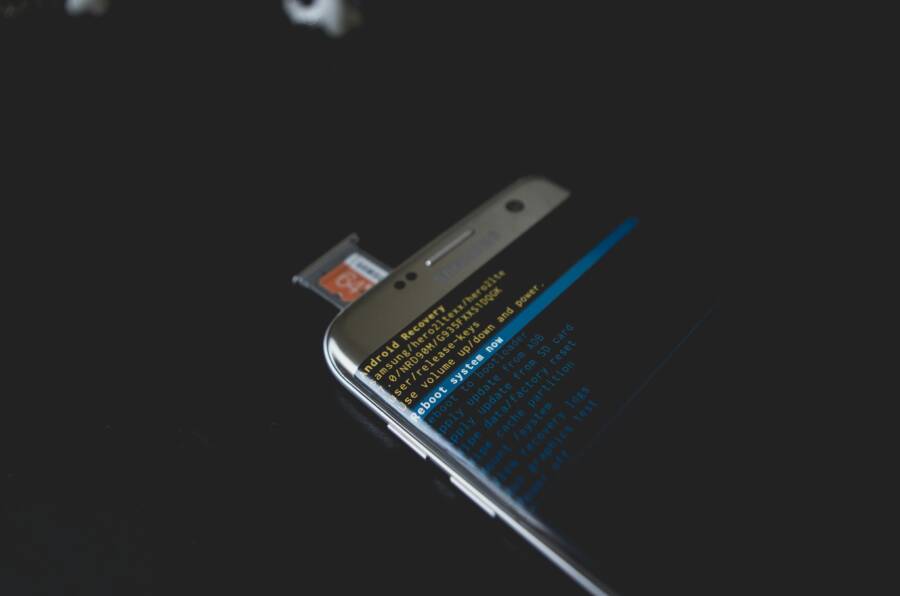
 Photo by Kelvin Valerio
Remount or Reinsert Your SD Card
A simple remount can fix many SD card hiccups. It resets the card’s connection with the Android system and can clear transient errors that block the camera from writing files.
- Start with a safe removal. Power off the device or ensure the camera app is closed before you touch the card.
- Remove the SD card carefully. Gently push on the card until it pops out slightly, then pull it out straight to avoid bending the contacts.
- Reinsert firmly. Line up the card with the slot and push it in until it sits snug. For some devices you’ll hear a soft click when it’s properly seated.
- Reboot the phone. A quick restart helps the system recognize the card again and clears temporary memory that might be blocking access.
In some cases the camera app may still show issues after remounting. If that happens, try removing the card again and reinserting it after a short pause. This small pause can give the system time to release the card’s lock and reestablish a clean connection. If the card continues to behave oddly, it might be time to test the card further.
External resources on safe removal and remounting:
- How to Unmount your SD Card & Eject from Any Android Device. https://www.youtube.com/watch?v=KaWH3OGknkA
- How to unmerge SD card on Android 12. https://support.google.com/files/thread/246367140/how-to-unmerge-sd-card-on-android-12?hl=en
If you still see memory errors after remounting, the card may be failing or too full for the camera’s needs. In that case proceed to testing and formatting steps to determine the card’s health.
Switch Camera Save Location to Internal Storage
Sometimes the camera app tries to save photos to the SD card by default, and a corrupted or misconfigured card blocks writes. Moving the save location back to internal storage gives you a quick way to verify if the problem is card related.
- Open the Camera app and go to Settings. Look for a setting named something like “Storage location” or “Save to.”
- Change the option from SD Card to Internal storage. The wording varies by device and Android version, but you’re looking for the path that determines where new photos and videos are written.
- Test by taking a quick photo. If the camera opens normally and saves to internal storage, the issue is likely with the SD card or its mount rather than the camera itself.
- If the card is needed for extra space, you can still use it after cleaning or reformatting. Just swap back after confirming the camera works on internal storage.
If you’re unsure where to find the setting on your device, you can search in Settings for “Storage” or “Camera storage” as a quick path. After switching back to internal storage, monitor your camera performance for a few days. If the camera continues to open without a memory error, it’s a strong sign the SD card was the source of the problem.
Links for reference on managing storage and camera save paths:
- How to install or remove memory card in Samsung phone. https://www.samsung.com/sg/support/mobile-devices/how-to-install-or-remove-memory-card-in-samsung-mobile-device/
- How to set an SD card as your Android phone’s default storage. https://www.slashgear.com/ How To Set An SD Card As Your Android Phone’s Default Storage
This step helps you confirm whether the root cause centers on the card or the camera app. If saving to internal storage fixes the issue, proceed to test the card with dedicated tools or a format routine to revive its reliability or decide it’s time for a replacement.
Test and Format a Faulty SD Card
Testing and formatting the SD card is the last decisive step when you suspect the card is bad. This process clarifies whether the card is salvageable or needs replacement. Back up everything first, then run a proper format to restore a clean, camera-friendly file system.
- Back up your data. Copy photos and videos to a computer, cloud storage, or another device. This protects your memories in case the card fails during the process.
- Run a card test. Many Android devices include a storage tool you can run from Settings that checks health. If yours doesn’t, try a reputable third party app from the Google Play Store that can test read/write speeds and detect bad sectors.
- Format for camera use. Choose a quick format (not a full format) if prompted. Quick formats erase file tables and create a fresh file structure that camera apps typically like.
- Re-insert and test. After formatting, reinsert the card or mount it again and test by saving a few photos and short videos.
Tips for safe formatting and card choice:
Thousands of People Were Struggling With Money Until They Discovered This One Ancient Secret Hidden in Sound
>>> Unlock It Now <<<

- Use a reputable SD card with ample write speeds. A high class rating (Class 10 UHS-I or better) helps ensure the camera can write files quickly and reliably.
- If the card keeps failing even after format, replace it. A failing card can corrupt files and cause repeated memory errors in the camera app.
- Maintain a regular backup routine. Offload new memories weekly to prevent data loss and keep your device running smoothly.
When to consider buying a new card
- Reproduced errors after reformatting
- Frequent file corruption or unreadable sectors
- Sudden performance drop during continuous shooting or video capture
Helpful references for SD card testing and formatting
- How to unmerge SD card on Android 12. https://support.google.com/files/thread/246367140/how-to-unmerge-sd-card-on-android-12?hl=en
- How to install or remove memory card in Samsung phone. https://www.samsung.com/sg/support/mobile-devices/how-to-install-or-remove-memory-card-in-samsung-mobile-device/
- How to set an SD card as your Android phone’s default storage. https://wwwSlashGear.com/How-To-Set-An-SD-Card-As-Your-Android-Phone-s-Default-Storage
In practice, a well-tested SD card that’s formatted for the device often resolves persistent memory errors in the camera app. If after formatting you still encounter issues, the camera should be tested with internal storage only to confirm whether the hardware itself is at fault. If the camera works fine with internal storage and fails only when the SD card is used, a new card is likely the best fix.
Images are a great way to illustrate the process and keep readers engaged. Consider pairing this section with a visual flow showing steps to remount, switch save location, and format the card. If you use images, ensure captions credit the photographer.
Credit: Photo by Kelvin Valerio
External resources for deeper guidance and official steps:
- Safe removal and remounting SD cards on Android devices. https://www.youtube.com/watch?v=UXk5ZlUd4W4
- Unmount SD cards and manage storage on Android. https://www.youtube.com/watch?v=KaWH3OGknkA
- Google Files help on unmerging SD cards. https://support.google.com/files/thread/246367140/how-to-unmerge-sd-card-on-android-12?hl=en
By following these steps, you can diagnose whether the SD card is the bottleneck and restore reliable memory to your camera app. If you’re ready, move to the next section to ensure your device keeps ample headroom for new captures.
Update Software and Try Extra Fixes
If the camera still refuses to open after freeing memory, refreshing software and trying a few additional tweaks can make a big difference. Software updates often fix bugs that cause memory errors, while small adjustments to how apps run can improve stability. This section covers how to check for system and app updates and what to try next if updates don’t fully resolve the issue.
Check for System and App Updates
Keeping your device and apps up to date is one of the fastest ways to restore camera reliability. Start with the basics: OS updates on your phone and the latest versions of your camera and related apps.
- On Android:
- Check for a system update in Settings > System > System update. If an update is available, install it and restart your device.
- Update your camera app in the Google Play Store by opening the Play Store, tapping your profile icon, selecting “Manage apps & device,” and updating the Camera app if an update is listed. For reference on updating Android OS, see the Android Help guidance on checking and updating your Android version. https://support.google.com/android/answer/7680439?hl=en
- If you prefer a guided approach, Android-focused guides like How to update your Android phone offer clear steps and screenshots. https://www.androidauthority.com/how-to-update-android-3263851/
- On iPhone:
- Open Settings > General > Software Update to check for iOS updates. Install any available updates and restart your device.
- Update apps from the App Store by opening the App Store, tapping your account profile, and updating all or select apps. Apple’s official guidance covers manual app updates. https://support.apple.com/en-us/102629
- For a quick recap on iOS app updates, see Update apps from the App Store on iPhone. https://support.apple.com/guide/iphone/update-apps-iph98709f167/ios
Tip: after installing updates, reboot your device to ensure new firmware and app code load cleanly. This simple step can fix lingering memory quirks and improve camera startup times.
If you keep encountering the same error after updates, the next moves are a targeted app reset and a quick cache purge. These steps remove stubborn data without touching your photos or files.
External resources to help with updates and app management:
- How to manually update apps from the App Store. https://support.apple.com/en-us/102629
- How to update apps on Android. https://www.avast.com/c-update-apps-android
- How to update iOS and Android devices in general. https://auburn.service-now.com/it?id=kb_article_view&sysparm_article=KB0012783
Force Stop Camera or Use a Different App
If updates don’t fully fix the problem, a clean exit from the camera app can reset its state. Forcing the app to close clears any stuck processes, then reopening the camera often launches smoothly. If you prefer alternatives, trying a different camera app can reveal whether the issue is specific to the stock camera.
- Force stop on Android:
- Go to Settings > Apps & notifications > See all apps > Camera > Force Stop. Reopen the Camera and test.
- Force stop on iPhone:
- Double-press the Home button or swipe up from the bottom (depending on model) to view recently used apps, then swipe the Camera app off the screen to close it. Reopen the Camera and test.
Safe third-party options:
- If you want a different approach, select a reputable camera app from the Google Play Store or App Store and test its responsiveness. Look for apps with good reviews, offline capabilities, and clear privacy practices.
After force stopping, give the device a minute to settle, then open the camera again. If the issue persists, you may be dealing with a deeper software fault or a hardware constraint that requires more in-depth steps. In many cases, a targeted app reset or a full software refresh helps.
Remember to back up important data before any drastic steps. If you decide to reset apps and data, keep essential photos safe in cloud storage or on a computer first.
External references for app management and safe alternative camera apps:
- How to unmount and reinsert SD cards on Android for stability checks. https://www.youtube.com/watch?v=UXk5ZlUd4W4
- Update apps on iOS and Android guidance overview. https://support.apple.com/en-us/102629
- How to test camera apps with different software on Android. https://www.avast.com/c-update-apps-android
This section helps you ensure the software side is not the bottleneck. If updates and app restarts don’t fix the memory error, you’ll be ready to test storage hardware and card health in the next steps.
There Is a Frequency That the Wealthiest Families Have Used for Generations and Most People Will Never Know It Exists
>>> Open the Door <<<
Factory Reset: Use Only If Nothing Else Works
If memory issues persist after trying storage cleanup, cache clearing, and SD card checks, a factory reset becomes a last resort. Think of it as a fresh start for the device. It wipes your data and returns the phone to its original state, so you’ll want to be certain you’ve exhausted safer options first. A factory reset can resolve stubborn software glitches that block the camera from launching, but it also means reconfiguring settings and reinstalling apps. If you’re ready for that level of reset, follow these careful steps to minimize disruption.
When to consider a factory reset
- You’ve tried freeing space, clearing cache, and testing with internal storage, yet the camera still won’t open.
- The device behaves erratically beyond the camera app, and safer fixes haven’t helped.
- You’re preparing to sell or give away the device and need a clean slate to protect your data.
A reset is not a quick fix you reach for first. It should come after you’ve backed up important memories and verified you can restore essential apps and data. For many users, a reset combined with a fresh installation of the latest OS brings better stability than a patchy workaround.
Back up first to protect your memories
A factory reset wipes everything, including photos, chats, and app data. Do this step well before you begin.
- For Android users, back up to Google Drive or a local computer. The goal is to preserve messages, notes, and media so you can restore later.
- iPhone users should back up to iCloud or a computer via Finder or iTunes. This guarantees your Photos library and app data can be recovered after the reset.
- Verify you can access your backups from another device. A quick check reduces anxiety about losing cherished memories.
If you’re unsure what to back up, use a small, practical rule: back up anything you’d hate to lose in a fire drill. Then proceed to the reset with confidence.
Android: how to perform a factory reset
Factory resetting an Android phone is straightforward, but steps can vary by manufacturer. The classic path is through Settings, with a recovery option as a fallback if the system menu is unresponsive. Here’s a reliable, widely applicable approach.
- Open Settings > System > Reset options. Choose “Factory data reset” or a similarly labeled option.
- If you can’t access the settings menu, use Recovery Mode. Power off the device, then press and hold the appropriate key combination (often Power + Volume Down) to boot into recovery. Use the volume keys to navigate to “Wipe data/factory reset” and confirm with the power button.
- After the reset, the device will reboot to its initial setup screen. You’ll need to restore your data from the backup you created.
Helpful reference for Android users:
- Reset your Android device to factory settings. This official guide covers the standard path and recovery mode options. https://support.google.com/android/answer/6088915?hl=en
- Android help and troubleshooting that explains best practices before a reset. https://support.google.com/android/answer/7651524
If you’re planning a clean start, remember to reinstall essential apps and reconfigure settings gradually. This helps you verify whether the memory issue was rooted in a specific app or a broader software fault.
iPhone: how to factory reset
An iPhone factory reset is similar in purpose but follows Apple’s exact steps to ensure data is erased securely. The process works whether you’re keeping the device for yourself or handing it to someone else.
- Back up your iPhone using iCloud or a computer. This makes restoring data after the reset simple and safe.
- Go to Settings > General > Transfer or Reset iPhone. Tap “Erase All Content and Settings.”
- If you’re prompted, enter your passcode and Apple ID password to turn off Find My iPhone and confirm the erase.
- After the device resets, you’ll reach the setup screen. Restore from your backup during setup to regain apps and data.
For reference on the official Apple guidance:
- How to factory reset your iPhone, iPad, or iPod touch. https://support.apple.com/en-us/108931
- Restore your iPhone using a computer if needed. https://support.apple.com/en-us/118107
If you choose to reset, plan the reconfiguration carefully. Reinstall your most-used apps first, test the camera, and then gradually bring back the rest. This staged approach helps you identify if a particular app or setting reintroduces the memory issue.
After the reset: restore data and test
- Reconfigure essential settings first. Set up your Wi-Fi, notifications, and privacy preferences before loading lots of media-heavy apps.
- Restore a recent backup and monitor the camera’s launch time. If the camera still struggles to open, the problem may be hardware related or tied to a specific app’s post-restore behavior.
- Update all apps after restoration. Fresh app versions fix known bugs and improve memory management.
If memory issues return after restore, you may need a deeper look at the hardware, or you might consider professional service. A reset is powerful, but it also reveals how well your device handles a clean slate.
External sources you can consult for additional steps and safety measures:
- How to factory reset your iPhone, iPad, or iPod touch. https://support.apple.com/en-us/108931
- Reset your Android device to factory settings. https://support.google.com/android/answer/6088915?hl=en
Remember, a factory reset should be a final option after all other fixes fail. When done carefully, it can restore reliable performance and clear the path for your camera to open quickly again.
Images and illustrations can help readers visualize the process. If you include visuals, caption them clearly and credit the photographer as needed. For instance, a diagram showing the flow from back up to setup can boost comprehension for readers new to this step.
In the next sections, we’ll return to practical tweaks that can help you avoid landing here again. A few targeted adjustments often prevent these issues from cropping up in the first place, keeping your smartphone ready for memory-light photo sessions.
Conclusion
Recap of top fixes in order: free up storage space, restart your phone and clear the camera cache, check SD card status and save location, test with internal storage, update software, and if needed reset apps or the device. These steps proceed from quick wins to deeper checks, so you can fix the issue without heavy tech support.
Try these steps safely and in sequence. Start by freeing space and rebooting, then clear the camera app cache on Android or force close the camera on iPhone. If the problem persists, recheck where photos are saved and switch back to internal storage if you use an SD card. Update the system and camera app, then consider a targeted app reset or a quick factory reset only after you’ve backed up data.
If you still see the message, think of your device as a trusted tool for everyday moments. In some cases the memory issue points to a broader software or hardware constraint rather than a single misbehaving app. For ongoing or rare cases, check device model forums for model specific tips, hotfix notes, or rollback options. These communities often surface practical tweaks that work for your exact phone and OS version.
Sharing your experience helps others avoid the same roadblocks and keeps you living a smoother digital life with your smartphone. If you have a tip that worked for you, drop it in the comments and inspire fellow readers.
Thousands of People Were Struggling With Money Until They Discovered This One Ancient Secret Hidden in Sound
>>> Unlock It Now <<<