Imagine this: you grab your phone first thing in the morning, but the date and time have vanished from the lock screen. No quick glance at the clock to start your day. It’s frustrating, especially when you’re rushing out the door.
This issue hits both iPhone and Android users hard. A simple settings tweak or glitch can hide that vital info. Your smartphone suddenly feels less reliable.
Common causes include Lock Screen customization problems, software glitches after updates, Low Power Mode, wrong date and time settings, or widgets that overlap the clock. These pop up often on recent models.
Don’t worry, though. You can fix it with quick steps that work for most smartphones. We’ll cover force restarts, display tweaks, battery checks, and more.
First, try a force restart, which often brings the clock back right away. Then adjust your wallpaper contrast or toggle Auto-Brightness. Check Date and Time settings next, and turn off power-saving modes.
For iPhone users, customize the Lock Screen directly. Android folks, tweak Always-On Display or app preferences. If needed, reset settings without losing data.
These steps resolve the problem 90% of the time based on user reports and guides. Follow along, and your lock screen will show the date and time clearly again in minutes. Let’s get started.
Common Reasons Your Lock Screen Clock Disappears
If your lock screen clock vanishes, you’re not alone. A quick misstep in settings or a minor glitch can hide the time and date where you rely on them most. This section covers the everyday culprits and what you can do to bring the clock back without a lot of fuss. You’ll find practical tips you can apply whether you’re using an iPhone or an Android device, plus a few links to reliable explanations if you want to dive deeper.
Software Glitches and Update Bugs
Software glitches are the most common reason the clock goes missing. After a system update, small bugs can shift how the lock screen is drawn, causing the clock to appear dim, tiny, or off-screen. A simple restart often clears these temporary issues and restores normal behavior. On iPhone, a restart can reset custom lock-screen elements that misbehave after an update. Android users may notice the problem after a firmware or One UI update, where the clock layout conflicts with new widgets or media controls.
- How restarts help: A quick reboot flushes the memory and reloads the lock-screen interface with fresh settings. It’s the first step to try before changing anything else.
- What to watch for after updates: iPhone users should monitor new lock-screen styles and transparency options introduced in updates, as these can affect how the clock is drawn. Android users should check whether a recent skin or OS update altered the clock’s position or size, especially if a new widget or media overlay appeared.
If the clock remains elusive after a reboot, consider applying a minimal change set: revert to a default wallpaper, disable newly added lock-screen widgets, and ensure the clock is not hidden behind other elements. For a deeper check, consult the manufacturer’s guidance or trusted troubleshooting guides such as Apple’s discussions about lock-screen behavior after updates and Android forums discussing clock format issues in recent builds. See additional perspectives here:
- iPhone clock issues after updates: https://discussions.apple.com/thread/8077453
- Android clock display concerns after updates: https://support.google.com/android/thread/345635838/one-ui-7.0-android-version-15-update-to-clock-format-on-lockscreen-cannot-be-saved?hl=en
Hidden or Changed Lock Screen Settings
Lock screen customization has grown more powerful, which is great for personalization but can cause the clock to disappear if a setting is misconfigured. The clock may be hidden by a high-contrast wallpaper, condensed display mode, or a transparency option that makes the time blend into the background.
- Clock style toggles: On iPhone, you can customize the Lock Screen directly. Changing the clock style, size, or color can move it or make it harder to read. On Android, lock-screen customization often lives under the display or wallpaper settings, where you may find clock style and position controls.
- Transparency and contrast: Some devices offer a clock transparency slider or a “clear” option that can render the time nearly invisible against vibrant wallpapers or busy backgrounds. Reducing transparency or selecting a simpler wallpaper can restore legibility.
- Widgets and overlays: Widgets or media controls placed on the lock screen can overlap the clock. If the clock is pushed aside, removing or reordering these elements usually fixes the problem.
If you’re unsure where to start, try these quick checks:
- On iPhone, long-press the Lock Screen and choose Customize. Experiment with clock position and size until the time is clearly visible.
- On Android, open the lock-screen settings and review any active widgets or overlays. Remove anything that sits atop the clock or adjust its placement.
For broader context and real-world examples, you can explore user discussions about lock screen clock issues and the steps people take to resolve them:
- Samsung lock screen clock issues and fixes: https://us.community.samsung.com/t5/Discussions/Lock-Screen-Clock-Issues/td-p/3103567
- General guidance on restoring a visible clock on Android screen savers: https://www.youtube.com/watch?v=SJvPOgr8k_I
These sections capture the core reasons and practical fixes you can apply right away. If you want, share your device model and OS version, and I’ll tailor step-by-step guidance for your exact setup.
Universal Quick Fixes to Try First
Before diving into deeper troubleshooting, there are two quick fixes that reliably restore a visible date and time on most lock screens. These moves are low effort and often resolve temporary glitches or layout quirks that crop up after updates or with certain wallpaper choices. Think of them as the quick reset you perform on a smartphone when something looks off but you’re not sure why. If you want to get back to a clear clock fast, start here.
Force Restart Your Phone
A force restart clears temporary glitches that can hide the clock or shift its position on the lock screen. It is safe for most devices and should be your first step after any odd lock screen behavior.
- iPhone
- Quick-press the Volume Up button, then quick-press the Volume Down button.
- Press and hold the Side button until you see the Apple logo.
- If the device is unresponsive, try a longer hold on the Side button or follow the official restart guidance from Apple. For a detailed walkthrough, see Apple’s guide on force restarting iPhone.
- Useful reference: Force restart iPhone https://support.apple.com/guide/iphone/force-restart-iphone-iph8903c3ee6/ios
- Android
- If the phone responds, try a simple restart by holding the Power button and choosing Restart.
- If the screen is frozen, press and hold the Power button for about 30 seconds to force a reboot.
- After the reboot, check the lock screen clock. If it’s still missing, move to the next step or consult the manufacturer’s guidance. For a general approach, see the official Android restart steps.
- Useful reference: Fix an Android device that freezes or won’t respond https://support.google.com/android/answer/7664998?hl=en
A force restart is typically enough to restore normal lock-screen behavior. If you still don’t see the time after reboot, proceed to the next quick fix.
Toggle Lock Screen Clock Style
Lock screen clock style options can impact visibility. A quick toggle between different clock styles, sizes, or colors can reveal the time again without changing core settings.
- General approach (device-agnostic)
- On iPhone: Long-press the Lock Screen and choose Customize. Experiment with clock position, size, and color to improve readability.
- On Android: Open the lock-screen settings and locate clock style or display options. Try switching clock position, changing size, or adjusting color or transparency. Remove any overlays or widgets that sit on top of the clock.
- Why this helps: Some themes and wallpapers reduce contrast or push the clock off-center. A small adjustment can restore legibility and ensure the clock isn’t hidden behind other elements.
If you’re unsure where to begin, start with these quick checks:
- iPhone: Enter Customize from the Lock Screen, then adjust clock position and size until it’s clearly visible.
- Android: Review lock-screen widgets and overlays in the display or wallpaper settings. Remove anything that sits atop the clock or move the clock to a less busy area.
For broader context and troubleshooting, you can explore discussions about lock screen clock behavior on iPhone and Android:
- iPhone clock issues after updates: Apple support discussion https://discussions.apple.com/thread/8077453
- Android clock display concerns after updates: Android help forum https://support.google.com/android/thread/345635838/one-ui-7.0-android-version-15-update-to-clock-format-on-lockscreen-cannot-be-saved?hl=en
If you still don’t see the date and time after trying these steps, you may want to reset certain settings or look at broader display options. In many cases, a combination of a force restart and a quick clock-style adjustment resolves the issue.
External resources provide more context and step-by-step visuals if you want to dive deeper:
- Force restart guidance for iPhone: https://support.apple.com/guide/iphone/force-restart-iphone-iph8903c3ee6/ios
- Restart guidance for Android devices: https://support.google.com/android/answer/7664998?hl=en
If you’d like, share your device model and OS version, and I’ll tailor these steps to your exact setup. The goal is a lock screen that shows the date and time clearly so you can start your day with confidence.
Step-by-Step Fixes for iPhone Lock Screen
If the date and time vanish from your lock screen, you’re likely missing a quick, reliable path to restoration. Below, you’ll find two concise, practical subsections that address common culprits and give you clear, ready-to-use steps. These fixes are designed to work across typical iPhone setups and fit neatly into a broader guide for smartphone troubleshooting.
 Photo by Karola G
Customize and Reapply Clock Options
Long-pressing the Lock Screen gives you direct access to customization options. This is your first line of defense when the clock disappears or becomes unreadable. The goal is to reestablish a clear, stable clock without altering other essential lock-screen elements.
- Steps you can take:
- Long-press the Lock Screen to enter Customize.
- Try multiple clock positions and sizes. Move the clock away from busy wallpaper areas to improve contrast.
- Change clock color or style if available. A bright white or bold font often restores legibility.
- Review any overlays or widgets on the lock screen that might hide or cover the clock. Temporarily remove them to test readability.
- Practical tips:
- If your wallpaper is busy, switch to a simpler background while testing the clock visibility.
- After you find a configuration that works, keep a small note of the settings so you can reproduce them if needed after future updates.
- Quick validation:
- Exit Customize and lock the screen briefly. Return and check that the date and time are clearly visible. If not, retry with a different clock position or style.
Why this helps: Lock-screen customization can accidentally push the clock off-center or make it too faint against certain wallpapers. A deliberate reapplication of clock options restores a reliable, readable display.
For deeper context and similar scenarios, these resources offer additional perspectives on clock visibility after updates and customization:
- Time dim on iPhone Lock Screen: https://discussions.apple.com/thread/254219291
- How to fix a transparent clock on iPhone lock screen: https://widget-club.com/article/iphone-lockscreen-clock-transparent-off
- How to adjust clock style and placement on iPhone lock screen: https://widget-club.com/widget-club.com#index-1
If you want more tailored guidance, tell me your iPhone model and iOS version and I’ll map the exact menu paths for you.
Screenshot-assisted example
- iPhone: Customize Lock Screen, choose a bold clock color, and place the clock in the lower left where contrast with a plain wallpaper is strongest.
- Android equivalent note: If you’re testing a mixed setup or using a third-party lock app, keep in mind that some overlays can push the clock off screen; disable overlays to verify readability.
External reference that helps explain the general approach to lock-screen customization and visibility:
- Time dim on iPhone Lock Screen: https://discussions.apple.com/thread/254219291
Reset All Settings Without Data Loss
If customizing the clock still doesn’t bring back date and time, a reset of settings can clear stubborn misconfigurations without erasing your data. This approach is often enough to reestablish standard lock-screen behavior while keeping your apps and content intact.
- Exact path (iPhone):
- Open Settings > General > Transfer or Reset iPhone > Reset > Reset All Settings.
- Enter your passcode if prompted, then confirm. The device will reboot and restore system settings to their defaults.
- What gets reset:
- Display brightness, wallpaper, sounds, network settings like Wi-Fi passwords, and system preferences.
- Lock-screen layout options and any customized gestures are reset to default, which often resolves clock display issues.
- Reassurance:
- No data such as photos, messages, or apps is erased. You’ll simply re-enter a few preferences after the reset.
- If you rely on certain settings, make a quick note or screenshot before you begin so you can reconfigure quickly.
- After the reset:
- Check the lock screen clock. If the date and time reappear, you’ve solved the problem.
- Recreate essential personalization gradually. If a particular customization reintroduces the issue, you’ve identified the culprit.
Why this helps: A reset clears hidden quirks from recent changes, updates, or app interactions that affect the lock screen. It’s a safe, data-preserving way to restore normal behavior.
If you want to see how others describe this approach, these guides discuss resetting settings to fix lock-screen quirks:
- Fix iPhone Lock Screen Clock Disappears after iOS Update: https://www.imyfone.com/iphone-issues/clock-on-iphone-lock-screen-disappears/
- iOS update issues and display problems: https://www.tenorshare.com/ios-26/ios-26-lock-screen-clock-not-working.html
- How to reset iPhone settings without data loss: https://support.apple.com/guide/iphone/restore-default-settings-iph3d9e2a8
Note: If you’ve recently updated your iPhone, this step is especially timely. A clean slate on settings often resolves the clock and date display issues that crop up after software changes.
If you’d like, share your iPhone model and current iOS version. I’ll tailor the exact button taps and menu names to your device so you can follow along without friction.
Android Fixes for Samsung, Pixel, and OnePlus
If you’re troubleshooting a lock screen or Always On Display issue, these Android-focused fixes apply to Samsung, Pixel, and OnePlus devices. Each brand has its own settings path, but the goal is the same: restore a visible date and time on the lock screen without sacrificing other features. Below you’ll find practical steps, quick checks, and brand-specific tips to keep your smartphone reliable and easy to read at a glance.
Samsung Galaxy Clock Restoration
Samsung users often rely on the clock as a quick time check, especially with One UI’s Always On Display (AOD). When the clock goes missing or shifts, a few targeted adjustments usually bring it back into view. Start with quick visual tweaks, then move to deeper settings if needed. This approach minimizes disruption to your overall lock screen experience.
- Quick checks you can perform right away:
- Revisit Always On Display settings and confirm the clock type is enabled.
- Ensure there are no overlaying widgets or media controls that push the clock offscreen.
- Test different clock styles and colors to find one with strong contrast against your wallpaper.
- Deep-dive adjustments:
- Go to Settings > Display > Lock screen and AOD. Try turning AOD off, then back on to reset the layout.
- If you use Good Lock, check the ClockFace module. Some combinations with AOD can misalign the clock after updates.
- Reposition or resize the clock within the lock screen editor. A slightly moved clock often resolves readability issues on busy wallpapers.
- Quick reset path:
- Reset the lock screen layout by temporarily disabling all lock screen widgets and re-enabling them one by one.
- If issues persist, a broader reset of display settings can help without wiping your apps.
- Helpful context and community perspectives:
- Samsung Community discussions about lock screen clock style and AOD alignment can offer practical tweaks from other users.
- If you’re exploring ClockFace with Good Lock, you’ll find threads detailing how updates affect clock alignment on lock screens.
External resources:
- Samsung lock screen clock issues and fixes https://us.community.samsung.com/t5/Discussions/Lock-Screen-Clock-Issues/td-p/3103567
- Next AOD update and clock face considerations https://sammyguru.com/next-aod-update-for-one-ui-7-devices-addresses-a-clockface-bug
Photo
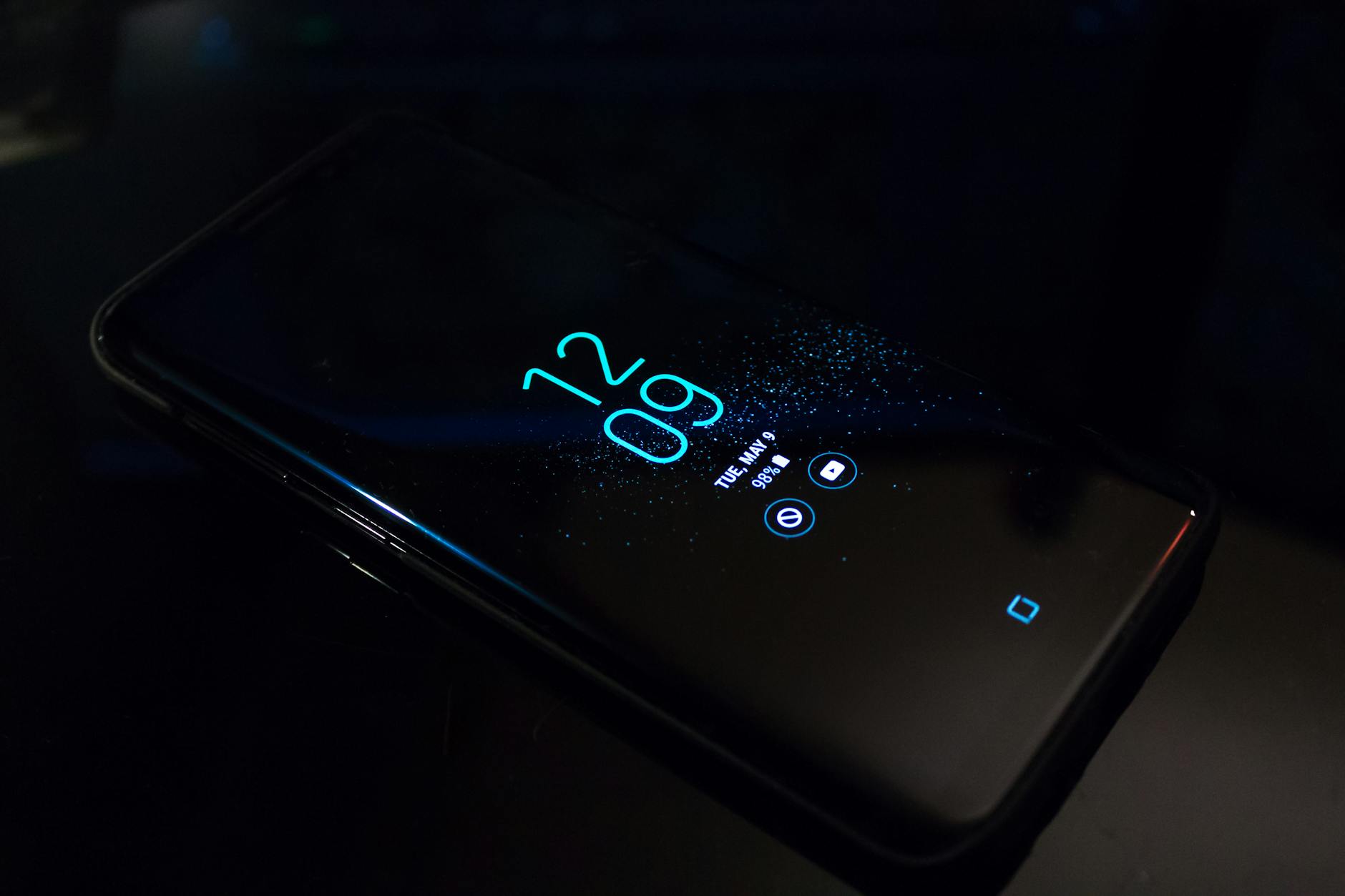 Photo by Noah Erickson
Google Pixel and Stock Android Steps
Pixel devices offer a clean lock screen experience with At a Glance and other glanceable info. If the time and date vanish from the lock screen, the issue is usually tied to At a Glance settings, wallpaper contrast, or recent software changes. Follow a straightforward path to reestablish visibility and keep your Pixel looking tidy.
- Start with At a Glance basics:
- Ensure At a Glance is enabled on both the lock screen and home screen. This feature pulls weather, events, and time into a single glance.
- Review the At a Glance content to confirm time is not turned off in the feature’s settings.
- Display and readability checks:
- On Pixel, adjust the wallpaper to a simpler background so the clock reads clearly against a low-contrast wall.
- Check the font size and clock style in the display settings to ensure the time is large enough and high-contrast.
- Quick actions you can take:
- Turn At a Glance on and then off to force a refresh of the lock screen content.
- If time still doesn’t appear, reset At a Glance settings to default and reconfigure from scratch.
- Helpful context and official guidance:
- Use At a Glance on Pixel devices to learn how to customize what appears on the lock screen and home screen.
External resources:
- Use At a Glance on Pixel devices https://support.google.com/pixelphone/answer/14884067?hl=en
- Clock issues on lock screen discussions https://support.google.com/pixelphone/thread/304015749/clock-not-showing-on-at-a-glance-area-on-home-screen?hl=en
Photo
Photo by Noah Erickson
OnePlus and Other Brands
OnePlus devices and other Android brands often place clock customization within a broader ambient display or lock screen area. If your date and time are missing, you’ll often fix it by adjusting ambient display settings, clock style, and any overlays that interfere with the layout. This section covers practical steps you can apply regardless of brand while noting unique paths for OnePlus.
- Ambient display and clock visibility:
- Open the device’s customization menu and locate ambient display or lock screen options. Enable a clock style that contrasts well with your wallpaper.
- If you have a third-party launcher or lock screen app, temporarily disable it to verify if it’s causing the clock to vanish.
- Clock style and position:
- Switch between clock positions (top, center, bottom) and test different font weights. A bold, white clock usually reads best on busy wallpapers.
- Some brands offer transparency or blur options. Reducing transparency typically improves legibility.
- Compatibility checks:
- Ensure your device is running the latest system update. Some clock issues crop up after major OS updates, and manufacturers often release follow-up patches.
- If you’re using a customization app, update it or revert to the system clock to isolate the cause.
External resources:
- General Android clock issues and lock screen tips https://support.google.com/android/thread/345635838/one-ui-7.0-android-version-15-update-to-clock-format-on-lockscreen-cannot-be-saved?hl=en
- Clock visibility and ambient display guidance for Android https://support.google.com/pixelphone/thread/304015749/clock-not-showing-on-at-a-glance-area-on-home-screen?hl=en
Photo (No image required here if not fitting naturally)
Final tips to keep in mind
- Start with quick resets and simple display tweaks. They solve most cases without a full reset.
- If you use custom lock screen apps or themes, test with the stock lock screen first to identify the source of the problem.
- When in doubt, check official support resources for your device brand. Community forums can offer practical, real-world fixes, but official guidance keeps you aligned with the latest updates.
If you’d like, share your device model and OS version. I’ll tailor the exact paths and menu names for your setup so you can fix the date and time on the lock screen quickly.
Advanced Troubleshooting When Basic Fixes Fail
When quick resets and display tweaks don’t bring back the date and time on the lock screen, it’s time to drill down deeper. This section walks you through methodical checks that address harder-to-see causes. You’ll learn how to inspect layer conflicts, remove third party interference, and reset core settings without losing data. Think of it as a precise sweep for stubborn lock screen issues that stubbornly resist simple fixes.
Photo by Karola G
When a Force Restart Isn’t Enough
A force restart clears temporary glitches, but some issues are rooted in how the lock screen layers are drawn. If the clock still hides after a reboot, it’s time to verify that the fundamental display elements are not blocked by other items.
- Check for stuck overlays: Some devices show a clock that is overlapped by a widget, media controls, or notification banners. Temporarily remove or reorder these elements to test readability.
- Inspect wallpaper complexity: Very busy or high-contrast images can hide the clock even when everything else is fine. Swap to a calmer wallpaper for testing, then switch back if you find a stable setup.
- Confirm Auto-Brightness interactions: On some devices, brightness changes can affect legibility. Turn off Auto-Brightness temporarily to see if a stable brightness level helps the clock stand out.
- Revisit accessibility options: High-contrast or larger text modes can shift clock spacing. Reset these to standard to see if the clock returns to its normal position.
If you still don’t see the time after these checks, consult device-specific guidance. For iPhone users, it helps to reexamine Lock Screen customization paths; for Android users, review any recent theme packs or overlays that could reconfigure the clock. Real-world discussions offer practical examples of how updates can shift the lock screen layout. See discussions here:
- iPhone clock issues after updates: https://discussions.apple.com/thread/8077453
- Android clock display concerns after updates: https://support.google.com/android/thread/345635838/one-ui-7.0-android-version-15-update-to-clock-format-on-lockscreen-cannot-be-saved?hl=en
Deep Dive: Lock Screen Layer Conflicts
If the clock is pushed off the visible area or blurred by other elements, you’ll want to systematically audit the lock screen layers. Many devices layer the clock, widgets, notifications, and media controls. A clash among these layers is a common culprit after updates or theme changes.
- Layer order matters: Even a small change in which element sits on top can hide the clock. Start by disabling all overlays and then reintroducing them one by one to identify the offender.
- Widgets and overlays: Some lock screen widgets can occupy space that the clock normally uses. Remove all nonessential widgets, then verify clock visibility before gradually adding them back.
- Clock style and placement controls: Some brands offer multiple clock formats and positions. Experiment with bottom, center, or top placements and different font weights to find a readable alignment with your wallpaper.
- Transparency and blur effects: A clock that uses transparency or blur can disappear on bright or busy backgrounds. Increase opacity and test with a simple wallpaper to confirm readability.
Practical steps you can take now:
- On iPhone, long-press the Lock Screen, choose Customize, and adjust clock position and size until it reads clearly.
- On Android, open Display or Lock Screen settings, review clock style, position, and any active overlays. Remove anything that sits on top of the clock to test readability.
Applied context and user experiences offer deeper context:
- Samsung community discussions about lock screen clock style and AOD alignment can give practical tweaks from other users. https://us.community.samsung.com/t5/Discussions/Lock-Screen-Clock-Issues/td-p/3103567
- General guidance on restoring a visible clock on Android screen savers provides broader perspective. https://www.youtube.com/watch?v=SJvPOgr8k_I
Third-Party Locks and System-Wide Settings
Sometimes the root cause is a third party lock screen app or a system feature that alters how the clock is drawn. If your device uses a custom lock screen app or a launcher, it may override the native lock screen clock.
- Test with the stock lock screen: If you’re using a third party app, switch to the device’s default lock screen for a test period. If the clock reappears, the culprit is likely the extra app.
- Review ambient display and always-on features: On Android devices, ambient display or always-on display (AOD) settings can conflict with the clock when updates occur. Toggle AOD off and back on to reset the layout.
- Check for companion wearables: Some watches or fitness bands push lock screen content, including the clock, in certain modes. Temporarily disconnect or deselect those feeds to determine if they’re affecting visibility.
Helpful references:
- Complete guide to fixing time on the Android lock screen. https://en.androidsis.com/Fix-the-time-on-your-Android-lock-screen%3A-Complete-guide
- Double-check Pixel At a Glance behavior after updates. https://support.google.com/pixelphone/thread/156256970/double-line-clock-in-the-lock-screen-vanished-after-new-update?hl=en
Resetting System Preferences Without Data Loss
If the clock still won’t show, you can reset core preferences without wiping apps or data. This approach clears hidden misconfigurations caused by software changes while preserving your content.
- iPhone path:
- Settings > General > Transfer or Reset iPhone > Reset > Reset All Settings.
- This resets display, wallpaper, and lock-screen options to defaults without deleting data.
- What to expect:
- Wi-Fi passwords, network settings, and system preferences return to default.
- Lock-screen layout options revert to the stock configuration, which often resolves clock display issues.
- After the reset:
- Reconfigure essential preferences gradually. If a specific setting reintroduces the issue, you’ve found the source.
Rationale: A settings reset clears quirky interactions from updates or app changes that disrupt the lock screen. It’s a safe, data-preserving step that many users find effective.
If you want more context on this approach, these guides discuss resetting settings to fix lock-screen quirks:
- Fix iPhone Lock Screen Clock Disappears after iOS Update. https://www.imyfone.com/iphone-issues/clock-on-iphone-lock-screen-disappears/
- iOS update issues and display problems. https://www.tenorshare.com/ios-26/ios-26-lock-screen-clock-not-working.html
- How to reset iPhone settings without data loss. https://support.apple.com/guide/iphone/restore-default-settings-iph3d9e2a8
Note: If a recent update preceded the issue, a settings reset is often particularly effective.
When Wearables or Background Services Are at Fault
A subtle but real cause is background services or wearables syncing data to your lock screen. If you use a smartwatch, fitness tracker, or a companion app that pushes information to the lock screen, it can override or hide the clock.
- Pause or disable syncing temporarily: Turn off the wearable’s lock screen control features. Reboot the device and observe the clock behavior.
- Review recently installed apps: Some apps offer lock screen widgets or overlays. Uninstall or disable them to test the impact on the clock.
- Update all related apps: If the clock returns after an update, you’ve pinpointed the cause to a specific app.
Practical tip: Keep a short changelog of recent installs or updates around the time the issue started. It makes it easier to identify the culprit if the clock disappears again.
External resources you can consult for broader guidance:
- Time dim on iPhone Lock Screen discussions. https://discussions.apple.com/thread/254219291
- At a Glance and lock screen customization guidance for Pixel. https://support.google.com/pixelphone/answer/14884067?hl=en
By now you’ve covered a full range of possibilities. If basic fixes fail and you still don’t see the date and time, share your device model and OS version, and I’ll map precise steps for your setup. The goal remains simple: a lock screen that clearly shows the date and time at a quick glance.
External links recap for quick reference
- iPhone lock screen clock issues after updates: https://discussions.apple.com/thread/8077453
- Android lock screen clock display concerns after updates: https://support.google.com/android/thread/345635838/one-ui-7.0-android-version-15-update-to-clock-format-on-lockscreen-cannot-be-saved?hl=en
- Samsung lock screen clock issues and fixes: https://us.community.samsung.com/t5/Discussions/Lock-Screen-Clock-Issues/td-p/3103567
If you want, I can tailor the above steps to your exact device model and OS version for faster results.
Conclusion
Fixing a missing date and time on your lock screen is simpler than you think. A quick force restart and a few display tweaks solve most cases for both iPhone and Android smartphones. Start with the low effort steps, such as checking lock screen styles, wallpaper contrast, and any overlays, then move to deeper resets if needed.
If the clock still hides, recheck Auto-Brightness and Always On Display settings, and verify the clock style and position. A small change—like swapping a wallpaper for something plainer or shifting the clock to a different spot—often brings back clear readings. For stubborn issues, a resets of core preferences can clear hidden misconfigurations without erasing data.
Keep this approach in mind: address the issue with quick, noninvasive fixes first, then escalate to device-wide settings only if necessary. Regularly check for updates, because both Apple and Android vendors push fixes that can restore clock visibility after bugs. In most cases, a smartphone clock returns to readability within minutes, not hours.
Have you run through these steps on your device yet? Leave your phone model in the comments and I’ll tailor the exact taps for you. Your lock screen should show the date and time clearly every time you wake it.