How to Add Widgets to Your Phone Lock Screen (iPhone & Android)
Picture this: you glance at your smartphone lock screen and spot the weather forecast or your next calendar event. No need to unlock and swipe. Lock screen widgets make it happen.
These small app previews display key info right on your lock screen. Think time, weather updates, tasks, or battery stats. They pull data from your favorite apps without extra taps.
You’ll save time with quick glances at essential details. Unlocking less means lower battery drain too. Plus, they let you personalize your phone’s look and feel.
This guide checks device compatibility first. Then it covers simple steps for iPhone and Android. You’ll get top widget picks and pro tips to get started fast.
Does Your Phone Support Lock Screen Widgets?
Lock screen widgets let you see essential information at a glance without unlocking your phone. They can display weather, calendar events, battery status, reminders, and more. Whether your device supports them depends on your operating system and version. Below you’ll find a clear breakdown for iPhone and Android, plus a quick checklist to confirm compatibility.
iPhone compatibility and requirements
If you own an iPhone, the ability to place widgets on the lock screen started with iOS 16. Apple refined and expanded the feature in subsequent releases. In practice, this means almost every iPhone model that can run iOS 16 or later can use lock screen widgets. In short, devices from the iPhone XS and newer line up to current models are eligible, along with the second-generation iPhone SE and later.
- Minimum iOS version: iOS 16
- Eligible models: iPhone XS, XR, 11 series, 12 series, 13 series, 14 series, 15 series, and newer, plus SE (2) and newer
- What you can place on the lock screen: widget varieties that come from the system and third‑party apps, including circular, rectangular, and inline styles
To check whether your iPhone supports this feature, open Settings, then General, and look at Software Update to confirm you’re on iOS 16 or later. If you’re unsure of your device model, you can view it under Settings → General → About. For official guidance on adding and managing widgets, Apple’s support article is a solid reference: How to add and edit widgets on your iPhone.
For readers who want deeper background on how iOS handles lock screen widgets, third‑party app support, and the evolution across updates, reputable coverage and official docs provide helpful context. Apple continues to evolve widget options with newer OS revisions, so staying current with iOS updates ensures you don’t miss new placements or widget types. For a practical overview of what models can run the latest iOS and support lock screen widgets, you can explore reputable tech outlets and the Apple support page linked above.
Android compatibility and requirements
On Android, lock screen widgets have a more variegated story because of the variety of manufacturers and Android skins. The core idea remains the same: you want glanceable information on the lock screen, but the implementation and availability vary by brand and OS version.
- Native support: Some phones with stock Android or well‑supported skins offer lock screen widgets on recent releases
- Brand variations: Pixel devices typically lead in offering built‑in widget options, while Samsung devices can add widgets through companion apps
- General caveat: Not all brands or models provide native lock screen widgets, and some implementations require enabling specific features or using additional apps
Specifically, Google Pixel phones with Android 16 (or newer) are known to support native lock screen widgets. Samsung has extended support through the Good Lock app and its LockStar module. Other major brands like OnePlus, Xiaomi, or Motorola may not have native lock screen widgets in stock Android versions as of now, though third‑party apps can fill gaps on some devices. If you’re curious about official guidance and community experiences, check resources from major outlets and the Pixel community forums for the latest status on your exact model.
- Key versions to look for: Android 16 or newer for Pixel devices; Samsung users can rely on Good Lock and LockStar on compatible One UI builds
- Optional tools: Good Lock (Samsung), Lockscreen Widgets apps from the Play Store for other devices
- Privacy note: Like iOS, lock screen widgets can reveal info to anyone who picks up your phone, so avoid sensitive data on this view
If you’re starting from scratch, a quick way to confirm is to search for your device model along with “lock screen widgets” and the OS version. For Pixel users, Google’s support discussions and Android community threads are useful starting points. For Samsung users, Samsung’s Good Lock documentation and community guides explain how to enable LockStar and place widgets on the lock screen.
How to check your device and software status quickly
Having a straightforward checklist helps you decide if you should proceed with enabling lock screen widgets now or wait for a software update.
- Check your OS version:
- iPhone: Settings → General → Software Update
- Android: Settings → About phone or System → Software Updates
- Confirm your model or device family:
- iPhone: Settings → General → About (look for model name)
- Android: Settings → System → About phone (check the model)
- Look for a widgets option on the lock screen:
- iPhone: long‑press the lock screen to enter customization mode, then add or modify widgets
- Android Pixel: Settings → Display & lock screen → Lock screen → Widgets
- Samsung: Lock screen settings or Good Lock options depending on your version
If you find that your device doesn’t show lock screen widget options, it’s typically because the OS version is older or the device model isn’t supported by the feature. Apple’s official guide covers the iPhone path precisely, while Android users should consult their manufacturer’s support resources for model‑specific steps.
Practical tips to get the most out of lock screen widgets
- Start with essential data only: weather, calendar, reminders, and battery status are the most immediately useful on a quick glance.
- Keep privacy in mind: avoid placing sensitive information on the lock screen. If a widget displays private data, consider alternative widgets or restrict the data shown.
- Use multiple pages or sections: on some devices you can add more than one widget page to the lock screen. This lets you categorize information (today’s calendar, then weather, then tasks) without clutter.
- Test widget sizes: some widgets come in different sizes. Try both compact and larger options to see what fits your lock screen layout best.
- Update regularly: new widgets and placement options often surface with OS updates. Keeping your phone up to date ensures you have the latest capabilities and security improvements.
Quick reference: what to expect on iPhone and Android
- iPhone
- Lock screen widgets launched with iOS 16
- Ongoing updates expand widget types and layout on newer iOS releases
- Official guidance: add and edit widgets on your iPhone
- Helpful read: iPhone models capable of running the relevant iOS versions include iPhone XS and newer, SE (2) and newer
- Link to official setup: How to add and edit widgets on your iPhone
- Android
- Lock screen widgets present on select devices and skins, with Pixel and certain Samsung configurations leading the way
- Newer Android releases (and beta programs) have expanded the lock screen widget experience
- Practical setup: enable in the device’s display or lock screen settings, or use brand tools like LockStar on Samsung
- Community and official discussions provide guidance for model‑specific steps
- If you want to dive into recent coverage, look for reliable updates from Android Authority, ZDNet, or Google’s Pixel help forums
By understanding where your device sits in the compatibility spectrum, you can decide quickly whether to enable lock screen widgets today or wait for a software upgrade. If you’re ready to explore hands‑on steps, the next sections will walk you through setting up widgets on both iPhone and Android, with practical tips to maximize usefulness and minimize friction. For a broader look at how the feature is evolving across platforms, you can visit Apple’s support page and trusted Android coverage that tracks version changes and device support.
Easy Steps to Add Widgets on iPhone Lock Screen
Lock screen widgets let you see weather, calendars, reminders, and more at a glance. No need to unlock your phone or open apps. This section walks you through simple steps to add and manage lock screen widgets on iPhone, with practical tips to keep things fast and private. If you’re new to this, think of it as arranging a mini dashboard right on the screen you see first thing in the morning. And yes, you can do this on a wide range of iPhone models that run iOS 16 or newer.
Quick start: customize from the Lock Screen
The fastest way to add widgets is to customize directly from the Lock Screen. Here’s how to do it in a few clean steps:
- Wake your iPhone and go to the Lock Screen.
- Press and hold the center of the screen until “Customize” appears.
- Tap Customize.
- Tap Lock Screen (the left option) if needed.
- Tap Add Widgets (or the + button) at the bottom.
- Scroll through apps like Weather, Calendar, or Battery. Choose a small rectangular or circular widget, then drag it to the area below the clock.
- Rearrange by dragging; remove with the minus icon if desired.
- Tap Done to save.
This method keeps things quick and lets you see essential data at a glance as you wake the device. If you want to explore more options, Apple’s official guide walks you through every step and widget type: How to add and edit widgets on your iPhone.
Alternative route: use the Settings app for precision
If you prefer a menu-driven approach, you can set up lock screen widgets from the Settings app. This can feel more deliberate, especially if you like planning a specific layout. Follow these steps:
- Open Settings.
- Go to Wallpaper and select your current Lock Screen.
- Tap Customize under the Lock Screen backdrop.
- Tap Add Widgets and pick from the available options.
- Tap Done to apply.
This route is handy when you’re configuring several widgets across multiple Lock Screens or when you want to switch layouts quickly without entering the Lock Screen view.
What kinds of widgets work and where they come from
Widgets can come from built‑in apps or third‑party apps with widget support. You’ll usually find options like:
- Weather and forecast summaries
- Calendar events or reminders
- Battery status for your devices or connected accessories
- Activity and fitness data
Some third‑party apps offer multiple widget sizes. It’s worth trying a few to see what fits best under the clock. For a practical overview of supported widgets and examples, see the Apple support article linked above and trusted coverage from MacRumors: How to Add Widgets to Your iPhone Lock Screen.
Size, placement, and layout tips
- Start with essential data only. A couple of widgets below the clock is usually enough to avoid clutter.
- Experiment with sizes. Smaller widgets save space, while larger ones show more detail at a glance.
- Use multiple pages if your device supports it. You can rotate through different widget views without crowding a single screen.
- Arrange by priority. Put the most important info first so it’s easy to reach with a quick glance.
- Keep privacy in mind. Avoid showing sensitive data on the lock screen. If a widget reveals private details, swap it for a less revealing option.
Privacy and security considerations
Lock screen widgets access data from apps, which means anyone who picks up your phone could see certain information. To keep things secure:
- Limit widgets that display sensitive data like personal reminders or messages.
- Use the smallest data footprint possible for each widget.
- Review app permissions periodically and adjust as needed.
If you want more context on privacy best practices, Apple’s own guidance is a good starting point and pairs well with user discussions across the community.
Quick reference: what to expect and where to look
- iPhone models: Most iPhones capable of running iOS 16 or newer support lock screen widgets.
- Primary sources for setup: Apple’s official guide and MacRumors’ how‑to article provide straightforward steps and visuals.
- Helpful starting point: Learn more about the exact widgets available on your device by visiting the Apple support page and exploring reputable tech coverage.
For readers who want extra ideas or troubleshooting, reputable outlets and Apple’s support pages offer deeper dives into model-specific steps and updates as iOS evolves. If you’re ready to see the feature in action, the steps above give you a clear path to a cleaner, more informative lock screen.
Links and resources to consult as you set up:
- How to add and edit widgets on your iPhone. https://support.apple.com/en-us/118610
- How to Add Widgets to Your iPhone Lock Screen. https://www.macrumors.com/how-to/add-widgets-iphone-lock-screen/
Customize Your Android Lock Screen with Widgets
Lock screen widgets give you glanceable information right where you look first. On Android, you can tailor what you see from weather to battery status, quick tasks, and calendar reminders. The setup varies by brand and OS version, but the core idea is the same: a lightweight dashboard on the lock screen that saves taps and time. In this section, you’ll find a quick, practical guide for Google Pixel phones, Samsung Galaxy devices, and other Android options. Each subsection includes simple steps, what to expect, and a few pro tips to keep things clean and secure.
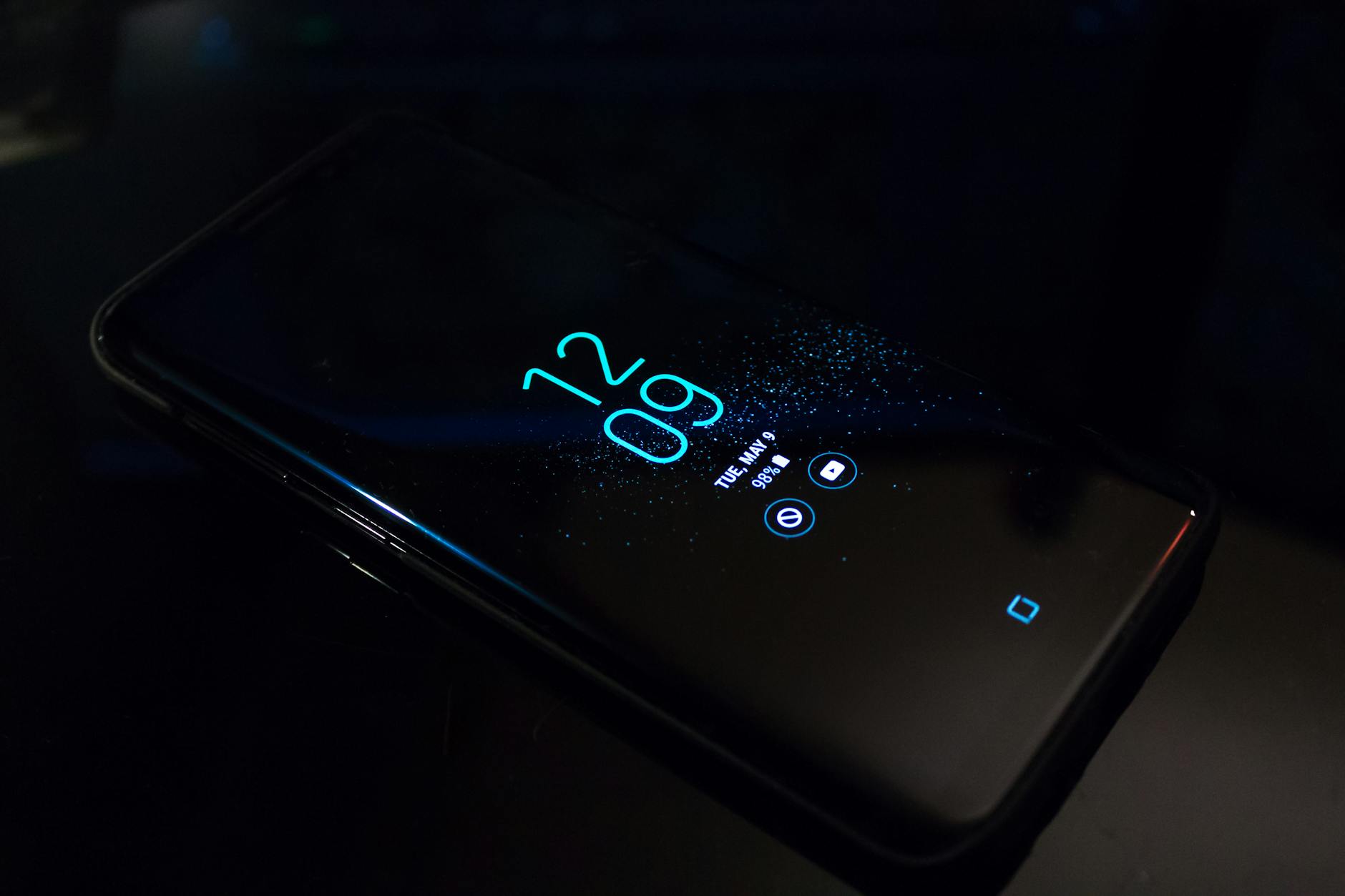
Photo by Noah Erickson
Google Pixel Phones
Pixel users can add lock screen widgets starting with Android 16 and the latest QPR2 updates. The feature lives under the Display and Lock Screen settings, and you’ll see a dedicated Widgets switch to flip on. Once enabled, swiping from the clock reveals a widgets page where you can add, rearrange, resize, or remove items. Most useful options include Weather, Calendar, Battery, and quick actions from compatible apps. You can place up to three widgets per page and create multiple pages to categorize information (today’s agenda, then weather, then reminders).
To turn on and manage widgets:
- Open Settings > Display & touch > Lock screen
- Toggle Widgets on
- From the lock screen, swipe right or left to browse pages
- Long-press an empty space to edit, then Add Widget
- Drag to reorder, resize where supported, and remove if needed
Keep in mind some widgets require specific app permissions or latest app updates to display correctly. If you’re unsure about a particular widget, a quick check of the app’s permissions in Settings helps diagnose issues. For deeper setup details, Apple’s iPhone guide isn’t relevant here, but Pixel users can reference Pixel support pages and Android Authority guides for model-specific tips. Learn more about Pixel lock screen widgets and latest behavior in official Pixel help articles and reputable Android coverage.
Helpful links:
- How to turn on lock screen widgets on Pixel: https://support.google.com/pixelphone/thread/386549679/lock-screen-widgets?hl=en
- Pixel community discussions on adding lock screen widgets: https://support.google.com/pixelphone/thread/134177873/adding-widgets-to-lock-screen?hl=en
Pro tip: If you see clutter, start with two compact widgets under the clock and add a third only if it’s truly essential. Privacy matters here, so avoid sensitive data on the lock screen.
Samsung Galaxy Devices
Samsung’s One UI makes lock screen widgets straightforward, with options accessed through Lock screen settings or via the Good Lock suite. On devices running One UI 5.0 and newer, you can browse and add widgets by swiping to the lock screen and entering edit mode. Good Lock’s LockStar module expands what you can do, including deeper widget customization and Even On Display (AOD) integration. This means you can keep useful info on both the lock screen and the Always On Display.
How to enable and use them:
- Long-press the lock screen or go to Settings > Lock screen > Widgets
- Swipe up to browse widget options and pick items like battery, clock, weather, reminders, or music controls
- Drag to place, resize if the widget supports it, and remove when needed
- For more customization, install Good Lock and use LockStar to unlock additional widgets and layouts
- If you use AOD, some widgets can display on the Always On Display as well
Samsung devices often benefit from additional apps and tweaks, especially for models with older One UI versions. The Good Lock suite remains a popular way to refine the experience. If you’re curious about the latest, check out official Samsung guides and trusted tutorial videos that walk you through the process step by step.
Recommended resources:
- How to use Lock Screen Widgets in One UI 7 on your Galaxy Phone: https://sammyguru.com/how-to-use-lock-screen-widgets-in-one-ui-7-on-your-galaxy-phone
- Good Lock and LockStar overview: https://www.youtube.com/watch?v=cxtSwJ-heAU
- How to add widgets to Samsung lock screen: https://www.youtube.com/watch?v=c3AzPoAK52Y
Pro tip: Keep storage and permission checks in mind. If a widget pulls data from a connected service, verify that account is signed in on the phone and that the widget has permission to read its data.
Other Android Phones and Apps
On a broader range of Android devices, you’ll often find a lock screen widgets option tucked in Settings > Lock screen or Display. If your device doesn’t show a built-in option, you still have a path forward with third-party apps. Apps like Lockscreen Widgets or YoLock can surface widget-like cards on the lock screen, though they may require extra permissions and careful attention to privacy settings. When using third-party solutions, it’s prudent to review which data the widget will access and adjust app permissions accordingly.
Key steps and considerations for non-Pixel, non-Samsung devices:
- Check Settings > Lock screen for a native toggle
- If absent, install reputable lock screen widget apps from the Play Store
- Review permissions and ensure sensitive data isn’t exposed
- Test a few trusted widgets to find a clean layout that fits your screen
Security note: Lock screen widgets reveal data without unlocking the device. Avoid widgets that show personal information or confidential reminders. Disable or replace any widget that compromises privacy.
External resources for varied Android experiences:
- Android Police coverage on Pixel lock screen widgets: https://www.androidpolice.com/how-to-change-pixel-10-lock-screen-widgets/
- Android Authority on Android 16 lock screen widgets for Pixels: https://www.androidauthority.com/android-16-qpr2-lock-screen-widgets-pixel-phones-how-use-3621781/
- General Android lock screen widget guidance: https://vocal.media/01/the-ultimate-guide-to-best-lock-screen-widgets-for-android-in-2025
In this section you’ve seen a practical roadmap to bringing widgets to your Android lock screen, whether you own a Pixel, a Galaxy phone, or another brand. The goal is to keep essential information at a glance while protecting your privacy and keeping the interface uncluttered. If you’re ready to personalize further, the next sections will help you tailor not just what appears on the lock screen, but how and when it shows up.
Images and sources cited in this section provide visual context and additional setup details. For Pixel users, Pixel support and Android Authority offer model-specific steps. For Galaxy users, Samsung’s Good Lock and LockStar tutorials give in-depth customization paths. And for broader Android options, trusted outlets cover the latest app solutions and privacy considerations.
Best Widgets to Boost Your Lock Screen
Lock screen widgets turn your phone into a tiny, informative dashboard. They surface the data you care about right away—weather, reminders, calendar events, battery status, and more—without unlocking your device. The best widgets feel invisible yet incredibly useful, reducing taps and helping you stay organized. Below, you’ll find a practical guide to the strongest options for both iPhone and Android, with quick setup tips and insights on keeping your lock screen clean and secure.
iPhone: top lock screen widgets that actually streamline your day
On iPhone, lock screen widgets arrived with iOS 16 and have grown more capable with each update. The fastest way to unlock value is to choose a small set of reliable widgets and arrange them by priority. Here are the categories that consistently pay off.
- Weather and outdoor essentials: A compact forecast keeps you prepared for the day without opening an app.
- Calendar and reminders: A quick glance at today’s events helps you plan from the moment you wake up.
- Battery and connectivity: See the charge status of your iPhone and connected devices at a glance.
- Quick actions from favorite apps: Some apps offer one-tap routines right on the lock screen, saving you from opening the app fully.
Practical setup tips:
- Start with two to three widgets placed directly under the clock. If you need more, add a second lock screen page instead of crowding one screen.
- Use different widget sizes to find the balance between visibility and clutter.
- Keep privacy in mind. If a widget could reveal sensitive data, swap it for a less revealing option.
Key reads and official guidance:
- Apple’s guide on adding and editing widgets is a reliable starting point: How to add and edit widgets on your iPhone.
- For a visual reference and model-specific steps, see MacRumors’ practical how-to: How to Add Widgets to Your iPhone Lock Screen.
How to keep the experience smooth:
- Regularly review app permissions. Some widgets pull sensitive data, and you don’t want that data visible to anyone who picks up your phone.
- Update apps and iOS promptly. New widget options often ship with software updates, improving both functionality and security.
If you’re curious about broader trends, reputable tech outlets and official Apple documentation offer deeper context on evolving widget types and placements as iOS evolves. The goal is to keep your lock screen fast, clean, and useful.
Android: pick the best widgets for Pixel, Samsung, and beyond
Android offers a wider variety of lock screen widget experiences because manufacturers tailor the feature to their skins and versions. The core idea is the same: glance at critical data before you unlock. Here are the strongest paths for different devices.
- Google Pixel devices: Native support is solid on recent Android versions. Lock screen widgets tend to emphasize weather, calendar, battery, and quick actions from compatible apps.
- Samsung Galaxy devices: The combination of One UI and Good Lock unlocks deeper customization. LockStar provides additional widget layouts and even integration with Always On Display.
- Other Android brands: If the stock experience lacks lock screen widgets, third‑party apps can fill the gap. Choose trusted developers and review permissions carefully.
Practical setup tips:
- For Pixel, enable lock screen widgets in Display & lock screen settings, then manage by swiping right or left on the lock screen.
- For Samsung, use Lock screen settings or Good Lock LockStar to place and resize widgets. If you use AOD, some widgets can appear there too.
- On other devices, check Settings > Lock screen or Display for a native toggle. If not available, explore reputable third‑party lock screen widget apps with a careful eye on privacy.
Security notes:
- Lock screen widgets reveal information without unlocking. Avoid widgets that display sensitive data; prefer those that show summary data or non-private insights.
Curated resources to guide you:
- Pixel lock screen widget guidance from Google’s support and reputable coverage provides model-specific steps and updates.
- Samsung’s LockStar and Good Lock resources help you understand deeper customization on Galaxy devices.
- For broader Android coverage, trusted outlets offer practical setup ideas and privacy tips.
A quick reminder: the Android widget experience is evolving, especially with new Android releases. If you’re unsure about your model, search for your device plus “lock screen widgets” and the OS version to confirm support and steps.
Quick-start checklist: decide before you customize
- Check compatibility: confirm your OS version and model can display lock screen widgets.
- Choose a focused set: two to four widgets cover most needs without clutter.
- Mind privacy: avoid personal or confidential data on the lock screen.
- Plan for updates: keep apps and OS up to date to unlock new widget types and improvements.
For hands-on steps and model-specific tips, rely on official support pages and trusted tech coverage. A well-chosen set of widgets can save you taps every day, making your smartphone feel more like a personalized hub than a blank screen.
Practical examples: recommended widget ideas you can implement today
- Weather snapshot: a concise forecast for the day, plus a precipitation alert if your region is prone to quick changes.
- Calendar peek: today’s events with a quick reminder to prepare for meetings.
- Battery at a glance: charge status of your phone and any connected devices like hearing aids or earbuds.
- Quick actions: one-tap shortcuts to commonly used apps, such as messaging, music, or task lists.
If you want to dive deeper into specific apps and widget formats, reputable guides cover a wide range of options. For iPhone users, the official Apple guidance remains the most reliable reference, while Android discussions provide a broad view of how different brands implement the feature.
External resources to explore as you configure:
- How to add and edit widgets on your iPhone. https://support.apple.com/en-us/118610
- How to Add Widgets to Your iPhone Lock Screen. https://www.macrumors.com/how-to/add-widgets-iphone-lock-screen/
- Pixel lock screen widget guidance from Google’s support. https://support.google.com/pixelphone/thread/386549679/lock-screen-widgets?hl=en
- After a decade, Google brings back lock screen widgets in Android 16. https://www.pocket-lint.com/google-added-back-android-lock-screen-widgets/
By choosing the right widgets and placing them thoughtfully, you transform the lock screen from a passive gate into a practical control center. The result is quicker access to what matters and a more organized day, all without sacrificing privacy or performance. The next sections will help you tailor not just what appears on the lock screen, but how and when it shows up, so you get maximum value with minimum clutter.
Fix Problems and Get the Most from Widgets
Lock screen widgets should feel like a quick facelift for your daily routine. When they work, you get the right info at a glance. When they don’t, you lose a bit of that efficiency. This section is a practical, no-nonsense guide to troubleshooting common issues and maximizing the value you get from widgets on both iPhone and Android. You’ll learn how to diagnose problems quickly, apply reliable fixes, and pick the most impactful widgets for your smartphone life.
Quick diagnostic steps you can trust
If a widget isn’t appearing or updating, start with a simple checklist. Often the issue is one of these easy-to-fix culprits:
- Check compatibility and OS version: confirm your device supports lock screen widgets and that you’re on the latest OS update. On iPhone, this means iOS 16 or newer; on Android, verify the relevant version for your device.
- Verify widget permissions: some widgets pull data from other apps. Make sure those apps have permission to share data with the widget you’re using.
- Confirm app updates: a widget is only as good as the app behind it. Update the app to the latest version to ensure widget support and data accuracy.
- Restart the device: a quick reboot clears small glitches that can block widget refreshes.
- Look for battery and privacy limitations: certain widgets pause if battery saver is on or if privacy restrictions restrict background activity.
If you complete these checks and still see issues, move to targeted fixes for iPhone or Android, depending on your device.
iPhone: common problems and proven fixes
iPhone users often run into two scenarios: widgets not showing at all, or widgets not updating with new information. Here are reliable fixes that address both outcomes.
- Refresh the Lock Screen customization: re-enter customization mode, remove problematic widgets, then add them back. This resets the layout and can clear display glitches.
- Rebuild the widget set: swap a stubborn widget for a different one. If a specific app’s widget fails, replace it with a built‑in option or another third‑party widget that offers similar data.
- Reinstall the apps that feed data: if a weather or calendar widget stops updating, reinstalling the source app can restore the data feed.
- Review privacy and data sharing settings: ensure the widget has permission to access the necessary data. Tight privacy settings can block updates without an obvious error message.
- Update to the latest iOS version: Apple routinely fixes widget-related bugs in system updates. Staying current minimizes repeated issues.
For deeper guidance, Apple’s official setup guides remain the most reliable reference. If you want a deeper dive into real‑world experiences and model‑specific quirks, reputable coverage and official docs can help you stay informed as OS revisions roll out. For a practical overview of what models can run the latest iOS and support lock screen widgets, you can explore the official Apple support page.
- Apple guidance on adding and editing widgets: How to add and edit widgets on your iPhone
Android: common problems and practical workarounds
Android offers a wider range of widget experiences, which means more paths to a fix but also more room for discrepancy. Focus on the core issues that tend to crop up across brands, then apply the simplest, most effective remedy.
- Widgets not appearing on the lock screen: verify there is a dedicated lock screen widget option enabled in your Display or Lock Screen settings. If you don’t see the option, your device or skin may not support native widgets.
- Widgets not updating: ensure the source apps are allowed to run in the background and have the necessary permissions. Some brands require extra steps to allow background data for widgets.
- Clutter or layout issues: if multiple pages exist, make sure you’re viewing the right page and that widgets aren’t overlapping or off-screen. Resize if the widget supports it and rearrange for readability.
- Privacy considerations: avoid displaying sensitive data on the lock screen. If a widget shows private details, remove it or switch to a non-sensitive option.
Official guidance and community discussions offer device-specific paths. Pixel devices, Samsung Galaxy phones, and other brands each have nuances, but the underlying approach is the same: enable the feature, pick a clean set of widgets, and keep data access lean.
- Pixel lock screen widget guidance and setup steps: Pixel support and Android 16 widget tips
- Android Developers FAQ on widgets on lock screen: Widgets on lock screen: FAQ
When problems feel persistent: how to dig deeper
If you still face stubborn issues after the basics, it’s time to do a deeper check. Use these targeted strategies to isolate the cause and confirm a fix.
- Check for app-specific issues: some widgets rely on data from one or two apps. If only those widgets fail, the problem likely sits with the app rather than the OS.
- Test with a fresh widget setup: temporarily remove all widgets, then re-add only two or three that you use most. If they work, gradually reintroduce the rest to identify the conflict.
- Inspect third-party widget apps: if you’re using non‑mainstream widgets, test with built‑in options first. Third-party widgets can introduce compatibility gaps.
- Review device storage: low storage can affect background processes, including widget refreshes. Free up space if needed.
- Check for known bugs or outages: sometimes widget data sources experience service interruptions. A quick check of official status pages or trusted tech outlets can confirm.
If you still can’t solve the issue, consider reaching out to support forums with specifics like OS version, model, widget types, and a concise description of the problem. Sharing exact steps that reproduce the issue speeds up finding a solution.
Best practices to keep widgets reliable and useful
- Limit the set to what you really need: three to five widgets are enough without creating clutter on the lock screen.
- Prioritize privacy: avoid showing sensitive info on the lock screen. If a widget reveals personal data, swap it for a safer option.
- Monitor data sources: choose widgets that pull data from reliable apps with minimal permission burdens.
- Plan for updates: OS and app updates can change how widgets behave. Revisit your layout after major updates.
- Periodically audit the layout: every few weeks, review which widgets you actually use and remove the ones you don’t.
These habits keep your lock screen feeling like a clean, quick-control hub rather than a cluttered panel.
Quick reference tips and best bets for your setup
- For iPhone users, stick to a small, high‑value widget set under the clock. Overloading reduces at-a-glance usefulness.
- For Android users, take advantage of brand tools if available. Pixel’s native widgets and Samsung’s LockStar options provide strong customization without third‑party apps.
- Always consider privacy first. If a widget can leak sensitive data, replace it with a safer alternative.
Professional readers will appreciate reliable, developer-aligned guidance. For readers who want a deeper dive into model‑specific steps and updates, the linked resources above offer official steps and community perspectives.
External resources to consider as you troubleshoot and optimize:
- How to turn on lock screen widgets on Pixel: https://support.google.com/pixelphone/thread/386549679/lock-screen-widgets?hl=en
- Pixel community discussions on adding lock screen widgets: https://support.google.com/pixelphone/thread/134177873/adding-widgets-to-lock-screen?hl=en
- How to use Lock Screen Widgets in One UI 7 on your Galaxy phone: https://sammyguru.com/how-to-use-lock-screen-widgets-in-one-ui-7-on-your-galaxy-phone
- Good Lock and LockStar overview: https://www.youtube.com/watch?v=cxtSwJ-heAU
By following these guidelines, you’ll keep lock screen widgets dependable and genuinely useful. The goal is a clean, informative view that delivers the data you need in a moment, without inviting friction or privacy concerns. If you’re ready, the next sections will help you fine tune not just what shows up, but when and how it appears for maximum everyday benefit.
Conclusion
Lock screen widgets turn your smartphone into a compact, informative hub. They cut taps, speed up access to what matters, and help you stay organized from the moment you pick up the device. On iPhone, you get reliable, built in options that keep expanding with each update. On Android, the experience varies by brand, so you can rely on Pixel or Samsung tools or turn to trusted third party apps for a similar feel. The key is to start small with a focused set of widgets and refine as you go.
By selecting a minimal, high value mix—weather, calendar, and battery status, for example—you keep the lock screen fast and private. Regularly review permissions and stay current with OS updates to unlock new layouts and smoother performance. The result is a cleaner, more responsive smartphone experience that fits your daily rhythm.
Give it a try today: add one widget that saves you a tap every morning. Share your setup in the comments and check related posts for more ideas. You’ll enjoy quick access to the essentials, every day.