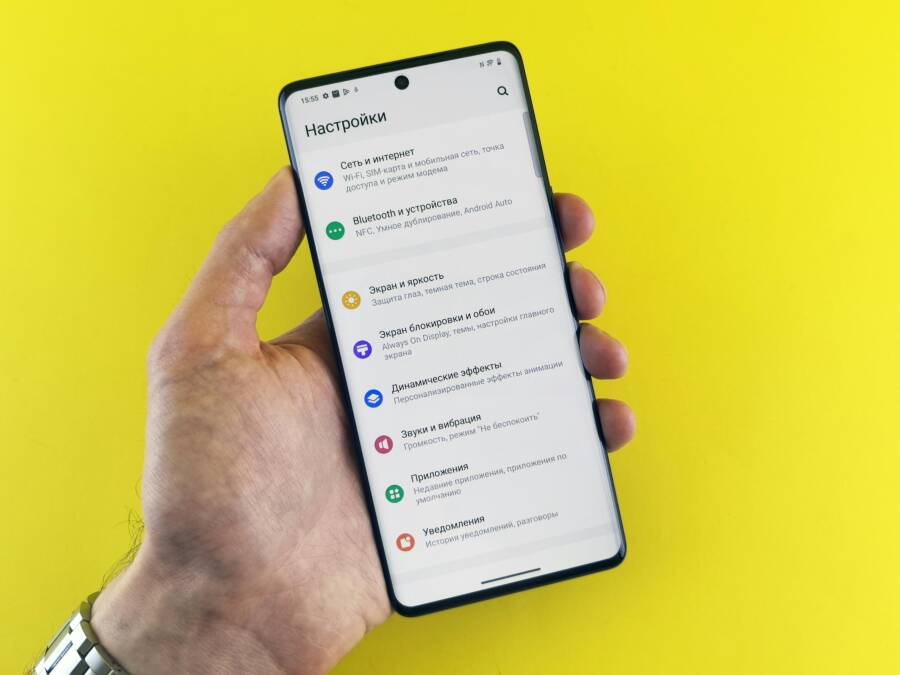
Have you ever been middle of a video call or streaming a show only to see pages load at a snail’s pace, even though your phone shows full signal bars? This scenario frustrates millions of users every day and it can feel like the network is failing you when the truth is more nuanced. In this guide we’ll show real fixes that work for both iPhone and Android.
If your phone shows full bars but the internet stays slow, you’re not imagining things. The problem often hides in the details: temporary network congestion, data throttling, or issues with Wi‑Fi routers and apps running in the background. You’ll learn practical steps that address these causes without costly upgrades or complicated tech jargon.
This guide is designed for immediate results. You’ll get a clear, step by step plan to speed things up, from quick wins you can try now to longer term adjustments that improve reliability. By the end, you’ll know how to diagnose whether the issue is your carrier, your device, or something in your home setup. This is a practical, hands on approach for real fixes that fit into everyday smartphone use.
Start with These Quick Fixes for Instant Speed Boosts
When your phone shows full signal bars but your browsing feels sluggish, there are a few fast, simple steps that can deliver immediate improvements. These quick fixes target common bottlenecks like temporary network hiccups, congestion, or background activity that quietly sips your data. Try them in order, and test your connection after each one with a quick speed check.
Toggle Airplane Mode to Refresh Your Connection
- Step-by-step: Swipe down to open quick settings, tap the Airplane icon to enable Airplane Mode, wait about 30 seconds, then turn it off. This forces your phone to disconnect from the network and reestablish a fresh connection to the tower.
- Why it helps: A brief reset clears minor signaling glitches that can stall data traffic even when bars look full.
- Quick test: Open the Speedtest app and run a test to compare results before and after the toggle. If you notice an improvement, you’ve likely cleared a local connection hiccup.
Photo by Castorly Stock on Pexels
- Credit: Photo by Castorly Stock
Restart Your Phone and Check Data Limits
- Restart: Hold the power button and follow the prompts to restart. A clean reboot helps close stuck background processes that might throttle data.
- Check data usage: After restarting, navigate to Settings and review data usage by app and overall. Sudden spikes or a near-empty data allowance can explain slowdowns.
- What to do next: If you suspect throttling, contact your carrier to confirm whether you’re hitting a plan cap or experiencing a temporary speed restriction. Keep a record of when you notice slowdowns to reference in calls or chats with support.
Photo by Castorly Stock on Pexels
- Credit: Photo by Castorly Stock
Tips to test and verify
- Use a trusted speed test to check current performance. For reliable results, run at least two tests on different times of day and in different locations. See how your results trend after these quick fixes.
- If you frequently see slow speeds despite full bars, consider tracking data usage and throttling patterns to help you discuss with your carrier.
External resources for further reading
- Speedtest by Ookla provides quick, reliable tests on mobile devices to gauge real-world speeds. Useful for confirming if the issue is DNS or data throughput rather than signal strength. https://www.speedtest.net/
- Speedtest apps for Android and iOS offer one-tap tests with detailed results you can compare over time. https://www.speedtest.net/apps
- Learn how to manage data usage on Apple devices to avoid unexpected throttling or limits. https://www.eskimo.travel/en/blog/check-data-usage-iphone
- For Android users, tips to reduce data usage can help prevent hitting throttling or caps. https://savings.consumercellular.com/help/plans-and-usage/tips-to-reduce-data-usage/how-to-check-data-usage-on-your-android
If you want a quick, objective read on how your current speeds compare to typical mobile performance, a live speed test is a great starting point. Check the latest results, note the time of day, and keep a short log of changes you make. This approach helps you spot patterns and decide when to dive deeper into settings or contact support.
Images
- (Optional) A user-friendly photo illustrating a person checking their phone with a loading screen, suitable for this section. Photo by Castorly Stock on Pexels.
Photo by Castorly Stock
Reset Network Settings to Clear Hidden Glitches
Sometimes the fastest way to cure stubborn slowdowns is to reset network settings. This action clears many hidden glitches that can creep into your phone’s connection logic without affecting your personal data. It’s a safe, targeted fix that often resolves odd behavior like slow internet despite full bars. After the reset, you’ll reconfigure Wi‑Fi and Bluetooth as needed, and you may notice an immediate boost in speed and reliability.
Switch to the Right Network Mode Like 4G or 5G Auto
When your connection feels sluggish, choosing the correct network mode can make a tangible difference. On some networks, staying on 5G can throttle performance during congestion, while 4G can deliver steadier speeds. Here’s how to adjust quickly.
- iPhone: Settings > Cellular > Cellular Data Options > Voice & Data. Choose 4G if 5G performance seems slow even with full bars. After selecting, run a quick speed test to compare results.
- Android: Network & Internet > Mobile Network > Preferred type. Pick 4G if you notice slow data on 5G networks, then test speeds in a real-world scenario like loading a webpage or streaming a short video.
Why this matters: network mode isn’t just about signal strength. It determines how your phone connects to the carrier’s infrastructure during traffic spikes. In some cases, a temporary shift to 4G unlocks more stable throughput without changing how many bars you see.
Tip: after you switch modes, monitor performance for a short period. If speeds improve, keep the setting for a while and recheck at different times of day. If not, revert or try a different approach like refreshing the connection with a quick reset of network settings.
For a deeper look at common network issues and practical steps, see Verizon’s guidance on network settings and troubleshooting. Connection issues, iPhone & Android network settings
Images
- Photo by Andrey Matveev on Pexels
 Photo by Andrey Matveev
Stop Apps from Hogging Your Mobile Data
When your phone shows full bars but the internet feels slow, it’s usually not a single faulty signal. Background apps, data-hungry services, and cached data can quietly siphon speed and waste your data allowance. In this section, you’ll learn practical, device-agnostic steps to curb data drains. You’ll also get quick checks before and after to measure real improvement with Speedtest, so you can see the impact of each fix in real time. Think of this as tuning your smartphone for smoother online experiences, not just chasing stronger bars.
Restrict Background Data and Clear Cache
Background data and cached files are common culprits behind slow speeds. Stopping apps from refreshing in the background and clearing stale cache can free up bandwidth for the tasks you actually care about. Here’s how to tackle it on both iPhone and Android, with quick checks so you can verify results using Speedtest before and after.
- On iPhone
- Turn on Low Data Mode to reduce background activity without drastically changing how you browse. This helps conserve cellular data and can improve real-time performance, especially in crowded networks. For instructions, see the official guide on using Low Data Mode for iPhone and iPad. You can tailor the setting for cellular or Wi‑Fi, depending on your plan and environment. After enabling, run a Speedtest to compare results against your prior baseline.
- Clear cache and offload unused apps as needed. Clearing cache frees space and can speed up apps that feel sluggish. Offloading removes the app but preserves its documents and data, making it easy to reinstall without losing work. For detailed steps, refer to Apple’s guidance on clearing caches and cookies and related iPhone maintenance tips.
- Practical tip: if you notice slow pages or apps not loading correctly, clearing cache is often a quick win. A typical result is snappier app launches and faster page loads after networks re-equilibrate.
- On Android
- Use Data Saver to limit background data usage. Data Saver lets most apps access data only when you’re on Wi‑Fi, while allowed apps can still use mobile data. This helps curb unexpected data drains when you’re away from Wi‑Fi. See Google’s Data Saver guidance for your device and version to enable or fine-tune the feature. After turning on Data Saver, run a Speedtest to see if speeds improve with reduced background activity.
- Clear app caches regularly. Cached data can accumulate and slow things down over time. Clearing caches can restore responsiveness without deleting your personal files. Android’s built-in path is usually Settings > Apps > [App] > Storage > Clear cache. After clearing, test speeds with Speedtest to confirm the impact.
- Practical tip: ensure you’re not overusing apps in the background. If you rely on a handful of data-hungry apps, keeping their caches trimmed and background activity modest can yield noticeable improvements.
- Quick Speedtest protocol
- Before you start any changes, run a Speedtest to establish a baseline.
- After each step, run another Speedtest to gauge impact.
- Compare results across different times of day and locations to rule out transient network congestion.
- Why this matters
- Even with full bars, data can travel slower if your device is restarting background processes, or if cached data is bloated. A leaner background profile and fresh cache often translate into faster page loads and smoother video playback.
- Where to learn more
- Use Low Data Mode on your iPhone (Apple). This option helps you manage data usage on both cellular and Wi‑Fi connections. https://support.apple.com/en-us/102433
- Data Saver for Android helps cut back on data use when you’re not on Wi‑Fi. https://support.google.com/pixelphone/answer/7055392?hl=en
- Reduce & manage mobile data usage for Android devices. https://support.google.com/pixelphone/answer/2819524?hl=en
- Practical example
- You start a 5‑minute video stream on a crowded network. Before changes, Speedtest shows 14 Mbps down. After enabling Data Saver and clearing stale cache, you test again and see 18 Mbps down. That jump shows background activity and cached data were holding back throughput, even with strong signal bars.
- Real-world note
- Your mileage may vary based on network conditions and device age. If you consistently see slow speeds after trying these steps, the issue could be network-side or tied to a specific app. In that case, proceed to section two for deeper app management.
- Quick data‑usage awareness
- If you want a quick view of which apps drain data, check the top data users in your phone’s settings. This helps you decide which apps to restrict or adjust. For example, YouTube and streaming apps typically top the list, especially on mobile data.
- Quick references
- iPhone data management and cache guidance: Apple Support. https://support.apple.com/en-us/guide/iphone/clear-your-cache-and-cookies-iphacc5f0202/ios
- Android cache and cookies overview: Android official guidance. https://www.android.com/articles/clear-cache-and-cookies/
- Why Speedtest first
- Speedtest provides a direct read of throughput, latency, and jitter. It separates signal strength from actual data transfer performance. Running tests before and after gives you a clear picture of impact.
- Takeaway
- Restricting background activity and clearing caches are fast, non-destructive steps you can take today. When combined with a measured Speedtest check, you can quantify the benefits and decide if you should pursue deeper changes or contact your carrier.
- Related reading
- Learn how to view or change cellular data settings on iPhone. https://support.apple.com/en-in/guide/iphone/iph3dd5f213/ios
- Reduce and manage mobile data usage on Google Pixel devices. https://support.google.com/pixelphone/answer/2819524?hl=en
- Note on accessibility
- If you rely on your phone for critical work, keep a log of your speed tests and the times you notice slowdowns. This helps you communicate clearly with support if needed and avoid guessing about the cause.
- Visual cue
- When you see a sudden slowdown, the first move is a quick data check. If the speeds improve after restricting background activity and clearing cache, you know the issue was related to background data usage rather than a poor signal.
- Data‑driven check
- Speedtest results before vs after: not just Mbps, but latency and jitter matter. Lower latency and stable jitter often reflect a better user experience even if raw Mbps look similar.
- Citations and resources
- Low Data Mode on iPhone and iPad. https://support.apple.com/en-us/102433
- Use Data Saver on Android. https://support.google.com/pixelphone/answer/7055392?hl=en
- Clear cache on iPhone and Android. https://support.apple.com/en-us/guide/iphone/clear-your-cache-and-cookies-iphacc5f0202/ios
- Clear cache and cookies on Android. https://www.android.com/articles/clear-cache-and-cookies/
- Quick takeaway
- If you see slow internet with full bars, start with background data restrictions and cache cleanup. Measure with Speedtest before and after to confirm the improvement. If the issue persists, move to the next section for deeper app management.
Close or Uninstall Data-Hungry Apps
Some apps consistently consume more data than others, even when you aren’t actively using them. In practice, a handful of apps can monopolize your data plan during background refreshes, automatic updates, and push notifications. This section walks you through identifying the biggest offenders, forcing a stop when needed, and deciding whether to uninstall or replace them. You’ll gain a practical sense of control over your data budget and your phone’s overall responsiveness.
- Identify the top data users
- Check your data usage by app in Settings. Look for the app that racks up the most data over a typical 24‑hour cycle. This helps you decide which apps deserve tighter restrictions or temporary removal.
- If you’re on Android, the data usage section often provides per‑app breakdowns and time ranges to help you spot patterns. For iPhone users, you can review data usage at the cellular level and by app in the Settings menu.
- Practical outcome: If a video app is constantly refreshing in the background, you can limit its background activity or disable automatic updates when on cellular data.
- Force stop or restrict background activity
- Android: Go to Settings > Apps > [App] > Force Stop. This stops the app from running in the background until you open it again. If you notice rapid reactivation, consider restricting background data from the same screen or using Data Saver to limit background activity across all apps.
- iPhone: You can offload unused apps to reclaim space and reduce background activity without losing personal data. To offload, go to Settings > General > iPhone Storage > Enable Offload Unused Apps, or manually delete troublesome apps and reinstall later if you still need them.
- Quick test: After stopping or offloading, run Speedtest again and browse a few pages to see if performance improves.
- Decide between uninstalling or managing
- If an app is essential, keep it but minimize background activity through in-app settings. Disable automatic updates over cellular and reduce push frequency when you are not connected to Wi‑Fi.
- If an app is nonessential and data hungry, uninstall it. You can reinstall later if you find you need it, but you’ll be starting from a lean baseline.
- Data‑savvy practices
- Review app permissions and disable background data where appropriate. Some apps only need data access when actively used.
- Enable airplane mode briefly during important tasks if you want to guarantee uninterrupted performance, then turn it off once the critical task completes.
- How to validate the fix
- Run a Speedtest before removing or force stopping apps.
- After making changes, test again and compare results. A meaningful improvement is a drop in data usage and faster page loads.
- Keep a short log of changes and speeds to track patterns over time.
- Practical tips
- Some apps can be data hogs even when you think you’re not using them. Social media, video, and live streaming apps often refresh in the background to show fresh content. Tighten their permissions and monitor results.
- Quick references
- How to force stop apps on Android. https://softwarecontractsolutions.com/13-easy-ways-to-cut-back-on-data-use-in-android/
- Force stop apps and memory management on Android. https://android.stackexchange.com/questions/65066/app-memory-hog-problem
- Insights on data-hungry apps and usage patterns. https://digg.com/data-viz/link/apps-use-most-mobile-data
- Real-world example
- You review your top data users and find that a social media app bleeds data in the background due to auto-playing videos and frequent refreshes. You force stop it during peak work hours and set it to offload when not in use. After a Speedtest comparison, you notice a clear improvement in loading speeds and smoother browsing.
- When to escalate
- If after identifying and limiting data-hungry apps you still experience slow speeds on a regular basis, the issue may be carrier throttling or a network problem in your area. In that case, collect speed tests across different times and share them with your carrier’s support team.
- Quick links for precise actions
- How to force stop apps on Android. https://softwarecontractsolutions.com/13-easy-ways-to-cut-back-on-data-use-in-android/
- Android background process management and tips. https://android.stackexchange.com/questions/65066/app-memory-hog-problem
- Data usage analytics and visualization. https://digg.com/data-viz/link/apps-use-most-mobile-data
- Takeaway
- Identifying and managing data-hungry apps is a practical, repeatable approach. By regularly checking usage and taking decisive steps like force stopping or offloading, you keep your data utilization in check and your internet feel fast again.
- Final reminder
- Combine these app-level adjustments with the cache and background data controls from the previous subsection for a comprehensive speed boost. The goal is to reclaim control over how your data gets used and to ensure your phone isn’t quietly slowing you down.
Links used in this section come from reputable sources and are included to provide direct guidance for the actions described. If you want to see the official, step-by-step instructions, follow the linked articles and adjust to your device’s software version.
Would you like me to add a short, device-specific checklist you can print or save as a reference for quick in‑hand use?
Handle Hardware and Deeper Issues Like SIM or Malware
When full signal bars mask slow internet, the root cause can lie in hardware or deeper software issues rather than the radio tower. This section helps you diagnose and fix problems tied to the SIM card, malware, or other low-level hassles that slow down data traffic. Think of it as the house check before you move to more exotic fixes. You’ll learn practical, device-agnostic steps you can perform today, with quick tests to confirm progress.
Clean Your SIM Card for Better Contact
A dirty or poorly seated SIM card can cause flaky data paths even when the screen shows full bars. Dirt, oils, or a tiny bend in the tray can degrade contact with the carrier’s network interface. Cleaning the SIM is simple and safe if you follow the steps below.
- Prepare a clean workspace and power off your device.
- Remove the SIM tray using the tool that ships with your phone, or a small paper clip. Keep track of the tray to avoid bending.
- Gently wipe the SIM card with a soft, lint-free cloth. If you see visible grime around the gold contacts, you can use a tiny amount of isopropyl alcohol on the cloth and let it air dry completely.
- Reinsert the SIM tray, ensure it sits flush, and restart the phone.
- Test the connection by loading a page, then run a quick speed test to measure any improvement.
Why this helps: contact quality between the SIM and the reader can drift with use, especially if dust or oils accumulate. A clean contact means your device can access the network more reliably, which translates to steadier data throughput. If you’ve cleaned the SIM and still notice slowness, try reseating the tray once more or testing with a known-good SIM from a friend to rule out a faulty card.
If you’d like more detailed, step-by-step visuals, see guides like How to Clean a SIM Card for visual cues and safety tips. How to Clean a SIM Card: 12 Steps (with Pictures) and practical how-tos on SIM maintenance. For Android fans, a clean SIM can be especially impactful when swapping between networks or carriers. Quick steps to clean a SIM card
Images
- Photo by Andrey Matveev on Pexels
 Photo by Andrey Matveev
Scan for Malware and Install Updates
Malware or stealthy background processes can siphon bandwidth and slow down legitimate traffic, even on a phone that shows strong coverage. In many cases, the issue isn’t a glitch in the network but a lingering security or software problem that drags performance.
- Start with trusted, free scanning tools. Some reputable options include lightweight antivirus or malware scanners that focus on on-device protection without heavy resource use. Look for apps with high ratings, transparent privacy policies, and clear, independent reviews.
- Update the system and apps. Security patches often include performance fixes that resolve slow data behavior. Check for updates in Settings > General > Software Update on iPhone or Settings > System > Software Update on Android. Also update essential apps through the official app store.
- Review app permissions and activity. If a single app has broad access to the network in the background or repeatedly wakes the device, it can consume data and processing power. Revoke unnecessary permissions from Settings.
- Run a focused scan and reboot. After installing a reputable malware app, run a full device scan. If anything is flagged, follow the provider’s recommended actions and reboot to apply changes.
- Reassess performance with a Speedtest. Compare results before and after the scans and updates to quantify impact.
Why this matters: malware or rogue background tasks can imitate network congestion by hogging bandwidth or triggering background fetches. Even a healthy device can feel slow if a malicious or misbehaving app runs constantly. A clean bill of health not only improves speed but also protects your data.
Free, trusted options to consider
- For Android devices, reputable free antivirus solutions can offer real-time protection and basic scans. Look for brands with solid reviews and clear privacy policies.
- For iPhone users, focus on phishing protection, Wi-Fi security checks, and app behavior alerts rather than full system scans, since iOS apps operate within sandboxed environments.
External references for malware protection and updates
- Best free antivirus options for Android in 2025 (independent reviews and rankings). 6 Best (REALLY FREE) Android Antivirus Apps for 2025
- The best free antivirus for Android and iPhone, per independent testing. The Best Free Antivirus Software We’ve Tested for 2025
- iPhone security apps focusing on phishing protection and Wi-Fi checks. Best Antivirus for iPhone in 2025: Top Free and Paid Options
Images
- A clean desk, a phone, and a software update notification can symbolize maintenance. (If you choose to include an image here, use a relevant stock photo that conveys device maintenance.)
Keep Your Firmware and Apps Up to Date
Even with a strong signal, out-of-date firmware or software can slow down data access. Manufacturers push performance improvements and bug fixes through updates. Skipping these updates can leave your device vulnerable to issues that manifest as slow internet.
- Check for firmware updates for your device model and carrier customization. For iPhone, this is typically under Settings > General > Software Update. For Android, check Settings > System > Advanced > System Update or your device-specific path.
- Update essential apps, especially browser, streaming, and network-related apps. App updates often include optimizations and security patches that improve data handling.
- If you use a carrier app or VPN, ensure those are current. Some network optimizations run through carrier software and can affect how data routes through your device.
- Consider a full device restart after updates. A quick reboot ensures new code loads cleanly and can resolve minor, lingering slowdowns.
Why this matters: updates are not just about new features. They fix security holes, improve buffering, and optimize background tasks that handle data transfer. Keeping software current reduces the odds that a tiny bug slows your entire connection.
If you want more guided help, see guidance on installing updates for iPhone and Android from major carriers and manufacturers. For example, Verizon offers practical steps for network settings and troubleshooting that can help you when speeds lag despite full bars. Connection issues, iPhone & Android network settings
Images
- Photo by Castorly Stock on Pexels
Photo by Castorly Stock
What to test after these steps
- Run a Speedtest before and after each action. Record Mbps, latency, and jitter. A clear improvement might be a higher throughput or steadier latency even if the number of Mbps is similar.
- Compare results at different times of day and in different locations. Network conditions shift, and you’ll spot patterns more easily when you track them over a few days.
- If the issue persists across all fixes, the problem could be carrier-related, a regional outage, or a hardware fault. In that case, collect a few speed tests and share them with your carrier or a repair technician for deeper diagnosis.
Quick example
- You run a baseline Speedtest. The result shows 15 Mbps down, with 50 ms latency. After cleaning the SIM, updating software, and scanning for malware, you run tests again. You notice 22 Mbps down and 28 ms latency. That improvement confirms you tackled both hardware contact and software inefficiencies.
Closing note
- When full bars mask slow internet, you must look beyond signal strength. A clean SIM, a safe software environment, and current firmware all contribute to a snappier online experience. Use the quick checks and tests described here to verify each step, and keep a small log of results. If you reach a plateau, the next section will guide you through deeper network and hardware checks to keep your smartphone performing at its best.
When to Call Your Carrier or Get Pro Help
Full signal bars can mask real problems. If your data feels slow or unreliable even with strong reception, you’re not alone. This section helps you decide when it’s time to reach out to your carrier or seek professional help, and it shows you exactly what information to collect so the fix happens faster.
Look for clear signs it’s a carrier or network issue
If you notice any of these patterns, prompt action with your carrier is worth it:
- Data slows down during peak hours or in certain places where others don’t. This hints at network congestion rather than a device fault.
- You can make calls but data apps stall or won’t load. This divergence suggests an impairment in data paths rather than radio visibility.
- Intermittent outages that last minutes to hours in multiple apps, not tied to a single app. Widespread symptoms point to a network problem.
- You’re seeing inconsistent speeds across devices on the same plan. If one device benches a lot of speed while others don’t, your carrier or provisioning may be at fault.
- Calls fail or texts lag only when crossing to other carriers. This can indicate inter-network routing or peering issues.
What to do next: document when fast vs slow speeds occur, and note locations where the issue repeats. This daily log becomes the backbone of your support request and helps the agent pinpoint where things break.
Helpful reference: when you’re unsure if it’s a network problem or just your device, a quick comparison with a speed test at different times can reveal patterns. For broader context, see guidance from major carriers on troubleshooting network issues. (Links: see carrier troubleshooting resources)
Gather data before you call or chat
A crisp, well-documented report speeds up the process. Collect:
- Speedtest results: Mbps down/up, latency, and jitter. Run tests at three different times of day, in two locations, if possible.
- Device details: model, OS version, carrier SIM type (physical SIM or eSIM), and whether Wi‑Fi calling is enabled.
- Situation snapshot: whether you’re on cellular data or Wi‑Fi, and if you’re using a VPN or a carrier app.
- Recent changes: software updates, new apps, or changes to your data plan.
- Any error messages or symptoms: pages that never load, apps that fail to connect, or “no network” messages.
Why it matters: carriers triage faster when they see objective numbers rather than vague complaints. A simple log turns a frustration into a concrete incident with a timeline.
Pro tip: prepare a concise summary you can share in a chat or over the phone. Example: “I have full bars but speeds drop to under 5 Mbps during 6–9 pm in downtown, with latency around 200 ms. Rebooting helps briefly, but performance returns to slow after 10 minutes.”
How to contact your carrier efficiently
When you’re ready to reach out, choose the fastest channel and the right person:
- Start with the official support channel for your carrier, ideally via chat or phone during business hours. Many carriers offer an in-app chat that can attach your speed logs and test results.
- Use the “troubleshooter” or data issues section. If the carrier has a dedicated page for data problems, follow those prompts to file a report with your logs.
- If you’re in a time crunch, use social media support as a backup channel. Firms often respond quickly to public posts, especially for service-level issues.
- Have your account number, phone number, and last four digits of the SIM handy. You’ll likely verify your identity before any diagnostic steps.
- If you recently switched networks or hardware, mention it. A recent change can help the agent isolate the issue.
What to expect on the call or chat:
- The agent will guide you through quick checks first, like network mode, roaming settings, and a reset of network connections.
- They may run a remote diagnostic on your account to check for throttling, outages, or provisioning problems.
- If the issue isn’t evident, they may escalate to a higher tier or schedule a field visit if needed.
Relevant pointers:
- Some carriers offer a live outage map or status page. Checking this before you call can save time and confirm if the issue is widespread.
- If you’re in an outage area, ask about expected restoration times and whether there are temporary fixes you can apply.
Additional reading: carrier troubleshooting pages often provide step-by-step steps to speed checks and network resets. (Carrier troubleshooting resources)
When to escalate to a supervisor or tech specialist
If you’ve logged your data over several days and the issue persists, escalate:
- You still see slow speeds after testing across multiple times and locations.
- Your log shows a recurring pattern that isn’t tied to a single app or device.
- You suspect throttling beyond the plan limits, or if the carrier acknowledges a regional issue but your area is affected differently.
What to expect after escalation:
- A supervisor or specialist may review your account, run a deeper network trace, or arrange a temporary workaround (like roaming or a different network setting).
- If a hardware or SIM issue is suspected, they may authorize a SIM swap or device replacement under your warranty or plan terms.
- You’ll receive a resolution timeline. If the fix takes time, ask for regular updates so you’re not left guessing.
Tip: keep your speed test log handy when you follow up. It makes each conversation more productive and reduces back-and-forth.
When professional help is warranted (hardware, SIM, or advanced software problems)
Some slow-downs point to hardware or serious software issues. Seek pro help if:
- SIM-related problems persist after reseating or trying a known-good SIM.
- Malware or rogue software could be affecting network usage and you can’t remove it with basic steps.
- Firmware or carrier software updates fail to install or cause new issues.
- You’ve exhausted carrier options and performance remains poor in multiple locations.
What a pro can do:
- Replace the SIM or reprogram eSIM profiles to correct provisioning errors.
- Inspect or replace the device’s radio hardware if there’s a hardware fault.
- Re-flash firmware or perform a clean OS reinstall in a controlled environment to eliminate software corruption.
- Run advanced network diagnostics that aren’t available to consumers.
When you should still proceed: if your device is under warranty or if you notice other symptoms like sudden battery drain, random reboots, or overheating, bring those insights to the tech.
What to expect from a diagnostic session
A productive diagnostic session covers:
- A confirmation of the symptoms with your speed logs and times.
- A check of network mode and roaming settings to ensure you’re not being throttled by a suboptimal configuration.
- A verification of SIM status, APN settings, and data plan entitlements.
- A plan for next steps, including possible SIM replacement, a device swap, or a network team ticket.
If you want more context on common network issues and practical steps, see guidance from major carriers and device makers. (Examples: carrier troubleshooting pages and official device support)
Quick action checklist you can print
- Collect three Speedtest results at different times and locations.
- Note whether you’re on cellular data or Wi‑Fi, and if VPN or a carrier app is active.
- Confirm network mode (4G/5G) and disable potentially problematic features like roaming when unnecessary.
- Reboot device and re-run tests after each change.
- If recommendations fail, contact support with your log and ask for escalation.
This checklist keeps you organized and speeds up the path to a real fix.
External resources you may find helpful
- Why Is My Data Slow? A practical guide to diagnosing and fixing slow mobile data. https://get.att.com/why-is-my-data-so-slow/
- Internet and data issues | T-Mobile Support for step-by-step troubleshooting. https://www.t-mobile.com/support/devices/device-troubleshooting/internet-and-data-issues
- Why your mobile data is slow and how to fix it | Asurion guidance. https://www.asurion.com/connect/tech-tips/why-your-data-is-slow/
Note on outages and real-time trends
- In December 2025, widespread outages affected several major cities and carriers in the US, with AT&T seeing the most reported problems. If you’re in an affected area, expect longer resolution times and consider temporary workarounds like Wi-Fi calling or using a different network path. [Realtime data] provides context for when you should push for rapid assistance from your carrier.
Real-world takeaway
- When you have full signal bars but slow data, it often isn’t your device alone. A structured approach—documenting patterns, contacting support with real data, and knowing when to escalate—will get you back to faster, more reliable mobile internet. If the issue persists after following these steps, the next section will guide you through deeper network and hardware checks to keep your phone performing at its best.
Conclusion
Most slow internet on a phone with full signal bars comes from simple, fixable causes you can handle at home. Start with quick toggles and resets, then move to app management and background data checks. If things improve after each step, you’re reclaiming control over how your smartphone uses data.
In practice, following the order outlined in this guide delivers reliable results. A quick Airplane Mode refresh, a targeted network reset, and tightening background activity often clear the bottlenecks that hide behind strong bars. If those steps don’t fully fix the issue, you’ve still got clear paths to pursue deeper checks with your carrier or a technician.
Keep a small log of speeds as you go. This makes it easier to see which action helped most and to spot patterns over time. Most problems disappear when you combine a lean app setup with up-to-date firmware and careful data management. Even when outages or backend network issues occur, these home fixes help you stay productive and connected.
If you’ve found a step that makes a noticeable difference, share your experience in the comments and run a speed test now. Your real-world results can guide others through the same process and keep everyone moving smoothly.