There Is a Frequency That the Wealthiest Families Have Used for Generations and Most People Will Never Know It Exists
>>> Open the Door <<<

Ever tried to make a call only to see your phone stuck on searching for network? It’s a frustrating moment, but you’re not alone. This introduction explains what’s happening, why it happens, and how to fix it quickly so you’re back online.
Most often the issue comes from a simple glitch, a dirty or loose SIM card, or a misbehaving network setting. In many cases, a quick reset of things like Airplane mode, the network settings, or a carrier update can restore connection. If the problem persists, the cause may be an outage in your area or, on rare occasions, hardware damage to the antenna.
This guide lays out clear steps you can follow on both Android and iPhone to get a signal again. You’ll learn how to safely reinsert the SIM card, toggle network modes, and manually select a carrier if automatic settings fail. By the end, you’ll have practical fixes to move from “searching for network” to a solid connection, with simple checks you can perform in minutes. This is practical, human-centered help that respects your time and keeps your smartphone working when you need it most.
Quick Fixes to Restart Your Connection
When your phone shows “Searching” for a network, a quick restart of key components can clear glitches and refresh the connection. These fixes are simple, fast, and effective for most users. Think of it as giving your device a fresh start, much like rebooting a computer after a software hiccup. Below are two practical approaches you can rely on right away, with notes on how they help and when to try them.
What If the Only Thing Between You and the Life You Deserve Is a Hidden Wealth Code Waiting to Be Activated
>>> Open the Door <<<

Restart Your Phone the Right Way
A full power off and back on is the most reliable first step. This technique clears temporary software locks and resets the radio hardware that handles calls and data. Here’s how to do it correctly on both major platforms:
- For Android: Press and hold the power button until the power menu appears. Tap Power off and wait at least 15 seconds before turning the device back on. If your device seems stuck or won’t shut down, you can perform a forced restart by pressing and holding the power button and volume down (procedure varies by model; check your manual if needed). When the phone restarts, it reinitializes the modem stack and often resolves “Searching for network” without further steps. Safe mode can help diagnose app interference if the issue persists. If you must use safe mode, reboot normally to return to full functionality.
- For iPhone: Hold the side button and one volume button (or just the top button on older models) until you see the slider to power off. After the device goes dark, wait 15–30 seconds and then turn it back on by holding the side button until the Apple logo appears. A full reboot clears temporary radio settings that could be stuck monitoring a poor signal. If you’re on iOS and the problem continues, you can explore network-related options in the Settings, including a carrier settings refresh or a reset of network configurations.
Why this works: radios can get stuck or misreport status after a software hiccup. A clean restart reinitializes the antenna and network interface, often restoring a stable connection quickly. If you’ve tried this and nothing changes, it’s time to move to the next step. For a quick reference, see how Apple suggests handling No Service or Searching states on iPhone and iPad devices. You’ll find practical steps and diagnostics there. https://support.apple.com/en-us/120000
If you’re troubleshooting Android phones, restarting the device is frequently the simplest path to clear up stubborn network behavior. If you suspect a software clash, temporarily booting into Safe Mode helps determine whether a third-party app is causing the problem. You can find official guidance on Safe Mode from Google’s support site, which covers how to test by disabling third-party apps. https://support.google.com/android/answer/7665064?hl=en
A quick restart is quick insurance. It fixes many basic issues, including misreported network state, flaky carrier settings, or a temporary radio malfunction. Give it a try first, then proceed to more targeted steps if the problem sticks around.
Turn Airplane Mode On and Off
Airplane mode is a built-in reset for the device’s wireless radios. Turning it on and off forces the phone to re-scan for available networks, which can clear stuck states and refresh the connection with your carrier. Here’s how to do it efficiently on Android and iPhone:
- On Android: Swipe down from the top of the screen to open Quick Settings, then tap the airplane icon. Wait about 30 seconds, then tap the icon again to disable Airplane Mode. This pause allows the radio stack to reset and reattach to the nearest cell towers. If you’re in a location with complex signal patterns or you’ve just moved between networks, this quick refresh can make a noticeable difference.
- On iPhone: Open Settings and flip Airplane Mode on, or use the Control Center to toggle it quickly. Wait 30 seconds, then toggle it off. You’ll see the status bar refresh as the iPhone re-establishes a connection with your carrier. If the problem persists, you can also try a manual carrier selection after the toggle, which sometimes helps when automatic network detection stalls.
Why it helps: Airplane Mode disrupts all radio activity, then restarts it cleanly when you turn it back on. The brief pause lets the device forget any stale connection data and forces a fresh search for a usable network. This approach is simple, painless, and can be performed in just a minute.
In some cases, Airplane Mode can be part of a broader set of steps if you’re troubleshooting a stubborn device. If you want more ways to check network settings, carrier profiles, or SIM status, Verizon’s troubleshooting guides offer clear steps for iPhone and Android users. https:// Verizon.com/support/troubleshooter/network-settings
If you’re dealing with an Android that won’t register to a network even after several retries, consider a step that aligns with the safe mode approach mentioned earlier. Safe Mode temporarily disables third-party apps, letting you see whether an app is interfering with the network stack. Google’s official guidance provides the steps to boot into Safe Mode on a wide range of devices, helping you isolate the issue quickly. https://support.google.com/android/answer/7665064?hl=en
If you’re using an iPhone and Airplane Mode isn’t enough, you may need to refresh your carrier settings or reset your network configurations. Apple’s support articles cover these procedures and explain when to perform them and what to expect. It’s a good next step if the device still shows no service or keeps searching after a fresh reboot. https://support.apple.com/en-us/120000
A quick, methodical approach makes all the difference. Start with a full restart, then use Airplane Mode as a second reset if needed. These two steps fix the majority of basic issues and buy you time to assess either a hardware problem or an outage in your area. If you’re curious to see how others handle similar situations, you can explore practical tips from several credible sources that walk through these exact steps.
She Pressed Play on a Strange Audio Track and Within Days Her Financial Reality Started Shifting in Ways She Could Not Explain
>>> See How It Works <<<

Links to additional practical references:
- If you see SOS, No Service, or Searching on your iPhone, Apple outlines diagnostics and steps you can take. https://support.apple.com/en-us/120000
- Android users can test network behavior by rebooting into Safe Mode to identify problematic apps. https://support.google.com/android/answer/7665064?hl=en
- For Android connectivity problems, general Android internet troubleshooting guidance is available, including toggling between Wi-Fi and mobile data. https://support.google.com/android/answer/2651367?hl=en
Takeaway: a deliberate sequence of power cycling and a quick Airplane Mode reset solves most “Searching for network” moments. If the issue persists after these steps, you’re likely dealing with a more intricate setting, a carrier problem, or a hardware fault that warrants deeper investigation. In the next sections, we’ll cover more targeted checks, including SIM integrity, carrier updates, and manual carrier selection to finish the troubleshooting workflow.
Inspect and Reset Your SIM Card
If your phone struggles to connect or keeps searching for a network, the SIM card often sits at the center of the issue. A quick inspection and a careful reset can clear dirty contacts, loose seating, or minor damage that interrupts service. This section walks you through safe removal, cleaning, and re-insertion, plus quick checks to confirm the SIM is seated correctly and the phone recognizes it again. Think of your SIM as a tiny key card for the network door—clean, confident seating matters.
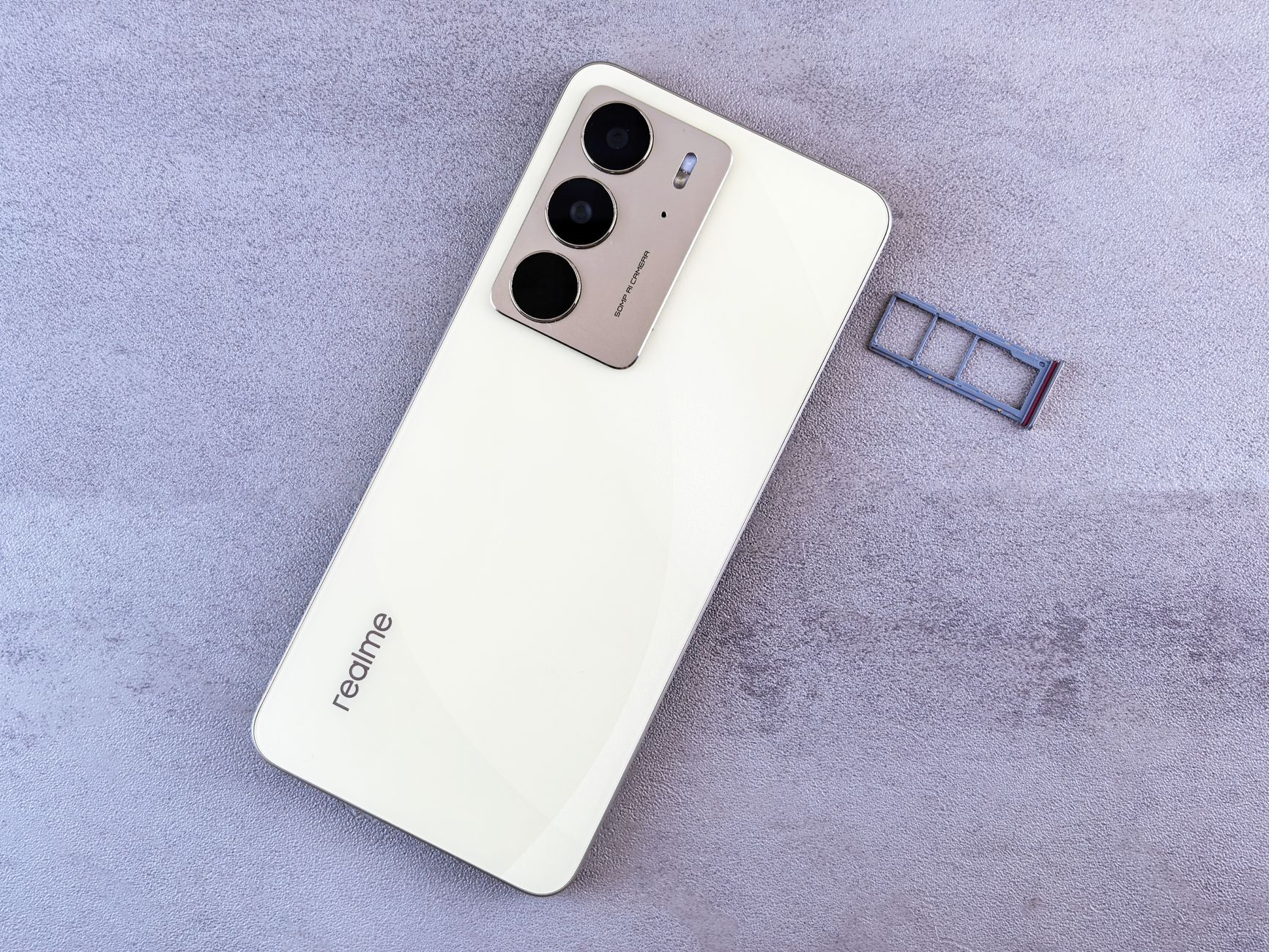
Photo by Andrey Matveev
Safely Remove and Clean the SIM
Before you touch the SIM, power off your phone. This reduces the risk of short circuits or damage while the card is out of the tray. Remove the SIM tray gently and handle the card by its edges to avoid bending or leaving fingerprints on the metal contacts.
Precise steps to remove and inspect the SIM:
- Power off the device completely.
- Locate the SIM tray. Depending on the model, you may need a SIM eject tool or a small paperclip to release the tray.
- Remove the SIM card from the tray with clean, dry hands.
- Inspect the SIM card for any visible damage. Look for cracks, chipped edges, or warping. If you see damage, the card may need replacement.
- Check the contact surface on the card. It should be clean and free of dust, oil, or lint. If dirty, gently wipe with a lint-free microfiber cloth. Avoid using liquids or solvents.
- Inspect the SIM tray itself for bent edges or debris. A damaged tray can misalign the card and prevent proper contact.
- Re-seat the SIM tray carefully. Place the card in the tray with the gold contacts facing down, then slide the tray back into the phone until it sits flush.
Warnings and tips:
- Do not bend the SIM card or tray. A bent card can crack the contacts and fail to register.
- Avoid forcing the tray if it doesn’t slide smoothly. If the tray is sticky or misaligned, stop and check for debris.
- Never touch the gold contacts with your fingers for extended periods; oils can transfer and affect contact.
- If you’ve recently dropped the phone or exposed it to moisture, the SIM may be fine but other hardware could be involved. Proceed with caution and consider a professional check if problems persist.
If you want a quick sanity check after reinserting the SIM, perform a soft reboot and watch how the device detects the carrier. If the SIM is recognized but the network still isn’t accessible, you’ll want to move to the next targeted checks like carrier updates, SIM status, and network settings. For additional context and diagnostics, see how Apple guides handling No Service or Searching states on iPhone and iPad devices. https://support.apple.com/en-us/120000
For Android devices, rechecking the SIM’s seating is often the simplest fix before moving to more involved troubleshooting. If you suspect the SIM card itself is at fault, you can also test with a known good SIM to isolate the issue. Guidance on safe reseating and basic SIM checks is available from Android support resources. https://support.google.com/android/answer/7665064?hl=en
How to tell if the SIM is the culprit: after reinserting, the phone should begin to read the carrier within a few seconds. If it still shows no service or keeps searching, you may need to update carrier settings or perform a manual carrier selection.
Why this matters: the card provides the network identity and keys for authenticating your device on the carrier’s system. A clean contact point and proper seating reduce the chances of random network drops and false no-service errors. If you’ve cleaned and reseated with no improvement, move to the next checks to verify software settings and carrier configuration.
Clean and Re-seat Best Practices
A well-executed cleaning and reseating sequence reduces the risk of damage and improves chances of a solid connection:
- Work on a clean, flat surface to avoid dropping small parts.
- Use good lighting to inspect the contacts clearly.
- If you’re uncomfortable with hardware handling, seek help from a carrier store or authorized service center.
If you want detailed checks beyond the SIM, consider how network settings and carrier updates can influence recognition. Apple provides steps for refreshing carrier settings and resetting network configurations when needed. https://support.apple.com/en-us/120000
On Android, a carrier settings refresh or reselecting the network manually can help when the SIM is fine but the network remains elusive. Google’s guidance covers how to test and adjust these settings when necessary. https://support.google.com/android/answer/7665064?hl=en
Quick Verification After Reassembly
Once the SIM is back in place and the phone has completed its boot process, test the connection with a simple workflow:
- Open a call or browse a quick page to see if the network is responding.
- Toggle Airplane Mode briefly to force a new network search, then disable it and watch for a stable signal.
- If the device still reports searching or No Service, test with another SIM if possible. This helps determine whether the issue is the SIM card or the device.
If you still see trouble after these steps, it’s time to consider deeper checks such as carrier updates, network mode adjustments, or potential hardware problems with the modem antenna. You can compare steps from various trusted sources to guide you through advanced troubleshooting. For example, iFixit covers iPhone network issues with hardware-oriented guidance that can help when the SIM and settings look correct but the phone still won’t connect. https://www.ifixit.com/Answers/View/212730/iPhone+searching+signal+constantly
Takeaway: a careful SIM removal, cleaning, and correct reseating resolve many no-signal scenarios. If the problem persists, broaden your checks to software and carrier configurations, or seek professional help. In the next section, we’ll explore how to update carrier settings and reset network configurations safely, so you can complete the recovery workflow without worry.
Links for broader checks:
- Apple’s diagnostics and steps for iPhone No Service or Searching. https://support.apple.com/en-us/120000
- Android Safe Mode and network testing guidance from Google. https://support.google.com/android/answer/7665064?hl=en
- General Android connectivity troubleshooting, including toggling between networks. https://support.google.com/android/answer/2651367?hl=en
Read more: removing the SIM card and performing a clean seating is often the fastest path back to stable service. If you need more practical verification steps, the sections below will guide you through carrier updates, manual carrier selection, and network configuration resets to finish the process.
Manually Select Your Network Provider
When automatic network selection fails, manually choosing your carrier can restore service. This approach gives you direct control over which network your phone connects to, which is especially helpful when you travel, have a SIM from a different carrier, or you’re in an area with spotty coverage. Below, you’ll find practical steps to switch to manual selection on both Android and iPhone, plus quick notes on what to expect after you make the change.
 Photo by Jacob
Disable Auto Network Search
Disabling auto network search tells your device not to chase the strongest signal automatically. Instead, it will present a list of available networks for you to pick from. This can be a lifesaver when your carrier doesn’t auto-connect to the best option in your current location. Follow the latest OS paths to turn off the automatic selection, then choose a network you trust for steady service.
- On Android, go to Settings > Network & Internet > Mobile Networks. Look for “Automatically select network” and turn it off. The screen will display nearby networks; pick the one you want and confirm. This is particularly useful after roaming or when you’re near a border where automatic selection may jump between partners.
- On iPhone, open Settings > Cellular > Network Selection. If you’re not seeing the option, ensure your device is up to date. Turn off “Automatic” to reveal the list of available carriers, then select the network you prefer. After selecting, test by placing a quick call or loading a page to confirm the connection.
Why this helps: manual selection prevents the phone from bouncing between networks and can lock onto a carrier with better in-range coverage. If you’re in a region with multiple options or after a carrier update that didn’t propagate properly, manual selection often yields a faster path to a stable connection. For Android users exploring manual network options, official guidance from Android support shows how to switch off automatic and pick a network. https://help.google.com/android/answer/7665064?hl=en
If you’re on an iPhone and manual selection seems elusive, Apple’s support articles outline how to update carrier settings and switch networks when needed. These steps are especially helpful after a software update or travel. https://support.apple.com/en-us/109324
Tip: after you pick a network, perform a quick test by opening a website or making a short call. If the connection holds, you’ve successfully completed the switch. If the device still struggles, the issue may lie with the SIM, carrier settings, or a hardware fault in the antenna.
What If the Only Thing Between You and the Life You Deserve Is a Hidden Wealth Code Waiting to Be Activated
>>> Open the Door <<<
External references you may find useful:
- How to manually select a network on Samsung Galaxy devices, for cross-checking with Android steps. https://www.samsung.com/uk/support/mobile-devices/how-do-i-manually-select-a-network-on-my-samsung-galaxy-device/?srsltid=AfmBOoriKjOXYZagJzSwR8pBgsghDD4jwLXIhkvvLVZof5kH7ua8xq-l
- Quick guide on controlling airplane mode and other network settings on Android. https://support.google.com/fi/answer/2819583?hl=en
When to try manual selection: if you’ve moved between networks, are in a building with weak signal, or after a SIM swap that didn’t propagate correctly. Manual selection can keep you online while you troubleshoot deeper issues like SIM status or carrier configuration.
Switch to Manual Network Selection
If automatic mode isn’t giving you a reliable connection, switching to manual network selection is a straightforward remedy. This approach helps you lock onto a carrier that’s available in your area, which can be faster than waiting for automatic roaming to pick up a better signal. Here’s how to do it on the two major platforms.
- On Android:
- Open Settings and tap Network & Internet.
- Tap Mobile Networks.
- Turn off “Automatically select network.”
- You’ll see a list of available networks. Choose the one you want and confirm.
- If you’re using an eSIM, select the correct profile and repeat the process.
- After selection, test by loading a page or placing a call to verify stability.
- On iPhone:
- Go to Settings > Cellular > Network Selection.
- Turn off Automatic to reveal available networks.
- Choose a network from the list. If you don’t see your preferred carrier, try refreshing the list or performing a recent carrier settings update.
- After selecting, run a quick test like sending a text or loading a site to confirm connectivity.
Why this matters: manually selecting a carrier can bypass odd routing rules or temporary outages that affect automatic selection. It also helps if you’re using a different carrier’s SIM or traveling abroad where certain networks are more reliable for data and voice.
If you want extra context on manual carrier switching for Android, a practical guide from Google’s Android help site explains how to manage network settings and select networks manually. https://support.google.com/android/answer/7665064?hl=en
For iPhone users, several reputable sources explain how to manually select a carrier and why it can fix No Service or Searching states. One useful reference covers selecting a network provider in iOS and keeping the connection stable. https://osxdaily.com/2022/01/29/how-to-manually-select-carrier-network-on-iphone/
Additionally, if you’re traveling, you might need to switch to a partner network for international roaming. Apple and third-party guides show how to view available carriers and set up roaming preferences to avoid expensive charges while keeping connectivity. Examples include articles on manually updating carrier settings and adjusting APN if needed. https://support.apple.com/en-us/109324
Takeaway: manual network selection is a practical step when auto mode fails or when you’re in a location with multiple network options. It gives you immediate control and can restore service quickly while you troubleshoot underlying causes like SIM integrity or carrier configuration. If you’re still stuck after this step, you’ll find further steps in the next sections, including checking the SIM and updating network settings for both platforms.
Reset Network Settings and Update Software
If your device still shows “Searching” after the quick fixes, resetting network settings and updating software can clear stubborn misconfigurations. This step returns wireless settings to a clean slate without touching personal data. It’s a safe, targeted way to fix issues tied to APN, carrier profiles, or misapplied network rules. After the reset, you’ll reconfigure connections from scratch, which often restores reliable service and speeds up future troubleshooting.
Reset All Network Connections
Resetting network connections is like giving your phone a fresh start for radios, WiFi, and Bluetooth. It removes saved networks and paired devices, so you can reconnect as if it just left the factory. Before you begin, back up important network preferences or credentials you might need, especially if you’ve saved complex WiFi passwords or enterprise VPNs.
- What you’ll do: This action clears stored carrier settings, APN information, WiFi networks, Bluetooth pairings, and VPN settings. You’ll set them up again after the reset.
- Quick reminder: post-reset, re-enter WiFi credentials and rejoin Bluetooth devices. A short reconfiguring session pays off with a solid connection.
Where to start:
- For Android devices, follow the path in Settings to reset network settings. If you’ve customized APN entries for data work or travel, note them down so you can re-enter later.
- For iPhone users, navigate to Settings, then General, and choose Reset or Transfer or Reset iPhone depending on iOS version. Select Reset Network Settings and confirm.
Why this helps: network stacks are complex. A reset clears stale or conflicting rules that apps or updates may have introduced. It often resolves stubborn issues without affecting personal data. If the issue persists after a reset, the next steps involve updating software and confirming carrier profiles.
For practical guidance, consider Verizon’s troubleshooting approach to network settings and resets. It covers common scenarios and steps to refresh the connection. https://www.verizon.com/support/troubleshooter/network-settings/
If you suspect app or device software clashes, a system refresh can help. Android users can follow official guidance on how to reset network settings and what to expect from the process. https://www.androidpolice.com/reset-network-settings-android-ios/
After performing a reset, test the connection quickly. Try loading a webpage or making a call to confirm the device reconnects to the network. If you still see “Searching” or No Service, you may need to update software and carrier settings or reconfigure APN data.
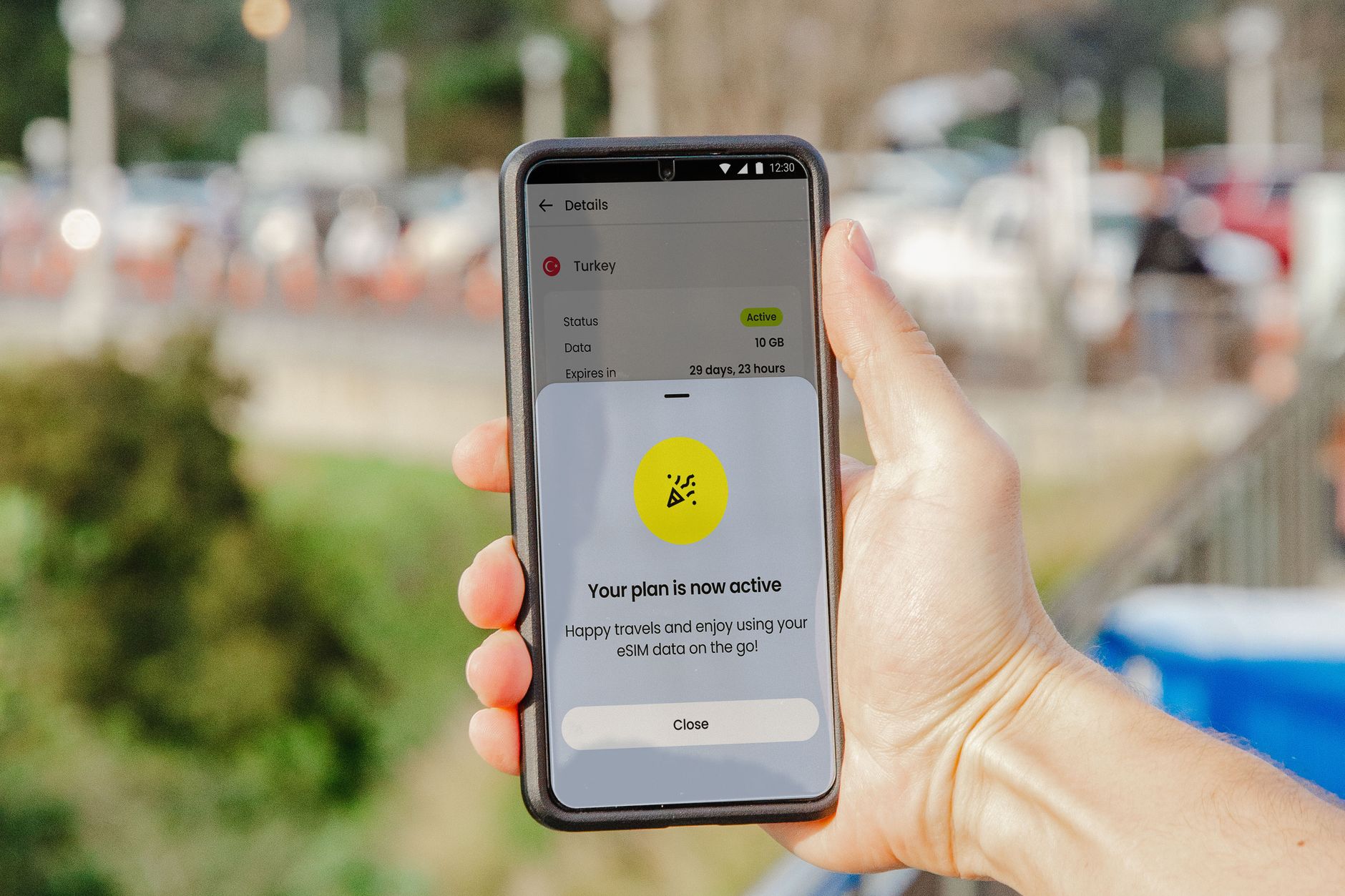
Image suggestion:
- Smartphone with settings screen in the background, illustrating network reset steps.
Photo by Jacob: https://www.pexels.com/@jacob-2102693
Check for Carrier and System Updates
Carrier and system updates can fix network stack issues by refreshing carrier profiles, APN settings, and modem firmware. Updates are usually quick and can resolve problems that a reset alone cannot fix. Here’s how to approach updates on Android and iPhone, plus what to do with APN changes if needed.
- Why updates matter: they include bug fixes, performance improvements, and updated roaming configurations. They can also re-sync with the carrier to improve reliability in tricky coverage areas.
- APN edits: sometimes you need to adjust APN parameters after a carrier change or in regions with specific data requirements. Keep a note of the original APN values in case you need to revert.
How to find and install:
- Android: Settings > System > Software Update, or Settings > About phone > Software updates. If an update is available, download and install. After updating, restart the device to reinitialize the modem stack. If your device uses a dual SIM or eSIM, ensure both profiles are updated.
- iPhone: Settings > General > Software Update. If an update is available, tap Download and Install. After the update, your carrier settings may refresh automatically. If not, you can trigger a carrier settings refresh via Settings > General > About.
APN editing steps:
- Android: Settings > Network & Internet > Mobile Network > Access Point Names. Create a new APN or adjust the existing one, entering values exactly as provided by your carrier. Save the profile and select it for data use.
- iPhone: Settings > Cellular > Cellular Data Network. Enter APN details provided by your carrier, including APN, username, and password if required. Save and reboot if prompted.
What to expect after updates: the phone may re-register on the network automatically. If the carrier settings update is pending, a reboot helps apply the changes immediately. If issues persist after updating, you may need to reselect networks manually or reinsert the SIM.
Additional references for updating and network troubleshooting:
- Apple’s guidance on No Service or Searching states and when to refresh carrier settings. https://support.apple.com/en-us/120000
- Android guidance on Safe Mode and network testing from Google. https://support.google.com/android/answer/7665064?hl=en
- General Android troubleshooting covering network settings and switching between Wi-Fi and mobile data. https://support.google.com/android/answer/2651367?hl=en
Takeaway: keeping your device software up to date is a simple, often overlooked way to fix network issues. A small update can align your modem and carrier settings for a stronger, more reliable connection. After applying updates, test again. If problems remain, you’re ready to continue with deeper checks like SIM status, and network mode configurations in the next sections.
Last Resorts and Prevention Tips
If the earlier steps still haven’t fixed the “Searching for network” issue, it’s time to reach out for help and take preventive actions to avoid a repeat. This section covers practical last resorts you can try, plus simple habits to keep your connection stable in the future. Think of it as the final tune up before you call it a day and the camera stays on a smartphone you rely on.
Test in Another Area or Contact Support
Sometimes the problem isn’t your device at all but the local network or a temporary outage. Before you sprint to a repair shop, test the connection in a different spot and with the right support channels. This saves time and helps you gather evidence if you do need to escalate.
- Carrier app checks: Open your carrier’s official app and look for a network diagnostics tool or outage status. Many carriers let you run a quick test to verify if your line is provisioned correctly or if there’s a known issue in your area.
- Call steps if needed: If the app isn’t giving clear results, call your carrier’s support line. Explain that your phone is stuck on searching, mention your phone model, and note any recent changes such as a SIM swap, software update, or travel. Ask specifically for a carrier-side reset or re-provisioning of your line. This approach is often faster than waiting for a full device replacement.
- Move to a known good SIM: If you have access to another SIM from the same carrier, try it in your phone. If the other SIM connects normally, the problem likely lies with your original SIM or its account provisioning. If the other SIM also shows no service, the issue is more likely on the network or device side.
- Check outage maps: A quick glance at outage trackers can confirm whether the carrier is having a broader problem in your area. This can save you time and help you plan around the disruption. See the carrier outage resources for a quick reference:
- Apple’s No Service or Searching diagnostics for iPhone users
- Android Safe Mode and network testing guidance
- Carrier outage maps and status pages
Useful references:
- Apple No Service or Searching diagnostics and steps: https://support.apple.com/en-us/120000
- Google Android Safe Mode and network testing guidance: https://support.google.com/android/answer/7665064?hl=en
- General Android network troubleshooting and network switching: https://support.google.com/android/answer/2651367?hl=en
Takeaway: if a different area yields better results, you’re likely facing a local coverage or network-side issue rather than a hardware fault. If the problem persists across areas, you’re more likely dealing with a SIM, carrier configuration, or device setting that needs deeper attention.
What to Tell Support and What to Expect
When you reach out to support, clarity speeds resolution. Provide a concise history of the issue, including:
- When the problem started and any steps that helped or didn’t help.
- Your device model, OS version, and whether you recently updated or changed SIM cards.
- Any error messages seen, such as “No Service,” “No SIM,” or “Searching.”
- Whether other devices on the same account or SIM connect normally.
What to expect:
- A carrier reset or re-provisioning of your line, which can fix provisioning errors on their end.
- Guidance to reapply carrier settings or update roaming profiles if you’re traveling.
- If hardware seems implicated, a service appointment or replacement options may be proposed.
External references you may find useful when talking to support:
- iPhone diagnostics and steps for No Service or Searching: https://support.apple.com/en-us/120000
- Android network testing and Safe Mode guidance: https://support.google.com/android/answer/7665064?hl=en
Smartphone users often find these conversations productive because agents can see your account status and remotely reconfigure settings in many cases. A calm, factual report tends to move things along faster.
Preventive Practices to Avoid Future Outages
Preventing another round of “Searching for network” starts with small, consistent habits. Implement these simple practices to keep your connection steady and reduce the chance of sudden drops.
- Keep SIMs clean and seated: A dirty or loose SIM is a common cause of intermittent service. Regularly check the SIM for dust and reseat it after a phone drop or servicing.
- Update carrier settings promptly: Carrier updates can fix known bugs and improve network handoffs. Enable automatic updates when possible and check for updates after a software upgrade.
- Stay on recommended network modes: Use the recommended network mode for your area and avoid forcing a locked setting if you don’t need it. Automatic mode helps the device switch to the best available option.
- Monitor outages in advance: If you live in an area prone to weather or construction outages, keep an eye on official carrier status pages and local advisories. This helps you plan around planned maintenance or known issues.
- Backup connectivity options: In a pinch, enable Wi-Fi calling if your carrier supports it. It can keep you connected when cellular networks are unstable.
- Regularly restart on a schedule: A quick restart every week can prevent minor glitches from building up. It’s a small habit that pays off for overall reliability.
- Use fault isolation techniques: If you share a house with many devices, ensure no device is hogging the network. A quick router reboot can fix congestion that impacts mobile data.
Integrating these habits takes only a few minutes but pays dividends in fewer dropped calls and faster reinstatement of service.
References for ongoing learning:
- Apple guidance on refreshing carrier settings for iPhone users: https://support.apple.com/en-us/120000
- Android guidance on Safe Mode and network testing: https://support.google.com/android/answer/7665064?hl=en
Takeaway: last resorts matter, but prevention keeps you ahead. A quick test in a different area, clear notes for support, and practical habits like regular updates and SIM checks reduce the chance of future outages. With these practices, your smartphone stays reliable and ready when you need it most.
Conclusion
Most cases of a phone stuck on searching for a network can be solved at home with a simple, ordered sequence. Start with the basics: a full restart and a quick toggle of Airplane Mode. These two steps refresh the radio stack and clear minor glitches that block service.
Next, check the SIM. Remove, clean, and reseat it with the device powered off. If the SIM looks fine but the problem persists, try a different SIM from the same carrier to rule out account or card issues.
If your device still struggles, switch to manual network selection. Locking onto a specific carrier can bypass odd routing after roaming or a SIM swap. After that, reset network settings and update software. This clears misconfigurations that data updates may have introduced and ensures the modem and carrier profiles are aligned.
Apply carrier updates and recheck APN settings if needed. A small refresh can restore connection details and improve stability in tricky areas. After each major step, test by opening a page or placing a quick call to confirm the connection.
If the issue lingers, you’re not out of options yet, but most problems stay contained at home. Share your experience in the comments, subscribe for more practical guides, and use these steps to keep connectivity simple. With these moves, your device stays responsive and ready whenever you need it.
Thousands of People Were Struggling With Money Until They Discovered This One Ancient Secret Hidden in Sound
>>> Unlock It Now <<<
