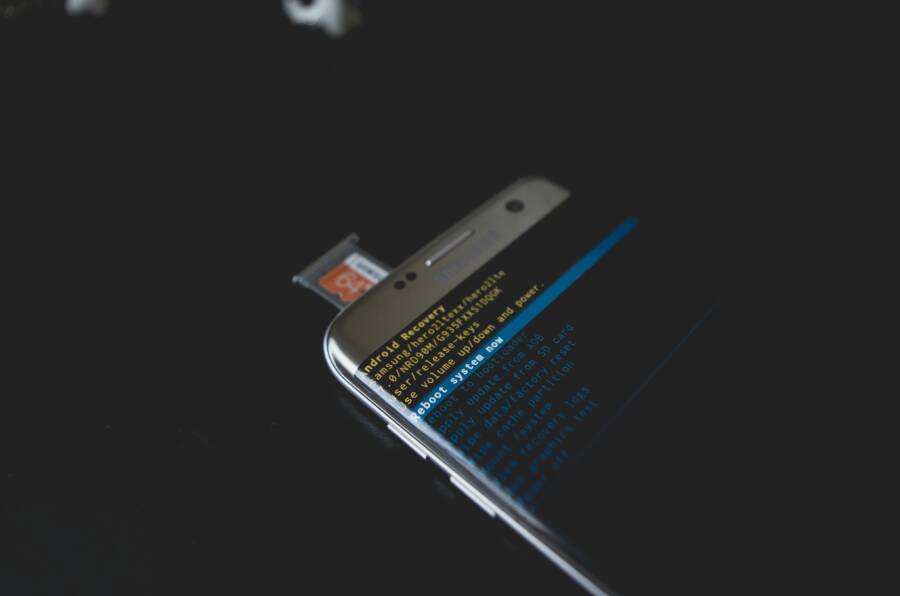
Is your smartphone freezing at random times, turning simple tasks into slow, frustrating rituals? You’re not alone. This guide covers how to diagnose the cause, fix common issues quickly, and keep your device running smoothly day after day. Whether you’re dealing with a busy Android or an iPhone, a systematic approach saves time and reduces stress.
First, we’ll walk through quick fixes you can try today. Rebooting the device, closing unused apps, and checking for software updates often clear the freeze without heavy tinkering. If storage is almost full or a few apps behave oddly, cleaning up space and clearing app caches can restore responsiveness. These steps address everyday culprits so you can get back to normal use right away.
Next, we dive into deeper maintenance that pays off in the long run. An OS update, a factory reset as a last resort, or checking for failing hardware components can prevent future freezes. We’ll also discuss habits that help, like avoiding too many background apps, managing notifications, and keeping essential apps updated. For some readers, a persistent issue may require professional help to diagnose hardware faults or battery problems that show up as random freezes in daily use.
Finally, we’ll cover prevention and careful monitoring so you stay ahead. Regularly review running processes, monitor app permissions, and back up data before making major changes. Knowing when to seek expert help is part of smart device care, and recognizing early warning signs can save time and money. By following these steps, your smartphone stays reliable, fast, and ready for work, play, and everything in between.
Why a phone freezes and how to spot the signs
When a phone freezes, it pauses or becomes unresponsive at the moment you need it most. Understanding why this happens helps you act fast and fix the issue without chasing ghosts. Below, you’ll find clear explanations of common causes and a straightforward way to tell whether the problem is software or hardware. Think of it as a quick diagnostic map you can follow before deciding on a fix.
Common causes of freezing on smartphones
Smartphones can freeze for several everyday reasons. Here are the top culprits, each explained in plain language with simple examples to help you spot them quickly.
- Low memory or storage space: When the device runs out of free memory, it slows down or freezes as apps try to access data. Example: you’re trying to snap a photo while several apps are open and the gallery app hesitates to load.
- Too many background apps: Many apps running at once steal processing power and RAM. If you’ve got dozens of apps in memory, you’ll notice lag when you switch tasks or open new apps.
- Software bugs or app conflicts: A buggy app or a faulty update can cause random freezes. This is common after installing a new app or after a system update that didn’t finish cleanly.
- OS updates awaiting restart: Some updates install in the background but require a reboot to complete. Until you restart, you might experience slower performance or occasional freezes.
- Malware or rogue apps: In rare cases, a malicious or poorly coded app can drain resources, causing the phone to stall or heat up.
- Overheating: If the device gets too hot, it may throttle performance or freeze to protect itself. This happens after gaming sessions, GPS navigation during a hot day, or charging while in a protective case.
For a quick read on how these factors play out in real devices, you can review practical explanations from reputable guides like Asurion, which breaks down common causes and simple fixes. Their take aligns with what most users experience in day-to-day life. https://www.asurion.com/connect/tech-tips/why-phone-keeps-freezing/
If you want a deeper dive into how background processes interact with memory and why this leads to stutter or freeze on many Android devices, this explainer highlights memory pressure and app conflicts in a user-friendly way. https://blog.ecoatm.com/how-to-diagnose-causes-of-glitches-on-android-devices/
Sometimes a quick cleanup can nip freezing in the bud. Clearing cache or removing unused apps can free up space and reduce background load, especially on older devices with limited RAM. If you’re noticing repeated freezes after a software update, consider checking for a minor follow-up update or a reboot to complete the install. For practical, step-by-step guidance, see user-tested tips from repair-focused resources. https://repairmate.com.au/blog/posts/why-does-my-phone-keep-freezing-common-causes-and-fixes
If you’re curious about whether freezes point to hardware wear or a looming hardware fault, a quick read on diagnosing hardware issues provides a helpful framework. https://owlrepairs.com/phone-keeps-freezing-causes-fixes-professional-repair/
How to tell if freezing is software or hardware
Short, telltale signs can point you toward software problems or hardware faults. Here is a practical quick-check guide, followed by a simple diagnostic plan you can run through in a few minutes.
- Software signs:
- App crashes or frequent soft locks: Apps close or crash without warning while you’re performing routine tasks.
- Long load times after updates: The UI feels slow only after a recent update, even if you haven’t added new apps.
- Odd battery drain or rapid heat during light use: The device gets unusually warm or drains faster than expected when idle.
- Fresh issues after installing or updating apps: A newly installed app or a recently updated app causes intermittent freezes.
- Symptoms improve after a reboot: A quick restart clears ailments for a while, suggesting software residues or memory pressure.
- Hardware signs:
- Screen is unresponsive or has touch issues that don’t follow finger input: The display looks fine, but taps aren’t registered reliably.
- Phone gets hot to the touch even during light use: Overheating can signal failing components, battery stress, or poor thermal management.
- Random reboots or shutdowns: The device restarts without warning, often with a brief boot loop or a sudden turn-off.
- Fan-like sounds or unusual hardware behavior: Mechanical noise or glitches point to hardware concerns rather than app issues.
- Persistent freezes across all apps and after factory resets: If problems remain after a clean start, hardware is more likely involved.
Simple diagnostic plan you can follow right now:
- Restart the phone to clear temporary software glitches.
- Check for and install any pending OS or app updates; restart again after updating.
- Free up space by removing unused apps and clearing cache, then observe for a day.
- Run a controlled test: open a single app you know is reliable and perform a few routine tasks. Note any freezes.
- If problems persist, test in safe mode (Android) or use a minimal setup (iPhone) to rule out third-party apps.
- If the device still freezes under basic use, schedule a diagnostic with a professional to assess battery health and hardware integrity.
For more structured guidance on distinguishing software from hardware issues, see this practical guide from a mobile repair perspective. https://foneday.shop/blog/Identify-software-and-hardware-issues-in-mobile-devices
If you want a concise, consumer-friendly overview of software vs hardware symptoms, this article lays out the main cues and a straightforward path to follow. https://owlrepairs.com/phone-keeps-freezing-causes-fixes-professional-repair/
If you’re dealing with a suspected hardware fault, a professional check can save time and prevent data loss. Here’s how a repair expert typically approaches these issues. https://repairmate.com.au/blog/posts/why-does-my-phone-keep-freezing-common-causes-and-fixes
Remember, few freezes are truly mysterious. Start with the basics, then narrow down the cause using simple tests. A calm, methodical approach often reveals whether you should tidy software or seek hardware help. And if you need a quick reference, these links offer solid, practical guidance you can apply today. https://www.asurion.com/connect/tech-tips/why-phone-keeps-freezing/
Fast fixes you can try now
When your phone freezes at random moments, quick, practical fixes can save you from a long tech headache. These fast actions don’t require special tools and work on most Android and iPhone models. Try them in order, and you’ll often restore smooth performance within minutes. If you’re dealing with a stubborn pause, these steps still lay a solid foundation before deeper troubleshooting.
 Photo by Kelvin Valerio
Close apps and restart the phone
Closing running apps stops them from hogging memory and processor time. On Android, use your recent apps button or gesture to swipe away each app you’re not actively using. On iPhone, double-click the Home button (or swipe up and hold on newer models) to view recent apps, then swipe them off the screen.
Next, perform a soft restart. This refreshes system processes without erasing data. On Android, hold the power button and select Restart. On iPhone, hold the side button and either volume button, then slide to power off and turn the device back on.
If the screen is unresponsive, a force reboot may be needed. For Android devices, hold the power button along with volume down for about 10 seconds. For iPhone, a quick force restart sequence depends on the model (volume up, volume down, then press and hold the side button until the Apple logo appears).
Helpful reference for force quitting and restarting:
- How to force quit frozen apps on iPhone or iPad
- How to restart an app on iPhone and Android
Clear app cache and temporary data
Caches store temporary files to speed up repeated tasks, but they can bog down a device over time. Clearing them frees space and reduces background activity that can cause freezes.
A general path you can follow:
- Android: Settings > Apps > select an app > Storage > Clear cache.
- iPhone: Offload an app to remove its temporary data while keeping its documents and data; or clear website cache via Settings > Safari (for browser cache). If you’re not sure, start with Offload App.
Key reminder: clearing cache does not delete your personal data. It simply removes temporary files that can accumulate and slow things down.
For deeper guidance, see the guidance from reliable sources on cache management:
- How to clear app cache on your phone
- Clear your cache and cookies on iPhone
- How to Clear Cache and Delete Cookies on Your Phone
Update the OS and apps
Software updates fix bugs, improve stability, and patch security flaws that can trigger freezes. Keeping both the OS and apps current is one of the most reliable long term fixes.
How to check for updates:
- iOS: Settings > General > Software Update. Install any available updates, then restart.
- Android: Settings > System > System update (or Software update). Install any available updates, then restart.
Don’t forget to update apps as well:
- On iOS, open the App Store > your profile icon > Update All.
- On Android, Open Google Play > your profile > Manage apps & device > Updates available.
If updates are pending and you don’t see a prompt, a quick restart after updating helps finalize changes.
External references for OS and app updates:
- How to update your Android phone
- How to update apps on Android
- Update guidance for iPhone and iOS apps
Free up storage and manage space
Low storage is a common culprit behind freezes. When space runs short, the system struggles to cache, swap, and manage background tasks.
Start by checking storage to identify large offenders. Move photos, videos, and large files to the cloud or a computer. Delete unused apps and lingering downloads, especially large video or audio files.
A practical approach:
- Review storage usage in Settings (Android: Settings > Storage; iPhone: Settings > General > iPhone Storage).
- Transfer media to cloud services or a PC.
- Uninstall apps you no longer use and delete large, rarely accessed files.
- Empty caches and temporary files where available.
Why it matters: more free space means quicker app launches, faster navigation, and fewer stutters.
Helpful links for freeing up space:
- How to Free Up Storage on Android and iPhone
- Manage storage on iPhone
- Free up space – Android Help
If you’re curious about how much space you really need, aim to keep at least 10–15% free for smooth operation, plus extra headroom for app caches and background tasks.
What to do next
- Monitor the device for 24–48 hours after freeing space.
- If freezing reduces or disappears, you’ve pinpointed storage as a major factor.
- If problems persist, move to deeper maintenance steps or hardware checks.
Additional tips to streamline performance:
- Regularly back up data to avoid loss when you reset or clean up.
- Consider a lightweight launcher or minimal home screen to reduce background work on older devices.
- Keep essential apps updated to avoid compatibility issues that trigger freezes.
If you want more expert guidance on diagnosing freezes and choosing the right maintenance path, you’ll find practical workflows in the linked guides above. You can also consult professional repair resources if a hardware fault looks likely.
Deeper maintenance for longer term stability
Longer term stability comes from thoughtful maintenance, not just quick fixes. This section guides you through deliberate steps that prevent freezes from creeping back. Think of it as a regular tune-up for your Android or iPhone. You’ll learn how to reset defaults without losing data, selectively remove problematic apps, and use a factory reset only when absolutely necessary. Each step builds a sturdier foundation for smooth daily use.
Reset app preferences and disable background activity
Resetting app preferences can clear misconfigured defaults that quietly throttle performance. It resets permission prompts, notification settings, and default apps without erasing your data or installed apps. After the reset, you’ll set up preferences more intentionally, which can stop stubborn background processes from dragging performance down.
- What resetting does for you:
- Reinstates sensible defaults for permissions and notifications.
- Stops rogue background behaviors caused by corrupted defaults.
- Keeps your personal data intact while cleaning system-level quirks.
- How to reset on Android:
- Go to Settings > System > Reset options > Reset app preferences.
- Confirm and let the device reconfigure defaults.
- Revisit key settings: app permissions, notification categories, and background data.
- How to reset on iPhone:
- Go to Settings > General > Transfer or Reset iPhone > Reset > Reset All Settings.
- This won’t erase apps or data, but you’ll reconfigure preferences like notifications and wallpaper.
- Limiting background activity:
- Android: Settings > Apps & notifications > See all apps. For each app, restrict background data or set background activity limits. You can also disable auto-start for known culprits.
- iPhone: Settings > General > Background App Refresh. Turn off for apps that don’t need to stay updated in the background.
- Quick sanity checks after the reset:
- Observe the UI for a day with normal use and a few heavier tasks.
- Reassess memory usage and background activity, trimming where needed.
For more practical guidance on this topic, see how background activity affects performance and what users typically experience on Android. https://droidinsights.dev/articles/how-to-reset-app-preferences-android If you want a broader view on why freezes happen and how to approach them, this consumer-focused overview helps you map software vs hardware symptoms. https://www.asurion.com/connect/tech-tips/why-phone-keeps-freezing/
Uninstall or disable problem apps
Some apps behave well in isolation but misbehave when crowded with others. If a freeze occurs after you install or update a particular app, it’s a strong sign that app is the root cause. The goal is to identify, then remove or disable the offender while keeping the rest of your setup intact.
- How to identify problematic apps:
- Note when freezes happen. Do they coincide with launching a specific app or performing a task that uses location or permissions heavily?
- Check for apps with unusually high memory or CPU usage in your device’s developer options or battery settings.
- Revisit recent installs or updates first, as many issues appear after new software enters the mix.
- How to uninstall or disable on Android:
- Settings > Apps & notifications > See all apps. Tap the suspected app > Uninstall.
- If you don’t want to remove it entirely, you can disable it to stop background activity: App info > Disable.
- After removal, restart the device and test stability with routine tasks.
- How to uninstall or disable on iPhone:
- Tap and hold the app on the Home Screen, then choose Remove App and Delete App, or move it to Alt League to disable background activity in some cases.
- For apps that are hard to remove, offload the app: Settings > General > iPhone Storage > Offload App. This keeps documents and data but removes the app itself.
- Testing stability after removal:
- Use the device as you normally would for 24–48 hours.
- Watch for any recurrence of freezes during daily tasks, like messaging, browsing, or navigation.
- If stability returns, you’ve likely removed the culprit. If not, you still have room to trim more background load or probe deeper causes.
For deeper context on how to approach a possibly problematic app, see repair-focused guidance on why freezes happen after app installs and how to test changes. https://repairmate.com.au/blog/posts/why-does-my-phone-keep-freezing-common-causes-and-fixes If you want a concise primer on software versus hardware factors behind freezes, this practical read helps you decide when to escalate. https://owlrepairs.com/phone-keeps-freezing-causes-fixes-professional-repair/
Factory reset as a last resort
A factory reset wipes the slate clean and is the most definitive way to rule out software as the cause of freezes. Treat this as a last resort because it removes installed apps and data. Plan carefully, back up everything important, then reset and restore only what you truly need.
- When to consider a factory reset:
- Recurrent freezes persist after firmware updates and app cleanups.
- You’ve tested multiple scenarios (safe mode, clean user account, minimal apps) with no lasting improvement.
- You want a fresh start after a hardware aging pattern appears to be software-driven.
- Prepare carefully:
- Back up data: photos, contacts, messages, and essential app data. Use cloud storage or a local computer.
- Note important app configurations and login details so you can restore later.
- Ensure you have a reliable power source or charger during the reset process.
- Simple pre-reset checklist:
- Back up everything you value.
- Update both OS and all essential apps to their latest versions.
- Remove sensitive accounts from the device to minimize data exposure during reset.
- Confirm you have the correct reset path for your device model.
- How to perform a reset:
- Android: Settings > System > Reset options > Erase all data (factory reset). Follow on-screen prompts and reconfigure your device after the reboot.
- iPhone: Settings > General > Transfer or Reset iPhone > Erase All Content and Settings. After the reset, you can restore from a backup or set up as new.
- After the reset, restore data carefully:
- Restore only essential data and apps first.
- Monitor for stability as you gradually reintroduce other apps.
- If problems reappear after restoring a specific app or data type, you’ve likely found the source.
- Caution about data encoding and compatibility:
- Some backups may include app settings that don’t translate perfectly after restore. Be prepared to reconfigure certain options.
- If you have critical business data, test restoration on a secondary device or in a controlled environment before doing the reset on your main phone.
If you’d like a cautious, consumer-friendly overview of when a factory reset makes sense and how to approach the data restore, this guide covers the essentials. https://repairmate.com.au/blog/posts/why-does-my-phone-keep-freezing-common-causes-and-fixes For practical guidance on distinguishing software from hardware issues and choosing the right maintenance path, see this mobile repair perspective. https://foneday.shop/blog/Identify-software-and-hardware-issues-in-mobile-devices
Following these steps helps you turn a sporadic problem into a predictable, manageable routine. A methodical approach keeps your smartphone stable longer, reduces the chance of data loss, and gives you back control over your daily tasks. If you’re ready for the next stage, we’ll cover how to prevent future freezes with ongoing maintenance and smart usage habits.
Preventive habits to keep your phone smooth
A well-tuned device stays responsive, lasts longer, and avoids the stress of sudden freezes. These preventive habits focus on keeping both software and hardware in good shape. Think of it as a regular tune-up for your phone so it handles everyday tasks with ease. Below are practical, easy-to-follow strategies you can start using today.
Regularly update software and apps
Staying on the latest software is one of the most effective ways to prevent freezes. Updates fix bugs, improve memory management, and close security gaps that could otherwise slow things down or cause apps to misbehave. When you keep your OS and apps current, you reduce the chance of conflicts that lead to unresponsiveness.
- Create a simple reminder schedule:
- Monthly check for OS updates on both Android and iPhone.
- Enable automatic app updates where possible, but review after updates to catch any unusual behavior.
- After clocking in a new app or a major update, reboot within 24 hours to finalize changes.
How to stay up to date without the guesswork:
- iPhone: Settings > General > Software Update. Turn on Automatic Updates for both iOS and apps, if available.
- Android: Settings > System > System update (or Software update). Enable automatic updates for apps in the Play Store.
Why this matters: updates often include performance improvements and security patches. They can fix memory leaks, reduce background activity that drains resources, and fix bugs that previously caused freezes. For extra context, reputable guides summarize the pattern of stability improvements that come with regular updates. See practical guidance on device updates and maintenance here: https://us.norton.com/blog/performance-tips/why-is-my-iphone-so-slow
In addition, keeping apps current is crucial. Some apps depend on recent OS features or permission models, and older versions can clash with new system behavior. When updates come through, a quick restart helps the changes take effect cleanly. If you want a consumer-friendly overview of updating habits, this resource provides clear steps and expectations: https://www.asurion.com/connect/tech-tips/why-phone-keeps-freezing/
Pro tip: review app permissions after major updates. A few apps may request more background access than they need, which can push the device closer to its limit. A brief audit now can prevent a large cleanup later.
Storage management habits
Storage space matters. When storage is tight, the system has less elbow room to manage app caches, temporary files, and background tasks. A phone that breathes is a phone that runs smoothly.
- Offload or back up photos and videos regularly. Move media to cloud storage or a computer, then keep only what you need on the device.
- Clear downloads and unused files. A quick sweep every month helps keep space free for system caches and active apps.
- Review large apps and data. If an app is rarely used but hogs space, consider uninstalling or offloading it.
- Maintain a practical balance. Aim to stay above 10–15% free space for a healthy footprint on most devices.
A simple routine to follow:
- Weekly: quick check of Download folder and large video files.
- Monthly: review apps with the biggest storage impact and offload or delete as needed.
- Quarterly: perform a broader purge of old data and confirm backups are current.
Why this helps: with more free space, apps launch faster, switching between tasks is snappier, and the system can cache recent data efficiently. For concrete steps on freeing up space, see these guides: How to Free Up Storage on Android and iPhone and Manage storage on iPhone.
If you want a broader perspective on free space and performance, this article covers the common effects of storage pressure and practical remedies: https://phone-expert.com.au/how-to-keep-your-android-phone-running-smoothly/
A small habit to keep in mind: enable automatic backup of photos and essential data. This reduces the risk of data loss when you eventually perform a reset or a major cleanup.
Battery health and charging practices
Battery health directly affects performance. A degraded battery can cause slowdowns, throttling, or unexpected freezes as the system protects itself from instability. Understanding how to care for the battery helps your phone stay responsive longer.
- Monitor battery health periodically. If you notice rapid drops in charge or the device getting unusually hot, it may be time to investigate battery wear.
- Practice safe charging habits:
- Use the charger that came with your device or an approved alternative with the right specifications.
- Avoid charging in very hot or very cold environments.
- If you use a case, ensure it doesn’t trap heat during charging.
- Avoid overheating during charging:
- Don’t leave the phone on a soft surface that traps heat while charging.
- Remove heavy cases during long charging sessions if the device gets warm.
- Stop charging once the battery hits 80–90% if you’re keeping the device plugged in for extended periods.
- Balance charging cycles with regular usage. Overnight charging is convenient for some, but keeping the device from hitting 100% all the time can reduce long-term wear on the battery.
Why this matters: a healthy battery helps maintain peak performance and can prevent random slowdowns that resemble freezes. If you’re curious about how battery health influences performance and how to optimize charging, these sources offer practical guidance: https://owlrepairs.com/phone-keeps-freezing-causes-fixes-professional-repair/
What to watch for:
- Sudden battery drain or heat during light use can signal underlying issues beyond normal aging.
- A device that reboots or throttles during routine tasks may be managing heat or power delivery from a worn battery.
Proactive steps:
- Run a quick battery health check in settings if your device offers it.
- Replace the battery when health drops below a threshold recommended by the manufacturer.
- Keep software up to date so battery management features stay aligned with the OS.
By integrating these preventive habits, you create a solid foundation that supports smooth daily use. Regular software updates, thoughtful storage management, and mindful charging practices work together to reduce the chance of freezes and improve overall responsiveness. When you combine these with the deeper maintenance steps discussed later, you set your phone up for reliable performance over the long run. For additional context on keeping devices in top shape, explore related tips and real-world guidance linked throughout this section.
Know when to seek professional help or hardware checks
When your phone freezes at random moments, it can be tempting to chase software tweaks alone. Some freezes come from apps or OS quirks, but others point to hardware wear or failing components. This section helps you spot the signs and know when to bring in a professional. A calm, methodical approach saves time, protects your data, and stops you from throwing money at the wrong fix.
Signs of hardware issues
Hardware problems usually show up as symptoms that software alone can’t fix. If you notice one or more of these indicators, it’s a strong signal to seek a professional check.
- Persistent freezing after resets or after a full charge cycle. If the device remains unresponsive even after you reboot and clear app caches, hardware wear could be the culprit.
- Screen flicker or unregistered touch input. When taps don’t register reliably or the display alternates between normal and distorted visuals, the touch panel or display hardware may be failing.
- Battery swelling or charging anomalies. A swollen battery, irregular charging speed, or the phone getting hot during charging points to battery health or power-management hardware trouble.
- Random reboots with no clear software cause. If the device resets unexpectedly, even after a clean boot, the issue may lie with hardware stability.
- Unusual noises or fan-like sounds. Mechanical sounds near the chassis during operation suggest hardware components losing integrity.
- Freezes that persist after a factory reset. If problems survive a clean start, the issue is unlikely to be software alone and should be checked by a technician.
If you want a quick read on hardware-related freezes and what a repair pro looks for, this guide offers a practical framework: https://owlrepairs.com/phone-keeps-freezing-causes-fixes-professional-repair/
For a broader discussion on how to distinguish software from hardware issues, this consumer-focused overview provides straightforward cues and next steps: https://www.asurion.com/connect/tech-tips/why-phone-keeps-freezing/
If you suspect hardware wear, a professional check can save time and protect data. Here’s how repair experts typically approach these issues: https://repairmate.com.au/blog/posts/why-does-my-phone-keep-freezing-common-causes-and-fixes
Remember, most freezes have a practical cause. Start with the basics, then move to a hardware assessment if needed. A careful, steady process often reveals whether you should tidy software or seek hardware help. For a quick reference, these guides offer solid, actionable advice you can apply today: https://www.asurion.com/connect/tech-tips/why-phone-keeps-freezing/
How to tell software issues from hardware problems at a glance
Quick checks can help you triage without diving into repairs right away. Use these signs to gauge whether the problem is likely software or hardware.
- Software signals:
- App crashes or soft locks that coincide with recent updates.
- Sluggish performance after software changes, with no heat or battery abnormality.
- Odd battery drain during light use, but devices stay cool in idle.
- Resolution improvements after a reboot, suggesting temporary software clutter.
- Hardware signals:
- Screen does not respond consistently despite a healthy OS.
- Overheating with light use, or a device that gets hot quickly during normal tasks.
- Unexplained reboots or shutdowns not tied to apps.
- Persistent freezes across all apps, even after resets, or unusual noises.
If hardware seems likely, consider a professional diagnostic. It can pinpoint battery health, motherboard issues, or other components that are hard to test at home. For more context on distinguishing software from hardware symptoms, see this practical guide: https://foneday.shop/blog/Identify-software-and-hardware-issues-in-mobile-devices
Significant hardware problems often require a repair shop. If you want a concise, consumer-friendly overview of when to escalate, this article clarifies the guidance: https://owlrepairs.com/phone-keeps-freezing-causes-fixes-professional-repair/
A professional check also helps prevent data loss during repair. When in doubt, schedule an assessment and discuss your options with an authorized technician. More guidance on how a repair expert approaches these cases is available here: https://repairmate.com.au/blog/posts/why-does-my-phone-keep-freezing-common-causes-and-fixes
If you’re mainly curious about practical steps you can take before deciding, these sources provide solid, stepwise paths you can follow: https://www.asurion.com/connect/tech-tips/why-phone-keeps-freezing/
What to do before visiting a repair shop
Before you hand over your device, a pre-visit plan helps protect your data and speeds up the process. Use this checklist to prepare, so you go in with clarity and confidence.
- Back up your data. Photos, messages, and app data should be saved in the cloud or on a computer. A repair may require a reset, and backups prevent data loss.
- Note model and symptoms. Write down the exact phone model, OS version, recent apps installed, and when the freezes occur. A detailed timeline helps the technician reproduce the issue.
- Gather proof of purchase and warranty info. If the device is still under warranty, you’ll want easy access to receipts or service records.
- Perform basic pre-checks at home:
- Update OS and essential apps to the latest versions.
- Free up space and clear caches where safe to do so.
- Try a safe mode or minimal setup to rule out third-party apps.
- Decide your service path. If the device is old or the problem seems hardware related, you can discuss options like battery replacement or screen repair, rather than a full motherboard swap.
To help you prepare, here are a couple of practical resources on getting ready for repair visits:
- How to prepare Your phone for repair: https://www.therepairdepot.com/blog/post/how-to-prepare-your-phone-for-repair
- 10 Things to Do Before Sending Your Phone for Repair: https://911phonerepairokc.com/things-to-do-before-sending-phone-for-repair/
If you want a direct, actionable primer on steps to take before a repair visit, these two sources cover essential prep tasks and data protection practices: https://www.quora.com/What-do-you-do-before-taking-your-phone-to-a-repair-shop and https://911phonerepairokc.com/things-to-do-before-sending-phone-for-repair
By organizing your prep, you reduce downtime and stress. When you arrive at the shop, you can focus on the real issue instead of scrambling for data or proof. If you’d like, we can tailor this pre-visit checklist to your specific device model and repair type.
Conclusion
A practical approach turns random freezes into a manageable problem. Start with quick fixes like rebooting, updating software, and freeing space, then move to deeper checks if needed. Always back up your data before major changes, and test your device after each step to confirm improvements. With steady steps and a little patience, your smartphone stays responsive and reliable; a well cared for smartphone can handle daily tasks with less frustration.
If you run into progress or new issues, share your results or questions in the comments. Your experience can help others facing the same hiccups. Keep your data safe, stay curious, and your smartphone will stay ready for work, play, and everything in between.