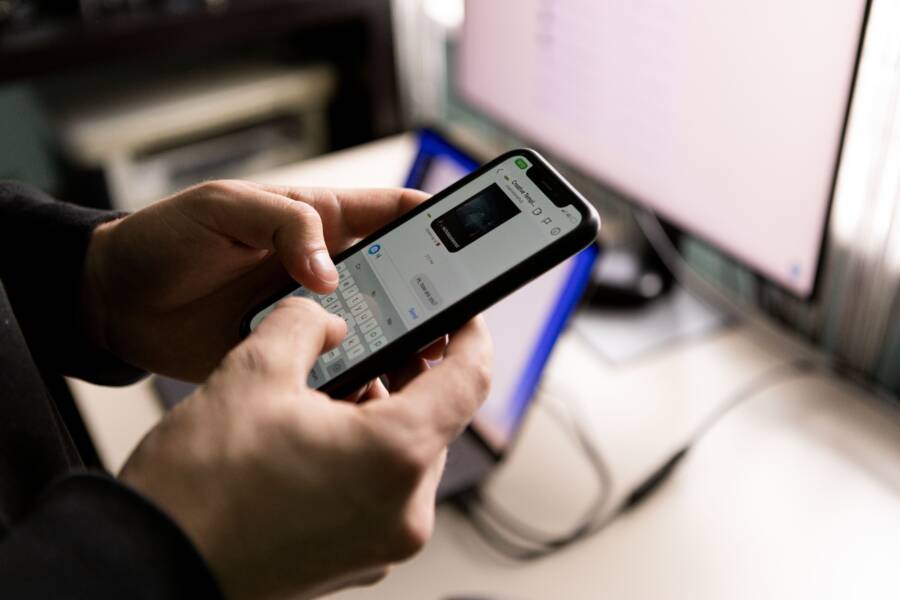
When your smartphone drops its printer connection, the issue usually stems from network drops, outdated apps, or background cache problems. You tap print, the job starts, and then a frustrating error message pops up on your screen.
Fixing this communication breakdown between your mobile device and printer is usually straightforward once you know where to look. Let’s walk through the exact steps to get your printer responding again.
Quick Checks to Bring Your Printer Back Online
When your smartphone refuses to send documents to the printer, wireless communication fails between the two devices. Network separation or temporary memory errors cause most connection blocks. Checking the local network frequency and performing a clean restart solves most communication failures in a few minutes.
Confirming Both Devices Share the Same Wi-Fi Band
Modern dual-band routers broadcast two separate frequencies, usually a 2.4GHz band and a 5GHz band, to manage home network traffic. The 2.4GHz frequency travels farther and penetrates walls easily, making it the standard choice for most wireless printers. The 5GHz frequency handles heavy data loads at faster speeds, which is why your smartphone connects to it automatically.
Your smartphone and your printer must communicate on the exact same frequency to talk to each other. If your smartphone sits on the 5GHz network while your printer stays on the 2.4GHz band, isolation settings on the router often block data transmission between the two frequencies. Log into your router settings or check your smartphone Wi-Fi menu to verify that both devices connect to the same band name. Moving your smartphone to the 2.4GHz network temporarily often restores the missing connection instantly.
Restarting Your Smartphone and Printer Correctly
Temporary bugs in network memory prevent devices from recognizing each other even when they share the correct Wi-Fi band. Power cycling clears out these stuck processes and forces both units to request a fresh IP address from the router.
Turn off your printer using the physical power button on the machine.
Unplug the power cord from the back of the printer and wait at least sixty seconds to drain residual power.
Restart your smartphone completely to clear its background network cache.
Plug the printer back in, turn it on, and wait until the wireless status light remains solid.
Open a document on your smartphone and test the print queue again.
Fixing Persistent Connection Drops on iOS and Android
When your smartphone keeps losing connection to the printer mid-job, software glitches in the background are usually to blame. Corrupted cache files or outdated network daemons can sever the link between your mobile device and the printing hardware. Applying a few targeted software fixes restores stability so your smartphone holds a steady connection.
Clearing App Cache and Updating Print Services
Corrupted cached data inside your smartphone print plugin often causes sudden disconnects because the system reads old communication paths. Android users can fix this by navigating to the application manager in system settings, locating the default print service or manufacturer plugin, and selecting the option to clear storage and cache. iOS handles printing through built-in AirPrint software, which updates automatically with each operating system patch. Checking your phone for pending software updates ensures your system runs the latest printer drivers and bug fixes. Old software versions frequently fail to negotiate secure sessions with modern network printers, so keeping these components current stops random disconnections.
Toggling Airplane Mode to Reset Network Antennas
Turning airplane mode on and off forces your smartphone to refresh its local network connections and find the printer again. This action instantly kills all cellular, Bluetooth, and Wi-Fi connections, clearing out any temporary glitches hanging inside the wireless antenna.
Swipe down from the top of your screen to open the quick settings panel on Android or the control center on iOS.
Tap the airplane icon to enable airplane mode and wait for all wireless signals to turn off completely.
Leave the setting active for at least ten seconds to let the network hardware rest.
Tap the airplane icon again to disable the mode and allow your smartphone to rejoin your local Wi-Fi network.
Open your print menu and check if the device detects the printer immediately.
Forgetting and Reconnecting to Your Home Network
Broken local IP assignments often cause persistent connection drops that simple reboots cannot solve. Removing the Wi-Fi network from your phone and logging back in forces your router to assign a brand new IP address to your mobile device.
Open the Wi-Fi settings menu on your smartphone, locate your current home network name, and tap the option to forget or delete the network. Next, turn your phone Wi-Fi off and back on to scan for available connections in the area. Select your home network, enter your wireless password carefully, and let the system establish a fresh connection from scratch. This process clears out conflicting routing tables that interfere with your printer discovery protocols.
Advanced Network Settings That Keep Your Printer Stable
Your smartphone relies on stable IP addresses and open local ports to maintain communication with printing hardware. When standard troubleshooting fails, adjusting advanced network configurations prevents your mobile device from losing the printer again.
Assigning a Static IP Address to Your Printer
Routers assign dynamic IP addresses to connected devices through a protocol that periodically refreshes after a set lease time expires. When the printer receives a new IP address, your smartphone still tries to send print jobs to the old address, causing an immediate communication failure. Assigning a fixed or static IP address to your printer stops this issue completely.
Log into your router administration page using a web browser and locate the DHCP reservation or client list settings. Find your printer in the connected devices table and bind its MAC address to its current local IP address. This tells the router to reserve that specific address exclusively for the printer. Your smartphone print service will always know the exact destination for every document because the address never changes when router leases expire.
Disabling VPN and Security Apps That Block Local Traffic
Virtual private networks encrypt your internet traffic by routing data through external servers, which isolates your smartphone from local network devices. When a VPN is active, your phone cannot see local hardware like wireless printers because local traffic is blocked from leaving the secure tunnel. Aggressive firewall apps or antivirus software on your phone can also block the local broadcast ports required for printer discovery.
Turn off your VPN application temporarily whenever you need to print a document from your mobile device. If your security software includes a local network trust setting, add your home Wi-Fi network to the allowed list. Configure your phone settings to permit local device discovery so your smartphone communicates freely with the printer hardware on the same subnet.
Common Questions About Smartphone Printer Connection Errors
Troubleshooting wireless printing often raises several specific questions about device compatibility and network rules. When a smartphone fails to locate a printer, users frequently encounter recurring obstacles that standard guides leave unanswered. Understanding these specific scenarios helps resolve lingering frustrations quickly.
Why Does My Smartphone Find the Printer But Fail to Print?
Your smartphone detects the printer because the device broadcasts its presence using local multicast protocols, but actual data transmission requires open network ports. Firewalls or router security settings often block the specific data ports that send the print job over the local network.
Port Blocking: Network routers sometimes isolate wireless clients from wired or wireless devices to protect privacy, which stops print data from passing through.
Driver Mismatch: The phone might recognize the physical hardware model, but lack the correct page description language to render the document properly.
Authentication Failure: Guest networks or secured institutional Wi-Fi setups frequently block peer-to-peer printing commands entirely.
Can I Print From My Smartphone Without an Internet Connection?
Local printing does not require an active internet connection because communication happens entirely within your local router network. Your smartphone and printer simply need power and an active Wi-Fi router to pass data back and forth.
Keep your Wi-Fi router plugged in and powered on, even if your broadband internet service is down.
Connect both your smartphone and your printer to the local Wi-Fi network name.
Send the document directly through your local printing app or built-in mobile print service.
How Often Should I Update Printer Firmware to Prevent Errors?
Manufacturer firmware updates patch critical security flaws and improve wireless stability with newer smartphone operating systems. Manufacturers release these patches several times a year, so checking for updates every six months prevents unexpected communication drops.
Most modern printers allow you to check for firmware updates directly through a built-in touchscreen menu or a companion mobile app. Updating this software ensures your smartphone communicates using the latest network protocols without running into compatibility walls.
Conclusion
Keeping your smartphone connected to a wireless printer comes down to stable local network settings and clean background processes. Once you match Wi-Fi bands, assign static IP addresses, and clear out stale cache files, connection errors stop interrupting your print queue.
Take a few minutes to apply these fixes today so your next printing task runs without a hitch.