Have you ever watched your phone drop to 20 percent and then shut down right in the middle of a call or a task? This is a common annoyance that happens on many smartphones, and it can be hard to fix with guesswork alone.
In this guide you’ll find clear, proven steps for both Android and iPhone that address the root causes like battery calibration, aging cells, and voltage dips under load. By following these practical fixes, you can often restore reliable performance without a costly repair, once and for all. You’ll learn how to identify the real culprit, apply simple calibration techniques, and decide when a battery replacement is the right move for your everyday smartphone.
Common Causes of Unexpected Shutdowns at 20 Percent
Shifting blame from the battery to the phone itself is easy, but most shutdowns around the 20 percent mark come from real, underlying battery behavior. In this section, we’ll unpack two common scenarios you’re likely to encounter: calibration errors that misread the remaining charge, and aging batteries that sag under load. Understanding these helps you decide whether a quick fix will do or a battery replacement is in order.
Battery Calibration Goes Wrong
When you charge a phone, the software uses feedback from the battery’s chemical reactions to estimate how much charge is left. Over time, this gauge can drift. A partial charge or a software update can amplify the error, causing the phone to think it still has more fuel than is actually available. The result is a sudden shutdown at a seemingly random percentage, often around 20 percent.
Consider a practical example: you charge your device to 80 percent, use it for a while, then plug it in again. After a few cycles, the phone might report 60 percent remaining, yet when you open a video or start a game, it powers off at 20 percent. The underlying issue is not the display percentage but the inaccurate fuel gauge. Calibrating the battery helps realign the reported level with the true energy available.
How to spot calibration issues
- The phone powers off long before reaching the percentage shown, or it reboots with a different remaining percentage than expected.
- After a software update, the battery meter seems to jump around, showing erratic readings even with steady usage.
- A full battery discharge to zero and a full recharge often eases the discrepancy briefly, then the misreadings return.
What you can do now
- Do a thorough battery calibration: charge to 100 percent, use the phone until it shuts down, then charge uninterrupted to 100 percent again.
- Avoid frequent top-ups during calibration to let the gauge learn the battery’s capacity.
- Update the device to the latest OS version, since patches sometimes address charger and gauge calibration issues.
- If the misread persists for many cycles, consider a professional check or a battery replacement, as calibration can only mask the root problem for so long.
A quick example shows the pattern clearly: after a software update, you might see the device report 40 percent while performing light tasks, yet it shuts down at 20 percent when you try to play a video. The mismatch points to calibration drift rather than a sudden drop in actual power.
For deeper context on how calibration works and what to expect during calibration cycles, you can review guidance from reputable battery health resources. Battery calibration explained provides practical steps and what to watch for during the process.
Aging Battery Voltage Sag
As batteries age, they lose their ability to hold charge and deliver power consistently. The voltage inside the cell can sag under load, which means the phone runs fine when idle but becomes unstable as soon as you start using power-hungry features. This sag can push the device into a shutdown even when the displayed percent is relatively high.
What happens during voltage sag
- The battery’s chemical reactions become less efficient with age, so the available energy drops more quickly under load.
- When the phone demands more current, the internal voltage dips below the minimum threshold needed to keep the processor and display running.
- The phone shuts down to protect itself, even though the battery indicator shows a healthier percentage.
You’ll notice aging voltage sag most during activities that use more power: gaming, video streaming, GPS navigation, or camera bursts. The shutdown feels abrupt because the device can’t sustain peak power draw anymore, despite what the gauge indicates.
Indicators of aging cells
- Shorter overall runtime between charges.
- Sudden shutdowns under load even at 30 percent or higher with inconsistent readings.
- A warm or hot device after light use, suggesting the battery is compensating to supply power.
What you can do now
- Test with a known-good battery if possible. A replacement can restore consistent performance.
- Optimize power usage: lower screen brightness, close background apps, and enable power-saving modes during heavy tasks.
- Keep the device cool. Heat accelerates voltage sag, so avoid leaving the phone in hot environments or in direct sunlight.
- Check for software updates. Sometimes manufacturers release fixes that improve power management and battery reporting.
A practical takeaway is that aging batteries create a reliability gap you can feel in daily use. If you’ve kept the device for a few years and you notice more frequent shutdowns around the 20 percent mark, it’s a strong signal that the battery is no longer meeting the demands of modern software and apps. Replacing the battery often restores the original user experience and removes the surprise shutdowns.
Additional resources on battery aging and health strategies can provide useful context. For a straightforward overview of how aging affects voltage and performance, see Understanding battery health and aging.
Quick Checks to Start Fixing the Problem
When your phone shuts down around 20 percent, it’s natural to want quick checks you can perform right away. These early steps don’t require special tools and can reveal whether the issue is a simple calibration hiccup or a sign of deeper battery wear. Think of this as the warm-up sprint before deeper troubleshooting. The goal is to stabilize the power gauge and reduce avoidable draws while you decide on a longer-term fix.
Restart and Update Your Software
A simple restart can clear minor software glitches that keep the battery gauge from reading accurately. If your device has a stuck process or a background task that refuses to quit, a hard reboot can reset the power management system without affecting your data.
- Perform a hard reboot: press and hold the power button plus the volume up button for about 20 seconds, then release. This combination works on many Android phones and iPhones alike, forcing the device to restart when it won’t respond to taps.
- Check for updates: after you reboot, go to Settings and look for system or OS updates. Installing the latest software can fix known battery management issues and improve gauge accuracy.
Calibrating the battery gauge sometimes requires a specific sequence, but a clean software update can address calibration drift that follows updates themselves. If you want a deeper look at how calibration works and why it matters, this resource explains the concept in practical terms and offers steps you can follow: Battery calibration explained.
Battery calibration explained
Keep in mind that calibration is a diagnostic aid, not a substitute for a failing cell. If the misread persists across multiple cycles after updating, you may be facing a hardware fault that needs a technician’s attention.
Manage Apps and Screen Settings
The way you use your phone affects how quickly it drains energy and how the power management system responds under load. Limiting background activity and optimizing the display can significantly blunt voltage sag and keep the device from shutting down unexpectedly.
- Limit background refresh: many apps continue to run in the background, checking for updates and sending data. Restricting background activity reduces constant power draw.
- Lower brightness and enable a saver mode: a brighter display uses more power. Reducing brightness and turning on a battery saver can extend the time between charges and smooth out the charging cycle readings.
- Use sleep or adaptive display features: these modes reduce peak power draw during active use, helping the phone stay stable when you need reliability most.
If you’re curious about tested strategies that have helped Android users stretch battery life, you can explore practical tips from a reputable tech site that shares specific settings tweaks: Own an Android phone? 12 settings I changed to greatly extend its battery life.
Own an Android phone? 12 settings I changed to greatly extend its battery life
For iPhone users, keeping software up to date can also contribute to smarter power management. If you want to see how Apple frames battery health and the impact of updates, this official guide covers what to expect and how to check battery suggestions and Insights: If the battery in your iPhone or iPad drains too quickly.
If the battery in your iPhone or iPad drains too quickly
Balancing performance with endurance is a daily trade-off on any smartphone. These adjustments give you immediate leverage to prevent the device from hitting that 20 percent wall during important tasks, such as video calls or navigation. If you’re dealing with a device that runs hot or still shuts down under light use, it’s a sign you may need a deeper assessment of the battery’s health or a replacement. You can read more about how power management interacts with aging hardware in other practical guides and reviews, which help you decide when a replacement is the right move.
Additional context from experts on battery aging and how software can influence performance may help you interpret what you’re seeing. For example, insights on battery health and aging provide a clear picture of how voltage sag and capacity loss manifest in day-to-day use: Understanding battery health and aging.
Understanding battery health and aging
By starting with these quick checks, you’ll quickly determine whether you’re dealing with a calibration quirk, a software-related drain, or a battery that’s nearing the end of its life. In many cases, a few minutes of careful adjustments can restore consistency and buy you time before a more costly repair. If you still notice abrupt shutdowns near 20 percent after trying these steps, you’ll want to pursue a more thorough battery assessment and consider a replacement if needed.
Step-by-Step Fixes for Android Phones
If your Android phone shuts down around the 20 percent mark, you’re not alone. This section provides practical, step-by-step fixes that you can apply quickly. The goal is to separate calibration issues from genuine battery wear, so you know what you’re dealing with and what to replace. We’ll start with small, high-impact actions you can take right away, then move to targeted checks that require a bit more time or a simple tool.
Calibrate Your Battery Stats
Calibrating the battery gauge helps the phone read the actual remaining power more accurately. When the display percent and the real energy on the battery diverge, you’ll see shutdowns that feel random. A careful calibration can realign that reading, reducing misleading percentages and smoothing the charging cycle.
What to do
- Charge your phone to 100 percent and keep it plugged in for about two hours after it reaches full, to ensure the battery management system learns the true capacity.
- Use the device until it shuts down on its own, then charge uninterrupted back to 100 percent. Do not unplug during the final phase.
- Avoid frequent top-offs while calibrating. Let the gauge learn the battery’s true capacity over a few cycles.
- After calibrating, update your device to the latest OS version. Patches sometimes fix how the charger and gauge interact.
Why this helps
- A well-calibrated battery gauge prevents the phone from misreporting charge levels, which reduces surprising shutoffs during important tasks like navigation or video calls.
- Calibration is a diagnostic aid, not a cure-all. If misreadings persist after several cycles, you may be dealing with an aging cell or another hardware issue that needs attention.
Extra context and practical references
- For a deeper dive into the mechanics of calibration, see resources that explain how battery calibration works and what to expect during calibration cycles. Battery calibration explained offers practical steps and what to watch for during the process.
- https://www.batteryuniversity.com/article/batteries-calibration
In practice, a well-executed calibration acts like resetting a bad fuel gauge. It won’t fix a worn-out battery, but it can stop the phantom 20 percent shutdowns caused by a faulty gauge. If you notice the problem continues after several cycles and updates, it’s time to explore aging of the cells or a battery replacement.
For additional method coverage, you can explore how calibration is approached in Android environments and what to expect during the process
- How to Calibrate Your Android Smartphone Battery
- https://support.google.com/android/community-guide/260788479/how-to-calibrate-your-android-smartphone-battery-to-increase-its-life?hl=en
Check Battery Health and Apps
Battery health is a practical indicator of whether you should keep using a phone or plan a replacement. Android devices often reveal health status in the settings, or you can rely on trusted third-party apps to get a clearer read. If health is poor, a replacement may be the most economical long-term choice.
What to do
- Use built-in settings to check the battery health status. If your Android device offers a “Battery health” or “Status” view, review the reported capacity versus design capacity.
- If built-in options are limited, install a reputable app such as AccuBattery to gauge wear level, real-time usage, and per-app power draw. These tools can reveal which apps or features drain the battery the most and whether the wear level is creeping toward a replacement threshold.
- Compare your findings with typical wear curves. A battery that has lost significant capacity (for example, more than 20–30 percent) or shows erratic behavior under load likely needs attention beyond calibration.
Practical steps to act on the data
- Identify heavy power users and adjust usage: force-stop background processes, disable unnecessary notifications, and restrict background data where feasible.
- If the health readout shows substantial wear, plan for a battery replacement or a professional check. A healthy battery gives you consistent performance, while a worn-out cell will continue to sag under load.
- Consider a test with a known-good battery if available. A swap can confirm whether the issue lies with the battery itself rather than software.
Why monitoring matters
- A smartphone that consistently performs within its power budget reduces the risk of unexpected shutdowns during crucial activities.
- Third-party health apps provide more granular data than the standard options, helping you spot trends early.
Organize your reading with practical references
- A practical guide to Android battery health checks and the role of third-party apps in measuring wear.
- https://www.androidpolice.com/android-check-battery-health/
- A broader take on why battery health matters on Android and how to interpret health data.
- https://www.androidauthority.com/check-android-battery-health-3356557/
This approach helps you decide whether to optimize with software tweaks or move toward a hardware replacement. If the health section shows meaningful wear or the device shuts down under moderate tasks despite calibration, prepare for a battery swap as a reliable fix.
External resources and further reading
- How to check battery capacity and health on Android devices.
- https://www.androidpolice.com/android-check-battery-health/
By keeping a close eye on battery health and pruning unnecessary activity, you can reduce the likelihood of those frustrating 20 percent shutdowns. If you still see abrupt power loss after these checks, you’ll want to pursue a deeper battery assessment and consider replacement as the most stable long-term solution.
Step-by-Step Fixes for iPhone Users
If your iPhone seems to shut down around the 20 percent mark, you’re not imagining it. This section walks you through practical, low-effort fixes you can try before heading to a battery replacement. Each step aims to separate calibration quirks from real battery wear, helping you decide what to fix now and what to replace later. You’ll learn how recalibration works on iPhone models, how to reset settings without losing data, and where to turn for reliable guidance.
View Battery Health and Recalibrate
Battery health is more than a single percentage. It’s about how accurately your iPhone reports remaining power and how well the battery can sustain peak performance as it ages. Recalibration helps align the software estimation with the actual energy left, which reduces the chance of a shutdown at 20 percent caused by a misread gauge.
What to do
- Open Settings > Battery > Battery Health to review the maximum capacity and whether the system notes any performance management. If the option to enable or disable performance management appears, consider reviewing its impact on your day-to-day use.
- Recalibrate by following a simple, repeatable cycle: charge to 100 percent, use the phone until it shuts down, then charge uninterrupted back to 100 percent. Do this for 2–3 full cycles to let the battery management system learn the true capacity.
- After recalibration, keep the software up to date. Apple releases updates that can refine how charging and gauge readings interact with the hardware.
- If the misread continues after several cycles and an update, plan for a battery check. Recalibration can mask the root issue for a while, but aging cells often require a replacement.
Why recalibration helps
- It corrects false readings that trigger unnecessary power-downs during important tasks.
- It provides a clearer view of whether you’ve got a software issue, a worn battery, or a deeper hardware problem.
Practical context and further reading
- If you want a deeper explanation of how recalibration works within iPhone battery health reporting, see Apple’s guidance on battery health and reporting and related updates. About recalibration of battery health reporting in iOS 14.5 and later. This resource explains how calibrations can adjust maximum capacity and peak performance readings during the recalibration window.
- For a broader look at battery health and performance on iPhone, Apple’s battery and performance article is a good companion. iPhone battery and performance.
Tip: you don’t need to reset the device to recalibrate. If you notice erratic gauge behavior after a software update, recalibration plus an OS update can often restore reliable readings without a full reset.
External note: smartphoes rely on a mix of hardware and software to manage peak power needs. If your device runs hot during recalibration or continues to shut down at higher percentages, consider a professional check to confirm the battery’s health and safety.
Reset Settings Without Losing Data
If recalibration hasn’t resolved the issue, resetting settings can clear stubborn configuration glitches that affect power management. This reset is non-destructive to your personal data, photos, and apps, but it does reset network settings, keyboard dictionary, home screen layout, and location settings. It’s a safe next step when you want a cleaner software slate without a full factory wipe.
What to expect
- A reset returns many options to their default state. You’ll need to reconfigure Wi-Fi networks, Bluetooth devices, and some preferences after the reset.
- This approach is especially useful if a recent update or app change altered background activity or notification behavior, which can indirectly influence battery drain and reporting.
- After the reset, your iPhone may feel a little sluggish as it reindexes apps and data. This short period passes as the system re-learns your typical usage.
Exact menu path to reset settings on iPhone
- Go to Settings > General > Reset > Reset All Settings.
- Enter your passcode if prompted, then confirm. The device will restart and apply defaults without erasing your media or data.
Why this fixes reporting issues
- Resetting all settings can clear corrupted preferences that lead to inconsistent battery reporting or aggressive power management.
- It often resolves background task quirks that continue to run after software updates, which can accelerate discharge around 20 percent.
Caveats and guidance
- If you rely on a tightly customized setup, take notes of key settings before resetting so you can restore them quickly.
- Always back up important data regularly. Even though this reset doesn’t erase content, it’s a best practice before any major device change.
- If issues persist after a settings reset, the next step is usually a battery health assessment or a hardware evaluation.
External resources for iPhone resets and settings
- Reset iPhone settings to their defaults. Apple’s official guide walks you through the reset process and what changes to expect. Reset iPhone settings to their defaults.
- For a practical, user-friendly overview of how to reset settings on iPhone, How-To Geek offers a concise explanation with steps. How to Reset All Settings on iPhone.
- If you’re seeking community insights on resetting without data loss, you can breeze through discussions that address common questions. How do I Reset my iPhone without losing everything?.
What to monitor after a reset
- Battery reporting stability: note if the device now shuts down closer to 0 or maintains charge longer before dropping to 20 percent.
- App behavior: observe if background activity slows down or if you notice fewer push notifications and background fetch events.
- Overall performance: expect a brief period of re-indexing; if the device remains smooth, you’re likely in a healthier software state without data loss.
With recalibration and a non-destructive reset in your toolbox, you have two dependable options to clear up misread battery levels and restore reliability. If you still see droppings around the 20 percent mark after these steps, a more thorough battery health check or even a replacement may be the final fix.
When to Replace the Battery or Get Help
If your phone still shuts down around 20 percent after trying fixes, it’s time to decide whether calibration and software tweaks will fix the issue or a battery replacement is the practical path. This section shows clear signs you should act now, and how to choose between DIY, a professional repair, or an upgrade in extreme cases. Think of it as the balance beam between quick fixes and long-term reliability.
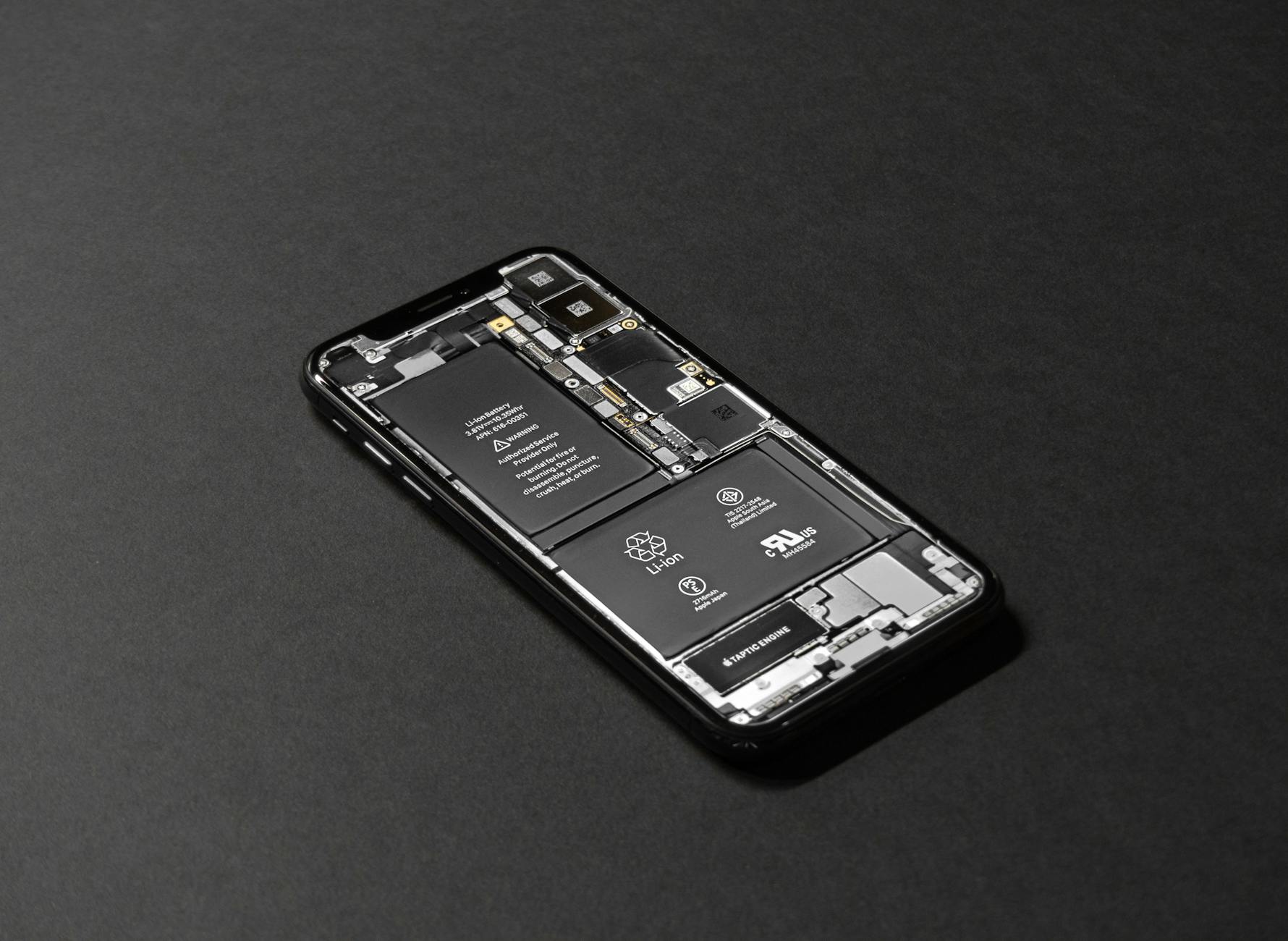 Photo by Tyler Lastovich
Key signs it’s time to replace the battery
- Repeated shutdowns at different remaining percentages, not just around 20 percent. If the device dies consistently under load, aging cells are likely the culprit.
- Rapid battery drain paired with heat. If your phone warms up quickly during use and dies soon after, the battery may not be delivering power reliably.
- Dwindling capacity despite no obvious software issues. When calibration and app management can’t explain the behavior, the battery may have lost most of its usable life.
- Price and effort to fix exceed value. If replacement parts and labor push past a reasonable threshold, replacement may be the smarter option.
These signals are common across both Android and iPhone ecosystems. In many cases, modern devices hide the wear inside a sealed pack, making a professional evaluation the fastest route to a confident decision.
How to decide between DIY, professional help, or replacement
- Short-term fix (calibration and software tweaks). If the issue improves after recalibration and your battery health shows reasonable capacity, you can continue using the device with careful monitoring. This is ideal if you’re near the end of a contract or waiting for a new model.
- Moderate risk fix (DIY battery replacement). For some devices, a DIY replacement is possible with a reputable kit and careful steps. This option can save money but carries the risk of voiding warranties and causing further damage if done incorrectly.
- High certainty fix (professional replacement). If your battery life is visibly degraded or the device shuts down under normal tasks, a professional replacement offers the most reliable result. Expect to pay according to the model and service provider. In general, battery replacement costs vary by brand and model, with official and third-party options available. In 2025, estimates show iPhone battery replacement costs can range from about $29 with AppleCare+ to $69–$119 for older models and up to $279–$379 for the latest iPhone models. Android battery replacements at local shops typically run $30–$80, with variations by model and region. DIY kits exist but carry higher risk if you lack experience. Source: realtime data summary
- Upgrade consideration. If your device is several years old, even a successful battery replacement may not deliver the speed or features you expect. In that case, a newer model could offer a better balance of performance, camera, and power efficiency.
Note: Always weigh warranty status first. If your device is under warranty or AppleCare/brand coverage, go through official channels first. For many users, a trusted local repair shop strikes a balance between cost and quality, especially for Android devices where prices are often lower than Apple’s top-end fees. See guidance from reputable repair services for battery replacement options.
What to expect from professional help
- Quick diagnosis. A technician can confirm whether the issue is the battery, the power circuitry, or a software quirk that mimics a hardware fault.
- Genuine parts. For Apple devices, expect genuine batteries and a service that preserves safety protections. Apple’s own guidance emphasizes authorizations and genuine components for battery service. Apple Battery Replacement
- Clear pricing. Reputable shops will give a written estimate before replacing the battery. You’ll usually see a range that reflects the model, part quality, and labor.
- Warranty on the repair. A good shop backs their work with a warranty period, which adds peace of mind if the battery fails again soon.
If you’re unsure where to go, you can start with a manufacturer-backed service option. For iPhone users, AppleCare+ can reduce out-of-pocket costs, while independent shops often provide lower base prices and a shorter turnaround. In all cases, verify that the technician uses the correct battery type and follows safe practices to prevent swelling or fire risk.
Quick decision guide for common devices
- iPhone: If the device is older than two generations or shows rapid wear, replacement is usually the most reliable long-term fix. AppleCare+ helps manage costs, but non-warranty scenarios often push replacement prices higher. See official guidance on battery service and recycling for your model. Battery Service and Recycling.
- Android phones: Many brands offer straightforward battery replacements at local repair shops. If you’re unsure about the device’s health, a professional assessment is worth it to confirm whether the issue is the battery or something else in the power management chain. Learn more about signs you need a replacement from trusted outlets. Android battery health signs
How to compare costs and options
- Official service vs independent repair. Official services provide genuine parts and warranty but can be pricier. Independent shops often balance cost and quality well, especially for older devices.
- DIY risk vs reward. DIY battery kits can save money but require skill. If you’re not confident, a professional fix minimizes the risk of damaging the device or voiding a warranty.
- Replacement timing. If the phone already feels slow or lags with a fresh battery, upgrading to a newer model may deliver a better experience than a battery swap.
Here are practical steps to take next
- Check battery health in Settings to get a baseline. If the health metric is poor, plan for a replacement.
- Get a written diagnostic from a reputable shop. Compare that with the cost of a brand-backed replacement.
- Consider timing. If you’re planning a device upgrade soon, it may influence which repair path you choose.
Images and further reading can help you visualize the process. A clear path from calibration to a full replacement helps you keep control of your device’s reliability and costs. For more on battery health and when to replace, see reliable guides and official resources linked above.
Conclusion
Most shutdowns around 20 percent come down to calibration, aging cells, or power management. Start by calibrating the battery gauge, then update the OS to fix any known issues with charge reporting. If the readings stay erratic, check the health status and consider a replacement if wear is substantial.
Calibrate first, update second, and check health third. These steps solve the majority of cases and help you decide if a repair is needed. Keep your charging habits steady as you test each fix, and avoid frequent top ups during calibration so the gauge can learn the battery’s true capacity. If you still see abrupt drops after these steps, a professional health check or a battery replacement is often the right move.
A few practical habits help long term: charge to 100 percent before heavy use, use a powered case or charger in high demand situations, and keep the phone cool while charging. When in doubt, a trusted repair shop can confirm whether you’re facing calibration drift or a worn cell. If you’ve found a solution that works, share your experience in the comments to help others navigate this common smartphone issue.