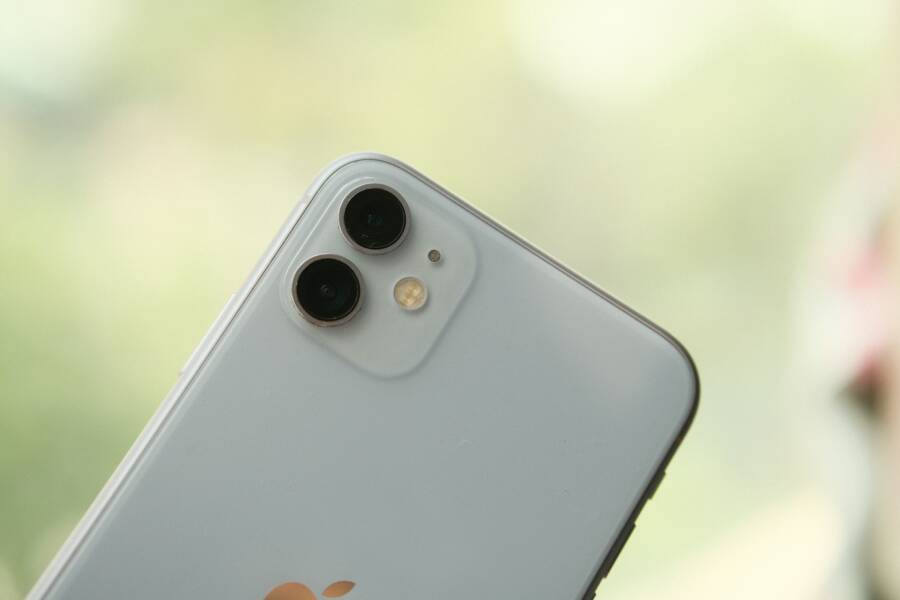
Modern smartphones use multiple camera lenses to capture wide shots, portraits, and closeups, but they sometimes get confused between them. This glitch leads to the wrong lens showing on screen, leaving your viewfinder stuck on a macro view when you want a standard photo, or freezing entirely.
Fixing this problem usually takes just a few quick adjustments to your settings or a temporary app reset. If your smartphone keeps defaulting to the incorrect sensor, you can follow a few straightforward troubleshooting steps to restore normal camera behavior.
Why Your Phone Keeps Switched to the Wrong Lens
Modern smartphones rely on a complex array of hardware to handle everyday photography. When your viewfinder shows an unexpected angle or refuses to switch to your desired zoom level, the operating system is usually misinterpreting your framing environment. Fixing this behavior requires a clear look at how multi lens hardware operates and what triggers the faulty switching logic.
Understanding How Multi Lens Systems Work
Your smartphone manages photography through three distinct physical sensors. The ultra-wide lens captures expansive landscape shots, the main wide lens handles standard everyday photos, and the telephoto lens zooms in on distant subjects. Each component has a specific field of view and focal length.
The software inside your smartphone constantly evaluates distance, ambient lighting, and framing to decide which sensor handles the shot. When you tap the zoom button, the camera app switches hardware instantly. However, the system also overrides manual inputs automatically under certain conditions.
Common Triggers for Unexpected Lens Switching
Physical obstructions often confuse the camera software. If your finger partially blocks the primary sensor, the operating system detects a blackout and immediately reroutes the feed to an adjacent lens.
Low light environments cause similar confusion. Telephoto sensors require significant light to produce clear images. When you shoot in dim rooms, your smartphone detects that the telephoto lens cannot gather enough light. The software then forces a crop on the main wide lens instead, ignoring your manual zoom setting to prevent a dark or blurry photo.
Simple Steps to Fix Camera Lens Glitches
Fixing a stubborn camera lens glitch takes only a few minutes when you follow a logical troubleshooting path. Software conflicts and surface grime are the usual culprits behind unexpected switching behavior on your smartphone. You can easily resolve most lens errors by working through a few basic adjustments.
Clear Cache and Force Close the Camera App
Corrupted temporary files often trap your camera software in a continuous loop. Resetting the app clears out bad preferences and forces the operating system to reload the lens hardware properly.
Open your smartphone settings menu and navigate to the application manager.
Locate the default camera app in the installed list and select storage options.
Tap clear cache and clear data to wipe out corrupted configuration files.
Force close the application and restart your device to apply the fresh state.
Clean Smudges Off the Camera Lenses
Tiny smudges, fingerprints, and dust accumulation can blind specific sensors completely. When a layer of oil blocks the telephoto or ultra wide sensor, your smartphone assumes that the lens is broken and reroutes the image feed elsewhere.
Wipe down every glass housing on the back of your smartphone using a clean microfiber cloth. Avoid using harsh chemical cleaners or abrasive materials because they scratch the delicate optical coatings. Inspect the glass under bright light after cleaning to confirm no oily residue remains over the sensors.
Update Your Operating System and Camera Apps
Outdated firmware frequently contains known bugs that mismanage hardware switching routines. Manufacturers release regular patches to correct these sensor mapping errors and stabilize lens transitions.
Check for system updates by visiting your device settings panel and looking for software updates. Install any pending security patches or manufacturer specific firmware packages. Next, open your app store to verify that your camera software runs the latest version. Reboot your smartphone immediately after installing updates so the new drivers initialize correctly.
Third Party Camera Apps Versus Stock Camera Apps
Determining the exact cause of a faulty lens requires a reliable way to isolate the software layers. Built-in camera applications rely heavily on proprietary manufacturer processing algorithms that often complicate troubleshooting. By testing alternative software, you can quickly bypass factory camera plugins and see how the operating system interacts with the physical lens modules.
Testing Your Camera with Alternative Apps
Downloading a third-party camera application from your app store provides a neutral testing environment for your smartphone hardware. Stock camera applications often bundle complex stabilization routines and auto-switching logic that mask the root cause of a lens glitch. When you open a simpler alternative app, it requests a direct feed from the camera sensor without relying on the manufacturer customization layer.
If the alternative app uses the correct lens and switches between sensors smoothly, your hardware is fully functional. The fault lies entirely within your default camera application settings or a corrupted cache file. Reinstalling the stock app or resetting factory preferences usually solves this software conflict.
If the alternative application shows the wrong lens or fails to switch altogether, the problem is deeper within the operating system drivers or the physical camera module itself. This diagnostic step saves you time by separating application-level bugs from actual hardware failures before you take your smartphone to a repair shop.
Frequently Asked Questions About Phone Camera Lenses
Every smartphone owner runs into strange camera behavior eventually. When your viewfinder displays the wrong lens, finding a fast answer saves time and frustration. The following details address the most common questions about physical damage and software glitches on mobile cameras.
Can a Dropped Phone Break the Lens Switching Mechanism
Accidental drops cause severe impacts that frequently damage delicate internal components. A smartphone houses microscopic motors and tiny ribbon connectors that physical shock can easily displace. When your device hits a hard floor, the tiny actuators responsible for shifting between physical sensors might break or jam in place.
If the internal motor fails, your operating system loses the ability to physically align the glass elements with the image sensor. A loose connector creates a similar failure because the data path between the main board and the camera module gets interrupted. Software restarts cannot fix broken hardware, so physical damage requires a professional repair technician to replace the faulty camera module.
You should look for specific warning signs before taking your smartphone to a repair shop.
Internal rattling noises when you shake your device gently.
Visible cracks across the outer glass housing or internal lens elements.
Permanent error messages when you open any camera application.
Complete failure of specific zoom levels regardless of which app you use.
Taking your device to an authorized service center allows technicians to run diagnostic tests on the physical hardware. They open the casing to secure loose ribbon cables or swap out broken sensor assemblies safely.
Conclusion
Fixing a stubborn camera lens glitch on a smartphone usually requires nothing more than basic maintenance. Always start with simple fixes like wiping away smudges and clearing the app cache before you move on to advanced software updates or hardware repairs.
Most unexpected sensor switching comes down to dirty glass or temporary configuration errors. Regular cleaning and timely updates keep your multi lens camera functioning properly.