There Is a Frequency That the Wealthiest Families Have Used for Generations and Most People Will Never Know It Exists
>>> Open the Door <<<

Are you tired of slow taps and missed letters when you type on your phone keyboard? If your device lagps during typing on both Android and iPhone, you’re not alone, and the fix can be quick or a bit more involved depending on the root cause. This guide will walk you through practical, step by step actions to restore smooth typing without clutter or confusion.
First, we’ll start with simple checks that don’t require special tools. A quick restart, ensuring you’re on the latest keyboard app, and clearing cached data often clear up the lag right away. If the problem persists, we’ll move to deeper fixes that address performance and app conflicts, with concrete actions you can follow.
By the end, you’ll have a clear path to faster, more reliable typing. You’ll learn how to spot how much of the lag comes from the device, the keyboard app, or a conflicting setting, and how to fix it in a way that fits your everyday smartphone routine.
Identify Causes of Keyboard Lag
When your keyboard responds slowly, it can be frustrating to type anything. The lag usually points to one of a few common causes, and identifying which one is affecting you helps you fix it fast. In this section, we’ll break down the main reasons readers see keyboard lag on both Android and iPhone, with quick checks you can perform and practical tips to confirm the culprit.
He Was Drowning in Bills and Burnout Until a Simple Daily Ritual Rewired His Brain for Wealth in Less Than a Week
>>> Start Your Shift Today <<<

Software lag vs hardware lag
Software lag happens when the system or apps are busy or mismanaging resources. Maybe the phone is finishing a heavy background task, syncing data, or running a few memory-hungry apps at once. Even simple things like a long string of recent actions in a messaging app or a stuck process in the keyboard app can delay keystrokes.
Hardware lag, on the other hand, comes from the device itself. A failing touchscreen can misread taps, an aging battery can stall performance, or the screen may struggle to keep up with input when it’s low on power. Quick checks to separate the two are straightforward:
- Check responsiveness across apps. If you notice lag only in the keyboard app and not in drawing or scrolling, software is more likely the cause.
- Observe battery health and charging status. A rapidly draining battery or a swollen battery can slow the device and affect touch responsiveness.
- Run a simple touch test. Open a note app and tap rapidly in different areas. If taps are missed or delayed consistently on the screen, hardware input might be the issue.
- Try a different keyboard. If the lag disappears with another keyboard, the problem is likely tied to the original keyboard app.
If you want to dive deeper, you can explore how people distinguish hardware from software lag in practice and apply the method to your own device. For broader context, see discussions from experienced users and tech sites that cover this distinction. How to distinguish hardware and software keyboard lag issues provides a clear framework you can mirror on Android and iPhone.
Conflicts and background apps
Background apps can quietly siphon CPU time and memory, leaving the keyboard waiting for its turn. A game running in the background, a messaging app syncing in the background, or a misbehaving app that has permission conflicts can all steal resources that the keyboard relies on to respond instantly.
What this looks like in practice:
- The lag only happens after you install or update a particular app.
- The keyboard slows down when the device is under heavy multitasking.
- Closing or pausing one app at a time affects the keyboard’s responsiveness.
A simple drill helps confirm the culprit:
- Start with a clean slate. Close nonessential apps, then test typing for a few minutes.
- Open one app at a time, type for a moment, and note any changes in lag.
- If lag resurfaces after a specific app is launched or reopens, that app is a likely offender.
If you’re curious about real-world experiences and fixes people try, you can check out community guides and discussions about background tasks affecting typing performance. For example, guidance on how to fix iPhone keyboard lag that points to app behavior is available in reader-focused articles like the one from MakeUseOf. My iPhone keyboard was awfully laggy until this quick trick … offers practical, user-tested steps that often align with what you’ll see in your own device.
Storage and cache impact
Low storage, full caches, and fragmented memory can drag down keyboard responsiveness on both Android and iPhone. When the system is short on space, it struggles to allocate memory for input processing, animations, and the keyboard’s own operations. Cached data, if it becomes bloated, can slow down apps that rely on quick data retrieval. Fragmented memory can also cause small delays as the system searches for a contiguous block to handle keyboard input.
Android devices tend to show lag when storage is critically low or caches grow large, while iPhones often feel the impact through slower app launches or delayed keystrokes after heavy usage and updates. Here are quick checks you can perform:
- Free up space by deleting unused apps or moving media to cloud storage. A noticeable improvement in keyboard responsiveness after freeing space is a strong indicator that storage was a bottleneck.
- Clear app caches for keyboard-related apps if your OS supports it, or perform a general cache reset through the system settings. On iPhone, clearing cache is often tied to the individual app options like the keyboard or browser.
- Restart after clearing space and caches. A fresh start can reallocate memory more efficiently and restore snappy input.
If you want to see credible guidance on how clearing caches can help speed up your device, check out reputable tech outlets that regularly publish practical maintenance steps. For instance, ZDNET explains how clearing the iPhone cache can improve overall speed and responsiveness. How to clear your iPhone cache (and fix slow performance for good) provides actionable steps you can mirror for your own device.
To ensure you’re covering both ecosystems, look at Android-focused discussions about how low storage and cache management impact keyboard performance. AndroidCentral’s threads on keyboard lag offer real-world user experiences and fixes that can help identify if storage and memory are the root cause on Android devices. Keyboard Lag is one such resource that many readers find relatable and practical.
Quick Fixes You Can Try Right Now
If keyboard lag is stealing your typing flow, you can often restore speed with a few quick actions. These fixes are designed to be performed in minutes, without wiping your data. Start with the simplest step and move to the more involved ones only if needed. Think of it as a fast triage to get your smartphone back to snappy typing.
Restart Your Phone
A simple reboot clears out stuck processes and refreshes memory, which can restore responsiveness across apps, including the keyboard. It’s like giving your device a quick nap to reset busy tasks and reallocate resources efficiently.
- Android: Hold the power button, then tap “Restart.” If you don’t see that option, choose “Power off” and then turn the device back on after a few seconds.
- iPhone: For most models, press and hold the side button and either volume button until the power off slider appears. Slide to power off, wait a moment, then press the side button again to restart.
What to expect after a restart:
- Short-lived background tasks end, freeing CPU cycles for the keyboard.
- Cached memory is cleared from active sessions, reducing lag caused by memory pressure.
- If the lag was caused by a misbehaving app, you’ll notice an immediate improvement in keyboard responsiveness.
Pro tip: Save any work you have open, especially long notes or messages, before restarting. A quick reboot is safe and often effective, but you don’t want to lose unsaved text.
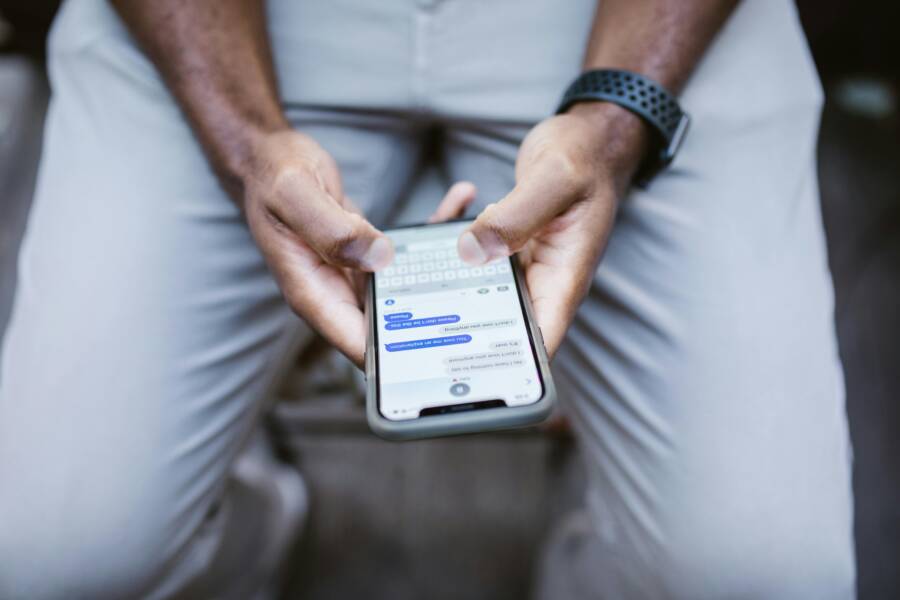
Images can help readers see the moment a clean reboot fixes things.
 Photo by RDNE Stock project
If you want more context on how a restart helps with keyboard lag, see practical discussions from users who share real-world results after rebooting.
- Related resource: How to distinguish hardware and software keyboard lag issues provides a framework you can mirror on Android and iPhone. https://www.linkedin.com/advice/1/how-do-you-distinguish-between-hardware-software-nxvfc
Clear Keyboard Data and Cache
Cached data and stored dictionaries can bloat over time and slow the keyboard down. Clearing data resets the keyboard environment, letting it rebuild leaner and faster. This action does not erase your core system data, but it may remove personalized settings that you’ll want to reconfigure.
- Android: Clear cache and, if needed, data for the keyboard app.
- Steps: Settings > Apps > find your keyboard (for example Gboard or Samsung Keyboard) > Storage > Clear Cache. If lag persists, you can also choose Clear Data (note this resets the keyboard to default).
- After clearing, reopen the keyboard and re-download any language packs or layouts you use.
- iPhone: Resetting keyboard settings is typically done by clearing the keyboard dictionary or removing third-party keyboards and re-adding them.
- Steps to reset dictionary: Settings > General > Reset > Reset Keyboard Dictionary (note this removes learned words; you’ll need to re-train your vocabulary).
- If you rely on a third-party keyboard, remove it and reinstall from the App Store. Then re-add it under Settings > General > Keyboard > Keyboards.
Cautions and best practices:
- You will lose personalized dictionaries or learned words after a reset. Plan to re-add frequently used terms after the reset to speed up future typing.
- If you use a lot of custom shortcuts, you’ll want to export or re-create them after the reset.
- After clearing cache or data, give the keyboard a moment to re-sync, especially if you use cloud-backed.dictionary features.
Why this matters: a leaner keyboard process reduces stray background activity and memory churn, which can be a hidden source of typing lag. If you’d like a quick walk-through with visuals, you can check out instructional guides like those on clearing cache for iPhone or Android keyboards.
- Helpful reference: Gboard troubleshooting for Android covers restoring the keyboard back to full speed after a cache or data reset. https://support.google.com/gboard/answer/9058584?hl=en&co=GENIE.Platform%3DAndroid
- A Samsung-specific path shows how cache management can fix keyboard lag on Samsung devices. https://www.samsung.com/ph/support/mobile-devices/how-to-fix-samsung-keyboard-problems/
- For iPhone dictionaries and keyboard resets, a practical guide to how resetting the keyboard dictionary can speed up typing is useful. https://www.youtube.com/watch?v=Vg8O_xE6V7o
Update System and Keyboard Apps
Software updates often contain bug fixes and performance improvements that directly impact keyboard responsiveness. If your device runs old software, you may be missing important optimizations that reduce input lag.
What to do:
- Check for OS updates
- Android: Settings > System > Advanced > System update (paths vary by manufacturer). Install any available updates to the OS.
- iPhone: Settings > General > Software Update. Install any pending iOS or iPadOS updates.
- Update keyboard apps
- Open the Google Play Store or Apple App Store and check for updates to your keyboard app (Gboard, SwiftKey, Samsung Keyboard, etc.). Install updates to gain performance fixes and bug patches.
- Enable automatic updates where possible
- Android: In Google Play, go to Settings > Network preferences > Auto-update apps > Over any network (or over Wi-Fi only, if you prefer).
- iPhone: Settings > App Store > App Updates > enable Automatic Updates.
Why updates help:
- Bug fixes target known issues that cause lag, such as mismanagement of input events or memory leaks.
- Performance improvements tighten the keyboard’s responsiveness, reducing the perceived delay between tap and character.
A quick note on compatibility:
- Some updates may temporarily impact battery life or memory usage as new features optimize in the background. If you notice new lag after an update, try rebooting and rechecking, as the system often stabilizes after a fresh start.
Integrating updates into your routine:
- Schedule a monthly check for OS and app updates to stay ahead of performance dips.
- Keep a small checklist handy: Restart, Clear cache/data, Update OS, Update apps. This sequence often resolves most lag incidents quickly.
External context and further reading:
- For iPhone users, discussions around iOS updates causing keyboard slowdowns can help set expectations and guide you through targeted steps. https://discussions.apple.com/thread/256143189
- A practical look at iPhone keyboard fixes, including dictionary resets and turning off complex keyboard features, can offer concrete steps. https://www.youtube.com/watch?v=Vg8O_xE6V7o
- A broader guide with actionable tips on keyboard typing lag for iPhone and iPad, including OS and app update reminders, is helpful for quick reference. https://www.itechpalmbeach.com/blog/how-to-fix-keyboard-typing-lag-on-your-iphone-or-ipad
Images can illustrate the moment of improved performance after a successful update or reboot.
-
Photo by RDNE Stock project
Tip: If you notice lag persists after trying these steps, the issue might be tied to a specific app or feature. Consider testing with a different keyboard temporarily to see if the lag follows the keyboard app or stays with the device. This helps you decide whether to focus on the keyboard app itself or move toward deeper system checks.
Links and further reading:
- How to fix slow keyboard typing on iPhone after updates, including dictionary resets and disabling lag-prone features. https://discussions.apple.com/thread/255766030
- A practical guide to iPhone keyboard fixes that covers common culprits like language settings and background activity. https://www.youtube.com/watch?v=kKU4OxccPrg
Images to illustrate the concept:
- If you want to visually anchor the update process, consider adding a header image showing a phone in settings with update indicators.
- Photo by RDNE Stock project
By applying these quick fixes in a logical order, you can often restore fluid typing in minutes. If the lag persists after trying the trio of restart, clear, and update steps, you’re ready to move into deeper checks that address app conflicts, resource management, and device health.
Deeper Fixes for Persistent Lag
If you’ve already tried the quick restart, cache clearing, and updates, yet the keyboard still lags, it’s time to dig a bit deeper. These deeper fixes focus on how the system manages resources, how apps interact, and whether the keyboard itself is the bottleneck. Follow these steps in order, and test typing speed after each one to identify what helps most. Think of it as tuning a smartphone to its best rhythm rather than a full rebuild.
Free Up Storage and RAM
When a device runs low on storage, memory, or both, the keyboard often fights for space it needs to process keystrokes and animations. Freeing up space makes it easier for the system to allocate memory to the input path, resulting in snappier typing and fewer missed taps. Here’s how to approach this without losing important data.
- Delete unused apps and large files. Go through your app drawer and uninstall apps you no longer use. On Android, you can check storage by Settings > Storage; on iPhone, go to Settings > General > iPhone Storage to spot heavy hitters. Before you remove anything, confirm you don’t rely on large games or media you might want later.
- Move media to cloud or a computer. Photos, videos, and audio take up the bulk of space fast. Use iCloud, Google Photos, OneDrive, or another cloud service to offload files. If you prefer, connect your phone to a computer and transfer files locally.
- Clear cache selectively and manage offline data. Some apps, including your keyboard, store data to speed up input. Clearing outdated caches can free precious memory. On Android, you can clear cache for the keyboard app in Settings > Apps > [Your Keyboard] > Storage > Clear Cache. On iPhone, clearing cache is usually app-specific; you may need to delete and reinstall the keyboard or reset the dictionary.
- Review downloaded language packs and offline dictionaries. If you use multiple languages, you may have several packs installed. Remove any you don’t actively use to reclaim space.
- Consider a lightweight or minimal keyboard for a trial period. If you’re on Android, some keyboards offer lean modes that reduce visual effects and background processing. If you’re curious about options, this overview can help you pick a leaner alternative: The Ultimate Guide to Choosing the Best Keyboard App in 2025.
What to expect after freeing space:
- The system has more breathing room to process keystrokes, leading to less delay between taps and characters.
- Background tasks won’t stall the keyboard as aggressively, especially when you’re in the middle of a long message.
If you want practical guidance on cache management and its impact on keyboard speed, see how reputable outlets describe cache clearing and performance boosts. For example, an in-depth update on iPhone cache and speed improvements is a good reference, and Android-centric discussions offer real-world tips on how storage and cache affect keyboard latency. Here are some credible reads to consider:
- How to clear your iPhone cache (and fix slow performance for good)
- Keyboard Lag discussions and fixes on AndroidCentral
In addition, you can explore how reducing clutter on a device helps maintain smoother input across apps, including the keyboard. For broader context on managing storage and RAM, you might find this resource helpful: Free Up RAM.
Try a simple test after each pairing of steps. If lag stays stubborn, move to the next section. A more responsive keyboard is usually within reach once you remove the most obvious bottlenecks.
Reset Keyboard Settings
Resetting the keyboard to its default state can resolve stubborn lag when misconfigured or corrupted settings are at fault. This clears learned words, custom shortcuts, and any problematic preferences you’ve set up over time. It’s a safer first move than a full factory reset, and it often restores normal speed quickly.
What resetting does and doesn’t do:
- Android: A reset typically clears the keyboard’s data like dictionaries and learned phrases. It may also reset personalized suggestions to their initial state.
- iPhone: You can reset the keyboard dictionary or remove third-party keyboards and re-add them. This resets learned words and can restore responsiveness.
- After a reset, you’ll need to reconfigure your preferred settings and re-download any language packs or custom layouts.
How to reset on Android and iPhone:
- Android (keyboard dictionary and data reset):
- Steps: Settings > General > Reset > Reset Keyboard Dictionary to clear learned words. If you rely on third-party keyboards, remove them and reinstall from the Play Store. Then re-add under Settings > System > Keyboard settings.
- iPhone (dictionary and keyboard reinstallation):
- Steps: Settings > General > Reset > Reset Keyboard Dictionary to clear learned words. If you use a third-party keyboard, remove it and reinstall from the App Store, then re-add it under Settings > General > Keyboard > Keyboards.
What to keep in mind:
- You will lose learned terms and shortcuts after the reset. Plan to reintroduce your most-used terms and shortcuts afterward to speed up typing again.
- If you rely on long dictionaries or custom phrases, consider exporting them if your keyboard supports it, so you can restore them quickly.
- After a reset, give the keyboard a minute to re-sync, especially if it uses cloud-backed dictionaries.
If you want practical, real-world guidance on resetting keyboards, check out user-focused stories and visual guides that walk through the steps. For example, a documented iPhone keyboard reset workflow and related tips can be found here and here, along with broader discussions about dictionary resets and re-adding keyboards.
When you’re ready, test typing for a few minutes. If lag improves, you’ve likely identified a misbehaving setting or corrupted data as the culprit. If not, it’s time to try a different keyboard app to isolate the issue.
Try a Different Keyboard App
Installing a different keyboard is a fast, low-risk way to determine if the lag originates from the original keyboard app or from the system. A lightweight or feature-limited keyboard can act as a valuable baseline. If the lag disappears with a new keyboard, the issue is likely tied to the app you were using. If the lag persists, it points to the device or OS level.
What to look for in a temporary replacement:
- Lightweight performance: Look for keyboards known for speed and low resource usage.
- Essential features only: Turn off heavy features like swipe-based predictions or extensive auto-corrections to avoid dragging down performance.
- Privacy and data handling: Check how the keyboard handles data, especially if you’re sensitive about your keystrokes and typing history.
Practical steps to test:
- Install a lightweight option and enable it as the default keyboard temporarily.
- Type a mix of messages and long notes to see how it handles real-world usage.
- Disable heavy features like high-resolution animations, dense predictions, or gesture typing if available.
If the temporary keyboard fixes the lag, you’ve confirmed the original app was the main culprit. You can then decide whether to continue with the new option or troubleshoot the original app more deeply, such as by clearing its cache, changing languages, or updating to the latest version.
Thousands of People Were Struggling With Money Until They Discovered This One Ancient Secret Hidden in Sound
>>> Unlock It Now <<<

Useful reads and tools to help you compare options:
- The Ultimate Guide to Choosing the Best Keyboard App in 2025
- 7 Gboard alternatives for faster, smarter typing and more
- 7 Best Keyboards for iPhone You Should Try in 2025
If you want to explore Android-specific options beyond Gboard, this overview covers strong alternatives that often run lighter on memory and CPU. It’s a quick way to gauge which keyboard could slip into your daily workflow with less lag.
A quick reminder: test your smartphone in daily tasks after switching keyboards. Check messaging apps, note apps, and web forms to confirm that the new keyboard remains responsive across typical use cases.
External resources and practical examples:
- How to find Android keyboard alternatives that shave latency
- Best keyboard apps for Android and iPhone in 2025
Tips for a smoother test:
- Keep other apps closed while testing the new keyboard to minimize background noise.
- If you notice improved speed, you can decide to switch permanently or revert after a longer test period.
With these deeper fixes in place, you should see a meaningful improvement in typing speed and accuracy. If lag remains stubborn, the next steps involve more targeted device health checks and deeper system adjustments, which we’ll cover in the next sections. For now, you’ve got a solid toolkit to reclaim a smooth typing experience on both Android and iPhone.
Thousands of People Were Struggling With Money Until They Discovered This One Ancient Secret Hidden in Sound
>>> Unlock It Now <<<
Long Term Prevention for Smooth Typing
Keeping your keyboard fast over the long haul means more than quick fixes. It requires small, repeatable habits that prevent lag from creeping in. Think of it as tuning your smartphone for steady performance so you can type confidently every day. In this section, you’ll find practical, low-effort strategies that stay effective across Android and iPhone. Use them as a regular routine and you’ll notice fewer slowdowns, even after months of heavy use.
Keep Software Up to Date
Regular updates matter because they fix bugs and improve overall performance. Each OS or keyboard app update can tighten input handling, reduce memory leaks, and patch security quirks that slow things down behind the scenes. The result is a more responsive typing experience you can feel in every swipe and tap.
How to stay current without the fuss:
- Schedule monthly checks for OS and app updates. On Android, go to Settings > System > System update; on iPhone, Settings > General > Software Update. Install anything available.
- Update your keyboard app as soon as an update is available. Open the Google Play Store or Apple App Store and apply the latest version.
- Turn on automatic updates where possible so you don’t have to think about it. Android users can set auto-update for apps; iPhone users can enable App Updates in the App Store settings.
Why this helps
- Updates fix lag triggers you can’t see, like mismanaged input events or subtle memory leaks.
- They bring performance improvements that keep the keyboard feeling snappy during long sessions of typing.
Practical notes
- Sometimes an update can introduce a temporary dip in battery life or memory use. If you notice new lag right after an update, a quick reboot usually lets the system settle.
- Consider making updates part of a monthly routine. Pair it with a quick restart and cache check to reset the device’s rhythm.
If you want a deeper read, these resources offer solid background on why updates matter for device performance and app compatibility:
- Keep Your Device’s Operating System and Applications Up to Date | CISA
- Why Android Updates Matter: Features, Security & More
- Why you should stop putting off your device updates
External references you can explore:
- How do OS updates impact apps? (overview of how updates affect app behavior)
Choose a Lightweight Keyboard
If you notice lag that stays even after updates, the keyboard itself might be the bottleneck. A lightweight keyboard focuses on speed and efficiency, with minimal animations and a small memory footprint. The right option can shave precious milliseconds off each keystroke and keep your smartphone feeling responsive.
Key characteristics to look for
- Minimal animations and visual effects that don’t tax the GPU or CPU.
- Offline mode or robust offline dictionaries so typing stays quick without constant cloud lookups.
- Small memory footprint and low CPU usage, especially on older devices.
What to try
- Test a few options to find the best fit. Install one lightweight keyboard, try it for a week, then compare it against your current choice.
- Disable unnecessary features in the keyboard settings, such as high-contrast animations, dense word predictions, or gesture typing if they slow you down.
Recommended approach
- Start with a basic, fast option and gradually reintroduce features only if they prove beneficial.
- Prioritize privacy and data handling. Choose keyboards that respect your input data and don’t over-collect keystroke information.
If you want to dive deeper into keyboard choices, check out comparisons and user experiences that highlight lightweight options and performance gains:
- The Ultimate Guide to Choosing the Best Keyboard App in 2025
- Simple Keyboard on Android and lightweight alternatives
- Simple Keyboard | F-Droid and other lightweight options
Real-world tip
- If you switch keyboards and typing feels faster, you may have found the bottleneck. You can keep the new option or investigate the settings of your old keyboard to squeeze out more speed.
External resources to compare options:
- Simple Keyboard on Google Play
- Simple Keyboard on F-Droid
Manage Background Apps and Permissions
Background activity and permissions can quietly drain resources, leaving the keyboard waiting for its turn. Addressing this can restore smooth typing without touching your core data or losing essential functions.
What to monitor
- Apps that run in the background and auto-sync or auto-update data.
- Permissions that allow apps to access sensors or data even when not in use.
- Critical functions you should not disable, such as security or accessibility services.
Android steps
- Close nonessential apps first. Press the recent apps button and swipe away apps you don’t need.
- Review running services in Settings > Apps or Settings > Battery to spot heavy background activity.
- Check individual app permissions under Settings > Apps > [App Name] > Permissions. Restrict permissions that aren’t needed.
- For keyboards, ensure you haven’t disabled essential input-related permissions or features that the keyboard relies on.
iPhone steps
- Open Settings > General > Background App Refresh. Turn it off for apps that don’t need to stay up to date constantly.
- Review app permissions under Settings > Privacy & Security. Limit access that could slow things down.
- Remove or temporarily disable third party keyboards if you suspect conflicts. Reinstall later to ensure a clean slate.
- Restart the device after adjusting background activity to ensure the changes take effect.
Best practices
- Keep critical apps enabled and only limit nonessential background tasks.
- Test typing after each change to isolate the impact.
- If you rely on a specific app for rapid input, recheck its background behavior after app updates.
For readers who want deeper guidance on background activity and efficiency, these resources offer practical insights:
- Boosting System Performance by Stopping Background Apps
- Control access to information in apps on iPhone
- All You Need to Know About Background Data
Putting it into practice
- Use a short daily maintenance window to review what apps are doing in the background.
- If lag resurfaces after a particular app update, pause or uninstall that app temporarily to confirm the cause.
Smartphone health habits you can adopt now
- Regularly review which apps stay active in the background.
- Reassess permissions every few months to keep the system lean.
- Keep a simple checklist handy: restart, review background tasks, verify permissions, test typing.
By combining updates, lightweight keyboards, and mindful background management, you create a durable defense against keyboard lag. These habits pay off in the long run, keeping your smartphone responsive through months of everyday use and busy days. If you want quick references on how to implement these steps across Android and iPhone, the linked resources can guide you through the specifics and provide platform-appropriate screenshots and prompts.
Troubleshooting Checklist and Next Steps
When keyboard lag sticks around after initial fixes, you need a clear, repeatable process to pinpoint the cause and validate the solution. This section lays out a practical checklist you can follow in sequence. Each item helps you isolate whether the issue is software, a conflicting app, or the device itself. Use it as a guided triage so you can move with confidence from quick wins to deeper troubleshooting.
Step by Step Test
Use these controlled steps to identify what’s driving the lag and confirm fixes work.
- Test baseline typing: Open a note or message app and type for 60 seconds. Note any missed taps or delays.
- Restart first: Reboot your device and test typing again for a few minutes to see if the issue returns.
- Try a different keyboard: Install and enable a lightweight or alternative keyboard. Type a mix of short and long messages to compare responsiveness.
- Test across apps: Check typing in SMS, email, and a browser form. If lag only appears in one app, focus on that app’s settings or data.
- Check hardware input: Run a quick touchscreen test by tapping rapidly in different parts of the screen in a notes app. If taps are inconsistent, the screen may be contributing.
- Clear cache or data for the keyboard app: Clear cache first, then, if needed, clear data (this resets the keyboard to default). Reopen and test speed.
- Update everything: Install any OS updates and keyboard app updates. Then reboot and re-test.
- Reintroduce the old keyboard: If you notice improvement with a new keyboard but lag returns after switching back, the original keyboard is likely the bottleneck.
If you want practical context on how users separate hardware from software lag, consider reading guidance on distinguishing the two. It offers a straightforward framework you can mirror on Android and iPhone. How to distinguish hardware and software keyboard lag issues
Images can illustrate the moment of improvement after a test.

Photo by Kelvin Valerio
If the lag follows a specific app or feature, you’ve pinned down a culprit. For broader context on practical fixes, see discussions around iPhone keyboard lag and app behavior. iPhone keyboard lagging after iOS 18 Update
When to Contact Support
Sometimes the issue goes beyond quick tweaks. Contacting support is the right move when you notice consistent lag that appears after updates, or if hardware symptoms show up. Recognize these signs and prepare your notes before you reach out.
- Signs to seek help:
- Lag appears across multiple apps after a recent update.
- Keyboard input is slow even after a device restart and app cache cleared.
- The touchscreen feels numb or unresponsive in other areas, or the device becomes noticeably warm.
- You hear, see, or feel unusual device behavior during typing that doesn’t occur in other tasks.
- Information to gather before contacting support:
- Your device model and carrier (if applicable).
- OS version and keyboard app name, including version numbers.
- A brief description of when lag starts and reproducible steps.
- List of apps installed or updated recently, plus any changes in settings.
- Any error messages or unusual battery drain observations.
If you’re unsure which path to take, start with the quick checks above and then consult official support channels. For iPhone users, discussions about keyboard lag after updates can give you a sense of what to expect from support. iPhone keyboard lagging after iOS 18 Update
Images to illustrate support readiness:
 Photo by Pixabay
What to bring to a support chat or service visit:
- A short video or GIF showing the lag in real time.
- The exact steps you use to reproduce the lag.
- Screenshots of settings in both the keyboard app and OS that you’ve reviewed.
If you want to browse common support topics for keyboard lag, you can start with community conversations and official guides that often reference specific symptoms and fixes. For example, common threads discuss updates and dictionary resets as part of a broader fix strategy.
What to Report to Support
When you escalate the issue, a concise, organized report helps the tech team diagnose faster. Collect and present the following data clearly.
- Device details: model, storage capacity, RAM if shown, carrier (if applicable).
- Software details: OS version, keyboard app name and version, any third party keyboards installed.
- Reproduction steps: exact actions that lead to lag, including app names and sequences.
- Recent changes: updates to OS, keyboard apps, or settings; new apps installed; any changes in language packs or dictionaries.
- Observed behavior: how the lag manifests (delay in keystrokes, missed taps, lag after long messages, etc).
- Battery and performance hints: any heat, unusual battery drain, or other performance issues.
Present this information in a short, structured format. A well-crafted report reduces back-and-forth and gets you closer to a resolution quickly.
If you want a ready-made reference, consider the guidance from a variety of support resources that cover keyboard lag symptoms and report formats. For example, guidance linked in user forums and expert articles often highlights what details matter most during troubleshooting.
- Android Keyboard Troubleshooting and SwiftKey guidance provide practical data points and steps you can mirror. Android Keyboard Troubleshooting- Swiftkey
Images for reference:
 Photo by
Extra tip: If you suspect a specific app is at fault, mention it explicitly in your report and include the steps you took to isolate it. This helps the support team replicate the issue more accurately.
External context and reading:
- A practical primer on keyboard lag fixes after OS updates can be useful when you’re reporting issues tied to a recent release. 11 Ways to Fix iPhone Keyboard Lag after iOS Update
These sections aim to keep you organized and purposeful when you escalate. Your goal is fast, accurate troubleshooting that gets you back to smooth typing with minimal interruption.
Conclusion
A lagging keyboard is frustrating, but most fixes are quick and within reach. Start with simple steps like a restart, clearing cache, and updating software and keyboard apps, then move to deeper checks if needed. With a little routine maintenance, you can keep typing fast and accurate on your smartphone for longer.
Key takeaways: software and app conflicts, storage and memory, and keyboard settings are the usual culprits. A lightweight keyboard or a fresh app can prove the lag is app related, while hardware issues show up as broader touch problems. Regular updates and periodic cleanup prevent most slowdowns.
If you follow the guide and stay consistent, you’ll notice steadier performance during daily tasks on your smartphone. Keep a short routine handy—restart, clear caches, check updates, and test typing speed—to nip issues in the bud. A proactive approach saves time and keeps you productive.
Try the steps today and share your results. If one keyboard proves quicker, tell us which option worked for you and why. Your experience helps others get back to smooth, reliable typing fast.
She Pressed Play on a Strange Audio Track and Within Days Her Financial Reality Started Shifting in Ways She Could Not Explain
>>> See How It Works <<<
