Thousands of People Were Struggling With Money Until They Discovered This One Ancient Secret Hidden in Sound
>>> Unlock It Now <<<

Is your phone keyboard typing the wrong letters and causing everyday messages to go off track? You’re not alone, and the fix can be simpler than you think. This guide walks you through quick tests and step by step steps to get back to accurate typing.
We’ll cover the common causes, from settings quirks to app conflicts and possible hardware hitches. You’ll learn clear, platform specific steps for Android and iPhone, plus deeper checks if the basics don’t solve the problem. By the end, you’ll know what to try first and how to confirm each fix with quick tests.
Follow along with easy tests and practical tips to prevent future mix ups. This guide keeps things practical and friendly, so you can get back to composing messages without a second thought.
Why Your Phone Keyboard Types the Wrong Letters
When your phone starts greeting you with garbled words, it can feel like a tiny tech mystery. Often the fix is simpler than you think. In this section, we’ll cut through the noise and pinpoint the most common reasons a keyboard types the wrong letters. You’ll learn practical checks and clear steps you can take on both Android and iPhone. We’ll also touch on how third party keyboards and subtle settings can create mixups that stain your messages. By the end, you’ll know exactly where to look and what to adjust.
Thousands of People Were Struggling With Money Until They Discovered This One Ancient Secret Hidden in Sound
>>> Unlock It Now <<<
Language, Layout, and Keyboard Apps
Wrong letters usually boil down to having the wrong language or keyboard layout active. If your device expects one alphabet or layout and you type with another, it will misinterpret your keystrokes. This is especially common after a software update, a device reset, or when you share your phone with someone who uses a different keyboard setup.
- Check the language and layout on Android: Your Android device can hold multiple languages and keyboard layouts without changing the system language. On most devices, you’ll find these options under Settings > System > Languages & input > Virtual keyboard > Gboard (or your keyboard name) > Languages. Add or switch to the language you actually use, then ensure the layout (QWERTY, AZERTY, etc.) matches your preference.
- Check the language and layout on iPhone: On iPhone, go to Settings > General > Keyboard > Keyboards. You’ll see a list of installed keyboards. If the one you want isn’t at the top, you can reorder or add a new language. To switch quickly, tap the globe icon on the keyboard to cycle through active languages.
- How to avoid conflicts from multiple keyboards: If you enable several keyboards and languages, you might accidentally switch to the wrong one mid-typing. Keep only the keyboards you actually use installed, or set up a quick reduction to switch less often. If you rely on a third party keyboard, remember that it keeps its own language packs and layouts separate from the system keyboard. This separation can cause it to use a different language than you expect when you start typing in a new app.
Popular keyboard apps you might consider or encounter include Gboard for Android and iPhone, SwiftKey, and other third party options. If you have more than one keyboard installed, test by switching to a single keyboard and typing a familiar sentence. This helps determine whether the issue lies with a specific keyboard or a broader setting. For iPhone users, Apple’s own keyboard is deeply integrated, but third party options can bring useful features if configured correctly. If you want a quick guide to adding or changing keyboards on iPhone, this resource is helpful: Add or change keyboards on iPhone.
If you’re curious about how to manage languages on Android with Gboard, the official help articles explain adding languages and switching between them without altering the phone’s main language. See: Type in a different language – Android – Gboard Help and for iPhone and iPad users, Type in a different language – iPhone and iPad. For a quick visual, a recent YouTube walkthrough demonstrates changing keyboard language on both platforms: How to Change Keyboard Language on Android Phone or ….
She Pressed Play on a Strange Audio Track and Within Days Her Financial Reality Started Shifting in Ways She Could Not Explain
>>> See How It Works <<<

If you use Gboard, it’s easy to add multiple languages and switch with a tap. But if you notice weird letter behavior after enabling a new language, try disabling or removing languages you don’t need. This same approach helps with other third party keyboards that may carry their own language packs.
- Quick action steps:
- Open your keyboard settings.
- Remove languages you don’t use.
- Reorder to keep the most-used language at the top.
- Test typing in a plain note app to confirm accuracy.
For a broader look at keyboard app options and how they can conflict if multiple keyboards are enabled, consider these resources: Best Keyboard Apps for the iPhone and an older but practical iPhone keyboard fix story: I Fixed My iPhone Keyboard Problem: Here’s How. If you want to compare AI keyboards on Android vs iPhone, a thoughtful analysis is available here: AI Keyboards on Android vs iPhone: Which Does It Better?.
When you finish this subsection, switch to a single, reliable keyboard and test in a simple app like a notes or messaging app. A clean slate helps reveal whether layout or language is the culprit or something else is at play.
Autocorrect and Predictions
Autocorrect and predictions are powerful time savers, but they can also lead you to press the wrong keys in practice. A word you didn’t intend might get replaced, and that can feel like the keyboard is typing the wrong letters, even when your keystrokes are accurate.
- How autocorrect can mislead you: If the keyboard corrects a common typo or auto-suggests a different word, it can look like letters are wrong. This can be especially noticeable with proper nouns, brand names, or slang.
- How predictive text can misfire: Predictions build from frequent patterns. If you recently typed something unusual, the keyboard might prioritize a bizarre next-letter sequence, causing you to see unfamiliar output.
- Test by turning off autocorrect or predictions: Temporarily disable autocorrect and predictive text to see if the issue persists. If typing becomes accurate, you’ve found the culprit. Then re-enable after you’ve done your checks.
How to disable autocorrect and predictions on iPhone:
- Go to Settings > General > Keyboard and toggle off Autocorrect and Predictive. Then test by typing in a note or message. If letters still appear wrong, the issue isn’t autocorrect alone.
How to disable autocorrect and predictions on Android (varies by device and keyboard):
- Open Settings > System > Languages & input > Virtual keyboard > Gboard (or your keyboard) > Text correction. Turn off Auto-correction and Show correction suggestions. Also check Personalization and Next word suggestions if present. After testing, you can reenable these features if you want some level of guidance.
There is value in testing both autocorrect and predictions, but keep a few cautions in mind. Turning them off can slow you down a bit until you adjust to typing without the safety net. If you’re accustomed to these features, reintroduce them gradually after you verify the root cause isn’t layout or hardware. For a practical walkthrough, you can explore a common iPhone autocorrect guide here: Here’s How to Turn Off Some Annoying iPhone Texting Features and an auto-correct prevention resource from Asurion: How to turn off autocorrect on your phone. If you want insights from user discussions, you can read about removing auto-correction here: How to remove auto-correction from iPhone?.
To run a quick self-check, do this:
- Type a short sentence with a few known names in a plain text app.
- Toggle autocorrect off and retype the same sentence.
- Compare results. If the letters are now accurate with autocorrect off, the issue is autocorrect or prediction related.
If you want additional context on how different keyboards handle predictions, you could review a practical comparison on AI keyboards: AI Keyboards on Android vs iPhone: Which Does It Better?. For a user-friendly iPhone-specific approach, check out the iPhone text features guide linked above.
Hardware Clues
If software settings aren’t to blame, the root cause might be hardware. Certain physical or screen-related issues can make keystrokes register incorrectly, or not at all, and that can feel exactly like a wrong-letter problem.
- Signs to watch for:
- A screen protector that feels rough or reduces touch sensitivity. Some thick or textured films can throw off the touch layer, especially along the edges.
- Visible screen damage or cracks in the area you tap most often. Even small hits can alter the touch response in localized spots.
- A worn or unresponsive touch layer where certain letters consistently fail to register.
- Simple checks you can perform:
- Test typing in a plain notepad or notes app and try tapping the same keys in different sections of the keyboard. If only a patch of the screen misreads taps, you may have a hardware issue.
- Remove or temporarily disable a screen protector and re-test. If typing improves, the protector could be the culprit.
- Try a different app for typing. If the problem appears in all apps, it points toward the keyboard screen layer rather than a specific app.
- When to seek professional help:
- If you notice persistent dead zones, unresponsive areas, or the issue moves around the screen, a professional evaluation is wise.
- If the device has any history of drops or water exposure, it’s prudent to have a technician examine the screen assembly.
In many cases, the answer lies in a minor hardware nuance rather than a full hardware replacement. If you suspect the screen is the root cause, a quick diagnostic with a repair service can confirm before you replace any part. For reference on screen-related typing concerns and practical steps, you can explore community discussions such as this thread about tempered glass protectors and typing response: Does tempered glass protectors affect screen response??! and a related forum on typing errors after adding a screen protector: Screen protector texture/feel and typing errors.
When you’re unsure, run a simple workflow:
- Remove any screen protector temporarily.
- Type across several apps in a neutral notes app.
- If the problem vanishes, you know the hardware route is the path to pursue next.
If you want a deeper dive into iPhone keyboard troubleshooting that includes several fixes, the guide on TunesKit offers a practical list of 10 fixes for a keyboard typing wrong letters scenario: iPhone Keyboard Typing Wrong Letters? 10 Fixes!.
What to take away from this section:
- Most wrong-letter symptoms come from language or layout mismatches, or from a keyboard that isn’t the one you intended.
- Autocorrect and predictive text can mimic incorrect typing; test with features off to confirm.
- Hardware issues, including screen protectors and screen wear, can mimic keyboard problems. Simple app tests and a quick protector removal can reveal the truth.
If you’d like, I can tailor the next section to your readers’ devices. We can include a quick diagnostic flowchart you can paste into the article to guide readers step by step, from checking language to testing hardware. And if you want to enrich the piece with more platform-specific tips, I can append platform-centric checklists for Android and iPhone.
Fast, Do This First Fixes to Stop Wrong Letters
When your keys start producing the wrong letters, the first fixes should be quick and repeatable. These fast checks help you confirm whether the issue is a simple setting, a temporary glitch, or something more stubborn. Think of it as a quick triage that saves you time before deeper troubleshooting. Let’s walk through straightforward steps you can apply right away, with clear tests to verify each fix.
Restart Your Phone and Switch Keyboards
A simple restart can reset the keyboard state and clear misreads that crop up from software hiccups. Before you restart, decide which keyboard you want to use for testing. Use the system keyboard for a clean baseline, then try a trusted third party keyboard to see if the problem follows the keyboard or stays with the device.
- How to restart
- On most devices, hold the power button and select Restart. If your phone takes a bit longer to reboot, give it a full minute to reinitialize.
- After the device comes back, open a messaging app and type a quick sentence to confirm basic accuracy.
- How to switch keyboards for a quick test
- Android: Open Settings > System > Languages & input > Virtual keyboard > Gboard (or your current keyboard) > Preferences, then switch back to the system keyboard or choose a trusted third party like SwiftKey. On many devices you can switch keyboards mid-typing by tapping the globe or keyboard icon.
- iPhone: Open Settings > General > Keyboard > Keyboards. Add or enable a different keyboard, then tap the globe icon on the keyboard to cycle through them. Test typing a short note to compare results.
- Quick testing approach
- After the switch, open a message app and type a simple sentence like “The quick brown fox jumps over the lazy dog.” If the letters line up with the intended layout, you’ve found the baseline. If the problem persists across keyboards, the issue likely lies with language, layout, or a broader setting rather than the keyboard app itself.
If you want a guided reference for managing keyboards on iPhone, this Apple support page explains how to add or change keyboards: Add or change keyboards on iPhone. For Android users, the Gboard help article covers returning to a preferred keyboard when it slips to another option: Fix problems with Gboard – Android. If you’re curious about default keyboard choices on Android, this guide is useful too: How to change your default keyboard on Android.
After you finish this subsection, keep a single, reliable keyboard in use for a clean baseline. A forced, single-keyboard setup helps reveal whether the problem is with a specific keyboard or something broader in the device.
Check Language and Keyboard Layout Again
A mismatch between language and keyboard layout is a common culprit. Even small misconfigurations can cause consistent misreads, especially after updates or sharing a device with others who use different settings. Create a simple repeatable path to verify language and layout on both Android and iPhone, and aim to keep only the keyboards you actually use.
- Quick verification path
- Confirm the device language matches the language you type in daily. On Android, go to Settings > System > Languages & input > Languages. On iPhone, go to Settings > General > Language & Region and ensure the primary language is correct.
- Confirm the active keyboard layout matches your preference. On Android, Settings > System > Languages & input > Virtual keyboard > Gboard (or your keyboard) > Languages shows installed languages; pick the one you use. On iPhone, Settings > General > Keyboard > Keyboards shows your active keyboards; reorder so your primary one is at the top.
- Do a quick test in a notes or messaging app with a sentence that includes tricky letters. If the correct letters appear consistently, you’re in the clear. If not, try removing unused languages or layouts.
- Minimal checklist readers can follow
- One language at the top: ensure you’re not switching between several languages mid-typing.
- One layout per language: avoid mixing QWERTY with another layout in the same session.
- Quick test in a plain note app after each change.
- External resources for language and layout guidance
- For iPhone users, reset or adjust keyboards via Apple’s guide: Add or change keyboards on iPhone.
- On Android, Gboard language options and switching methods are explained here: Fix problems with Gboard – Android.
If you need a broader comparison of keyboard options and how multiple keyboards can collide, check out these resources: a practical Android keyboard switch guide How to change your default keyboard on Android and an iPhone keyboard setup overview from iPhone-focused guides Add or change keyboards on iPhone.
- Quick action steps recap
- Confirm language and primary keyboard layout.
- Remove unused keyboards to reduce switching confusion.
- Test in a plain note app to verify accuracy.
If you’d like, I can tailor a compact flowchart you can paste into the article to guide readers step by step from language checks to testing hardware.
Test in a Clean App and Clear Cache
Testing in a simple app helps isolate app-specific issues from system-level problems. Try typing in a basic app like Notes to see if the wrong letters appear there as well. If the issue shows up across all apps, the root cause is more likely the keyboard or system settings. If it only happens in one app, the problem may be tied to that app’s text handling or its own cached data.
- Steps to test in a clean app
- Open a plain notes app and type a short paragraph, focusing on tricky characters.
- If the letters read correctly, the problem may be app-specific or a particular keyboard dictionary in use within that app.
- If the problem reappears, proceed to clear cache or reset data for the keyboard app, not your personal data.
- Clearing cache and data for keyboards
- Android: Settings > Apps > [Your Keyboard App] > Storage > Clear Cache. If issues persist, you can also Clear Data, but this resets the keyboard to its default state.
- iPhone: iOS doesn’t expose a cache clear for the built-in keyboard. You can reset the keyboard dictionary or reset keyboard settings if needed.
- Consider a cache reset for third party keyboards
- Some keyboards store learned words and personalized suggestions. Clearing this history can remove odd word predictions that feel like wrong letters.
- After clearing, reopen the keyboard and re-enter a few known phrases to rebuild a clean dictionary.
- Practical notes
- Clearing data should not affect personal files or photos.
- If you rely on a cloud-backed keyboard layout, your preferences may re-sync after you log back in.
For iPhone users, clearing the keyboard history can help with autocorrect quirks and misreads. Here is a guide on how to clear the keyboard history on iPhone: How to clear the keyboard history on your iPhone or iPad. If you prefer a more formal reset approach, you can consult Full Guide on How to Reset iPhone Keyboard (iOS 17/18 Supported). For a broader reset strategy that includes autocorrect fixes, explore iPhone keyboard typing wrong letters? 10 fixes!.
- Quick test after clearing cache
- Type a short sentence in a notes app and compare with your previous test. If the letters align with your intent, you’ve neutralized the stray learning from the dictionary and cache.
Key takeaways from this section
She Pressed Play on a Strange Audio Track and Within Days Her Financial Reality Started Shifting in Ways She Could Not Explain
>>> See How It Works <<<
- A clean app test helps confirm whether the misreads are app related or system wide.
- Clearing keyboard cache or history can fix stubborn autocorrect behavior without impacting your data.
- If the problem persists after a clean app test and a cache reset, you’re likely dealing with a hardware issue or a deeper software setting.
If you’d like, I can add a concise diagnostic flowchart readers can print or copy into the article, to guide them from the simplest checks to more involved resets. I can also enrich the piece with more platform-specific checklists to speed up troubleshooting for both Android and iPhone users.
Platform Specific Fixes: Android and iPhone
When the keyboard on your phone types the wrong letters, the fix often comes down to platform-specific tweaks. This section gives you targeted steps for Android and iPhone users, so you can align language and layout, reset keyboards, and test results quickly. Follow the exact paths and test after each action to confirm progress.
Android Keyboard Fixes: Align Language, Layout, and Apps
Aligning the language and keyboard layout is the fastest path to accurate typing on Android. Start with the basics, then move to more advanced resets if needed. After each action, test in a simple notes app to verify improvement.
- Settings path to verify language and layout
- Settings > System > Languages & input > Virtual keyboard > Gboard (or your keyboard) > Languages. Add or switch to the language you actually use, and confirm the layout matches your preference (QWERTY, AZERTY, etc.).
- If you use a third party keyboard, remember it keeps its own language packs. This can cause misreads when you switch apps.
- Quick test: open a notes app and type a familiar sentence to see if the letters line up with the expected layout.
- How to reset keyboard settings
- Settings > System > Languages & input > Virtual keyboard > Gboard (or your keyboard) > Advanced > Reset settings. If you notice persistent misreads, this resets to a clean state without touching personal data.
- After resetting, reopen a note or message app and test again.
- Clear cache and data if needed
- Settings > Apps > [Your Keyboard App] > Storage > Clear Cache. If problems persist, you can also Clear Data to reset the keyboard to its default state.
- Note: Clearing data resets learned words, so you may see new suggestions at first.
- Testing after each action
- After language changes, test with the most common phrases you type.
- After a reset, test a short sentence to confirm the baseline is solid.
- After clearing cache, retype a familiar sentence to ensure typing accuracy.
- Quick external references
- If you need a refresher on returning to a preferred keyboard, check this guide: Fix problems with Gboard – Android.
- For a practical walkthrough of resetting Gboard settings, see this video guide: How To Reset Gboard Keyboard Settings.
- Visual check
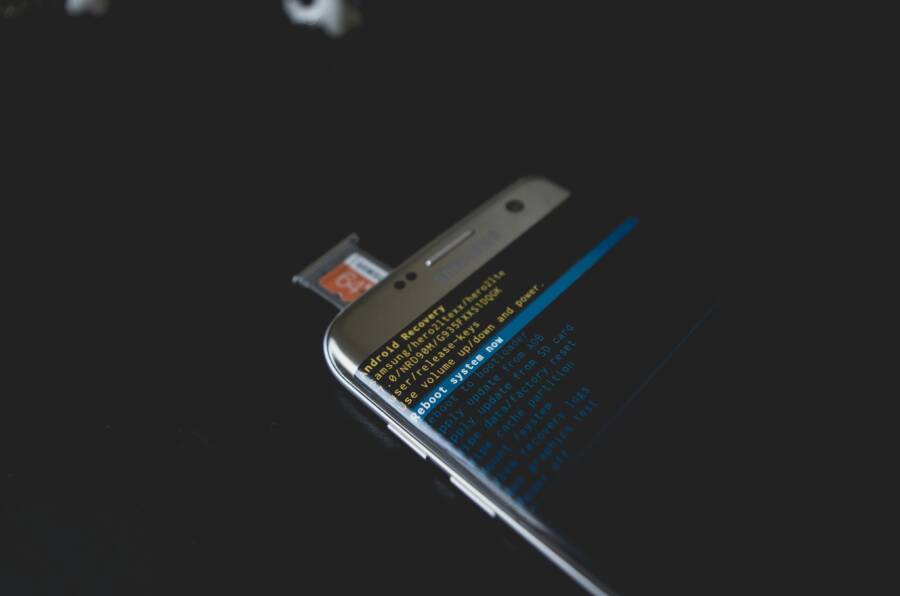
- A quick hardware glance can help. If you suspect the screen or protector is affecting taps, review this image for reference:

- Photo by Kelvin Valerio
- A quick hardware glance can help. If you suspect the screen or protector is affecting taps, review this image for reference:
- Quick takeaway
- Language and layout misalignment is the most common cause on Android. A focused check and a lightweight reset often restore accurate typing.
iPhone Keyboard Fixes: Reset and Reconfigure Keyboards
iPhone users can often resolve misreads by resetting keyboard data and reconfiguring the installed keyboards. This approach keeps the system clean and avoids long-term autocorrect quirks. After each step, test typing in Messages or Notes to confirm results.
- Steps to reconfigure keyboards
- Settings > General > Keyboard > Keyboards. Ensure the right keyboards are enabled and at the top of the list. If there are conflicting third party keyboards, consider removing them or moving a trusted one to the primary position.
- Test typing in Messages or Notes after enabling the preferred keyboard.
- Reset keyboard dictionary
- Settings > General > Reset > Reset Keyboard Dictionary. This clears learned words and autocorrect patterns that could be causing wrong-letter outputs.
- After reset, open Notes and type a short sentence to confirm accuracy. If letters drift again, the issue may stem from language or layout rather than the dictionary.
- Update iOS
- Settings > General > Software Update. Install any available updates, as they often fix keyboard-related glitches and improve stability.
- Additional checks
- If you use a third party keyboard, ensure it’s updated and compatible with your iOS version. Reinstall if necessary, then re-test in a neutral app like Messages.
- Reorder keyboards to place your primary option at the top. Tap the globe icon to switch during a test to confirm the correct keyboard is active.
- Testing guidance
- After each change, type a few sentences in Messages or Notes to compare results. If the problem disappears after removing a conflicting keyboard, you’ve found the culprit.
- Useful resources
- For a clean reset of the iPhone keyboard dictionary, see this guide: How to reset iPhone’s keyboard dictionary to fix autocorrect glitches.
- If you want more steps for iOS autocorrect and keyboard issues, consider this iOS keyboard problem explainer: iOS Keyboard Problem Explained — and How to Fix It!.
- Visual reference
- If you’d like, you can visualize the reconfiguration process with an image showing the iPhone keyboard setup. (Note: use relevant images only when they enhance clarity.)
- Quick takeaway
- Reconfiguring keyboards and clearing the dictionary solves most autocorrect or misread issues on iPhone. It’s a clean, low-risk fix that restores a reliable baseline.
Images for this section
- Android image: Close-up of a smartphone displaying Android recovery mode with an SD card inserted. Photo by Kelvin Valerio. Source: https://www.pexels.com/@kelvin809
- If you include additional visuals, ensure they align with the steps and add value to the reader’s understanding.
External links usage note
- All links are included to support quick, actionable steps. They open in new tabs so readers can follow along as they work through each fix.
Key takeaways
- On Android, language and layout mismatches are the top culprits. Clear caches and reset keyboard settings to reset the baseline if needed.
- On iPhone, resetting the keyboard dictionary and reordering keyboards clears most autocorrect and misread issues. Update iOS if a bug is suspected.
- Testing after each action is essential. It confirms progress and prevents unnecessary edits.
If you’d like, I can add a compact diagnostic flowchart readers can print or copy into the article, guiding them from language checks to testing hardware. I can also expand the section with platform-specific checklists to help readers troubleshoot faster.
Deeper Troubleshooting: When and How to Take It Further
If the basics still don’t fix the wrong letters, it’s time to push beyond the everyday tweaks. This section guides you through deeper checks that help you determine whether the issue lives with the software, the hardware, or a combination of both. You’ll find practical steps, clear tests, and trusted sources to consult as you proceed.
Test with Safe Mode and Different Keyboards
Safe mode is a powerful first step for ruling out third party apps. When you boot into safe or reduced mode, the phone runs with only essential services, so you can see if the problem travels with the system or with a particular app.
- How safe mode helps
- If the wrong letters disappear in safe mode, a third party app is the likely culprit. If the issue remains, the fault could be with the system keyboard, a language setting, or a deeper software problem.
- Safe mode makes it easier to confirm whether you should pursue a keyboard reinstallation or a broader OS check.
- How to boot into safe mode
- Android: The exact steps vary by device, but a common path is to hold the power button, then long-press Power off until you see an option to reboot in Safe mode. Confirm and wait for the device to restart in safe mode. When you’re back in, test the keyboard in a simple app to compare results. If you can’t access safe mode, consult your device maker’s official guide.
- iPhone: iOS devices don’t have a system-wide Safe mode in the same way Android does. Instead, use a clean baseline by testing with the built-in keyboard in a fresh app and temporarily disabling or removing third party keyboards.
- Try a well-known default keyboard or a reputable alternative
- Switch to the system keyboard to see if the behavior persists. If it’s clean, the issue is likely tied to the third party keyboard. If the problem follows the system keyboard, the fault is broader.
- Test a reputable alternative keyboard for a short period. If the issue moves with the keyboard, you’ve isolated the problem to that app.
- Quick testing approach
- Open a notes app and type a simple sentence. Then switch back to a third party keyboard and type again. A consistent mismatch across keyboards signals a system setting, not the keyboard app.
- Useful resources
- Find problem apps by rebooting to safe mode on Android: https://support.google.com/android/answer/7665064?hl=en
- What to do when third party keyboards malfunction on iPhone: https://discussions.apple.com/thread/256154187
- Safe mode help for Galaxy devices: https://www.samsung.com/us/support/answer/ANS10003495/
- Takeaway
- Safe mode is your fastest way to separate app-induced misreads from system-level issues. If the problem vanishes in safe mode, you’ve found the path to a targeted uninstall or update of a conflicting app.
Update OS and Keyboard Apps, Reinstall When Needed
Keeping the device OS and keyboard apps up to date is essential. Updates fix bugs, security flaws, and compatibility issues that can cause keyboards to misread input.
- Why updates matter
- OS updates often include performance and input handling improvements that reduce typing errors.
- Keyboard apps receive bug fixes and new language packs that align with the latest OS changes.
- Steps to update the OS
- Android: Settings > System > Software update > Check for updates. Install any available updates, then restart and test the keyboard in a neutral app.
- iPhone: Settings > General > Software Update. If an update is available, download and install, then test typing in a simple app to confirm stability.
- Steps to update and manage keyboard apps
- Open the Google Play Store or Apple App Store and check for keyboard app updates. Install all available updates.
- If you suspect a stubborn issue, consider uninstalling the keyboard app and reinstalling it fresh. This can clear corrupted caches or broken configurations.
- Reinstall with caution
- Before reinstalling, back up any custom dictionaries or learned words if the option exists. Some keyboards offer a cloud sync; ensure you’re signed in to preserve your preferences.
- After reinstalling, test in a simple app and reintroduce your usual typing tasks gradually.
- When to reinstall the OS
- If you’ve exhausted app-level fixes and the problem persists across multiple keyboards and language packs, a fresh OS install (or factory reset, covered below) may be warranted. Back up all critical data before proceeding.
- External resources
- Check & update your Android version: https://support.google.com/android/answer/7680439?hl=en
- How to update iOS and reinstall keyboard apps for iPhone: you can reference official guidance and reputable tutorials
- Back up or restore data on your Android device: https://support.google.com/android/answer/2819582?hl=en
- Restore your iPhone from a backup: https://support.apple.com/en-us/118105
- Takeaway
- Regular updates keep the system and the keyboards aligned. If updates don’t help, a clean reinstall of the keyboard app or a broader reset may be necessary.
Factory Reset as a Last Resort
A factory reset is the most thorough step you can take to clear out software misconfigurations. It wipes everything and returns the device to its original state. Use this only after you’ve exhausted other options and backed up your data.
- When a factory reset helps
- It addresses persistent software glitches that survive updates, app removals, and cache clears.
- It won’t fix hardware issues, such as a damaged touch layer or a worn keyboard.
- Preparation: what to back up first
- Photos, messages, contacts, and app data. Use cloud backups or local backups to a computer.
- For Android, back up to Google Drive or a computer. For iPhone, use iCloud or a computer with iTunes/Finder.
- How to perform the reset
- Android: Settings > System > Reset options > Erase all data (factory reset). Follow the prompts to reset and then restore your data from backup.
- iPhone: Settings > General > Transfer or Reset iPhone > Erase All Content and Settings. After the reset, set up the device as new or restore from a backup.
- Post reset test plan
- Set up the device with a single, default keyboard initially.
- Open a notes app and type a paragraph with common letters and tricky characters.
- Install a couple of trusted keyboards one by one and test after each install to see if the issue reappears.
- Important caveats
- Hardware issues remain after a reset. If the problem shows up only after the reset or shifts to a specific area of the screen, you may have a screen or touch layer problem.
- Factory reset is a high-visibility step. Confirm you have complete backups and a plan to restore essential apps and data.
- External resources to guide the reset
- Factory reset guides for iPhone: https://support.apple.com/en-us/108931
- Restore from an iCloud backup on iPhone: https://support.apple.com/en-us/118105
- How to factory reset your iPhone, iPad, or iPod touch: https://support.apple.com/en-us/108931
- Takeaway
- A factory reset is the last resort. It can clear stubborn software issues that other fixes miss. Hardware problems will still need attention after the reset.
Practical tips to keep you moving forward
- Test, then test again
- After every step, type in a neutral app like Notes or Messages. This helps you verify progress and avoid guessing.
- Keep a simple baseline
- Use one reliable keyboard for a while to confirm the baseline accuracy before trying alternatives again.
- Don’t overlook hardware clues
- A soft touch on the screen can feel different after a screen protector or wear. If you notice a hot or inconsistent display area, consider a hardware check.
- When to seek professional help
- If you notice persistent dead zones, or the issue travels with the screen or touches elsewhere, a technician can diagnose a potential hardware fault.
If you want, I can tailor a compact diagnostic flowchart readers can paste into the article, guiding them from language checks to testing hardware. I can also add platform-specific checklists to help readers troubleshoot faster.
Prevention Tips to Keep Your Keyboard Working
Keeping your keyboard accurate long term means a mix of smart habits, regular checks, and quick, repeatable maintenance. Think of it like caring for a trusted tool: a little preventative work goes a long way. Below are focused tips you can apply today to reduce misreads, avoid surprises, and stay in sync with your smartphone’s keyboard as you type.
Choose a Reliable Keyboard App and Keep It Updated
Selecting a dependable keyboard app is a smart first step. Accuracy, privacy controls, and timely updates matter. Use a simple evaluation checklist to pick and stay with a solid option.
- Quick criteria to guide your choice
- Accuracy and language support: Does the keyboard handle your primary language well? Look for strong spelling and support for the dialect or slang you use.
- Privacy controls: Check what data is collected and if local processing is used. Prefer keyboards that allow you to disable unnecessary permissions.
- Update cadence: A well-maintained app releases bug fixes and language packs regularly. Favor apps with transparent update logs.
- Resource use: Ensure the app doesn’t drain battery or slow the device.
- How to vet options
- Test accuracy in a neutral note app for a few minutes with your usual sentence patterns.
- Compare how quickly predictions adapt to your style across a couple of days.
- Review privacy settings in the app and disable features you don’t need.
- Keep it lean
- If you use multiple keyboards, remove the ones you don’t rely on. A clean setup reduces accidental switches during typing.
- A quick test you can run now
- Install one reliable keyboard, remove others, and type a familiar sentence in Messages or Notes. If the output is consistently accurate, you’ve achieved a clean baseline.
- Helpful resources
- For a broad look at keyboard apps and how to pick them, see The Ultimate Guide to Choosing the Best Keyboard App in 2025.
- If you want a quick overview of Android options and privacy considerations, this AI-focused roundup can help you compare features and safeguards.
Links to help you explore and compare:
- https://www.fleksy.com/blog/best-keyboard-app-2025/
- https://www.clevertype.co/post/best-keyboard-android-apps-for-2025-ai-grammar-and-more
- https://apps.apple.com/us/app/gboard-the-google-keyboard/id1091700242
Regular Maintenance and Safe Practices
A few small habits protect your typing experience day to day. Regular checks prevent small issues from growing into bigger headaches.
- Simple routines to adopt
- Clean the screen and housing periodically to avoid smudges that affect touch sensitivity.
- Verify screen protector fit. A bulky or misaligned protector can interfere with taps in the corners or edge areas.
- Avoid heavy cases that press on the screen. Extra pressure can alter touch response.
- After changes or updates, test typing right away in Messages or Notes to confirm things feel normal.
- Privacy note with third‑party keyboards
- Third‑party keyboards often collect data to function effectively. Review what is logged and adjust permissions accordingly. If privacy feels uncertain, switch back to the built‑in keyboard or disable problematic features.
- Quick practice
- Once a week, run a 5‑minute typing check in a plain app. This keeps your baseline current and helps you notice drift early.
- Practical tip
- If you rely on a particular third party keyboard for features you love, keep it updated and periodically re-evaluate its privacy settings after major OS updates.
Links for practical insights:
- For general screen maintenance and care, consider keyboard and device cleaning guides.
- Privacy considerations around keyboard apps: a broader discussion on data privacy in smartphone keyboards.
- Cleaning and care resources:
- https://www.nbcchicago.com/news/tech/clean-keyboard-grunge-earwax-earphones-screen-smudges/3791991/
- https://hp.com/us-en/shop/tech-takes/how-to-clean-keyboard
Backups and Quick Tests
Backups and rapid testing after any change ensure you stay in control of your typing accuracy. A small, repeatable routine now saves time later.
- Why backups matter
- Some keyboards learn from your typing. Backups preserve personalized dictionaries and avoid data loss if you reset or reinstall.
- Quick test checklist after changes
- Type a short paragraph in a neutral app like Notes.
- Switch to a different keyboard briefly, then return to your primary one and retype.
- Check for consistent letter accuracy across keyboards.
- Simple, fast tests you can perform
- In Messages or Notes, type a sentence that includes names or tricky letters. Confirm output matches your intent.
- If you notice drift after installing a new keyboard, revert briefly to the system keyboard and re-test.
- Quick testing phrases
- “The quick brown fox jumps over the lazy dog.” This sentence uses all letters and helps reveal subtle misreads.
- Helpful external references
- A quick test utility designed for mobile keyboards can help you verify real-time input across platforms.
Links for testing guidance:
- https://keyboardtester.pages.dev/mobile-keypad-tester
- https://keyboardtester.pages.dev/mobile-keypad-tester
- Practical takeaway
- Backups and quick tests after each change keep you confident that you’re moving in the right direction.
In addition to the testing routine, you can explore a broader set of practical checks for test confidence:
- https://www.androidauthority.com/change-keyboard-android-3181598/
If you’d like a printable flowchart or a compact step-by-step flow, I can tailor that for your article.
Example quick test after a change:
- Type a short sentence in Notes.
- Switch to another keyboard for a moment, then switch back.
- Type again and compare results. If the second pass matches the first, you’re in a stable state.
Key takeaways
- Keeping backups of keyboard data helps prevent data loss when resetting or reinstalling.
- Quick, repeatable tests after each change confirm progress and prevent misinterpretations.
- Use a simple baseline app for testing to isolate changes from app-specific behavior.
If you want, I can provide a compact diagnostic flowchart readers can paste into the article to guide them step by step from language checks to hardware testing. I can also add platform-specific checklists to speed up troubleshooting for both Android and iPhone users.
Conclusion
You now have a practical, step by step approach to fix a phone keyboard that types the wrong letters. The most important part is to start with quick checks, confirm your baseline with a clean app, and then move through targeted tweaks. A little testing after each step keeps you from guessing and helps you spot the real cause faster. If you’re using a smartphone every day, these fixes become a reliable routine you can repeat whenever a new glitch pops up.
What we covered
- Language and layout alignment. Most misreads come from the wrong language or keyboard layout being active. Keeping a single, known configuration at the top of your list makes testing straightforward.
- Autocorrect and predictions. These features can mimic incorrect typing. Turning them off temporarily helps confirm if the issue is the keyboard’s behavior or something deeper.
- Hardware clues. Screen damage, edge wear, or a rough screen protector can feel like keyboard problems. A quick hardware check often reveals these as the actual culprits.
- Platform specific fixes. Android and iPhone users have distinct steps for resetting keyboards, updating apps, and reconfiguring key layouts. Following a dedicated flow for each platform yields faster, clearer results.
- Deeper troubleshooting. When basics fail, safe mode testing, OS and app updates, and even factory resets (as a last resort) help you isolate software or hardware faults.
If you want more ideas, you can explore a quick comparison of keyboard approaches and how to fine tune autocorrect on iPhone and Android, such as tips that help reduce typos without sacrificing convenience. For a helpful read on disabling auto-correct when it’s driving you nuts, check out this guide: How to Turn Off Auto-Correct (If It’s Driving You Nuts).
Quick diagnostic checklist
- Test with a single baseline keyboard in a neutral app (Notes or Messages).
- Disable autocorrect and predictions temporarily to see if accuracy returns.
- Verify language and layout match your daily typing needs.
- Remove unused keyboards to reduce switching errors.
- If issues persist, test in Safe Mode or with a different keyboard.
- If hardware seems suspect, consider a professional check instead of a full replacement.
When to seek professional help
- The problem travels with the screen or shows up in multiple apps in different areas of the device.
- You notice dead zones or inconsistent touch response that point to the display rather than the keyboard.
- All software fixes fail and you’ve ruled out language, layout, and app conflicts.
A technician can determine whether the issue is a failing touch layer, a damaged display, or a stubborn software quirk that needs a deeper reset.
Maintenance mindset
- Keep one reliable keyboard for a stable baseline. Switch only after you confirm the problem is not hardware related.
- Update OS and keyboard apps regularly. Updates fix bugs, add language packs, and improve compatibility.
- Periodically reset learned data or dictionary for third party keyboards. A fresh dictionary helps avoid odd word suggestions that can masquerade as typing errors.
- Do simple tests after any change. A quick sentence in Notes or Messages confirms progress and keeps you in control.
Final thought
A well-maintained smartphone typing experience is achievable with a calm, methodical approach. Start simple, test often, and you’ll keep the keyboard accurate without turning it into a mystery. If you’d like, I can tailor a compact diagnostic flowchart you can paste into your article to guide readers from language checks all the way to hardware testing. And I can add platform specific checklists to speed troubleshooting for both Android and iPhone users.
Photo by Kindel Media

What If the Only Thing Between You and the Life You Deserve Is a Hidden Wealth Code Waiting to Be Activated
>>> Open the Door <<<
