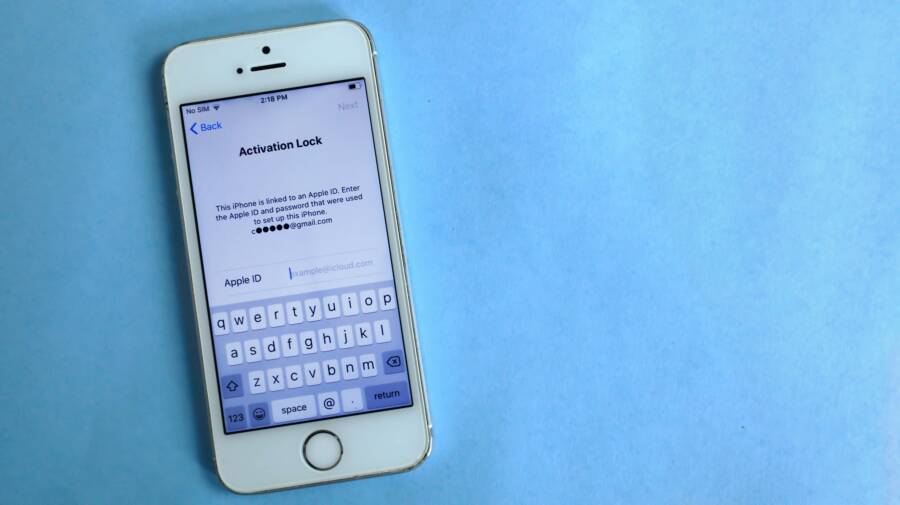
Facing a phone that won’t sign in to your Apple ID can feel frustrating, especially when you rely on iCloud, messages, and app data. This guide shows a simple, practical path to get you back in control with clear steps you can follow today.
If you’re wondering what’s wrong, the issue usually comes down to account credentials, device settings, or a temporary service outage. You’ll learn quick checks you can run, device specific steps to try, and where to focus if you need to reset or secure your account.
By the end, you’ll know how to diagnose sign in problems for your iPhone, understand common causes of Apple ID sign in errors, and what to do next if help from Apple is needed. This is written for real world use, with plain language and actionable tips you can apply right away.
Check Apple ID status and password
Before you jump into resets, it helps to quickly verify the basics. This section guides you through a practical check of your Apple ID status and password, with clear steps you can follow on your iPhone or a web browser. You’ll learn how to view connected devices, review recent activity, and spot common typos that trip people up.
 Photo by Safwan C K. https://www.pexels.com/@safwanck
Verify the Apple ID and password are correct
- Start with a quick sanity check: make sure you’re signing in with the exact email or phone number your Apple ID uses, and that you’re entering the correct password. A small mistake in capitalization or a stray character is easy to miss.
- Check your account page for clarity:
- On the web, sign in to your Apple ID account page to see the devices linked to your account and your recent activity. Look for any unfamiliar devices or recent sign-ins that you don’t recognize.
- On iPhone, open Settings, tap your name, and review the list of devices showing under your Apple ID. If you see devices you don’t recognize, remove them.
- Review connected devices and recent activity:
- The account page shows every device signed in with your Apple ID. If a device you no longer own appears, remove it to prevent unauthorized access.
- Recent activity can reveal sign-in attempts that you didn’t initiate. If you notice something odd, take action quickly.
- Remember that minor password or username mistakes happen to everyone. Take a breath, retype carefully, and try again. A fresh attempt often resolves the issue.
Helpful links:
- Check your Apple Account device list to find where you’re signed in. https://support.apple.com/en-us/102649
Reset your Apple ID password if needed
- If the password is the bottleneck, start with a password reset on a trusted device or via the web. The fastest option is usually to reset on a device that’s already signed in to Apple ID.
- Reset steps:
- Use the web: go to
iforgot.apple.comand follow the prompts. - On a trusted device: go to Settings > [your name] > Password & Security > Change Password.
- Use the web: go to
- If two-factor prompts appear and you can’t access the trusted device, use Account Recovery. It helps you regain access even when you don’t have the usual verification methods available. This process can take time, but Apple will guide you through the steps.
- Make the new password strong and memorable. Use a mix of uppercase and lowercase letters, numbers, and symbols. Avoid common words and reuse across services.
- After resetting, update the password across all devices and apps that use your Apple ID. This prevents lingering sign-in prompts on one device.
Helpful links:
- How to use account recovery when you can’t reset your Apple Account password. https://support.apple.com/en-us/118574
- Apple Account – Official Apple Support. https://support.apple.com/apple-account
- If you forgot your Apple Account password. https://support.apple.com/en-us/102656
Check for account security blocks or two factor prompts
- Apple may lock an account after too many failed sign-in attempts. If you see a security alert or a locked message, follow the on-screen instructions to regain access.
- Two-factor authentication prompts can appear as a request for a verification code. You’ll see a six-digit code on your trusted device, or you can receive the code via text or phone call.
- Enter the code exactly as shown. If you don’t receive a code, try a different verification method listed on the screen.
- If you suspect an attack or repeated failed attempts, start the recovery process to restore access. You may need to provide information such as your Apple ID, trusted phone numbers, or answers to security questions.
- Unlocking or recovering an account may require several steps. Keep the recovery prompts in view and follow them carefully.
Helpful links:
- If your Apple Account is locked, not active, or disabled. https://support.apple.com/en-us/102640
- Get a verification code and sign in with two-factor authentication. https://support.apple.com/en-us/102606
What to do if you can’t access your trusted device or email
- If you can’t access your trusted device or email, there are practical workarounds:
- Use a trusted phone number to receive verification codes.
- If applicable, rely on a recovery key or recovery contact method provided by Apple.
- Contact Apple Support for verification and assistance. They can guide you through account recovery or alternative verification steps.
- Do not panic. Follow the on-screen prompts and provide any information Apple requests to confirm your identity.
- In many cases, you can regain access without the trusted device by starting the recovery process and waiting for Apple to verify your identity.
Helpful links:
- Sign in to your Apple Account on the web or in your device. https://support.apple.com/en-us/111001
- View and remove your devices that are associated with your Apple Account. https://support.apple.com/en-us/118412
Note: If you’re in a rush, you can attempt sign-ins on a different trusted device you own. Sometimes that change helps bypass a temporary prompt on a single device.
End of section
Prepare your device and network for sign in
Before you start chasing problems with Apple ID sign in, take a moment to verify your device and network are in good shape. A solid connection and properly set device settings often fix many sign in hiccups. This section walks you through practical checks you can perform on your iPhone or other Apple devices, plus quick steps to get you back in when things feel stuck. If you’re in a hurry, these steps are designed to be completed in just a few minutes and set you up for smoother sign ins across iCloud, Messages, and apps.
Test your internet connection on WiFi and mobile data
A weak or unstable connection is a common cause of sign in problems. Start with a quick test to confirm your device can reach the internet reliably.
- Quick checks you can run:
- Open a webpage in Safari or another browser.
- Send an iMessage to a friend or yourself.
- Try streaming a short video or loading in an app that uses data.
If a page or message takes long to load or fails, switch networks. Move to a more stable WiFi network or restart your router. If WiFi remains unreliable, switch to mobile data to see if sign in improves. For iPhone users, toggling airplane mode on for 15 seconds and then turning it off can refresh the connection. If you’re still facing issues, check the network settings or try a different network entirely.
Helpful links:
- If your device has network connectivity issues, check for VPN and other third-party security software
- If you can’t connect to Wi-Fi on your iPhone or iPad
Set the device date and time to automatic
Incorrect date or time can block sign in because Apple’s servers rely on accurate time data for security checks and token validation. If your device clock is off, you may see prompts that block login or fail to verify your credentials.
- How to enable Set Automatically:
- Go to Settings > General > Date & Time.
- Turn on Set Automatically. Your iPhone will use location services to set the correct time zone and clock.
- If automatic setting isn’t available or not working:
- Manually adjust the date and time to match the current time in your time zone.
- After adjusting, try signing in again to see if the issue is resolved.
Why this matters: authentication tokens have time stamps. If the clock is off, the server may reject the sign in as a security risk. Keeping the date and time accurate helps ensure tokens are valid when you sign in.
Helpful links:
- Update your iPhone or iPad
Disable VPNs or security apps that block sign in
VPNs and some security apps can interfere with sign in by routing traffic in unexpected ways or inspecting credentials. If you’re using any third party VPNs or security tools, disable them temporarily and test signing in again.
- Steps to disable:
- Open Settings and turn off any active VPN or security app that you’ve installed.
- Attempt sign in on the same device to see if the issue clears.
- After testing, re-enable these tools if they were not the cause. If they were the cause, consider configuring them to allow Apple ID traffic or switching to a trusted VPN with specific allowlists.
Why it helps: some VPNs block certain connections Apple uses to verify credentials. Narrowing down the culprit makes it easier to keep protection on while you sign in.
Helpful links:
- If your Mac isn’t connecting to the internet over Wi-Fi
- Update your iPhone or iPad
Update iPhone to the latest iOS version
Software updates fix known sign in bugs and improve compatibility with Apple’s authentication servers. Running an up-to-date OS reduces the chance of issues caused by older code.
- How to check for updates:
- Open Settings > General > Software Update.
- If an update is available, tap Download and Install.
- What to expect:
- Updates may require a reboot. Save any work before starting.
- If you’re updating a Mac or iPad as well, follow the on-screen prompts to finish the update.
Why this matters: updates include security improvements and bug fixes that can directly impact sign in reliability.
Helpful links:
- Update your iPhone or iPad
- If you can’t connect to the App Store, iTunes Store, or other Apple services
End of section
Note: The content above is designed to align with practical, real-world usage, keeping the language straightforward and actionable for everyday readers. For further reading and additional troubleshooting steps, you can refer to Apple Support resources linked in the related sections.
On device sign in troubleshooting steps
If you’re trying to sign in on your iPhone and run into trouble, start with quick, device-focused checks. This section covers practical steps you can perform on the device itself to isolate whether the issue is account based, network related, or specific to the device. The goal is to empower you to fix most sign in hiccups without waiting for support. Along the way you’ll see links to trusted Apple guidance and related resources to confirm you’re following best practices.
 Photo by Daniel Moises Magulado: https://www.pexels.com/@daniel-moises-magulado-199841
Sign out of iCloud and sign back in
Signing out of iCloud resets the connection between the device and Apple’s cloud services. When you sign back in with the correct Apple ID, most sign in issues disappear. Be aware that signing out may remove some offline data from the device, so you’ll want to reconnect and re-enable iCloud services afterward.
- How to sign out:
- Open Settings and tap your name at the top.
- Scroll down and choose Sign Out.
- Enter your Apple ID password to turn off iCloud features and sign out.
- How to sign back in:
- Return to Settings, tap Sign in to your iPhone, and enter the correct Apple ID and password.
- Re-enable iCloud features you want to use and re-connect devices as needed.
- After you sign back in, check that essential services are restored, such as iCloud Drive, Backups, and Messages in iCloud.
Helpful links:
- Sign out of iCloud on your devices: https://support.apple.com/en-us/104958
- Sign in and manage your Apple Account on iPhone: https://support.apple.com/guide/iphone/sign-in-and-manage-your-apple-account-iph76e54c61e/ios
Restart or force restart your iPhone
A simple restart fixes many minor glitches and refreshes network connections that sign in depends on. If a normal restart doesn’t help, a force restart can clear a frozen state that blocks authentication.
- Normal restart (most models):
- iPhone X, 11, 12, 13 and later: press and hold the side button and either volume button until the power-off slider appears. Drag the slider to turn off, then press the side button again to turn back on.
- iPhone 8 or earlier: press and hold the top or side button until the slider appears, then reboot.
- Force restart when needed:
- iPhone X or newer: quick press volume up, quick press volume down, then press and hold the side button until the Apple logo appears.
- What to expect after reboot:
- The device starts fresh and clears temporary errors. Sign in prompts may reappear, but this often resolves the issue.
Helpful links:
- Force restart iPhone: https://support.apple.com/guide/iphone/force-restart-iphone-iph8903c3ee6/ios
- Restart your iPhone: https://support.apple.com/en-us/118259
Reset network settings if needed
If sign in problems persist, especially with iCloud, a network reset can clear stubborn network configuration issues. This step is a last resort because it removes saved Wi-Fi networks and passwords, cellular settings, and VPN configurations. Have those details handy before proceeding.
- How to reset network settings:
- Go to Settings > General > Reset > Reset Network Settings.
- Confirm and let the device restart.
- What you need to do after:
- Rejoin known Wi-Fi networks, re-enter passwords, and reconfigure any VPNs or proxy settings you use.
Helpful links:
- If you can’t connect to Wi-Fi on your iPhone or iPad: https://support.apple.com/en-us/111786
- How to reset network settings on iPhone (Asurion guide): https://www.asurion.com/connect/tech-tips/reset-network-settings-iphone/
Try signing in with a different Apple ID to isolate the issue
Using another Apple ID on the same device helps determine whether the problem lies with the account or the device. If the second account signs in normally, the original account may have a constraint or security issue. If the second account also fails, the problem is likely device or network related.
- How to switch accounts:
- Open Settings > Sign in to your iPhone (or your name) > Sign Out.
- Sign in with the alternate Apple ID.
- After testing:
- If the other ID works, review security and account settings on the original Apple ID.
- If both IDs fail, focus on device or network troubleshooting steps.
Helpful links:
- Sign in and manage your Apple Account on iPhone: https://support.apple.com/guide/iphone/sign-in-and-manage-your-apple-account-iph76e54c61e/ios
- Change Apple ID on iPhone: https://www.asurion.com/connect/tech-tips/change-apple-id-on-iphone/
Images and visuals are a strong addition when they reinforce the steps. If you want more visuals, consider a screenshot of Settings > Your Name to illustrate signing out, or a simple diagram showing the sign in flow.
Key takeaways
- A quick sign out and sign back in often fixes credential or token issues.
- A restart clears temporary glitches that can block sign in.
- Resetting network settings is effective for stubborn network related problems but requires reconfiguration afterward.
- Testing with another Apple ID can pinpoint whether the problem is account or device related.
External resources referenced in this section provide official guidance for sign out, account management, and network troubleshooting to help you navigate safely through Apple’s support ecosystem.
External help and account recovery options
When sign in remains stubborn, you have solid options beyond retrying the same steps. This section outlines practical paths to regain access, whether you’re dealing with a blocked account, a password you can’t remember, or a business or school Apple ID. Each subsection gives clear actions, realistic timelines, and the right official resources to lean on. If you’re currently browsing on a smartphone, these steps work just as well on iPhone, iPad, or a Mac.
Check Apple System Status for sign in outages
Outages can affect sign in across devices. Before you assume the problem is on your end, a quick status check can save time.
- How to view the System Status page:
- Open a browser and go to Apple’s System Status page: https://www.apple.com/support/systemstatus/
- Look for green status indicators next to services like Apple ID, iCloud, and Sign In.
- If you see yellow or red indicators, wait until Apple resolves the outage. Plan to retry later.
- Why it matters: an outage can block sign in on all devices, not just your iPhone. A quick status read helps you decide whether to wait or proceed with account recovery steps.
Helpful links:
- Support – System Status
Use iforgot and the account recovery process
If sign in is impossible, account recovery is a guided path back to access. It may take time, but it’s designed to work when you don’t have your trusted verification methods.
- What is account recovery:
- It’s a guided process to reset your password and regain access.
- It’s suitable when you can’t reset with your usual methods or when two-factor prompts cannot be completed.
- How long it can take:
- The waiting period varies based on what information you can provide and your account history. Apple will guide you through each step and communicate estimated timelines.
- Steps to start:
- Visit iforgot.apple.com and begin the recovery flow.
- If you’re on a trusted device, you may be able to initiate from Settings > [your name] > Password & Security > Account Recovery.
- Follow prompts, provide required information, and monitor for updates from Apple.
- After recovery:
- Create a new strong password.
- Update the password on all devices and apps that use your Apple ID.
Helpful links:
- How to use account recovery when you can’t reset your Apple Account password
- Apple Account – Official Apple Support
- If you forgot your Apple Account password
Contact Apple Support and prepare details
Sometimes talking directly to a human is the fastest path to a resolution. When you do, have a concise set of details ready.
- What to tell the agent:
- Your device model and current iOS version
- The Apple ID email or phone number you use
- Recent sign in activity, including times and locations if known
- Any error messages you’ve seen and when they appear
- What to prepare:
- Screenshots of the error messages
- A list of apps or services that failed to sign in
- Your preferred contact method and time windows
- How to reach Apple Support:
- Use the official support channel to get connected with a specialist: https://support.apple.com/contact
Helpful links:
- Contact Apple Support
- Apple Account – Official Apple Support
If you are part of Apple Business or School, contact the admin
Organizations may manage Apple IDs for employees and students. If you’re part of a business or school, reach out to the IT admin or organization administrator for help regaining access.
- Why admins matter:
- They can reset or reassign Apple IDs, update security settings, or restore access to essential apps and services.
- How to contact:
- Start with the internal IT helpdesk or the Apple Business Manager / Apple School Manager support channels.
- What to provide when you contact:
- Your user identity, organization email, and any reference numbers from prior support attempts
- The devices you use and any error codes that appeared
Helpful links:
- Contact Apple for support with Apple Business Manager
- Get Support for Apple Business Manager
Images and visuals can reinforce these steps. If you want additional guidance, consider screenshots of the System Status page, the account recovery prompts, and the Apple Support contact flow to accompany this section.
Key takeaways
- Always verify system status first to rule out outages.
- Account Recovery is a structured path when password resets aren’t possible.
- Have a clear set of details ready when you contact support to speed up the process.
- If you’re part of an organization, your IT admin is often the quickest path to access restoration.
External resources referenced in this section provide official guidance for outages, account recovery, and support workflows to help you navigate Apple’s support options with confidence.
Prevent future sign in issues and best practices
Staying signed in and secure requires a simple, repeatable set of habits. This section lays out practical, action‑or‑action steps you can apply now to prevent sign in problems later. You’ll learn how to keep credentials tight, strengthen verification, keep devices updated, avoid network pitfalls, and maintain reliable access across all your Apple devices. Think of it as your preventative maintenance kit for Apple ID sign ins.
Keep your Apple ID password secure and updated
Your password is the first line of defense. Treat it like a master key and guard it accordingly. A password manager is the easiest way to generate unique, strong passwords you won’t forget.
- Use a password manager to create long, random passwords for Apple ID and each linked service. Store them securely and autofill when you sign in.
- Update passwords regularly. Set a cadence that fits your risk level, such as every 3–6 months for critical accounts.
- Avoid reuse. If one site is breached, attackers won’t automatically gain access to your Apple ID.
- Enable two‑factor authentication (2FA). Apple sends a six‑digit code to trusted devices or numbers. Without the code, a password alone isn’t enough.
- Keep recovery options current. Confirm you have a valid trusted phone number and up‑to‑date recovery email.
A strong password strategy reduces friction during sign in and dramatically lowers the chance of unauthorized access. For deeper guidance on managing your Apple Account security, see Apple’s guidance on account management and security basics.
Helpful links:
- Manage and use your Apple Account
- Security and your Apple Account
Enable two factor authentication and set up recovery options
Two factor authentication adds a critical second barrier against unwanted access. With 2FA, even if someone knows your password, they still need a verification code.
- Turn on 2FA on your Apple Account and add trusted devices. These devices will display verification codes and can receive prompts to approve sign-ins.
- Add recovery options so you’re never locked out. Include a backup email and a secondary phone number that can receive codes.
- Keep trusted devices current. If a device is lost or replaced, update your trusted list so verification codes keep flowing to your hands.
What this means in practice is fewer prompts you can’t answer and a quicker path back if you ever forget a password. If you ever misplace access to a trusted method, Apple’s account recovery flow is designed to help you regain control.
Helpful links:
- Two-factor authentication for Apple Account
- Use two-factor authentication for your Apple Account security on mac
Keep devices updated and check for software updates
Software updates aren’t optional. They patch security holes and improve authentication reliability. A regular update habit reduces surprise sign in problems.
- Schedule a monthly check for updates on all Apple devices. Your iPhone, iPad, Mac, and Apple Watch should stay in sync with the latest protections.
- Prioritize iOS updates on the iPhone in particular. Always install available updates before signing in after a reset or restore.
- Keep apps up to date as well. Some apps store credentials in ways that rely on system security patches.
A steady update routine helps ensure tokens, certificates, and authentication services work consistently across devices. It also reduces the risk of running into sign in glitches caused by outdated software.
Helpful links:
- If you think your Apple Account has been compromised
- Update your iPhone or iPad
Be careful with VPNs and network restrictions
Networks and VPNs can interfere with the sign in process. A VPN might route traffic in a way that blocks the connections Apple relies on to verify credentials.
- If sign in fails, disable VPNs and security tools temporarily to test whether they’re the culprit.
- Use a direct connection when testing sign in. If the issue clears, adjust the VPN’s rules or switch to a trusted VPN with proper allowlists for Apple ID traffic.
- Be mindful of corporate or school networks that impose strict restrictions. If you must sign in from those networks, request an allowlist or use a trusted personal network when possible.
This approach helps you isolate whether the problem is the network or the account. It also keeps your protection intact while you sign in.
Helpful links:
- If your device has network connectivity issues, check for VPN and other third‑party security software
- If your device has network connectivity issues, check for VPN and other third‑party security software (mac guidance)
Maintain access across devices and trusted devices list
A robust trusted devices strategy keeps you in control even when you’re away from your primary iPhone.
- Maintain a current list of trusted devices. You should have at least one device that can receive verification codes.
- Regularly review and prune devices you no longer own. Removing old devices reduces the risk of unauthorized sign in attempts.
- Manage trusted devices in Apple ID settings. Verify which devices are allowed to display verification prompts and codes.
If you ever lose access to a device, you can still sign in using a trusted phone number or recovery option. Keeping your trusted devices list clean ensures you don’t get stuck during sign in.
Helpful links:
- About trusted phone numbers and trusted devices for Apple Account
- Review the trusted devices that use your Apple Account on Mac
Examples help: imagine your trusted devices as spare keys taped to a single wall. The more you keep up to date and the fewer you hide away, the easier it is to unlock your account when you need it.
Key takeaways
- A strong password plus 2FA dramatically reduces sign in risk.
- Regular updates fix bugs and security gaps that can block sign in.
- VPNs and strict networks can block sign in; test with them off.
- A current trusted devices list ensures you can receive verification codes when needed.
External resources referenced in this section offer official guidance on account security, 2FA, and device management to help you keep signing in simple and secure.
Conclusion
Most sign in issues follow a quick plan: verify credentials, check system status, refresh the connection, and test on a trusted device. Bookmark this smartphone sign in guide and work through the steps in order for the best chance of a fast fix. A strong password, 2FA, and up to date software drastically lower future disruptions, and they keep your Apple ID secure across devices. If the issue persists after following these steps, reach out to Apple Support with a concise summary of what you tried and the exact error messages.