He Was Drowning in Bills and Burnout Until a Simple Daily Ritual Rewired His Brain for Wealth in Less Than a Week
>>> Start Your Shift Today <<<

Every afternoon you reach for your smartphone and it dies mid-scroll. The culprit is usually apps quietly sipping power in the background, causing unexpected battery drain. This guide shows you how to spot the real culprits on Android and iPhone, plus fast fixes to reclaim everyday usability.
Spot the Signs of Battery-Draining Apps
Your phone should be a reliable tool, not a constant hunt for a charger. To reclaim those lost hours, you first need to spot the apps quietly sipping power in the background. This section breaks down the telltale signs and explains how to confirm which apps are the real culprits on both Android and iPhone, plus practical steps to stop the drain.
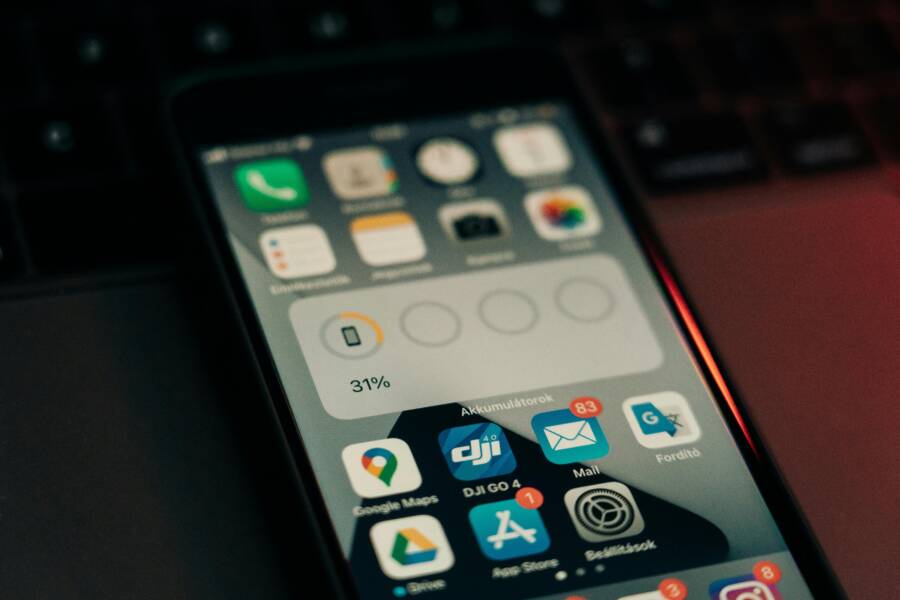
 Photo by Szabó Viktor
Common indicators that an app is draining your battery
- Unusually fast battery drop even with light use. If your screen time is minimal but the battery percentage falls quickly, a background process may be at work.
- Phone feels warm or hot after a short period of use or while idle. Apps running in the background can generate extra work for the processor.
- Frequent night-time charging is required. If your phone lasts several hours with heavy sleep, yet dies unexpectedly after a couple of hours, background activity could be to blame.
- Short battery life improvements after closing or disabling an app. If stopping or uninstalling a single app noticeably improves longevity, that app is likely a drain.
These patterns show up on both Android and iPhone, but the exact signs you’ll see depend on the platform. On Android you’ll often notice data usage and wakelock details, while iPhone users may see battery health and Insights suggestions guiding you toward the same offenders. For further context, see how experts describe identifying drainers on Android and iPhone platforms.
There Is a Frequency That the Wealthiest Families Have Used for Generations and Most People Will Never Know It Exists
>>> Open the Door <<<

How to identify the worst offenders on Android
- Check the battery usage screen: Look for apps that consume a large share of battery over the last 24 hours or last 7 days.
- Look for background activity: Some apps run continuously, even when you’re not actively using them.
- Pay attention to high data use: Apps that regularly download or upload data can burn through power quickly.
Guidance from tech outlets shows practical steps for pinpointing power-hungry apps on Android devices. For example, Android Police provides a step-by-step approach to see which apps drain your battery and interpret the results. You can read their guide here: How to see which apps are draining your phone’s battery. You’ll find tips on reading battery charts, identifying wakeups, and taking action.
Another solid reference explains how to uncover battery draining apps with platform-native tools and data points. This resource highlights checking screen-on time, foreground versus background activity, and battery drain trends over time. Learn more at ZDNet: How to find out what apps are draining your Android battery.
How to identify the main culprits on iPhone
- Use Settings > Battery to view activity by app: The Last 24 Hours and Last 10 Days charts reveal which apps consume the most power.
- Look for unexpected spikes in energy usage: Apps that previously consumed little power may suddenly jump in their energy profile.
- Pay attention to system recommendations: iOS can surface battery health tips and app-specific suggestions to extend life.
Apple’s official guidance covers how to interpret iPhone battery data and what to do if you see rapid drain. See: If the battery in your iPhone or iPad drains too quickly. This resource explains using Battery and Power features to optimize life and identify problematic apps.
Practical steps to verify a suspect
- Reproduce the issue: Use the same activity when the drain started, then monitor battery impact with the suspect app active.
- Compare with similar apps: If another app with a similar function drains less, the problem may be app-specific optimization or background behavior.
- Disable or restrict background activity: For Android, you can restrict an app’s background activity; on iPhone, you can adjust Background App Refresh per app to limit updates in the background.
If you want a concise guide to diagnosing app-driven drain, The Verge outlines how to identify the worst offenders and take action. See: How to figure out which apps are draining your device’s battery. It helps you prioritize which apps to tackle first.
Real-world examples to illustrate the process
- Example 1: You notice your Android phone dies around 6 pm even with light use. Opening Settings > Battery shows a single app accounting for most of the last 24 hours. After updating or limiting that app, battery life stabilizes.
- Example 2: An iPhone user finds Battery > 24 hours reveals several apps with spikes after a software update. They disable Background App Refresh for the highest culprits, and the daily drain drops noticeably.
Quick fixes you can implement today
- Update apps and OS: Developers optimize power use; keeping software current reduces wasted background work.
- Restrict background activity: Limit which apps can run in the background, especially those that pull data frequently.
- Clear unnecessary data and caches: In some cases, stale data prompts repeated syncing, which wastes energy.
- Reinstall misbehaving apps: A fresh install can resolve battery leaks caused by bad data or corrupted states.
For a broader view of common drainers and how to spot them, consider additional resources from trusted outlets. For Android users, Talk Android discusses practical steps to identify which app is draining battery: Android will finally show you which app is draining your battery.
When to seek deeper help
If you notice persistent drain despite trying the above steps, a broader check may be needed. Look for patterns across multiple apps, or signs of OS-level background tasks misbehaving. In some cases, a factory reset or professional diagnosis may be necessary, especially if battery health is declining beyond normal wear.
By recognizing the signs early and acting on credible guidance, you can reclaim hours of usable time on your device. The goal is to run only the apps you actually need and keep background activity to a minimum.
If you’d like a quick, practical checklist that you can print or save, here is a compact version to keep handy:
- Review battery usage in Settings (Android and iPhone)
- Identify top offenders by time or wakeups
- Limit background refresh and notifications for suspects
- Update or reinstall as needed
- Monitor after changes and repeat
For more context, you can explore additional tutorials from credible sources on battery management and app optimization. The goal is to stay informed and in control of your device’s power usage, not to guess at what’s draining your battery.
Find Battery Hogs on Android Phones Step by Step
If your device seems to lose power faster than usual, it’s time to hunt down the power hogs. This section guides you through quick, practical checks and actions on Android to curb background drain. You’ll learn where to look, what to adjust, and how to verify the impact. The goal is simple: keep only the apps you truly need running in the background and restore everyday usability.
Limit Background Activity Right Away
Start by tightening background activity on the apps that look suspect. This is one of the fastest ways to reclaim hours of screen time without a full reset.
- Open Settings and go to Apps & notifications, then select the app you want to manage.
- Tap Battery and choose Restricted or Don’t allow background activity. This stops the app from running when you’re not actively using it.
- If you’re seeing widespread drain, use the per-app approach first for the top offenders, then apply broader limits as needed.
- For broader control, enable Doze and App Standby concepts via Developer Options. This keeps idle apps from waking up every few minutes. As you tune settings, monitor the battery chart to compare before and after.
Android’s built-in guidance recommends keeping battery optimization on, as this lets the system learn your usage and adjust accordingly. If you want to explore manufacturer specifics, you can check Google’s support resources on battery optimization and adaptive battery features. Get the most life from your Android device’s battery and Keep Adaptive Battery & battery optimization on provide actionable steps and cautions for different Android versions.
Beyond per-app tweaks, you can also use Developer Options to cap background activity more aggressively. Enable Developer Options by tapping Build Number in Settings > About phone seven times, then enter the new menu. Look for options like “Limit background processes” and set a lower limit. This isn’t for every user, but it can dramatically cut drain on older devices or heavily multitasking setups. For context on Developer Options and how to access them, see a community guide that outlines practical use cases and risks. Developers options in android – It’s FOSS Community
If you want a quick, practical read on stopping background apps, Android Authority walks through typical steps to curb background activity and keep essential functions humming. How to stop background apps from killing your battery
Tips to maximize impact without complicating your setup:
- Use a single hub for power data: Settings > Battery shows which apps wake most often.
- Focus on high-drain widgets: Widgets can keep related apps active in the background; remove or limit them if needed.
- Revisit after updates: A software update can reset some optimizations, so recheck after major releases.
If you’d like more depth on background activity and power management, consider exploring Doze and App Standby concepts in the Android Developer docs. This helps you understand how the system controls background work over time. Optimize for Doze and App Standby – Android Developers
By taking these steps, you’ll reduce needless wakeups and keep the battery life you expect. Stay focused on the top offenders, verify with the built-in battery charts, and re-evaluate as apps update and devices age.
Check App Battery Use on Your iPhone Easily
Your iPhone should run smoothly all day, not force you to hunt for a charger. In this section, we focus on detecting high background activity that drains power and how to tame it. You’ll learn where to look in Settings, what to adjust, and how to verify the impact on real use. This approach keeps the everyday smartphone experience reliable without guesswork.
Handle High Background Activity
Background activity is often the silent thief of battery life. Apps that refresh content, track location, or wake the screen for notifications can chew through power even when you’re not actively using them. Start by reviewing which apps are sipping energy in the background and then apply targeted fixes.
- Open Settings > Battery to see recent usage by app. Look for apps with high total time or unexpected spikes in energy consumption. Use the Last 24 Hours and Last 10 Days views to spot patterns.
- Limit background refresh per app. Go to Settings > Privacy & Security > Location Services and adjust per-app permissions, then disable Background App Refresh for apps that don’t need to stay up to date in real time.
- Tweak update behaviors. For apps that you must keep current, set updates to occur only on Wi-Fi or during charging when possible. This helps reduce wakeups and energy spikes during mobile data activity.
- Reduce data syncing. If an app repeatedly syncs content, switch off push or reduce fetch frequency. This lowers the number of times the app wakes the processor and radios.
- Consider offloading or reinstalling. If an app continues to drain despite limits, offload it to reclaim space while preserving data, or reinstall to clear hidden glitches.
To confirm improvements, compare battery usage after applying changes. Apple’s guidance on understanding battery usage and health helps you interpret the data and decide what to tweak next. You can review their recommendations here: Understand your iPhone battery usage and health. For a quick overview of checking battery usage on iPhone, Apple also explains how the Battery section shows which apps use power most in recent days: Check battery usage on your iPhone.
If you want a practical benchmark, many users find that limiting background refresh for the top offenders yields noticeable gains within a day. For an additional perspective on managing background activity across platforms, see how major outlets describe diagnosing and addressing power-hungry apps: How to figure out which apps are draining your device’s battery. This kind of cross-check provides confidence as you tune your setup.
Fix Draining Apps and Reclaim Battery Life
If your phone is living on the charger and you’re tired of guessing which app is to blame, this section helps you zero in on power hogs and restore usable life. You’ll learn practical checks for both Android and iPhone, plus quick, repeatable fixes you can apply today. Think of it as a toolbox for your device’s stamina, not a playlist of vague tips.
 Photo by Andrey Matveev
Android: identify and tame the power culprits
- Start with the Battery usage view: Settings > Battery shows which apps used the most energy. Look for apps that dominate over the last 24 hours or 7 days.
- Pay attention to wakeups and background activity: Apps that routinely wake the device or stay in the background are prime suspects.
- Check data consumption as a clue: Apps that download or upload data constantly tend to burn power faster.
Practical steps to curb drain on Android:
- Restrict background activity for top offenders: Settings > Apps & notifications > [App] > Battery > Restricted or Don’t allow background activity.
- Enable adaptive features where available: Adaptive Battery and Battery Optimization help the system allocate energy where you actually use the phone.
- Consider limiting Doze and background processing: Use Developer Options to cap background processes if you’re dealing with an older device or heavy multitasking.
To deepen your understanding, see guidance from Android-focused outlets that walk through these steps and interpret battery charts. For example, Tech-focused explanations on how to find and interpret battery usage are helpful, such as Android-centric how-tos and official Android Developer guidance. See practical guidance here: Stop Background Apps from Killing Your Battery and the official Android resources on battery optimization.
Image and example to keep you grounded: you’ll often see a single app showing the majority of battery use in Settings > Battery. If you notice a familiar favorite draining more than usual after a recent update, that’s a strong indicator to review its permissions and background activity.
iPhone: pinpointing drain in iOS
- Check battery usage in Settings: Battery shows which apps used energy in the Last 24 Hours and Last 10 Days. Look for persistent spikes.
- Inspect app recommendations and Health insights: iOS sometimes suggests settings that reduce drain and extend life.
- Review Background App Refresh and location permissions: Limiting background updates and location checks for power-heavy apps can yield quick gains.
Key resources to guide iPhone users:
He Was Drowning in Bills and Burnout Until a Simple Daily Ritual Rewired His Brain for Wealth in Less Than a Week
>>> Start Your Shift Today <<<
- Apple’s official guidance on battery usage and health. See: If the battery in your iPhone or iPad drains too quickly and Understand your iPhone battery usage and health. https://support.apple.com/guide/iphone/iphd453d043a/ios
- Quick overview of battery usage on iPhone: Check battery usage on your iPhone. https://support.apple.com/en-us/102432
For a broader perspective, trusted outlets offer actionable steps to reduce drain across iPhone and iPad. A well-regarded summary covers common culprits and practical tweaks: How to figure out which apps are draining your device’s battery. https://www.theverge.com/23695728/battery-apps-power-ios-android-mac-pc-how-to
Practical steps you can verify and repeat
- Reproduce the drain scenario: Use the same activities that led to the problem and watch battery impact with the suspect app active.
- Compare with similar apps: If another app with comparable function drains less, the issue is likely app-specific.
- Tweak permissions and background activity: Disable Background App Refresh on iPhone for the suspected apps; on Android, restrict background activity for those apps.
If you want a quick reference, keep a simple checklist handy: review battery usage, identify top offenders, limit background refresh, update or reinstall as needed, and monitor the impact after changes.
Quick fixes you can implement today
- Update apps and OS: Developers optimize power use; keeping software current reduces wasted background work.
- Restrict background activity: Limit which apps can run in the background, especially those that pull data frequently.
- Clear unnecessary data and caches: Sometimes stale data prompts repeated syncing, which wastes energy.
- Reinstall misbehaving apps: A fresh install can resolve battery leaks caused by bad data or corrupted states.
For additional context on common drainers and how to spot them, credible outlets offer practical workflows. Android-focused resources share steps to identify power-hungry apps, while iOS-focused guides cover battery health and Insights. See: Android will finally show you which app is draining your battery and iOS Battery Drain: Causes and Solutions. https://www.talkandroid.com/519001-android-show-which-app-drains-battery-87321/ https://www.bitdefender.com/consumer/support/answer/84108/
When to seek deeper help
If drain persists despite these fixes, look for OS-level background tasks misbehaving or patterns across multiple apps. In rare cases, a factory reset or professional diagnosis may be needed, especially if battery health is declining beyond normal wear. The goal is to run only the apps you truly need and keep background activity to a minimum.
If a quick, practical checklist helps you stay organized, print or save this compact version:
- Review battery usage in Settings (Android and iPhone)
- Identify top offenders by time or wakeups
- Limit background refresh and notifications for suspects
- Update or reinstall as needed
- Monitor after changes and repeat
For more context, explore tutorials from credible sources on battery management and app optimization. The aim is to stay informed and in control of your device’s power usage, not guesswork.
Images and references enhance credibility, but they should support the content and stay relevant to the topic. This section uses a practical mix of real-world steps and trusted sources to help you reclaim battery life quickly.
Extra Tips to Make Your Phone Battery Last Longer
Keeping a phone powered through a busy day is easier when you tune a few everyday habits. This section shares practical, no-nonsense tips that work on both Android and iPhone. Think of it as a quick playbook you can open any morning to squeeze out a little more life from your device.
Tidy up display settings for steady power
The screen is often the biggest battery drain, so optimize brightness and timing without sacrificing readability.
- Set a shorter screen timeout. A lighter tap here saves juice with every tap.
- Use adaptive brightness where available, but check that the auto-adjust works well in your environment.
- Lower the refresh rate if your device supports a high one. A smoother scroll looks nice, but it can cost extra power.
- Enable dark mode where appropriate. It helps on OLED screens by reducing the power used for pure black pixels.
If you want a quick confirmation, most battery guides emphasize display as the first lever to pull. You’ll find solid, platform-specific tips in reputable outlets, including guidance on Android and iPhone display optimizations.
For Android users, Google’s battery guidance highlights brightness and screen-on time as core controls to extend life. See Get the most life from your Android device’s battery. https://support.google.com/android/answer/7664692?hl=en
On the iPhone side, iOS users often see immediate gains by adjusting screen settings and reducing unnecessary display activity. Apple’s battery usage resources walk you through the per-app impact and how to trim it. https://support.apple.com/guide/iphone/iphd453d043a/ios
Cut back on background activity without breaking apps
Background activity is convenient but costly. Dialing it back gives you a noticeable boost without losing essential functionality.
- Restrict background data for apps that don’t need real-time updates. This reduces wakeups and radios staying on.
- Turn off Background App Refresh for apps that don’t require instant syncing.
- Use Do Not Disturb and focus modes to limit push notifications during downtime.
- Consider per-app permission audits for location and analytics that wake up the device more than you expect.
Practically, this means fewer wakeups and less processor work during idle periods. Tech outlets consistently show how limiting background activity translates to longer screen time and better overall stamina.
- Android Authority walks through stopping background apps and explains the practical effects. https://www.androidauthority.com/stop-android-background-apps-664842/
- A broader Android resource from Google explains battery optimization and adaptive features that learn your usage. https://support.google.com/android/answer/7664692?hl=en
- For iPhone, Apple’s guidance on battery usage helps you judge when to reduce refreshes and location checks. https://support.apple.com/en-us/guide/iphone/iphd453d043a/ios
Manage connectivity to reduce constant waking
Radio activity keeps the battery busy. A few tweaks here can dramatically improve life, especially in areas with spotty coverage.
- Release the habit of leaving Bluetooth and Wi-Fi on wherever you go. Turn them off when you don’t need them.
- Use Airplane mode in poor signal areas if you don’t need calls or texts for a time.
- Disable auto-brightness and always-on location tracking if you don’t rely on them constantly.
- Limit background syncing over mobile data; prefer Wi-Fi for large updates or backups.
A lot of the power saved comes from avoiding constant data checks. If you want to explore the impact more deeply, defensive settings like adaptive features in Android and iOS’s energy-saving suggestions are worth exploring.
He Was Drowning in Bills and Burnout Until a Simple Daily Ritual Rewired His Brain for Wealth in Less Than a Week
>>> Start Your Shift Today <<<
- Android users can review battery-related settings in Google’s support hub. https://support.google.com/android/answer/7664692?hl=en
- For iPhone users, Apple’s Battery section in Settings shows how per-app activity changes with network and location use. https://support.apple.com/en-us/guide/iphone/iphd453d043a/ios
Smart charging habits that extend lifespan
How you charge matters as much as how you use your phone. Simple, repeatable habits keep the battery healthier longer.
- Avoid letting the battery stay at very low levels for long periods. Try to keep it between 20% and 80% when possible.
- Use a charger that provides a stable current, and avoid cheap, fluctuating chargers that can stress the battery.
- If you’re away from a charger for extended periods, a partial charge is better than a full drain before recharging.
- Don’t leave the phone plugged in at 100% for hours on end. Unplug once you reach a practical fullness.
Several outlets emphasize practical charging routines that translate to real-world gains. For a broad take on easy, repeatable steps, PCMag offers approachable tips for iPhone and Android battery life. https://www.pcmag.com/how-to/how-to-save-battery-life-on-your-iphone
If you like a deeper dive into iPhone charging specifics, CNET’s coverage on adaptive power and iOS settings provides concrete ideas you can apply today. https://www.cnet.com/tech/mobile/adaptive-power-in-ios-26-is-the-hidden-battery-boost-you-didnt-know-your-iphone-needed/
Keep apps lean and well behaved
Apps chew power when they run in the background or wake up the device for every update. A disciplined approach keeps your phone nimble.
- Audit and prune: Remove apps you no longer use or replace heavy options with lighter alternatives.
- Update regularly: Developers optimize power use; keep both apps and the OS current.
- Check permissions: Location, camera, and mic access can wake up the device more than needed.
- Consider offloading or reinstalling persistent drains: Clearing app data or a fresh install can fix hidden issues.
You’ll see this reflected in practical checklists from trusted outlets. A quick set of actions often recurs across platforms: update, restrict background activity, and reinstall when needed.
- For Android, a practical guide on stopping background apps from draining battery. https://www.androidauthority.com/stop-android-background-apps-664842/
- For iPhone, general guidance on reducing drain through settings and app management is common across reputable tech sources. The Verge also covers practical steps to identify and address power-hungry apps. https://www.theverge.com/23695728/battery-apps-power-ios-android-mac-pc-how-to
Monitor health, not just heat
Battery health matters as much as current drain. A device that shows aging capacity will eventually drain faster, even with similar usage.
- Check battery health status where available. If the maximum capacity drops noticeably, plan a replacement or device refresh when feasible.
- Look for thermal patterns. Excess heat during non-use or light activity can indicate background processes or poor optimization.
Apple’s battery health resources provide practical guidance on how to interpret health readings and plan changes. https://support.apple.com/guide/iphone/iphd453d043a/ios
Quick-start checklist you can reuse
- Review battery usage in Settings (Android and iPhone)
- Identify top offenders by time, wakeups, and background activity
- Limit background refresh and notifications for suspects
- Update or reinstall as needed
- Monitor impact after changes and repeat
If you want a concise, printable reference, this checklist is a solid starting point. It keeps you focused on the actions that actually move the needle.
Real-world examples to illustrate these tips
- Example A: A user notices rapid drain on a smartphone after a software update. They disable Background App Refresh for the top offenders, and battery life stabilizes within a day.
- Example B: An Android user reduces wakeups by restricting background activity for a handful of apps, and the overall screen-on time drops while performance remains smooth.
- Example C: An iPhone user toggles off location services for rarely used apps and switches updates to Wi-Fi only, delivering a noticeable improvement in daily life.
These scenarios show how small, targeted changes add up to meaningful gains. They also illustrate why it’s worth checking both platforms occasionally, even if you predominantly use one.
If you’d like more credible sources to dig into, consider these additional references:
- Android: Learn more about stopping background apps and battery optimization on Android Authority. https://www.androidauthority.com/stop-android-background-apps-664842/
- iPhone: Battery usage guidance and adaptive power concepts in iOS from CNET and ZDNet, which summarize practical settings you can adjust today. https://www.cnet.com/tech/mobile/adaptive-power-in-ios-26-is-the-hidden-battery-boost-you-didnt-know-your-iphone-needed/ https://www.zdnet.com/article/iphone-battery-saving-settings-to-change/
By applying these extras, you’ll gain more reliable endurance from your smartphone without sacrificing the features you rely on every day. The key is a steady routine: tweak the display, curb background activity, manage connectivity, adopt smart charging habits, and keep apps lean. And if you want to stay on top of the latest tips, a few trusted guides can provide fresh angles without overwhelming you.
Conclusion
Reclaim full days of use by following a clear, platform specific check list for Android and iPhone. On Android, start with the Battery usage view to spot top offenders, then restrict background activity for those apps and enable adaptive features to guide how energy is spent. On iPhone, review Battery in Settings to identify persistent spikes, limit Background App Refresh, and adjust location permissions for power hogs. Both paths hinge on monitoring wakeups and data activity, then applying targeted limits.
Keep a small, repeatable routine: review per app drain, compare against similar apps, and tighten settings for the worst culprits. Update apps and the OS regularly, disable unnecessary background updates, and consider reinstalling stubborn drainers if needed. These steps work on a smartphone, but the effect compounds when you stay consistent across the week.
If you’re aiming for a simple win, tune the display first, then curb background activity and connectivity. A few quick adjustments can translate into hours of extra screen time without sacrificing essential features. The result is dependable power that supports your daily routine, not a constant charger chase.
Have you tried these steps already? Share a tip that worked for you or comment with a device you want help tuning. Your real-world experiences help others cut through the noise and keep their battery lasting all day.
Thousands of People Were Struggling With Money Until They Discovered This One Ancient Secret Hidden in Sound
>>> Unlock It Now <<<
