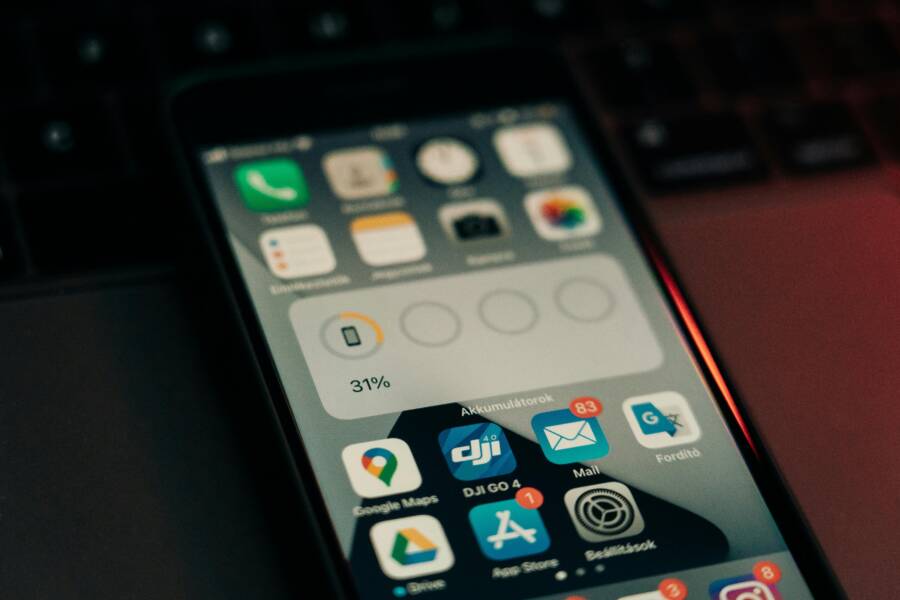
Waking up to a dead phone after a full charge is a common annoyance that costs time and peace of mind. You’re not imagining it: many phones lose power overnight even when you think they’re idle. The good news is that a few simple checks can cut that drain significantly.
This guide focuses on practical steps you can take tonight to stop battery drain overnight. You’ll learn why background activity, weak networks, and screen behavior matter, and how to adjust settings without turning your phone into a fortress of restrictions. By making targeted changes you can restore reliability without sacrificing function.
First, identify the main culprits. Background apps, location services, and widgets often sip power while you sleep. A phone on a low signal burns more energy trying to stay connected. Heat from charging or warm environments can also speed up battery loss. These factors combined explain why a device might drop more than you expect in the early hours.
Next, you’ll get a straightforward, step by step plan to reduce drain by 20 percent or more. Start with a quick audit of apps that run in the background and consider restricting or uninstalling those you don’t need. Turn off location services for apps that don’t require it at all times and lower screen brightness or enable auto brightness to avoid unnecessary illumination. Check your charging habits and avoid charging in hot spaces, and if the age of your battery shows signs of fatigue, consider a professional check or replacement.
By following these steps you can keep your phone ready to go in the morning. The tips are compatible with most smartphones and work whether you’re at home or traveling. If you want to minimize interruptions and maximize uptime, use these checks as a nightly routine so your device stays reliable for daily life.
Check Your Battery Stats First
Before you start tweaking settings, take a quick audit of how your phone actually uses power. Knowing which apps or features sip power the most helps you target fixes rather than guesswork. This quick check sets the stage for practical, lasting improvements. If you want to see where the drain is coming from, the most reliable place to start is the built-in battery stats that show app activity and usage patterns over the last day or so.
Find Battery Usage on Android
Android users can uncover the big power hogs with a simple path in Settings. Start by opening your device settings and heading to the Battery section. Here you’ll find a graph that shows last 24 hours of screen time and power consumption. Look for apps or services that spike in energy use during the overnight period or when the screen is off. If you notice a stubborn app sipping power in the background, you have a few solid options:
- Restrict background activity for the culprit app. This reduces how often it wakes the device and asks for data.
- Disable unnecessary permissions, especially location and background fetch, for apps that don’t need to stay continually informed.
- Uninstall or replace power-hungry apps with lighter alternatives if possible.
- Check for system updates. Sometimes a bug or poor optimization is fixed in a newer version.
If you see a service getting a lot of energy with minimal foreground use, it’s worth investigating further. Some apps can be quiet most of the day, yet wake the device at night to sync data or push notifications. For deeper insight, you can also review per-app battery usage over the past 24 hours or last eight days, depending on your OS version. This helps you separate the truly problematic apps from normal background activity. For more practical tips on saving Android battery life, see guidance from official Android resources and trusted device makers. How to Save Battery Life on Android
Check Battery on iPhone
iPhone users have a similarly straightforward view into where power is going. Open Settings and choose Battery. The Battery screen shows a visual Daily Usage graph and a list of apps with their energy impact. You can switch to “View All Battery Usage” to see a longer history and identify overnight activity. Pay attention to a few key indicators:
- Apps that show significant battery usage during the overnight window.
- The Battery Health and Peak Performance status, which can hint at aging hardware contributing to drains.
- Background Activity indicators, which reveal if certain apps are waking the phone to fetch data while you sleep.
If you notice persistent drains from a particular app, consider these steps:
- Turn off Background App Refresh for nonessential apps.
- Restrict push notifications for apps that aren’t critical overnight.
- Allow only essential apps to access Location Services while in the background.
- Proactively update apps and iOS to ensure optimal power management.
If your battery is older or your device runs unusually hot, a battery health check or replacement might be warranted. Apple’s official guides provide clear steps for understanding battery usage and overall health, helping you decide if a replacement is needed. Check battery usage on your iPhone
Links and resources:
- Learn more about how iPhone battery usage and health are tracked and presented in Settings. Understand your iPhone battery usage and health
- If you notice rapid drain, Apple outlines steps to take before you replace the battery. If the battery in your iPhone or iPad drains too quickly
Limit Background Apps and Activity
Even when a phone seems quiet at night, background activity and how apps refresh can quietly sap power. By tightening what runs behind the scenes, you can extend overnight uptime without sacrificing core functionality. This section covers practical, device-specific tweaks that push your battery toward a full morning charge.
Restrict Apps on Android
Android devices vary, but the core idea is the same: tell apps not to wake the phone every few minutes for data. Start with a quick audit and then apply targeted restrictions. The goal is to keep essential services active while putting nonessential apps into a low-power state.
- Audit background activity: In Settings, go to Battery or App usage. Look for apps that show heavy activity when the screen is off or overnight. These are the first targets.
- Restrict background work for culprits: In Settings > Apps, select an app and limit its background activity. This reduces wakeups and data fetches while you sleep.
- Disable unnecessary permissions: For apps that don’t need location or constant access, toggle off those permissions. Fewer permissions mean fewer background tasks.
- Use adaptive or aggressive power saving modes: Many Android phones offer modes that scale back wakeups and CPU activity during low-power periods. Enable them if you’re heading into a long night without charging.
- Uninstall or replace power-hungry apps: If an app consistently drains energy, remove it or switch to a lighter alternative.
- Update the system: OS updates often include fixes and improvements to power management. Keep your device current.
A quick example helps: imagine you have a social app that fetches updates every 15 minutes in the background. Restricting background activity nudges that cadence down, which can translate to hours of extra screen-off time later. For deeper insight, check the Battery usage view over the last 24 hours to confirm the change’s impact.
Image suggestion:
 Photo by Szabó Viktor
Manage App Refresh on iPhone
iPhone users can gain simplicity and longer overnight uptime by trimming how apps refresh in the background. Turning off or limiting background refresh reduces wakeups and keeps the device quieter while you sleep.
- Turn off Background App Refresh for nonessential apps: Go to Settings > General > Background App Refresh. You can disable it entirely or limit it to Wi-Fi only and to apps you truly rely on.
- Schedule app refresh with care: If you still want some apps to refresh, choose only those that need real-time data and restrict others to the minimum.
- Manage location-based refresh: In Settings > Privacy & Security > Location Services, set apps to “While Using” or “Never” for background refresh. This stops apps from waking to fetch data when not in active use.
- Control push and fetch behavior: Some apps rely on push notifications for updates. Consider disabling push for nonessential apps and rely on you opening the app to check updates.
- Regularly review battery usage: Settings > Battery (or Battery Health) shows which apps drain power. If an app spikes overnight, adjust permissions or remove it.
- Keep apps updated: Developers often optimize battery use with updates. Ensure your apps and OS stay current.
A practical approach is to pick a few apps you use right before bed and test overnight behavior after changing background refresh settings. You’ll likely notice fewer background fetches, smoother overnight performance, and a more predictable morning battery level.
Image suggestion: No image required here to maintain flow and keep the post tight.
Links and resources:
- For iPhone users, Apple provides steps to understand battery usage and health, helping you decide when a replacement might be needed. Understand your iPhone battery usage and health
Credit image: Photo by Szabó Viktor https://www.pexels.com/@szaboviktor
Tweak Screen, Location, and Brightness Settings
If your overnight drain is stubborn, small tweaks to your screen timing and location access can make a surprising difference. This section walks you through practical adjustments you can apply tonight. The goal is to keep your display and location tasks efficient, without dulling the phone’s usefulness. Think of it as trimming the power-hungry parts of your phone so it wakes up with you, not before you.
Set Short Screen Timeout
A shorter screen timeout tells your phone to go dark sooner, cutting power waste from a bright display when you’re not actively looking at it. It’s one of the simplest, most effective fixes you can apply.
- Android: Open Settings > Display > Screen timeout. Choose a modest interval like 30 seconds or 1 minute. If you’re in dim lighting, you can still see notifications by turning on ambient display only for important apps.
- iPhone: Open Settings > Display & Brightness > Auto-Lock. Select a brief period such as 30 seconds to 1 minute. This helps prevent the screen from staying on longer than needed when you’re not using the device.
For a quick sanity check, review how long the screen stays on overnight in your Battery or Usage settings. If you notice a particular app leaving the screen active longer than necessary, you’ve likely found a drain source. Reducing the timeout not only saves energy but also extends the time you can rely on your phone before a charge.
Image
 Photo by Andrey Matveev
External resources:
- How to change the screen timeout on Android and iPhone, a practical roundup of steps for quick gains. https://www.shiftdelete.net/how-to-change-the-screen-timeout-android-iphone/
Turn Off Unneeded Location Access
Location services are powerful, but they wake the device and drain power even when you’re not actively using your maps or navigation. By limiting location access to what’s essential, you reduce wakeups and keep the battery healthier overnight.
- Android: Identify apps that only need location sometimes. Go to Settings > Privacy > Location and set most apps to “Only while using the app” or “Deny” for background access. For essential apps that truly need location in the background (like weather widgets you glance at occasionally), keep it limited and clearly labeled.
- iPhone: Go to Settings > Privacy & Security > Location Services. Review each app and set to “While Using the App” or “Never” where appropriate. For apps you rely on for background updates, enable only when you’re actively using them.
Why this helps: many apps fetch location data in the background, which requires GPS and data activity. Each background lookup costs a bit of energy, and overnight that adds up. Limiting access reduces potential wakeups and keeps the phone quiet while you sleep. If you’re unsure, start by restricting nonessential apps and monitor the impact for a night or two. For more guidance on how iOS handles location and battery, Apple’s official steps can be helpful. https://support.apple.com/guide/iphone/keep-the-iphone-display-on-longer-iph7117338a8/ios
Image Photo by Szabó Viktor Credit image: Photo by Szabó Viktor
Notes and practical tips:
- Some apps rely on location for important functions. If you notice a feature you miss, re-evaluate its permissions and consider turning it back on only when needed.
- Pair these steps with a routine check of battery usage in Settings. On Android, check Battery > App usage; on iPhone, Battery in Settings shows which apps sip the most power over time.
External resources:
- Android power management tips and a practical battery life guide. https://www.android.com/articles/how-to-save-battery-android/
- Apple support article on understanding iPhone battery usage and health. https://support.apple.com/guide/iphone/understand-iphone-battery-usage-health–iphd453d043a/ios
Image
Photo by Szabó Viktor
Key takeaways:
- Quick wins add up. A shorter screen timeout and limited location access can noticeably cut overnight drain.
- Start with the easiest changes. If you still see late-night wakeups, broaden the review to background processes and notifications.
Next, we’ll explore how to manage background activity and app refresh without sacrificing the essential features you rely on daily. This includes practical steps for both Android and iPhone users to keep background tasks from waking the device at night. For a broader view, you can consult Android’s and Apple’s battery guides as you tailor the settings to your routine.
Fix Network, Heat, and Charging Habits
A reliable morning startup is more than just a full charge. It’s about curbing the small power leaks that creep in while you sleep. In this section, you’ll learn practical habits to keep your device quiet when you’re off duty, stay cooler during charging, and avoid habits that wake the phone unnecessarily. Apply these fixes tonight and you’ll notice steadier battery levels come sunrise.
Use Airplane Mode at Night
If your phone still wakes up to notifications in the middle of the night, airplane mode can be a simple, effective shield. When you enable it, the radio transceivers for cellular, Wi‑Fi, and Bluetooth pause activity, dramatically cutting background power draws that tend to spike at night. You don’t need to stay in airplane mode 24/7, just during your usual sleeping window. It’s a fast, reversible step that prevents the device from chasing ghosts like constant notifications or background checks.
How and when to use it:
- Timing: Turn on airplane mode shortly before you go to bed and turn it off once you wake up, unless you need emergency alerts. If you rely on sleep-tracking or a few smart home alerts, you can keep Wi‑Fi on and enable Bluetooth selectively.
- What to disable: If you don’t want to lose clock alarms or essential alerts, keep those functions active through a minimal setup. You can recheck critical services in the morning and reconnect only what you truly need.
- Wi‑Fi tips: If you still want to receive messages or weather updates overnight, you can enable Wi‑Fi in airplane mode and keep it on for only the apps that truly require nightly fetches. This reduces cellular drain while preserving important data bursts.
A quick caveat: some phones may drain a touch faster when leaving airplane mode off if background tasks are active. If you’re in a place with poor signal, a brief period in airplane mode can still help, because the phone won’t waste energy trying to maintain a weak connection. For a practical read on a similar approach, you can explore guidance from a hands-on sleep test story that demonstrates how one setting change dramatically reduced overnight drain. How to stop phone batteries draining overnight with one setting change
Why this matters: the phone spends energy looking for networks, pinging servers, and syncing data when it’s not in use. Airplane mode effectively quiets those tasks, letting you wake up with more battery left.
Prevent Overheating During Charge
Heat is a silent battery killer. When a device gets warm while charging, its chemistry shifts in ways that can accelerate wear and shorten overall life. The good news is you can keep charging sessions cool with a few straightforward habits and checks.
Key habits to adopt:
- Charge in a cool setting: Avoid charging on fabric surfaces, blankets, or directly under warm lamps. A hard, flat surface or a desk with air flow helps prevent heat buildup.
- Use the right charger: Stick to the charger that came with your phone or a reputable alternative that matches the device’s power specs. Overpowered or underpowered chargers can cause extra heat as the phone negotiates power.
- Break long charging sessions: If you’re topping up overnight, consider plugging in closer to a steady state rather than letting it surge in the final minutes. A slow, steady trickle is easier on the battery than a rapid top‑up.
- Manage heat sources nearby: Keep the phone away from heat sources like a laptop vent, heater, or direct sunlight. Even ambient heat can raise the temperature inside the phone during charging.
- Check for hardware or software issues: If your phone heats up unusually fast, it could be a battery issue, a background task, or a faulty charger. Run a quick health check in Settings and look for rogue apps that spike during charging.
Practical checks you can perform tonight:
- Inspect the charger and cable for wear. A frayed or bent cable can create heat or resistance that causes extra energy loss.
- Monitor charging temperature: If the device feels hot to the touch after 15 minutes of charging, pause and reassess your setup.
- Update software and apps: Updates often include improved power management. Keeping your system current can reduce heating during charge.
- Give space to breathe: Place the phone on a hard, cool surface and ensure air can circulate around it during charging.
If you want a deeper read on why heat matters and how to prevent it, consider a few authoritative sources that explain the mechanics behind charging heat and practical prevention tips. Why Does My Phone Get Hot When Charging? (How to Fix) offers clear, user-friendly guidance on common heat culprits and fixes. Another option covers a broader view of charging heat and prevention strategies from a trusted technology source. Why Does My Phone Get Hot While Charging? 2025 Fix
A simple routine at night can make a noticeable difference. By pairing heat‑aware charging with the airplane mode approach, you reduce both overnight drain and potential wear from heat. If heat spikes persist, a professional check or battery replacement might be warranted, especially on older devices. For a broader discussion on avoiding heat and preserving battery health, you can read a comprehensive guide from EcoFlow. Why Does My Phone Get Hot When Charging: 9 Reasons
Pro tip: pairing a cooler charging environment with a restrained network activity profile gives you a double win—less drain from background tasks and less heat during charging. Your phone wakes up ready to go, not just ready to be alive at night.
If you’d like a quick reference on how to stop background activity that contributes to heat and drain, you can also review practical Android and iPhone strategies that focus on minimizing wakeups while maintaining essential features. This includes a careful audit of apps that wake the device during charging and overnight periods, and a rebalancing of notifications to reduce unnecessary activity.
Extra Tips for Long-Term Battery Health
Long-term battery health isn’t just about the next charge. It’s about habits, settings, and environments that reduce stress on the cells over time. This section offers practical, proven tips you can apply now to keep your smartphone battery healthier for longer. Think of it as a small investment today that pays off in weeks and months of better uptime.
Understand how lithium‑ion aging affects your battery
Lithium‑ion cells wear out gradually as they cycle between charges. The chemistry inside shifts, capacity declines, and the device may start to drain faster. Knowing this helps you avoid habits that accelerate wear. Age isn’t a fixed limit; you can slow the process with smarter charging and usage.
- Avoid deep discharges and full charge cycles when possible.
- Don’t keep the phone at 100% for long periods.
- Use built‑in power features that manage charging as the battery ages.
For deeper context, consult reputable guides on battery lifespan and device power management from Apple and other trusted sources. Batteries – Maximizing Performance
How to Increase Lithium Ion Battery Life & Maximize Performance
Smart charging habits for longevity
Smart charging habits reduce the stress cycles that wear cells down. The goal is to keep the battery in a healthy window most of the time.
- Follow the 20–80 rule when you can. Stop charging around 80% and top up as needed.
- Use optimized charging if your device supports it. It completes the final charge more gradually so the battery spends less time at 100%.
- Avoid charging all night on a regular basis, especially in warm rooms. Shorter, cooler top‑ups are gentler on the cells.
- Prefer your original charger or a reputable, device‑matched charger. Mismatched power can cause extra heat and stress.
If you want a quick read on practical charging habits, check guidance from Android and Apple official help pages. Get the most life from your Android device’s battery
Batteries – Maximizing Performance
Temperature matters: keep charging cool
Heat is a subtle but deadly enemy of battery health. High temperatures speed up chemical changes inside the battery and reduce capacity over time.
- Charge on a hard, flat surface with good airflow. Avoid soft fabrics or pillow clutter that trap heat.
- Keep the phone out of direct sunlight and away from heat sources during charging.
- If the device gets unusually warm while charging, pause and re-evaluate your setup.
For a clearer explanation of heat during charging and practical fixes, see guidance from reputable tech sources. Why Does My Phone Get Hot When Charging? 9 Reasons
Temperature and charging together: practical nightly routines
Pairing a cooler charging environment with smart charging habits gives a double win. You reduce both overnight drain and the wear that heat can cause.
- Use a dedicated charging spot away from heat sources.
- If you store your phone overnight, consider a mid‑charge level rather than a full 100% charge.
- When traveling or staying in warm rooms, monitor charging temperature and adjust as needed.
A practical takeaway: a calm charging setup often translates to steadier morning battery levels and less surprise drain.
Storage tips for long-term idle periods
If you’re planning to store a phone for weeks or months, keep the battery around 40–50% charged. This level reduces stress on the cells during storage and helps preserve capacity until you reconnect power.
- Store in a cool, dry place with gentle airflow.
- Check if the battery level drifts over time and top up to ~50% if needed before re‑use.
- Avoid leaving the device plugged in at 100% during long storage periods.
This approach is widely recommended by battery researchers and device makers to minimize degradation during long idle times. For a broader perspective on storage and longevity, see sources on lithium-ion battery care. Tips for extending the lifetime of lithium-ion batteries
Regular health checks and knowing when to replace
Periodic checks help you decide if a battery replacement is warranted. Modern devices expose useful indicators in Settings.
- On iPhone: Monitor Battery Health and Peak Performance status in Settings. If health has noticeably declined or performance is throttled, consider a replacement.
- On Android: Review per‑app battery usage and overall health indicators in the Battery section. If aging is evident, a replacement may be prudent.
Official guides from device makers provide clear steps for interpreting battery usage and health. Understand your iPhone battery usage and health
Practical routines you can adopt tonight
- Enable a power‑saving mode during nighttime hours and keep only essential apps active.
- Review background activity and loosen permissions for apps that don’t need constant data.
- Place the phone on a cool surface while charging and away from heat sources.
A simple nightly routine that combines these practices can meaningfully extend long‑term battery life. For a broader take on preserving lithium‑ion batteries, see expert guides and reputable sources. How to Increase Lithium Ion Battery Life & Maximize Performance
Take these tips as a package rather than isolated fixes. The goal is to reduce stress on the battery in daily use and during charging. When you pair good charging habits with mindful temperature management, your smartphone stays reliable for longer, morning after morning.
Conclusion
Tackling overnight battery drain comes down to a few solid steps you can Do one tonight to see a real difference. The biggest wins are limiting background activity, shortening screen timeouts, and using airplane mode during sleep to curb energy that would otherwise be wasted on network checks. Pair these with smart charging habits and a cooler charging spot to extend your morning uptime.
A quick recap of the top fixes: tighten background app activity, review location permissions, enable battery saver modes, and keep software up to date. Adjust the screen timeout to 30 seconds or 1 minute and consider turning off Always-On Display if your phone supports it. Use airplane mode during sleep when you don’t need notifications, and avoid charging in hot environments to reduce heat related drain on your smartphone. These small changes compound over time and protect long term battery health.
If you try one tweak tonight, you’ll likely wake to a fuller morning. Share your results or questions in the comments and I’ll help tailor the plan to your device. Consistent, small adjustments add up, delivering steadier uptime, fewer mid night awakenings, and a reliably responsive smartphone day after day.