What If the Only Thing Between You and the Life You Deserve Is a Hidden Wealth Code Waiting to Be Activated
>>> Open the Door <<<

Ever notice how your phone keeps buzzing from every app and game, pulling your attention away from the moment you’re in? That constant pinging drains your battery and spikes your stress levels, even when you’re not checking all the messages. In this guide we’ll show you how to choose which apps can send alerts to your phone, so you stay informed without the distraction.
The goal is simple: pick the right alerts on both iPhone and Android so you only hear what matters. We’ll walk through practical steps to review each app, adjust notification settings, and create a smart hierarchy for alerts. You’ll learn what to turn on for work, what to mute for focus time, and how to tailor alerts to your daily routine.
By the end, you’ll enjoy fewer interruptions and a more productive day. You’ll sleep better knowing your phone isn’t waking you for every trivial update, and you’ll save battery life by cutting unnecessary alerts. This isn’t about silencing your phone completely; it’s about building a lean alert system that fits your life. Throughout, you’ll see how to balance staying informed with staying in control, so your smartphone serves you rather than the other way around.
What’s ahead: a quick look at the problem and the fix, a step by step setup for both major platforms, and a checklist you can use to review your alerts on a regular basis. This plan keeps things simple, clear, and actionable.
Thousands of People Were Struggling With Money Until They Discovered This One Ancient Secret Hidden in Sound
>>> Unlock It Now <<<

Why Manage App Notifications on Your Phone
Notifications can be helpful anchors that keep you informed without constant checking. They can also become a source of constant interruptions, draining battery life and piling up mental clutter. The goal is to tune your alerts so you hear from what truly matters and silence what doesn’t. For most smartphone users, a lean alert system means more focus, better sleep, and less stress during the day. This section helps you distinguish between the alerts that deserve your attention and the ones that should disappear into silence.
Spot the Difference Between Useful and Annoying Alerts
Urgent alerts like texts from family, important work messages, or calls that require a response are usually brief and timely. They typically come from trusted contacts or essential apps and benefit from immediate visibility. On the flip side, spammy or inconsequential alerts such as frequent game updates or promotional banners are prime culprits for fatigue. Signs of bad alerts include excessive frequency, alerts that never relate to your day, and notifications that interrupt crucial moments.
To quickly evaluate your alerts, ask yourself:
- Is this alert time-sensitive or necessary right now?
- Will I miss something important if I mute it for an hour?
- Does this app need attention every day or only occasionally?
If the answer is no to these questions, it’s a good candidate for silencing or downgrading. For deeper context on how alarms affect mood and attention, consider reading about notification fatigue and its impact on mental health. You can explore related insights here: https://www.psychologytoday.com/us/blog/social-instincts/202309/2-ways-to-avoid-notification-overload-and-digital-fatigue
Key Factors to Decide Which Apps Get Alerts
Choosing which apps can push alerts to your phone is a balance between staying informed and preserving focus. By scoring apps on daily necessity and usage frequency, you create a simple system that prioritizes what truly matters. This section breaks down two practical factors to guide your decisions and keep notifications lean and useful.
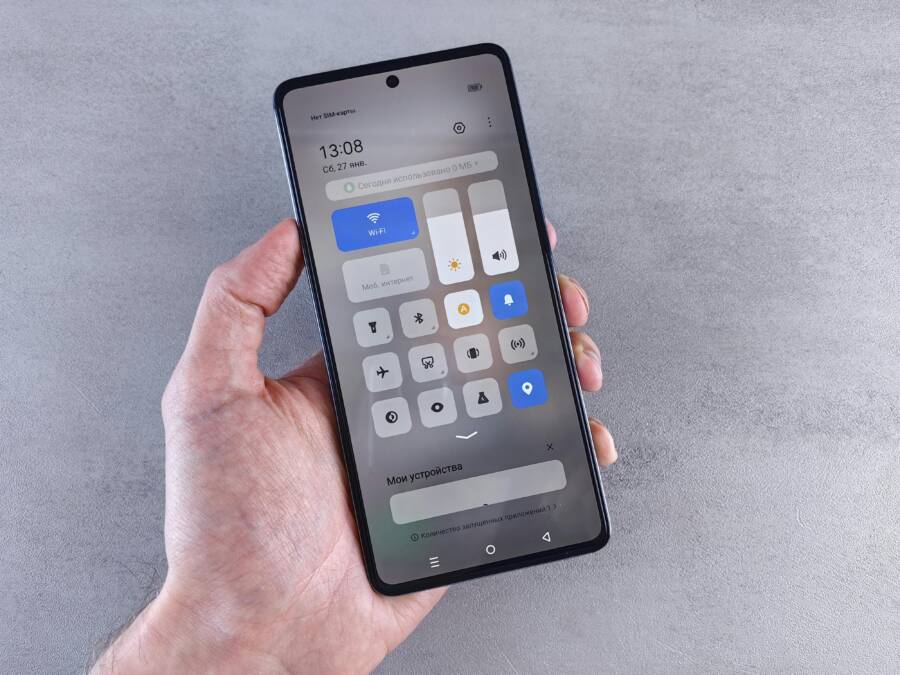
 Photo by Andrey Matveev on Pexels
Prioritize Apps by Importance and Frequency
A clear scoring system helps you decide what should stay loud and what should quiet down. Give high priority to daily must-haves and low priority to rare-use apps. For example, a banking app should rate high because it affects your day-to-day decisions and security, while shopping deals or game apps rarely impact your productivity and can be downgraded or silenced.
How to apply the scoring:
- Create a scale from 1 to 5 for importance (1 = rarely needed, 5 = must-have daily).
- Create a scale from 1 to 3 for frequency (1 = occasional, 3 = multiple times per day).
- Multiply the two scores to get a simple, comparable total. Apps with 12 or higher generally deserve stronger alerts; those with 3 or less can be muted.
Tips to review usage stats without guesswork:
- Check screen time or app activity in your phone’s settings to see actual engagement.
- Note how often you interact with each app and whether quick actions are time-sensitive.
- Reassess weekly for the first month, then quarterly to keep aligned with habits.
For deeper context on how notifications affect cognitive load and information needs, explore related research here: https://www.ieeexplore.ieee.org/abstract/document/10916668/
Consider Battery and Data Drain from Alerts
Push notifications pull power and data in bursts. If you notice your phone running low on battery or data slowing down, alerts could be a factor. Start by identifying top drainers and then apply practical fixes.
What to watch for:
- Apps that wake the screen frequently or use location services in the background.
- Apps that pull data constantly for social feeds or real-time updates.
- Apps that require multiple quick actions for the same information.
Simple fixes you can try right away:
- Disable nonessential alerts for apps that don’t need real-time updates.
- Enable “quiet hours” or scheduled do-not-disturb windows during work or sleep.
- Reduce the frequency of updates within the app itself if available.
For more on how to minimize battery drain from notifications, see this analysis: https://www.mobiloud.com/blog/push-notifications-battery
This approach keeps your smartphone from wasting power on nonessential alerts while ensuring you still receive the messages that truly matter.
Step-by-Step: Manage Alerts on iPhone
Notifications shape how you experience your phone. This section walks you through precise steps to control alerts on iPhone, so you only hear what matters. You’ll learn how to adjust per-app settings and use Focus modes to keep interruptions in check. Follow these steps to build a lean, reliable alert system that fits your daily routine.
Find and Adjust Per-App Settings
Tuning individual apps is the fastest way to prune nonessential alerts. Start by locating the exact control panel for each app and decide whether it should be allowed to notify you at all. The path is simple: open the Settings app, tap Notifications, select the app, and turn off Allow Notifications. If you keep notifications on, you can customize banners, sounds, and lock screen appearance to suit your workflow. For many users, a banking or productivity app should stay loud, while game apps and flash sale alerts can fade to silence.
- Steps at a glance:
- Settings > Notifications
- Pick an app
- Turn off Allow Notifications or adjust banners and lock screen
- Fine-tune alert style if you keep notifications enabled
If you want to learn more about per-app controls and how to tailor badges and alerts, Apple’s official guidance is a great reference: https://support.apple.com/en-us/120681
Image
Photo by Daniel Moises Magulado
Use Focus Modes for Smart Control
Focus modes provide a smarter, context-aware way to manage alerts. They let you create profiles like Do Not Disturb, Work, and Sleep, each with its own rules about which apps can notify you and when. You can schedule Focus modes to turn on automatically and allow exceptions for essential people or apps. For example, a Work Focus can mute social apps while still delivering notes from a team app or calls from prioritized contacts.
- Quick setup ideas:
- Create at least one default Focus (Do Not Disturb) and a Work Focus
- Schedule Start and End times for Work and Sleep Focus
- Add exceptions: select people or apps that can bypass the Focus
- Allow time-limited interruptions if needed during emergencies
To explore how to allow or silence notifications for Focus on iPhone, see Apple’s guide: https://support.apple.com/guide/iphone/allow-or-silence-notifications-for-a-focus-iph21d43af5b/ios
Image Optional: If you’d like a visual reference for Focus settings, consider reviewing the official Focus guides linked above.
Step-by-Step: Manage Alerts on Android Phones
Take control of your alerts with a practical, step-by-step approach. You’ll learn how to tailor notifications app by app and set up Do Not Disturb rules so your phone respects your focus and downtime. The goal is simple: stay informed about what matters, while limiting interruptions during work, sleep, and personal time. Think of it as pruning a tree: you remove the weak, keep the strong, and let the healthy growth continue. This section covers two crucial areas you’ll use every day on your Android device.
There Is a Frequency That the Wealthiest Families Have Used for Generations and Most People Will Never Know It Exists
>>> Open the Door <<<

Access and Customize App Notifications
Managing notifications starts with the right path. On most Android phones you’ll tweak each app’s behavior, deciding whether to show banners, sounds, or silent alerts. The common workflow looks like this: Settings > Notifications > App notifications > select app > toggles. From there you can switch notifications on or off and adjust categories such as promo versus urgent. For work and security, keep banking or messaging apps more permissive while dialing back nonessential games or promo apps.
He Was Drowning in Bills and Burnout Until a Simple Daily Ritual Rewired His Brain for Wealth in Less Than a Week
>>> Start Your Shift Today <<<

To fine tune what appears on your screen, consider these adjustments:
- Turn off notification for apps that rarely matter. Keep essential updates visible.
- Use separate categories for different alert types within the same app. That way you don’t silence everything, only the noise.
- Schedule quiet periods when you don’t want interruptions, and allow urgent alerts to break through if needed.
If you want more precise guidance from Google’s own help resources, see the official Android Notification & Interruption settings: https://support.google.com/android/topic/7651002?hl=en&ref_topic=7651296
Smartphones are best used as assistants, not constant interruptors. By tuning per-app settings, you maintain visibility for the things you truly care about while reclaiming focus for tasks that require your full attention.
Set Up Do Not Disturb Rules
Do Not Disturb (DND) is your best ally for structured quiet. It silences nonessential alerts while still allowing the critical lines of communication to come through. On Android, you can enable DND and then customize which people or apps can bypass the silence. You can also set schedules so quiet times begin automatically during meetings, meals, or overnight. The goal is simple: you control the rhythm of interruptions rather than letting them dictate your day.
Here’s how to set up useful DND rules:
- Turn DND on or off quickly from the Quick Settings shade by tapping Do Not Disturb.
- Create modes for different contexts, such as Work, Sleep, and Personal Time.
- Add exceptions for favorites or trusted apps so important calls and texts get through.
- Schedule quiet hours that align with your daily routine, and test these settings to ensure they work when you actually need them.
If you want deeper guidance on Do Not Disturb and how to manage interruptions, refer to the official guide: https://support.google.com/android/answer/9069335?hl=en
With these rules in place, your smartphone becomes a tool that respects your boundaries. You’ll notice fewer sudden bursts of sound and glow, and more control over when you engage with notifications. This is especially valuable during deep work, late-night sessions, or just time away from the screen.
Extra Tips to Keep Your Phone Quiet and Productive
Too many alerts steal attention, but a few smart adjustments can turn your phone into a steady workflow partner. These tips help you filter noise, preserve battery, and stay on top of what truly matters. Think of your phone as a personal assistant that politely interrupts only when necessary. The goal is a lean alert system that supports focus, not a constant distraction.
Build a clear alert hierarchy
Start with a simple rule: only the most important signals wake you up or break your concentration. VIP categories matter, while casual marketing notices should stay silent. A practical approach is to assign each app a priority from 1 to 5 and then allow alerts accordingly. This makes it easy to adjust later as your routines shift.
- High priority (5): essential communications like family texts, work messages, banking alerts.
- Medium priority (3): timely updates from work tools or collaboration apps.
- Low priority (1–2): promotional messages, game invites, noncritical social updates.
A well-structured hierarchy reduces decision fatigue and helps you react quickly to what truly needs your attention. For further reading on turning your phone into a productivity helper, see this overview: 10 Settings to Turn Your Phone into a Productivity Powerhouse
Use scheduled quiet times and curated exceptions
Scheduled quiet periods let you protect blocks of time. Set daily windows for deep work, meals, and sleep, then allow exceptions for critical apps or people. A smart trick is to create a recurring exception list for the people you rely on and the apps you use for urgent work.
- Daily routines to consider: work hours, commute, family time, bedtime.
- Exceptions: trusted contacts, calendar reminders, essential messaging apps.
- Test and adjust: verify that the right alerts slip through during emergencies and block everything else.
If you want a quick, actionable guide on taming notifications, The Verge has practical steps for iOS users: https://theverge.com/24125330/ios-notification-settings-scheduled-summary-turn-off
Embrace Focus and Do Not Disturb features
Focus modes on iPhone and Do Not Disturb on Android can be powerful when configured correctly. They let you create profiles for different contexts and tailor which apps can notify you. Use Focus to allow only essential apps during work, and switch to a broader notification set during personal time.
- Create separate Focus profiles for Work, Personal Time, and Sleep.
- Set scheduling so Focus engages automatically during your day.
- Add exceptions for trusted contacts or critical apps, if needed.
Apple’s official guidance provides clear steps to fine tune Focus and notification settings: https://support.apple.com/guide/iphone/allow-or-silence-notifications-for-a-focus-iph21d43af5b/ios
On Android, Do Not Disturb rules can mimic the same idea with customizable behavior and schedules: https://support.google.com/android/answer/9069335?hl=en
Audit and prune apps with heavy notification habits
Regularly reviewing app behavior keeps your device lean. Look for apps that wake the screen often, pull data constantly, or flood you with banners. If an app no longer serves a core purpose, mute it or remove notifications entirely. This is not a one-time task; set a monthly reminder to reassess.
- Check per-app notification categories to prune noise without losing critical alerts.
- Review background data usage and location permissions that drive frequent updates.
- Rebalance priorities as your work and life routines change.
For more context on how notifications affect cognitive load, explore insights from researchers and industry sources: https://www.ieeexplore.ieee.org/abstract/document/10916668/
Use visual cues and quick actions instead of banners
Sometimes a subtle badge or a quiet banner is enough to keep you informed without interrupting flow. Reserve sounds for truly time-sensitive alerts and rely on on-screen indicators for less urgent updates. You can also tune quick actions within apps so you can respond without opening the app fully.
- Choose a subtle banner style and a short, non-intrusive sound if you keep alerts enabled.
- Use lock screen notifications sparingly and rely on in-app updates for noncritical information.
- Consider converting frequent updates into scheduled digests when available.
Create a clean smartphone habit loop
A lean alert system works best when you pair it with purposeful habits. Set a daily check-in time to scan messages and tasks, and resist the urge to react to every ping. This builds momentum for focused work and reduces the anxiety of missing something important.
- Morning: review calendar and urgent messages.
- Afternoon: quick check-in window to catch updates that matter.
- Evening: disable nonessential alerts to promote rest and recovery.
If you’re looking for a concise starter guide, a practical overview of turning your smartphone into a productivity ally can be found here: https://www.calendar.com/blog/your-smartphone-is-not-the-enemy-10-settings-to-turn-your-phone-into-a-productivity-powerhouse/
Images
Photo by Andrey Matveev on Pexels
Caption: The per-app notification panel helps you decide what should stay loud and what should fade away.
Conclusion
A lean alert system starts with a clear plan and a quick audit. Review each app’s notifications, assign a priority, and silence the rest. The biggest win is fewer interruptions with more relevant alerts at hand, powered by a simple scoring approach you can reuse anytime. A lean setup also reduces battery drain and saves data, so your smartphone stays fast and reliable.
Recap of key steps: map apps by importance and frequency, customize per app, and use Focus or Do Not Disturb to enforce your rules. Set up smart schedules for focus times and keep critical apps loud. Regular reviews ensure your alerts stay aligned with how you use your phone day to day. The benefit is clearer focus, steadier sleep, and more control over your attention.
Now is the time to audit. Start with the top five apps you use most for work and security, then expand to others when you’re ready. If you prefer a lighter start, mute nonessential categories within each app and test the effect for a week. Start small, then scale up as your routines evolve.
Final tip: remember alerts exist to serve you, not to rule your day. Balance is the anchor—keep the essential signals loud and the noise quiet. As you refine your settings, your smartphone becomes a helpful ally rather than a distraction, guiding you to stay informed without sacrificing focus.
What If the Only Thing Between You and the Life You Deserve Is a Hidden Wealth Code Waiting to Be Activated
>>> Open the Door <<<