
A slow phone can feel like a stubborn obstacle, but you don’t need a factory reset to reclaim speed. Many slowdowns come from software, storage, or background activity, not a dying device. With a few practical tweaks, you can restore snappy performance and keep your data safe along the way.
This guide walks you through quick checks to diagnose the issue and step by step tweaks that work on both Android and iPhone. You’ll learn how small changes to settings, apps, and storage can deliver noticeable gains in everyday use. By the end, you’ll have a clear plan to speed up your phone without wiping your personal data.
Think of this as a practical roadmap for real world scenarios. We’ll cover when to push for simple software updates, how to manage background activity, and which storage cleanups make the biggest difference. You’ll also see what signs point to a needed reset or expert help, so you can decide the right move without guesswork. This approach keeps your device performing well while you stay in control of your apps, files, and privacy. A faster phone means smoother scrolling, quicker app launches, and fewer interruptions during the tasks you rely on every day, from messaging to navigation. If you’re asking how to fix a slow phone without factory reset, you’re in the right place, and you’ll finish with a practical plan you can start today.
Diagnose why your phone is slow without resetting
When your smartphone starts to feel sluggish, the urge to reset can be strong. But in many cases the culprit is software, storage, or background activity that you can fix with a few focused adjustments. This section breaks down a practical, no-reset approach to diagnosing and addressing the common bottlenecks. You’ll learn how to identify where speed is leaking and what to do next to reclaim snappy performance.
Check storage and RAM usage
Verifying how much storage and memory your device has helps you spot pressure points before they become obvious lags. On Android, you can find storage and RAM details in Settings under something like Storage or Memory. For iPhone, Settings > General > iPhone Storage shows how space is used and which apps are the biggest culprits. In both ecosystems, you want to look for two signs of trouble:
- Low available storage. When a device runs low on space, it slows down as it lacks room to cache data and swap temporary files.
- High memory pressure. If RAM is constantly near capacity, apps take longer to launch and scrolling can feel choppy.
What to do next
- Move photos and videos to the cloud or a computer. This frees up space for system operations and app data.
- Offload or uninstall large apps you rarely use. If you need the app again later, you can re-download it.
- Clear app caches for apps that store a lot of temporary data. On iPhone, you can offload unused apps and manage storage from Settings; on Android, you’ll often find a Cache option within the app settings.
- Consider moving with you the essentials. If you carry a lot of media, a microSD card (where supported) can help, or use a dedicated external storage option.
Practical tip: a simple storage audit can reveal a few apps that quietly hog space or several folders full of cached files you can safely remove. If you want a quick guide to the latest iOS storage steps, see Apple’s guidance on checking storage on your iPhone and iPad. For Android readers, there are practical steps to view memory usage and free up memory on Android as well.
Images that fit this section:
 Photo by Towfiqu barbhuiya
Spot heavy apps and battery drain
Heavy apps can steal CPU cycles and drain battery, leaving your phone feeling slow even when nothing obvious is happening. Start by checking which apps use the most battery or stay active in the background, then tame the worst offenders.
Where to view battery usage
- iPhone: Settings > Battery shows per-app battery drain and a chart of usage versus background activity.
- Android: Settings > Battery > Battery usage (or similar) lists apps by how much juice they consume.
What to do about the top offenders
- Restrict background activity. On both platforms, you can limit background refresh for apps that don’t need real-time updates.
- Force stop or disable troublesome apps. On Android, use Settings > Apps to force stop or disable; on iPhone, long-press the app and select Background App Refresh off or disable the app entirely.
- Use a short, practical workflow. For the worst offenders, set background activity limits and only keep essential features active.
A quick, step-by-step approach
- Open battery or power settings and sort apps by usage.
- Identify top offenders that run in the background.
- Disable background activity for non-essential apps.
- If an app still behaves poorly, consider uninstalling or replacing it with a lighter alternative.
- Re-check battery usage after a few hours of normal use to confirm improvements.
If you want more depth, Apple and Android both provide official guidance on battery health and background activity limits. You can also view a practical how-to video that walks through stopping background apps on Android.
Images that fit this section:
 Photo by Gustavo Fring
Use built in health checks and safe tests
Your device includes built-in health checks designed to catch common issues without risky tinkering. Running these checks gives you a baseline and a clear path forward.
What to run on each platform
- Android Device Care: Look for a Device Care, Battery, or Storage analysis feature. It guides you to optimize memory, check battery health, and manage app performance. The goal is to identify apps that abuse resources and to surface storage that can be safely cleaned.
- iPhone Health tools: Use iPhone Storage to see what’s taking up space, and look at Usage in Battery settings. If the device health report flags a problematic app or a storage bottleneck, you can act quickly.
How to run quick checks and interpret results
- Run the built-in speed test or diagnostics if your device offers one. These tests typically measure CPU, memory, storage speed, and battery health.
- Interpret the results with a simple lens: If CPU or memory is consistently stressed, you likely need to free storage or limit background activity. If battery health is degraded, that can contribute to slower performance under load.
- Quick next steps based on results:
- Low storage: offload media, delete unused apps, enable iCloud or Google Photos backups.
- High background activity: restrict or disable background processes for the top offenders.
- Battery health warning: replace the battery if feasible, or optimize usage to reduce peak load.
Useful built in resources
- For iPhone users, Apple’s official support pages provide step-by-step storage checks and recommendations to optimize storage. See How to check the storage on your iPhone and iPad.
- For Android users, many devices offer Device Care or similar tools that consolidate memory and storage checks in one place. Device Care guides from major brands explain how to maximize performance with minimal risk.
Images that fit this section:
-
Photo by Towfiqu barbhuiya
External resources you may find helpful
- Apple support on storage management: https://support.apple.com/en-us/108429
- PCMag guide on running diagnostics on iPhone or Android: https://www.pcmag.com/how-to/run-diagnostics-on-your-iphone-or-android-phone
Images may be used here to illustrate the idea of device health checks and diagnostics:
- Battery health and device care visuals can help readers grasp the concept quickly.
Notes on practical use
- These checks are safe and non-destructive. Treat them as a first line of defense. If a check flags a potential hardware concern, you may want to seek professional service or refer to the device manufacturer’s support channels.
References to relevant tools and guidance
- For iPhone storage guidance, readers can consult Apple’s official instructions on storage monitoring and optimization.
- For Android, Device Care or similar built-in tools consolidate many optimization tasks into a single interface.
Additional tips for a smoother experience
- Keep your OS updated. System updates often include performance and stability improvements that can reduce lag.
- Reboot occasionally. A quick restart can clear memory and close stuck processes without wiping your data.
- Maintain a routine cleanup. Set a monthly check to review storage usage and background apps so you stay ahead of slowdowns.
If you’d like, I can tailor these steps to a specific device model or OS version, and I can weave in more examples or user-tested checklists to fit your article’s voice.
Speed up with essential software fixes
A slow phone usually isn’t a dead battery or a busted screen. More often, it’s software aging, clutter, or apps that keep tugging at resources in the background. In this section, you’ll find practical, beginner-friendly fixes that target the common culprits. Implement these steps in order, and you can restore snappy performance without a factory reset.
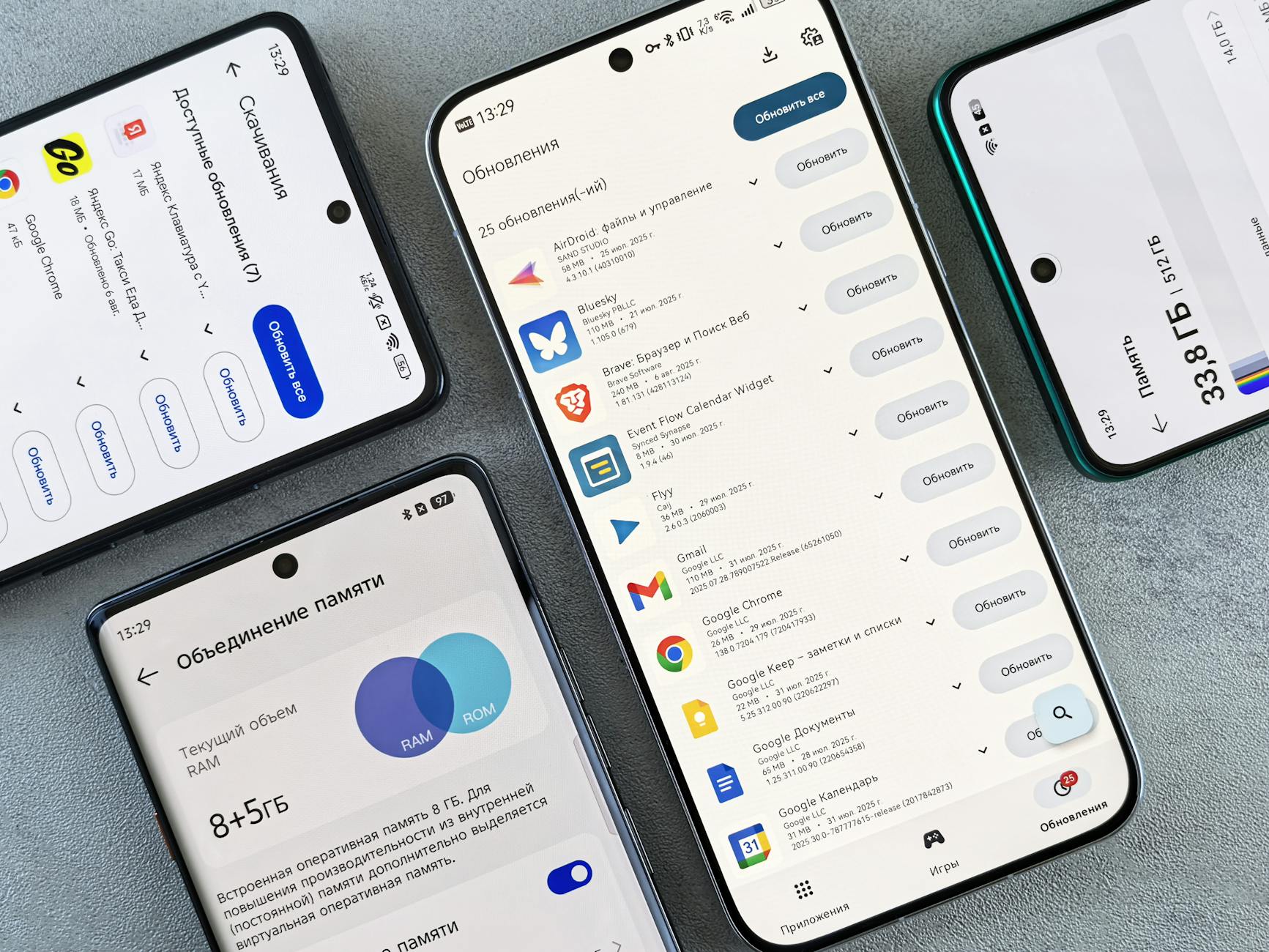 Photo by Andrey Matveev
Clear app cache and data
Clearing cache removes temporary files that can accumulate and slow down apps. Clearing data resets the app to its default state but can also erase saved preferences and logins, so use this step only when necessary.
- Why it helps: Cache and temp files can become corrupted or simply outgrow their usefulness. Clearing them gives apps a clean slate and can speed up launches and responsiveness.
- What to clear and what to skip: Start with cache for apps that store a lot of temporary data, like social media, streaming, and map apps. Clearing data is more drastic and should be reserved for apps that misbehave or when you’re troubleshooting a specific issue.
Step-by-step for beginners
- Android: Go to Settings > Apps & notifications > [App name] > Storage > Clear cache. If the app still acts slow, you can also choose Clear storage or Clear data, but remember this logs you out and resets preferences.
- iPhone: You can offload unused apps to reclaim space without losing data, or delete and reinstall apps that behave poorly. Go to Settings > General > iPhone Storage, select an app, and choose Offload App or Delete App; reinstall as needed.
- After clearing cache or data, open the app again to rebuild its cache with fresh, working data.
Caveats and safe alternatives
- Clearing data is powerful but disruptive. Expect to sign back in and reconfigure settings for the affected app.
- If you’re uneasy about data loss, start with cache only. If the issue persists, you can clear data for the specific app or try a clean reinstall.
- A safer overall alternative is to quit background tasks for the app or restrict its background activity first.
Additional tips
- For Android users, clearing cache is quick and low risk. If you’re on a new device, many apps auto-tune their cache management in the background.
- For iPhone users, offloading apps can free space and improve performance without removing the app’s data entirely.
Further reading and related how-tos
- Clear app cache on iPhone and Android: https://www.smartphoneassistant.com/clear-app-cache-and-data-on-iphone-android/
- How to clear app cache on your phone: https://www.asurion.com/connect/tech-tips/clear-app-cache-on-phone/
- Clear the app cache on your Galaxy phone or tablet: https://www.samsung.com/us/support/answer/ANS10001372/
- How to Clear Cache and Cookies on Your Phone: https://www.android.com/articles/clear-cache-and-cookies/
Image that fits this subsection
-
Photo by Gustavo Fring
Update OS and apps
Keeping the operating system and your apps up to date is one of the simplest ways to regain speed and improve security. Updates fix bugs, optimize performance, and close security holes that can cause slowdowns under load.
Why updates matter
- OS updates often include performance tweaks and memory management improvements.
- App updates fix bugs and improve efficiency, especially for resource-heavy apps.
- After an OS update, some apps may need updates themselves to work smoothly with the new OS.
Fast, practical steps
- Check for OS updates:
- Android: Settings > System > Software Update (or similar). Tap Check for updates.
- iPhone: Settings > General > Software Update. If an update is available, install it.
- Check for app updates:
- Android: Google Play Store > Menu > My apps & games, then Update All or update individually.
- iPhone: App Store > Your Profile > Available Updates, then Update All or tap specific apps.
- Enable automatic updates where appropriate:
- Android: Play Store settings > Auto-update apps, choose over Wi-Fi only or over any network.
- iPhone: Settings > App Store > App Updates, toggle on Automatic Updates.
Important note
- After any OS update, recheck for app updates. Some apps need a compatibility update to run optimally on the new system.
Evidence and resources
- Apple’s guidance on updating iPhone or iPad: Update your iPhone or iPad
- Android support on checking and updating your version: Check & update your Android version
- PCMag practical tips on keeping smartphone apps current
Images that fit this subsection
-
Photo by Towfiqu barbhuiya
External resources you may find helpful
- Update your iPhone or iPad: https://support.apple.com/en-us/118575
- Check & update your Android version: https://support.google.com/android/answer/7680439?hl=en
Limit background activity and auto updates
Background activity and automatic updates can quietly drain performance and battery. Limiting these can give your phone back speed and longer life between charges.
What to adjust on Android and iPhone
- Android
- Restrict background data for nonessential apps: Settings > Network & internet > Data usage > Data saver.
- Turn off auto updates for large apps or media downloads: Google Play Store > Settings > Network preferences > Auto update apps.
- Consider setting a bedtime or overnight app update window to prevent updates while you’re using the device.
- iPhone
- Disable Background App Refresh for nonessential apps: Settings > General > Background App Refresh, choose Off or Wi-Fi
- Schedule downloads to occur only on Wi-Fi or during charging when possible: Settings > App Store > Automatic Downloads
Impact on speed and battery life
- With fewer apps refreshing in the background, your CPU doesn’t wake as often, so launches are snappier and animations feel smoother.
- Battery life often improves as background processes pause or slow down, especially for apps that regularly fetch data.
A simple, repeatable approach
- Open power or battery settings and review the top consumers by background activity.
- Disable background refresh for nonessential apps.
- Turn off automatic updates for large apps or mammoth media downloads that aren’t time-sensitive.
- After changes, monitor for a few days to confirm improvements.
Helpful tips and nuances
- Some apps need background activity to function properly (messaging, navigation). Prioritize those and disable only the rest.
- If you frequently update large apps, consider limiting updates to times when you aren’t actively using the device.
- Regular checks on background activity help you catch new offenders as you add apps.
External links for deeper guidance
- How to turn off background app usage on iPhone or Android: https://www.asurion.com/verizon/tech-coach/turn-off-background-app-usage/
- How to turn off Background App Refresh on iPhone and background data on Android: https://www.asurion.com/connect/tech-tips/conserve-phone-data-by-turning-off-the-background-refresh/
- Stop Android apps from using data in the background: https://www.slashgear.com/stories/stop-android-apps-from-using-data-in-the-background-a-how-to-guide/
Images that fit this subsection
- Optional: a clean, minimal illustration of an app list with toggles off, not required if it disrupts flow.
Notes and quick refinements
- These steps are safe and non-destructive. They don’t erase personal data.
- Start with the easiest fixes and move to more involved ones if needed.
- After making changes, give the device a day of normal use to assess impact. If speed returns, you’ve likely found the bottleneck.
If you want, I can tailor these steps to a specific device model or OS version and weave in more checklists that fit your article’s voice. For additional context, you can review official guides on updates and background activity from Apple and Google as you finalize the piece.
Tidy up storage and media to reclaim space
Freeing up storage not only makes your phone feel faster but also keeps your memories safe. The goal is to move large media out of active storage and prune unnecessary files without losing important moments. Below are practical steps you can take right away, with quick wins and simple checklists you can repeat monthly.
Offload photos and videos to cloud
Backing up media to the cloud protects memories while freeing device space for essential system tasks and apps. Both major platforms offer reliable options, so you can pick the one that fits your ecosystem or use a combination.
- Android users: Google Photos can back up automatically. Once your media is safely stored, you can free up space on your device without losing anything. Learn how to back up photos and videos with Google Photos and use the “Free up device storage” feature to remove locally stored copies after confirming the backup is complete. Back up photos & videos – Android
- iPhone users: iCloud Photos keeps your shots in the cloud while you keep a lightweight local cache. You can enable iCloud Photos so new photos are uploaded automatically and choose “Optimize iPhone Storage” to save space. For a step-by-step guide, see Apple’s instructions on backing up and syncing your photos with iCloud. Back up and sync your photos with iCloud
Tips to keep memories safe while reclaiming space
- Verify backup completion before deleting locally. A quick check in the cloud app confirms all recent photos and videos are intact.
- Set up automatic backups on a reliable Wi-Fi connection to avoid data costs and ensure protection without manual work.
- Use a secondary option for redundancy. If you want an extra layer of safety, download a copy to a computer or external drive for the archive.
Image suggestion
 Photo by Andrey Matveev
External links for deeper guidance
- Google Photos backup and free up space steps: https://support.google.com/photos/answer/6193313?hl=en&co=GENIE.Platform%3DAndroid
- Apple iCloud backup and sync guidance: https://support.apple.com/guide/iphone/back-up-and-sync-your-photos-with-icloud-iph961b96c4d/ios
Delete duplicate files and unused apps
Duplicates and apps you never use creep up and steal storage quietly. A focused purge plan keeps you in control without guessing what to remove.
How to identify duplicates
- Use a dedicated duplicate finder app on Android, such as Remo Duplicate Photos Remover, to scan for similar or identical images and videos. Remo Duplicate Photos Remover
- On iPhone, review the Photos app’s Duplicates album (or use a trusted optimization app) to locate and remove repeats. For guidance, see popular recommendations for removing duplicates on iPhone. 10 Best Apps to Delete Duplicate Photos on iPhone
A simple purge plan
- Step 1: Remove obvious culprits first. Uninstall apps you never open.
- Step 2: Delete or merge duplicates. Start with a small batch and confirm you didn’t lose any important shots.
- Step 3: Reassess monthly. Schedule a quick 5-minute audit to keep buildup in check.
Quick audit routine
- Check the app list for rarely used programs and large apps you haven’t touched in weeks.
- Review downloaded files in the Files app or Downloads folder and delete anything you don’t need.
- Run a quick duplicate scan every 30 to 45 days to keep clutter low.
Image suggestion
- Optional: a clean smartphone screen with app icons and toggles off to illustrate pruning. If you prefer a different visual, use a generic “storage management” image.
External resources for duplicate cleanup
- Android duplicate photo cleanup options: https://play.google.com/store/apps/details?id=com.remo.remoduplicatephotosremover&hl=en_US
- iPhone duplicate photo cleanup guidance: https://www.handyrecovery.com/best-apps-to-delete-duplicate-photos-on-iphone/
Manage downloads and offline data
Downloads and offline content pile up quickly. A targeted cleanup frees space and reduces clutter without sacrificing essential offline access.
Clear old downloads
- Periodically purge your Downloads folder in the Files app or equivalent file manager. Delete installers, PDFs, or media you no longer need.
- For email and messaging apps, archive or remove large attachments you’ve already saved elsewhere.
Clean offline maps and music caches
- Offline maps can take up gigabytes. Revisit Google Maps offline areas and delete regions you no longer need. For Google Maps offline management, you can download areas and navigate offline when needed. Download areas & navigate offline in Google Maps
- Music apps often cache songs for offline playback. Trim cached data if you rarely use offline playlists. If you rely on offline content, consider streaming options when you’re connected.
Preserve essential offline content
- Maintain a small, curated offline library for areas with poor connectivity. Keep only what you genuinely need on-device.
- Move large offline files to cloud storage or a computer when possible.
Image suggestion
- Optional: map and music cache visualization to convey offline data management.
External references about offline storage
- Google Maps offline download guide: https://support.google.com/maps/answer/6291838?hl=en&co=GENIE.Platform%3DiOS
Additional notes
- After clearing downloads and caches, re-open apps to re-establish fresh caches with the files you actually use.
- If you rely on a device with limited storage, consider turning on automatic offloading of unused media to the cloud.
Images and media usage reminders
- If you choose to add images here, ensure they align with the content and come from a reputable source like Pexels. For this section, you can use a photo that demonstrates offline data management if it fits naturally.
Internal link suggestions for readers
- How to back up photos and videos to the cloud on Android and iPhone
- How to clean up duplicates on Android and iPhone
- How to manage offline content on maps and music apps
This section keeps your device lean while preserving what matters most. Use these practical steps to reclaim space without losing the memories you value. If you want, I can tailor these steps to a specific device model or OS version and weave in more checklists that fit your article’s voice.
Adjust settings and network for performance
Small changes in how your device renders motion, handles background tasks, and connects to networks can add up to a noticeably faster experience. In this section, you’ll find practical, easy-to-follow tweaks you can apply right away. They’re designed to improve responsiveness without sacrificing features or data safety. Think of this as the speed tuning panel you carry in your pocket.
Disable animations and reduce motion
Reducing motion can make interfaces feel snappier by limiting the amount of onscreen movement the system processes. It’s especially noticeable when you open apps, scroll, or switch between screens.
- Why this helps: Fewer animations mean the device uses less CPU time and memory for visual effects. This often translates to faster taps and smoother scrolling.
How to turn off or reduce motion
- Android:
- Open Settings > Accessibility > Remove animations (or Display > Motion) and enable Remove Animations.
- Some devices offer a “Reduced motion” option under Display or Accessibility. Turn it on there.
- iPhone:
- Open Settings > Accessibility > Motion and toggle Reduce Motion on.
- If you want a middle ground, keep Reduce Motion on and disable some parallax effects in Settings > Accessibility > Display & Text Size.
What you’ll notice
- App launches feel quicker.
- Transitions are steadier and less jarring.
- The overall feel of speed improves, especially when you’re browsing or gaming in short bursts.
External resources you may find helpful
- Stop or reduce onscreen motion on iPhone: https://support.apple.com/guide/iphone/reduce-onscreen-motion-iph0b691d3ed/ios
- How to reduce motion on iPhone: https://www.asurion.com/connect/tech-tips/conserve-phone-data-by-turning-off-the-background-refresh/
- Motion accessibility guide for general platforms: https://ionic.io/docs/accessibility/motion
Image
 Photo by Brett Jordan
Improve network performance with smart choices
A fast, reliable network can make a big difference in perceived speed. When the network is slow or inconsistent, apps feel sluggish even if the device itself is fine. Use these smart routines to keep your connection efficient for essential tasks.
- Why this matters: Your phone is constantly streaming data for updates, maps, messages, and media. A poor network can bottleneck all those activities and drag down overall performance.
Smart network habits
- Use Wi-Fi when available: Prefer a stable Wi-Fi connection for heavy tasks like video streaming, large downloads, and cloud backups.
- Forget weak networks: Remove networks that are borderline or unstable. Reconnecting to a strong network is faster and saves battery.
- Reboot the router if needed: A quick router restart can fix congestion or misbehaving firmware.
- Avoid crowded networks for critical tasks: If you’re on public or crowded networks, consider using cellular data for sensitive tasks like banking or work apps.
- Test your speed: Run a quick speed check to gauge if you should switch networks.
Where to start
- If you’re at home or office, connect to your primary 5 GHz network for better speed and less interference.
- On the go, switch to cellular when the Wi-Fi signal is weak or unstable.
- For important tasks, pause nonessential background downloads and updates while you’re on a crowded network.
External resources you may find helpful
- Improve Your Wi-Fi Speed in 10 Simple Steps: https://www.highspeedinternet.com/resources/improve-your-wi-fi-speed-in-10-simple-steps
- Tired of Slow Wi-Fi These Easy Router Tweaks Are Your Solution: https://www.cnet.com/home/internet/tired-of-slow-wi-fi-these-4-easy-router-tweaks-are-your-solution/
Image
- Optional: a clean illustration of a phone showing full Wi-Fi bars and a fast connection.
Manage background refresh and downloads
Background activity and automatic downloads can quietly eat into performance and data usage. Keeping only essential updates in the background helps your phone stay responsive.
What to adjust
- Android:
- Restrict background data for nonessential apps: Settings > Network & internet > Data usage > Data saver.
- Turn off auto updates for large apps or media downloads: Google Play Store > Settings > Network preferences > Auto update apps.
- iPhone:
- Disable Background App Refresh for nonessential apps: Settings > General > Background App Refresh, choose Off or Wi-Fi.
- Schedule downloads to occur only on Wi-Fi or during charging when possible: Settings > App Store > Automatic Downloads.
Why this matters
- Fewer background tasks mean less CPU wakeups and smoother animations.
- Reducing updates can extend battery life and keep your device responsive for more important tasks.
A simple, repeatable approach
- Open power or battery settings and review the top consumers by background activity.
- Disable background refresh for nonessential apps.
- Turn off automatic updates for large apps or media downloads that aren’t time-sensitive.
- After changes, monitor for a few days to confirm improvements.
External resources you may find helpful
- How to turn off background apps on your iPhone and Android: https://www.asurion.com/connect/tech-tips/conserve-phone-data-by-turning-off-the-background-refresh/
- Turn off background app refresh: https://practicalbetterments.com/turn-off-background-app-refresh/
Image
- Optional: minimalist illustration of app toggles off to depict background activity control.
Image credits and usage notes
- Use images sparingly and only when they clearly support the point. If you’re unsure about relevance, skip the image to maintain flow.
Notes for readers
- These steps are safe and non-destructive. They don’t erase personal data.
- Start with the easiest tweaks and work up if needed.
- After applying changes, give the device a day to show the impact.
External references for deeper guidance
- iPhone storage and optimization guidance: https://support.apple.com/guide/iphone/back-up-and-sync-your-photos-with-icloud-iph961b96c4d/ios
- Android device care and optimization guides: https://support.google.com/android/answer/7680439?hl=en
Content integration tip
- For iPro+ readers, mention how these steps pair with a monthly maintenance routine to prevent slowdowns before they start. Include a quick checklist they can follow every month.
Images and image credits
- If you include additional images, ensure they align with the content and come from Pexels. Credit the photographer after the image.
This section provides practical, ready-to-apply steps to keep your phone responsive. Use these tweaks to maintain speed in daily tasks like messaging, navigating, or streaming, without resorting to a reset.
When to reset or seek help
If your phone remains slow after trying software tweaks, it may be time to decide between a targeted reset or professional help. This section lays out a clear plan for knowing when to keep debugging, perform safe resets, or hand the device to a repair shop. The goal is to protect your data while restoring usable performance. Think of this as a practical decision tree you can follow without guesswork.
Backup plan and safe reset options
Before any reset, have a solid backup plan. You want to protect memories, files, and app data, then choose the reset option that minimizes risk. A non factory reset should be your first line of defense, and a factory reset should remain a last resort after you’ve exhausted safer options.
- Start with a full backup.
- Android users can back up content and settings to a Google Account, then restore later to the same device or a new one. This step is essential if you plan to reset or swap devices. Learn the process here: https://support.google.com/android/answer/2819582?hl=en
- iPhone users should back up to iCloud or a computer. If you haven’t backed up recently, do it now so you can restore your data after the reset. See Apple’s guidance on backing up and syncing photos with iCloud: https://support.apple.com/guide/iphone/back-up-and-sync-your-photos-with-icloud-iph961b96c4d/ios
- If you need help restoring from a backup after a reset, you can consult step-by-step instructions for both platforms. For example, restoring from backup on iPhone or Android is covered here: https://helpdesk.mbts.edu/hc/en-us/articles/30835813238420-Restoring-your-iPhone-or-Android-Phone-from-a-Backup
- Choose a non factory reset first.
- Clear app caches for apps that store large amounts of temporary data. This is often enough to reclaim speed without affecting your personal data.
- Offload or uninstall rarely used apps to free space and reduce background activity. If you need the app again later, you can re-download it.
- For Android devices, you can wipe cache partition or clear specific app caches. This is typically a non-destructive action and won’t reset your data. If you’re curious about what a cache wipe does, you can read general guidance on cache clearing (and see how it’s done on Android devices) here: https://drfone.wondershare.com/android-recovery/clear-cache-partition.html
- For a quick reminder on clearing caches across platforms, Apple and Android offer general tips. Android users can learn more about clearing cache and cookies here: https://www.android.com/articles/clear-cache-and-cookies/
- When a reset becomes necessary.
- If you’ve tried the above and still see persistent slowness, consider a factory reset as a last resort. Back up first, then proceed with caution, knowing you will lose settings and app data unless those apps support cloud saving.
- After a reset, restore essential data from your backup and reinstall only the apps you truly use. If you must reset, you can reference the general restoration steps for iPhone or Android: https://helpdesk.mbts.edu/hc/en-us/articles/30835813238420-Restoring-your-iPhone-or-Android-Phone-from-a-Backup
- Minimize data loss with cross-device backups.
- Maintain ongoing cloud backups so a restore can bring you back to a recent state quickly. For Android, ensure Google Backup is enabled; for iPhone, rely on iCloud or iTunes/Finder backups as appropriate.
Practical tip: treat backups as your safety net. A smartphone that’s filled with precious photos and important work files needs a robust plan. If you want a quick, official path to backups and restores, the Google and Apple resources above provide reliable, step-by-step guidance.
External references you may find helpful
- Back up or restore data on your Android device: https://support.google.com/android/answer/2819582?hl=en
- Back up and sync your photos with iCloud: https://support.apple.com/guide/iphone/back-up-and-sync-your-photos-with-icloud-iph961b96c4d/ios
- Restoring your iPhone or Android Phone from a Backup: https://helpdesk.mbts.edu/hc/en-us/articles/30835813238420-Restoring-your-iPhone-or-Android-Phone-from-a-Backup
Check for hardware issues and professional help
If software tweaks fail to deliver a noticeable speed boost, the bottleneck may be physical. Aging hardware components, heat damage, and degraded storage can slow even the best phone. Recognizing these signs helps you decide when to seek professional care and how to prepare your data for service.
Key hardware signs that a smartphone may be slowing down
- Aging battery: A battery losing capacity causes the device to throttle performance to prevent unexpected shutdowns. If you notice shorter battery life, longer charge times, or the phone getting unusually hot, the battery could be the culprit.
- Overheating: Repeated overheating during normal use can degrade performance and shorten device life. If your phone consistently overheats during web browsing, gaming, or camera use, heat management needs attention.
- Degraded storage: When storage is nearly full or failing, the system may slow down due to a lack of space for caches and temporary files. This can feel like a general lag across apps and the home screen.
- Signs of age or damage: Cracked screens, loose connectors, or swollen batteries can accompany slow performance and point to deeper issues that require a professional assessment.
When to seek professional help
- If the device won’t boot, freezes during startup, or shows unusual errors that you can’t attribute to a misbehaving app.
- If the battery swells or the device vents heat abnormally.
- If you’ve attempted safe software fixes and the device still feels slow under typical tasks like messaging or maps.
- If data retrieval seems risky or you need a formal diagnosis to determine next steps.
How to prepare data for service
- Back up all data before handing the device to a repair shop. Use the backup methods described above to ensure you can restore your information after service.
- Note symptoms with timestamps. Keep a short log of when the device heats up, slows down, or crashes. This helps the technician reproduce the issue.
- Remove sensitive data when possible. If you can, wipe or anonymize personal data that you don’t need to access during the repair process.
- Bring accessories and proof of purchase if available. Having a charger, case, and warranty information can speed up service.
When in doubt, consult a reputable repair provider with clear pricing and turnaround expectations. A professional assessment can save you time and prevent further damage. If you want a quick read on evaluating signs that you might need a battery replacement or other fixes, you can check practical guidance from Mobile Klinik and similar sources. For example, signs it’s time to replace your battery are outlined here: https://mobileklinik.ca/blog/4-signs-its-time-to-replace-your-cell-phone-battery/
External resources you may find helpful
- 4 Signs it’s Time to Replace Your Cell Phone Battery: https://mobileklinik.ca/blog/4-signs-its-time-to-replace-your-cell-phone-battery/
- How heat affects your phone and how to prevent damage: https://pullupphonerepair.com/blog-posts/how-heat-damages-your-phone
- Why is my phone slow and how to speed it up: https://www.avast.com/c-how-to-speed-up-android
Important note: a hardware issue does not automatically mean you must abandon your current device. A qualified repair technician can often replace a failing component at a lower total cost than buying a new device, restoring performance without compromising data.
Practical takeaway: use this hardware lens to decide your next move. If the symptoms align with battery or heat concerns, a service visit is warranted. If storage or RAM pressure remains the primary factor even after careful checks, a targeted software cleanup plus a battery health assessment can still be enough to reclaim speed.
Images and external resources
- Battery replacement signs and guidance can be found in operator-focused resources and repair centers. You can explore examples here: https://mobileklinik.ca/blog/4-signs-its-time-to-replace-your-cell-phone-battery/
- Heat related damage and prevention: https://pullupphonerepair.com/blog-posts/how-heat-damages-your-phone
- Android speed up guide: https://www.avast.com/c-how-to-speed-up-android
Notes for readers
- These checks are non-destructive to data. If a hardware issue is suspected, do not continue to use the device heavily. Schedule service to avoid further damage.
- Bring a clear symptom log to the technician. It speeds up diagnosis and fixes.
If you’d like, I can tailor the hardware guidance to a specific model or repair scenario. The goal is to give you a practical, straight path to decide between more in-depth software work or professional help while protecting your data.
Conclusion
Speeding up a slow phone without a reset is about targeted, safe tweaks. Start with storage, background activity, and software updates, then move to a focused purge of caches and unused apps. Many readers will find their answer in a few steps, and you’ll protect your data along the way. Share your results in the comments and tell us which tip worked best for your smartphone.
Printable quick checklist
- Back up all data to the cloud or computer before starting
- Free up storage by moving photos and videos to the cloud
- Clear caches for apps that feel slow
- Update OS and essential apps
- Restrict background activity for nonessential apps
- Offload or uninstall rarely used programs
- Reboot and recheck performance after a day of regular use
- If slow persists, review hardware signs and consider expert help
Reminder: a data backup is essential before making changes. If you finish the steps and see improvement, consider leaving a quick note in the comments and sharing the guide with friends who might benefit.