He Was Drowning in Bills and Burnout Until a Simple Daily Ritual Rewired His Brain for Wealth in Less Than a Week
>>> Start Your Shift Today <<<

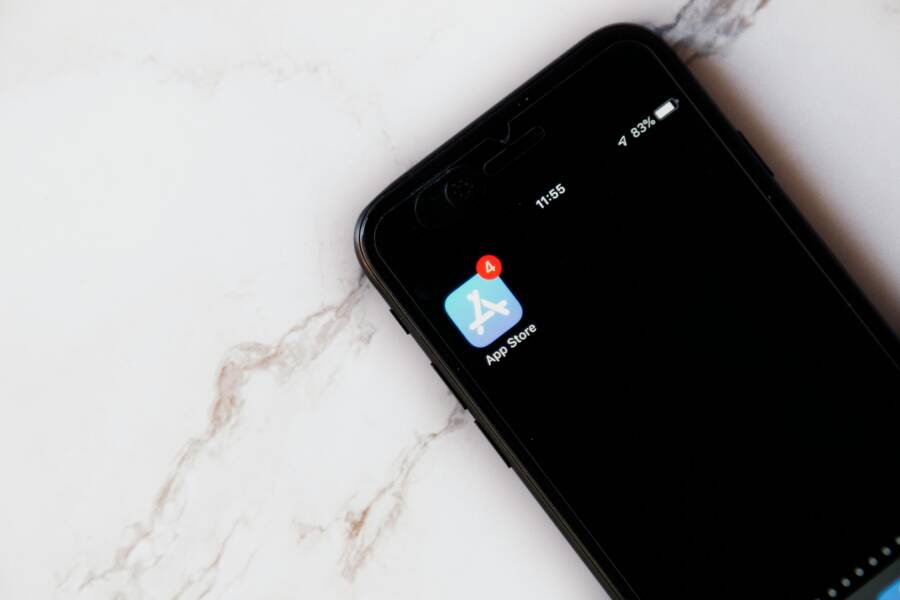
That stubborn red unread message badge on your phone drives anyone crazy. You open the Messages app, swipe through chats, but the number stays put. It mocks you from the home screen no matter what you try.
This glitch hits iPhone and Android smartphones alike. It often stems from app bugs, notification settings, or sync issues. Apps like Messages suffer most, but it can plague others too.
Don’t worry. You can fix it with simple steps that take minutes. No tech skills needed; just follow our guide.
We’ll start with iPhone fixes. You’ll learn to mark all as read, toggle badges, and force a restart. These work on the latest iOS versions.
Thousands of People Were Struggling With Money Until They Discovered This One Ancient Secret Hidden in Sound
>>> Unlock It Now <<<

Next, Android solutions. Clear app cache, check notifications, and update your smartphone. We cover popular devices step by step.
By the end, that badge vanishes for good. Your home screen stays clean. Let’s get started.
Why Your Phone’s Unread Badge Gets Stuck
That persistent unread badge on your smartphone app icons signals trouble beneath the surface. It refuses to drop to zero even after you clear your messages. You check every chat, but the number sticks around. This annoyance wastes your time and clutters your home screen. Pinpointing the root cause helps you fix it fast. iPhones and Android devices face distinct triggers, often tied to software quirks or user habits.
Top Causes on iPhone
iPhone users report this issue most in the Messages app. A sync glitch across devices linked to your Apple ID tops the list. Picture this: you read a message on your iPad, but your iPhone misses the update. The badge inflates or stays high because iCloud fails to refresh properly.
Other common culprits include:
- App glitches in Messages: Temporary bugs prevent the app from registering reads. Open a thread, mark it read, yet the count lingers. This happens after heavy use or minor crashes.
- Settings mismatches: Badge notifications toggle off by accident, or filters hide threads. Check Settings > Notifications > Messages; if badges sit disabled, your phone skips updates.
- Old message buildup: Scroll back in a long conversation, and hidden unread items from months ago load late. They trigger the badge until you select and read them all.
For more details on sync problems, see this guide from MacObserver.
Top Causes on Android Phones
Android phones, especially Samsung and Pixel models with Google Messages, show badges that cling due to system-level snags. Recent updates often introduce these bugs, leaving notifications in limbo.
Key reasons stack up like this:
- Update bugs: A system patch or app refresh disrupts badge logic. Samsung users note this after One UI upgrades; Google Messages threads stay marked unread despite swipes.
- Wrong notification handling: Swiping left or right dismisses alerts but skips the badge reset. In Google Messages, a partial dismiss leaves phantom counts.
- App or system conflicts: Third-party launchers or battery savers block refreshes. Samsung’s Good Lock modules sometimes clash, or doze mode delays sync on your smartphone.
- Cache overload: Stale data in the Messages app fools the counter. Conflicts with dual apps exacerbate it on devices like Galaxy phones.
Google’s support forums highlight these in Messages threads stuck on unread. Spot your match, and the fix gets simpler.
Quick Fixes That Work on Any Phone
When a stuck unread badge shows up, the simplest fixes are often the most effective. These quick wins apply to both iPhone and Android and require no special tools. Think of them as your starter kit for clean, clutter-free notifications. Each fix below is designed to be tried in order, so you can stop at the first one that works.
 Photo by Image Hunter
1) Do a soft reset of the device
A quick restart can clear temporary glitches that keep the badge alive. On both iPhone and Android, power off your device, wait 20 seconds, then turn it back on. This step is painless and often resolves phantom unread counts. If your device restarts slowly or seems unresponsive, try a forced restart following the manufacturer’s guidance. For iPhone, you can use the standard force restart method for your model; for most Android phones, a short press of the power button followed by a restart works well. After reboot, check the app badge again.
- Why it helps: resets background processes that manage notifications.
- When to skip: if you’re on a critical app that must stay on, schedule a reboot during a low-usage window.
2) Clear the app cache and data (or reset the app)
Corrupted cache data can make the badge count stubbornly wrong. Clearing cache is typically enough for Android. On iPhone, you’ll usually remove the app and reinstall it to reset its local data.
- Android path: Settings > Apps > [App] > Storage > Clear Cache. If problems persist, you can also Clear Data, then re-open the app and sign in again.
- iPhone path: Delete the app, reinstall from the App Store, and log back in.
If you’re dealing with a specific app like Messages, this step often eliminates the ghost counts caused by stale reads.
3) Review and reset notification settings
A misconfigured setting can block badge updates. Start with a thorough check of both global and per-app notification controls.
- iPhone: Settings > Notifications > Messages (or the relevant app) > Badges. Toggle badges off, wait a moment, then toggle back on.
- Android: Settings > Apps & notifications > See all apps > [App] > Notifications. Make sure Badges or App icon Badges are enabled, and review the alert style.
Tip: Some launchers or accessibility features can interfere with how badges refresh. If you use a custom launcher, re-enable its notification indicators or switch back to the default launcher temporarily to test.
4) Force close the app and relaunch
Background processes can stall badge updates. Fully close the app, then reopen it to trigger a fresh badge calculation.
- Steps: Open recent apps, swipe the target app off the screen to close it, then reopen from the home screen.
- Extra boost: while you’re at it, clear the app from memory and disable any extra widgets that pull data in the background.
5) Check for software updates
Outdated software often causes badge quirks. Installing the latest system and app updates can align badge behavior with the current notification framework.
- iPhone: Settings > General > Software Update. Install any available updates.
- Android: Settings > System > Software Update. Apply updates, then reboot.
If updates aren’t available, check the app store for the app update alone. Even small changes can fix a lingering count.
6) Re-sync accounts and cloud data
A sync issue across devices can leave a badge stuck. Make sure your accounts are signing in correctly and syncing as expected.
- iPhone: If you share Messages across devices, verify iCloud settings are correct. Sign out then back in if needed.
- Android: Ensure your Google account is syncing Messages and notifications properly. You may need to re-add the account or re-enable sync.
For cross-device consistency, avoid long gaps between reads on one device and still unread on another. A quick sync check can harmonize counts.
7) Disable and re-enable notification badges on the app
This is a tiny toggle that can reset badge logic without removing data.
- iPhone: Settings > Notifications > [App] > Badges (toggle off, wait a moment, toggle on).
- Android: Settings > Apps & notifications > [App] > Notifications > Badges (toggle off, wait, toggle back on).
8) Clear the system notification cache (advanced)
If you see badges behaving oddly across multiple apps, the system cache for notifications might be the culprit. This is a deeper step and varies by device.
- Android: Some devices offer a “Clear Cache Partition” option in recovery mode. It’s best done with guidance from your device’s manufacturer support page.
- iPhone: There isn’t a direct equivalent, but resetting all settings can clear stubborn notification quirks without erasing your data.
If you’re unsure about this step, start with the earlier fixes first or consult device-specific guides.
9) Check for app-specific bugs or known issues
Sometimes the problem isn’t your device but the app itself. Look up recent issues or patches for the app you’re using. You’ll often find quick workarounds or an upcoming fix from the developer.
- Quick reference: For iPhone users, the Mac Observer has outlined why unread badges may show up incorrectly and offers practical fixes. See their guide for context and steps. Link: https://www.macobserver.com/tips/how-to/fix-wrong-imessage-unread-message-count/
- Android users can explore official support forums for timestamped threads about stuck unread counts and suggested remedies. Link: https://support.google.com/messages/thread/362696774/android-messages-conversations-stuck-on-unread
10) When in doubt, reset settings (last resort)
If everything else fails, a settings reset can resolve a stubborn badge issue without wiping personal data.
- iPhone: Settings > General > Reset > Reset All Settings. This restores system settings like badges without erasing your apps or data.
- Android: Settings > System > Reset options > Reset app preferences or Reset all settings. This preserves your files while resetting notification logic.
For a guided approach, you can reference Apple’s official force restart guidance to ensure you perform essential steps correctly. Link: https://support.apple.com/en-am/guide/iphone/iph8903c3ee6/ios
Pro tip: If you want a quick cross-check, try a single badge fix on one device, then test on another. This helps you decide quickly whether the issue is device-specific or app-related. For more broad guidance on Android and iPhone notification behavior, you can explore community discussions and expert tips that align with these fixes. For example, discussions about iPhone badge glitches and official support resources can provide up-to-date context. Links:
- Notification badge glitch on iPhone: https://discussions.apple.com/thread/254496051
- Force restart iPhone guidance: https://support.apple.com/en-am/guide/iphone/iph8903c3ee6/ios
- App notification fixes on iPhone: https://www.guidingtech.com/fix-iphone-app-notification-wont-go-away/
- Android badge troubleshooting: https://support.google.com/android/answer/7664448?hl=en
By following these quick fixes, you can usually clear a stuck unread badge in minutes. If a badge remains stubborn after trying these steps, the issue may come from a deeper software bug or a specific app. In that case, reaching out to the app’s support team or checking for a software patch is a solid next move. For further context on lingering badge issues and official guidance, see the referenced resources.
Easy iPhone Fixes to Clear the Stuck Badge
When the unread badge on your iPhone won’t budge, it can feel like a tiny, stubborn reminder that nothing else is working. This section focuses on straightforward, proven steps you can take to reset the badge and restore accurate counts. You’ll learn quick actions you can perform today, plus why these steps are effective. Think of it as a mini toolbox you can pull from whenever the red number sticks around.
Mark All Messages as Read or Use Siri
If the badge seems tied to unread reads, a quick mass clear can do the trick. This method is reliable when multiple conversations hold unread items that aren’t obvious at first glance.
- Step-by-step: Open Messages > Edit > Select Messages > Read All. If you’d rather use voice, say to Siri, “Read my messages.” This command prompts the app to mark conversations as read, which often nudges the badge back to zero.
- Why it works: The badge count is tied to the read status across conversations. When all items are marked read, the system recalculates the total and the badge usually updates accordingly.
- Quick tip: If you use multiple Apple devices, double-check that reads have synced across iCloud. A mis-sync can keep the badge high even after you clear messages on one device. For extra context, see how sync issues affect unread counts on multiple devices.
External resources for deeper context:
- Unread message count issues across devices and practical fixes: https://www.macobserver.com/tips/how-to/fix-wrong-imessage-unread-message-count/
Toggle Badges and Restart Your iPhone
Sometimes a simple toggle combined with a restart is all you need. This resets the badge logic without altering your data.
- Settings path: Go to Settings > Notifications > Messages (or the relevant app) > turn Badges off, wait a moment, then turn Badges back on.
- Restart sequence: After toggling, perform a soft restart. On iPhone, quickly press and release the volume up button, press and release the volume down button, then hold the side button until the Apple logo appears. If your device seems slow, a forced restart can help follow the manufacturer’s guidance.
- Why it works: Toggling forces the notification system to reinitialize badge data. A subsequent restart clears lingering background state that can prevent the badge from updating.
- Practical note: If you use a custom launcher or accessibility features on other devices, recheck that they aren’t interfering with the badge indicators anymore after you restart.
External resources for further guidance:
- Official force restart guidance for iPhone: https://support.apple.com/en-am/guide/iphone/iph8903c3ee6/ios
Other iPhone Steps Like Focus Mode Off
If the badge stubbornness persists, look beyond the basics. Focus mode and other software features can influence how badges are calculated and displayed.
- Disable Focus: Settings > Focus > turn off any active Focus modes. Some Focus presets suppress alerts, which can indirectly affect badge updates.
- Update iOS: Keep your device on the latest iOS version. System updates fix known notification quirks that affect badge behavior.
- Mail notifications tweak: If you’re using the Mail app, review its notification settings. Sometimes mail badge behavior leaks into messaging expectations when you use a combined notification view.
- Why these steps help: Focus and notification settings shape when the system recalculates unread counts. A misconfigured focus profile or outdated software can stall the badge refresh.
- Quick check: After making changes, open the Messages app and skim through conversations to ensure there are no hidden unread items. Then, observe whether the badge updates as expected.
External resources for broader context:
- Unread badge issues and how to resolve common notification quirks from reliable sources: https://www.macobserver.com/tips/how-to/fix-wrong-imessage-unread-message-count/
By applying these targeted actions, you can typically reset a stuck iPhone badge without data loss or complex troubleshooting. If the badge remains after trying the steps above, the issue may stem from a deeper software bug or an app-specific problem. In that case, reaching out to the app’s support team or monitoring for a patch is a solid next move. For additional context on lingering badge issues and official guidance, see the referenced resources.
There Is a Frequency That the Wealthiest Families Have Used for Generations and Most People Will Never Know It Exists
>>> Open the Door <<<

External references you may find helpful:
- iPhone badge discussions on Apple Communities for real user scenarios: https://discussions.apple.com/thread/254496051
- Force restart guidance to ensure proper reboot steps: https://support.apple.com/en-am/guide/iphone/iph8903c3ee6/ios
- How to fix iPhone notification issues with apps: https://www.guidingtech.com/fix-iphone-app-notification-wont-go-away/
Simple Android Fixes to Remove the Badge
If the unread badge on your Android home screen just won’t quit, you’re not alone. This section gives you practical, bite sized fixes you can apply quickly. These steps are designed to work across most brands and versions, including Samsung, Google Pixel, OnePlus, and more. As you move through the fixes, you’ll notice how small changes can reset the badge logic and restore accurate counts. If you’re short on time, start with the simplest steps and skip to the more advanced ones only if needed. And yes, these tips often apply to a wide range of messaging apps, not just the stock Messages app.
 Photo by dumitru B
SECTION_0
Clear Cache, Data, and Force Stop the App
A stubborn badge can be caused by corrupted cache or data. Clearing these elements forces the app to rebuild its badge state from scratch. Start with the messaging app you use most, then restart the device to ensure changes take effect.
- Step-by-step for Android:
- Open Settings and go to Apps & notifications.
- Find and select the messaging app (Messages, WhatsApp, etc.).
- Tap Storage & cache (or just Storage), then choose Clear Cache. If the problem persists, choose Clear Data (note: this may sign you out and reset local settings).
- Reopen the app and sign back in if required.
- Restart your phone to finalize the reset.
- Aftercare: Open the app, verify you have read all messages or mark them as read to trigger a fresh badge calculation.
- Why this helps: the badge count often relies on local read states. Clearing stale data forces a clean slate.
If you’re unsure which app causes the issue, perform these steps on the most likely culprit first and then test. In many cases, the fix is enough to clear ghost counts without touching other apps.
SECTION_1
Update Apps, Disable Battery Optimization
Outdated apps or aggressive battery saving can interfere with how badges are refreshed. Keeping apps up to date and ensuring they’re allowed to run in the background keeps the badge logic healthy.
- How to update apps:
- Open the Google Play Store, tap your profile icon, and select Manage apps & devices. Check for updates and install. If you see a specific messaging app with an update, prioritize it.
- Battery optimization:
- Go to Settings > Battery > Battery optimization. Choose the messaging app and set it to Not optimized or “Allowed” to ensure it can run in the background properly.
- Sync checks:
- Ensure the account that feeds the badge is syncing in the background. For Google Messages, confirm that Google account sync for messages is enabled in Settings > Accounts > Google > Account sync.
Why this matters: apps that get squashed by battery savers or left behind during updates can fail to refresh the badge in real time. Allowing background activity makes the badge reflect the true read state.
Pro tip: If you’re using a device with a heavy skin like Samsung One UI, you may see extra battery optimization menus. Check under Device care or Maintenance to ensure the messaging app isn’t restricted by any system power settings.
SECTION_2
Samsung and Other Android Tips
Samsung users and owners of other Android brands often see badge quirks tied to launcher behavior and specific UI features. These tips address common culprits and help you regain accurate counts.
- Check notification history:
- Some phones offer a notification history log. If you’ve dismissed a badge in error, you can review missed alerts and confirm none are left unread. This helps you identify if the badge is lagging behind actual reads.
- App icon badges settings:
- On Samsung devices, go to Settings > Notifications > App icon badges. You can choose to show dots, numbers, or turn badges off entirely. If the badge is misbehaving, toggle the option off, wait, then turn it back on.
- Disable or adjust launchers:
- Third party launchers can interfere with badge indicators. Temporarily switch back to the default launcher to test whether badges refresh correctly. If the problem disappears, the launcher settings may be the culprit.
- Recheck app-specific badge settings:
- Some apps manage their own badge behavior inside the app. Look for a per-app badge toggle in the app’s settings and verify it aligns with your home screen badge expectations.
Why these steps help: badge behavior on Android is a combination of system-level settings, launcher handling, and per-app configurations. Tuning each layer reduces the chance of phantom counts.
External resources to explore:
- Android notification fixes and general badge troubleshooting: https://www.androidpolice.com/android-notification-problems-fixes/
- How to turn off battery optimization and preserve background activity: https://help.cardata.co/article/175-how-to-turn-off-your-androids-battery-optimizer
Additional context for Android badge issues:
- If the badge persists across multiple apps, you might be dealing with a system cache or a global notification setting. In that case, consider clearing the system cache or performing a broader reset of notification preferences, then re-enabling them gradually.
Note: Some fixes reference official guidance and community discussions. Use these as a map rather than a script, and adjust steps to your device model and Android version.
Final check and best practices:
- After trying any fix, open the messaging app and perform a few reads followed by a quick test on the home screen. If you see the badge clear, you’re done.
- Keep a mental note of which device and app combination you’re using. This helps you spot trends if the problem returns.
If the badge remains stubborn after you’ve walked through these steps, the issue may be deeper inside the app or the operating system. In that case, check for patches from the developer or contact support for the specific device. For more general guidance and real user stories, you can browse discussions from reputable sources that track badge behavior across devices:
- iPhone badge discussions and fixes: https://discussions.apple.com/thread/254496051
- Official iPhone restart and troubleshooting resources: https://support.apple.com/en-am/guide/iphone/iph8903c3ee6/ios
External links and further reading can be helpful, but start with the steps above. They solve most badge issues in minutes and require minimal effort. If a badge still sticks after trying these options, you’re likely facing a bug or a specific app behavior that requires a patch from the developer.
Sources and practical pointers:
- Quick, practical guide to fix stuck unread counts on Android: https://www.guidingtech.com/fix-messages-notifications-not-working-on-android/
- A broader set of Android notification fixes you can apply: https://www.androidpolice.com/android-notification-problems-fixes/
Remember, every device is a little different. The key is a systematic approach: clear caches, allow background activity, verify notifications, and test across apps. With patience, you’ll get that badge to behave again.
External resources you may find helpful:
- Android notification and badge troubleshooting: https://support.google.com/android/answer/7664448?hl=en
- Android troubleshooting for unread counts and app badges: https://www.androidpolice.com/android-notification-problems-fixes/
Prevent the Unread Badge Glitch Next Time
A quick plan now can save you headaches later. This section focuses on habits and settings that keep unread badges honest across devices and apps. Think of it as a lightweight preventative toolkit you can use before the problem appears again. You’ll learn how to reduce cross-device mismatches, keep notifications clean, and set up automatic fixes you can rely on.
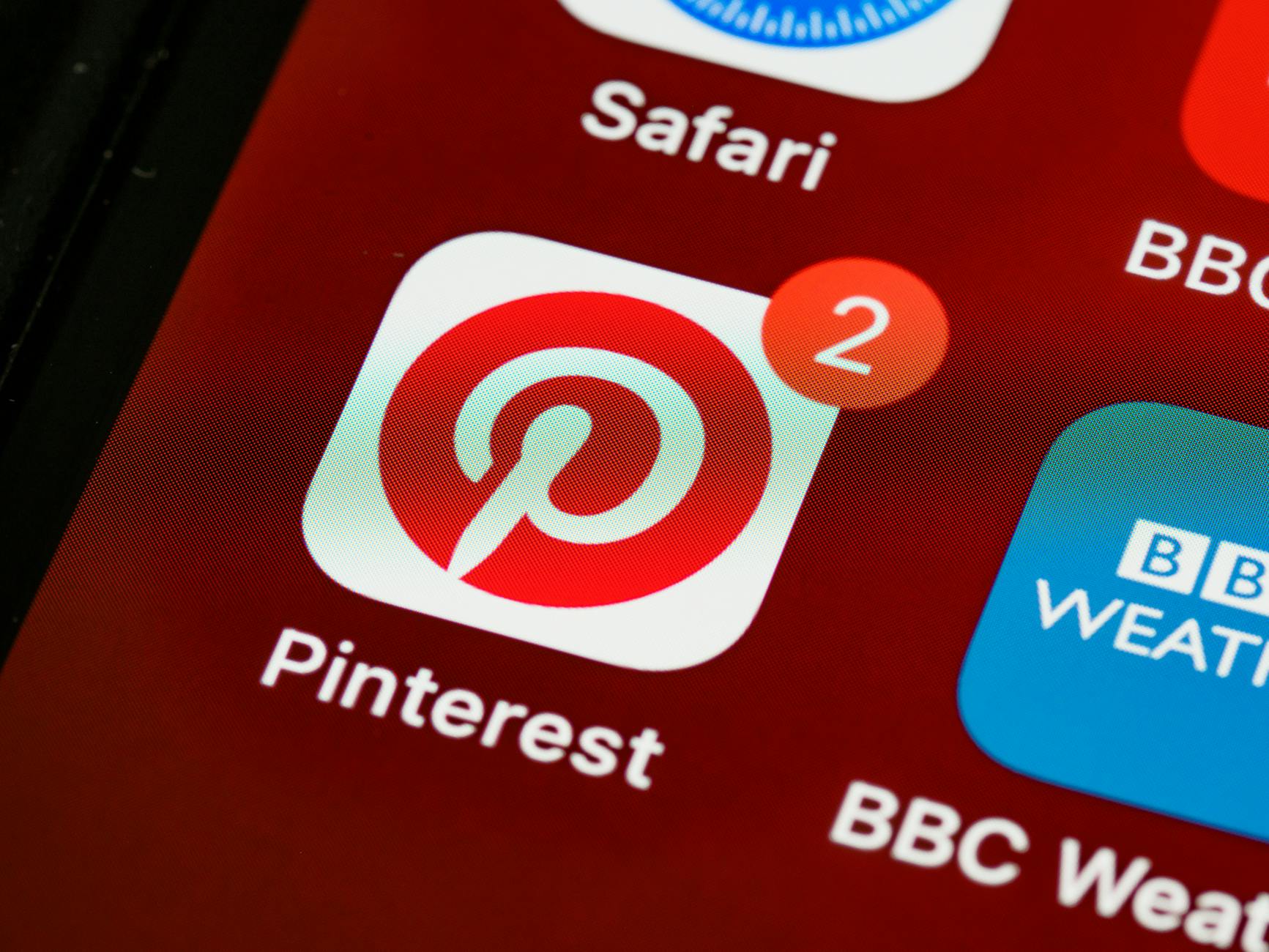 Photo by Brett Jordan
1) Keep cross-device sync healthy
When you rely on multiple devices, badge counts must sync cleanly. The most common culprit is a delay or failure in syncing read status across devices.
- Regularly verify iCloud or Google account sync is active for the messaging app.
- After reading messages on one device, give the system a moment to sync before assuming the badge is cleared.
- If you notice persistent mismatches, sign out and back in on one device to re-establish the link.
Why this matters: a stuck badge often traces back to a sync hiccup rather than a single device. A quick sign-in reset can resolve the root cause and prevent ghost counts from returning.
External context for cross-device syncing:
- How syncing affects unread counts on iPhone: How-To Geek guide on fixing unread counts and syncing issues. https://www.howtogeek.com/886580/how-to-fix-the-messages-app-icon-showing-unread-on-iphone/
2) Normalize notification settings across apps
Inconsistent notification rules can keep a badge from updating properly. Standardize both global and per-app settings so one app doesn’t block updates for others.
- Review global notification settings first, then dive into each messaging app.
- For iPhone, ensure Badges are enabled in Settings > Notifications > [App].
- For Android, confirm Badges are enabled in Settings > Apps & notifications > [App] > Notifications.
Tip: Some launchers or accessibility features can interfere with badge refresh. If you use a custom launcher, test with the default launcher to confirm consistent behavior.
External context for consistent notifications:
- Unread badge guidance and fixes from a trusted source: MacObserver on wrong unread counts. https://www.macobserver.com/tips/how-to/fix-wrong-imessage-unread-message-count/
3) Schedule routine maintenance
A small, regular check can catch issues before they become obvious. Treat it like a quick health check for your digital life.
- Weekly quick audit: skim Messages or your primary chat apps and confirm there are no hidden unread items.
- Monthly cleanups: clear cache for Android apps and review per-app notification settings.
- Annual refresh: install the latest OS updates and app updates to align with the latest notification framework.
Why this approach works: ongoing attention prevents minor quirks from becoming stuck badges. It also makes it easier to spot when a bug surfaces, so you can act fast.
External context for maintenance routines:
- Practical guide on marking messages as read and maintaining clean inboxes: Lifehacker’s tips on ghost notifications. https://lifehacker.com/the-easiest-way-to-get-rid-of-ghost-message-notificat-1850765871
4) Use official restart and recovery steps wisely
Sometimes a clean restart is the most reliable preventative measure. It resets the notification system and gives you a fresh baseline.
- Keep a habit of applying a soft restart after major OS updates or app patches.
- For iPhone, a quick restart after updating can quiet misbehaving badges. Official restart guidance helps ensure you don’t miss any critical steps. https://support.apple.com/en-am/guide/iphone/iph8903c3ee6/ios
- For Android, a restart after major updates can stop lingering badge issues from creeping back.
Why it helps: restarts clear out lingering processes that manage badge data, reducing the chance of a recurring glitch.
External guidance for device restarts:
- Apple restart guidance: https://support.apple.com/en-am/guide/iphone/iph8903c3ee6/ios
- General insight on fixes when badges misbehave: How-To Geek and Lifehacker resources cited above
5) Stay current with known issues and patches
Developers release fixes that directly address badge problems. Staying informed helps you apply patches before the badge becomes a nuisance.
- Subscribe to official release notes or support forums for your messaging app.
- When a known issue appears, apply the recommended patch promptly.
- If a patch is delayed, use the interim fixes above to keep your badge honest.
Why this matters: some badge glitches are systemic and tied to specific versions. Early patches reduce the risk of persistent counts on your home screen.
Thousands of People Were Struggling With Money Until They Discovered This One Ancient Secret Hidden in Sound
>>> Unlock It Now <<<
External resources to monitor:
- Official iPhone and Android support pages for app-specific issues and patches.
- MacObserver’s practical fixes for unread counts on iPhone: https://www.macobserver.com/tips/how-to/fix-wrong-imessage-unread-message-count/
By adopting these preventive practices, you reduce the chances of a stubborn unread badge appearing again. If you still see phantom counts after following these steps, you’re likely dealing with a deeper bug or an app-specific quirk. In that case, report the issue to the app’s support team and watch for a patch. For more context on ongoing badge issues and trusted guidance, explore the linked resources.
Conclusion
If a stuck unread badge has been haunting your smartphone, you’re not out of luck. Start with the simplest fixes and work down the list in order. On iPhone, check and adjust the app’s badge settings, toggle Badges off then on, restart your device, and if needed, sign out and back in or update iOS. For Android, clear the app cache and data, verify notification and badge settings, reinstall the app, and update the OS. These steps address the most common causes across devices and apps.
A quick cross-device check helps too. If the badge stays after reading messages on one device, give it a moment to sync and test on another device. This cross-check reveals whether the issue is device specific or tied to the app.
If the problem persists, move to the deeper steps like ensuring background activity is allowed, inspecting launcher badge permissions, and applying the latest patches from the developer. These final moves fix stubborn counts without costly troubleshooting.
Share your experience in the comments if one of these fixes worked for you, and subscribe for more practical tips. With a clear plan and a little patience, you can keep your notifications accurate and your smartphone free from clutter. A hassle-free device makes everyday tasks faster and more enjoyable.
He Was Drowning in Bills and Burnout Until a Simple Daily Ritual Rewired His Brain for Wealth in Less Than a Week
>>> Start Your Shift Today <<<