What If the Only Thing Between You and the Life You Deserve Is a Hidden Wealth Code Waiting to Be Activated
>>> Open the Door <<<

Ever delete files on your phone and see the storage bar stay stubbornly full? That frustration hits both Android and iPhone users, and it can waste time as you wonder why space won’t clear. In this post we’ll troubleshoot why the storage available not updating after deleting files, so you can reclaim the room you need.
The issue typically isn’t your memory failing; it’s how the phone updates space after deletions. Hidden caches, recently deleted folders, and background processes can keep gigabytes tied up even when you know the files are gone. We’ll cover what to check first, including quick wins you can try right away.
You’ll learn practical steps tailored to your platform, so you don’t waste hours chasing ghosts. For Android users, clearing caches and emptying trash in key apps often does the trick. For iPhone users, emptying Recently Deleted and refreshing the storage view can release hidden space. Each method is designed to be simple and safe, so you stay in control.
By the end, you’ll have a clear plan to free up space fast and keep your smartphone running smoothly. We’ll also outline next actions if the problem sticks around, so you won’t be left guessing. Follow these steps and you’ll see the storage available update again, quickly and reliably.
What If the Only Thing Between You and the Life You Deserve Is a Hidden Wealth Code Waiting to Be Activated
>>> Open the Door <<<
Why Your Phone’s Storage Doesn’t Update After Deleting Files
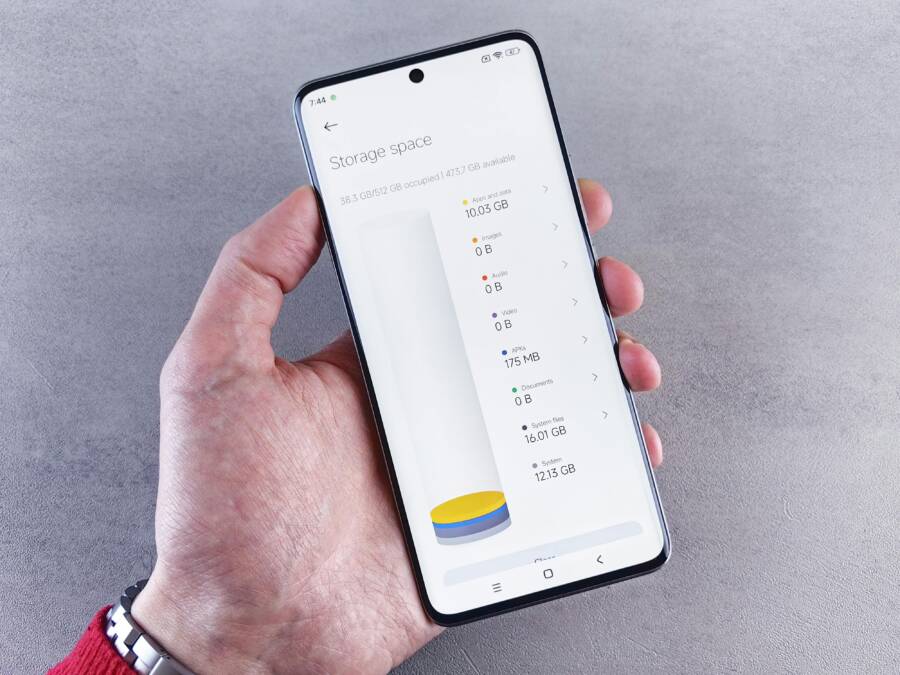
If you’ve trimmed files only to watch the storage bar stubbornly stay full, you’re not alone. This section drills into why space numbers lag behind real deletions and how to fix it quickly. Understanding the common culprits helps you avoid chasing ghosts and reclaim real space fast.
 Photo by Andrey Matveev
Common Causes on Android Phones
On many Android devices, storage reporting lag comes from a few predictable sources. First, apps that manage files, such as Files or Gallery, frequently cache thumbnails, previews, and temporary data. Even when you delete the original item, these caches can linger, making storage look full longer than it actually is. A quick cache purge in the app settings often yields immediate results.
- Cache buildup in core apps: Thumbnails, previews, and offline content can keep gigabytes tied up. Clearing app caches helps, but you may need to do it for several apps you use most for media and downloads.
- Trash and recently deleted folders: Some apps keep a trash bin for a grace period. Emptying that trash is a real space win even if you’ve deleted items from the main view.
- Background processes and updates: System or app background tasks can hold space for temporary files. A quick reboot or a forced stop on resource-heavy apps can reset storage accounting.
- Permissions and file indexing: If apps don’t have the right permissions, they may not accurately reflect deleted content. Review storage permissions and ensure Files, Gallery, and any file managers have full access where appropriate.
- Recent update glitches: After a major OS or app update, the storage counter can lag for a short time. In practice, a reboot or a quick cache refresh often resolves the mismatch.
Real-world fix outline:
- Open Settings > Apps > [Your File App] and clear cache.
- Check for a “Trash” or “Recently Deleted” section inside the app and empty it.
- Restart the device to refresh the storage ledger.
- If space still lookswierd, review other frequently used apps for cached media and repeat the process.
For extra guidance, see practical troubleshooting threads that discuss storage not updating after deletions and the common fixes people actually use in the wild. Android users frequently report that clearing caches and emptying in-app trash resolves the issue within minutes. For more on this topic, you can consult community discussions and troubleshooting guides like this one and this practical article on why stored space doesn’t shrink as expected.
- Android troubleshooting discussion: “Deleted files still show in Files”
https://support.google.com/android/thread/23410210/deleted-files-still-show-in-files?hl=en - Practical guide on storage changes after deleting files
https://filerev.com/blog/storage-change-deleting-files/ - Community questions on storage not updating after deletion
https://support.google.com/files/thread/222623078/why-does-my-phone-show-storage-full-even-though-i-have-deleted-many-files?hl=en
Reasons It Happens on iPhones
iPhone storage that won’t budge after deletions usually points to system data and background processes that don’t shrink in real time. Here’s what to look for and how to fix it quickly.
- System data that doesn’t shrink: Some iOS components, caches, and system files can be counted as used space even after you remove apps or media. It’s not a bug so much as a quirk of how storage accounting runs on Apple devices.
- Stuck updates or indexing: When iOS performs background indexing or prepares updates, the storage figure can lag. A few minutes of patience often resolves this. If you’re in a hurry, a soft restart helps clear pending background tasks.
- Recently Deleted and photos management: Photos and other media apps keep recently deleted items for a grace period. If you’ve emptied Recently Deleted but still see full storage, give the device a moment to refresh, or try a restart to re-scan the storage ledger.
- Offload and optimization features: iPhones may offload unused apps to free space, but the space released by offloading can take time to show up in storage metrics. Waiting a bit or turning off/on these features can help.
If you’ve recently deleted a lot of photos or apps, offloading can actually hide the real effect temporarily. It’s a known behavior, not a sign of trouble. You’ll often see space freed after an automatic refresh or a restart. In many cases, users find that a simple reboot releases the hidden space and makes the storage bar reflect the actual available space again.
Helpful tips to consider:
- Restart your iPhone after large deletions and then recheck Settings > General > iPhone Storage.
- If space remains stubborn, test the effect by performing a soft reset and rechecking after a few minutes.
- Use the Photos app to review Recently Deleted and ensure all items are removed, then restart to force a re-scan of space.
For deeper context, you can explore discussions about iPhone storage not updating after deletions and recommended steps to refresh storage accounting, which often include restarts and checking for hidden caches. See discussions and guides like these for more details:
- Apple discussion on storage not updating after deletions
https://discussions.apple.com/thread/256141752 - Apple community thread about full storage after deleting apps and photos
https://discussions.apple.com/thread/254416398 - Insightful guide on managing iPhone storage when it stays full after cleaning up
https://www.handyrecovery.com/iphone-storage-full-after-deleting-photos/
End of section notes:
- If you’re tackling Android storage lag, start with app caches and trash bins, then move outward to permissions and background tasks.
- If you’re facing iPhone storage lag, prioritize a restart after large deletions and check Recently Deleted along with system data usage to see what’s really occupying space. This approach keeps you in control and minimizes guesswork.
In the next section, we’ll map out a quick, platform-specific plan you can follow step by step to reclaim space without the drama.
Quick Fixes to Refresh Your Storage Right Now
If you’ve deleted files and the storage bar still looks full, you’re not imagining things. Your phone often keeps a rough ledger that includes caches, recently deleted items, and background tasks. These quick fixes help reset that ledger so you see real space available again. Below are two practical, user-friendly steps you can apply to both Android and iPhone. They’re designed to be safe, fast, and easy to follow.
Restart Your Phone for Instant Refresh
A simple restart can clear stubborn temporary data and force the storage accounting to refresh. Think of it as rebooting a computer after a long day of tasks; the system gets a clean slate and starts fresh.
Android:
- Hold the power button until the power menu appears.
- Tap Restart. If Restart isn’t available, choose Power Off, wait 30 seconds, then turn the device back on.
- After the device boots up, open Settings > Storage to recheck available space.
Why it helps: Restarts end processes that may be holding onto temp files and can reset the storage counter to reflect actual free space.
iPhone:
- For most models, press and hold the side button and either volume button until the slider appears.
- Drag the slider to power off. Wait 30 seconds, then press and hold the side button again to turn it back on.
- Check Settings > General > iPhone Storage after the device finishes booting.
Why it helps: iOS often runs background tasks that momentarily obscure freed space. A restart clears those tasks and prompts a fresh storage scan.
Why this step is worth doing first: it’s fast, safe, and works across both platforms. If you see space shift after a restart, you’ve likely cleared the main culprits without touching individual apps.
If you want extra reassurance, a short reboot is a common recommendation in troubleshooting threads that cover storage not updating after deletions. You can explore discussions and guides like those that describe how a restart fixes lagging storage counts.
- Android troubleshooting discussion about storage not clearing up after deleting items https://support.google.com/files/thread/222623078/why-does-my-phone-show-storage-full-even-though-i-have-deleted-many-files?hl=en
- Practical guidance on storage changes after deleting files https://filerev.com/blog/storage-change-deleting-files/
- Community questions about storage not updating after deletion https://support.google.com/files/thread/222623078/why-does-my-phone-show-storage-full-even-though-i-have-deleted-many-files?hl=en
Clear Cache from Key Apps
Caches are the sneaky culprits that keep space tied up long after you’ve deleted the original files. Clearing caches in the apps you use most for media and downloads can unlock noticeable space gains quickly.
Android: Clear cache in the main file or media apps you rely on most. For example:
- Google Play Store: Open Settings in the Play Store, go to Storage, and clear cache.
- Files app: Open the app, navigate to its settings, and clear cached data or thumbnails.
Pro tip: Don’t clear cache indiscriminately. Focus on apps that handle large media files or downloads. After clearing, revisit Settings > Storage to see if the free space has updated.
iPhone: Direct cache clearing isn’t as straightforward as on Android, but you can still reduce cached data effectively:
- Review Safari data and website data (Settings > Safari > Clear History and Website Data) if you’ve been browser-heavy.
- Manage apps with large caches by offloading unused apps (Settings > General > iPhone Storage) or by turning off the “Offload Unused Apps” feature.
- Empty the Recently Deleted album in Photos (Photos > Albums > Recently Deleted) and permanently delete items to free up space.
Why this matters: Caches store tiny pieces of data to speed things up, but they add up. Clearing them can reveal the true amount of free space and help the storage counter align with reality.
To ensure you’re tackling the right culprits, consider these best practices:
- Target apps that handle downloads, media, or offline content first.
- After clearing caches, reboot your device to refresh the storage ledger.
- If space still seems off, repeat the process for another set of apps you use frequently.
If you’d like a deeper dive into the why behind cache buildup and practical steps, you can read more from trusted sources that discuss how caches influence perceived storage and how to address it on both Android and iPhone.
- Why clearing app caches helps on Android https://www.google.com/support/android/thread/23410210/deleted-files-still-show-in-files?hl=en
- iPhone storage guidance on managing caches and space https://www.handyrecovery.com/iphone-storage-full-after-deleting-photos/
Additional tips to keep space in check:
- Regularly review downloaded media and remove files you no longer need.
- Use cloud backups for photos and videos to reduce device storage pressure.
- Keep your OS and key apps up to date; updates can improve storage reporting and efficiency.
In practice, restart first when you’re unsure where the space is going. If the numbers settle after a reboot, you’ve likely cleared the main bottlenecks. If not, proceed with targeted cache clears and a follow-up reboot.
External resources offer broader context and additional strategies, especially for users who notice persistent discrepancies after deleting large amounts of data. Check these guides for more actionable steps and community-tested tips.
- iPhone storage full after deleting everything: Why and how to fix it https://news.macgasm.net/tips/iphone-storage-full-after-deleting-everything/
- iPhone storage full after deleting photos: Eight practical fixes https://www.insanelymac.com/blog/iphone-storage-still-full-after-deleting-photos/
- Expert Q&A on deleted apps and full storage https://www.justanswer.com/smartphones/i85de-deleted-several-apps-iphone-says-storage.html
End of section notes:
- For Android users, start with app caches and in-app trash, then move outward to permissions and background tasks.
- For iPhone users, prioritize a restart after large deletions and check Recently Deleted along with system data usage to understand what’s really occupying space.
In the next section, we’ll map out a quick, platform specific plan you can follow step by step to reclaim space without the drama.
Detailed Steps to Fix Storage on Android
If your Android device shows that storage is full even after you delete files, you’re not alone. This section breaks down practical, step by step actions you can take to get an accurate read on free space and reclaim it. Focus on fast wins first, then move to more thorough checks. By following these steps, you’ll reduce the chance of chasing phantom space and keep your phone running smoothly.
Free Up Space and Check Permissions
Permissions and app-level storage behavior often cause the biggest gaps between reality and the storage meter. Start by ensuring your file managers and media apps have the access they need, then clear out caches and trash bins inside the apps you use most.
- Verify app permissions: Open Settings > Storage > Apps > Permissions for Files/Media. Make sure core apps like Files, Gallery, and any file managers have access to storage. If permissions are misconfigured, the system may misreport space after deletions.
- Clear app caches: In the same Apps section, pick the apps you use for media or downloads and clear their cache. Focus on Gallery, File explorer apps, and Downloads managers. A quick purge can reveal real free space.
- Empty in-app trash or recently deleted: Some apps keep deleted items in a separate Trash or Recently Deleted folder. Empty that folder to release space that’s not visible in the main view.
- Check for large hidden caches: Some apps generate large temporary files that aren’t included in the general cache count. After clearing the obvious caches, recheck storage and consider repeating the process for other high-use apps.
Why this helps: Caches and hidden trash keep space tied up, even after you remove the originals. Clearing caches and emptying the Trash aligns the storage counter with reality and often yields an immediate boost.
How to approach it:
- Go to Settings > Storage > Apps and select a high-usage app (for example, Files, Gallery, or a large media app).
- Tap Permissions and ensure access is allowed for Files/Media.
- Tap Storage (if available) and choose Clear cache.
- Open the app and look for Trash or Recently Deleted; empty it if present.
- Reboot your device and revisit Settings > Storage to verify the change.
Useful reference: Some Android guides discuss how to manage all files and permissions to reclaim space efficiently, including using the Files by Google app and built-in storage managers. See further readings for deeper context:
- Manage all files on a storage device
- Android storage use cases and best practices
External sources:
- https://developer.android.google.cn/training/data-storage/manage-all-files
- https://support.google.com/googleplay/android-developer/answer/10467955
- https://developer.android.google.cn/training/data-storage/use-cases
Update Your Android System
A system update can fix storage tracking quirks and improve how the OS reports free space. It’s not a guaranteed cure for every device, but keeping the system current reduces the likelihood of persistent misreporting after deletions.
- Check for updates: Open Settings > System > System update (or Settings > About phone > System updates on some devices). If a new patch is available, install it.
- Read the notes: Some updates improve overall storage management, but they can also introduce short-term quirks. After updating, perform a quick reboot and recheck Settings > Storage.
- Consider vendor tools: Some manufacturers include a dedicated storage or device care app. If your device has one, use it to run a storage scan and clean up residual files.
What to expect: If an update includes storage management improvements, you’ll often see a more accurate free-space read after a reboot. If the device doesn’t show a clear change, don’t worry—move on to the next steps.
He Was Drowning in Bills and Burnout Until a Simple Daily Ritual Rewired His Brain for Wealth in Less Than a Week
>>> Start Your Shift Today <<<

Guidance sources:
He Was Drowning in Bills and Burnout Until a Simple Daily Ritual Rewired His Brain for Wealth in Less Than a Week
>>> Start Your Shift Today <<<
- Android storage updates and help pages
- Pixel and Android device support forums discussing update-related storage behavior
External references:
- https://support.google.com/android/thread/33717195/couldn-t-download-system-update-storage-problems?hl=en
- https://support.google.com/pixelphone/thread/354655067/google-play-system-update-fails-on-android-16?hl=en
- https://xdaforums.com/t/guide-how-to-fix-google-play-system-update-not-updating-or-being-stuck.4459903/
Real-time take: While no recent Android patches explicitly fix the exact bug of storage not updating after deletions, updates routinely improve storage reporting and cache management. If you see no change after a reboot, a system update plus a clean cache scan is usually enough to reset the ledger.
Tips to keep it smooth:
- Regularly install OS and essential app updates.
- After major deletions, perform a quick reboot to trigger a fresh storage scan.
- If space remains misrepresented, repeat the cache-clearing process across other frequently used apps.
External resources for further reading:
- Manage storage after updates on Android
- Android use cases and best practices for storage
In the next part, you’ll get a concise, platform-specific plan you can follow in a few minutes to reclaim space without the drama.
How to Resolve It on iPhone Step by Step
When your iPhone storage won’t budge after you delete files, it can feel like you’re chasing a moving target. The cause is usually how iOS accounts for space in the background, not a physical shortage of memory. The steps below are practical, safe, and designed to restore an accurate read of available space. Start with quick wins, then move to more thorough checks if the problem persists.
Offload Apps and Delete Large Files
Offloading unused apps can free space without permanently removing app data. This can reveal how much space is truly available and can reset the storage ledger to reflect real usage. Here’s a focused approach you can follow.
- Review what to offload first: Focus on apps that store large amounts of media or data, such as video editors, games with large assets, or offline maps. These are the top candidates to free up meaningful space quickly.
- Turn off or adjust automatic offloading: Settings > General > iPhone Storage, and look for the option to Offload Unused Apps. If it’s on, you can leave it enabled for ongoing space management, or toggle it off temporarily to see if the immediate effect improves the storage read.
- Offload, then delete or reinstall selectively: When you offload an app, its document and data stay on your device. If you don’t need the app soon, you can choose to offload and then delete the app entirely to reclaim its footprint. If you later need the app again, you can reinstall it without losing data.
- Delete large files directly: In Settings > General > iPhone Storage, identify large items such as videos, movies stored for offline viewing, or downloaded TV seasons. Delete the items you no longer need. If you’re unsure, back up to iCloud or a computer first.
Why this helps: Offloading and targeted deletion reduce the burden on the storage ledger and prompt iOS to refresh its accounting. After a restart, you’ll often see a more accurate amount of free space.
Useful resources to support this step:
- Apple’s official guide to manage storage on iPhone, including how to see which apps take up the most space and how to offload or delete them: Manage storage on iPhone
- A practical guide that explains clearing cache and offloading as safe, effective ways to reclaim space
Additional tips for maximizing impact:
- Prioritize apps with heavy media caches and large documents.
- After offloading or deleting, reboot the device to trigger a fresh storage scan.
- Keep a short-term log of what you removed to avoid surprises later.
If you want a broader look at why offloading can temporarily mask space changes and how to use this feature best, check discussions and guides that explore how to reclaim space without losing essential data.
- How to manage storage on iPhone, Apple Support https://support.apple.com/guide/iphone/manage-storage-on-iphone-iph47c931112/ios
- Practical tips on reclaiming space after large deletions https://www.handyrecovery.com/iphone-storage-full-after-deleting-photos/
Deal with System Data and Updates
System data, caches, and background indexing can keep space looking full even after you delete files. If offloading and large-file deletions don’t fully free space, you’ll want to address these deeper drivers. Here’s a clear path to follow.
- Check for iOS updates: System updates can fix storage reporting glitches and improve how space is tracked. Go to Settings > General > Software Update. If an update is available, install it, then restart your iPhone.
- Review and trim system data cautiously: Some space labeled as System Data can consist of caches, logs, and temporary files. You don’t want to delete critical data, but you can target known culprits like Safari caches and app caches that pile up over time.
- Inspect Recently Deleted and Photos management: Open the Photos app and go to Albums > Recently Deleted. Empty this album to permanently remove items. If you’ve recently deleted many items, give iOS a moment to recalibrate after the purge.
- Manage performance-focused cleanup: If you’ve enabled features like Offload Unused Apps or Background App Refresh, consider temporarily reducing their activity to see if storage counting stabilizes. After adjustments, reboot to trigger a fresh scan.
Why this matters: iOS often keeps a ledger of space that lags behind actual deletions due to pending background tasks and cached data. A reboot after updates or cache cleanup frequently resolves lingering discrepancies.
Helpful references to deepen understanding:
- Apple’s guidance on storage management and updating iPhone software https://support.apple.com/guide/iphone/manage-storage-on-iphone-iph47c931112/ios
- A practical take on clearing system data and reducing the “Other” category in iPhone storage https://www.securedatarecovery.com/blog/safely-delete-system-data-iphone
Best practices to avoid recurring issues:
- Install iOS updates promptly when they’re available.
- After large cleanups, perform a soft restart to refresh storage accounting.
- Regularly review and clear Safari data and other app caches, especially if you use media-heavy apps.
If you want additional context about common storage quirks after updates or deletions on iPhone, you can explore community discussions and expert guides that address these nuances and offer concrete steps you can follow.
- iPhone system data bug fixes you can try https://apple.gadgethacks.com/how-to/iphone-system-data-bug-5-proven-fixes-that-actually-work/
- How to clear system data on iPhone https://discussions.apple.com/thread/254876478
Putting it into action: a concise, practical sequence
- Open Settings > General > iPhone Storage. Note the top consumers of space.
- Offload unused apps you rarely use, then delete any large media files you no longer need.
- Clear Safari and app caches where possible, and empty the Recently Deleted album in Photos.
- Check for iOS updates and install if available.
- Reboot the iPhone to force a fresh storage scan.
- Recheck Settings > General > iPhone Storage and compare the numbers to confirm a real change.
By following these steps, you’ll improve the chance that the storage read is accurate. If the numbers don’t settle after a reboot and cache clean, the issue may be more persistent. In that case, restoring from a backup to a fresh device state or contacting Apple Support can help diagnose deeper reporting anomalies.
End of section notes:
- For iPhone users, a restart after large deletions plus targeted checks of System Data and Recently Deleted often yields the quickest, most reliable improvement.
- If you still see stubborn storage readings, review your Photos library for hidden caches and consider a longer-term cleanup strategy, including periodic offloading and cloud backups.
In the next section, we’ll map out a quick, platform-specific plan you can follow step by step to reclaim space without the drama.
When Storage Still Won’t Update: Next Steps
If you’ve tried the quick fixes and your storage reading still shows a full bar, it’s time to escalate. This section outlines practical, targeted steps you can take when the storage ledger refuses to catch up with deletions. The goal is to identify hidden culprits and trigger a real refresh without risking data loss. Think of it as a lightweight audit for your smartphone’s storage, with clear, actionable actions you can perform today.
 Photo by Kelvin Valerio
Check Background Processes and Trash Bins
Background tasks and hidden trash can quietly keep space occupied. When you delete files, a few places might still hold onto data that isn’t visible in the main gallery or file manager.
- Inspect recent activity: Look at apps that regularly download or cache media, like chat apps, social media, or offline music/video players. These apps often keep temporary data that doesn’t shrink immediately after deletion.
- Empty in-app trash or Recently Deleted: Some apps maintain their own trash folders. Empty these to reclaim space that isn’t reflected in the general storage view.
- Reboot as a refresh trigger: A simple restart can clear lingering background tasks and force the storage ledger to rescan. If you’re on Android, a quick reboot helps many devices. For iPhone users, a restart can also push a fresh storage scan after major deletions.
- Validate permissions: If an app doesn’t have proper storage permissions, it may misreport used space after deletions. Revisit Settings and confirm Files, Gallery, and any file managers have full access where appropriate.
What this yields: You’ll often see a clearer difference in free space once background tasks are cleared and trash bins are emptied. If the numbers still lag, move to deeper checks that target the root of the misreporting.
Useful context to explore:
- Android discussions about storage not clearing after deletions and the practical fixes people use
- Community threads on iPhone storage not updating after large deletions
- Android: Deleted files still show in Files https://support.google.com/android/thread/23410210/deleted-files-still-show-in-files?hl=en
- iPhone: Photos app storage remains the same after deleting videos https://discussions.apple.com/thread/256074355
Confirm App Permissions and Caches
Permissions and caches are the two big levers for getting an accurate storage read. If apps can’t access storage properly or if caches sit stubbornly, the ledger won’t reflect reality.
- Review app permissions: Open Settings and check storage permissions for top space users. Ensure Files, Gallery, and any media apps have access. Misconfigured permissions can skew reporting.
- Clear targeted caches: Focus on apps that handle large media or downloads. Clearing cache for these apps can reveal real free space. After clearing, check Settings > Storage again.
- Be selective with clearing: Don’t clear caches blindly. Target apps with heavy cache footprints first, then reassess. This keeps you from losing helpful data like offline content unexpectedly.
- Re-scan after cache purge: A reboot after clearing caches helps the system re-calculate available space.
Why this matters: Caches are designed to speed things up, but they can pile up over time. Reducing them helps the storage counter align with actual free space and prevents phantom fullness.
Helpful reads and related guides:
- Android cache management and its impact on storage https://www.google.com/support/android/thread/23410210/deleted-files-still-show-in-files?hl=en
- iPhone storage guidance on managing caches and space https://www.handyrecovery.com/iphone-storage-full-after-deleting-photos/
Use Platform-Specific Refresh Tactics
Different platforms flush storage data in different ways. If basic steps haven’t helped, try a more deliberate refresh that matches your device’s behavior.
- Android refresh tactics:
- Perform a limited cache purge on the most active apps.
- Reboot, then recheck storage. If it’s still off, consider repeating the process for a second set of apps.
- If you recently installed a system or app update, a second reboot can help the ledger settle.
- In persistent cases, a storage cleanup using a trusted file manager or a cloud-backed approach can reveal where space is really going.
- See what other users report in practical Android storage guides and threads.
- Example resources:
- Deleted files not updating on Android devices https://support.google.com/android/thread/23410210/deleted-files-still-show-in-files?hl=en
- iPhone refresh tactics:
- After large deletions, restart the device to trigger a fresh storage scan.
- Review Recently Deleted in Photos and clear it completely.
- If space remains misrepresented, check system data usage and consider offloading settings to prompt recalculation.
- If available, install the latest iOS update before a final reboot; updates often improve storage reporting.
- Example resources:
- iPhone storage not updating after deletions https://discussions.apple.com/thread/256141752
- Manage storage on iPhone and optimizing caches https://support.apple.com/guide/iphone/manage-storage-on-iphone-iph47c931112/ios
If you want deeper context, these discussions and guides provide broad perspectives on why storage counts lag and how to address them in real life.
End of practical pathway:
- On Android, start with app caches and in-app trash, then widen to permissions and background processes.
- On iPhone, prioritize a restart after large deletions, inspect Recently Deleted, and look at system data usage to understand what’s really occupying space.
In the next section, you’ll get a compact, platform-specific plan you can follow in minutes to reclaim space without the drama.
Conclusion
Most storage not updating after deleting files can be fixed quickly with a simple, sequential approach. Start with a quick restart, then clear caches in the apps that handle your media and downloads, and finally verify permissions and in-app trash bins. If the numbers still look off, apply platform specific steps like offloading on iPhone or checking background processes on Android. Trust that these fixes tend to resolve the issue fast when done in order.
Key fixes to keep in mind:
- Restart first to reset the storage ledger and clear stale background tasks.
- Clear caches in the main apps you use for media and downloads, then empty any in-app trash or Recently Deleted folders.
- Verify app permissions and repeat cache clearing for other high usage apps if needed.
- Keep 1 to 2 GB free on your device at all times to reduce reporting lag and avoid future misreads.
- If issues persist, follow platform specific steps for Android and iPhone, then recheck after a reboot.
Try these steps in the exact sequence above. Most readers see real gains after one or two passes, often within minutes. If you have a success story or a stubborn case, share your experience in the comments so others can benefit. A quick note of thanks for reading — your smartphone will thank you with steadier, more accurate storage readings.
There Is a Frequency That the Wealthiest Families Have Used for Generations and Most People Will Never Know It Exists
>>> Open the Door <<<
