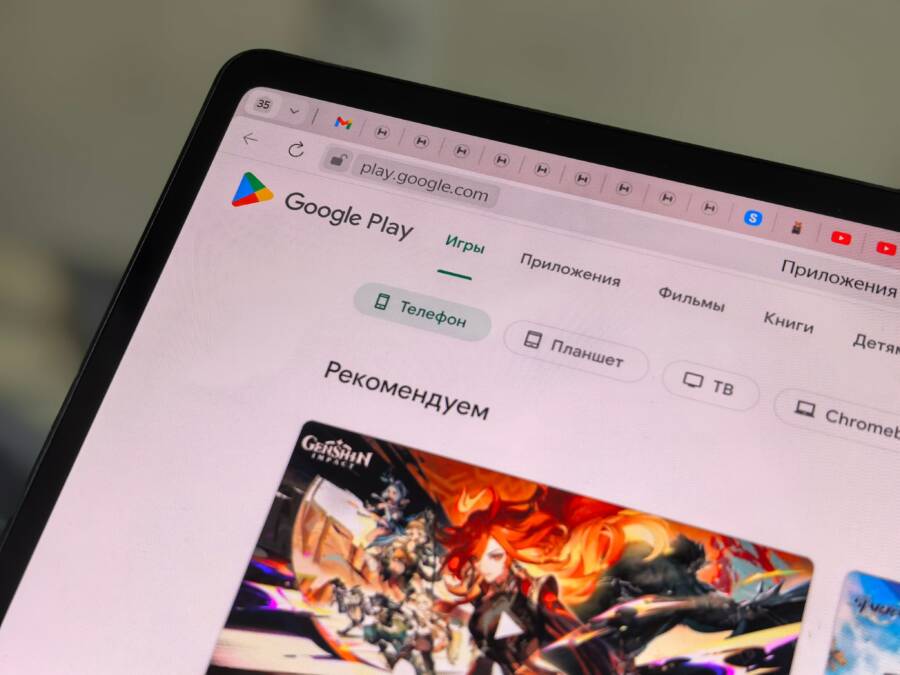
When your search bar stops returning results on a smartphone, you typically have a temporary cache glitch or a minor network error. Most users fix this issue by clearing app data or refreshing their connection settings. You don’t need expert technical help to restore your access to new apps.
These quick adjustments often resolve the problem in a few minutes. If your smartphone continues to show a blank screen or a loading error, follow the steps below to restore your search function.
Quick Fixes for iPhone App Store Search Issues
When the App Store search bar stops working on your smartphone, simple connection or account sync errors are often the cause. These problems prevent the store from communicating with Apple servers. You can usually resolve these bugs without resetting your entire device. A quick refresh of your network or account settings often forces the store to reconnect properly.
Refresh Your App Store Connection
Connection glitches frequently cause search queries to hang indefinitely. Toggling your network state helps clear these temporary obstructions. Start by enabling Airplane Mode for ten seconds and then turning it off. This action forces your smartphone to renegotiate its connection with local cellular or Wi-Fi towers.
If the search still fails, refreshing your Apple ID session often corrects background permission errors. Follow these steps to reset your account status:
Open the Settings app and tap your name at the top.
Scroll down to the bottom and select Sign Out.
Restart your smartphone to clear any residual data.
Go back to Settings and sign in with your Apple ID again.
Signing out removes the locally stored account token that might be corrupt. When you sign back in, the App Store creates a fresh connection. This process verifies your identity and refreshes the permissions required to search for and download new software.
Clear Out Corrupt App Store Cache
The App Store maintains a hidden cache of recent searches and interface elements to speed up navigation. Sometimes this data becomes corrupt and interferes with the search function. You can clear this hidden cache using a simple, undocumented gesture within the App Store app.
Perform the following steps to refresh the store interface:
Open the App Store on your smartphone.
Look at the bottom navigation bar where icons for Today, Games, Apps, and Search reside.
Tap on any one of these icons ten times in quick succession.
The screen might flicker or reload briefly after the tenth tap. This action clears the temporary memory the App Store uses to display content. It forces the application to re-fetch current data from Apple servers during your next search attempt. Most users find that this hidden trick resolves blank search results or unresponsive interface elements immediately. If the search bar remains empty after this refresh, restart your device one final time to finalize the cache clearing process.
Troubleshooting Google Play Store Search on Android
When the Google Play Store on your smartphone stops returning search results, it usually points to a temporary data conflict or a stalled background process. Most search issues occur because the stored local data in the app becomes out of sync with Google servers. You can typically restore full functionality by refreshing the app environment through your device settings.
How to Reset Play Store Data
Over time, your smartphone accumulates temporary files that help the store load faster. If these files contain errors, the search bar might fail to process your queries or display only a blank screen. Resetting the app data forces your device to clear this corrupt information and build a fresh index.
Follow these steps to reset the application:
Open your device Settings and select Apps or Application Manager.
Find Google Play Store in the list of installed programs.
Tap on Storage to view the cache and data details.
Select Clear Cache to remove temporary files.
Choose Clear Data to remove all saved preferences and reset the app completely.
After you clear this data, reopen the Play Store and wait a moment for it to re-initialize. The app will act as if it is launching for the first time, which repairs most glitches related to search functionality. You do not lose your installed applications or your Google account credentials during this process, so your data remains safe.
Managing Your Google Account Sync
Your smartphone relies on constant communication with Google servers to keep your app library and search history updated. If the account sync process hangs, the Play Store may fail to retrieve live data for new search terms. Forcing a manual sync update often clears these communication barriers and restores your ability to find apps.
Check your current sync status with these steps:
Go to your device Settings and tap Accounts or Passwords and Accounts.
Select your primary Google account from the list.
Tap Account Sync to see a list of services currently communicating with Google.
Toggle the sync switch off for Play Store or App Data if available, wait five seconds, and toggle it back on.
If the sync remains stuck, remove the account from your smartphone and add it back to force a total refresh. This action triggers a full handshake between your device and Google servers, ensuring that your account permissions are valid and that search requests reach the server without interruption. Frequent sync errors often indicate a weak internet connection, so verify that your Wi-Fi or mobile data is stable before starting the process.
Checking Your Network and Date Settings
Incorrect system time or unstable network connectivity prevents your smartphone from establishing a secure handshake with application store servers. When these settings do not match the expected server standards, the App Store or Google Play Store search function often fails to return results. Adjusting these parameters is a simple task that resolves many persistent connection errors.
Adjusting Your Date and Time
Application stores require precise time stamps to verify security certificates. If your smartphone time drifts by even a few minutes, the secure connection to the server drops. Most devices handle this automatically, but a manual error or a system bug can cause the clock to desync.
Open your device Settings app.
Select General or System settings depending on your model.
Tap Date & Time.
Toggle Set Automatically to the on position.
If it is already on, toggle it off, wait five seconds, and turn it back on.
Restarting the device after this change forces the operating system to re-sync with network time protocols. This step is particularly effective if you recently traveled across time zones or manually adjusted your clock.
Verifying Network Stability
Search queries fail when your signal is too weak to reach remote servers or when firewall restrictions block the connection. Switching between mobile data and Wi-Fi helps determine if a specific network path is the culprit.
If you use a Virtual Private Network (VPN), turn it off temporarily. VPNs often route traffic through distant servers, which triggers security flags in app stores and causes search results to disappear. You can check your network health with these quick tests:
Connectivity issues are the most frequent cause of “no results found” errors on a smartphone. Always confirm your signal bars show a stable connection before assuming the app itself is broken. If the search remains unresponsive after these checks, your device may need a more direct cache reset.
When to Update Your Phone Software
Updating your smartphone software is necessary when your device experiences persistent app store search errors or security vulnerabilities. Frequent system updates include patches that fix bugs within the application store framework. If you ignore these updates for too long, your device loses the ability to communicate securely with application servers.
Why System Updates Resolve Search Errors
Software updates contain updated security certificates and interface protocols. When your smartphone runs an older operating system, these protocols might conflict with newer server requirements. This mismatch often causes search bars to return empty results or connection errors.
Updating your device ensures the operating system understands the latest communication standards. Manufacturers also include minor performance improvements for system apps like the Play Store or App Store. These tweaks help background processes run more efficiently. Most search issues disappear once the software environment matches the expectations of the store servers.
Identifying When an Update is Available
Your device typically notifies you when a new version is ready for installation. If you missed a notification, check the settings menu manually to confirm your status.
Open the Settings app on your smartphone.
Select General or System update.
Tap Check for updates to see if a newer version is available.
Download and install any pending packages to refresh your system files.
If a major update is available, it might take several minutes to install. Always ensure your battery is above fifty percent before starting this process. A sudden power loss during an update can corrupt system files and cause further instability.
Balancing Performance and Stability
New updates occasionally introduce bugs that affect battery life or app performance. However, sticking with an outdated system version creates larger risks for your data and connectivity. If you notice search issues start immediately after a major update, check the manufacturer support page for known bugs.
You can often avoid these problems by waiting a few days before installing major version updates. This allows the manufacturer to release hotfixes for any initial errors found by other users. Security patches, by contrast, should always be installed as soon as they appear. These updates protect your smartphone from known vulnerabilities and maintain the integrity of your store connections.
Conclusion
Roughly 90 percent of search issues on your smartphone originate from a stuck cache or a minor network interruption. Clearing your temporary data or toggling your connection settings typically restores full access to the store in minutes. These simple steps eliminate the need for complex repairs or factory resets.
If your search bar remains unresponsive after these attempts, perform a full restart on your smartphone. This action flushes out remaining background processes that might be blocking the store from reaching external servers. You can now browse and download apps with full confidence.