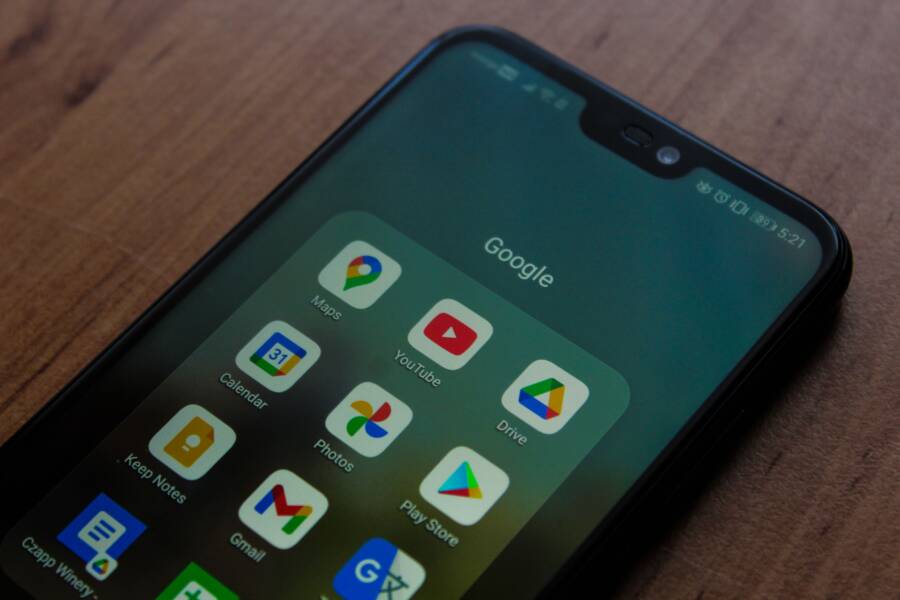
Your apps aren’t updating because of a simple settings conflict or a temporary network glitch. You can usually fix this by toggling your Wi-Fi or checking your store account permissions on your smartphone.
Why Automatic Updates Fail
Most update issues stem from battery saving modes or restricted data usage. When your smartphone enters power-save mode, it often pauses background tasks to preserve energy. Additionally, your device might be set to wait for a Wi-Fi connection to save your mobile data.
Steps to Enable Automatic Updates
You should first check the settings within your app store. On an iPhone, go to Settings and select App Store. Ensure App Updates is toggled on under Automatic Downloads. You may also want to check if the toggle for Automatic Downloads is active under the Cellular Data section if you prefer updates over mobile networks.
Android users can manage these settings directly in the Google Play Store. Tap your profile icon, select Settings, and then choose Network Preferences. Tap Auto-update apps to select whether you want updates over Wi-Fi only or any available network.
Comparing Update Methods
Manual updates provide more control, but automatic updates keep your software secure without extra effort.
Most users find that keeping automatic updates enabled is the best way to maintain security. You get the latest patches and features as soon as developers release them.
Troubleshooting Common Issues
Check your storage space if apps still refuse to update. A full device prevents new files from downloading, which stalls the process. Also, verify that your payment method is up to date, as an expired card can sometimes block even free app updates. Restarting your smartphone often clears stuck processes and refreshes your connection to the store servers.
Quick Fixes for iPhone Users
Small configuration errors often stop apps from updating on your smartphone. These problems rarely require technical expertise to solve. You can usually restore normal function by checking your system settings or adjusting basic permissions.
Checking Your App Store Settings
Your phone settings act as the primary control center for software updates. When the system lacks permission to download files in the background, your apps stay frozen in older versions. You should verify these permissions manually if you notice updates are failing to trigger.
Follow these steps to confirm your configuration is correct:
Open the Settings app on your iPhone.
Scroll down and tap on the App Store menu.
Locate the Automatic Downloads section near the top.
Toggle the switch for App Updates to the on position.
If you want your smartphone to update apps while away from home, check the Cellular Data section below that menu. Ensure the toggle for Automatic Downloads is also set to active. If this setting remains off, the phone waits for a Wi-Fi connection before it pulls any new data. Once you enable these switches, your device should resume background updates automatically.
Adjusting Content and Privacy Restrictions
Sometimes your smartphone settings prevent updates because of security or parental control features. Screen Time restrictions can block the App Store from making changes to your installed software. If these rules are active, the system ignores update requests to keep the device locked down.
You can verify if restrictions are limiting your updates by following this path:
Open Settings and select Screen Time.
Tap Content and Privacy Restrictions.
If this setting is on, look for iTunes and App Store Purchases.
Check if Installing Apps or Updating Apps is set to Don’t Allow.
Change these settings to Allow if you find them blocked. Sometimes, a previous user or a strict security profile keeps these limits in place after a factory reset or a migration. Once you adjust these permissions, test your App Store again to see if the update icon reacts immediately. Removing these blocks is often the final step needed to get your apps running the latest code.
Resolving Auto-Update Failures on Android
Automatic updates often stall because of misconfigured store preferences or software bottlenecks on your smartphone. When the Play Store fails to initiate downloads, the issue usually hides within your network settings or cached temporary files. You can resolve these interruptions by verifying your update configuration and performing a quick cleanup of the app data.
Enabling Auto-Updates in the Play Store
Your smartphone relies on specific permissions within the Google Play Store to manage background installations. If these settings are off, the system will not trigger updates until you manually select them. You should review these settings to confirm your device is ready to pull new data.
Follow these steps to configure your auto-update preferences:
Open the Google Play Store app on your smartphone.
Tap your circular profile icon in the top right corner.
Select Settings from the menu.
Tap the Network preferences section to expand it.
Select Auto-update apps.
Choose Over any network or Over Wi-Fi only based on your data plan.
Setting this to “Over any network” forces the phone to update even when you are using mobile data. If you prefer to save your monthly data allowance, keep the setting on “Over Wi-Fi only” to ensure the device waits for a stable connection. Once you save these changes, the store will periodically check for new versions of your apps in the background.
Managing Background Data and Cache
Sometimes your smartphone holds onto outdated information that prevents the update queue from moving. Temporary files in the cache can become corrupted or stuck, which causes the download icon to spin indefinitely. You can clear these blocks by resetting the Play Store app environment.
To clear your cache and storage data, use this sequence:
Open your phone Settings app.
Go to Apps or Application Manager.
Find Google Play Store in the list of installed programs.
Select Storage and cache.
Tap Clear cache first to remove temporary files.
If the problem persists, tap Clear storage or Clear data.
Clearing the storage effectively resets the app settings without deleting your installed games or tools. After you perform this action, the Play Store will rebuild its internal index, which often fixes hung download queues. You should also ensure that background data usage is allowed for the Play Store. Check your Data usage settings for the app to verify that “Background data” is toggled on. If this restriction is active, the smartphone stops the update process the moment you minimize the store app.
Common Network and Battery Barriers
Updates require consistent power and data flow to install correctly. When your smartphone encounters limitations in either category, the update process stalls or pauses entirely to prevent system instability. Understanding these barriers helps you resolve update failures quickly.
Does Low Power Mode Stop Updates?
Low Power Mode limits background activity to extend your remaining charge. When this setting is active, your smartphone restricts several non-essential processes, including automatic background app updates. The system prioritizes essential communication and core operations over large file downloads.
If your battery level falls below a certain percentage, your device may also disable background data access. You can check if Low Power Mode is causing the issue by looking at your battery indicator. A yellow icon usually confirms that this mode is active.
Connecting your smartphone to a charger often disables Low Power Mode automatically, which allows the update queue to resume. If you prefer to keep this mode on, you must manually trigger the update or temporarily disable power saving until the process finishes.
Troubleshooting Wi-Fi and Data Limits
Smartphones are programmed to favor Wi-Fi connections for large downloads. This behavior prevents unexpected charges on your mobile plan and ensures a stable connection for complete file transfers. If your settings restrict updates to Wi-Fi only, the download will wait indefinitely while you are on a cellular connection.
Network instability creates another common barrier. If your signal fluctuates or the connection drops during an update, the system pauses the download to avoid file corruption. You can check your network status by performing these steps:
Toggle your Airplane Mode on for ten seconds and turn it off again.
Verify that your Wi-Fi signal has at least two bars of strength.
Check your smartphone settings to confirm that mobile data is allowed for app stores if you are not near a wireless network.
Restart your router if other devices in your home are also experiencing slow download speeds.
Sometimes, the network you are using may have its own firewall or usage policies. Public Wi-Fi networks at coffee shops or libraries often block background downloads to maintain bandwidth for other users. If you suspect the network is the problem, try switching to a different access point or using your mobile data to see if the update initiates immediately.
When to Manually Update Your Apps
You should initiate manual updates when your smartphone behaves erratically or fails to adopt critical security patches. While automatic updates usually keep software current, specific conditions demand your direct intervention. Managing these downloads yourself helps you avoid data overages, prioritize urgent fixes, and troubleshoot persistent installation errors.
Handling Critical Security Patches
Developers often release urgent security updates to address newly discovered vulnerabilities. Automatic systems sometimes delay these installations to save battery life or wait for a preferred network. You should check for updates manually if you receive a notification about a specific security threat. Visiting the app store immediately ensures your sensitive data stays protected against known exploits.
Managing Data Usage and Costs
Large updates can consume significant amounts of mobile data, especially for complex games or productivity suites. If you have a limited data plan, you might prefer to disable automatic downloads entirely. Manual triggers allow you to choose exactly when your smartphone connects to the network. You can wait until you reach a stable Wi-Fi connection at home or work to avoid surprise charges on your monthly bill.
Troubleshooting Failed Downloads
Sometimes an app stays in a pending state because of a server-side glitch or a temporary conflict with your device cache. Automatic processes often stop trying after a few failed attempts to preserve system resources. A manual update forces the smartphone to reconnect to the app store servers and re-evaluate the request. Following these steps helps you clear the bottleneck:
Close the app store completely and reopen it.
Navigate to your list of pending updates.
Select the specific app that failed and tap the update button.
Monitor the status bar to confirm the download begins moving.
Avoiding Performance Regressions
New software releases occasionally contain bugs that impact device speed or stability. If you notice a sudden drain on battery life or frequent app crashes, you might want to delay updates for non-essential tools. Checking tech forums or app reviews helps you identify if a recent release is causing widespread problems. Manual control allows you to wait for a secondary patch before you risk installing a version that could disrupt your workflow on your smartphone.
Conclusion
Automatic updates keep your smartphone secure and functional without constant manual oversight. Most issues arise from simple power-saving restrictions or pending network permission settings. Checking these configurations often resolves the problem quickly.
Verify your store settings first if apps stop updating. Ensure your device has enough storage space and a stable network connection. If these steps do not trigger a response, clear the app cache or restart the phone to refresh the system.
Perform a manual check once a month if you prefer to monitor specific app changes. This habit helps you avoid unexpected data charges and ensures you manage your device storage effectively. Following these basic steps keeps your software current and reliable.