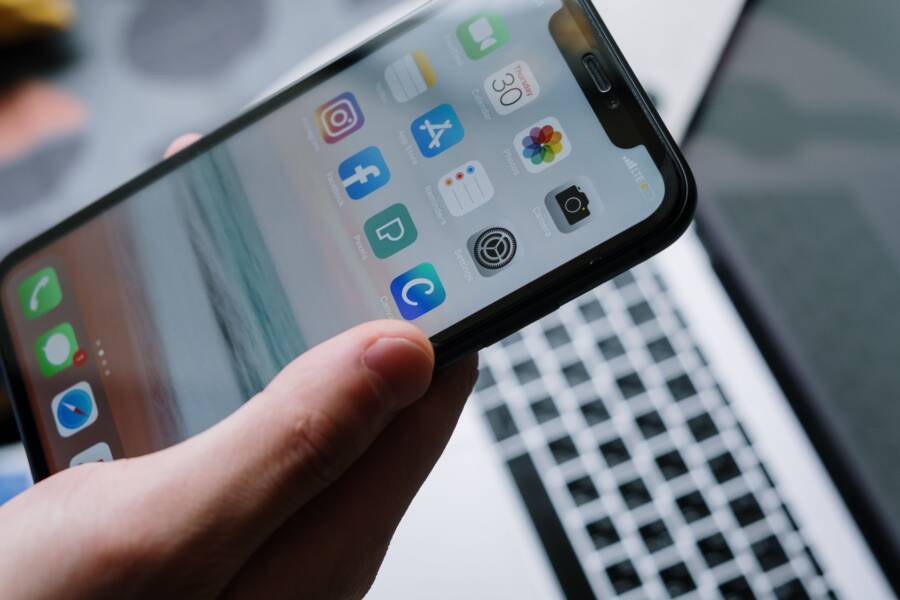
Screen sharing fails during video calls because of incorrect app permissions, restrictive network settings, or outdated software. You might find it frustrating when a vital presentation or demonstration stalls while others wait for your display to appear.
This problem often affects your smartphone regardless of the operating system. Whether you use an iPhone or an Android device, minor configuration errors usually cause these connection hang-ups.
This guide provides practical steps to troubleshoot and fix these interruptions. You can restore your ability to share your screen on any major video platform by following the steps below.
Quick Checks for Every Smartphone User
Before you assume your connection is broken or the app is faulty, perform a few basic health checks on your device. Most screen sharing issues happen because of misconfigured privacy settings or unstable network conditions. These simple adjustments often resolve the problem without needing complex software fixes.
Verify App Permissions and Privacy Settings
Modern operating systems place strict limits on how apps interact with your screen. Because screen sharing involves recording what you see, the system blocks this action by default for most applications. You must grant explicit permission for the app to access your screen before it can transmit video during a call.
On an iPhone, go to the Settings app, tap Screen Time, and check for any restrictions on content or privacy. Navigate to Settings, select Privacy and Security, and then choose Screen Recording to ensure your video app appears in the allowed list. If you do not see the app listed, the operating system prevents it from broadcasting your display to other participants.
On an Android device, open the Settings menu and select Apps. Find the specific video conferencing app in your list, tap Permissions, and look for settings related to Screen or Display capture. Some versions of Android also require you to check the Special App Access menu to ensure the app has permission to record or cast your screen overlay.
Operating systems categorize screen recording as a sensitive privacy risk. Developers design these security protocols to stop malicious software from silently spying on your activity. If you recently updated your phone, double-check these settings because system changes occasionally reset permissions to their default, restricted state.
Testing Your Network Connection and Data Usage
Screen sharing requires a high level of bandwidth to push real-time images to your audience. If your network speed dips below a specific threshold, the stream will freeze, stutter, or disconnect entirely. Many users encounter issues because their device struggles to maintain a consistent upload speed during a video call.
Start by running a quick speed test on your smartphone while connected to your current network. If the upload speed is low, your stream will fail to reach the other participants. Follow these steps to diagnose and improve your connection:
Toggle your Wi-Fi off and back on to force the device to refresh its connection to the router.
If you are using a public or crowded Wi-Fi network, switch to your cellular data to see if the performance improves.
Move closer to your wireless router to eliminate signal interference caused by walls or furniture.
Disable background apps that consume high bandwidth, such as cloud backup services or streaming platforms.
Restricted cellular data settings can also block the high-usage requirements of screen sharing. Check your phone settings to confirm that your video app has permission to use mobile data. Occasionally, data-saver modes limit background traffic and prevent screen sharing from activating properly. Choosing a stronger connection point or clearing your network congestion often restores your ability to share your display.
Fixing Screen Sharing Issues on iPhone
Sometimes your smartphone software settings act as a barrier to screen sharing. Even when you have a strong connection and all your permissions set, certain hidden configurations can block the broadcast. You should check these specific system controls to ensure your device remains capable of sharing content during calls.
Adjusting Screen Time and Content Restrictions
Apple includes a robust set of parental controls called Screen Time. These settings restrict access to specific features, including screen recording and broadcasting. If your smartphone has Screen Time enabled, it might block your ability to share your display during a video conference.
To verify if these restrictions are active, follow these steps:
Open the Settings app on your iPhone.
Select the Screen Time option.
Tap Content & Privacy Restrictions.
Look for the Content Restrictions menu and check if Screen Recording is set to allow.
If you find that screen recording is disabled, the system will prevent any app from capturing your activity. Change the setting to allow access so your video apps can function properly. Sometimes, organization-managed devices also apply these restrictions through a configuration profile. If you cannot change these settings, you might need to contact your IT department to lift the restriction.
Managing Focus Modes and Do Not Disturb
Focus modes on your smartphone change how your device handles alerts and system activities. When you enable Do Not Disturb or a custom Focus mode, the phone suppresses incoming notifications to help you stay concentrated. However, these modes can occasionally interfere with the background processes required for active screen sharing.
Some communication apps pause their screen transmission when they detect a conflict with system-wide Focus settings. This happens because the phone prioritizes the Do Not Disturb state over the active broadcast. You can troubleshoot this by testing your screen share while Focus mode is turned off.
If your screen sharing works when Focus is inactive, try these adjustments:
Swipe down from the top right corner to access the Control Center.
Tap the Focus icon to toggle off the active mode.
Allow specific apps to bypass Focus restrictions in the Settings menu under Focus.
Check if a scheduled Focus mode turns on automatically during your meeting time.
By creating a custom Focus profile for meetings, you can block distracting notifications while still allowing your video app the necessary system access. This balance helps you maintain a professional presentation without the common interruptions caused by restrictive system modes. Always verify these settings if your broadcast suddenly freezes or refuses to start during a live call.
Solving Android Screen Sharing Problems
Android devices provide immense flexibility, but this freedom often leads to performance conflicts during resource-heavy tasks like screen sharing. When your screen cast fails or lags, the issue usually stems from internal power management or restrictive permission layers. By adjusting these specific settings on your smartphone, you can clear the path for a stable broadcast.
Disabling Battery Optimization for Video Apps
Your Android smartphone monitors app behavior to extend battery life. If an application runs in the background or consumes significant power, the system may throttle or kill its processes to save energy. Screen sharing requires a steady, high-performance connection, so the system might mistakenly identify your video app as a battery drain and restrict its capabilities.
Changing these settings to exclude your video app from battery management often solves sudden connection drops. Follow these steps to grant your app unrestricted access:
Open the Settings app and select Apps.
Find your video conferencing application in the list.
Tap on Battery or Battery Usage.
Select the Unrestricted option.
Setting an app to Unrestricted ensures the system leaves it running even when you switch to other tasks. This change gives your app the priority it needs to maintain a consistent screen capture session without interference from power-saving protocols.
Checking Display Over Other Apps Permissions
The Display Over Other Apps permission is a gatekeeper for how your applications interact with the active user interface. For a screen-sharing tool to capture your screen, it must occupy a layer above your other open programs. Without this specific permission, the Android operating system blocks the app from recording your display, resulting in a black screen or a failed connection attempt.
You must manually verify this permission if your app shows a connection error but cannot capture the display content. Use these steps to confirm your settings:
Go to the Settings menu on your smartphone.
Tap on Apps and choose Special App Access.
Select Display Over Other Apps or Appear On Top.
Find your video conferencing app and toggle the switch to Allowed.
This permission allows the app to draw the necessary overlays for capturing and transmitting your screen content. If you frequently switch between your camera and screen sharing, this permission keeps the broadcast active during transitions. Keep in mind that some secure banking or private apps may still block recording for privacy, even with these permissions enabled.
Advanced Troubleshooting When Nothing Else Works
If you exhausted basic settings, permissions, and network checks without success, your smartphone might have deeper software conflicts. Sometimes the operating system cache or a corrupted installation prevents screen sharing from triggering. You can resolve these stubborn issues by clearing local data or performing a clean reset of the application.
Clearing Application Cache and System Data
Every video app stores temporary data to speed up performance. Over time, these cached files can become corrupted and cause the screen sharing feature to hang or crash instantly. You need to purge this temporary data to force the app to rebuild its connections correctly.
On an Android smartphone, navigate to the Settings menu and tap Apps. Select your video app, choose Storage, and then tap Clear Cache. If the problem persists, select Clear Data to reset the application to its original state. You will likely need to sign in again after this step, but it often removes hidden configuration bugs.
iPhone users lack a direct “Clear Cache” button for most third-party apps. To achieve the same result, delete the app entirely from your device and reinstall it from the App Store. This process clears all local configuration files that might block your screen broadcast. Always perform a full device restart after reinstalling to ensure the operating system recognizes the fresh installation.
Performing a Forced Device Restart
Minor system glitches often accumulate after your smartphone remains powered on for long periods. A standard power cycle clears the active memory and restarts background services that manage screen hardware. This simple action frequently resolves issues where the screen capture service fails to initialize.
For most modern iPhones, quickly press and release the volume up button, then the volume down button. Immediately press and hold the side power button until the Apple logo appears on your display. This action triggers a force restart, which is more effective than turning the device off and on through the software menu.
Android users can typically force a restart by holding the power button for 15 to 30 seconds. Some models require holding the power button and volume down button simultaneously. This hard reset forces the kernel to reload and terminates any hung processes that occupy the screen recording buffer. Once the phone boots back up, attempt your screen share immediately before launching other demanding applications.
Checking for Firmware and System Updates
Outdated system software often lacks the necessary security patches or driver support for modern screen sharing protocols. If your smartphone runs an older version of the operating system, it may fail to bridge the communication gap between the video app and the hardware display driver. Check the system settings for available updates to ensure your device is compatible with the latest app requirements.
Go to your General or System settings menu to view the current software version. If an update is waiting, install it and allow the phone to reboot. Manufacturers often push fixes for specific connectivity bugs within these updates. If you still encounter problems after updating, contact the support team for your video service, as they can identify if your specific device model requires a known software patch.
Conclusion
Most screen sharing failures on your smartphone stem from simple software conflicts or restrictive privacy settings. You can resolve these interruptions by verifying your app permissions, checking your network stability, and clearing corrupted cache files.
Keep your operating system and video apps updated to prevent these errors from recurring. These small adjustments keep your device ready for your next presentation or collaborative call.
Mobile screen sharing is a useful tool that connects people instantly across any distance. Once you master these basic troubleshooting steps, you will enjoy a more reliable experience on every video platform you use.