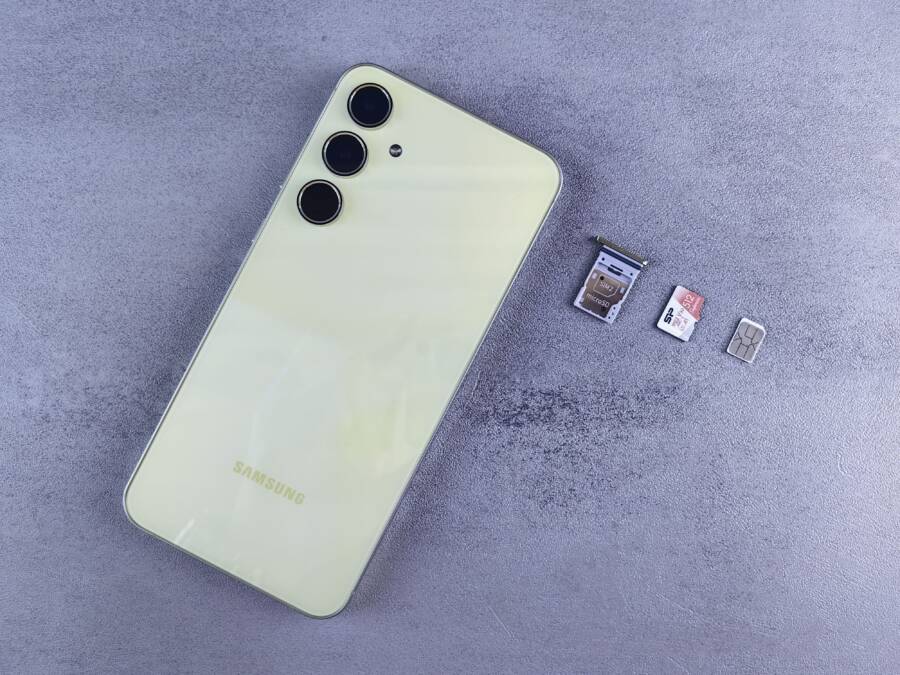
Your smartphone storage alert often persists because your device holds onto hidden system cache files, temporary app data, and unoptimized media folders. Deleting a few photos usually fails to clear the bottleneck because the underlying temporary junk remains untouched in the background.
Resolving this issue requires a systematic approach to flush out hidden clutter. You must target specific storage categories that typical cleanup attempts overlook.
Follow these practical steps to reclaim your space and stop the constant notification warnings for good.
Quick Ways to Verify Your Real Storage Space
Modern smartphones often display storage warnings before you actually run out of room. This happens because the operating system reserves a buffer to perform background tasks and updates. You must look past the basic alerts to see what consumes your capacity. Verifying your storage data ensures you remove the right files instead of guessing.
Checking iPhone Storage Categories
Your iPhone provides a clear visual breakdown of your storage status. Open the Settings app, tap General, and then select iPhone Storage. You see a color-coded bar at the top of the screen that acts as your primary diagnostic tool.
The segments represent different data types such as Photos, Apps, and Media. Hovering over or tapping these sections displays the exact amount of space each takes up. You can scroll down to find a list of your installed apps ranked by size. This list helps you identify which apps hoard the most data, including documents and temporary files stored within them.
The System Data category often confuses users. This section contains logs, caches, and temporary files that the system needs to function. It fluctuates in size based on your recent activity, such as streaming media or browsing the web. If System Data consumes a massive portion of your device, try restarting your phone. A fresh boot often triggers the system to clear unnecessary cache files automatically.
Finding Large Files on Android Devices
Android devices offer flexible tools to audit your internal memory. The native Files by Google app provides the most efficient way to scan your directories. Open the app and tap the Clean tab to see suggestions for freeing up space immediately.
This app identifies large junk files that remain hidden in folders you rarely open. It flags duplicate media files, blurry photos, and unused apps to help you regain space. You can review these items before deciding to delete them. This process prevents you from accidentally removing important data.
Use these steps to manage your space effectively:
Open Files by Google and select the Clean tab.
Review the large files or duplicate media identified by the app.
Select the items you want to remove and tap the Delete button.
This method targets the most common storage offenders without requiring technical knowledge. Checking these specific folders regularly keeps your smartphone running smoothly. Focusing on these high-impact files saves more room than deleting individual messages or small icons.
Proven Methods to Fix the Persistent Storage Alert
Ignoring a full storage alert on your smartphone often causes system slowdowns and prevents app updates. You need to target specific junk data that accumulates over time. These methods remove hidden clutter without deleting your personal files or important settings.
Clearing App Cache and Temporary Data
Apps store temporary files to load content faster when you reopen them. Over time, these cache files grow large and trigger storage warnings. On Android, you have direct control over these files. Open your settings, tap on the storage menu, and select a specific app. You will see buttons to clear cache or clear data. Clearing cache only removes temporary files, while clearing data resets the app to its original state.
iPhone users have fewer manual options for individual app caches. Apple manages most background data automatically to maintain stability. If an app consumes too much space, your only option is usually to delete and reinstall it. This forces the app to clear out its accumulated junk files. Check the app storage list in your iPhone settings to identify which programs occupy the most room, as these are the primary candidates for a fresh install.
Managing Photos and Video Backups
Media files usually occupy the largest portion of your smartphone storage. You can keep your photos accessible without storing full-resolution files on your device. Cloud services like iCloud or Google Photos offer a simple solution to this problem. These tools upload your images to a secure server and remove the heavy local copies from your handset.
Once you enable automatic backups, you can use the storage optimization feature in your settings. This setting keeps small, thumbnail versions of your photos on the phone for quick viewing. When you need to edit or share a high-quality photo, the original file downloads from the cloud instantly. This approach saves several gigabytes of space while ensuring you never lose your memories.
Offloading Apps You Rarely Use
Offloading is a smart way to reclaim space without losing your personal data. This feature removes the heavy code files of an app while keeping your documents and settings intact. When you need the app again, you simply tap its icon to download the necessary files from the store.
iPhone users: Go to settings, choose general, and select iPhone storage. Tap an app and choose the offload option to save space immediately.
Android users: While Android does not have a direct offload feature with the exact same name, you can achieve a similar result by using the archive feature in the Play Store.
Offloading is perfect for apps you use during travel or occasional tasks. You keep your configurations, login status, and data, but the app no longer occupies large amounts of internal memory. This strategy allows you to keep a cleaner device without the hassle of reconfiguring your favorite tools every time you return to them.
When the Alert Stays Even After Cleaning
Persistent storage warnings on your smartphone often result from cached data that the operating system fails to purge automatically. If your device continues to report that storage is full despite your recent cleanup efforts, temporary files or system glitches are likely the cause. These ghost alerts occur when the file index is out of sync with the actual available space. Addressing these technical hurdles requires you to go beyond basic file deletion.
Performing a Forced Restart
A forced restart is often the fastest way to clear out minor system errors that trigger false storage alerts. When you use your smartphone for long periods without powering it off, background processes accumulate temporary files. These files sometimes persist in the system memory even after you delete the documents they belong to. A clean reboot forces the software to re-index your storage capacity and discard these non-essential temporary caches.
If your device is an iPhone, press and quickly release the volume up button, then do the same for the volume down button. Finally, hold the side button until the Apple logo appears on your display. For most Android devices, you can hold the power button for about ten seconds until the unit turns off and restarts. This process does not remove any of your personal data or installed apps. Instead, it refreshes the operating system and helps it report accurate storage levels to the user interface.
Checking for Pending System Software Updates
Outdated operating systems sometimes struggle to calculate available storage correctly. Developers frequently release software updates that patch bugs related to memory management and file indexing. If your phone runs an older version of its OS, it might still see occupied space in folders that you have already emptied. Updating your software ensures that the system accurately tracks how much room you actually have.
Check for available updates by visiting your device settings. On an iPhone, navigate to General and select Software Update. Android users should head to Settings, find the System or About Phone menu, and tap on Software Update. If a new version is available, download and install it. This procedure often fixes the miscalculations causing the persistent alert. Regular updates also improve the efficiency of background processes, which prevents similar storage notification issues from appearing in the future.
Common Questions About Smartphone Storage
Many users struggle with constant notifications about limited capacity on their mobile devices. These prompts often appear even after someone deletes several files. Understanding how your smartphone manages data helps you avoid frustration and unnecessary manual cleanups.
Why does my phone say storage is full when I have space?
Operating systems require a buffer zone to function properly. If your internal memory drops below a certain threshold, the device cannot perform updates, record video, or download patches. The alert appears to protect the system from crashing during essential operations.
In addition, your phone calculates usage based on total capacity, including space reserved for core software. You might see a full alert because the OS needs room for temporary swap files during active use. Clearing large media files or unused apps usually restores this balance quickly.
Does deleting messages actually free up space?
Removing individual text messages rarely yields significant results for your total storage capacity. While a long conversation with many high-resolution photos takes up room, the actual text data is minimal. You gain more space by focusing on video content, large game applications, or cached media.
If you want to manage messages effectively, adjust the settings to auto-delete old content. Most phones offer an option to remove messages older than 30 days or one year. This setting prevents clutter from building up in the background without requiring manual intervention.
Can cloud storage replace my phone internal memory?
Cloud services provide an excellent way to offload high-resolution photos and videos. You move your files to a server, which allows you to keep smaller, optimized versions on your device. This keeps your gallery accessible without filling up your physical handset memory.
However, cloud storage does not house your applications or operating system files. You still need internal space for your software and local data. The table below compares the two approaches to managing your digital footprint.
Using both methods balances your need for speed and your desire for vast storage capacity. You keep your most frequent apps on the device while sending bulk media to the cloud.
Do cache files cause storage errors?
Cache files exist to help your apps load faster by storing repeated data locally. Sometimes these files become corrupted or grow too large, causing the system to misreport your available capacity. If you suspect an app is the culprit, check the storage breakdown in your settings menu to see exactly how much room that specific application occupies.
If you find an app using several gigabytes, try clearing the cache or reinstalling the software. This process deletes the temporary data while keeping your primary information intact. This simple step often resolves persistent alerts and makes your smartphone run much faster.
Conclusion
Persistent storage alerts often stem from ghost files or temporary system cache data that accumulate over time on your smartphone. You can resolve these warnings by targeting hidden junk files and leveraging cloud backup services to manage your high-resolution media. A simple restart or a software update frequently fixes the miscalculations causing these alerts to reappear.
Make storage management a routine part of your device care. Check your storage settings monthly to identify and remove unused apps or large temporary files before they trigger another notification. Proactive maintenance keeps your device running efficiently while ensuring you always have room for new content.